


The xCloud Security Center shows your whole team what needs attention across WordPress and other sites and servers: vulnerable plugins, old PHP and Node.js versions, waiting server patches and needed reboots, on one page. Since v2.9.8.3, one vulnerable plugin on 40 sites is one line, with one button that opens the page where you deal with it.
It replaces the old Vulnerable Sites page, and old links now open the Security Center. If you are still working out what to turn on first, the website vulnerability checker guide explains how the scanning side works.
This post covers what each page shows, what changed on Security Update, and what the Security Center does not do yet.
Who it’s for: teams on a paid plan, especially agencies with many sites.
TL;DR
- Where it is: Settings → Security Center, with three pages: Overview, Sites and Servers.
- What it gives you: a What needs you list in plain sentences, the most urgent first, with one button on each line.
- What it runs: nothing on your servers when you open it. Only Check now starts a check. The one exception: you can buy Site Security Pro from the Sites page.
- What counts as secure: a site that has not been checked never does.
- Also new: Security Update now lists every major service on the server and adds Node.js patch updates.
- Not covered yet: Docker apps show Not tracked yet. It does not remove malware or block attacks.
Why it was hard to see what needed you
The Security Center shows one thing the old page could not: everything waiting on you across your sites and servers, one line per problem, with nothing running until you choose. It only reads what xCloud already knows.
Before, that information sat in separate places. Vulnerable Sites answered part of the question, PHP versions lived on each site, and patches and reboots lived on each server.
With many sites, you had to work out two things yourself: which site or server needed you, and where to go to fix it. That work is now done for you, but the decision stays yours.
The Overview: what needs you, in plain sentences
Four cards at the top of Overview give you your position at a glance.
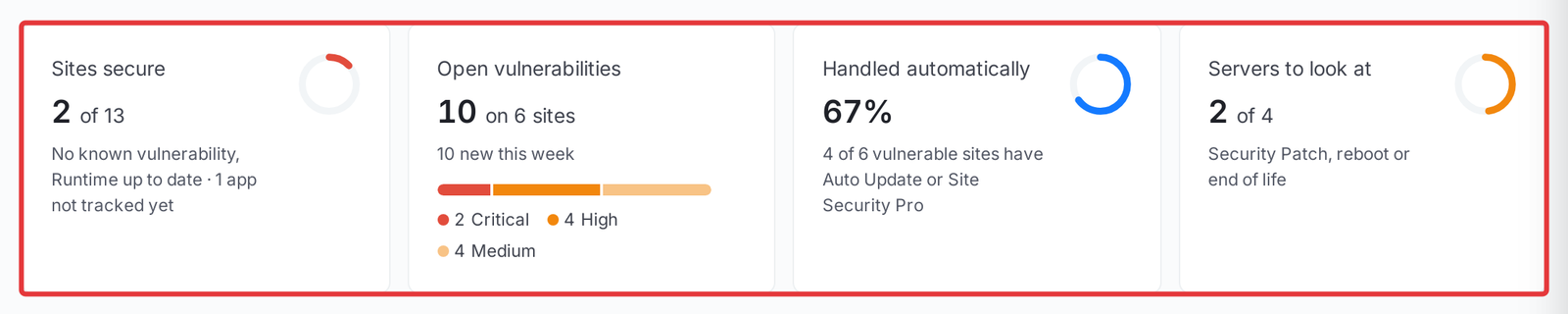
- Sites secure: no known vulnerability, an up-to-date PHP or Node.js version and, for WordPress, a recent check.
- Open vulnerabilities: how many are open, on how many sites, and how many are new this week.
- Handled automatically: the share of vulnerable sites with Auto Update or Site Security Pro.
- Servers to look at: a Security Patch waiting, a reboot needed or an end-of-life version.
Below the cards, What needs you lists the work. When there is none, it says Nothing needs you right now.
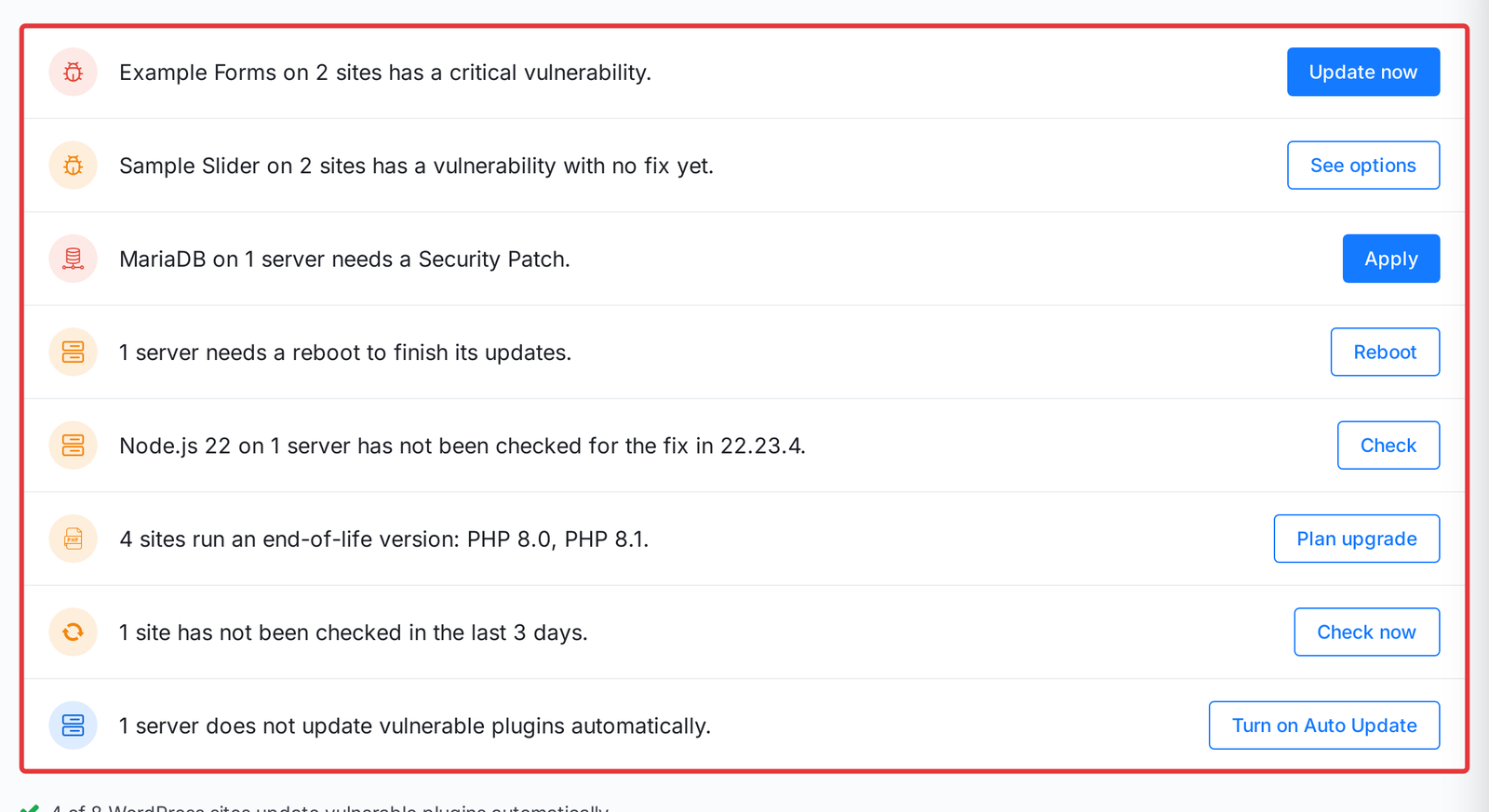
| The line says | The button | What happens |
|---|---|---|
| A plugin has a critical vulnerability | Update now | Opens the Updates Manager, filtered to that plugin |
| A plugin has no fix yet | See options | Opens that plugin on Sites |
| A server needs a Security Patch | Apply | Lists the servers waiting for one |
| A server needs a reboot | Reboot | Lists those servers |
| Sites run an end-of-life version | Plan upgrade | Lists those sites with their fix buttons |
| Sites have not been checked in the last 3 days | Check now | Starts a vulnerability check of your sites |
Read the buttons closely. Apply and Reboot do not apply or reboot anything from this page. They take you to the servers involved, and you decide there.
Sites: every site type, its vulnerabilities and its PHP or Node.js status
Sites has two views. By plugin shows each vulnerable plugin, theme or WordPress core once, with its severity, how many sites run it, and one of three statuses: Update available, No fix yet or Handled automatically.
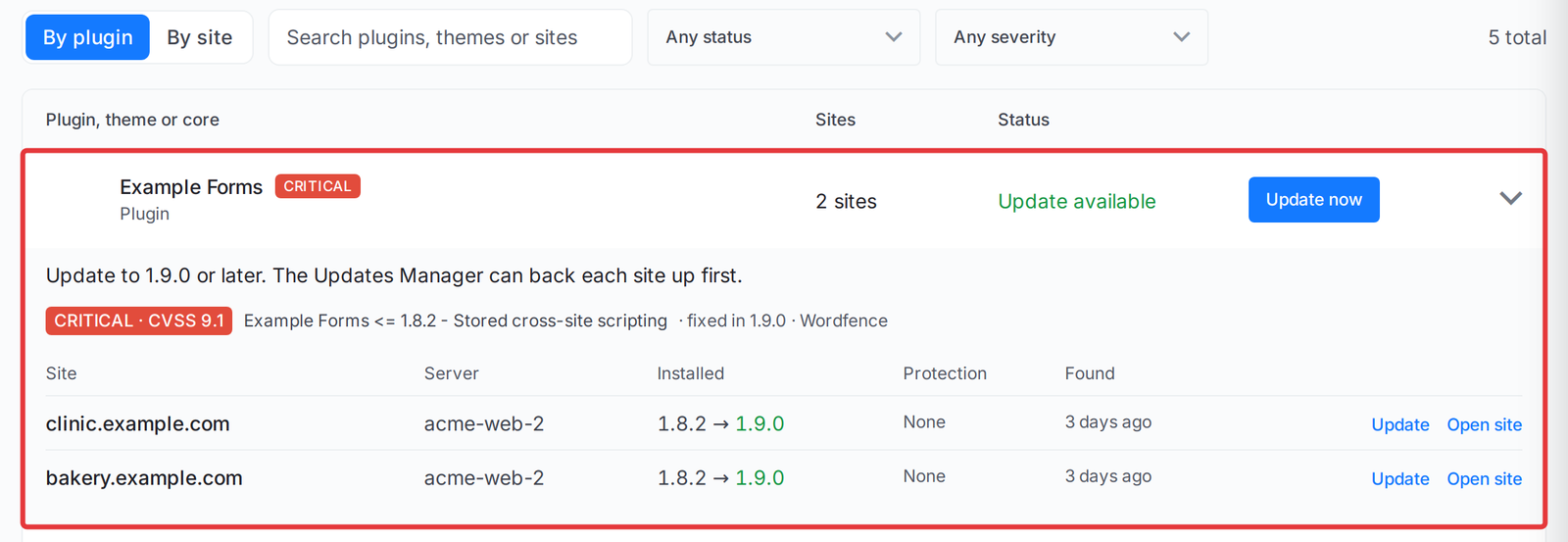
A red Being exploited label means attackers are using that vulnerability. Start there.
By site lists every site, WordPress or not. Each row shows its Vulnerabilities, Runtime, Protection and Last checked. Runtime is the PHP or Node.js version, marked Security update available, End of life or Up to date.
The end-of-life label matters more than it looks. PHP’s own supported versions page warns that people on an end-of-life branch “may be exposed to unpatched security vulnerabilities”, and as of November 2026 it lists PHP 8.2 security support ending on 31 December 2026. The PHP security guide covers how to move safely.
Update PHP opens the site’s PHP Configurations. Nothing changes until you click Save Settings.
Servers: one status per server
Servers gives each server one status: Security Patch waiting, Node.js security update, Node.js not checked, Reboot needed, End of life or Up to date. +N more means it has other items too.
Protection counts what is on, such as 2 of 4 on. The four are Auto Update, Auto Backup, PHP, database and Redis updates and Automatic reboot. PHP, database and Redis updates shows whether Managed Service Updates is on for that server.
What you see follows your team role:
| Team role | Overview and Sites | Servers |
|---|---|---|
| Team Admin | The sites their access covers | Shown if they can manage server security (Security Update or Vulnerability Settings) |
| Server Admin | The sites their access covers | Shown if they can manage server security (Security Update or Vulnerability Settings) |
| Site Admin | The sites their access covers | Not shown |
The Security Center itself opens only for members allowed to run vulnerability scans, and Servers only appears for members who can manage server security.
👉 The full walkthrough is in Find and fix security issues with the Security Center.
Security Update now shows every major service, and covers Node.js
Open a server, then click Security → Security Update. Components on this server now lists what is installed and how each one gets its updates, so you no longer have to guess what is left out.
| Service | How it gets updates |
|---|---|
| Ubuntu system packages | Ubuntu security updates, always on |
| PHP (Nginx or OpenLiteSpeed servers) | Managed Service Updates, when you turn it on |
| MySQL 8.4, MariaDB 11.8, Redis | Managed Service Updates, when you turn it on |
| MySQL 8.0, MariaDB 10.x | Ubuntu security updates |
| Node.js | Managed Service Updates, if your installed major version is covered |
| nginx from Ubuntu | Ubuntu security updates |
| nginx from nginx.org, OpenLiteSpeed | Not updated automatically |
| Docker | Not included, because a Docker upgrade restarts every container |
Managed Service Updates is opt-in and off by default. One exception to the table: a MariaDB 10.x server moved to the MariaDB repository by the MariaDB Security Patch is not updated automatically, and its row says so.
Node.js is the new one. When its patch updates install, only the apps still running the old Node.js are reloaded.
Coverage depends on the major version you have installed, so check the Node.js row on your own server instead of assuming. As of November 2026, Node.js itself says production apps should only use LTS releases. For how updates reach a server and how to check one package, read How Automated Security Updates and Auto Reboot Work.
What it does not do yet
The Security Center is a clear view, not a new security layer. Here is where it stops.
- It runs nothing new on your servers. It opens the page that fixes each item, and does not fix it in place. The one exception: you can buy Site Security Pro from the Sites page.
- It does not remove malware or block attacks. If a site is already compromised, follow the security incident checklist.
- Docker apps are Not tracked yet. xCloud has no security data for them, so they get no status.
- WordPress results need the scan. A site outside the server’s Vulnerability Scan shows Scan off.
- Docker and OpenLiteSpeed are not updated automatically, even with Managed Service Updates on.
- It needs a paid plan. Free plan accounts are sent to the billing page.
- There is nothing to undo. Opening it changes nothing. Apart from buying Site Security Pro, each change is made and reversed on the page the button opens.
For developers: use it from the Public API or your AI agent
The same read-only overview is available outside the dashboard.
GET /api/v1/security/overviewreturns what needs you, vulnerabilities grouped by plugin, theme or core, and each site’s status. It needs a token with theread:sitesscope, held by a member allowed to run vulnerability scans.- Servers are included only for a token with the
read:serversscope, held by a Team Admin or Server Admin with a server security permission. - The xCloud MCP server offers the same overview as the
security.overviewtool. See How to Connect xCloud MCP to an AI Agent.
Other fixes in v2.9.8.3
- Table prefix limit. A new WordPress site’s database table prefix is now limited to 20 characters, including the ending underscore. As of November 2026, the MySQL manual limits a table name to 64 characters, and longer prefixes broke WooCommerce.
- Old failed certificates. A certificate that failed and expired more than 30 days ago is now marked renewal required once, instead of being retried every 15 days. You can still renew it by hand.
The full list is in the v2.9.8.3 changelog.
Check What Needs You Before Your Next Plugin Alert
Open Settings → Security Center and work down What needs you, top line first. Then open Servers and look for any Protection count that is lower than you expected.
If a site says Scan off or Never checked, sort that next, because an unchecked site tells you nothing. The WordPress security checklist shows what to turn on first, and Site Security Pro is there for plugins with no fix yet.
On the free plan? See what each paid plan includes to get the Security Center.
If you have found this blog helpful, feel free to subscribe to our blogs for valuable tutorials, guides, knowledge, and tips on web hosting and server management. You can also join our Facebook community to share insights and engage in discussions.
Frequently Asked Questions
Does the Security Center scan my sites or change my servers?
Opening it does not. It shows what xCloud has already stored. Only Check now starts something, a vulnerability check of your sites. Every other button opens the page where you decide what to do. The one exception: you can buy Site Security Pro from the Sites page.
Does the Security Center remove malware or block attacks?
No. It shows known problems and takes you to the page that fixes them. It is not a malware cleaner or a firewall. Site Security Pro is the paid addon for protecting WordPress sites, and that is a separate product.
Is the Security Center on the free plan?
No, it needs a paid plan. On the free plan, opening it takes you to your billing page with a message asking you to upgrade.
Why does a WordPress site say Never checked or Scan off?
Scan off means the server’s Vulnerability Scan is off or does not cover that site. Never checked means the scan covers the site, but no check has finished yet. Neither one is counted as secure.
Why does a Docker app say Not tracked yet?
xCloud has no security data for Docker apps yet. They are listed without a status, so they are not counted as secure.
Will Managed Service Updates move my server to a new major version?
No. It installs patch updates only, and each service stays on the version line it already runs. It is off by default, so you turn it on for each server on its Security Update page.