

Apply the MariaDB Security Patch (AL-2026-144) in xCloud
Updated October 29, 2026 · 7 min read
xCloud patches MariaDB on existing servers for advisory AL-2026-144. Each affected server shows a ‘Security Patches’ card on its ‘Security Update’ page with a Patch Date. On that date xCloud installs the fixed MariaDB release automatically in the server’s update window, or you can click ‘Update now’ to patch it right away. MariaDB restarts once, for a few seconds.
This guide explains which servers are affected, what each status means, how to apply the patch yourself, and what to do if it stops.
Which servers get the patch
The patch applies to connected servers that run MariaDB as their database. MySQL servers are not affected and show no card. The update keeps your server on the same MariaDB branch and installs the fixed point release for it:
| Installed branch | Fixed release |
|---|---|
| MariaDB 10.6 | 10.6.28 |
| MariaDB 10.11 | 10.11.19 |
| MariaDB 11.4 | 11.4.13 |
| MariaDB 11.8 | 11.8.9 |
| MariaDB 12.3 | 12.3.3 |
| MariaDB 13.0 | 13.0.2 |
MariaDB 10.6 is end of life. The card reminds you to plan a move to MariaDB 11.8. Servers created after the fix install a patched MariaDB during provisioning.
What changes on your server
Besides the package update, the patch applies database security settings (hardening). Read these before you patch, because they can affect an application that relies on them:
- File import and export are restricted.
SELECT ... INTO OUTFILEandLOAD DATAwithoutLOCALcan only use files inside/var/lib/mysql-files.LOAD DATA LOCALis not affected by this setting. - The CONNECT storage engine is disabled. If any of your tables use the CONNECT engine, the update stops before it changes anything and asks you to contact support.
- MariaDB restarts once. Requests made in those few seconds may fail and can be retried.
- Your databases are not backed up. The safety backup contains the MariaDB configuration and the mysql system schema only. There is no package rollback. If MariaDB cannot start, recovery restores the previous security settings and tries one restart.
If you want a copy of your data first, take a database backup before you click ‘Update now’. See backups in xCloud.
Security Patches card statuses
| Status | What it means | What you can do |
|---|---|---|
| Affected | The server runs a MariaDB release that needs the fix. | Click ‘Update now’, or wait for the Patch Date. |
| Scheduled | A Patch Date is set. The card shows it under ‘Patch Date’. | Wait, or click ‘Update now’ to patch earlier. |
| Running | The update is in progress. Checks, backup, upgrade, hardening and verification run in order. | Wait. Do not reboot the server. The page refreshes on its own. |
| Patched | The fixed release is installed and the security settings are verified. | Nothing. The card shows ‘Patched on’ with the date. |
| Failed | A check stopped the update. The card shows the reason and ‘What to do next’. | Follow the next step, then ‘Retry update’ when it appears. |
| Unpatchable | The server runs Ubuntu 20.04, where the fixed packages are not available. | Click ‘Apply hardening’, then move the server to a supported Ubuntu release. |
| Unknown | xCloud could not read the MariaDB status, for example because the server is offline. | Bring the server back online. xCloud checks again automatically. |
Other server pages show a matching banner, such as “MariaDB security patch scheduled.”, with a link to the ‘Security Update’ page.
When the patch runs automatically
xCloud gives your team 72 hours of notice before it patches anything. Your team is notified with the list of affected servers and the time each one is scheduled, and the card shows the Patch Date in the server’s time zone.
On the Patch Date, xCloud starts the update inside the hour that begins at the server’s Security Update time (the update time on the same page). It never starts outside that hour. The rollout is staged, so a server can run in a later window. You can change the update time on the ‘Security Update’ page; see Keep your server up to date with automated security updates.
Step 1: Open the server’s Security Update page
Go to ‘Servers’ and open your MariaDB server. A banner at the top reads “MariaDB security patch scheduled.” or “MariaDB needs a security update.” Click ‘Review in Security Update’, or open ‘Security’ → ‘Security Update’ in the server menu.

Step 2: Click Update now
The ‘Security Patches’ card shows the status, the ‘Component’, the ‘Installed version’ and the ‘Patch Date’. To patch now instead of waiting, click ‘Update now’.
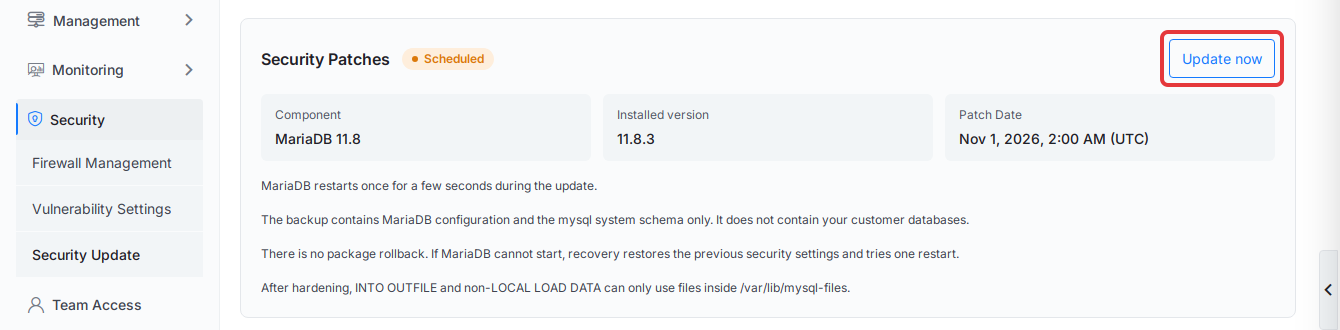
If you don’t see the button, the card explains why. Members without the Security Update permission see “Ask a team member with the Security Update permission to update this server.” A server that is not connected, or that xCloud has not checked in the last 24 hours, cannot be updated until it is checked again.
Step 3: Confirm the update
A dialog asks “Update MariaDB on docs-demo?” (with your server’s name) and lists what happens during the update. Click ‘Update now’ in the dialog to queue it, or close the dialog with its close button to cancel.
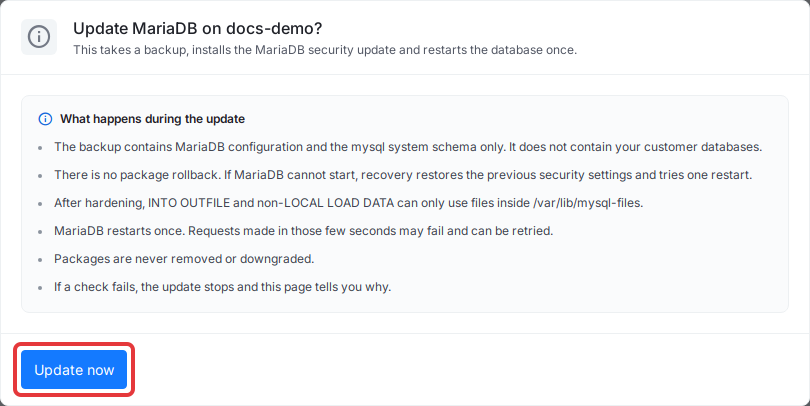
The status changes to Running and the banner reads “Updating MariaDB…”. You can leave the page. When the update finishes, the status reads Patched and the banner reads “MariaDB is patched.” with the installed version.
If the update stops
When a check fails, the status reads Failed, the card names the reason (for example “Stopped: less than 1 GB of free disk space.”) and tells you whether your databases were changed. ‘What to do next’ gives the step for that reason.
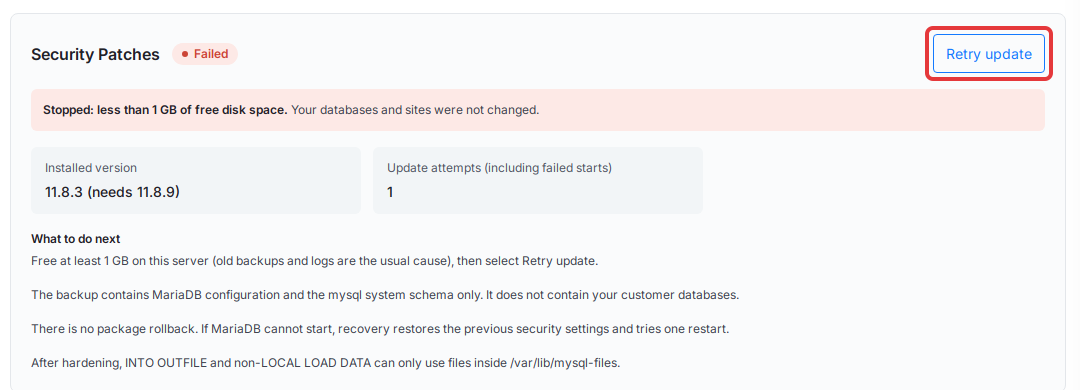
- You can fix it yourself (low disk space, MariaDB not running, server offline): fix the cause, then click ‘Retry update’.
- It clears on its own (another software update running, a failed package download, a scheduled reboot): xCloud tries again automatically in a later window.
- Anything else: contact support with the server name and do not retry until they reply.
When the update stopped for a reason xCloud retries on its own, or after it safely reverted a package change, ‘Retry update’ appears two hours after the failed run. Until then the card reads “You can retry after” with the time, followed by “Refresh this page then.” A server gets up to three update runs. After that, or after a failure that recorded a database incident, support has to review the server before it can run again.
Ubuntu 20.04 servers
On Ubuntu 20.04 the status reads Unpatchable and the banner reads “MariaDB cannot be fully patched on this server.” Click ‘Apply hardening’ to apply the database security settings without the package update. The card then shows ‘Hardening’ as Applied. To get the fixed MariaDB release, move your sites to a server on a supported Ubuntu release; see How to migrate all sites between two xCloud servers.
Apply the patch with the Public API or MCP
You can read the patch status and queue the update from the xCloud Public API:
GET /servers/{uuid}/security-patcheslists each server’s advisory status, installed and target versions and Patch Date. It needs theread:serversscope.POST /servers/{uuid}/security-patches/mariadb-2026-al144/applyqueues the same update as ‘Update now’. It needswrite:serversand the Security Update permission on the server.
The response confirms that the update is queued, not that it finished. Poll the list endpoint to see the result. The same operation is available to AI agents through the xCloud MCP server, which asks you to confirm the server and the database restart first.
Frequently asked questions
Does xCloud back up my databases before the update?
No. The safety backup contains the MariaDB configuration and the mysql system schema only. It does not contain your customer databases, and there is no package rollback. Take your own database backup first if you want one.
Will my sites go offline during the update?
MariaDB restarts once for a few seconds. Requests made in those few seconds may fail and can be retried. The rest of the server keeps running.
Will the update move my server to a newer MariaDB version?
No. The update stays on the MariaDB branch your server already runs, for example 10.11 to 10.11.19. Packages are never removed or downgraded.
Why does my Ubuntu 20.04 server show Unpatchable?
The fixed MariaDB packages are not available for Ubuntu 20.04, so xCloud can only apply the database security settings there. Select ‘Apply hardening’, then plan a move to a supported Ubuntu release.
Related guides
- How automated security updates and auto reboot work in xCloud
- Keep your server up to date with automated security updates
- OpenLiteSpeed servers: apply the PHP worker security patch in xCloud
If you run into any issues while applying the patch, feel free to reach out to our support team.