

How to Use Skip Delete and Multiple Backup Schedules in xCloud
Updated November 4, 2026 · 6 min read
Skip Delete excludes a backup from auto delete, the daily cleanup that Backup Retention runs. Backup Schedules lets one backup destination take full backups at more than one frequency, such as daily and weekly. Both were added in xCloud v2.9.9 and are available to every team. See the v2.9.9 changelog.
| Feature | Where to find it | Applies to |
|---|---|---|
| Skip Delete | Site Backup → Previous Backups | Completed full and incremental backups, local and remote |
| Backup Schedules | Site Backup → Backup Settings | Full backups only |
Prerequisites
- A site with a backup destination. See Site backups in xCloud.
- A paid plan. Backup settings can’t be saved on the free plan.
- A team role that can change the site’s settings.
- For the API or MCP, a token with the scopes listed below.
Keep a backup from auto delete
A kept backup stays in the Previous Backups list, on the server and in your storage bucket until you choose Allow Delete. It covers the whole backup: the files archive and the database dump. A failed backup can’t be kept, and Docker app backups follow their own retention.
- Open the site in xCloud and go to Site Backup → Previous Backups.
- Open the menu at the end of the backup’s row and choose Skip Delete. To keep several backups, tick them and click Skip Delete (n).
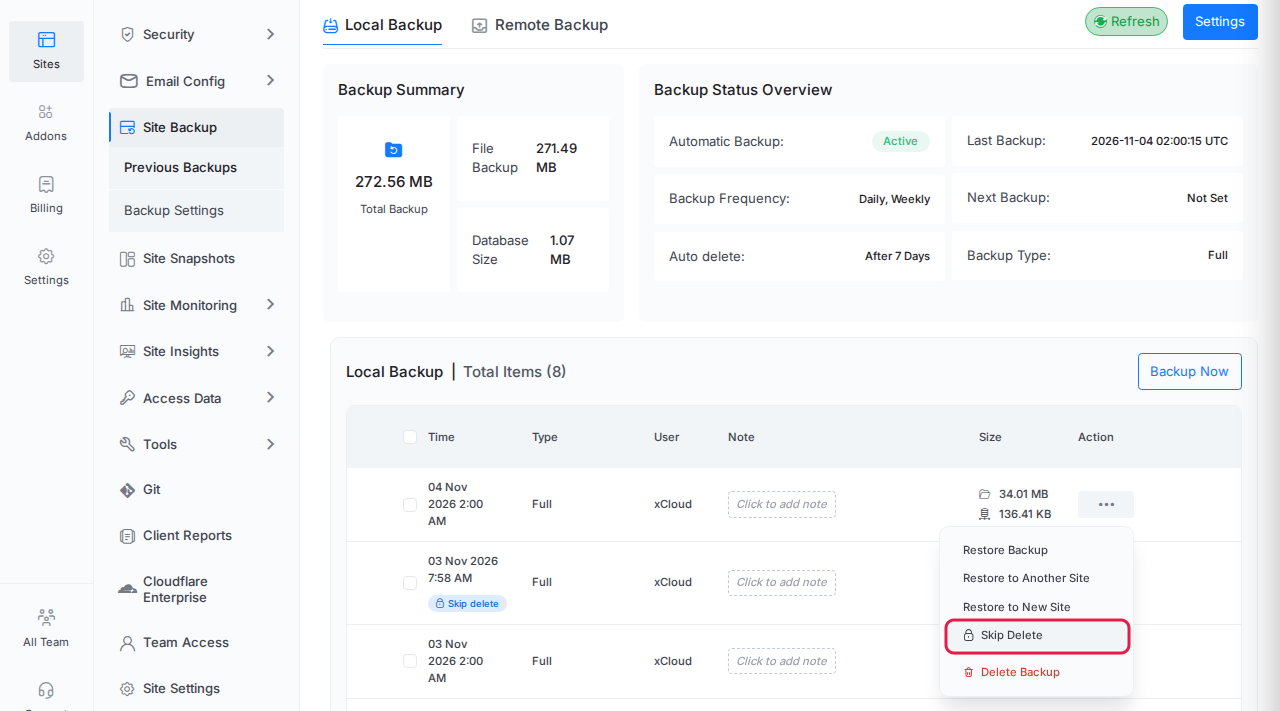
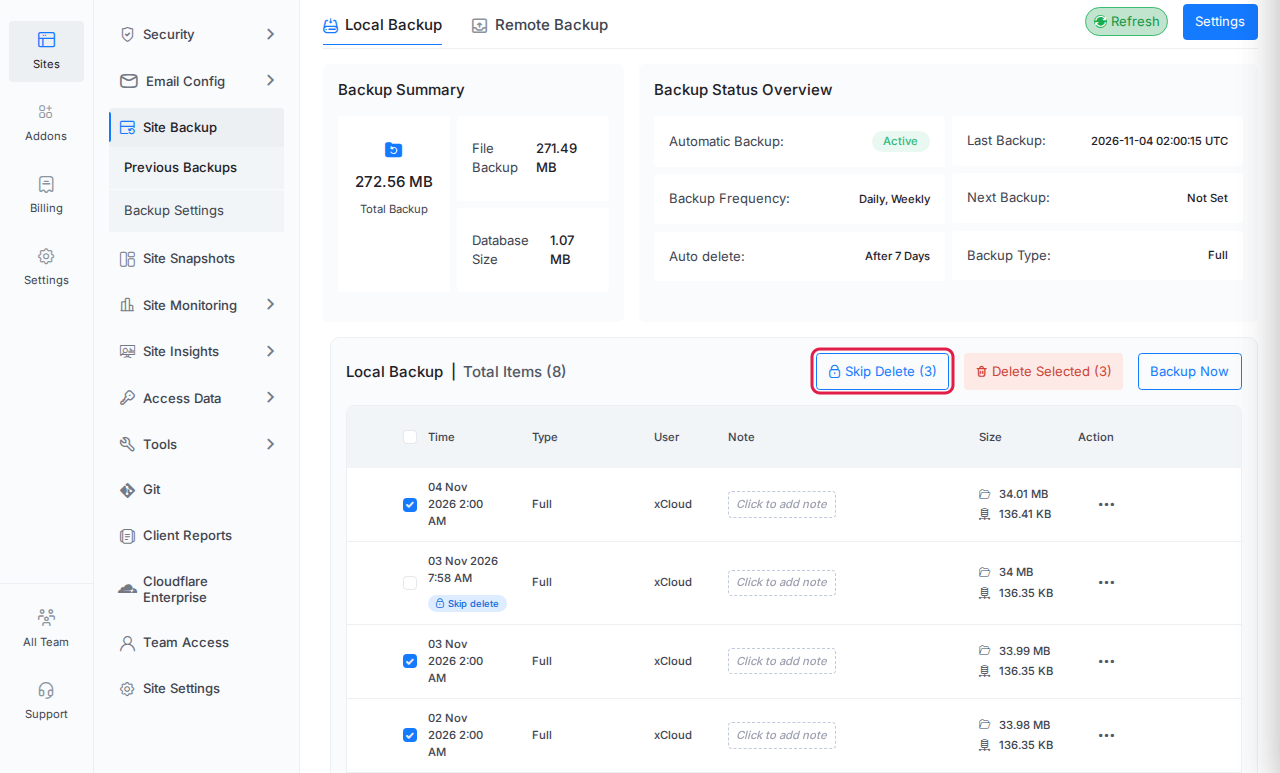
Expected result: A Skip delete badge appears, and xCloud confirms: “These backups will be kept: auto delete skips them.”
Incremental backups
On an incremental destination, Skip Delete keeps the whole set: the full backup and every incremental backup up to the next full backup, because an incremental backup can’t be restored without its full backup. On a full-backup destination, it keeps only the backup you chose.
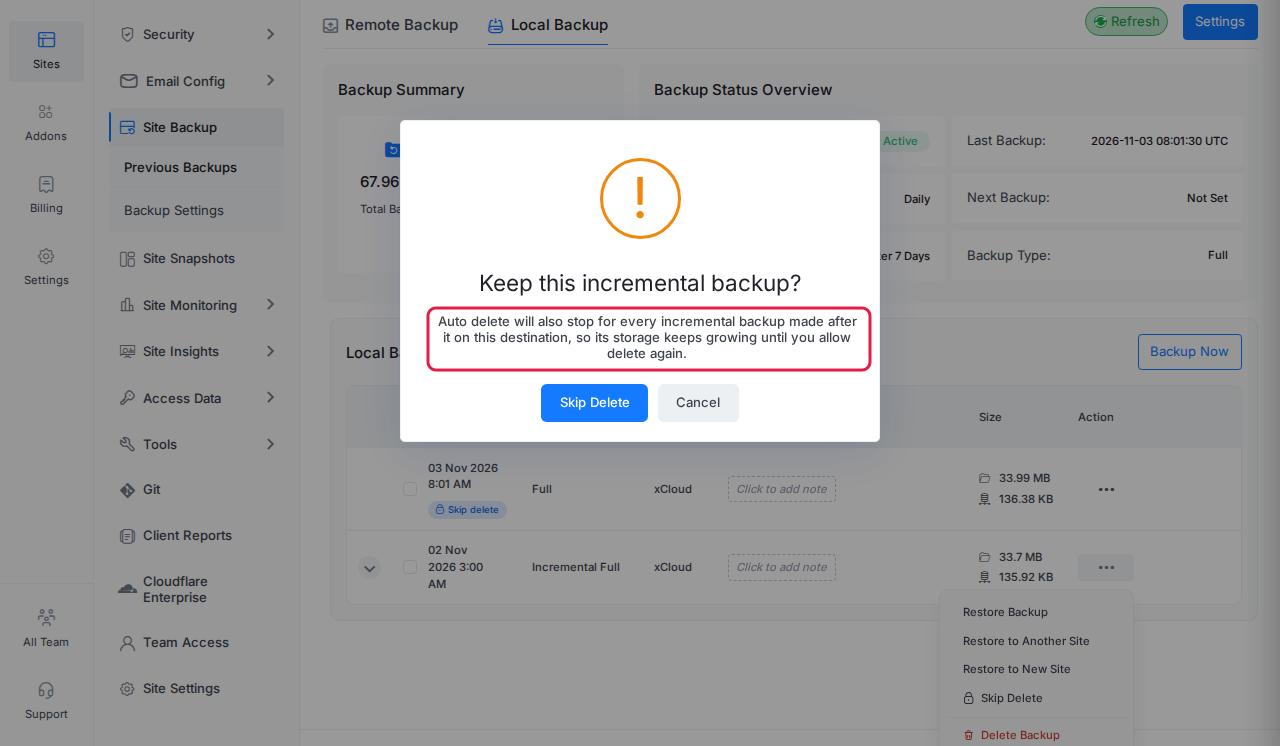
xCloud asks “Keep this incremental backup?” first, because:
- Newer backups are kept too. Auto delete stops removing every newer backup on that destination until you choose Allow Delete, so storage use grows.
- Older sets still follow Backup Retention.
Allow auto delete again
Choose Allow Delete in the backup’s menu, or tick several kept backups and click Allow Delete (n). xCloud confirms: “Auto delete applies to these backups again.” The next auto delete run then removes a backup that is past your retention period, unless it is your newest backup.
What Skip Delete protects
| Action | Result |
|---|---|
| Auto delete and Backup Retention | Skipped. A kept backup doesn’t count as your newest backup, so retention still keeps the newest one that isn’t kept. |
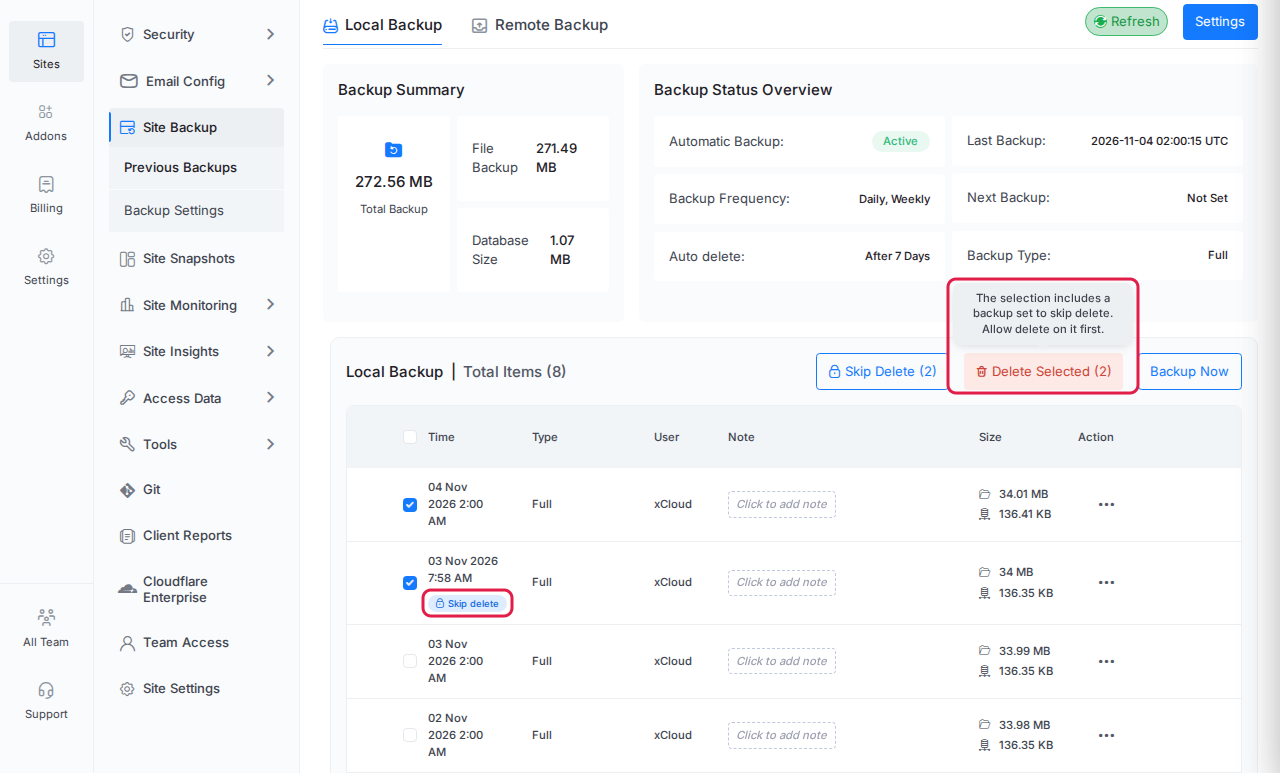
| Deleting it from the list | Blocked. Delete Selected is disabled, and a delete request is refused, until you choose Allow Delete. |
| A cleanup that can’t read the kept list | Stops without deleting anything and reports the error. |
| Removing the destination with Also delete the backups already stored there ticked | Not protected. |
| Deleting the site | Not protected. |
Run full backups on several schedules
A destination, either Local Backup or a remote storage provider, can run full backups on any mix of 12 Hours, Daily, Weekly and Monthly.
- Go to Site Backup → Backup Settings and select the Local Backup or Remote Backup tab.
- Set the backup type to Full and turn on Automatic Backup.
- Under Backup Schedules, select one or more schedules. At least one stays selected.
- Save the settings.
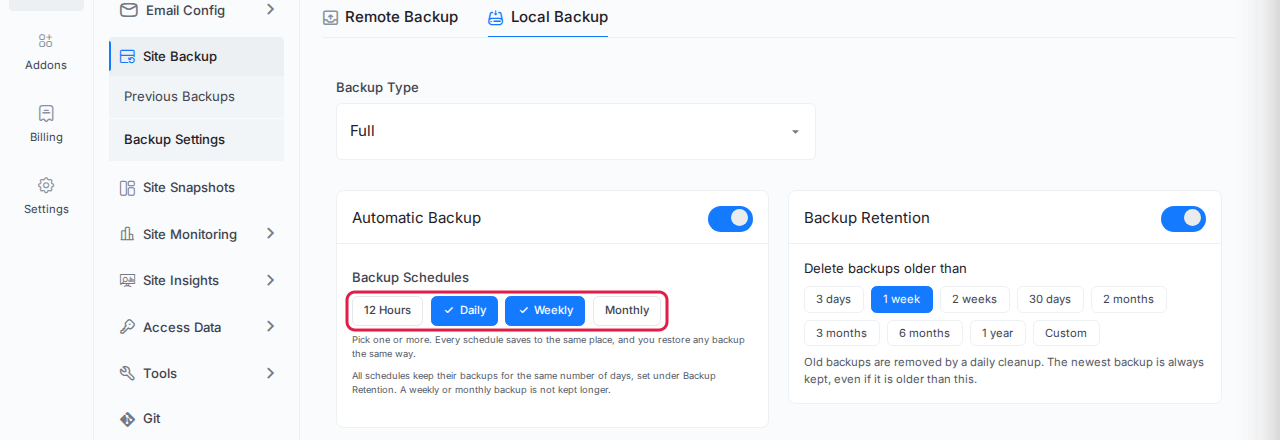
Expected result: Previous Backups shows the next run of each extra schedule. Every schedule saves to the same place, and you restore any backup the same way.
Scheduling limits and retention
- Retention is shared. All schedules of a destination use one Backup Retention period, so a weekly or monthly backup is not kept longer than a daily one. To keep one longer, use Skip Delete.
- No overlap. Schedules of one destination never back up the same site at the same moment, and Backup Now follows the same rule.
- Incremental destinations run one schedule. They offer one Automatic Full Backup frequency. See incremental backups.
- Site settings only. Team backup defaults and bulk apply still set one schedule per site. See global backup settings.
Manage backups with the Public API and MCP
Send your token as a bearer token to https://app.xcloud.host/api/v1. See How to Access the xCloud API to create one. Reading needs the read:sites scope. Changing needs the write:sites scope and the site:settings team permission.
| Task | Request | Scope |
|---|---|---|
List backups, each with skip_delete |
GET /sites/{uuid}/backups |
read:sites |
| Keep a backup or allow delete | PATCH /sites/{uuid}/backups/{backupUuid} |
write:sites |
| Read a site’s backup settings | GET /sites/{uuid}/backup-settings |
read:sites |
| Save a destination’s backup settings | PUT /sites/{uuid}/backup-settings |
write:sites |
Keep a backup
Copy the backup’s uuid from the list request, then send skip_delete as true to keep it or false to allow delete:
curl --request PATCH 'https://app.xcloud.host/api/v1/sites/SITE_UUID/backups/BACKUP_UUID' \
  --header "Authorization: Bearer $XCLOUD_TOKEN" \
  --header 'Accept: application/json' \
  --header 'Content-Type: application/json' \
  --data '{"skip_delete": true}'
Expected result: A 200 response with the backup and its new skip_delete value. As in the dashboard, the change covers the whole backup, or the whole set on an incremental destination. A failed backup or a Docker app backup returns 422.
Set several schedules
Send auto_backup_frequencies with up to four of twelve_hours, daily, weekly and monthly. This example saves a daily and a weekly schedule on the local destination:
curl --request PUT 'https://app.xcloud.host/api/v1/sites/SITE_UUID/backup-settings' \
  --header "Authorization: Bearer $XCLOUD_TOKEN" \
  --header 'Accept: application/json' \
  --header 'Content-Type: application/json' \
  --data '{
    "is_local": true,
    "type": "full",
    "database": true,
    "files": true,
    "auto_backup": true,
    "auto_backup_frequencies": ["daily", "weekly"],
    "auto_delete": true,
    "delete_after_days": 30
}'- The response lists every schedule in
auto_backup_frequencies, most frequent first. - For a remote destination, send
storage_providerwith the storage provider’s UUID instead ofis_local. type,databaseandfilesare required, anddelete_after_daysis required whenauto_deleteistrue.- Send the destination’s complete settings. Read the current values first with
GET /sites/{uuid}/backup-settings. - An incremental destination ignores
auto_backup_frequencies.
Use xCloud MCP
In an MCP client connected to xCloud, ask in plain language:
List the backups of my site example.com and keep the one from 3 Nov 2026 so
auto delete never removes it. Tell me what keeping it will do, then wait for my OK.
The agent lists backups with the sites_backups tool and keeps one with sites_backups_update. The tool tells the agent to confirm with you first, because allowing delete lets retention remove the backup, and keeping an incremental backup keeps every newer one. See How to Connect xCloud MCP to Your AI Agent.
Troubleshooting
| Symptom | Cause | Fix |
|---|---|---|
| Delete Selected is disabled, or a delete is refused with “Turn that off first” | The backup, or one in your selection, is set to Skip Delete | Choose Allow Delete on it, then delete it |
| Storage use keeps growing after you kept an incremental backup | Auto delete stops removing every newer backup on that destination while the set is kept | Choose Allow Delete on the kept set |
| Backup Schedules doesn’t appear | The backup type isn’t Full, Automatic Backup is off, or you are on the team’s global backup settings, which set one schedule | Use the site’s own Backup Settings page with type Full and Automatic Backup on |
401 or 403 from the API |
No active token, the token lacks the scope, you lack the site:settings team permission, or the team is on the free plan (saving settings) |
Use a token with read:sites or write:sites, ask the team owner for site settings access, or upgrade the plan |
404 when keeping a backup |
The UUID is wrong, or the backup belongs to another site | Copy the uuid from GET /sites/{uuid}/backups for the same site |
422 from the API |
Keeping: the backup failed or is a Docker app backup. Saving: a required field is missing, auto_backup_frequencies has an unknown or repeated value or more than four, or the site type doesn’t support backups |
Fix the request and send it again |
Frequently asked questions
How do I stop xCloud from deleting a backup?
Open the site’s Previous Backups page, open the backup’s menu and choose Skip Delete. Auto delete and the retention period then leave that backup alone, in the list, on the server and in the storage bucket, until you choose Allow Delete on it again.
Can I delete a backup that is set to Skip Delete?
Not directly. A delete is refused with a message asking you to turn Skip Delete off first. Choose Allow Delete on the backup, then delete it. Removing the whole backup destination with its files, or deleting the site, still removes it.
Does a weekly backup stay longer than a daily one?
No. All schedules of a destination share its Backup Retention setting, so a weekly or monthly backup is kept for the same number of days as a daily one. To keep a particular backup longer, set it to Skip Delete.
Why can’t I pick more than one schedule for incremental backups?
An incremental destination keeps one backup chain, so it runs one full-backup schedule. Several schedules are offered when the backup type is Full.
Related guides
- Site backups in xCloud
- How To Take Incremental Backup In xCloud
- Global Backup Settings with xCloud
- How to Solve Automatic Site Backup Failures
If you run into any issues with Skip Delete or backup schedules, feel free to reach out to our support team for help.