

The weekly email about servers with no backup
Updated October 31, 2026 · 4 min read
xCloud sends the email Your servers have no backup protection when a server holds live production sites that are not backed up anywhere off the server. It lists each of those servers and its unprotected sites, with a button to fix each one. This page explains what triggers the email, who gets it, what each part means and how to turn it off.
Why you got this email
If a server fails and its sites have no off-server backup, the data on it cannot be recovered. The reminder catches that before it happens. A server is listed when all of these are true:
- It has at least one live production site with no active remote backup. Staging sites are not counted.
- Server backup (the whole-server backup from your server provider) is off for that server.
- The server is at least 7 days old. New servers are skipped while you set them up.
A remote backup counts when it sends backups to a storage provider on an automatic schedule (full or incremental). It can be set on the site itself, or inherited from the server or your team’s global backup settings. A remote destination with every automatic schedule switched off does not count, and a local backup never counts, because it lives on the same disk as the site.
When and to whom it is sent
- How often: xCloud checks every week. Your team gets the email at most once every 30 days, and only while a server is still unprotected.
- Who gets it: the team’s email address, on behalf of the team owner. The team owner’s Backup Reminders setting decides whether the team gets it.
- Where: by email only. It is never sent to Slack, Discord, Telegram, WhatsApp or a webhook.
- Default: on for every team. Teams under a White Label account do not get it.
What the email shows
The email has up to two parts, depending on your servers.
Turn on server backup
This part lists servers whose provider offers automatic whole-server backups that are switched off. Each server shows its name, its provider, the monthly price of server backup when there is one, and the sites on it that are not protected.
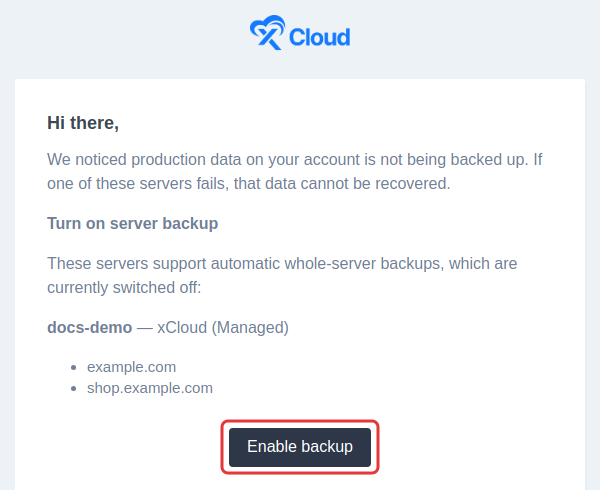
In the email, click Enable backup under a server. It opens that server’s Server Backup page in xCloud, where you turn on backup. See server backup management for the steps. Once server backup is on, every site on that server counts as protected.
Set up remote backups
This part lists servers whose provider does not offer whole-server backup in xCloud, so each site needs its own remote backup. Each server shows the sites that have none.
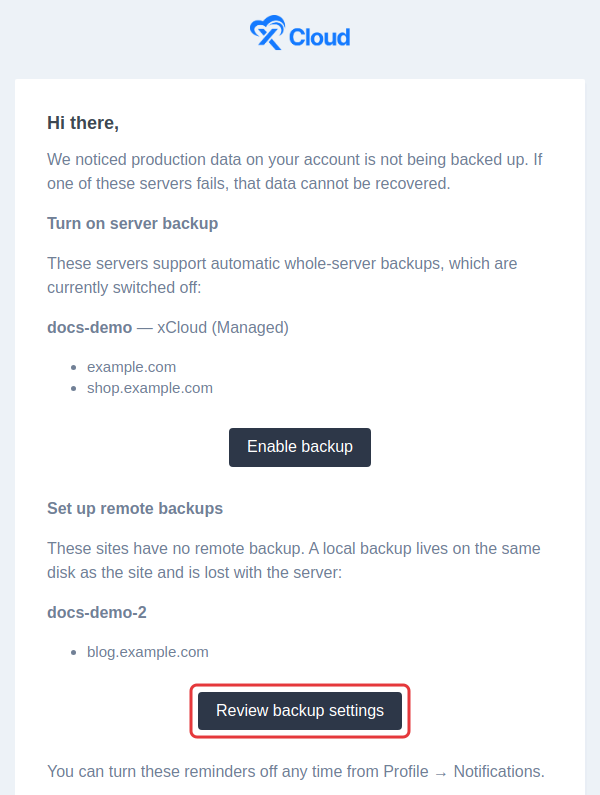
Click Review backup settings. It opens Site Backup Settings in xCloud, where you can set a team-wide remote destination and apply it to the listed sites in one go. See global backup settings, or set up one site at a time with site backups. You need a connected storage provider first, such as Cloudflare R2 or Amazon S3.
Once every listed server is covered, the email stops. There is nothing else to dismiss.
How to turn off backup reminders
The reminder is on by default. If you already back up another way, you can turn it off. The email’s last line calls this page Profile → Notifications.
Step 1: Open Notifications
Click Settings in the left bar, then Notifications under Team.
Step 2: Turn off Backup Reminders
On the Notifications page, turn off the Backup Reminders switch.
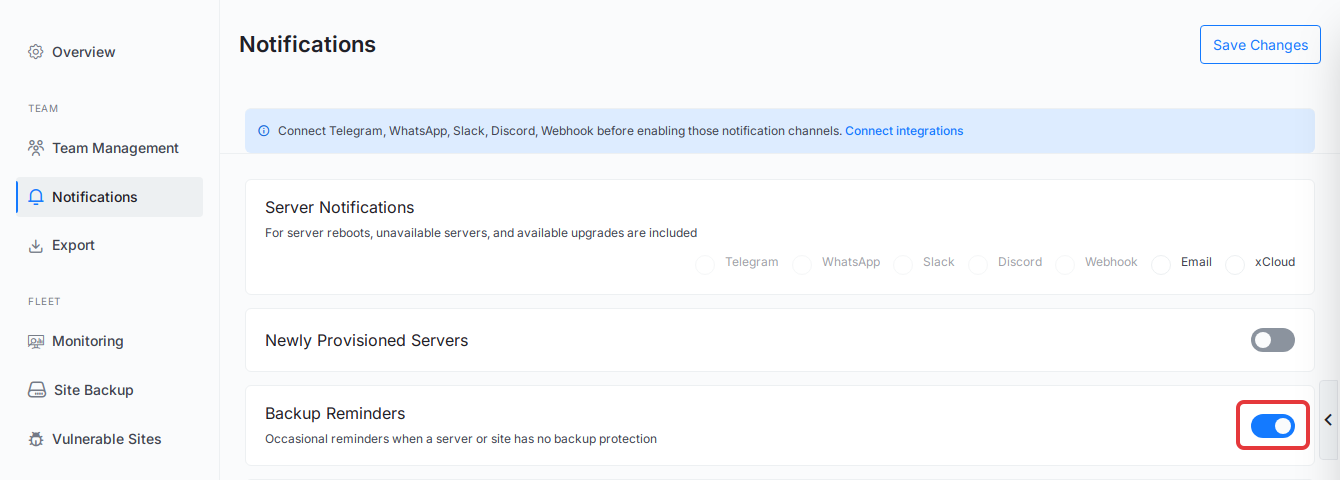
Step 3: Save your change
Click Save Changes at the top right. You see Notifications Updated Successfully. and the switch stays off when you reload the page. Your team stops getting the email from the next weekly check. Only the team owner’s switch controls this email, so a team member turning it off has no effect on the team’s email.
You can also turn it off under Email Preferences → Servers, or with the unsubscribe link in the email. See how to manage email preferences and unsubscribe.
Frequently asked questions
Why did I get an email saying my servers have no backup protection?
At least one of your servers has a live production site with no scheduled remote backup, and server backup is off on that server. The email lists each of those servers and the sites on it that are not protected.
How often will I get this email?
xCloud checks every week, but your team gets the email at most once every 30 days, and only while a server is still unprotected. Servers younger than 7 days are skipped.
Does a local backup stop the email?
No. A local backup is stored on the same disk as the site, so it is lost if the server fails. Turn on server backup or set up a remote backup with an automatic schedule instead.
Does turning off Backup Reminders change my backups?
No. The switch only stops the email. Your backup settings stay exactly as they are.
If you run into any issues with your backups, feel free to reach out to our support team.