

How to Send xCloud Notifications to Discord or a Webhook
Updated October 27, 2026 · 5 min read
xCloud can send your server, site and team alerts to a Discord channel, or as signed JSON to your own HTTPS endpoint (a webhook). Both work alongside Slack, Telegram and WhatsApp, and they carry the same alerts as Telegram: server reboots and unavailable servers, SSL certificate and deployment problems, team account actions and more.
Use Discord when your team already talks there. Use a webhook to feed alerts into your own tools: an incident system, a chat bot, a ticket queue or an automation platform.
Before you start
- Notification integrations need a paid plan. On the Free plan, the page sends you to Bills & Payment.
- You need a team role that can manage notifications.
- A team can connect one Discord and one webhook integration. To change one, disconnect it and add it again.
- Discord and webhook integrations are not available on white-label dashboards, and not yet in the Public API or MCP.
Step 1: Open the notification integrations
From the xCloud dashboard, go to Settings → Integrations → Notification and click Add New Notification. Choose Discord or Webhook.
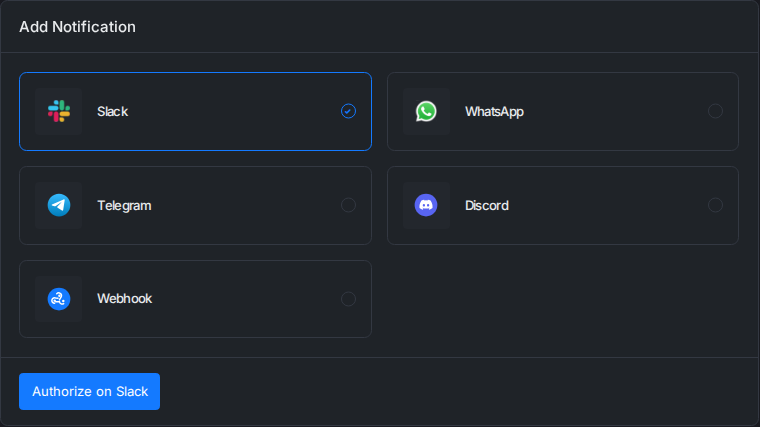
Step 2a: Connect Discord
First, create a webhook for the Discord channel that should receive the alerts. In Discord, open Server Settings → Integrations → Webhooks, click New Webhook, pick the channel and click Copy Webhook URL.
Then, in xCloud, select Discord, paste the URL into Discord Webhook URL and click Connect Discord.
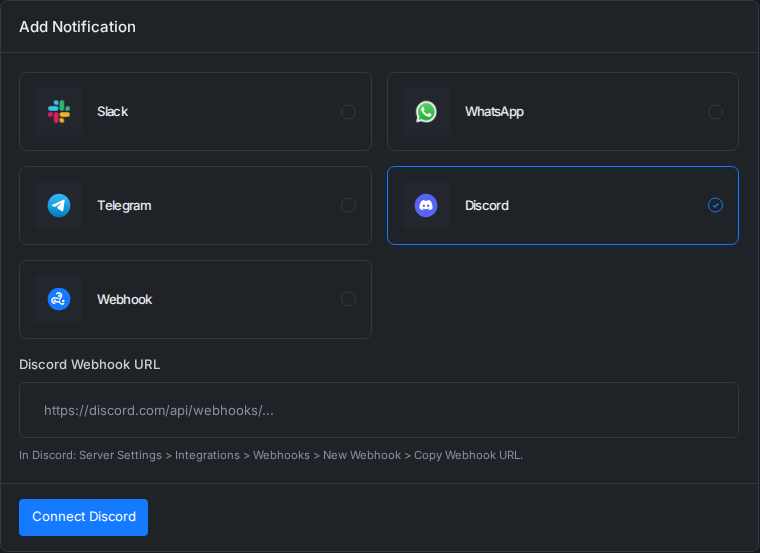
The URL must be a Discord channel webhook, such as https://discord.com/api/webhooks/{id}/{token}. Addresses on discordapp.com, canary.discord.com and ptb.discord.com are accepted too. Any other address, or a URL without its token, shows an error under the field.
Each alert arrives in the channel as a bold title, the alert text and an Open link to the server or site in xCloud. xCloud never mentions anyone in the channel.
Step 2b: Connect a webhook
Select Webhook, enter your endpoint in Webhook URL and click Add Webhook. The URL must use https://.
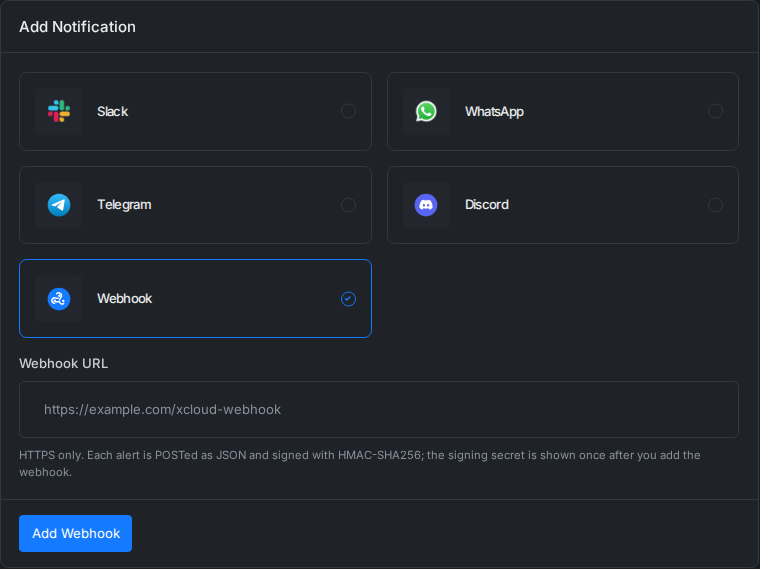
xCloud then shows the webhook signing secret (it starts with whsec_). Copy it now: it is shown only once. Store it where your endpoint can read it, then click I have saved the secret. To get a new secret later, disconnect the webhook and add it again.
What xCloud sends
Every alert is a POST with a JSON body:
{
  "id": "0d6c1f0e-5f3a-4a49-9a51-3c3f1d6a1b7e",
  "event": "ssl_renewed_failure",
  "occurred_at": "2026-10-19T10:00:00Z",
  "team": {"uuid": "..."},
  "resources": {"server": "...", "site": "..."},
  "title": "SSL Renewed Failure",
  "message": "This is to notify you that we were unable to renew SSL for example.com. ...",
  "url": "https://app.xcloud.host/..."
}
resources holds only the keys that apply to the alert. The request also carries these headers:
| Header | Value |
|---|---|
X-xCloud-Event |
The alert type, the same as event (test for a test notification) |
X-xCloud-Delivery |
The alert’s unique id, the same as id |
X-xCloud-Timestamp |
When this delivery was signed, in Unix seconds |
X-xCloud-Signature |
t=<timestamp>,v1=<signature> |
Verify each delivery
Check the signature before you trust a delivery. The v1 value is the hex HMAC-SHA256 of <X-xCloud-Timestamp>.<raw request body>, signed with your secret. Use the raw body bytes from before JSON parsing, compare in constant time, and reject timestamps older than five minutes.
PHP:
$body = file_get_contents('php://input');
$timestamp = $_SERVER['HTTP_X_XCLOUD_TIMESTAMP'] ?? '';
preg_match('/v1=([0-9a-f]{64})/', $_SERVER['HTTP_X_XCLOUD_SIGNATURE'] ?? '', $m);
$expected = hash_hmac('sha256', $timestamp.'.'.$body, getenv('XCLOUD_WEBHOOK_SECRET'));

if (!$m || !hash_equals($expected, $m[1]) || abs(time() - (int) $timestamp) > 300) {
    http_response_code(401);
    exit;
}
Node.js:
const crypto = require('crypto');

function verify(rawBody, headers, secret) {
  const timestamp = headers['x-xcloud-timestamp'];
  const match = /v1=([0-9a-f]{64})/.exec(headers['x-xcloud-signature'] || '');
  const expected = crypto.createHmac('sha256', secret).update(`${timestamp}.${rawBody}`).digest('hex');
  return Boolean(match)
    && crypto.timingSafeEqual(Buffer.from(expected), Buffer.from(match[1]))
    && Math.abs(Date.now() / 1000 - Number(timestamp)) <= 300;
}
If xCloud retries an alert, the retry keeps the same id and X-xCloud-Delivery but is signed again with a new timestamp. Use the id to ignore a delivery you already processed.
Step 3: Send a test notification
In the list of notifications, click Send test notification on the new integration. Discord shows a test message in the channel, and your endpoint receives a delivery with "event": "test". xCloud shows the result, such as the HTTP status your endpoint returned, or why it refused the address.
Step 4: Choose which alerts to send
Go to Settings → Notifications. In Server Notifications, Site Notifications and Other Notifications, tick Discord or Webhook for each group you want, then click Save Changes.
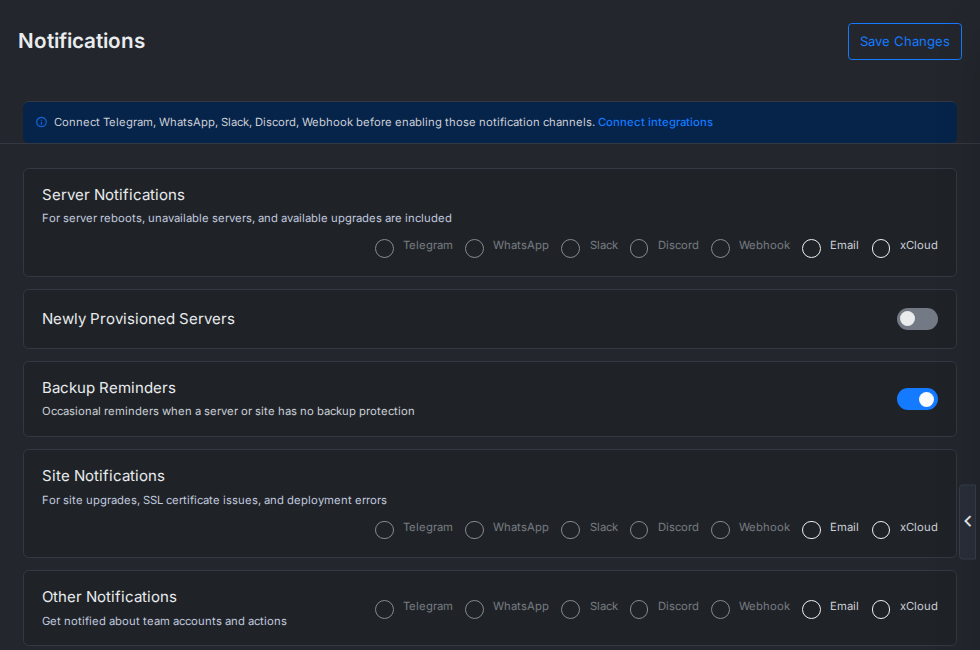
The Discord and Webhook options stay greyed out until that integration is connected. They are separate from the Telegram options: turning on Telegram for a group does not send it to Discord, and the other way round.
How xCloud handles your endpoint
- HTTPS and public addresses only. xCloud refuses URLs that point at a private, internal or reserved address, such as
127.0.0.1,10.x.x.xor169.254.169.254. It checks the address when you add the integration and again before every delivery. - No redirects. A
3xxanswer counts as a failed delivery, so point the integration at the final URL. - Five-second timeout. Answer quickly with a
2xxstatus and do slow work after you respond. - Retries. A timeout, a
5xxanswer or a429(too many requests) is retried. For a429, xCloud waits for theRetry-Aftertime you send. - Removed destinations. A
404or410answer means the destination is gone, so xCloud removes the integration. This also happens when you delete the webhook in Discord. Add it again to resume alerts. - Stored encrypted. The Discord URL, the webhook URL and the signing secret are stored encrypted and are never shown again after you add them.
To stop alerts, click Disconnect on the integration in Settings → Integrations → Notification.
Still stuck? Contact our support team for any of your queries.