


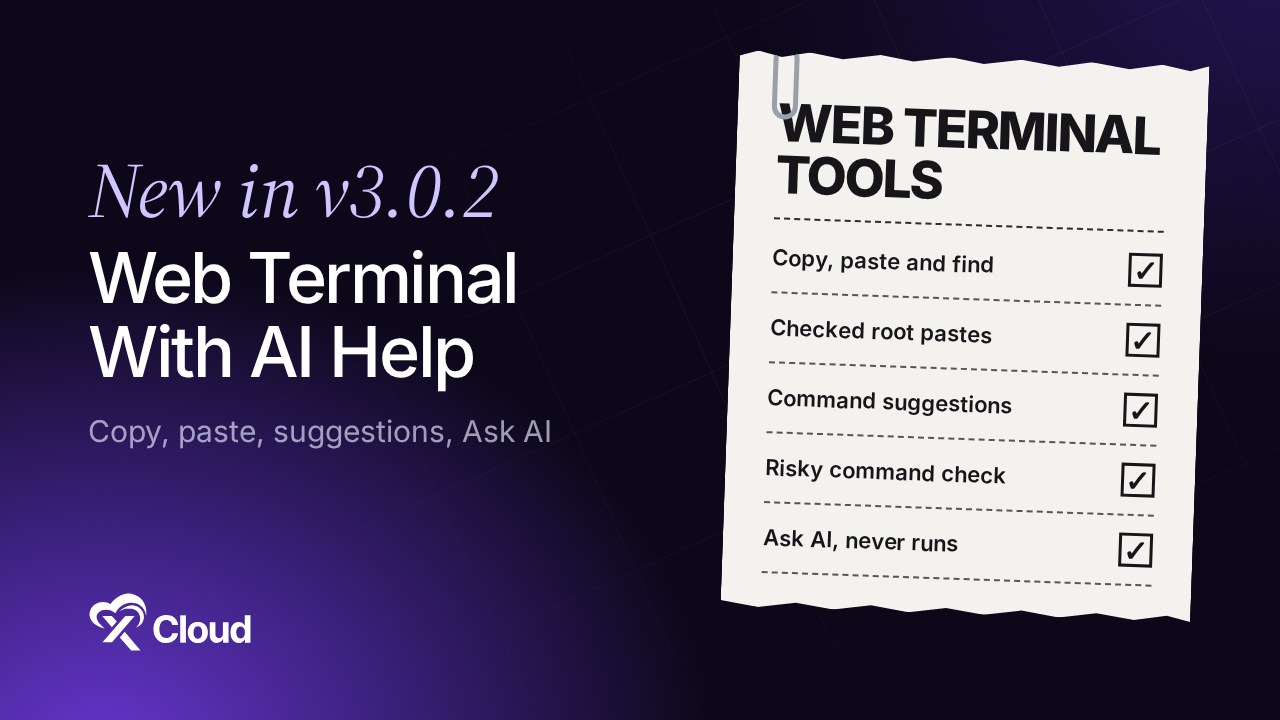
A web terminal with AI help lets you run commands on your server from a browser tab, then ask an assistant what the output means. With v3.0.2, the xCloud web terminal copies, pastes and finds text like a desktop terminal, checks risky pastes and commands first, suggests commands as you type, and explains errors without running anything.
If you are new to browser terminals, start with our guide to what a web terminal is and how it compares to SSH. This post covers only what is new, and exactly where its limits are.
TL;DR
- Copy and paste work like a desktop terminal. Ctrl+Shift+C and Ctrl+Shift+V (⌘C with a selection or ⌘⇧C, and ⌘⇧V, on a Mac), plus a toolbar and a right-click menu. Ctrl+C still stops a running command.
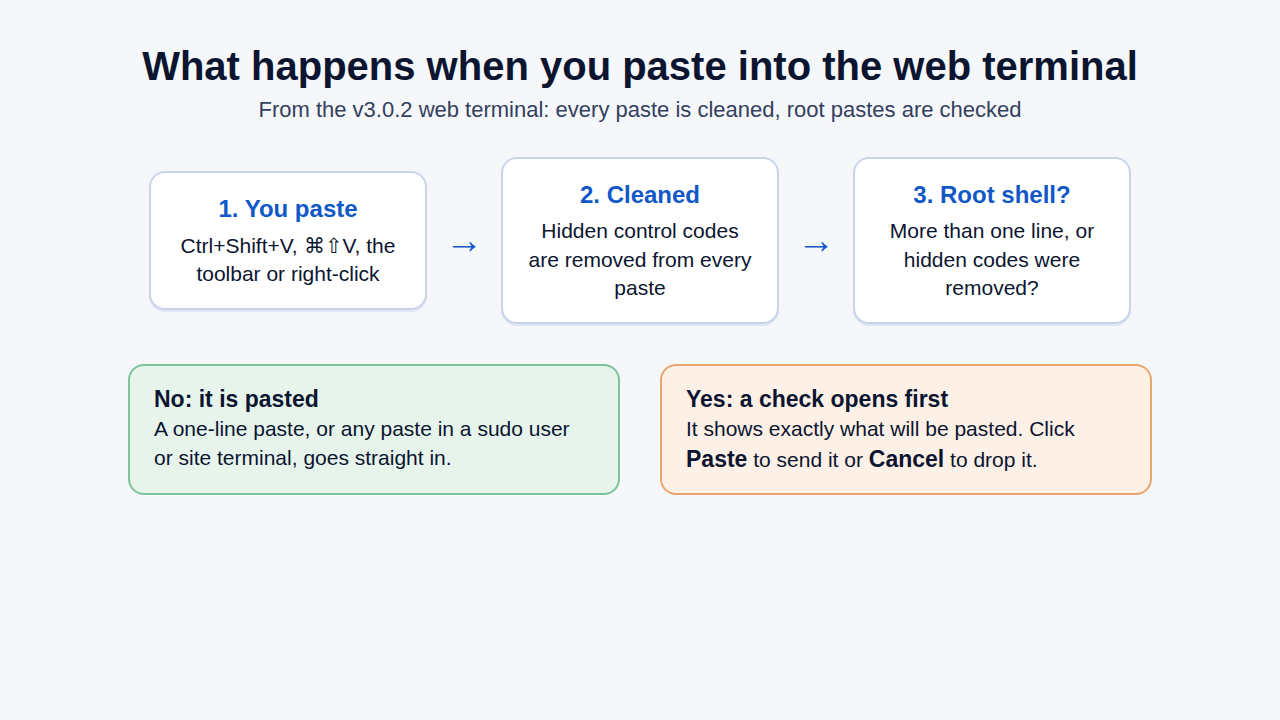
- Root pastes are checked. Every paste is cleaned of hidden control codes, and a multi-line paste into a root shell shows you exactly what will run first.
- A command bar suggests commands from your own history on that server and from useful commands for the shell, such as WP-CLI on WordPress sites.
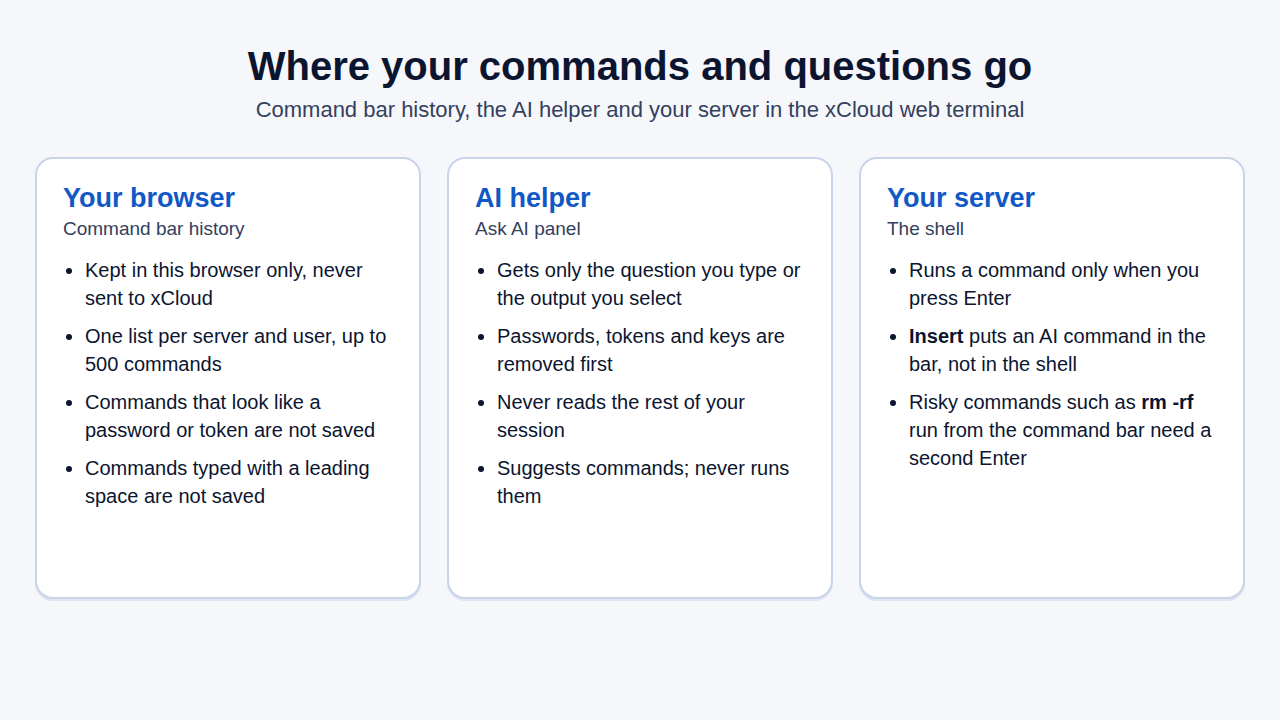
- Your history stays in your browser. It is never sent to xCloud, and commands that look like a password or token are never saved.
- 18 kinds of risky command need a second Enter when you run them from the command bar.
- Ask AI explains output and suggests the next command, but it never runs one. You always press Enter yourself.
The Finding: 18 Risky Commands Get a Second Look Before They Run
Most posts about AI in the terminal talk about the answers. The part that protects your server is the check in front of the Enter key. We read the rule list that ships with the v3.0.2 terminal, and here is every kind of command the command bar stops for, with the reason it shows you.
| Command pattern | What the terminal warns you about |
|---|---|
rm -rf (any order of the flags) |
Deletes files and folders without asking, and they cannot be restored |
chmod 777 |
Lets every user on the server read, change and run these files |
chmod -R or chown -R on / |
Changes permissions or owner of every file on the server |
dd … of=/dev/… |
Writes straight onto a disk and can erase it |
mkfs |
Formats a disk and erases everything on it |
> /dev/sda and similar |
Writes straight onto a disk and can erase it |
shutdown, reboot, halt, poweroff, init 0, init 6 |
Turns off or restarts the server: every site goes down until it is back |
| A fork bomb | Starts processes until the server stops responding |
DROP DATABASE, DROP SCHEMA, DROP TABLE, TRUNCATE TABLE |
Deletes a database or table and its data |
curl … | bash, wget … | sh |
Runs a script from the internet without showing it first |
systemctl stop, disable or mask on nginx, OpenLiteSpeed, MySQL, MariaDB, PHP, SSH, ufw or Fail2Ban |
Stops a service the server’s sites or your access depend on |
ufw disable, ufw reset, iptables -F |
Turns off or resets the firewall |
userdel, deluser |
Deletes a user from the server |
wp db reset, wp db drop, wp db clean, wp site empty |
Deletes the WordPress database content |
crontab -r |
Deletes all scheduled jobs of this user |
kill -9 -1, killall5 |
Stops every process you can reach |
git reset --hard, git clean -f |
Throws away uncommitted changes in this repository |
> authorized_keys |
Replaces the SSH keys that can log in, which can lock you out |
The first Enter shows the warning. Press Enter again or click Run anyway to go ahead, or click Cancel. The same check applies to a command the AI helper suggests when you click Insert, because Insert puts it in the command bar.
Why Browser Terminals Feel Awkward
A browser owns the keyboard before the terminal does. Ctrl+C means “copy” to the browser and “stop” to the shell, so one of them always loses. Pasting a long script can be a gamble, and finding one line in a screen of log output usually means scrolling by eye.
Then there is memory. You type the same df -h, wp plugin list and systemctl status commands every week, and you look up the rest. When an error appears, you copy it into a search engine in another tab. The v3.0.2 terminal tools tackle each of these in place.
Copy, Paste and Find Like a Desktop Terminal
Every terminal page now has a toolbar in the top-right corner and a right-click menu. They work the same in a root, sudo user or site terminal.
| Action | Windows and Linux | Mac |
|---|---|---|
| Copy | Ctrl+Shift+C | ⌘C (with a selection) or ⌘⇧C |
| Paste | Ctrl+Shift+V | ⌘⇧V |
| Find in output | Ctrl+Shift+F | ⌘F |
| Show or hide the command bar | Ctrl+Shift+` | Ctrl+Shift+` |
| Ask AI | Ctrl+Shift+Space | ⌘I |
Copy takes the selected text. The toolbar Copy button, Ctrl+Shift+C and ⌘⇧C also copy the output on screen when nothing is selected. Copy on select is in the toolbar and off by default. The right-click menu adds Copy visible output, Select all and Clear screen.
Copy also works from programs on the server. Text you copy inside tmux or vim reaches your browser’s clipboard through the standard clipboard escape code that tmux describes on its clipboard wiki page. It is one-way: the server can never read your clipboard.
Safer Pastes Into a Root Shell
Every paste is cleaned of hidden control codes first. A copied snippet from a web page can carry characters you cannot see, and in a shell those characters can change what runs.
In a terminal that runs as root, a paste with more than one line, or one that had hidden codes removed, opens a check. It shows exactly what will be pasted, because each line runs as a command with full access to the server. Click Paste to send it or Cancel to drop it.
Command Bar Suggestions, and Where Your History Stays
The command bar sits under the terminal. Type a command and press Enter to run it. As you type, it suggests commands from two places:
- Your own history on this server, for this user.
- Useful commands for this shell, for example
df -hfor free disk space, WP-CLI commands on WordPress sites, and nginx or OpenLiteSpeed and PHP commands in a root terminal.
Press Tab or → to accept the grey suggestion, ↑ to go back through your history, Shift+Enter for a new line and Esc to type straight into the terminal. The bar hides itself while a full-screen program such as vim, top or less is running, so tools like the htop process monitor get the whole screen.
Here is the part that matters for teams: your history never leaves your browser. It is kept as one list for each server and each login (root, sudo user or site user) in this browser, up to 500 commands, and it is never sent to xCloud. Commands that look like they hold a password, token or API key are not saved at all, and neither are commands you start with a space (the same “don’t remember this” habit your shell already has).
Ask AI: Explain This Output, Suggest the Next Command
Click Ask AI in the toolbar to open the AI helper beside the terminal. Ask a question such as “Why is the disk full?”, or start from one of the suggested questions.
- Explain output: select an error in the terminal, right-click it and choose Explain with AI or Suggest a fix with AI.
- From the command bar: type
/askand a question, or/explainor/fixafter selecting output. - Suggested commands come with Insert, Copy and a Risky label where it applies. Insert puts the command in the command bar. It never runs it.
What the AI helper sees: only the question you type or the output you select, with passwords, tokens and keys removed first. It never reads the rest of your session. That is the honest trade-off of the design: you choose what to share, so the helper knows only what you show it.
The terminal helper is part of the xCloud AI Assistant. Each question appears in your assistant history as Terminal: followed by the server name, and it uses the assistant’s daily allowance. For the assistant itself, see how to use the xCloud AI Assistant and our post on asking it from anywhere with ⌘K.
What It Does Not Do (Honest Limits)
- The risky-command check is in the command bar. Commands you type straight into the terminal run on the first Enter, as they would over SSH.
- The root paste check follows the terminal you opened. It applies in the root terminal, or a sudo or site user that is root. If you switch to root inside a sudo user terminal with
sudo -i, pastes are still cleaned but the check does not open. - The AI helper never runs anything, so it cannot fix a problem for you here. To have the assistant make approved changes, use the AI Assistant panel with Read & Write access.
- The AI helper has limits. Each team has a daily limit for terminal AI help, which resets at midnight. It is not shown on White Label dashboards, though copy, paste, find and the command bar work there.
- Sessions still time out. An idle terminal closes after 15 minutes. Your command history stays in that browser; it does not follow you to another device.
There is nothing to undo: the tools change how you type and paste, not your server. Turn off Copy on select in the toolbar if you prefer, and press Esc to skip the command bar.
How to Open the xCloud Web Terminal
- Make sure your role has Terminal root or Terminal sudo (under Server) or Terminal (under Site). See team roles and permissions.
- For root: go to Servers, pick your server and click Open Terminal.
- For a sudo user: open the server’s Management → Sudo Users and click the terminal icon. See sudo users and site users.
- For one site: go to Sites, pick the site and click Open Terminal.
- Use the toolbar in the top-right corner, the command bar underneath and Ask AI when you need it.
For a one-off WP-CLI or bash command without opening a terminal, see how to run commands on your website and server with xCloud.
👉 The full walkthrough with every shortcut is in How to access the web terminal from the xCloud dashboard. For the complete release, read the v3.0.2 changelog.
Try the Web Terminal With AI Help on Your Next Server Task
The terminal itself is built on xterm.js, the open-source browser terminal that VS Code also uses. What v3.0.2 adds is the layer around it: desktop-style copy and paste, a second look before risky pastes and commands, suggestions that remember your habits without sending them anywhere, and an AI helper that explains but never acts.
This week, open a terminal on one server, run your usual checks from the command bar, and select the next error you see and choose Explain with AI. If you are not on xCloud yet, see the web terminal feature page and our pricing to get started.
If you have found this blog helpful, feel free to subscribe to our blogs for valuable tutorials, guides, knowledge, and tips on web hosting and server management. You can also join our Facebook community to share insights and engage in discussions.
Frequently Asked Questions
Does Ctrl+C still stop a running command in the xCloud web terminal?
Yes. Ctrl+C is still the shell’s interrupt. To copy, use Ctrl+Shift+C (⌘C with a selection or ⌘⇧C on a Mac), the Copy button in the toolbar or the right-click menu.
Can the AI in the xCloud web terminal run commands on my server?
No. The AI helper only suggests commands. Insert puts a command into the command bar, and nothing runs until you press Enter yourself.
Is my command history sent to xCloud?
No. The command bar keeps one history list for each server and each login (root, sudo user or site user) in this browser only. Commands that look like they contain a password or token are never saved.
What does the AI helper see from my terminal?
Only the question you type or the output you select, with passwords, tokens and keys removed first. It never reads the rest of your session.
Why don’t I see the Ask AI button in the terminal?
The AI helper is there for everyone who can use the xCloud AI Assistant. It is not shown on White Label dashboards, and it is hidden when AI access is turned off for the server’s team. Copy, paste, find and the command bar still work.