


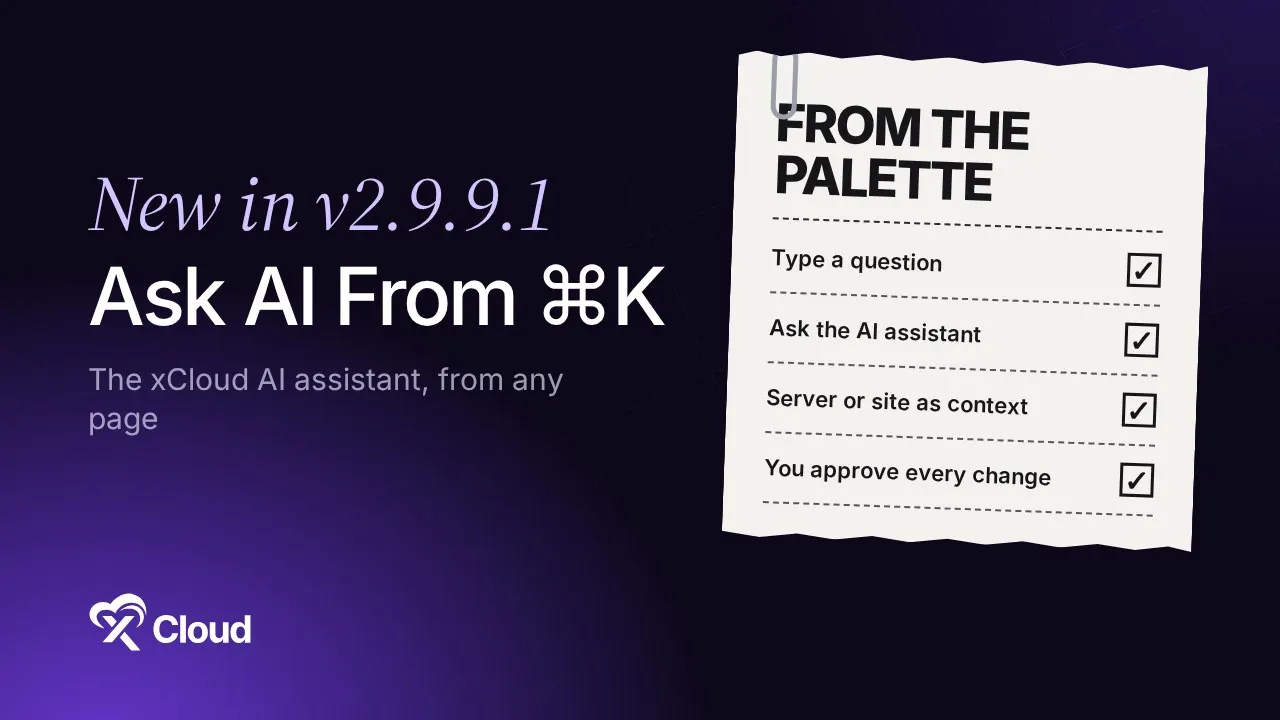
When a site feels slow or a deploy fails, you want to ask about it right away. Until now, using the AI assistant for server management in xCloud meant opening the right page first. With v2.9.9.1, you type the question into the ⌘K (Ctrl+K) command palette from any page, and the assistant opens with your server or site as context.
This post builds on our introduction to xCloud AI Assistant, which covers what the assistant can do. Here we focus on one thing: how to reach it from the keyboard, and exactly when ⌘K asks versus when it opens a page.
You will also find the other changes in v2.9.9.1 that matter if you run monitors or AI clients against the xCloud API, plus two site settings fixes.
TL;DR
- Press ⌘K on a Mac or Ctrl+K on Windows and Linux, type two or more characters, and choose Ask the AI assistant “…”.
- Ask while you view a server or site, and the assistant answers about that one without asking which.
- Enter still opens a matching page, server or site. It asks the assistant only when nothing matches.
- ⌘↵ or Ctrl ↵ asks from any state. The palette footer shows it as Ask AI.
- The palette only sends your question. Every change still needs your approval.
- For developers: API and MCP errors now carry a code that says why (rate limited, missing permission, server not connected).
Navigation Still Wins: The Rule Behind the Ask Row
The one thing to know about this release: ⌘K never turns a search into a chat by accident. The palette adds an ask row, but Enter keeps its old job whenever something matches.
These are the exact rules the dashboard uses, so this table is the whole behavior, not a summary:
| You type | The palette shows | Enter does |
|---|---|---|
ssl (matches a server or site) |
The match first, then Ask the AI assistant “ssl” | Opens the match |
how do I add ssl? (reads like a question) |
Ask the AI assistant “…” at the top under Looks like a question, matches below | Still opens the first match |
why is my site slow? (nothing matches) |
Ask the AI assistant “…” under No matching pages, servers or sites | Asks the assistant |
| Any text, with ⌘↵ / Ctrl ↵ | Footer shows Ask AI | Asks the assistant |
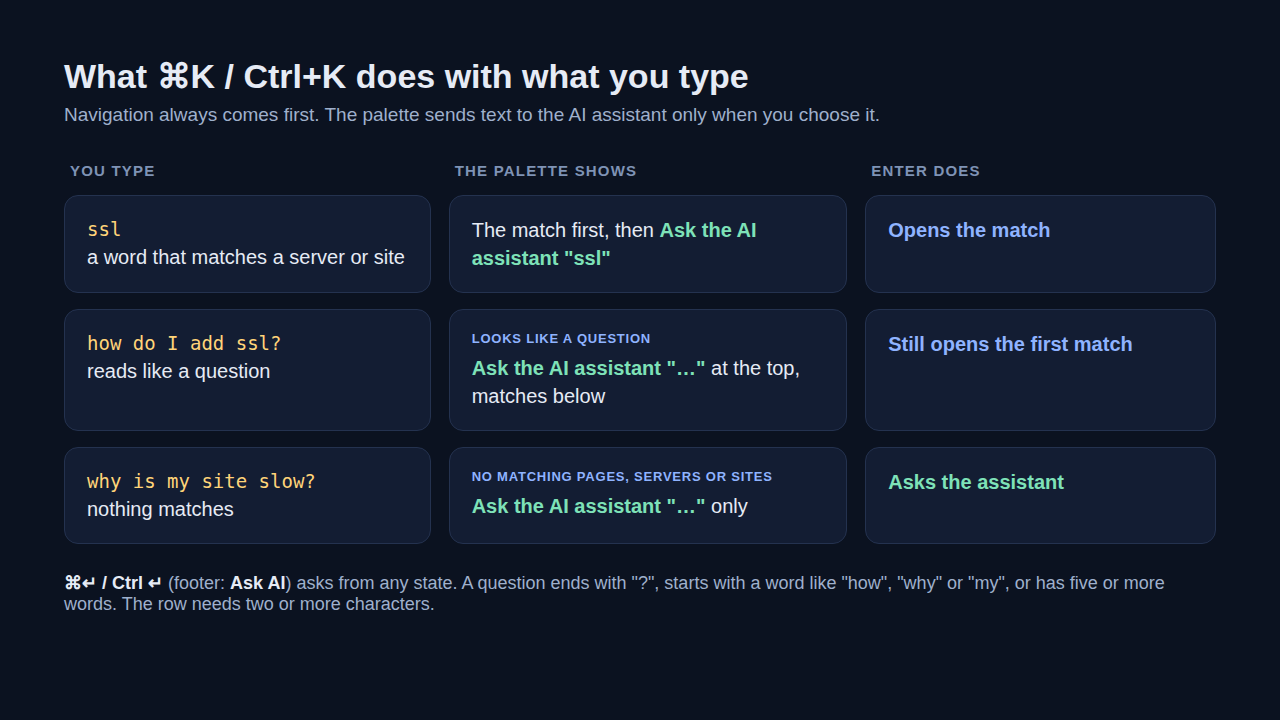
The palette treats your text as a question when it ends with a question mark, starts with a word like “how”, “why”, “what” or “my”, or has five or more words. That is why “my site is down” gets the Looks like a question label too.
Why Asking for Help Meant Finding the Right Page First
You open the assistant from the dashboard header. That works well when you already know where you are going.
The catch is the moment something looks wrong. You think “why did that backup fail?”, and the first job is still to find the right server, then the right site, then open the assistant and name the site you mean.
The command palette was already the fastest way to move around xCloud. But before this release, typing a question like “why is my site slow?” into it found nothing. You had to close it and open the assistant yourself.
Ask From ⌘K: How the “Ask the AI Assistant” Row Works
Here is the flow from any page in the dashboard:
- Press ⌘K on a Mac or Ctrl+K on Windows and Linux.
- Type your question. Once you type two or more characters, the palette adds a row that reads Ask the AI assistant “…” with your text in the quotes.
- Click that row, or press ⌘↵ / Ctrl ↵.
- The palette closes, and the AI Assistant panel opens in a new conversation with your question already sent.
It Knows Where You Are
If you open the palette while you view a server or site, the assistant gets that server or site as context. It answers about that one without asking which, and the panel shows it under the title as Looking at followed by the name.
So “backup failed” typed on a site page is a question about that site. Typed on the dashboard home, the assistant may ask you which site you mean.
Nothing Runs on Its Own
The palette only sends your question. If the assistant suggests a change, such as restarting a service, it still shows a confirmation card, and nothing happens until you approve it.
The assistant also works within your own team role and its access settings, so it can never do more than you can. 👉 The full setup, from the access key to Read & Write, is in How to Use xCloud AI Assistant.
Who Gets It, and What It Does Not Do
Honest limits matter more than features here, so here they are:
- It is rolling out gradually. If you do not see the ask row yet, open the assistant with the AI Assistant icon in the header. Nothing else changes.
- It needs the assistant. The row only appears when the AI assistant is available for your team.
- No ask row on white label teams. Teams that run xCloud under their own brand do not see it.
- One character is not enough. The row appears from two characters.
- It does not search inside your chats. The palette starts a new conversation each time. To reopen an older one, click the chat title (with the down arrow) at the top of the assistant panel to open your chat history.
To undo the habit, there is nothing to switch off: keep pressing Enter on a match and the palette behaves exactly as before.
For Developers: Clearer API and MCP Errors
If you run uptime monitors, scripts or AI agents against the xCloud API or xCloud MCP, failures used to say what happened but not always why. Now the error carries a code your client can act on. Messages and headers stay the same, so nothing you built breaks.
| Status | New errors.code |
What your client can do |
|---|---|---|
429 |
rate_limited, with retry_after, reset_at, limit, bucket and next_actions |
Wait until the given time, then retry |
403 |
forbidden_ability or forbidden_team_permission, with the missing name |
Tell you which permission the token or team role lacks |
422 (access logs) |
server_unreachable |
Report that the server is not connected |
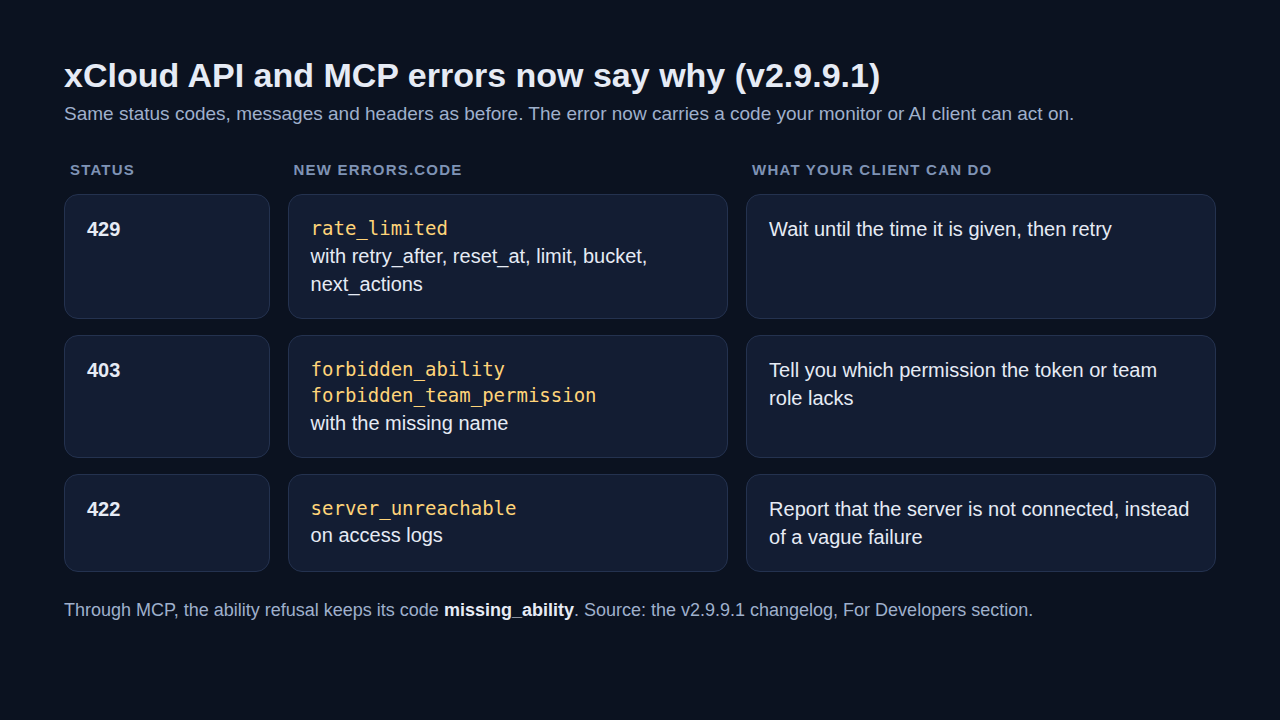
Through MCP, the ability refusal keeps its code missing_ability. The rate limit response follows the same idea as the standard 429 Too Many Requests status: tell the client when it may try again, so it backs off instead of hammering the API.
Two smaller developer changes ship too. MCP search now ranks action words higher, so “delete site” and “backup now” find the right operation first. And the vulnerability count for a WordPress site with scanning turned off now returns null instead of zeros, so a dashboard of your own does not show a site as clean when it is simply not scanned.
If your agent works across several teams, multi-team API tokens and MCP access explains which permissions a token carries. For ideas on what to automate, see what you can ask xCloud MCP to do and automating server management with the xCloud API.
Other Fixes in v2.9.9.1
A few fixes in this release are worth knowing even if you never press ⌘K:
- Site security card: approving one change on the AI assistant’s site security card, such as turning off XML-RPC, no longer turns off the built-in firewall or resets your other security settings. If you use the built-in firewall on Nginx, it now stays on.
- Custom robots.txt: saving the site Settings page no longer turns off a custom robots.txt. See search engine visibility in xCloud for how robots.txt works on your site.
- Safer firewall changes: changes to the built-in firewall and to PHP in the uploads folder now need a click on the assistant’s card, not a typed “yes”.
- Safer restores: restores, clones and migrations now import your database with the site’s own access, never with full database admin rights.
The full list, including WordPress database password and Node.js changes, is in the v2.9.9.1 changelog. For a broader view of what needs your attention across sites, the Security Center puts it on one page.
Try the Ask Row in Your xCloud Dashboard
You do not need to set anything up. Open any server or site in xCloud, press ⌘K or Ctrl+K and type the question you would have asked support.
- ✅ Ask on the server or site page, so the assistant already knows what you mean.
- ✅ Keep Enter for navigation and use ⌘↵ / Ctrl ↵ when you want an answer instead.
- ✅ Leave the assistant on Read access if you only want answers, not changes.
👉 New to the assistant? Start with the xCloud AI Assistant page, then compare plans on xCloud pricing.
Ask First, Click Less: Make ⌘K Your Starting Point
The fastest route to an answer is the one you already use to move around. With v2.9.9.1, the command palette takes you to a page when you name it, and to the assistant when you ask it something.
This week, try it on the next thing that looks off: a slow site, a failed backup, an error in a log. Ask from the page you are on, read the answer, and approve only what you want to run.
If you have found this blog helpful, feel free to subscribe to our blogs for valuable tutorials, guides, knowledge, and tips on web hosting and server management. You can also join our Facebook community to share insights and engage in discussions.
Frequently Asked Questions
How do I open the xCloud AI assistant from the keyboard?
Press ⌘K on a Mac or Ctrl+K on Windows and Linux, type at least two characters and choose Ask the AI assistant “…”. You can also press ⌘↵ or Ctrl ↵ to ask from any state.
Why does Enter open a page instead of asking my question?
Navigation comes first. When a page, server or site matches what you typed, Enter opens it. Enter asks the assistant only when nothing matches, so a quick search never turns into a chat by mistake.
Does the assistant know which server or site I am on?
Yes. If you open the palette while you view a server or site, the assistant gets that server or site as context and answers about it without asking which one you mean.
Can asking from ⌘K change my server?
No. The palette only sends your question. Any change the assistant suggests still shows a confirmation card, and nothing runs until you approve it.
Why do I not see the Ask the AI assistant row?
The row is rolling out to teams gradually, and it only appears when the AI assistant is available for your team. It does not appear on white label teams. Until it shows, open the assistant with the AI Assistant icon in the dashboard header.