

Manage PHP and Node.js with the xCloud AI Assistant
Updated November 1, 2026 · 5 min read
xCloud AI Assistant can manage the PHP and Node.js versions on your servers from the chat panel. Ask it in plain words to show the installed versions, install a new PHP version, apply the latest PHP patch release, or set the default PHP or Node.js version. Each change shows an Action required card, and nothing runs until you click Confirm.
This guide shows each task step by step. It assumes you already know how to open the assistant and allow its access key, as covered in How to Use xCloud AI Assistant.
What the assistant can do with PHP and Node.js
| Ask for | What happens |
|---|---|
| The PHP versions on a server | Lists each installed version with its exact build (for example PHP 8.3.36), the default version, any patch release available, versions still installing, and the versions the server can still install. |
| Install a PHP version | Installs an extra PHP version in the background. It takes a few minutes and does not change the default PHP or any site’s PHP. |
| Patch a PHP version | Updates an installed PHP version to its latest patch release (for example 8.3.35 to 8.3.36), in the background. |
| Set the default PHP version | Makes a PHP version the server’s default for the command line and new sites. If it is not installed yet, it is installed first. |
| The Node.js versions on a server | Shows the default Node.js version and the versions you can install. |
| Set the default Node.js version | Makes a Node.js version the server’s default. If it is not installed yet, it is installed first. |
The assistant can offer PHP 8.5, 8.4, 8.3, 8.2, 8.1, 8.0, 7.4, 7.3, 7.2, 7.1, 7.0 and 5.6, and Node.js 24, 22, 21, 20, 18, 16 and 14. Not every version is offered on every Ubuntu release, so the assistant only offers what your server can install.
Before you start
- Read & Write access. Listing versions works at Read level. Installing, patching and switching versions are changes, so set Assistant Access to Read & Write under My Profile → API Tokens. See Step 4 of the AI Assistant guide.
- Your team role. The assistant works within your own permissions. If your role cannot manage a server’s PHP, the assistant cannot either. See team roles and permissions.
Step 1: Open the assistant on the server
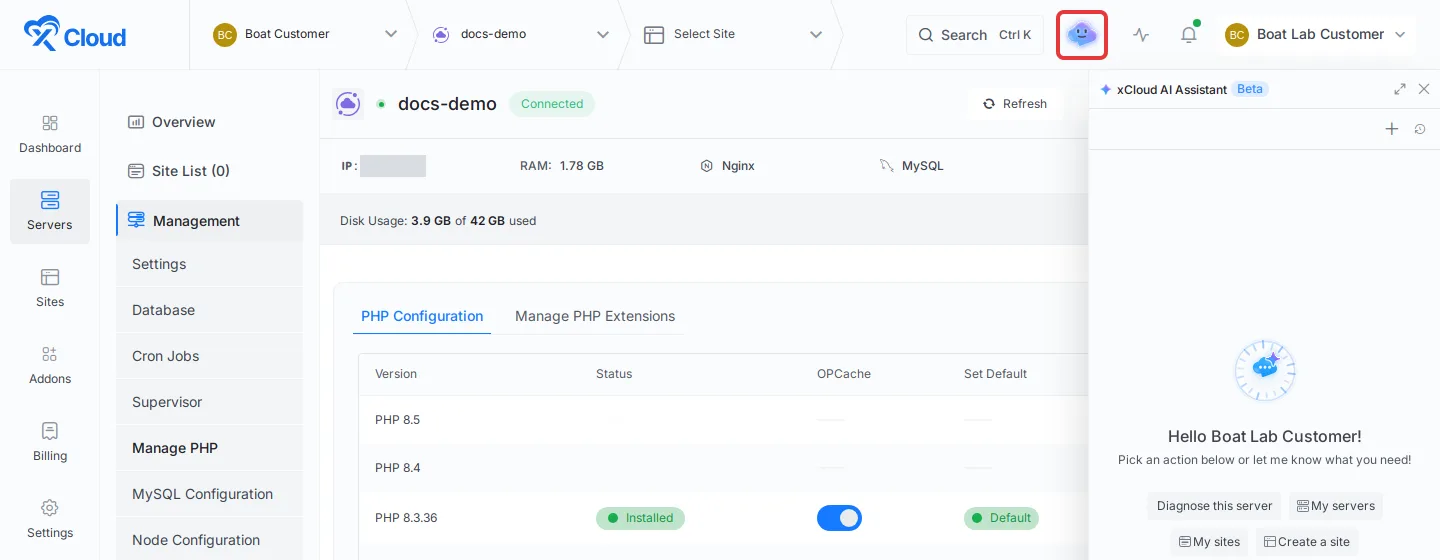
Open the server in your xCloud dashboard, then click the AI Assistant icon in the top header, next to the search bar. When you open the panel from a server page, the assistant already knows which server you mean, so you can say “this server”.
Step 2: Check the installed PHP versions
Type Which PHP versions are installed on this server? and press Enter. The assistant lists each installed version by its exact build, such as PHP 8.3.36, says which one is the default and names any patch release that is available. To see what else you can add, ask Which PHP versions can I install on this server?
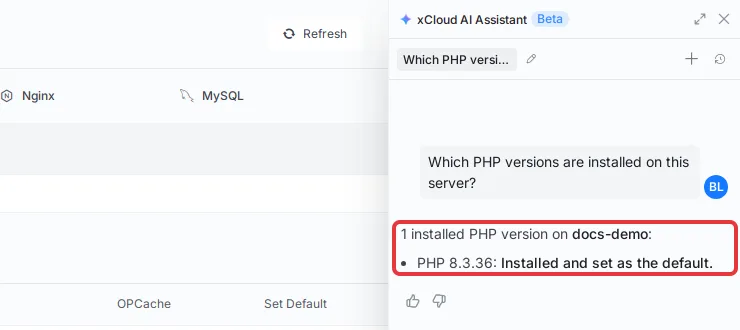
Use this answer to decide what to do next. If a version shows a patch release, go to Step 4.
Step 3: Install a PHP version
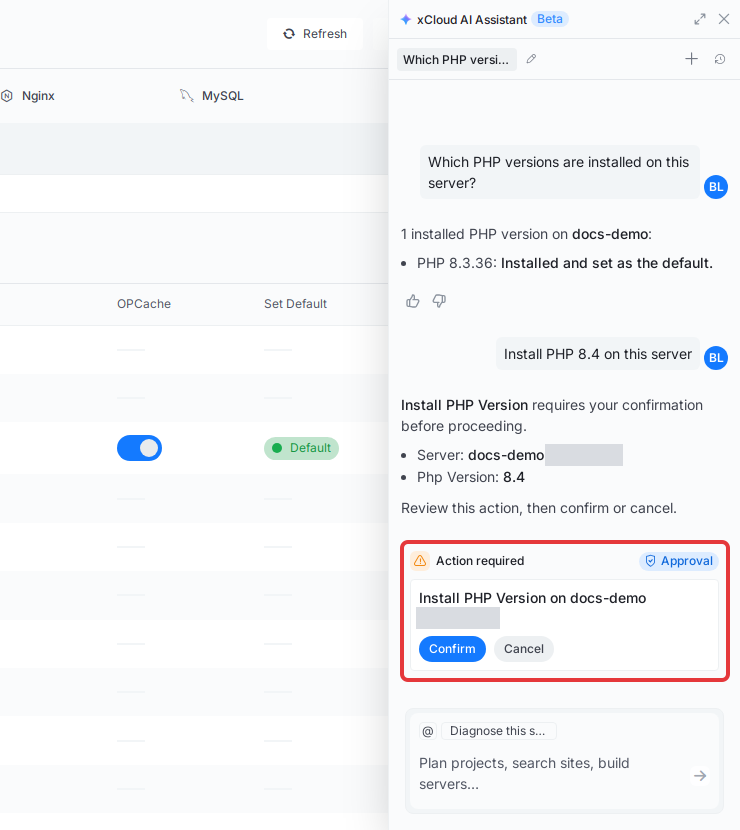
Type a request such as Install PHP 8.4 on this server. The assistant shows an Action required card with the server and the PHP version. Check both, then click Confirm. Click Cancel to stop.
After you confirm, the install starts in the background and takes a few minutes. The assistant tells you that PHP is being installed. Ask “Which PHP versions are installed on this server?” again later to check that it finished.
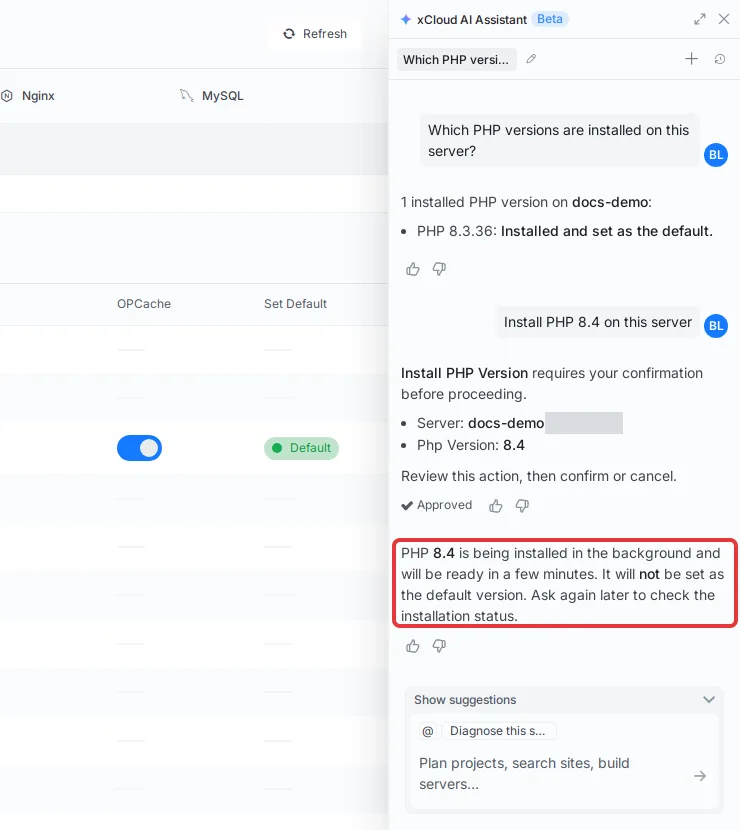
Installing a version does not change the server’s default PHP or any site’s PHP version. To move a site to the new version, change it in the site’s settings, as shown in How to Install, Upgrade PHP Version & Customize PHP Settings.
Step 4: Apply the latest PHP patch release
Type a request such as Update PHP 8.3 to the latest patch version. If you do not say which version, the assistant checks the installed versions first and asks you. Review the Action required card and click Confirm. The patch runs in the background.
Patch releases fix bugs and security issues within the same PHP version, so your sites keep running on, for example, PHP 8.3. You can also patch PHP from the dashboard, as shown in Install PHP security patches.
Step 5: Set the default PHP version
Type a request such as Make PHP 8.4 the default on this server, review the Action required card and click Confirm.
- If the version is already installed, the assistant tells you it is now the default.
- If it is not installed yet, the assistant installs it first, in the background. It becomes the default when the install finishes.
- If the switch fails on the server, the assistant says so, and the previous default stays in use.
The default PHP version is used by the command line and by new sites. Existing sites keep their own PHP version.
Step 6: Set the default Node.js version
Type Which Node.js version is default on this server? to see the current default. To change it, type a request such as Make Node.js 20 the default on this server. Review the Action required card and click Confirm.
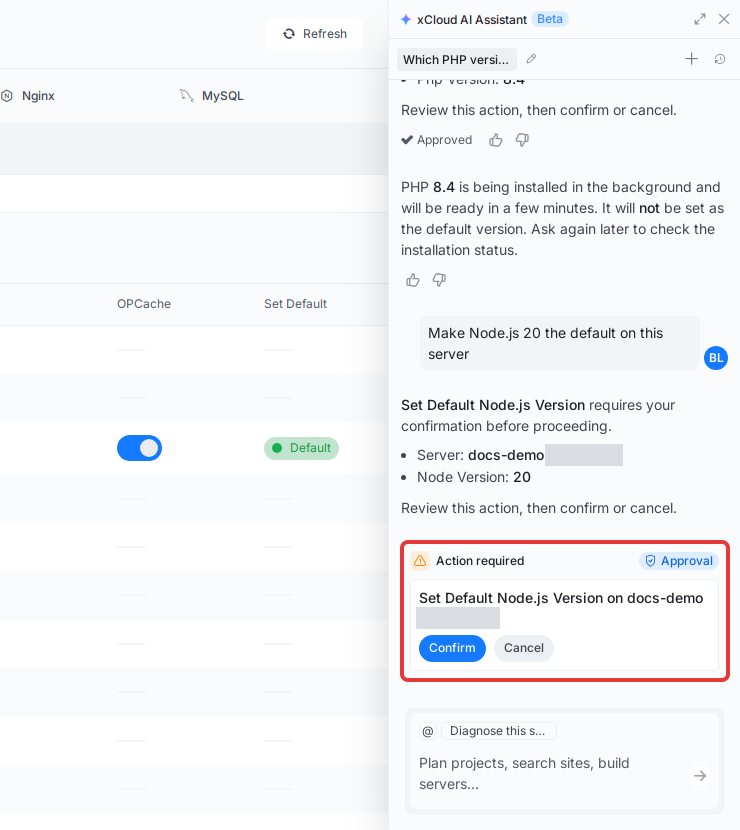
If Node.js already uses that version, the assistant tells you no change was needed. Otherwise the version is installed in the background and becomes the default when it finishes. Restart your Node.js sites afterwards so they run on the new version, as explained in How to Change the Node.js Version. To move to a newer release of the same Node.js version, see How to Update Node.js on xCloud.
If something does not work
- “Access is set to Read only”: switch Assistant Access to Read & Write, then ask again.
- The version you want is not offered: your server’s Ubuntu release does not support it. The assistant only offers versions the server can install.
- The assistant asks which server you mean: open the server first, or name it in your request, such as “Install PHP 8.4 on docs-demo”.
- A version stays “installing” for a long time: ask the assistant to list the PHP versions again. If it shows failed, try the install again from the server’s Manage PHP page, or contact support.
Frequently asked questions
Does setting the default PHP version change the PHP version of my existing sites?
No. The default PHP version is used by the command line and by new sites. Existing sites keep their own PHP version until you change it in each site’s settings.
Can the assistant install a PHP version that is not offered for my server?
No. The assistant only offers the PHP versions your server can still install. Some PHP versions are not available on every Ubuntu release, and the assistant tells you when that is the reason.
What happens if I ask for a default version that is not installed yet?
The assistant installs that PHP or Node.js version first, in the background, and it becomes the default when the install finishes. You still approve the change on the Action required card before anything starts.
Why does the assistant say its access is Read only?
Installing, patching and switching versions are changes, so the assistant needs Read & Write access. Switch it under ‘My Profile’ → ‘API Tokens’ → ‘Assistant Access’. Every change still waits for you to click ‘Confirm’.
If you run into any issues, feel free to reach out to our support team.