


To update self-hosted Docker apps safely, take a backup first, move to the new version, check it starts, and keep a way back. xCloud does all of that for One Click Apps: it backs up the app’s data, checks the new version works, puts the old one back if not, and lets you undo a good update for 7 days.
You run n8n, Ghost, Immich or another open-source app on your own server. A new version comes out. By hand, that means editing an image tag, pulling, restarting and hoping the data survives. If it does not, there is no easy way back.
This post shows what changed, where you see an update, what happens when you click Back up and update, how Undo works, and the cases where you still update by hand. If you are new to One Click Apps, start with how to use One Click App templates.
TL;DR
Short on time? Here is the whole post in a few lines:
- xCloud now tells you when a newer version of a Docker One Click App is out: on the Site Overview, the new App Updates page, your site list and the To-Do Center.
- Back up and update backs up the app’s data, starts the new version and checks that it works.
- If the new version does not start, xCloud puts the old version and your data back on its own. If the backup fails, nothing changes.
- For 7 days after a good update you can click Undo in Update history.
- A Big update (new major version) asks you to tick I’ve read the release notes first.
- Some updates still have to be done by hand. App Updates says why and links the app’s upgrade guide.
- App Actions → Update is now called Redeploy. It restarts the app on the same version.
The Finding: One Click Updates With a Way Back Built In
Every update on App Updates is wrapped in a backup, a health check and a 7-day undo. That is the difference from a plain docker compose pull, which only downloads new images and leaves the rest to you.
Here is the whole flow, step by step, as it runs on your server:
| Step | What xCloud does | Your app |
|---|---|---|
| Downloading 3.7.1 | Downloads the new version while your app keeps running | Still running |
| Backing up your data | Backs up the app’s data. If this fails, it stops and nothing changes. | Offline from here |
| Starting 3.7.1 | Waits for each part of the app to report healthy | Restarting |
| Checking it works | If the new version is not healthy in time, puts the old version and your data back | Back on the old version, or on the new one |
| Done | Keeps the backup from before the update for 7 days | Running the new version |
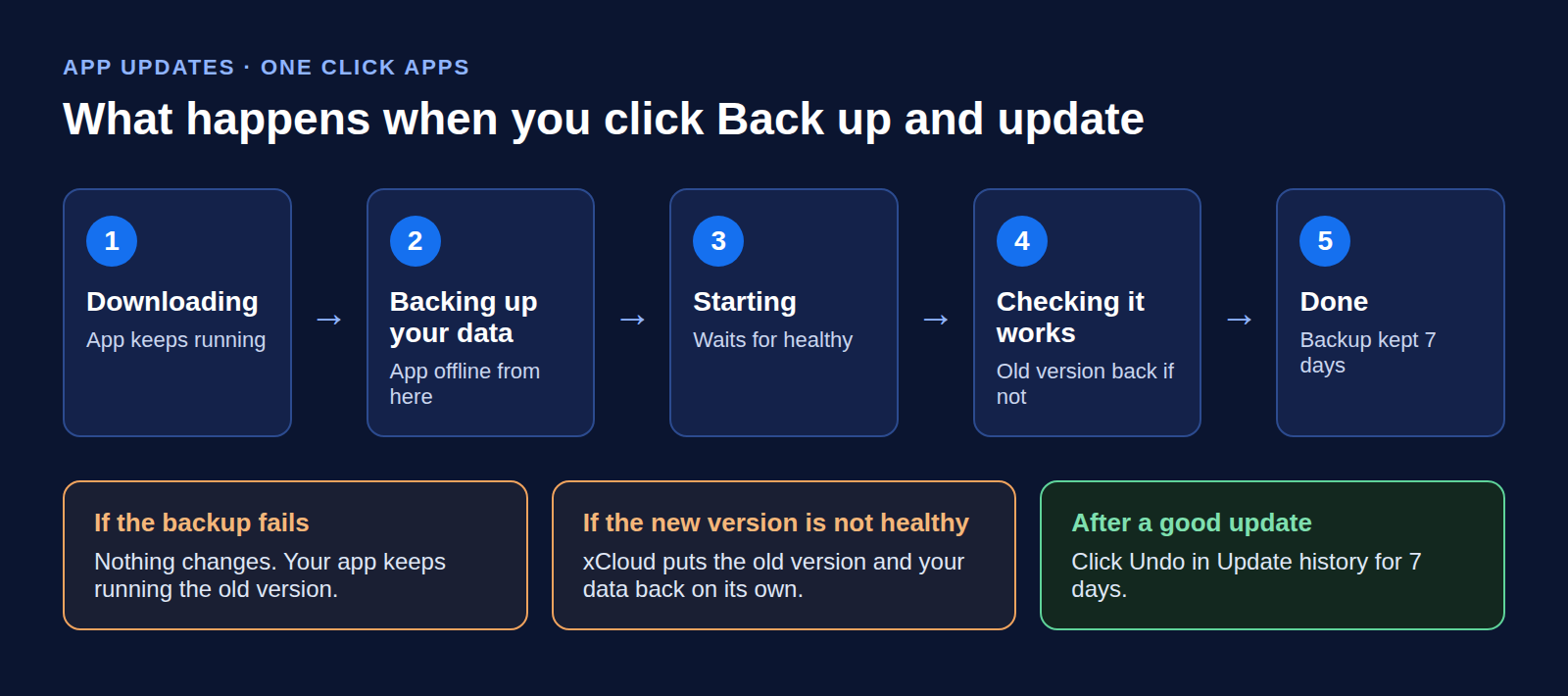
The rule behind it is simple: xCloud does not leave a half-updated app behind. It either finishes the update, or it puts things back the way they were.
Why Updating a Self-Hosted Docker App Is Risky
Most open-source apps tell you to update their Docker setup with three commands. The n8n Docker guide, for example, lists docker compose pull, docker compose down and docker compose up -d. That works on a good day.
The catch is what those commands do not do. docker compose pull pulls the images for your services, “but does not start containers based on those images.” Nothing in that flow takes a backup, checks the new version is healthy, or keeps the old version ready.
So the risks are on you:
- No backup: a new version can change the database. If it fails halfway, your data may not open in either version.
- No health check: the containers start, but the app inside may not. You find out when a user does.
- No way back: going back to the old image tag does not undo database changes the new version made.
- Pinned versions: some apps’ setup files lock them to one exact build. If you change the version number but leave that lock in place, the old version keeps running.
The update is easy to start and hard to undo.
See When an Update Is Available
xCloud compares the version your app runs with the newest version in the One Click Apps catalog. When a newer one exists, you see it in four places:
- Site Overview: a banner such as “Ackee 3.7.1 is available”, with You’re on and your current version, a What’s new link to the release notes and an Update button.
- App Updates in the site sidebar: You’re on and Available, a Small update or Big update badge, and the Update history.
- Your site list: each app’s version, with a small pill when a new one is out.
- To-Do Center: a card such as An app update is available on 1 site or App updates are available on 3 sites, with a Fix button for small updates. Apps that need a manual update get no card; check App Updates for those.
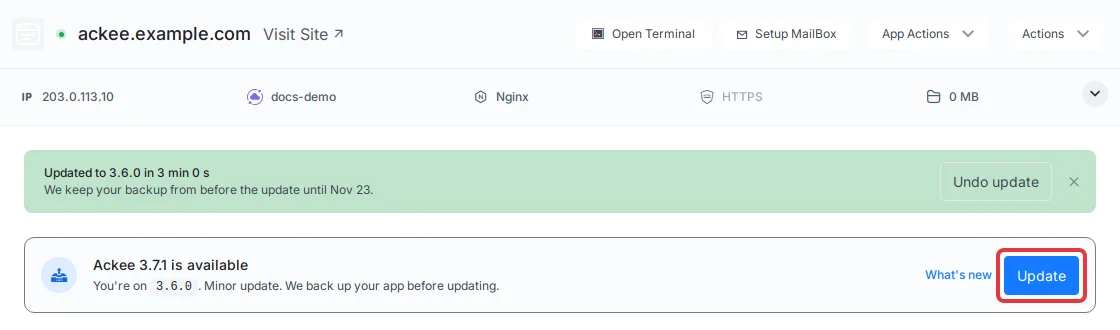
If your app is current, App Updates says You’re up to date. An app that is still installing, or failed to install, shows no version yet.
Run an Update: Backup, Health Check, Automatic Put-Back
Step 1: Open App Updates
Open the app’s site and select App Updates in the sidebar. The Update button on the Site Overview banner takes you straight to Step 2.
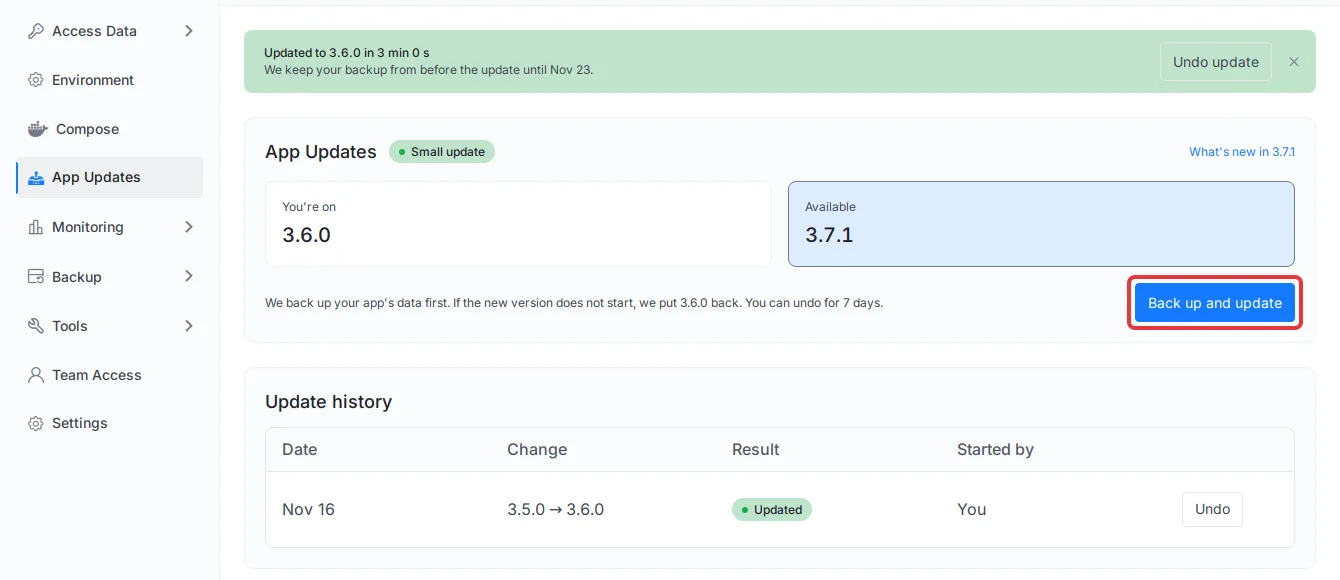
Step 2: Click Back up and update
A dialog such as Update Ackee to 3.7.1? opens. For a Small update it lists three notes:
- We back up your app’s data first. If the backup fails, nothing changes.
- Your app is offline for a few minutes. The new version downloads while your app runs. It goes offline only for the backup and restart.
- If 3.7.1 does not start, we put 3.6.0 back. You can also undo the update yourself for 7 days.
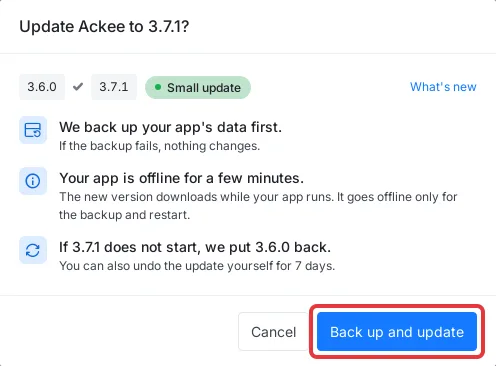
Click Back up and update in the dialog.
Step 3: Follow the progress
A steps card shows Downloading 3.7.1, Backing up your data, Starting 3.7.1, Checking it works and Done. You can leave the page; the result shows on App Updates and in the site’s Events.
When it works, a green banner reads “Updated to 3.7.1” and “We keep your backup from before the update until” a date 7 days later.
If the update does not work
- The backup fails, or there is not enough free disk space for it: nothing changes. Your app keeps running the old version.
- The new version does not report healthy in time: xCloud puts the old version and your data back. The banner reads “The update did not work, so we put 3.6.0 back” (with your version), and the history row says Put back 3.6.0 (with your old version).
- xCloud could not put the old version back: the page says so and offers Contact support.
👉 The full walkthrough, with every message, is in How to Update a One Click App and Edit Its Docker Compose File.
Undo an Update Within 7 Days
Sometimes the new version starts fine, but you do not like it. A setting moved, a plugin broke, or your team needs a day to adjust. For 7 days after a good update you can go back.
- Open App Updates.
- Click Undo on the newest row in Update history.
- Read the dialog. It puts back the old version and your data as it was on the update date. Changes made in the app since then are lost.
- Keep Back up the current data first ticked (it is on by default) if you may need today’s data later.
- Click Undo update.
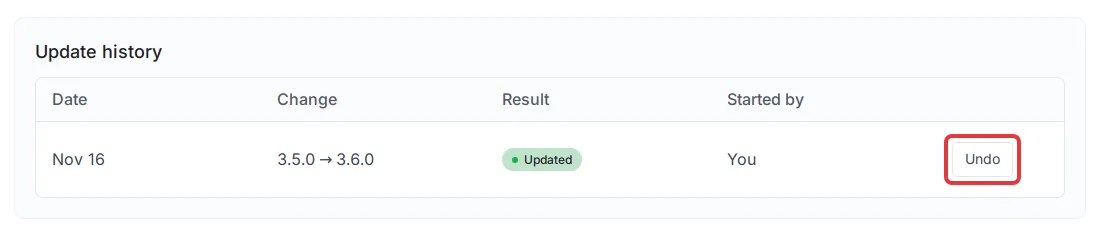
The history row then says Undone. Undo is offered only for the newest update, and only until its backup expires after 7 days.
For backups beyond this one, see backup and restore for Docker apps.
Manual Updates and Major Versions
Big updates need one extra tick
A Big update moves the app to a new major version, which can change how the app works. The dialog shows “Big updates can change how the app works.” with a link to the release notes. You tick I’ve read the release notes before Back up and update turns on. The same backup, put-back and 7-day undo apply.
Some updates still have to be done by hand
xCloud runs an update only when it can check that the change is safe. Otherwise App Updates shows “This update has to be done by hand.”, the reason, and a How to upgrade button that opens the app’s own upgrade guide.
| What App Updates says | What it means for you |
|---|---|
| The maker of this app asks for its updates to be done by hand. | The app’s maker does not support automatic upgrades. |
| This is a big update that can change how the app works, so it has to be done by hand. | This app allows one click updates only within the same major version. |
| You edited this app’s Compose file by hand, so we cannot tell what is safe to change. | A Compose edit turns off one click updates for that app. |
| This update moves the app’s database to a new major version. That means converting your data, which we cannot do with one click. | Converting your data is a step you do yourself. |
| This update changes more than the version of the app, so it has to be done by hand. | The new version changes services, not only versions. |
| This app now deploys from your own repository, so its updates come from there. | The app is connected to a Git repository. |
For those cases, the doc shows how to change the app’s version in its Compose file yourself. Take a backup and copy the file first, because Compose edits have no undo.
Redeploy is not an update
App Actions → Update is now called Redeploy. It restarts your app on the version it already runs. It does not move the app to a new version. If you used the old Update button to get new versions, use App Updates from now on.
Update From the Public API or Your AI Agent
The same update can run from a script or an AI agent. The xCloud Public API and MCP server can read whether an update is available, start an update and undo the newest one. For a big update, you say which version you want. Starting an update or an undo returns at once, and you can follow its progress until it is done.
That means an agent like Claude or ChatGPT can check every app for updates and run the small ones, inside your team’s permissions. To set that up, see how to connect xCloud MCP to your AI agent. The exact operations are in the v2.9.22 changelog.
What It Does Not Do (Honest Limits)
App Updates is careful by design, so it says no more often than a shell does. Know the limits before you rely on it:
- Docker One Click Apps only. It covers apps installed from the One Click Apps template catalog, not WordPress sites or your own custom Docker setups.
- Catalog versions only. You move to the newest version in the xCloud catalog. A version the catalog does not offer yet still needs a manual Compose edit.
- A few minutes offline. The app is down during the backup and the restart.
- Undo has limits. Only the newest update, only for 7 days, and changes made in the app after the update are lost.
- Compose edits switch it off. Once you edit an app’s Compose file by hand, one click updates stay off for that app.
- No auto-update. xCloud shows the update and runs it when you click. It does not update your apps on its own schedule.
Keep Your Self-Hosted Apps Current Without the Risk
If you only remember one line: an update is only safe when you have a way back. App Updates gives you three: the backup before the change, the automatic put-back when the new version fails, and a 7-day undo.
This week, open the To-Do Center and look for the app update card (An app update is available on 1 site or App updates are available on 3 sites). Run the small ones and read the release notes for the big ones. Apps that need a manual update get no To-Do card, so check App Updates on those apps and follow How to upgrade.
Want somewhere to run them? Deploy any of the One Click Apps on a server you control, see container hosting on xCloud for server sizes, or read our step-by-step guides to self-host n8n, self-host Ghost and self-host Immich. Plans are on the pricing page.
If you have found this blog helpful, feel free to subscribe to our blogs for valuable tutorials, guides, knowledge, and tips on web hosting and server management. You can also join our Facebook community to share insights and engage in discussions.
Frequently Asked Questions
Does updating a One Click App delete my data?
No. xCloud backs up the app’s data before it changes anything. If the backup fails, nothing changes. If the new version does not start, xCloud puts the old version and your data back on its own.
How long can I undo an update?
For 7 days after a good update. Undo is offered only for the newest update, from Update history on the App Updates page. Changes made in the app since the update are lost, so keep Back up the current data first ticked.
Is my app offline during the update?
Only for a few minutes. The new version downloads while your app keeps running. The app goes offline for the backup and the restart.
Why does my app say the update has to be done by hand?
xCloud only runs updates it can check are safe. If you edited the app’s Compose file, the update moves the database to a new major version, or the app’s maker asks for manual updates, App Updates shows the reason and a How to upgrade button.
What is the difference between Update and Redeploy?
Update, on App Updates, moves the app to a newer version with a backup and a way back. Redeploy, in App Actions, restarts the app on the version it already runs. Redeploy was called Update before v2.9.22.
Can I update One Click Apps from the API or an AI agent?
Yes. The xCloud Public API and MCP server can read whether an update is available, start an update and undo the newest one. Team permissions and your token’s abilities still apply.