


WordPress database cleanup means removing old revisions, spam, expired temporary data and other leftovers your site no longer needs. In xCloud, you can now do it without a plugin: open WordPress → Optimization, preview what will go, take a backup first, then run it once or on a schedule.
Until now, this job meant installing one more plugin and hoping it did not remove the wrong thing. That is an odd trade when you are already trying to speed up a WordPress site by running fewer plugins.
This guide covers what each action removes, how the backup step works, how to schedule it, and what the page will not do for you. It also covers the rest of xCloud v2.9.7.4.
TL;DR
- Where it lives: every WordPress site has a new Optimization page, right after Caching in the WordPress menu.
- What it removes: post revisions, auto-drafts, trash, spam, unused tags and categories, and temporary and leftover data. You choose the items.
- Preview first: Preview shows the count for each action and deletes nothing.
- Back up first: with Back up database first ticked, nothing is deleted until the backup finishes.
- Run it on a schedule: Daily, Weekly or Monthly, with your 10 latest runs shown in Cleanup History.
- The limit: it does not touch large autoloaded options, leftover plugin tables or media files, and deleted data only comes back from a backup.
The Backup Is a Gate, Not a Reminder
Most cleanup advice says “take a backup first” and leaves the rest to you. In xCloud, the backup is a step the cleanup has to pass. If you keep Back up database first ticked, the cleanup waits for the backup, and a backup that fails stops the run.
There are two ways a run can stop at this step, and both leave your data alone:
- The backup fails. The run ends with “Backup failed; cleanup aborted.” and nothing is deleted.
- The backup takes more than 60 minutes. The cleanup is cancelled and nothing is deleted. The backup keeps running by itself. If it finishes, you will find it on the site’s Backups page.
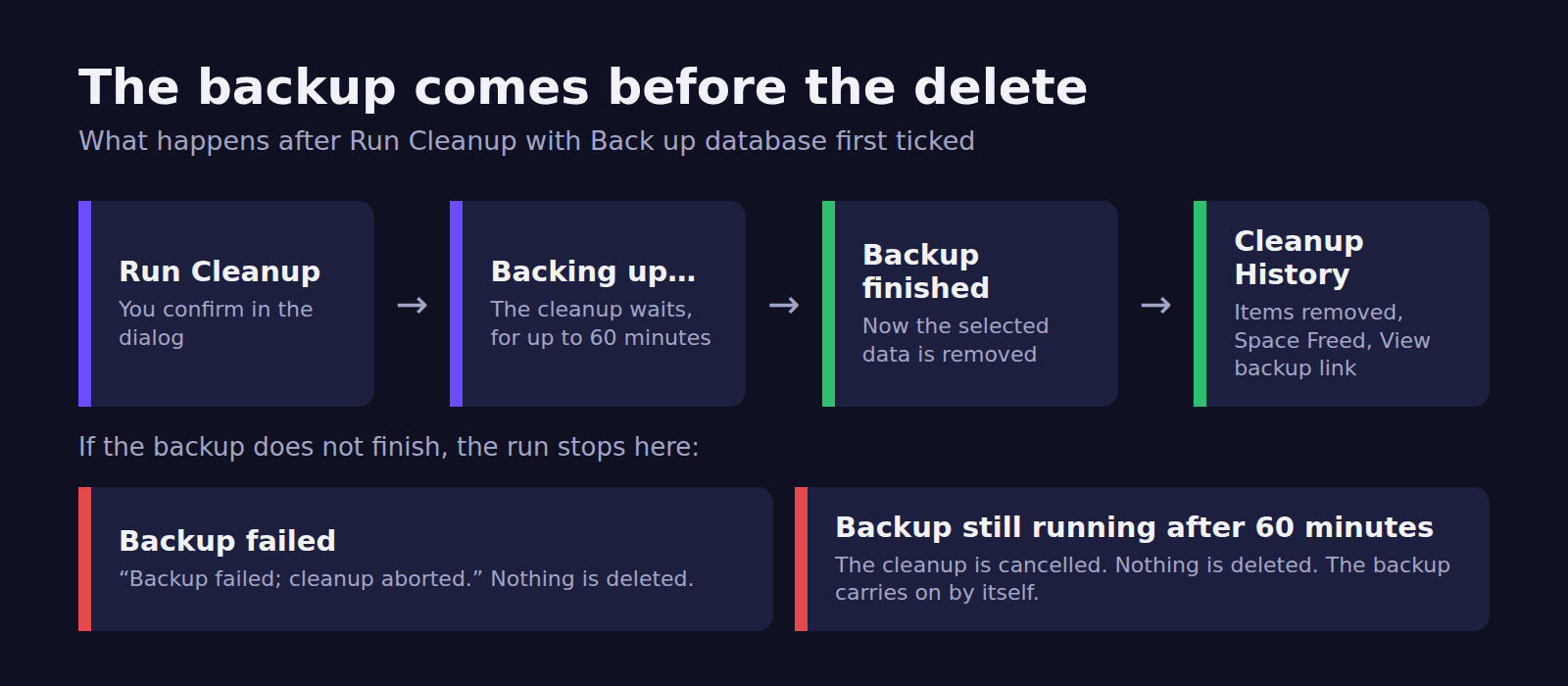
If you only remember one line: tick the box, and the delete cannot run ahead of the restore point. The same setting carries into a schedule, so the rule still holds when nobody is watching.
Why WordPress Databases Bloat
Nothing is broken when this happens. WordPress and its plugins keep things in case they are needed, and not all of it gets removed on its own.
- Revisions. WordPress keeps post revisions on by default. You can cap them with
WP_POST_REVISIONS, as the WordPress configuration guide explains. Our wp-config.php guide explains how to edit the file. - Temporary data. Plugins save short-lived data so they do not have to fetch it again. Without an object cache it sits in the database, and the WordPress Transients documentation says WordPress only clears expired entries infrequently.
- Spam and trash. Spam comments and trashed items still take up room until WordPress or you empty them.
- Leftover data. These are extra details saved for a post or comment that no longer exists.
Page builders make revisions heavier, because they can keep a full copy of the page with each one. xCloud’s cleanup removes that extra data along with the revision, so you do not end up deleting the small part and keeping the big part.
What Each Cleanup Action Removes
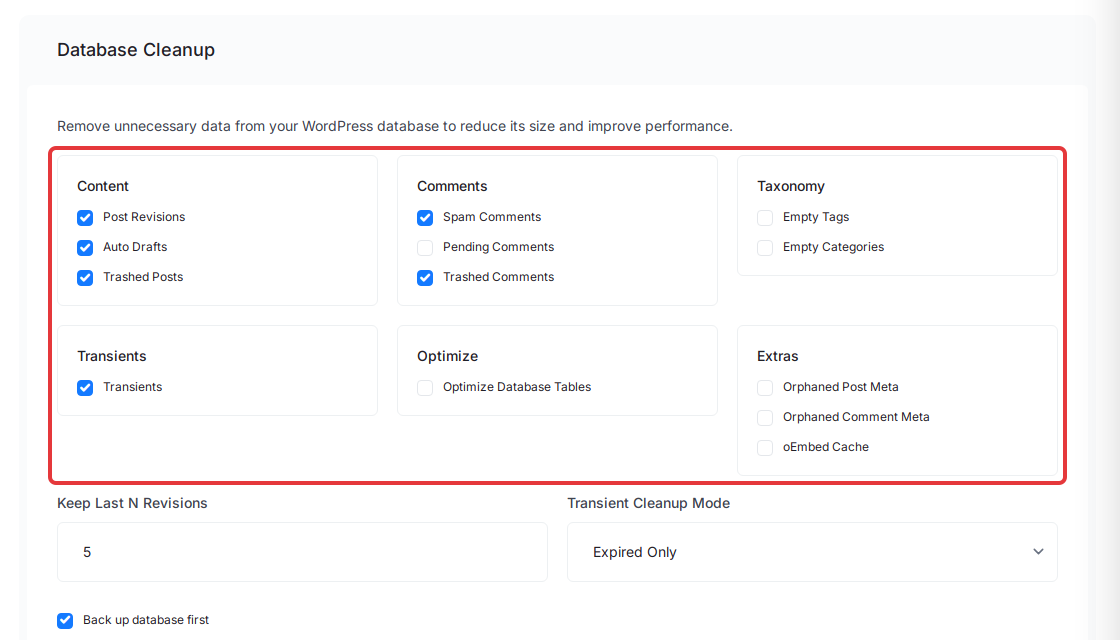
The actions sit in six boxes on the Database Cleanup panel. Here is what each one does, and whether it is ticked when you open the page.
| Box | Action | What it removes | Ticked by default |
|---|---|---|---|
| Content | Post Revisions | Old saved versions. Keep Last N Revisions keeps the newest ones for each post (5 by default, 0 removes all) | ✅ |
| Content | Auto Drafts | Automatic drafts older than 7 days | ✅ |
| Content | Trashed Posts | Everything in the trash, for every post type, including pages, trashed products, and trashed orders if your store still keeps orders in the WordPress posts table | ✅ |
| Comments | Spam Comments | Comments marked as spam | ✅ |
| Comments | Pending Comments | Comments waiting for your approval | ❌ |
| Comments | Trashed Comments | Comments in the trash | ✅ |
| Taxonomy | Empty Tags, Empty Categories | Tags and categories nothing uses: no post of any status, no sub-category, not in a menu, never the default category | ❌ |
| Transients | Transients | Depends on Transient Cleanup Mode: Expired Only, All Transients or Skip | ✅ (Expired Only) |
| Optimize | Optimize Database Tables | Removes nothing. It tidies your tables after the cleanup and gives space back | ❌ |
| Extras | Orphaned Post Meta, Orphaned Comment Meta | Details left behind by posts and comments that no longer exist | ❌ |
| Extras | oEmbed Cache | Saved embed code, which WordPress fetches again when the page is viewed | ❌ |
Two of these deserve a second look before you click anything:
- Trashed Posts is on by default. On a store, that includes trashed products, and trashed orders if your store still keeps orders in the WordPress posts table. Orders kept in WooCommerce’s separate order tables are not counted or removed. Check the preview, and untick it if anything in the trash may still matter.
- All Transients can slow the first page loads. Plugins rebuild what they need, so it is safe, but the rebuilding takes a moment. Expired Only is the gentler choice.
Preview First, Back Up First
Here is the path from start to finish. The full step-by-step doc has a screenshot for each step.
- Open the site and click WordPress → Optimization.
- Tick the actions you want, then set Keep Last N Revisions and Transient Cleanup Mode.
- Leave Back up database first ticked.
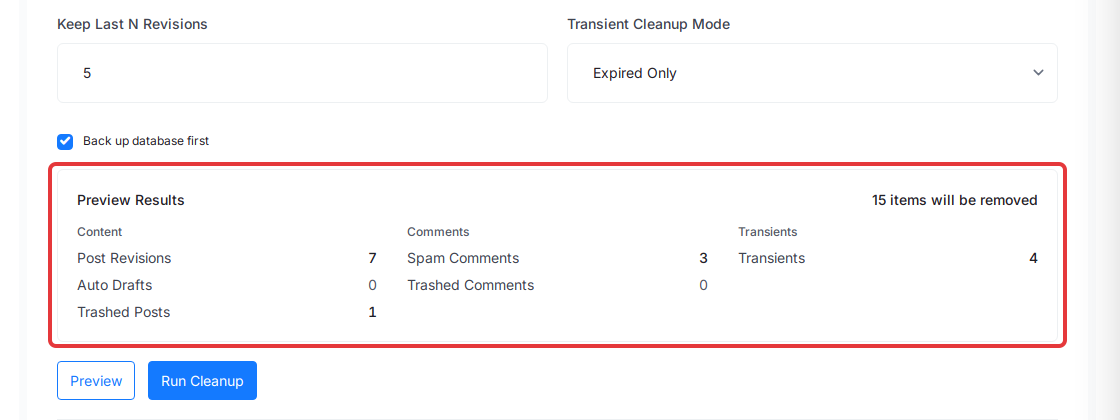
- Click Preview and read the count for each action.
- Click Run Cleanup, then Yes, run cleanup! in the dialog.
The preview is a real count from your server, and it changes nothing. If a number looks wrong, for example far more trashed posts than you expected, stop and look before you run anything.
If you do not see Optimization, your team role is missing the cleanup permission.
xCloud uses the site’s existing backup setting if it includes the database. If the site has no backup setting, it takes a database-only local backup. If your only backup is a local files-only one, the panel asks you to turn on Database in the backup settings or untick the option.
The backup then sits on the site’s Backups page like any other restore point. Our site backups doc shows how to restore one. On a busy store, try the same cleanup on a staging copy first.
Schedule It and Read the History
Under Automatic cleanup, turn the switch On and pick Daily, Weekly or Monthly. The schedule runs the actions you have ticked, and the panel shows a summary, the Next run and the Last run.
The first run happens one day, week or month after you turn it on. If you change the ticked actions later, xCloud tells you the selection differs from the schedule, and Update schedule saves the new one.
Cleanup History shows your 10 latest runs with their Date, Trigger (manual, scheduled or API), Status, Summary and Space Freed. A run that took a backup shows a View backup link, and a failed run shows the reason and a Retry link. When a run removes anything and xCloud’s page cache is on, xCloud also purges it, so visitors do not see removed content. If you use another cache plugin, clear it yourself.
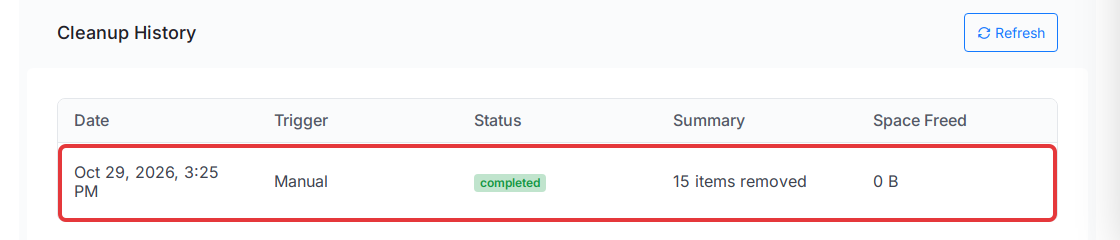
The summary counts what was actually removed, not what the preview estimated. Do not be surprised by 0 B in Space Freed, as in the screenshot above. Your database often keeps the space from deleted data until its tables are optimized. Optimize Database Tables is the box that does this and gives the space back.
Pick the schedule by how fast the site changes. Weekly or Monthly suits most sites, and each run with Back up database first on takes a backup, so a Daily schedule adds up quickly. Treat this as a starting point rather than a strict rule.
What This Cleanup Does Not Do
The honest version: this page removes a fixed list of items, and that list does not cover everything that makes a database slow.
- Large autoloaded options. Oversized settings that load on every page can slow your site down. This cleanup does not touch them, apart from temporary data.
- Leftover plugin tables. A plugin you deleted may leave its own tables behind. Optimize Database Tables can tidy them, but nothing here removes them.
- Media files. Images and uploads are not part of this. Disk space is a separate job.
- Object cache contents. Temporary data is removed from the database. Anything your Redis object cache holds stays there.
- Speed promises. We have not measured a speed or size saving, so we are not quoting one. Results depend on what your site has built up.
To undo a cleanup, restore the backup. There is no other way back, because deleted data is gone for good. Restoring also rolls back anything added to the database since the backup, so do it soon after the run.
A run also has limits. Only one cleanup runs on a site at a time, and a run stops after 60 minutes. Some data may already be gone by then, so click Retry to finish.
xCloud Cleanup, a Plugin or the Command Line
A cleanup plugin such as WP-Optimize is still a fine choice, especially when you are not on xCloud. The real question is where you want this job to live.
| xCloud Optimization page | Cleanup plugin | WP-CLI over SSH | |
|---|---|---|---|
| Install needed | None | A plugin on each site | None, but you need SSH access |
| Runs on | WordPress sites on xCloud only | Any host | Any server with WP-CLI |
| Preview | ✅ Count per action | Check the plugin | Write your own query |
| Backup first | ✅ Built in, and it stops the run if it fails | Check the plugin | Your job |
| Schedule | ✅ Daily, weekly or monthly | Check the plugin | Your own scheduled script |
| Run history | ✅ Cleanup History (10 latest runs) | Check the plugin | Your own logs |
| Removes leftover plugin tables | ❌ | Check the plugin | ✅ If you know which ones are safe |
Rule of thumb: use the xCloud page for routine upkeep across your sites. If you need to dig into one site’s leftover tables, reach for a plugin or the command line for that one job.
For Developers: Public API and MCP
The Public API runs the same cleanup as the dashboard, with the same actions and options. Your token needs write:sites to preview and run, and read:sites to read the history.
POST /api/v1/sites/{uuid}/database/cleanup/previewreturns the count for each action and deletes nothing.POST /api/v1/sites/{uuid}/database/cleanupstarts a run. If one is already in progress, you get that run back.GET /api/v1/sites/{uuid}/database/cleanup/historylists runs with their status and results, page by page, including runs older than the 10 latest shown in the dashboard.
All three are also tools for AI agents connected through xCloud MCP. The in-app AI Assistant is more limited: it can preview and read the history, but it cannot run a cleanup. Schedules are managed in the dashboard only.
The same release adds two more options for scripts and AI agents:
- Purge the page cache on many sites at once. One API call or MCP tool purges 1 to 100 WordPress sites, with an optional dry run. The bulk purge doc has the details.
- Run a site command from a script. The Public API can now run one command as the site’s user and return its result. MCP does not offer this yet, as the site commands doc explains.
Also in v2.9.7.4
The cleanup is the headline, but the same release changes a few other things you may notice.
- Auto Update now fixes more known vulnerabilities. With Vulnerability Scan and Auto Update on under Server → Security → Vulnerability Settings, known vulnerabilities reported by Patchstack are fixed too, not only those from Wordfence. See the vulnerability checker doc, and Site Security Pro for the protection itself.
- Supabase is private by default. Supabase Studio, Logflare and Kong can now only be reached from the server itself. New installs keep the database there too, so you connect over an SSH tunnel.
- Docker Compose ports from your .env file. A port set in your
.envfile now shows up in Primary port when you deploy a Docker app from Git. - Broken-link alerts are back. They reach Slack, Telegram, WhatsApp, Discord and webhooks again, with a new switch to turn them on or off.
Run Your First WordPress Database Cleanup This Week
Start small and read the numbers. Open WordPress → Optimization on one site, leave the default actions and Back up database first ticked, and click Preview. If the counts look right, run it, then check Cleanup History.
Once one site looks right, set a Weekly or Monthly schedule and move on to the next. If you do not host with us yet, every site on our WordPress hosting gets this page. Start with one site today.
If you have found this blog helpful, feel free to subscribe to our blogs for valuable tutorials, guides, knowledge, and tips on web hosting and server management. You can also join our Facebook community to share insights and engage in discussions.
Frequently Asked Questions
Do I need a plugin to clean up my WordPress database on xCloud?
No. Every WordPress site on xCloud has an Optimization page in its menu, under WordPress. A cleanup plugin you already use can stay, but you do not need one for the items this page covers.
Can I undo a WordPress database cleanup?
Only by restoring a backup, because deleted data is removed permanently. Keep Back up database first ticked. The backup stays on the site’s Backups page as a restore point.
Will a database cleanup make my site faster?
It can help, but we have not measured a number and cannot promise one. It removes leftover data and can tidy your tables. If a site is still slow, look at large autoloaded options, slow database queries and heavy plugins too.
Why does Space Freed show 0 B after a cleanup?
Space Freed is the change in database size before and after the run. Your database often keeps the space from deleted data until its tables are optimized, so a small cleanup can show 0 B. Tick Optimize Database Tables to get that space back.
Is it safe to run a cleanup on a WooCommerce store?
It can be, but check the preview first. Trashed Posts is ticked by default and covers every post type, including trashed products, and trashed orders if your store still keeps orders in the WordPress posts table. Untick it if you may still need anything in the trash.
Does the cleanup work on Laravel, PHP or Node.js sites?
No. The Optimization page and the cleanup API work on WordPress sites only, because every action reads WordPress tables.