

How to Run and Track Site Commands with the xCloud Public API
Updated October 30, 2026 · 7 min read
You can run a one-off command on any xCloud site from a script and follow it to the end: send the command with POST /api/v1/sites/{site}/commands, then read its status, exit code and output with GET /api/v1/sites/{site}/commands/{task}. The command runs as the site’s user, never as root. It replaces the old trick of adding a temporary cron job just to run something once, such as wp cache flush after a deploy.
Site commands are new in xCloud v2.9.7.4. They are available through the Public API only.
What you need first
All four are checked on every request:
| Requirement | Where to set it |
|---|---|
An API token with the commands:run permission |
Settings → Developers → API Tokens (Step 1 below) |
| Two-factor authentication turned on for your account | See Two-Factor Authentication |
| The Team Admin, Server Admin or Site Admin role in the site’s team | Your team owner sets roles |
| Permission to use the site’s Commands page | The same permission the dashboard uses; if you see Commands in the site menu, you have it |
Full Access does not include commands:run. Running commands is opt-in, so a token made for reading servers or deploying sites cannot run commands unless you ticked this box. Tokens used by the in-app AI Assistant are always refused.
Step 1: Create a token with commands:run
Go to Settings → Developers → API Tokens and click Create New Token. In Create A New API Token, enter a Token Name, untick Full Access (all API permissions), then tick commands:run. Add any other permissions your script needs, and click Create Token.
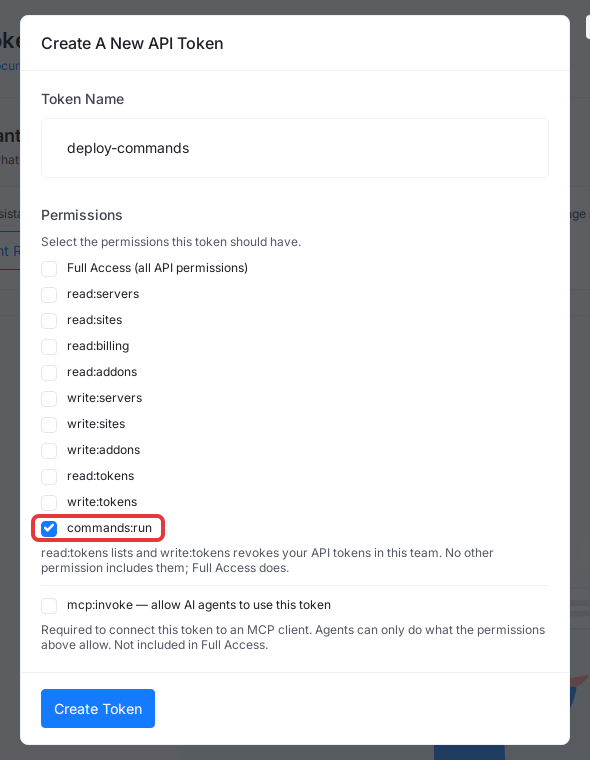
Expected result: the new token is shown once. Copy it and store it somewhere safe. The token list shows commands:run among its permissions.
Leave at least one permission unticked. If you tick every box, the window switches back to Full Access, which does not grant commands:run. A token with only commands:run is the safest choice for a script that just runs commands. For more on tokens, see How to Access the xCloud API.
Step 2: Find the site’s UUID
Commands are sent to one site, named by its UUID. List your sites and copy the uuid of the one you want:
export XCLOUD_TOKEN='YOUR_API_TOKEN'

curl 'https://app.xcloud.host/api/v1/sites' \
  --header "Authorization: Bearer $XCLOUD_TOKEN" \
  --header 'Accept: application/json'
Expected result: a 200 response with your sites. Store the UUID as SITE_UUID. To work in another team the token is granted to, add the X-Team-Id header to every request in this guide; see Multi-Team API Tokens and MCP Access.
Step 3: Send the command
Send the command in a JSON body with a unique Idempotency-Key header. The header is required: it makes the request safe to retry, because a repeated request never runs the command twice. Make one random key per command, for example with uuidgen, and keep it in a variable. If a request times out, retry it with the same key so the command is not queued twice. Make a new key only for a new command.
export SITE_UUID='3c4d5e6f-7a8b-4c9d-8e0f-1a2b3c4d5e6f'
export IDEMPOTENCY_KEY=$(uuidgen)

curl -X POST "https://app.xcloud.host/api/v1/sites/$SITE_UUID/commands" \
  --header "Authorization: Bearer $XCLOUD_TOKEN" \
  --header 'Accept: application/json' \
  --header 'Content-Type: application/json' \
  --header "Idempotency-Key: $IDEMPOTENCY_KEY" \
  --data '{"command": "wp cache flush"}'
Expected result: 202 Command queued, with the ID you use to follow the command and the URL to poll. Example response (the IDs are placeholders):
{
  "success": true,
  "message": "Command queued",
  "data": {
    "task_uuid": "7e8f9a0b-1c2d-4e3f-8a9b-0c1d2e3f4a5b",
    "status_url": "https://app.xcloud.host/api/v1/sites/3c4d5e6f-7a8b-4c9d-8e0f-1a2b3c4d5e6f/commands/7e8f9a0b-1c2d-4e3f-8a9b-0c1d2e3f4a5b"
  }
}
Copy data.task_uuid from the response and store it for the next step:
export TASK_UUID='7e8f9a0b-1c2d-4e3f-8a9b-0c1d2e3f4a5b'You can also call data.status_url directly; it is the same address.
The body takes only command, at most 4,096 bytes. You cannot choose the user: a user or site_id field is rejected with 422, and the command always runs as the site’s user in the background.
Step 4: Poll for the result
Call status_url until status is no longer queued or running:
curl "https://app.xcloud.host/api/v1/sites/$SITE_UUID/commands/$TASK_UUID" \
  --header "Authorization: Bearer $XCLOUD_TOKEN" \
  --header 'Accept: application/json'
Expected result: each poll returns 200. When status is finished, failed, timeout or killed, the command has ended. Example response (the IDs, times and output are placeholders; yours show your command’s real output):
{
  "success": true,
  "message": "Success",
  "data": {
    "status": "finished",
    "exit_code": 0,
    "output": "Success: The cache was flushed.\n",
    "truncated": false,
    "started_at": "2026-10-30T12:10:04+00:00",
    "finished_at": "2026-10-30T12:10:06+00:00"
  }
}| Field | Meaning |
|---|---|
status |
queued, running, then one of finished, failed, timeout or killed |
exit_code |
The command’s exit code, or null while it has none |
output |
The command’s output. Long output keeps only the last 60,000 bytes |
truncated |
true when the output was longer than 60,000 bytes and the start was cut |
started_at, finished_at |
When the command started and ended, or null |
Check exit_code as well as status: a command that ran but returned an error exits with a non-zero code. Only the person who sent a command can read it, and only while they still have access to the site; anyone else gets 404. Responses are never cached.
A small polling loop with jq:
until STATUS=$(curl -sf "https://app.xcloud.host/api/v1/sites/$SITE_UUID/commands/$TASK_UUID" \
    --header "Authorization: Bearer $XCLOUD_TOKEN" --header 'Accept: application/json' \
    | jq -r '.data.status'); [ -n "$STATUS" ] && [ "$STATUS" != "null" ] \
    && [ "$STATUS" != "queued" ] && [ "$STATUS" != "running" ]; do
  sleep 5
done
echo "Command ended: $STATUS"
If a poll fails, for example with 429 or a network error, the loop waits and polls again instead of stopping.
Limits
| Limit | Value |
|---|---|
| Commands sent (POST) | 30 per hour per token, and 120 per hour per team |
| Status checks (GET) | 120 per minute per token, and 120 per minute per team, counted apart from POST |
| Command length | 4,096 bytes |
| Output returned | The last 60,000 bytes |
Going over a limit returns 429. Wait and try again; for status checks, a few seconds between polls keeps you well inside the limit.
xCloud keeps a record of every command you send and every status check, and of requests refused because the token lacks commands:run or two-factor authentication is off: who sent it, with which token, for which site, and when. The record does not hold the command text or its output.
If something goes wrong
| Response | What it means and what to do |
|---|---|
403 command_ability_required |
The token has no commands:run, or it is a Full Access or AI Assistant token. Create a token as in Step 1 |
403 two_factor_required |
Turn on two-factor authentication for your account, then retry with the same token |
403 (other) or 404 on POST |
Your role or permissions do not cover this site, or the site is not in the token’s team. Check the role, the Commands permission and X-Team-Id |
404 on GET |
The command was sent by someone else, belongs to another site, or you lost access to the site |
409 |
A request with the same Idempotency-Key is still being accepted. Wait a moment and retry it unchanged |
422 |
The command is missing or longer than 4,096 bytes, the Idempotency-Key is missing, the key was used for a different command, or the site runs as root (command_runner_root_site_unsupported) |
429 |
You hit a limit from the table above. Wait and retry |
To run a command by hand instead, use the site’s Commands page in the dashboard; it works as before. See How to Run Commands in Your Site and Server. For every other endpoint, see the xCloud API reference.
Frequently asked questions
Why does my Full Access token get command_ability_required?
Full Access does not include commands:run. Running commands is opt-in: create a token with Full Access unticked and commands:run ticked. Tokens used by the in-app AI Assistant are refused too.
Can a command run as root?
No. Every command runs as the site’s own user. A site whose user is root is refused with command_runner_root_site_unsupported.
What happens if my script sends the same request twice?
The command runs once. A repeat with the same Idempotency-Key and the same command returns the first answer. The same key with a different command returns 422, and a repeat that arrives while the first is still being accepted returns 409.
Can I run site commands through xCloud MCP?
Not yet. In this release only the Public API offers these two operations. MCP clients and the in-app AI Assistant cannot run them, and the Commands page in the dashboard works as before.
If you run into any issues, feel free to reach out to our support team.