

How to Clean Up and Optimize Your WordPress Database in xCloud
Updated October 29, 2026 · 7 min read
The Optimization page of a WordPress site in xCloud removes the data that makes a WordPress database large and slow: old post revisions, auto-drafts, trashed posts, spam and trashed comments, unused tags and categories, transients, orphaned metadata and the oEmbed cache. It can also run OPTIMIZE TABLE to give the freed space back. You preview what each action will delete before anything is removed, can take a database backup first, and can run the same cleanup daily, weekly or monthly.
This page is available for WordPress sites only. To use it, your team role needs the site:manage-database-cleanup permission (“Allows members to clean up and optimize the website’s database”). To give it to a team member, see Team Roles and Permissions in xCloud.
What each cleanup action removes
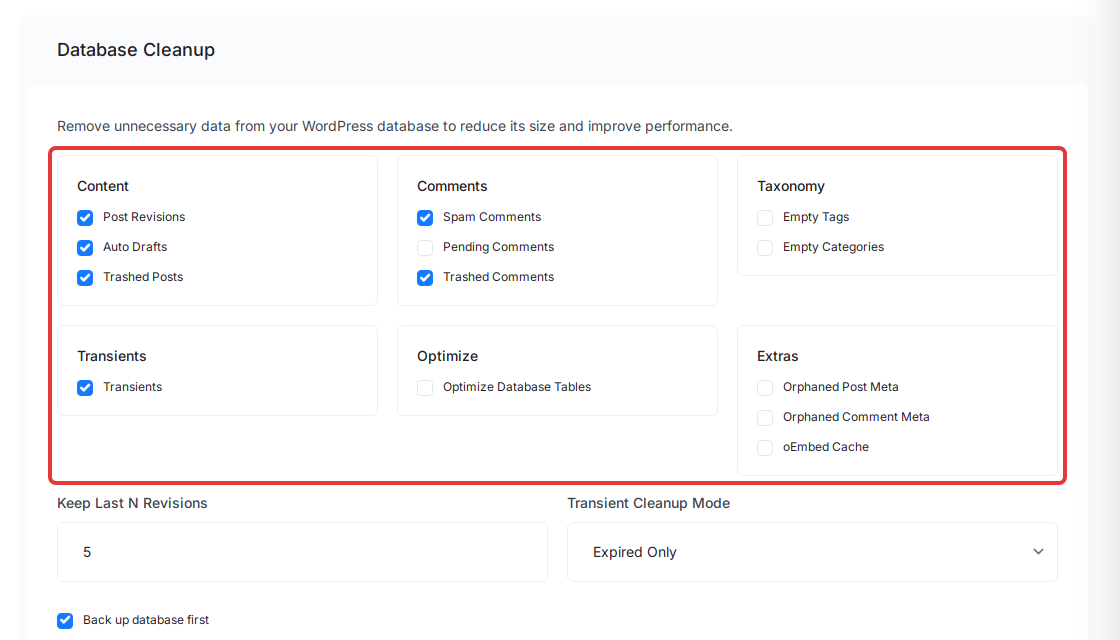
The actions are grouped in six boxes. The ones ticked by default are marked.
| Box | Action | What it deletes | Default |
|---|---|---|---|
| Content | Post Revisions | Saved revisions of posts and pages. Keep Last N Revisions keeps the newest N per post (default 5; 0 removes all revisions) | ✅ |
| Content | Auto Drafts | WordPress auto-drafts older than 7 days | ✅ |
| Content | Trashed Posts | Everything in the trash, for every post type (pages and WooCommerce products and orders included) | ✅ |
| Comments | Spam Comments | Comments marked as spam | ✅ |
| Comments | Pending Comments | Comments waiting for moderation | |
| Comments | Trashed Comments | Comments in the trash | ✅ |
| Taxonomy | Empty Tags / Empty Categories | Terms nothing uses: no post of any status, no child term, not in a menu, and never the default category | |
| Transients | Transients | Depends on Transient Cleanup Mode: Expired Only (default) removes expired transients, All Transients removes every transient and site transient, Skip removes none | ✅ |
| Optimize | Optimize Database Tables | Nothing. It runs OPTIMIZE TABLE on the site’s tables after the cleanup to reclaim space |
|
| Extras | Orphaned Post Meta / Orphaned Comment Meta | Metadata rows whose post or comment no longer exists | |
| Extras | oEmbed Cache | Cached embed HTML (_oembed_ post meta); WordPress fetches it again when the page is viewed |
Pending comments may include real comments that you have not approved yet, so review them in WordPress before you tick that action. Plugins recreate transients when they need them, so removing them is safe, but All Transients can make the first page loads after the cleanup slower.
Step 1: Open the Optimization page
Open the site in xCloud and click ‘WordPress’ → ‘Optimization’ in the site menu, right after Caching. The Database Cleanup panel opens.
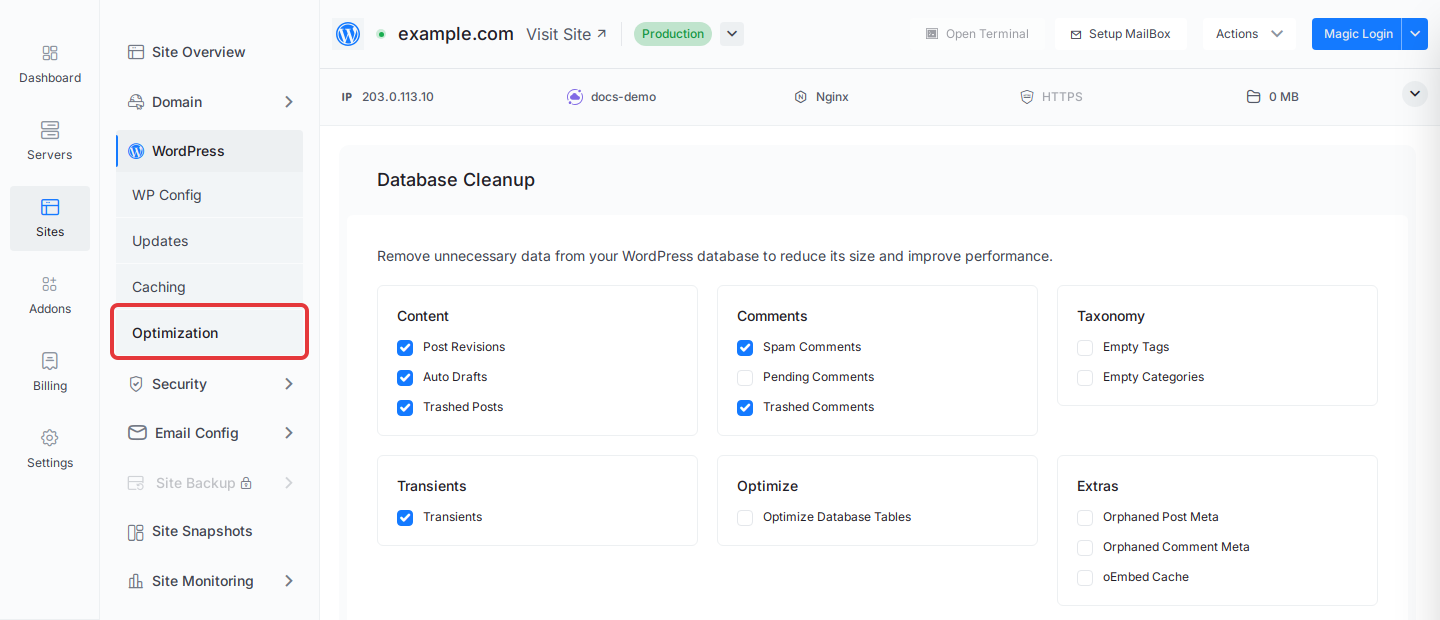
If you do not see Optimization, the site is not a WordPress site or your role lacks the cleanup permission.
Step 2: Choose what to clean up
Tick the actions you want in the Content, Comments, Taxonomy, Transients, Optimize and Extras boxes. Select at least one action, otherwise xCloud shows “Select at least one cleanup action.”
Step 3: Set the revision and transient options
Set Keep Last N Revisions to the number of newest revisions to keep for each post, and choose a Transient Cleanup Mode. Each field is active only while its action is ticked.
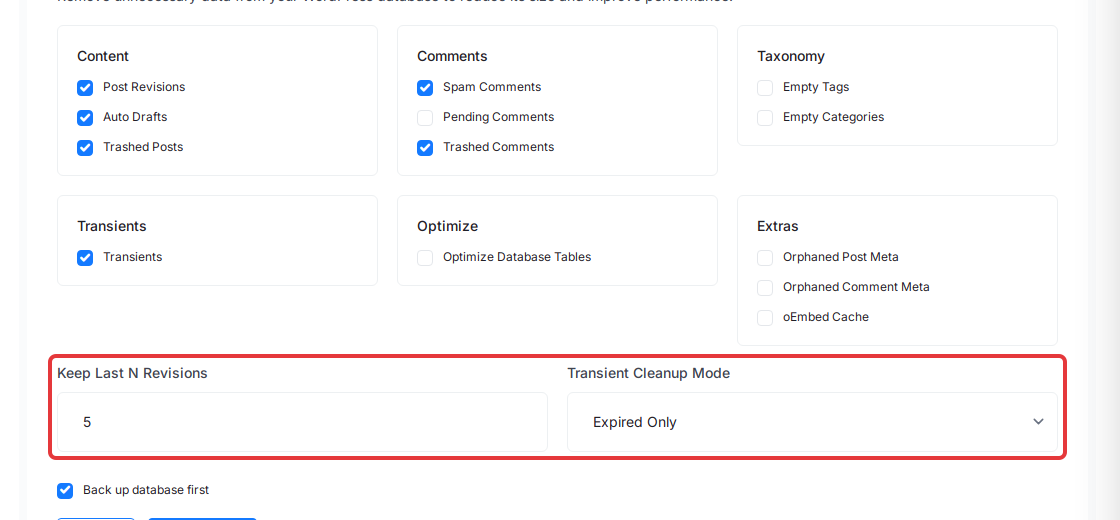
Leave Back up database first ticked (it is on by default). xCloud then takes a database backup and starts the cleanup only after the backup finishes. See Back up before a cleanup for how that works.
Step 4: Preview the cleanup
Click Preview. xCloud runs the cleanup in dry-run mode on the server, deletes nothing, and shows Preview Results: the number of items each ticked action would remove and a total such as “15 items will be removed”.
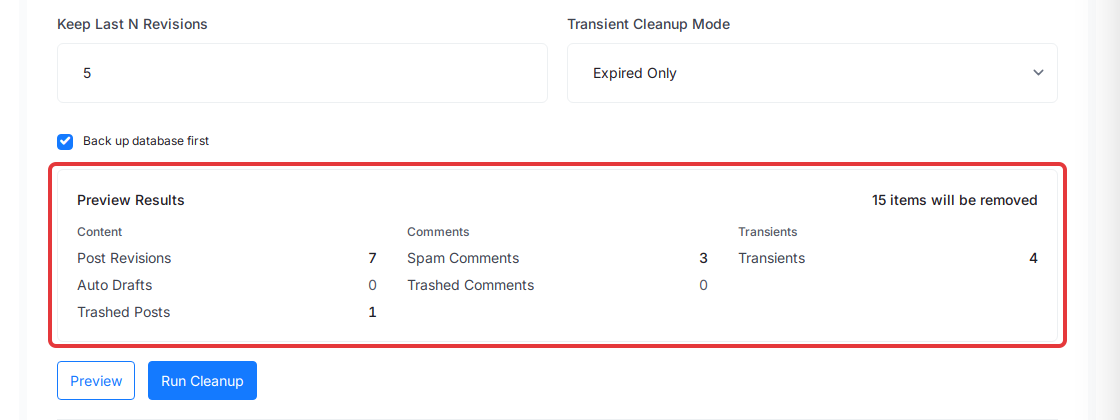
If nothing matches, the panel says “Nothing to clean up. Your database is already optimized.” Optimize Database Tables shows “After cleanup” instead of a count, because it runs after the deletes.
Step 5: Run the cleanup
Click Run Cleanup, then Yes, run cleanup! in the Run database cleanup? dialog. The dialog warns that the selected data is permanently deleted.
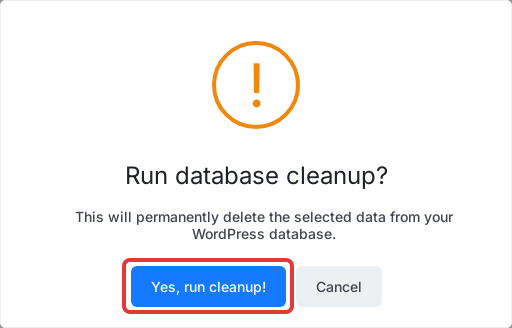
The cleanup runs in the background. While it runs, a banner shows its progress and the button reads Backing up… or Running…; you can leave the page. Only one cleanup runs on a site at a time. When the run has removed anything, xCloud also purges the site’s page cache so visitors do not see removed content from the cache.
Step 6: Check the result in Cleanup History
The Cleanup History table at the bottom of the page lists each run with its Date, Trigger (manual, scheduled or API), Status, Summary (items removed) and Space Freed. Click Refresh to reload it.
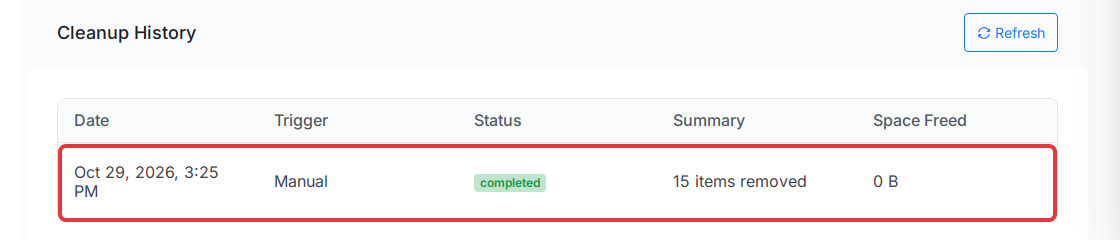
A run that took a backup first shows a View backup link to the site’s Backups page. A failed run shows its reason under the status, and a Retry link that runs the same actions again.
Back up before a cleanup
With Back up database first ticked, xCloud backs up the database before it deletes anything:
- It uses the site’s existing backup setting that includes the database (a remote destination first, otherwise local). If the site has no backup setting, it takes a database-only local backup.
- The cleanup waits for that backup. If the backup fails, the run ends with “Backup failed; cleanup aborted.” and nothing is deleted.
- The backup stays on the site’s Backups page, so you can restore it if the cleanup removed something you need. See Site Backups in xCloud to restore one.
If the site’s only backup is a local files-only backup, the panel shows: “The backup for this site does not include the database. Turn on Database in Backup Settings, or run the cleanup without “Back up database first”.” Turn on Database in the site’s backup settings, or untick the option.
Schedule an automatic cleanup
Under Automatic cleanup, turn the switch On to run the actions currently selected above on a schedule, and pick a Frequency: Daily, Weekly or Monthly. The switch and the frequency save on their own.
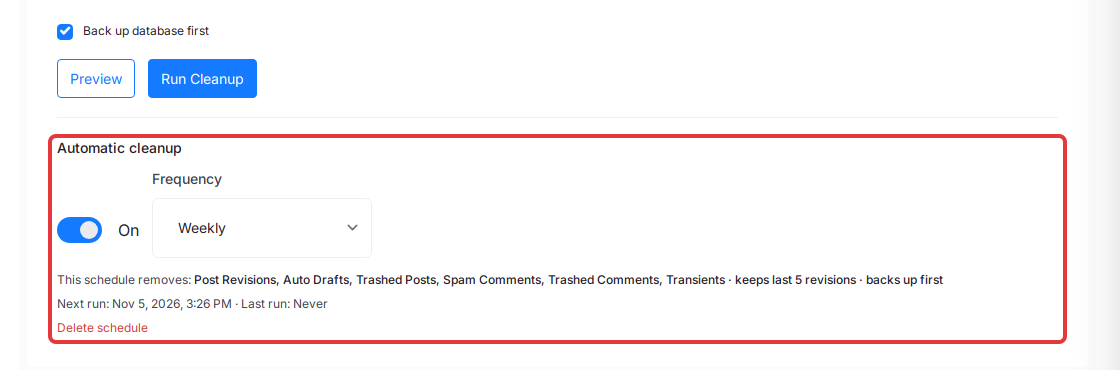
Below the switch, xCloud shows what the schedule removes (for example “Post Revisions, Auto Drafts, … · keeps last 5 revisions · backs up first”) and its Next run and Last run. The first run is one day, week or month after you turn it on. Scheduled runs appear in Cleanup History with the trigger “Scheduled”.
- If you change the ticked actions or options later, xCloud says “Your selection above is different from the schedule.” Click Update schedule to save the new selection.
- Turn the switch Off to pause the schedule, or click Delete schedule to remove it. Past cleanup history is kept.
When a cleanup fails
The reason appears under the failed status in Cleanup History. Common ones:
| Message | What happened | What to do |
|---|---|---|
| Backup failed; cleanup aborted. | The backup taken first did not finish | Nothing was deleted. Check the site’s backups, then click Retry |
| The cleanup took longer than 60 minutes and was stopped. … | The run hit its 60-minute limit | Some data may already be removed. Click Retry to finish |
| The cleanup was stopped on the server before it finished, possibly because the server ran out of memory. … | The server stopped the process | Free memory on the server, then click Retry |
| The cleanup could not start on the server: … Nothing was deleted. | WordPress could not be loaded on the server | Fix the reason shown, then click Retry |
A completed run can also carry a note such as “2 table(s) could not be optimized. The cleanup itself finished.” The deletes succeeded; only OPTIMIZE TABLE failed on those tables.
Run a cleanup with the Public API or MCP
The xCloud Public API runs the same cleanup as the dashboard, with the same actions and options. Base URL: https://app.xcloud.host/api/v1.
| Request | Scope | What it does |
|---|---|---|
POST /sites/{uuid}/database/cleanup/preview |
write:sites |
Dry run; returns the count per action in data.counts |
POST /sites/{uuid}/database/cleanup |
write:sites |
Queues a run. 202 for a new run, 200 with the running run’s uuid when one is already in progress |
GET /sites/{uuid}/database/cleanup/history |
read:sites |
Lists runs with their status and results (per_page up to 100) |
The token’s team also needs the site:manage-database-cleanup permission. The request body takes actions (any of revisions, auto_drafts, trashed_posts, spam_comments, pending_comments, trashed_comments, empty_tags, empty_categories, transients, orphaned_postmeta, orphaned_commentmeta, oembed_cache, optimize_tables), keep_last_revisions, transient_mode (skip, expired or all) and backup_first:
curl -X POST https://app.xcloud.host/api/v1/sites/SITE_UUID/database/cleanup \
  -H "Authorization: Bearer YOUR_API_TOKEN" \
  -H "Content-Type: application/json" \
  -H "Accept: application/json" \
  -d '{"actions":["revisions","spam_comments","transients"],"keep_last_revisions":5,"transient_mode":"expired","backup_first":true}'
A 422 with nothing queued means the site’s only local backup does not include the database (see Back up before a cleanup). The same three operations are available as tools to AI agents connected through xCloud MCP. Schedules are managed in the dashboard only.
Frequently asked questions
Does the cleanup work on Laravel, PHP or Node.js sites?
No. The Optimization page and the cleanup API work on WordPress sites only, because every action reads WordPress tables such as posts, comments and options.
Can I undo a cleanup?
Only by restoring a backup. Deleted rows are removed permanently. Keep Back up database first ticked, and the backup taken before the run stays on the site’s Backups page as a restore point.
Why does Space Freed show 0 B after a cleanup?
Space Freed is the change in the database size before and after the run. MySQL and MariaDB often keep the space of deleted rows inside the table files until the tables are rebuilt, so a small cleanup can show 0 B. Tick Optimize Database Tables to run OPTIMIZE TABLE after the cleanup and reclaim that space.
Can xCloud support staff run a cleanup on my site?
No. Running a cleanup needs the site:manage-database-cleanup permission in your own team, and support access does not include it.
If you run into any issues while cleaning up your database, feel free to reach out to our support team.