Cloud VPS 6 GB
Most popularAn uptime monitor and status page for your own sites and services.
$24.99per month
- 6 GB RAM
- 4 vCPU cores
- 100 GB NVMe SSD
- 30 TB
- Unlimited

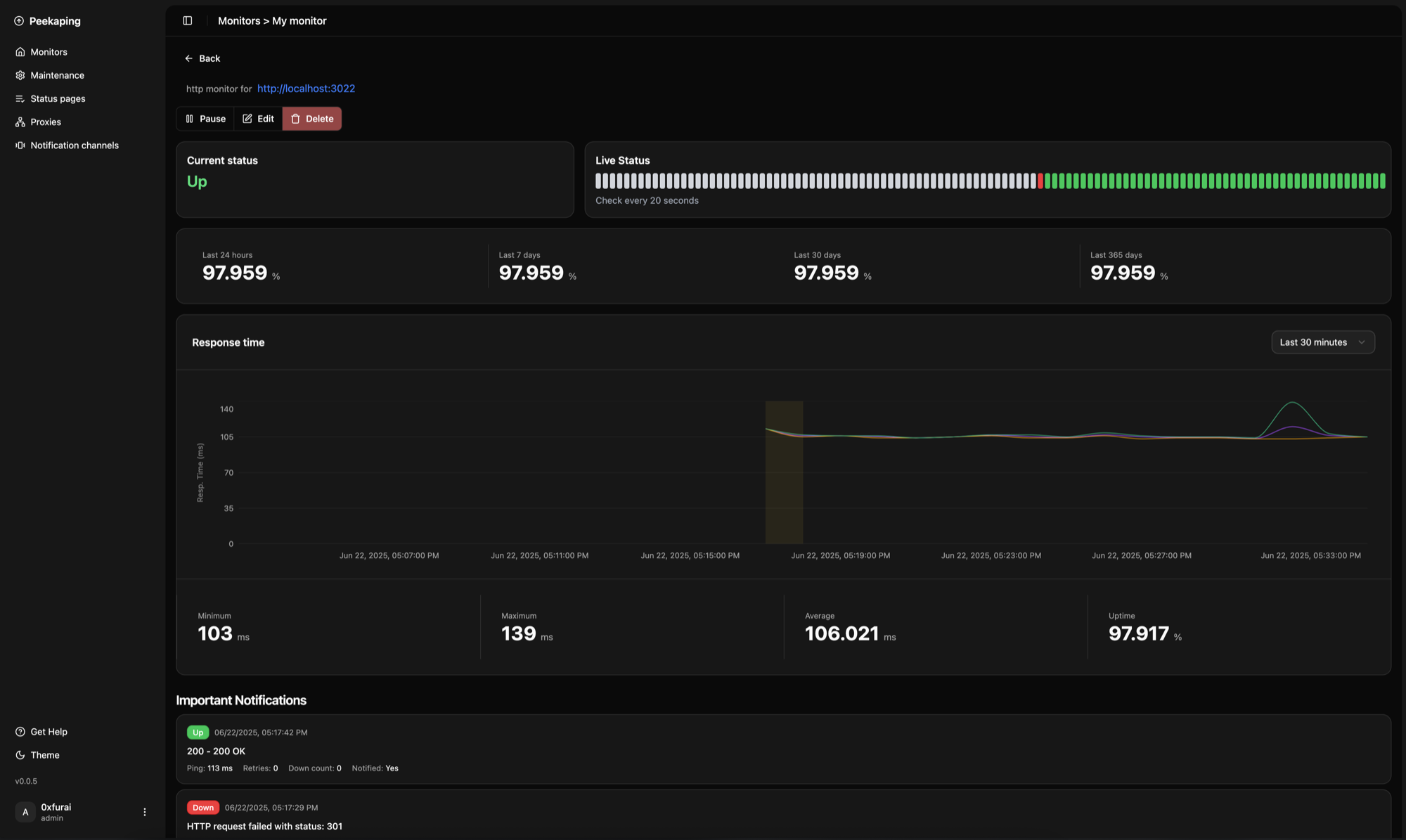
Peekaping hosting on xCloud gives you your own uptime monitor with status pages and alerts. Deploy Peekaping 0.1.0 and xCloud runs the official image as one container, keeps its port on loopback, mounts a persistent volume for the SQLite database and publishes the dashboard over HTTPS on your domain in minutes. You register the first account, which becomes the administrator, and start adding monitors.
Peekaping is an open-source, self-hosted uptime monitor. Upstream describes it as checking your websites, APIs, databases and message queues, alerting your team where it already talks when something goes down, and publishing status pages for your users. It is written in Go with a React front end, and its README presents it as an API-first alternative to Uptime Kuma. The code is MIT licensed, and upstream's README marks the project as beta.
On xCloud it is Peekaping 0.1.0 as the official single-container image, pinned by digest, with its SQLite database on the peekaping_data volume. The dashboard has its own login, and registration is open until the first account exists, so register the administrator right after install. Usage statistics and error reports to the Peekaping developers are switched off.
A self-hosted monitor normally means a container, a data volume, a domain and a certificate before the first check runs. This is the same result without assembling any of it.
Step 01
Create your xCloud account and pick Peekaping from the OneClick catalog. Choose your domain and target server; there are no extra fields to fill in.
Step 02
One click. We start the official Peekaping image, pinned by digest, as a single container with its SQLite database on the peekaping_data volume, publish it over HTTPS and show you the Dashboard URL. First start can take up to a minute.
Step 03
Open your HTTPS Peekaping URL and register the administrator account straight away: the first person to register becomes the admin and registration then closes. Then add your first monitor, a notification channel and a status page.
One dashboard for your checks, alerts and status pages, with the data on a server you control. Docker container monitors are the one monitor type not available here.
Monitor HTTP and HTTPS, TCP, ping, DNS, SMTP, push heartbeats and databases such as PostgreSQL, MySQL and Redis from one dashboard.
Notification channels include Slack, Discord, Telegram, Microsoft Teams, email over SMTP and webhooks, set up inside Peekaping under Notifications.
Publish status pages for your visitors. They are public by design, so outside visitors can open them without an account.
Schedule planned work once or on a recurring basis so it does not trigger alerts.
Peekaping has a REST API with API keys, plus two-factor authentication and brute-force login protection for accounts.
A built-in SQLite database on a persistent volume means no separate database or Redis to run.
Managed hosting for Peekaping, so the parts that keep it online are not your problem.
Check HTTP, TCP, DNS and ping targets on a schedule and get told before your customers do.
Publish a status page on your own domain so outside visitors can see whether your services are up.
Monitor database targets and use push monitors so a scheduled job reports in with a heartbeat.
Send alerts through channels such as Slack, Discord, Telegram or email, configured inside the app.
Hold monitors, history and accounts on your own server instead of a hosted monitoring service.
Dedicated Cloud VPS sizes, pre-configured for Peekaping hosting. Pick the one that fits, and resize any time.
An uptime monitor and status page for your own sites and services.
$24.99per month
More headroom if Peekaping sits alongside other tools on the same server.
$59.99per month
Every size is a dedicated Cloud VPS we provision, patch, monitor and restore. Billed monthly with no lock-in — delete the server and the unused balance comes back to your account. Peekaping is licensed under MIT.
Connect any VPS — DigitalOcean, Vultr, Linode, AWS, Hetzner or bare metal — and deploy Peekaping on it through the same panel, for a per-server management fee instead of a Cloud VPS rental.
Start your journey without cost.
$0forever
Your rate with 2–5 servers connected.
$5per server / month
The same platform, discounted at 6–10 servers.
$4per server / month
The same platform, discounted at 11+ servers.
$3per server / month
Priced per connected server, so your rate adjusts automatically as you add or remove servers. You pay your own provider for the server itself.
Peekaping on xCloud runs on a dedicated Cloud VPS that we provision, patch, monitor and restore. Deploy faster. Own your data. Stay in control.

Deploy faster using an xCloud Managed Server built with optimized stacks and high-speed SSDs.

Protect your infrastructure with a free SSL certificate and more advanced security features at no additional cost.

From Server creation to application deployment, everything can be managed from our intuitive control panel.
See why agencies, developers, startups, and growing businesses choose xCloud to power their projects.
xCloud works really well, I am surprised by its performance being this the release version, I have tried many paid platforms such as runcloud, cloudpages or serveravatar, as well as free platforms such as CyberPanel, CloudPanel or Hestia Control Panel and direct competitors such as SpinupWP and FlyWP. Of all those that I have tried, the platform that works best for WordPress is SpinupWP and I believe that xCloud can reach and surpass that development, its roadmap is promising. Congratulations to the xCloud team, I hope they become the leading platform in the segment, it has all the potential to achieve it!
 Brian Geovanny
I've been with runcloud for the last 3 years. However, after trying xcloud for the last month, I'm switching over. They are on a roll with their setup.
 Kevin Pineda
I'm moving my servers to xCloud, a cloud control panel by M Asif Rahman and the WPDeveloper team. Their roadmap looks interesting and no, there are no team mates nor API limits with xCloud! #xCloud #wordpress #hosting
 Leo Koo
How Cloud Nine Web Elevated Client Experience While Streamlining Hosting Operations using xCloud
 Ed Ellingham
xCloud is like having an expert server team on call — without the big agency costs. It's given me back my time and given my clients peace of mind. Highly recommended for freelancers and small teams who want reliable performance and security.
 Dumitru Butucel
xCloud isn't just a solution. It's like one of that friend who got your back when you screw things up pretty bad.
 Waqar Ahmed
Trust me when I say, once people explore the potential of xCloud they gonna switch from other panels, just keep delivering the best tech, lots of love for the team 😍😍
 Rahul Singh
So far my experience has been smooth like silk. I didn't imagine that configuring and managing a VPS would be so easy. As of today, I have deployed 8 sites. The support is good, and they treat users with respect, even if they ask stupid questions (myself included). For the future, I hope for greater flexibility in scheduled backups and more comprehensive and consistent documentation. I'm sure that within a few months, xCloud will become the leader in its segment. This community is amazing, and the Staff here is super helpful.
 Massimo Villa
Came from cloudways then to runcloud then to xcloud. Looks like I'm staying here.
 Gerson El
I've recently taken all of my Vultr-hosted sites and gotten rid of cPanel for them to substitute it with xCloud. I have to say, I'm really impressed with xCloud so far! The interface is definitely the standout feature for me.
 Tony Lewis
I came from Cloudways and won't go back. Highly impressed with xCloud. Glad I gave them a chance.
 Jared McDowell
I like xCloud better than RunCloud, but one thing I'll point out is that some years ago RunCloud was hungry for business, the support was outstanding, and the community was active and helped each other. Maybe it was sold, there was a change in management, or they stopped being hungry, but the quality of the RunCloud offering declined and it hasn't been moving forward quickly. My point is that currently the xCloud team has the edge and it is theirs to keep or lose
 David McCan
How Kevin Heinrichs Cut Hosting Costs by 84% While Running WooCommerce & Node.js Sites Efficiently
 Kevin Heinrichs
I had 150 sites on cloudways and am in the process of moving them to xcloud. Much faster and better priced.
 Dan Spinoza
Dear xCloud Team, I have been using xCloud for some time now and am genuinely impressed with its capabilities and the flexibility it offers by allowing users to bring their own VPS for management. It's a fantastic service, and my experience so far has been very positive. Successful migrated 5 sites on a single server. Xcloud migration tool worked great. There were few hiccups with security plugin like MalCare but disabling the plugin prior to migration worked just fine.
 Rahil Maknojia
Came from runcloud. Tried xcloud and never came back.
 Karl Fanega
How Advanced Web Strategies Saved Over $2,000 & Recovered 56 Hours per Month Managing 70+ Client Websites
 Gary Moody
xCloud gave me what no other hosting platform could: the flexibility of a VPS with the convenience of managed WordPress. As a solo founder running an entire business on one server, that combination is an important unfair advantage.
 Jorge de los Reyes Martínez
I use Server Avatar and xCloud and I'll sooner use xCloud than Server Avatar personally.
 Jay Pagano
How Newman Web Solutions Ensured Perfect Uptime and Seamless Scaling For 120+ WordPress Sites with xCloud
 Lori Newman
I too have moved over to xCloud. It's pretty sweet. One click n8n and uptime Kuma apps
 John Aperture
I went from Cloudways to xCloud. No intention on switching in the foreseeable future.
 Blaine Moore
Feel free to contact us with any questions or concerns you may have.
Yes, and this template is Peekaping Docker hosting without the setup: the official image pinned by digest, a persistent volume for its SQLite database, HTTPS on your own domain and no separate database or Redis to run.
The template baseline is 512 MB of RAM, 1 CPU core and 2 GB of disk. The 6 GB plan is the starting point here, well above that baseline, which leaves room for many monitors and other apps on the same server.
Open your domain and register. The first account becomes the administrator and registration then closes. Do this straight after install, because until the first account exists anyone who can reach the address could claim it.
HTTP, TCP, DNS, ping, push and database checks, with status pages and alerts. Docker container monitors are not available here because the container has no access to the Docker engine, and ping may fall back to a slower method inside the container.
Alert channels such as email are set up inside Peekaping under Notifications, so no mail settings are needed in the install. Add a channel, then attach it to your monitors.
Upstream sends usage statistics and error reports by default. In this install both are switched off. Remove the off value in the environment file only if you want to share them.
Yes. Peekaping is open source under the MIT licence, so the software has no licence fee. You are billed only for the dedicated Cloud VPS hosting it. Upstream's README describes the project as beta.
You can, but it also hides public status pages and push monitor URLs from outside visitors and services, which are meant to be reachable. Rely on the Peekaping login and register the admin first.
Back up the peekaping_data volume, which holds the SQLite database peekaping.db with your monitors, history and accounts. Stop the site before copying the database file. Nothing schedules the copy, so run it yourself.
The install stays on its pinned 0.1.0 image until you adopt a newer template version, which bumps the readable tag and digest together. Back up peekaping_data first and read the upstream release notes. Existing sites are never upgraded automatically.
Only people you trust. Monitors send requests from your server to whatever targets you add, including internal addresses.
Yes. There is no lock-in — cancel any time. Hosting is billed monthly and charged for what you actually use, so when you delete the server the unused balance is refunded to your account, less up to 10% in payment-processing fees.
 Beszel HubLightweight server and container monitoring hub with historical metrics, alerts, multi-user access, and OAuth/OIDC support. Agents are installed separately on monitored systems.
 BugsinkSelf-hosted error tracking that accepts events from the Sentry SDKs you already use, with teams, projects and a per-project DSN.
 changedetection.ioWatches any web page and alerts you when the part you care about changes, with visual selectors, diffs and notifications to dozens of services.
 CheckCleOpen-source monitoring platform for uptime, SSL and domain expiry, incident tracking and public status pages.
 CheckmateOpen-source uptime and infrastructure monitor with HTTP, ping, port, DNS and Docker checks, incident history and public status pages.
 CheckmkInfrastructure and application monitoring with automatic service discovery, alerting, dashboards and a REST API, in the Community Edition.
 DashbrrA self-hosted dashboard for monitoring and managing your media automation stack, with live real-time status for services like Sonarr, Radarr and Plex.
 Domain WatchdogSelf-hosted domain name monitor that uses RDAP to track registration history, expirations and status or ownership changes, with email, webhook, calendar and RSS alerts.
Connect your first server in minutes. No plan you have to grow into.
