


Every team now sees what needs fixing in one list, and the web terminal can explain an error for you. This xCloud weekly update covers 22 to 26 November 2026. The To-Do Center and Ask AI buttons are open to every team, and the web terminal gets copy, paste, find and an AI helper.
Three releases went out this week. Below is what changed for you, who each change is for, and the doc that shows you how to use it.
TL;DR
- To-Do Center for every team: every problem across your sites and servers in one list, on free and paid plans, with nothing to turn on.
- Ask AI buttons: pages such as a site’s Deployments, Backups, Domain and SSL pages can start a chat about what you see.
- A better web terminal: copy, paste, find, a command bar with suggestions and an AI helper that explains errors. It never runs a command for you.
- Security To-Dos stay with people: API keys and AI apps can no longer skip or ignore them.
- Fixes: Site Security Pro Update buttons work again, backups to SFTP, Backblaze B2 and pCloud behave, and timed-out SSL shows Retry SSL.
The Week at a Glance
| Change | Who it’s for | Plan | How-to |
|---|---|---|---|
| To-Do Center for every team | Every xCloud team | Free and paid plans | To-Do Center doc |
| Ask AI buttons and a floating assistant | Everyone using the AI Assistant | Free and paid plans, not White Label | AI Assistant doc |
| Copy, paste, find and an AI helper in the web terminal | Anyone who opens a server or site terminal | AI helper wherever you have the AI Assistant | Web terminal doc |
| Security To-Dos only a person can skip | Everyone | Every plan | To-Do Center doc |
| Site Security Pro Update buttons fixed | Site Security Pro users | Paid add-on | Site Security Pro doc |
New This Week
The headline this week is not a brand new tool. It is two features that only some teams had in beta, now on for everyone, with no setting to find first.
See Every Problem Across Your Sites and Servers in One List
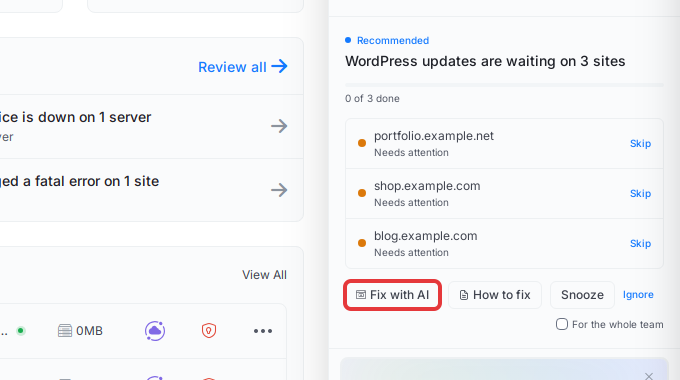
Until now, a failing backup, a pending WordPress update and a service that stopped lived on different pages. You had to go looking. The To-Do Center puts them all in one list, and every team now has it.
Open it from the to-do icon in the top bar. Each card says what is wrong and where. Click Fix with AI to let the assistant work on it, Ask AI why to find the cause, or snooze or ignore it for later.
It works on free and paid plans, and White Label teams get it too. A team owner or admin can switch it off in Customization, where the setting is called To-Do List.
👉 How to use the To-Do Center · Released in v3.0.2
Ask AI Buttons on Dashboard Pages, and a Choice of Where the Assistant Opens
When something looks wrong on a page, you no longer need to describe it from scratch. The Ask AI button on pages such as a site’s Deployments, Backups, Domain and SSL pages starts a chat about what is on that page.
You also pick where the assistant opens. On your profile page, under AI Assistant layout, choose Side panel or Floating messenger, a chat window in the bottom-right corner. Neither the Ask AI buttons nor the floating messenger is on White Label dashboards.
👉 How to use the xCloud AI Assistant · Released in v3.0.2 · About the AI Assistant
Copy, Paste and an AI Helper in the Web Terminal
The web terminal used to be hard to work in: copying and pasting was awkward, you could not search the output, and help with an error meant opening another tab. Now it has a toolbar, a right-click menu and the usual shortcuts for copy, paste and find. Ctrl+C still stops a running command.
A command bar under the terminal suggests commands from your own history on that server, and useful ones for the site, such as WP-CLI on WordPress sites. Your history stays in your browser. Risky commands such as rm -rf ask for a second Enter before they run.
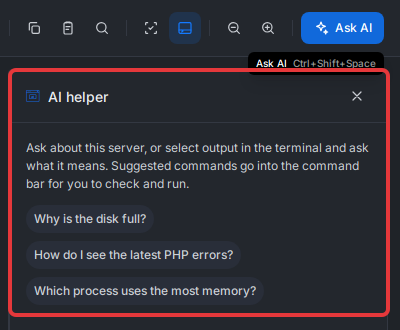
Click Ask AI in the web terminal, or select some output and choose Explain with AI or Suggest a fix with AI. A suggested command comes with Insert and Copy, and you always press Enter yourself. Passwords and tokens are removed before anything reaches the AI. The AI helper shares the AI Assistant’s daily allowance and is not on White Label dashboards.
👉 How to use the AI helper in the web terminal · Released in v3.0.2 · The xCloud web terminal
Improved
- Ask AI names what it works on. Each step in a chat now names its server or site, and chats started from a To-Do or an Ask AI button carry that name in their title, so old chats are easy to find. See the AI Assistant doc.
- Backup upload errors name your provider. A failed upload to S3-compatible storage now says which provider failed and why. See Backblaze storage.
- Add New Site and checkout open faster, and the server order summary keeps Pay & Deploy in view on short windows.
- For developers: an AI agent can now ask to delete a server, which waits until a team member clicks Approve, and can manage a site’s custom Nginx rules and upload files. Details are in the For Developers section of v3.0.2 and in the API tokens and MCP doc.
Fixed
Site Security Pro
- The Update buttons on Security → Vulnerability Scan now update the plugin or theme again, and each finding shows its Current Version. See Site Security Pro, powered by Patchstack.
Backups
- Deleted SFTP backups now leave your backup list. Save a site’s backup settings again to get this right away. See SFTP storage.
- Large uploads to Backblaze B2 and other S3-compatible storage now retry up to 3 times when the provider is busy.
- pCloud cleanup no longer keeps failing after you delete the pCloud folder.
- Restoring a backup of a stopped Docker app now stops with a message when one of its data folders can only be read by the server admin. Before, the restore could set that folder aside and later delete it. See Docker backups.
Migrations, SSL and teams
- cPanel and full server migrations now read
wp-config.phpin either quote style, so they no longer stop at Making Database Ready. See cPanel migration. - A timed-out SSL request now shows as failed, with a Retry SSL button that works. See fixing a failed free SSL.
- The Servers and Sites counts on Team Management now count only what you can open. See team access.
Git, Docker, mail and billing
- Release mode now works for Docker Compose sites that set a project name in
.env. See Release mode. - New Django apps from Git get your domain, and Lovable apps built with TanStack Start now go live. See Lovable deploys.
- A mailbox password reset during Migration In Progress now changes the password everywhere.
- WordPress bulk updates no longer stall on an “Out of sort memory” error.
- Account credit stays correct after a failed card payment, and upgrading a lifetime plan keeps your free White Label plan. See White Label for LTD users.
Security
- Security To-Dos stay in your hands. API keys and AI apps can no longer skip or ignore a security To-Do. Only a person in the dashboard can. See the To-Do Center doc.
- Safer signups. Signups are checked by Cloudflare Turnstile, and throwaway email addresses are refused.
- Scripts xCloud runs on your server stay inside the site. They now only change files inside the site they are for, so someone with access to one site can’t use them to change files elsewhere on the server. Normal sites work as before.
- Keys stay private. Backup storage keys and your Object Cache Pro license no longer reach page data, and team switch links no longer show another team’s details.
- Migration files stay with your team, and the temporary database copy a migration makes is deleted when it ends.
What This Week’s Changes Don’t Do
- The AI helper never runs anything. It explains and suggests; you press Enter. It also uses the same daily allowance as the AI Assistant.
- Ask AI buttons, the floating messenger and the AI helper are not on White Label dashboards.
- Skipping the modified files To-Do hides that row for 7 days but leaves the site’s own alert in place. If you ignored that alert before, its To-Do may show again.
- The Backblaze B2 retry reaches a server the next time xCloud refreshes its backup script, for example after a Backup Now.
Releases This Week
v3.0.0.1 · v3.0.1 · v3.0.2 · To-Do Center for every team · AI in the web terminal · Fixes, week of 23 November
Open Your To-Do Center This Week
Click the to-do icon in the top bar and see what is waiting on your sites and servers. Then open a terminal and try Explain with AI on the next error you see. See what each plan includes on the pricing page.
Missed last week? Read one-click app updates with undo and Railway import, and the xCloud 3.0 launch post for the bigger picture. If you deploy from Git, see how zero-downtime deploys and one-click rollback work together.
If you have found this blog helpful, feel free to subscribe to our blogs for valuable tutorials, guides, knowledge, and tips on web hosting and server management. You can also join our Facebook community to share insights and engage in discussions.
Frequently Asked Questions
Do I need a paid plan for the To-Do Center?
No. The To-Do Center is on for every xCloud team, on free and paid plans, with nothing to turn on. White Label teams get it too. A team owner or admin can switch it off with the To-Do List setting in Customization.
Can the AI helper in the web terminal run commands on my server?
No. The AI helper only explains output and suggests commands. Insert puts a suggested command in the command bar, and nothing runs until you press Enter yourself. Passwords and tokens are removed before anything is sent to the AI.
Why can’t my AI app skip a security To-Do any more?
So that no automated tool can hide security work from your team. Since this week, only a person in the dashboard can skip or ignore a security To-Do; API keys and AI apps are refused.
Are Ask AI buttons on White Label dashboards?
No. Ask AI buttons, the floating messenger and the AI helper in the web terminal are not on White Label dashboards. The To-Do Center is, and copy, paste, find and the command bar in the web terminal work there too.