
















Supabase is an open-source backend-as-a-service (BaaS) platform designed to help developers build scalable applications faster. It provides essential backend features such as a PostgreSQL database, authentication, real-time subscriptions, storage, and APIs – all wrapped into a developer-friendly ecosystem.
By combining DigitalOcean’s cloud infrastructure with xCloud’s one‑click deployment, you can set up Supabase on DigitalOcean quickly without worrying about manual server management. This guide walks you through the process step by step.
How to Setup A DigitalOcean Server in xCloud? #
This guide shows how to set up a DigitalOcean server in xCloud. Follow the steps to quickly launch, configure and start your cloud journey.
Step 1 : Create Your New Digital Ocean Server in xCloud #
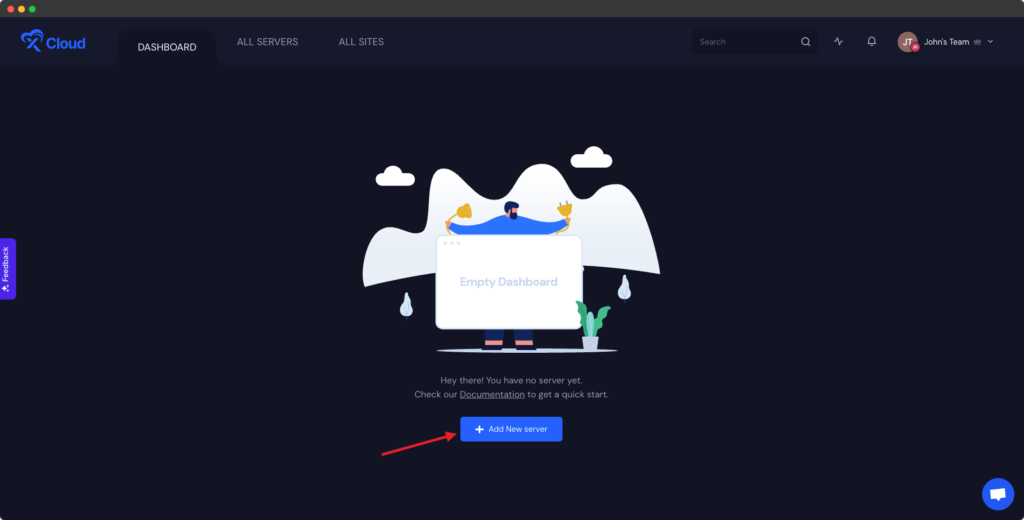
After logging in to your xCloud account, start by adding a new server by clicking on the “Add New Server” button from your dashboard.
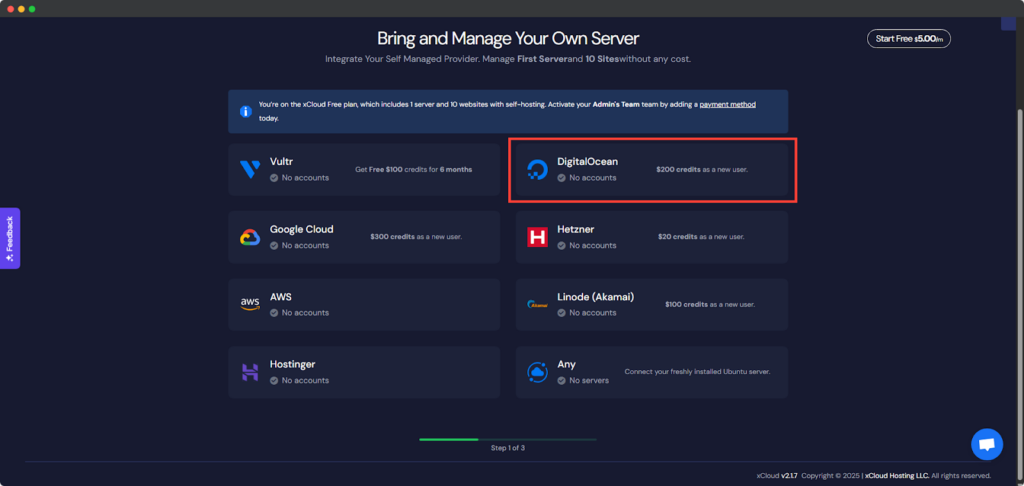
The next screen will provide the list of our available server providers. For tutorial purposes, we will create a Digital Ocean server and for that select the Digital Ocean option. The billing of the server will be handled on your Digital Ocean account.
Note: Don’t have a DigitalOcean account? Check out the documentation below to find out how to provision a server with any providers:
- How To Setup First Server With Vultr?
- How To Setup Your First Server With Google Cloud Platform Provider?
- How To Setup a Server With Other Providers?
We’ve made it easier and safer for you to connect xCloud with your DigitalOcean account. You no longer have to go through the hassle of generating and copying access tokens.
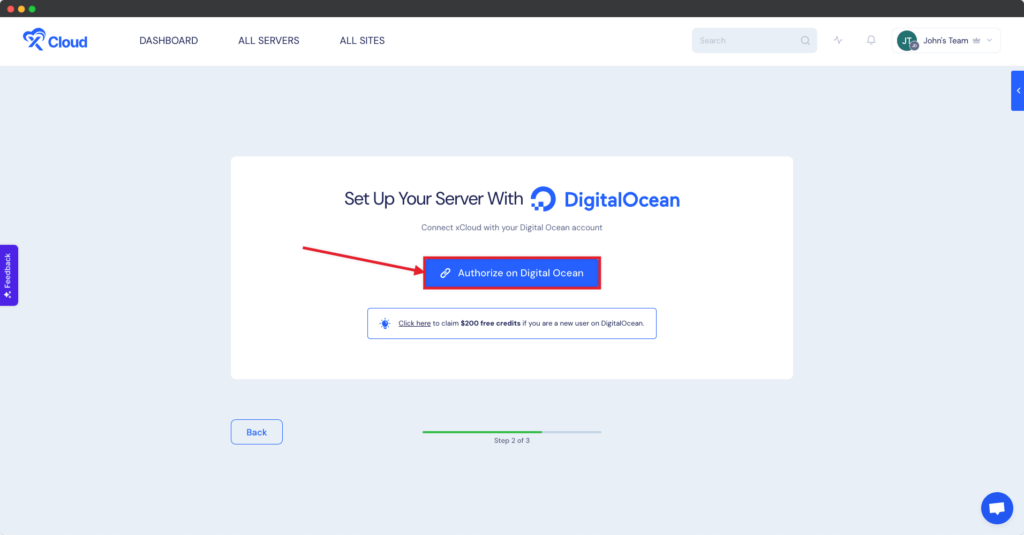
Now, xCloud will guide you through an OAuth flow, where you simply authorize xCloud to use your DigitalOcean account.
All you have to do is provision a new DigitalOcean server, click “Authorize” during the setup and you’ll be redirected to DigitalOcean to grant permission to your account. It’s a straightforward and hassle-free process to set up your server with Digital Ocean.
Step 3: Add Necessary Information #
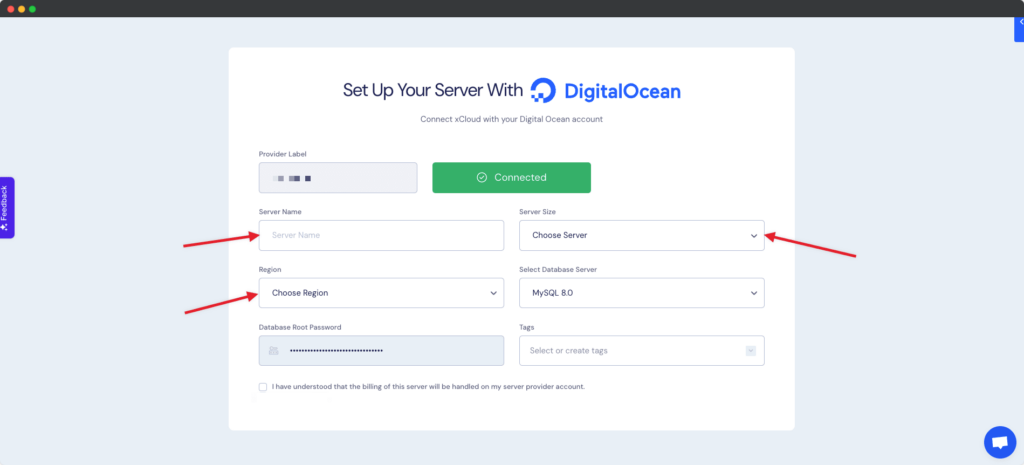
You will be taken to the server creation page after successfully integrating your DO account. Now you need to provide the Server name, your preferred Server Size (CPU, RAM, Storage) and Region nearest to you and your visitors. Only, MySQL 8.0 database server is now available.
By default Database, the ‘Root’ Password is auto-filed but you can change this and save it in a safe place. We recommend at least a 2GB / 1 shared CPU server for 10-20 sites with cache enabled. For a site whose pages cannot be cached (e.g. WooCommerce site) we recommend a 4 GB / 2 dedicated CPUs server.
We are almost done with our server creation of Digital Ocean in xCloud. After submitting the form this might take up to 12-15 minutes to make the Digital Ocean server live and ready to install a lightning fast Supabase Site.
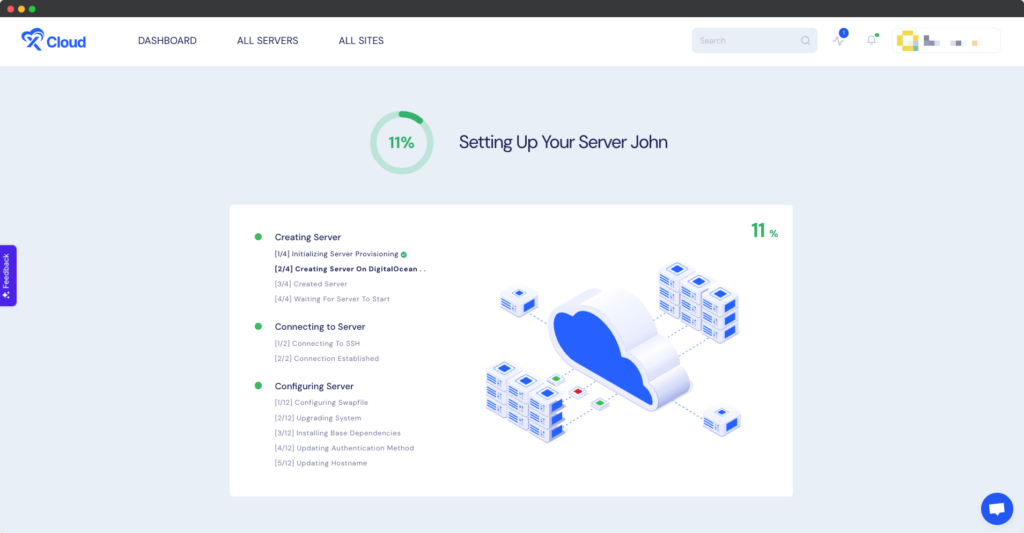
Now, we will move on to the second phase: setting up Supabase on xCloud with the DigitalOcean server. Follow these steps to get started.
How to Install Supabase with xCloud (One Click Apps) #
Follow the guide to install Supabase with xCloud with One Click Apps with xCloud. Let’s get started.
Step 1: Create a Docker+ NGINX Server #
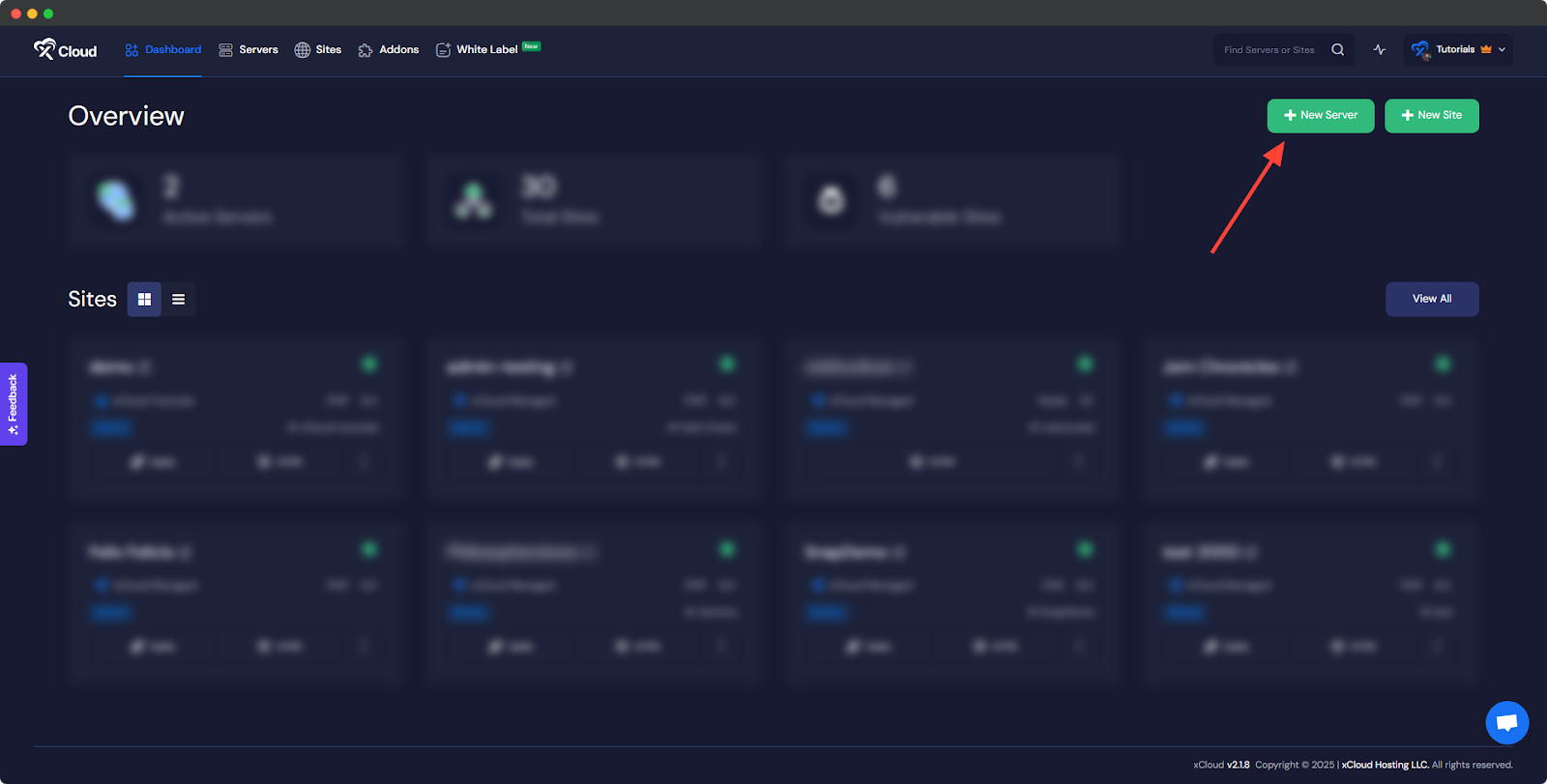
First, you need to create a Docker server to deploy Supabase. Click the ‘New Server’ button on the dashboard and enter all the necessary credentials to connect your server. You can deploy Supabase on the DigitalOcean server you previously created with xCloud.
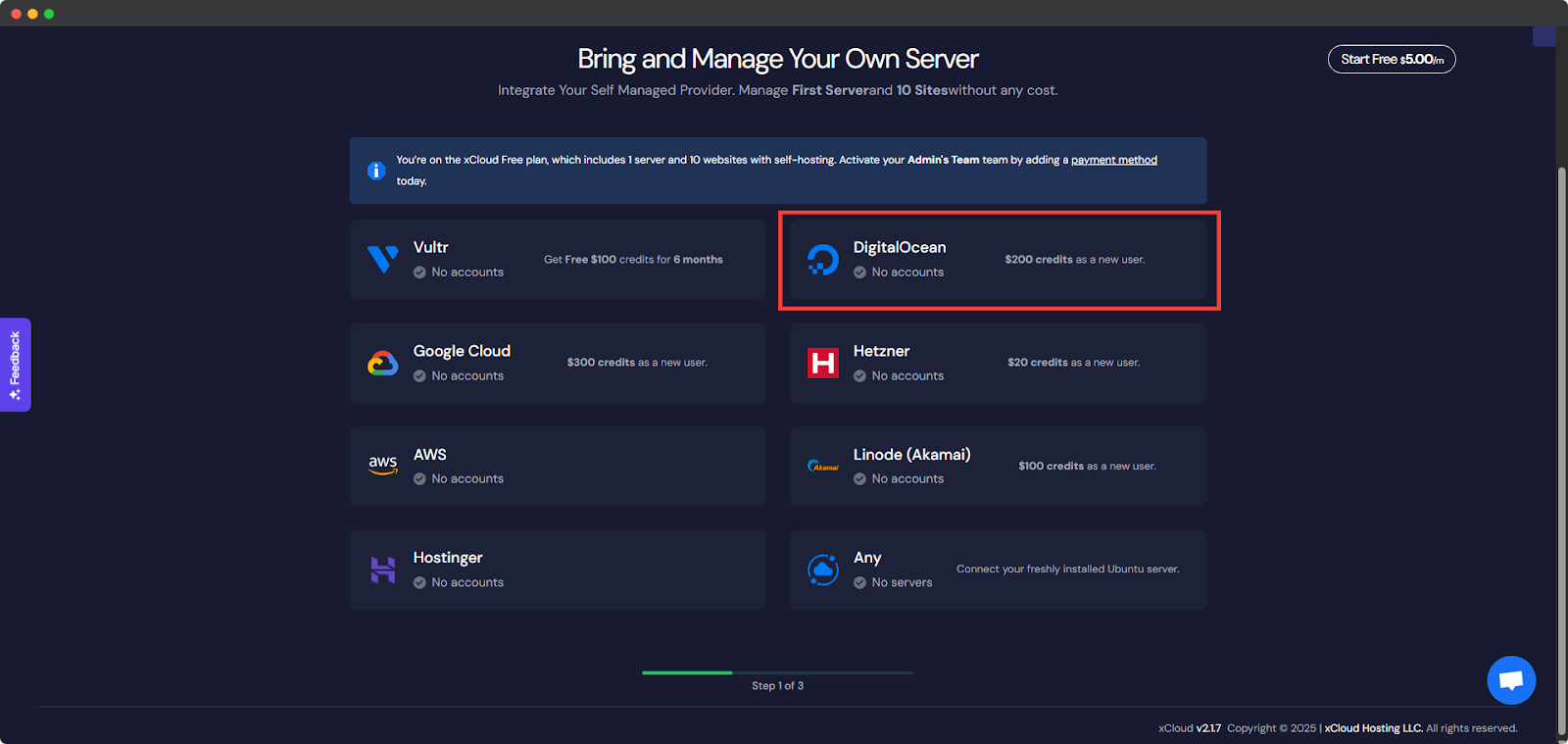
Next, choose your DigitalOcean server to deploy Supabase with xCloud.
Afterward, enter the ‘Server Name’, set the ‘App Type’ to Supabase and add any relevant ‘Tags’ to help identify your server later.
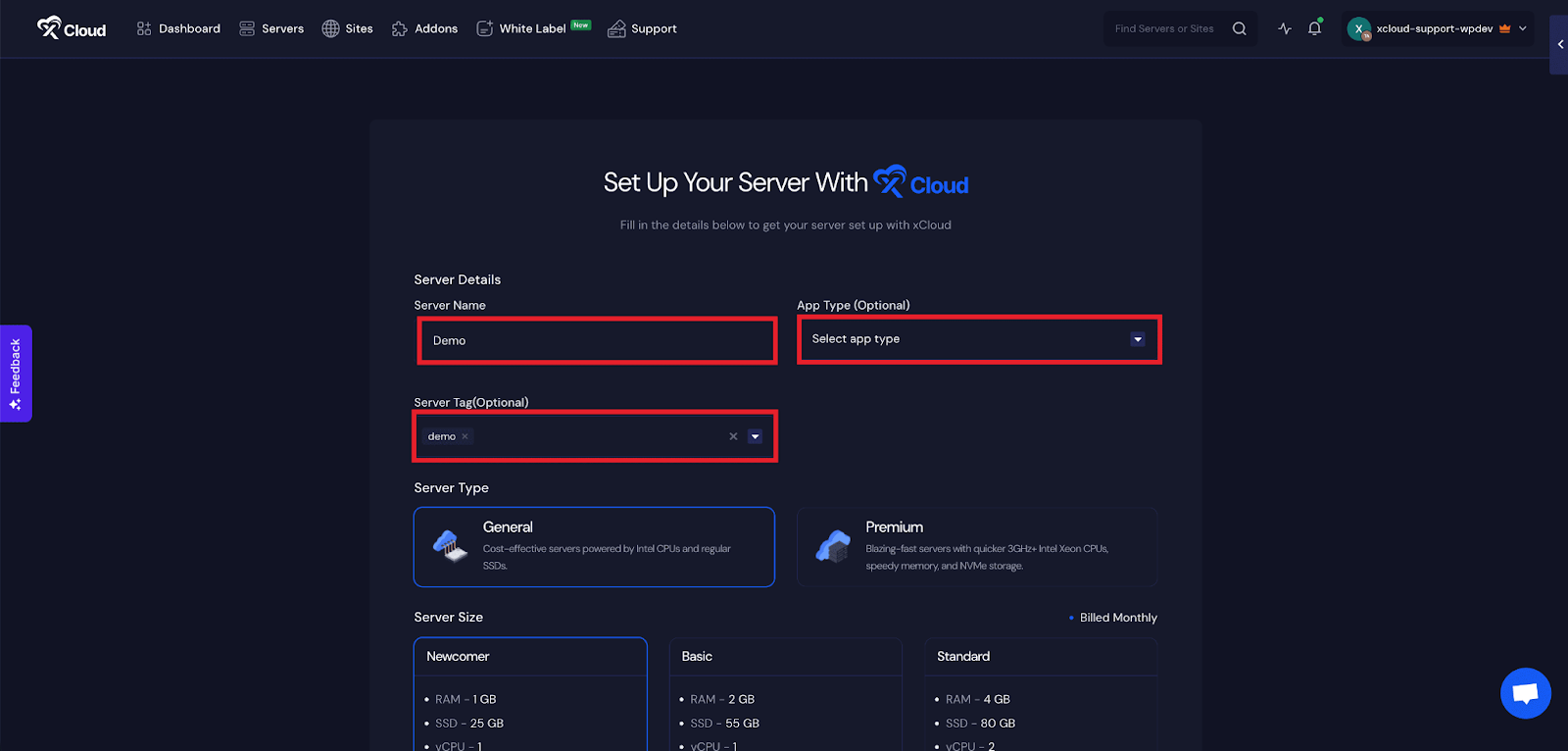
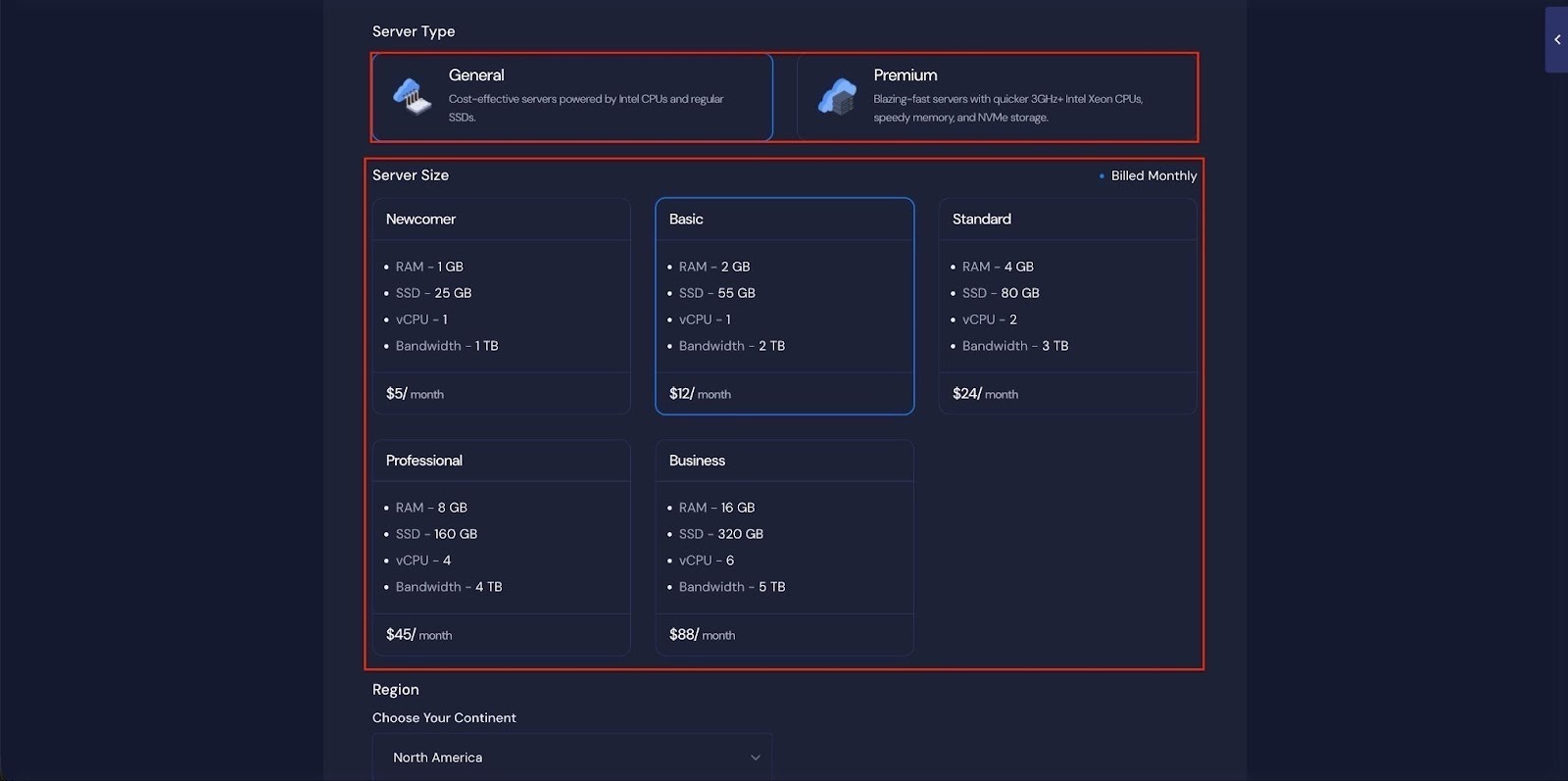
Next, choose between the ‘General’ and ‘Premium’ options based on your requirements. Then, select a plan that best fits your needs.
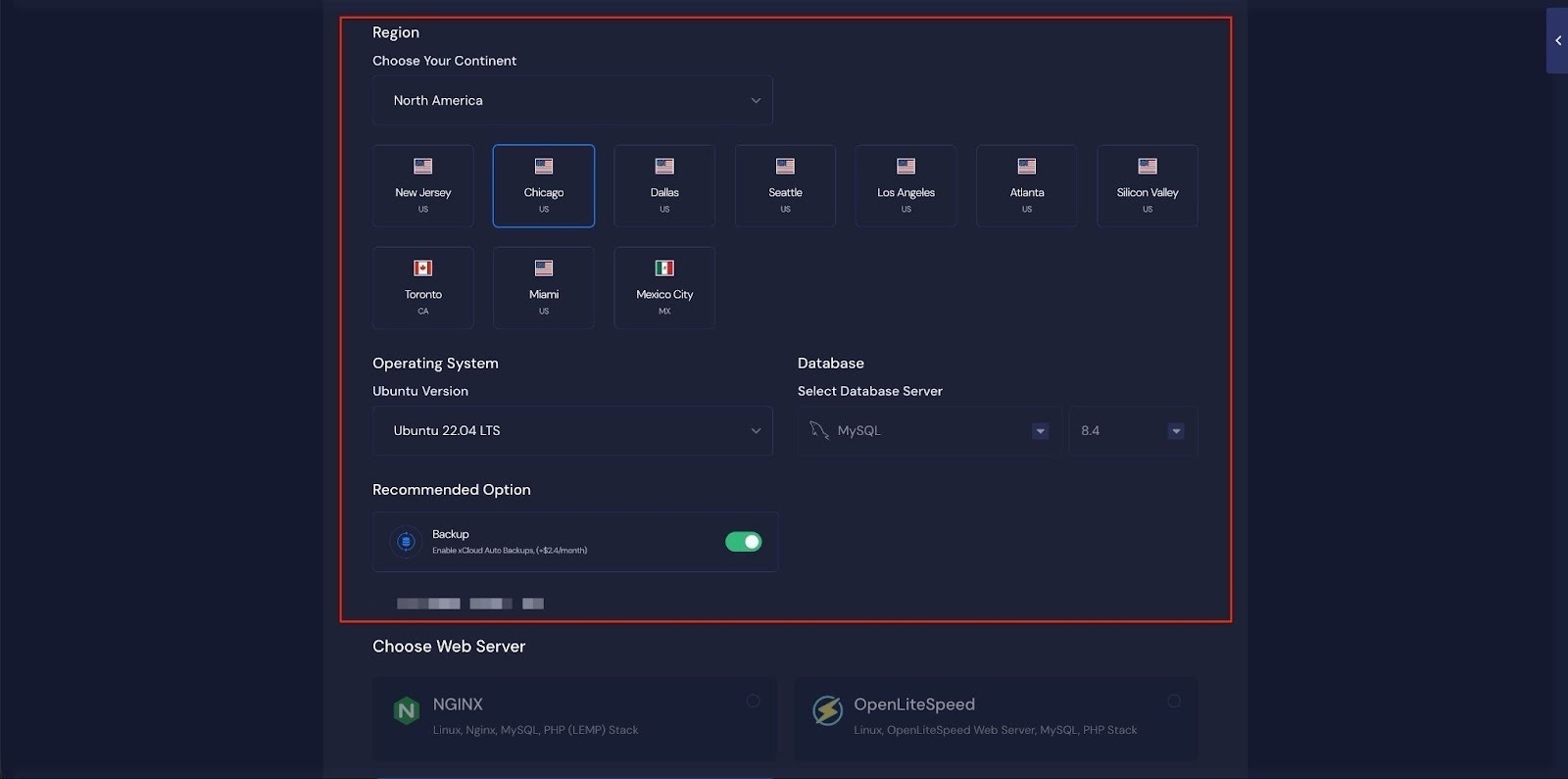
Next, choose the ‘Region’ and ‘Ubuntu Version’ for your server. You can also enable or disable the Backup option as needed.
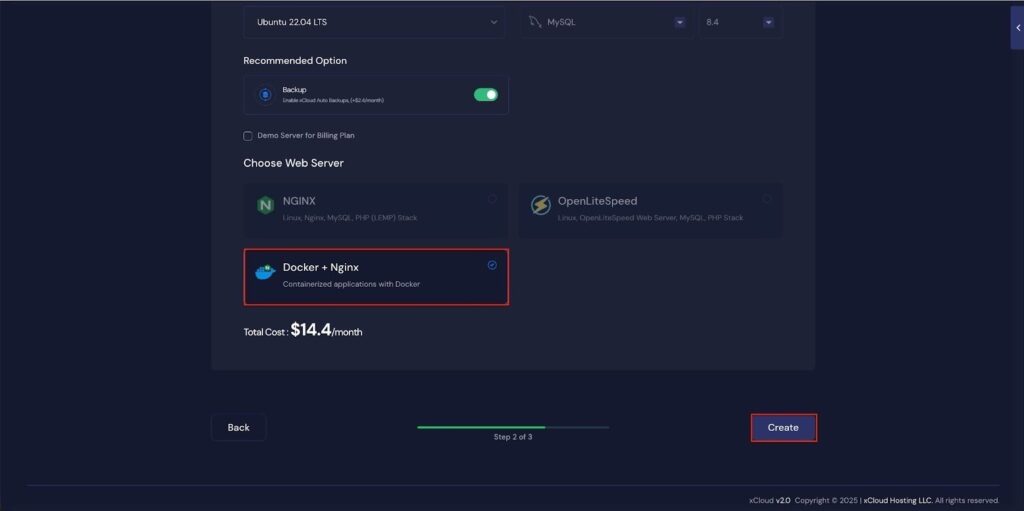
Next, you can see the ‘Docker + NGINX’ stack is already selected, which is mandatory for deploying the Supabase application. Then click on the ‘Create’ button to proceed.
Once the server is created, you will be able to deploy your Supabase Application in this server.
After creating a server, it may take a while to become fully operational. Wait a few minutes before deploying your applications to ensure everything starts correctly.
How to Install Supabase on DigitalOcean with xCloud #
Learn how to install Supabase on a cloud server. It walks you through creating a server, configuring the environment and launching your Supabase application easily.
Step 1: Access the One Click Apps Dashboard #
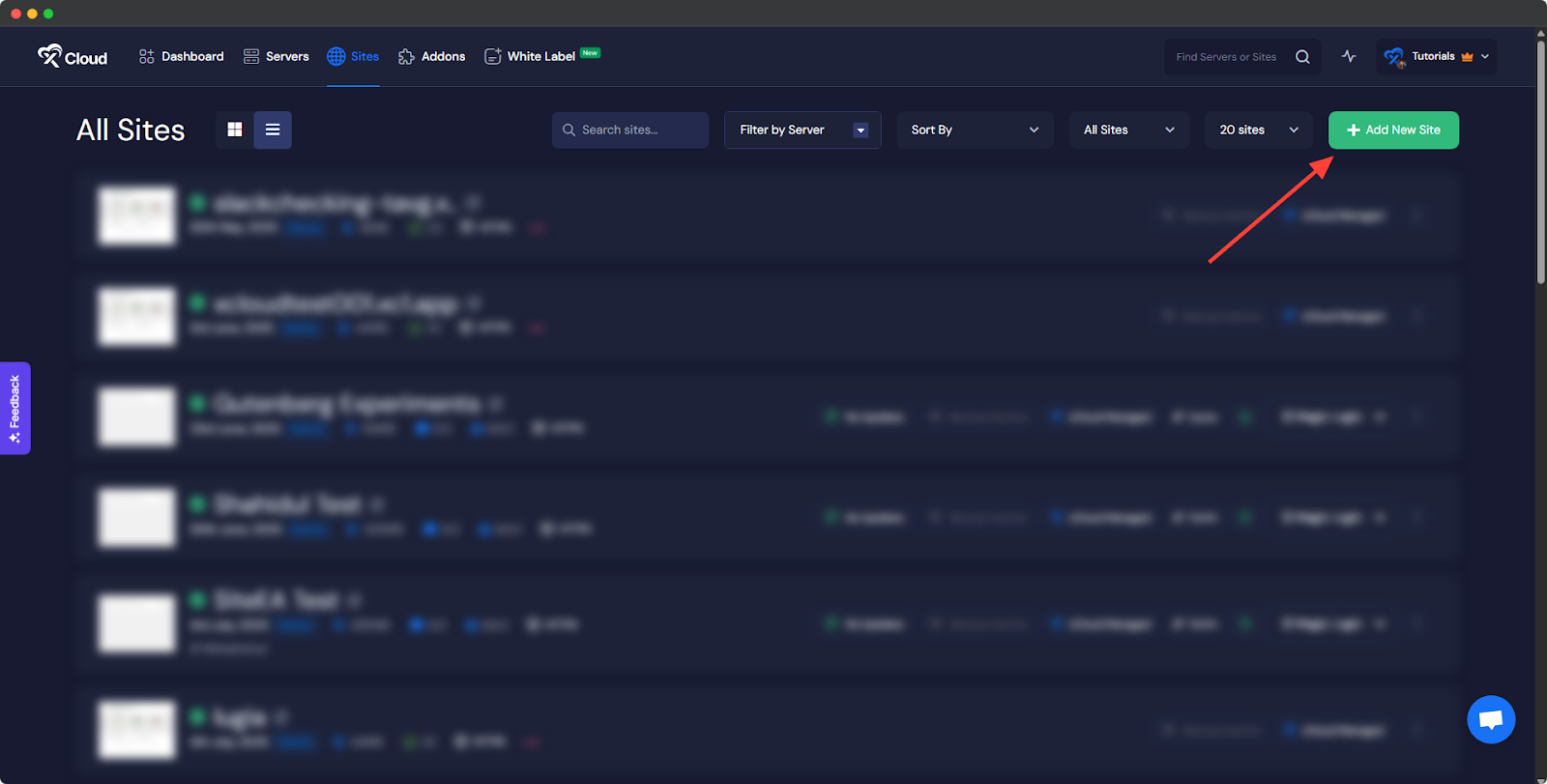
Begin by logging into your xCloud account. Once logged in, navigate to your dashboard and click on the ‘Add New Site’ button.
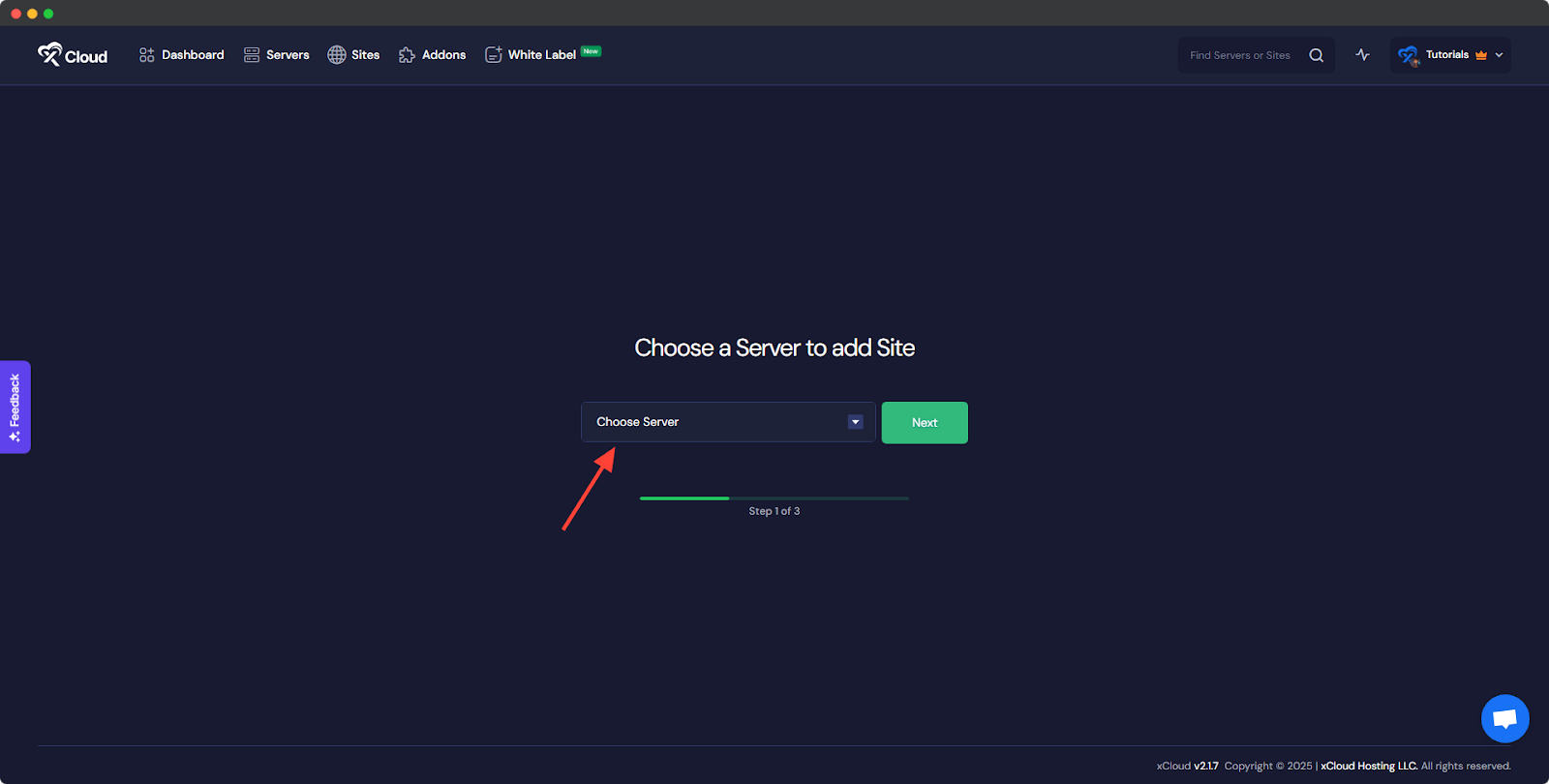
You will then be asked to ‘Choose a Server to add Site’ from the dropdown. You must select the DigitalOcean server you set up in xCloud from this dropdown.
Then navigate to the ‘One Click Apps’ section. You will see ‘Supabase’ just as shown below, click on it to proceed with the deployment of this application.
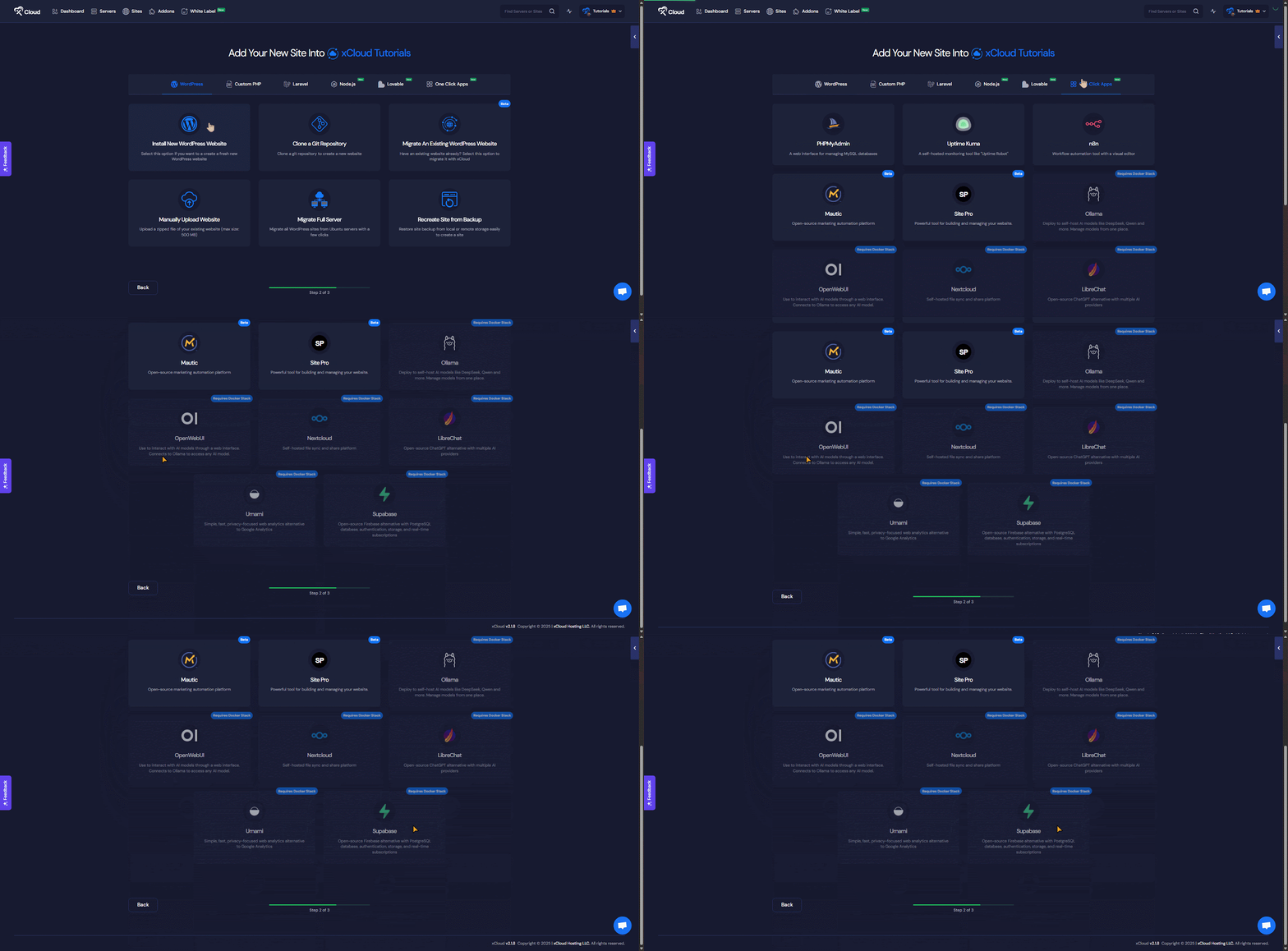
Note: You must complete Phase 2 to meet Docker’s requirements for using Supabase. Without completing Phase 2, Supabase will not be unlocked.
Step 2: Set Up the Supabase Application #
In the site setup screen, you will be prompted to enter basic site information. Provide a ‘Site Title’ and add relevant ‘Tags’ to help organize your deployment.
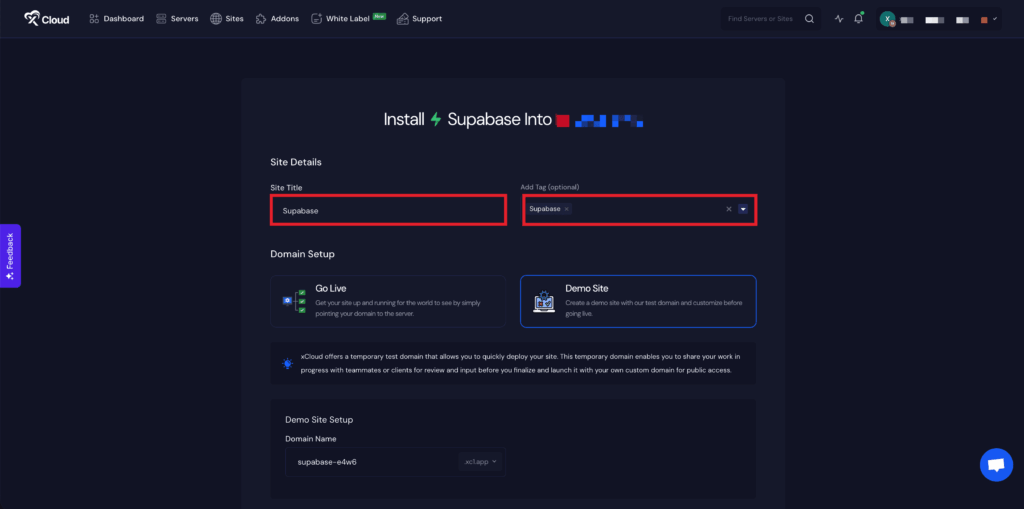
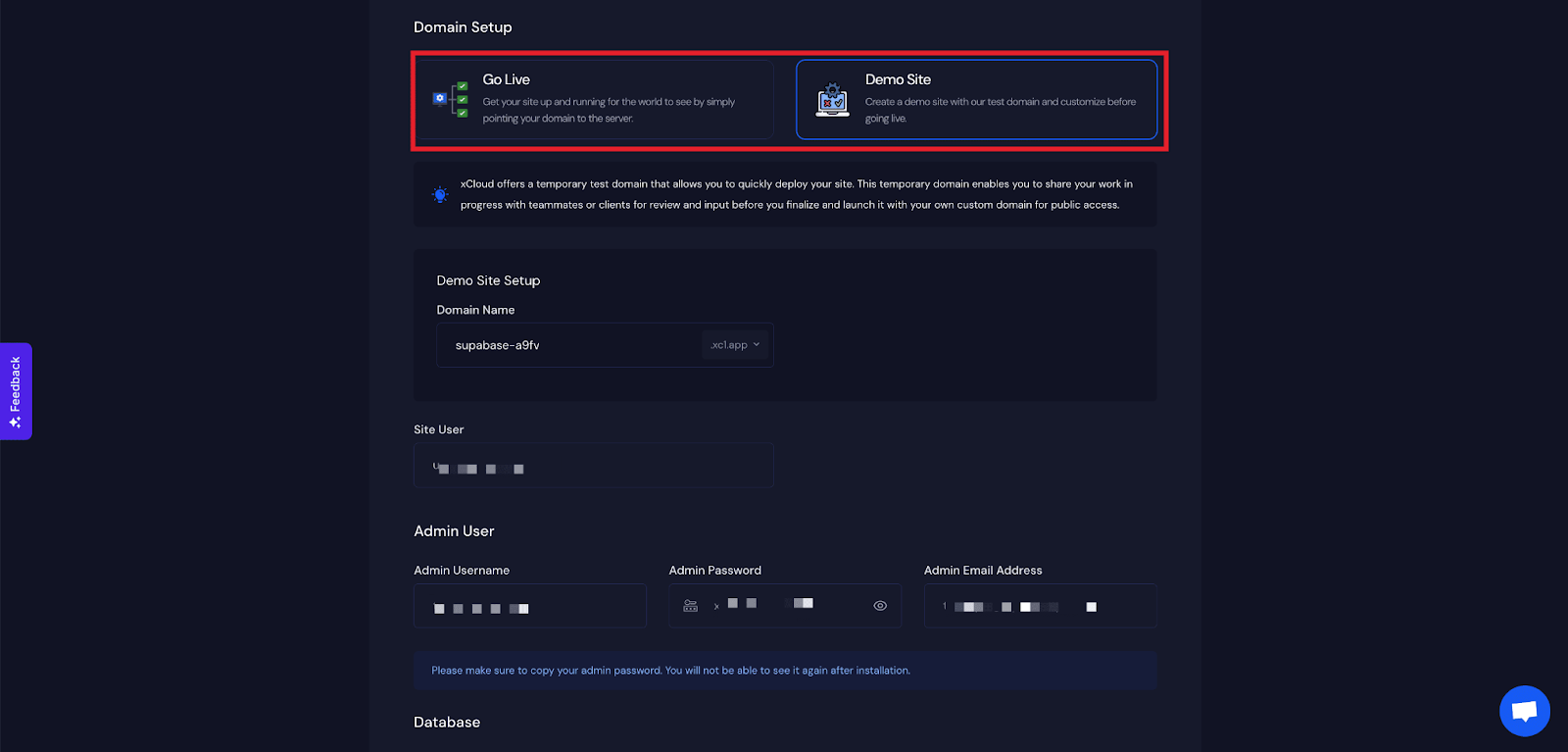
At this point, you can choose between two deployment modes: ‘Go Live’ for a production-ready deployment or ‘Demo Site’ for testing purposes. Selecting ‘Go Live’ will immediately create a live environment, while choosing ‘Demo Site’ allows you to experiment in a staging environment before promoting it to production.
Step 3: Configure Domain Settings #
If you select the ‘Demo Site’ option, xCloud will assign a demo domain for your Supabase application. Next, enter your application’s domain.
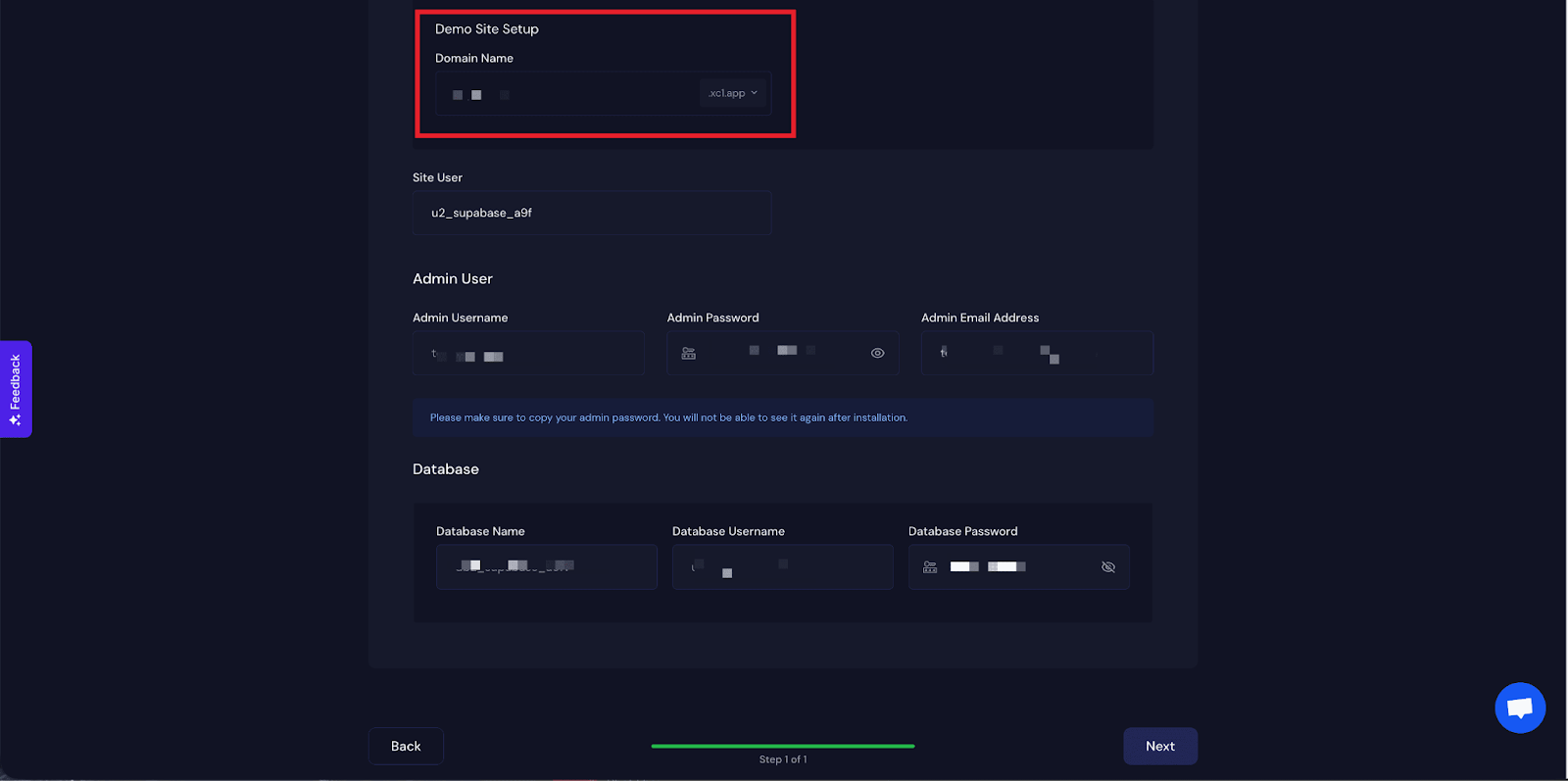
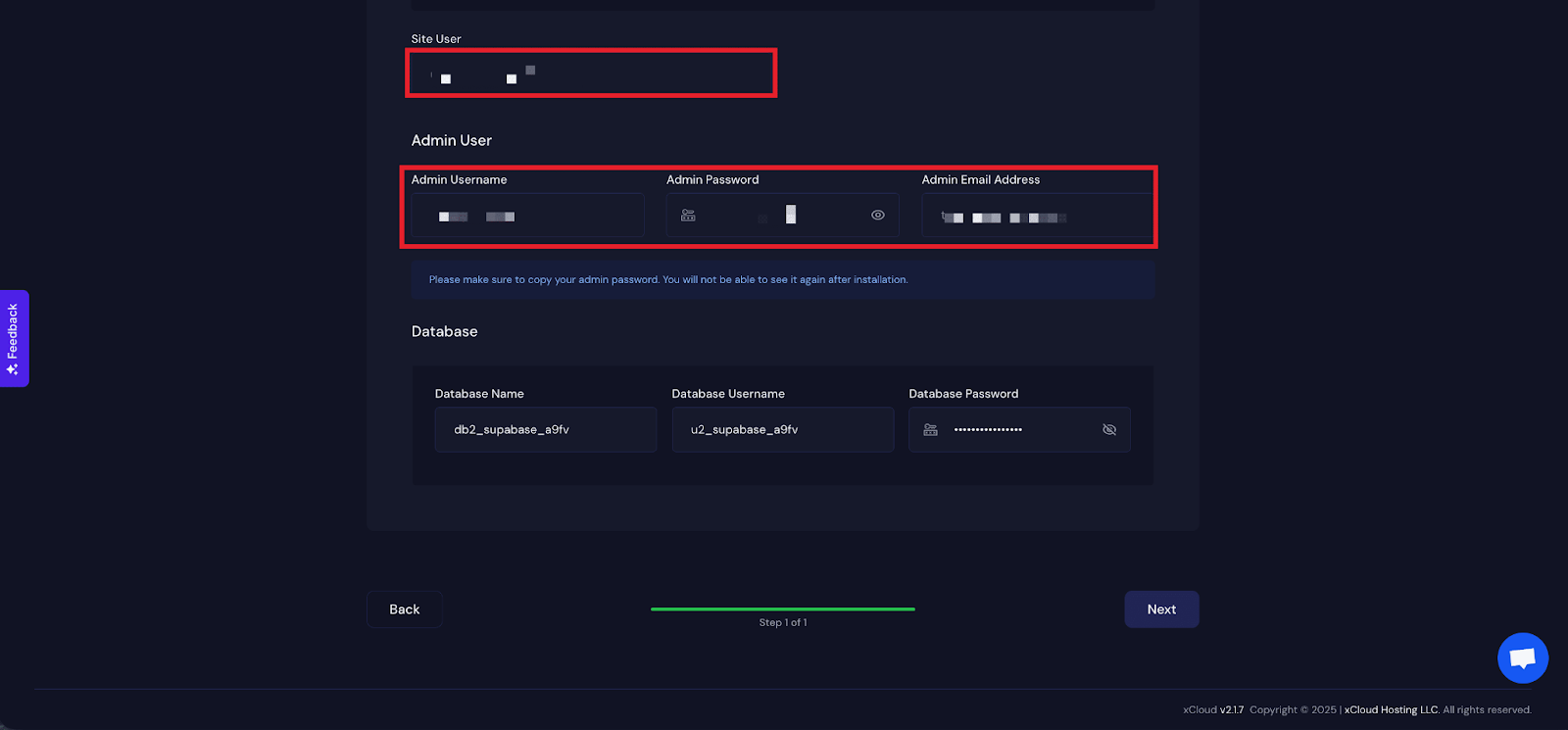
You will get a ‘Site User’ of your application. You can also adjust it according to your preferences or leave it as the default. In the next section, you will get ‘Admin Username’, ‘Admin Password’, and ‘Admin Email Address’.
Note: From here, copy your Admin Username and Admin Password to log in to your Supabase application later.
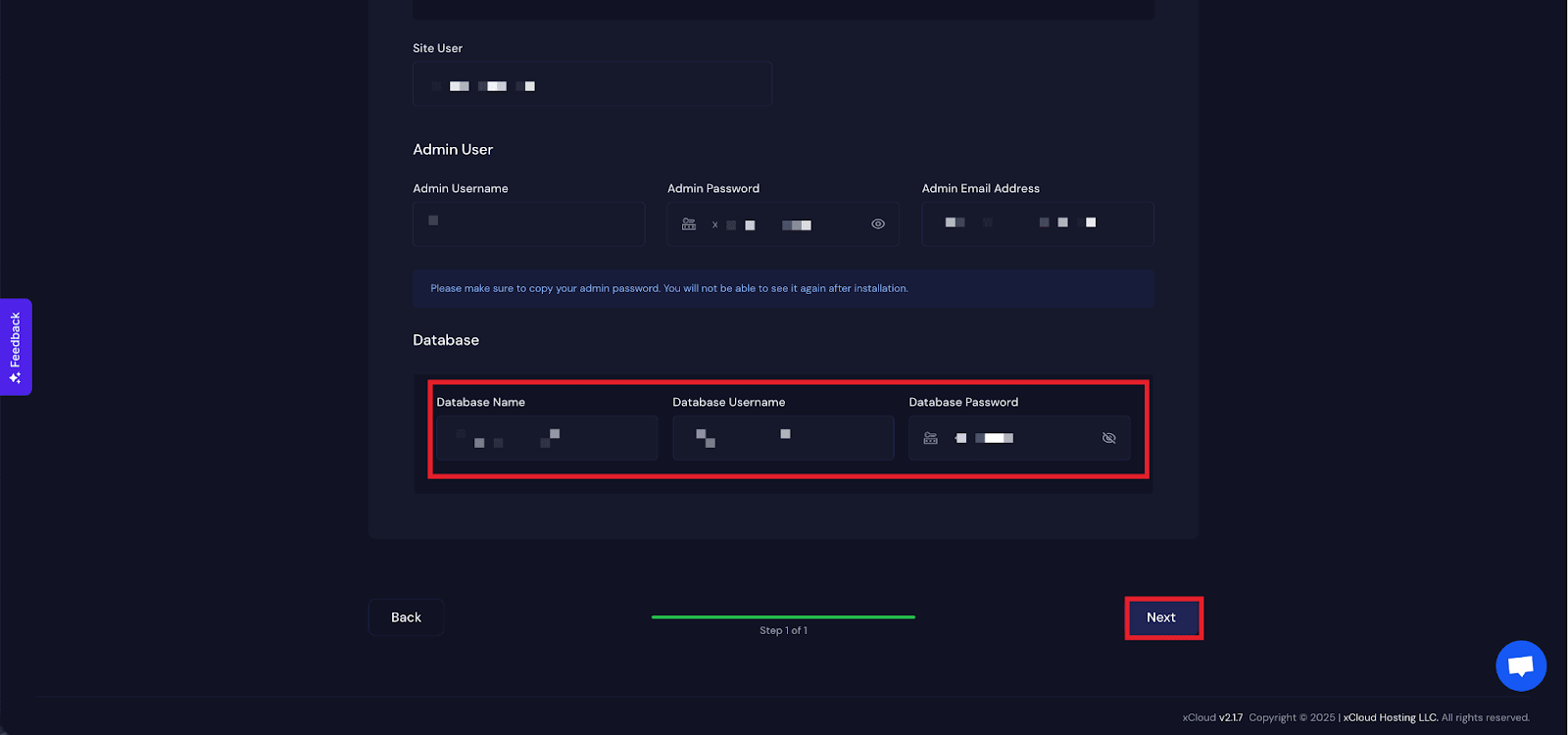
Next, get the ‘Database Name’, ‘Database Username’ and ‘Database Password’ for this application and click on the ‘Next’ button.
Final Outcome: Visit the Application #
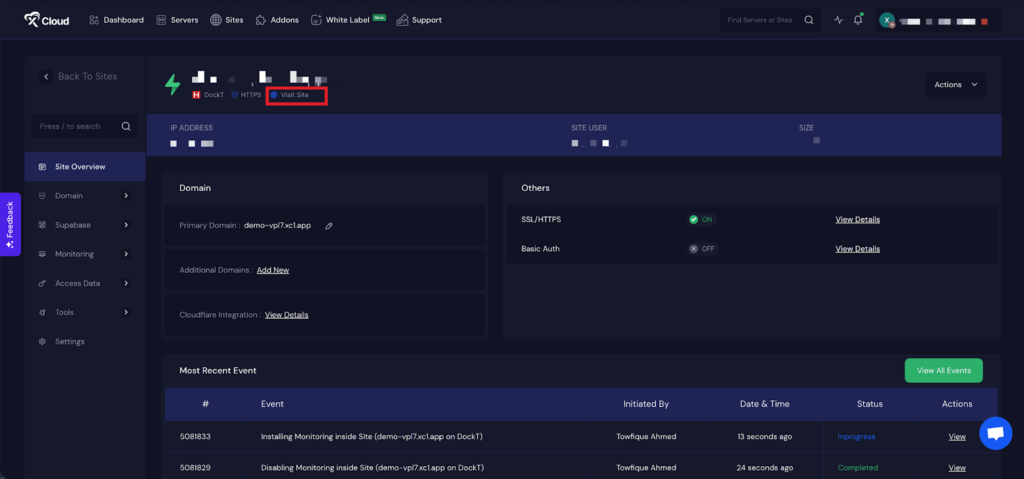
After completing the setup, you will be able to visit your Supabase site. From the dashboard, click on the ‘Visit Site’ app.
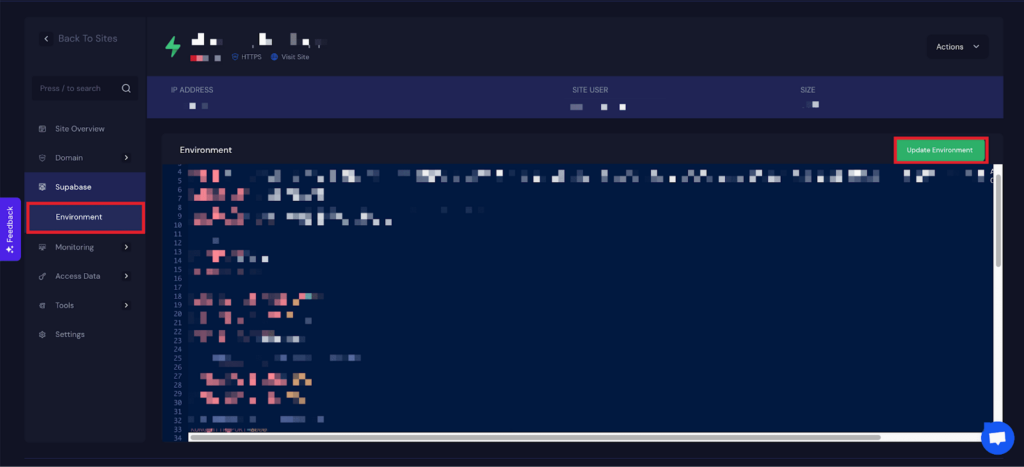
Environment Editor for Supabase #
The Environment section in xCloud allows you to customize configuration settings for your Supabase app. Just go to the ‘Environment’ option from the sidebar and adjust as you need, then click on the ‘Update Environment’ button.
That’s it! This is how easily you can install Supabase on DigitalOcean using xCloud’s One Click Apps. xCloud takes care of the heavy lifting, server provisioning, Docker configuration and deployment, so you can focus on building and scaling your application with Supabase’s powerful backend features.
If you’re setting up a demo project or going live in production, this streamlined process lets you get started quickly and confidently.
Still stuck? Contact our support team for any of your queries.


