

How Auto Healing Works in xCloud
Updated November 29, 2026 · 5 min read
xCloud Auto Healing watches the services your server needs, such as the web server, the database and Redis, and starts them again when they stop. It cuts the downtime a crashed service causes, but it does not fix the reason the service stopped. For an overview of the feature, see the auto healing feature page.
What Auto Healing does
For each service it covers, Auto Healing:
- reads the service state that server monitoring reports;
- notices when the service is no longer running;
- tries to start the service again; and
- updates the service status you see in xCloud.
A successful restart does not send a separate email or alert. When a service stays down, xCloud adds a card to your to-do list instead (see When Auto Healing can’t fix it).
Auto Healing coverage by server stack
Coverage depends on the server stack. xCloud only restarts services that your server’s stack needs.
| Server stack or service context | Current Auto Healing coverage |
|---|---|
| Standard NGINX or OpenLiteSpeed server | The web server, MySQL or MariaDB, Supervisor, OpenSSH, and Redis when Redis is installed. |
| PHP on a standard server | Restarted on NGINX servers. On OpenLiteSpeed, xCloud does not restart PHP, but it reinstalls a PHP version your sites need if it is missing. |
| Docker with NGINX | Docker, NGINX, Supervisor and OpenSSH, plus PHP, MySQL and Redis when installed. |
| AI agent servers | NGINX, OpenSSH and the AI agent itself. On Paperclip servers, NGINX and OpenSSH only. |
| PostgreSQL | Not restarted automatically. |
| Plain servers | Not covered. Plain servers send no monitoring reports. |
The covered set can change when you change the server’s stack, database, cache or other managed parts. Do not assume that every service in Server Utilities is covered.
Prerequisites
- The server is connected to and managed by xCloud.
- Your xCloud account can open the server’s Management area.
Step 1: Open Server Utilities
Open the server in the xCloud dashboard, then go to Management → Settings. The Server Utilities section lists the server’s services with a Status and an Action for each one. On AI agent servers (OpenClaw, Hermes, Paperclip, DeepSeek Harness and Nod), go to Settings → Server Settings instead.
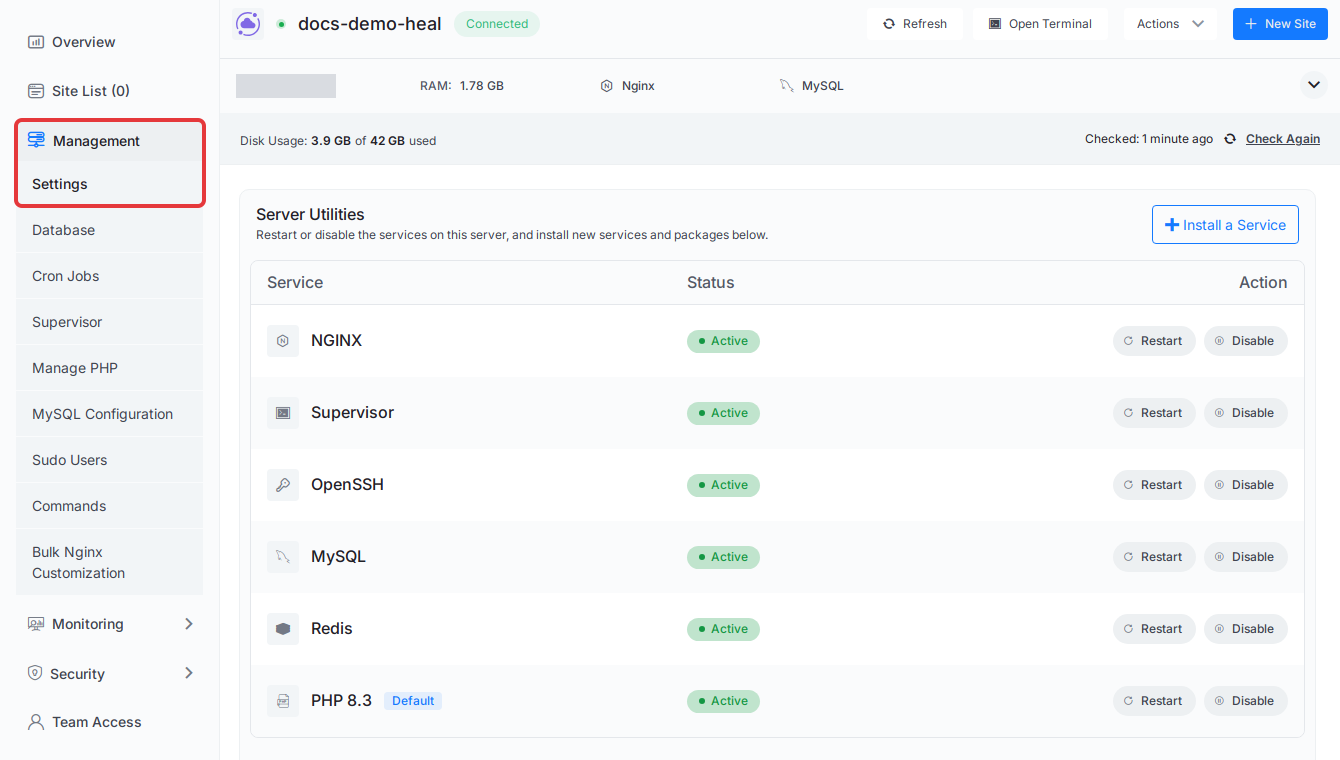
Expected result: each service shows Active when it is running. Active only means the service is running now. It does not prove that Auto Healing restarted it.
Step 2: Check for a failed service
Look down the Status column. A service that stopped and could not be restarted shows Failed, and its Action changes from Restart and Disable to Enable. A line above the table, such as 1 thing needs attention on this server, links to the problem in your to-do list.
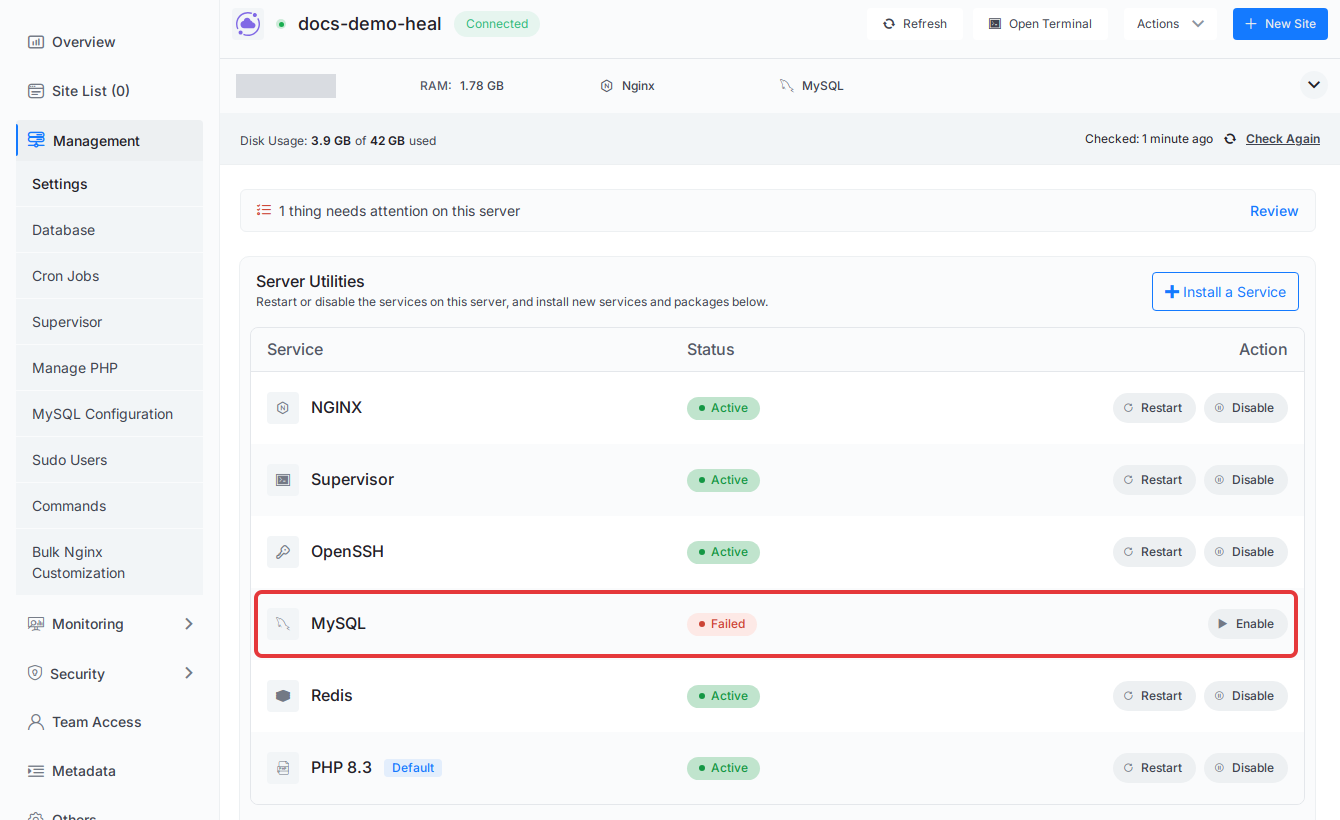
Expected result: you know which service is down. Fix the cause first (see Troubleshoot repeated failures), then click Enable to start it.
Understand the available controls
The buttons in Server Utilities are manual controls. They are separate from Auto Healing.
| Option | What it does |
|---|---|
| Restart | Restarts a running service now. |
| Disable | Stops a running service now. This does not switch Auto Healing off for good. If the service is one your stack needs, a later monitoring check can start it again. |
| Enable | Starts a service that is stopped or Failed. |
| Install a Service | Adds a supported service to the server. The options depend on the server. |
Do not stop or restart services on a live server just to test Auto Healing. Both actions can take your sites offline for a moment.
What happens after a failure
When monitoring reports that a covered service is not running, xCloud tries to start it. If that works, the service shows Active again, and its failure count goes back to zero.
If the restart fails, xCloud marks the service Failed and counts the failed try. After two failed tries, Auto Healing stops trying for that service, so it never gets stuck in a restart loop.
Auto Healing stays off for that service until monitoring reports it running again, for example after you fix the cause and click Enable. Then xCloud resets the count and turns Auto Healing back on for it.
When Auto Healing can’t fix it
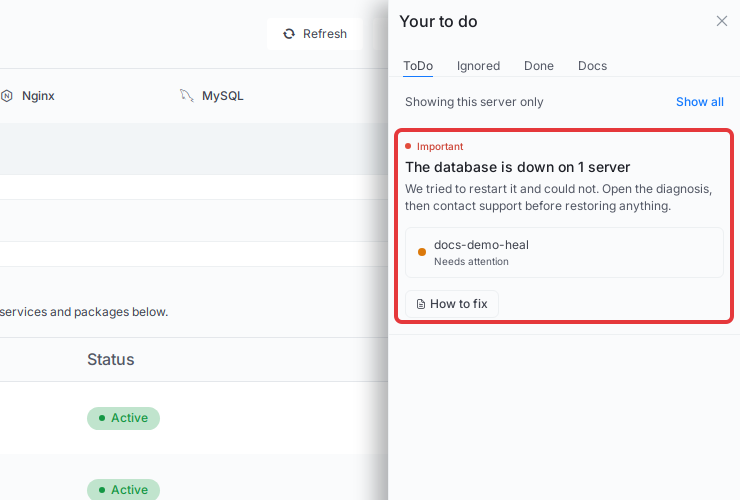
When a service stays down, xCloud adds a card to Your to do. Click the to-do icon at the top of the dashboard, or Review on the server page, to open it.
| To-do card | When it appears | What to do |
|---|---|---|
| The database is down on 1 server | MySQL or MariaDB stopped and xCloud could not restart it. | Contact support before you reinstall or restore anything. For common causes, see Database keeps stopping. |
| A required service is down on 1 server | Another service your server needs, such as NGINX, Supervisor or Redis, is stopped or Failed. | Sites on the server may be offline. Fix the cause, then click Enable in Server Utilities, or ask the AI assistant to check why it stopped. |
The card closes by itself once the service is running again. For more on the list, see Use the To-Do Center.
Why a database fails to restart
When MySQL or MariaDB will not start again, the cause is usually one of these:
- Disk full: the server has no free disk space left. Free space or resize the server to a bigger plan first.
- Out of memory: the server ran out of memory and the database was stopped. Add memory or swap, or reduce the load.
- Port conflict: another program is already using the database port.
- Bad configuration: a recent change to the database settings is invalid.
- File permissions: the database cannot read or write its own files.
- Damaged data files (InnoDB): restore or clone from a backup rather than repairing in place.
Restarting again will not help until the cause is fixed.
Troubleshoot repeated failures
| Symptom | Likely cause | What to do |
|---|---|---|
| The service returns to Active and then fails again | Auto Healing restarted it, but the cause is still there. | Check server resources, the service settings and anything it depends on. |
| The service stays Failed | xCloud reached the two-try limit and stopped trying. | Fix the cause, then click Enable. Auto Healing turns back on once the service is running. |
| A service in Server Utilities is never restarted automatically | Your server stack does not cover that service. | Check the coverage table above and manage that service by hand. |
| A service you stopped with Disable starts again | Your stack needs that service, so a later monitoring check started it. | Do not use Disable to opt out of Auto Healing. Check why the service is needed before you stop it. |
If the same service keeps stopping, see How to manage services on your server and watch the server’s load in server monitoring.
Limits and edge cases
- Auto Healing only covers the services your server’s current stack needs.
- On OpenLiteSpeed, xCloud does not restart PHP, but it reinstalls a PHP version your sites need if it is missing. PostgreSQL is not restarted automatically. Node.js is not covered.
- Auto Healing cannot fix every cause, such as a full disk, too little memory, a broken configuration, damaged data or a service it depends on being down.
- Manual Restart, Disable and Enable clicks are not Auto Healing events.
Frequently asked questions
Does an Active status mean Auto Healing ran?
No. Active only means the service is running now. The Server Utilities table does not show whether Auto Healing restarted it.
How many times does xCloud try to restart a failed service?
Twice. After the second failed try, the service stays Failed and Auto Healing stops trying for that service until it is running again.
Does xCloud email me every time Auto Healing restarts a service?
No. A successful restart sends no separate alert. A service that stays down shows up in your to-do list instead.
What should I do when my to-do list says the database is down?
Contact support before you reinstall or restore anything. For common causes, see Database keeps stopping.
If you run into any issues with Auto Healing, feel free to reach out to our support team.