

How to Install ionCube Loader Using SSH for Nginx and OpenLiteSpeed
Updated November 18, 2026 · 7 min read
To install ionCube Loader, download it from ionCube’s own server (ioncube_loaders_lin_x86-64.tar.gz, free), copy the loader file that matches your site’s PHP version into PHP’s extension folder, add one line that loads it, and restart PHP. On an xCloud server this takes about five minutes over SSH or the web terminal.
ionCube Loader is a PHP extension that runs PHP files protected with the ionCube Encoder. Many commercial PHP scripts, WHMCS add-ons and paid WordPress plugins ship this way and stop with an error like “requires the ionCube PHP Loader” until the loader is installed.
xCloud does not install ionCube Loader for you, and it is not in the Manage PHP Extensions list. Follow the steps below for Nginx or OpenLiteSpeed (OLS) servers.
Before you begin
- Root or sudo access. Use the server’s web terminal (it opens as root) or SSH as a sudo user. See Access the web terminal in xCloud and How to generate and add SSH keys in xCloud.
- Your site’s PHP version. The loader file must match it exactly. Step 2 shows where to find it.
- A quiet moment. Step 5 restarts PHP. On Nginx, every site on that PHP version pauses for a few seconds; on OpenLiteSpeed, every site on the server does.
Step 1: Open a terminal on the server
In xCloud, open ‘Servers’ and select your server. Click ‘Open Terminal’ at the top right. A root shell opens in your browser.
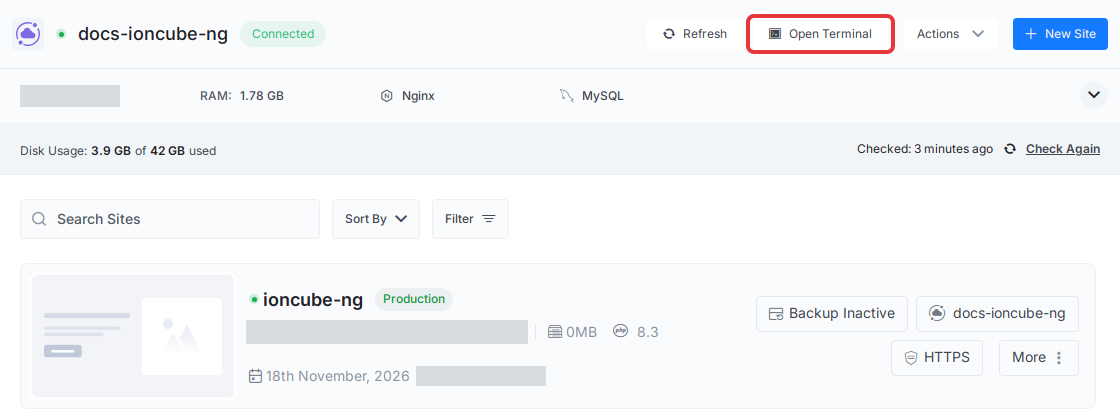
To use your own SSH client instead, connect as a sudo user. Replace the user name and IP address with your own:
ssh your-sudo-user@SERVER_IPStep 2: Find your site’s PHP version
On the server’s ‘Site List’, the number next to the PHP icon on each site card is the PHP version that site runs. In this example it is 8.3.
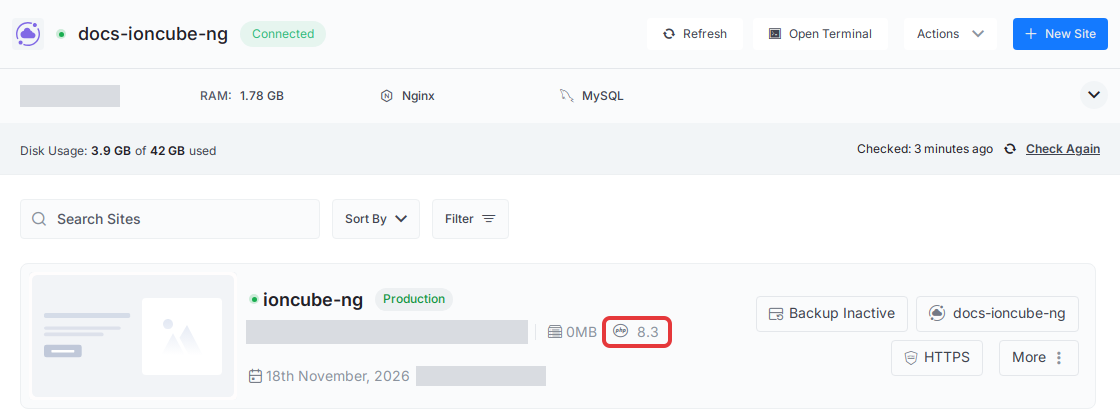
Each site runs its own PHP version, and that can differ from the server’s default. Plain php -v on the command line shows the default version, not your site’s. To see every version installed on the server, open ‘Management’ → ‘Manage PHP’ → ‘PHP Configuration’. The version marked ‘Default’ is what plain php runs.
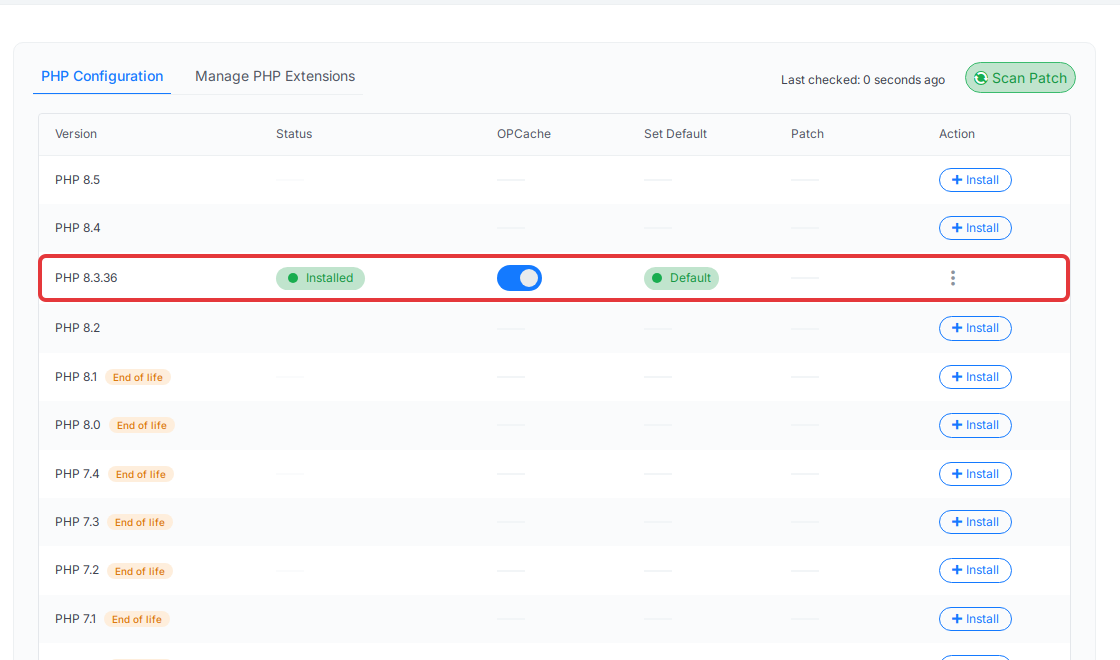
If your sites run different PHP versions, repeat Steps 4 to 6 for each version.
Step 3: Download ionCube Loader
Download the loader package into /tmp and unpack it. Check the server’s processor type first:
uname -mx86_64 means a 64-bit Intel or AMD server; aarch64 means an ARM server. Download the matching package:
cd /tmp

# x86_64 servers
wget https://downloads.ioncube.com/loader_downloads/ioncube_loaders_lin_x86-64.tar.gz
tar -xzf ioncube_loaders_lin_x86-64.tar.gz

# aarch64 (ARM) servers: use this file instead
# wget https://downloads.ioncube.com/loader_downloads/ioncube_loaders_lin_aarch64.tar.gz
# tar -xzf ioncube_loaders_lin_aarch64.tar.gz

ls ioncube
You now have a /tmp/ioncube folder with one file per PHP version, such as ioncube_loader_lin_8.3.so. Use the file without _ts in its name. The _ts files do not load on xCloud servers.
The package has files for PHP 7.4 and older and for PHP 8.1 and newer (check ls ioncube for your version). It has no file for PHP 8.0. If your site runs PHP 8.0, upgrade its PHP version first.
Step 4: Copy the loader file into PHP’s extension folder
Ask that PHP version where it loads extensions from, then copy the matching file there. The commands use PHP 8.3; change both 8.3 and 83 to your version.
Nginx servers
EXT_DIR=$(php8.3 -r 'echo ini_get("extension_dir");')
echo "$EXT_DIR"
sudo cp /tmp/ioncube/ioncube_loader_lin_8.3.so "$EXT_DIR/"
On PHP 8.3 the folder is /usr/lib/php/20230831.
OpenLiteSpeed servers
EXT_DIR=$(/usr/local/lsws/lsphp83/bin/php8.3 -r 'echo ini_get("extension_dir");')
echo "$EXT_DIR"
sudo cp /tmp/ioncube/ioncube_loader_lin_8.3.so "$EXT_DIR/"
On PHP 8.3 the folder is /usr/local/lsws/lsphp83/lib/php/20230831.
Step 5: Tell PHP to load ionCube and restart it
Put the load line in its own small file rather than editing php.ini. The name 00-ioncube.ini makes PHP read it before OPcache, which ionCube needs.
Nginx servers
Your websites and the command line read PHP settings from separate folders, so add the file to both:
echo "zend_extension=ioncube_loader_lin_8.3.so" | sudo tee /etc/php/8.3/fpm/conf.d/00-ioncube.ini
echo "zend_extension=ioncube_loader_lin_8.3.so" | sudo tee /etc/php/8.3/cli/conf.d/00-ioncube.ini
sudo systemctl restart php8.3-fpm
OpenLiteSpeed servers
Sites and the command line both read the mods-available folder of that PHP version:
echo "zend_extension=ioncube_loader_lin_8.3.so" | sudo tee /usr/local/lsws/lsphp83/etc/php/8.3/mods-available/00-ioncube.ini
sudo systemctl restart lsws
Step 6: Check that ionCube Loader works
Run the PHP version your site uses:
# Nginx
php8.3 -v

# OpenLiteSpeed
/usr/local/lsws/lsphp83/bin/php8.3 -v
The output now has a line like this, above the OPcache line:
with the ionCube PHP Loader v15.x, Copyright (c) 2002-..., by ionCube Ltd.To check the website itself, create a test file in the site’s web folder. Replace example.com with your site’s folder under /var/www/ (for some apps the web folder is a subfolder such as public):
echo '<?php echo extension_loaded("ionCube Loader") ? "ionCube " . ioncube_loader_version() : "ionCube missing"; ?>' | sudo tee /var/www/example.com/ioncube-check.phpOpen https://example.com/ioncube-check.php in your browser. It should show ionCube followed by the loader version you installed. Delete the file afterwards:
sudo rm /var/www/example.com/ioncube-check.phpTroubleshooting
php -vdoes not mention ionCube. You probably checked a different PHP version. Plainphpruns the server’s default version; usephp8.3 -v(Nginx) or/usr/local/lsws/lsphp83/bin/php8.3 -v(OpenLiteSpeed) for your site’s version. The paths and versioned commands are listed in Find default paths for PHP, Nginx and MySQL.- The command line shows ionCube but the website does not. On Nginx, check that
00-ioncube.iniis in thefpm/conf.dfolder, not onlycli/conf.d, and that you restartedphp8.3-fpm. On OLS, restartlsws. Failed loading ... ioncube_loader_lin_8.3.soorwrong version. The file does not match the PHP version. A PHP 8.2 loader does not work on PHP 8.3. Copy the file whose number matches the folder you put the.iniin.The Loader must appear as the first entry in the php.ini file. Anotherzend_extensionloads first. Keep the00-prefix so the ionCube file is read before the others.- PHP fails to restart. Remove the file you added (
sudo rm .../00-ioncube.ini) and restart PHP again; your sites come back as before. Then check the loader file name and path.
Remove ionCube Loader
Delete the 00-ioncube.ini file(s) you created in Step 5 and restart PHP (php8.3-fpm on Nginx, lsws on OLS). You can also delete the .so file from the extension folder.
Frequently asked questions
Where do I download ionCube Loader?
From ionCube’s own download server. For a 64-bit Intel or AMD server use https://downloads.ioncube.com/loader_downloads/ioncube_loaders_lin_x86-64.tar.gz, and for an ARM server use ioncube_loaders_lin_aarch64.tar.gz from the same folder. The download is free and holds one loader file for each PHP version.
Can I install ionCube Loader from the xCloud dashboard?
No. ionCube Loader is not in the Manage PHP Extensions list, so you install it over SSH or in the server’s web terminal with the steps on this page.
Is there an ionCube Loader for PHP 8.0?
No. ionCube makes loaders for PHP 7.4 and older and for PHP 8.1 and newer, but none for PHP 8.0. Run ls ioncube after you unpack the package to see which versions it has. Move a site that needs ionCube to PHP 8.1 or newer.
Do I need to install it again after I change a site’s PHP version?
Yes, if the new version does not have it yet. The loader is installed for one PHP version at a time, so repeat Steps 4 to 6 with the loader file and folders of the new version.
If you run into any issues, feel free to reach out to our support team.