

Show Visitor Real IP Behind Cloudflare Proxy
Updated March 26, 2025 · 3 min read
When you’re using Cloudflare or any similar reverse proxy service, your server typically receives the proxy server’s IP instead of the actual IP of your visitors. To solve this, xCloud allows you to restore the real IP address through specific configurations based on your server type. Follow the steps below whether you are using OpenLiteSpeed (OLS) or NGINX, you can show visitors’ real IP address of your websites with xCloud.
For NGINX Servers
If your site is hosted on an NGINX server, you will need to configure it manually to see the real IP addresses of your visitors. xCloud offers two ways to do this — one for i) Individual sites and ii) Another for all sites on the server.
Method 1: Configure Real IP for a Single Website
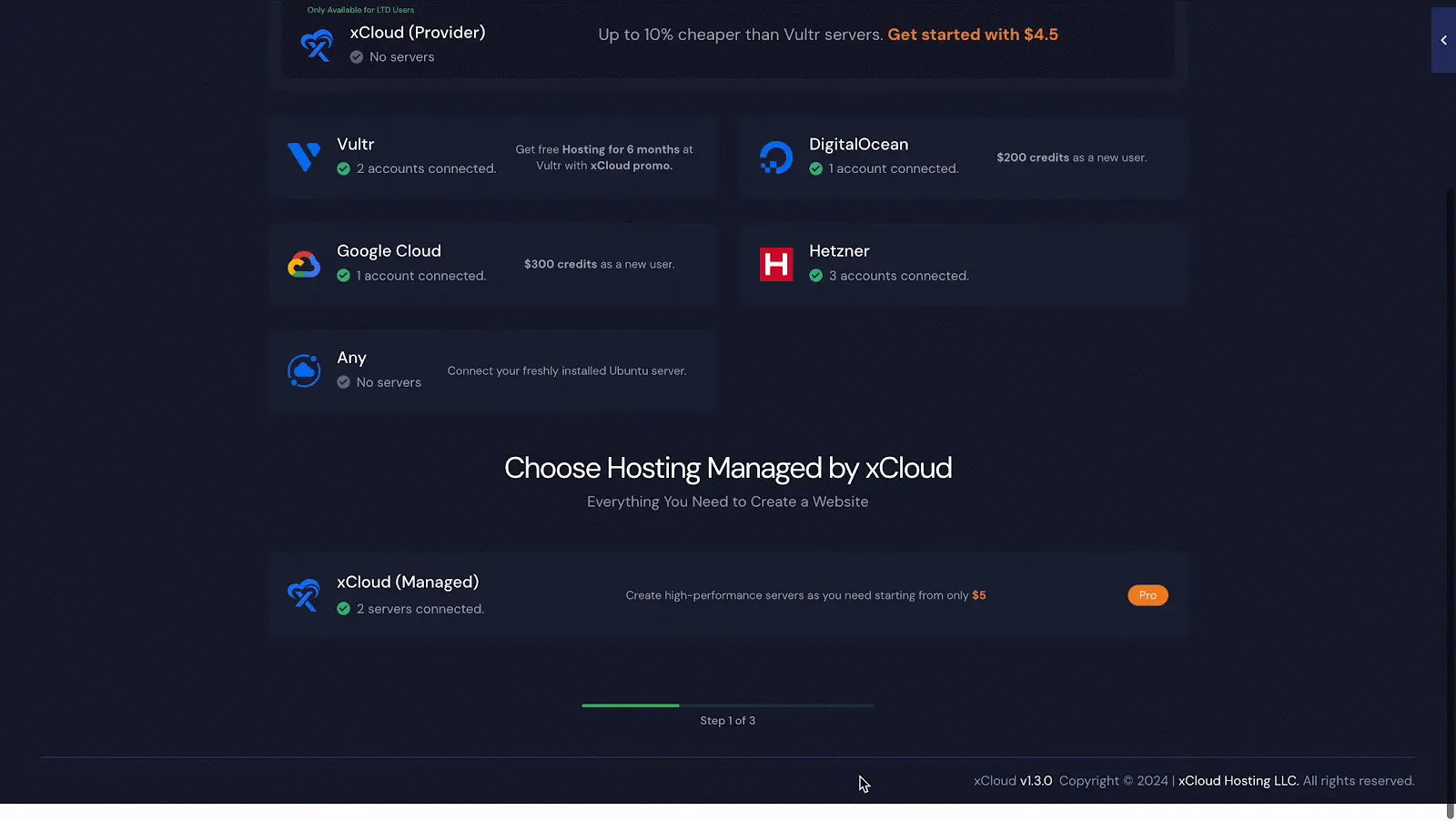
To enable real IP detection for a specific website, log in to your xCloud dashboard and navigate to the site you want to configure. Once there, go to the ‘Tools’ menu and select the ‘NGINX Customization’ option.
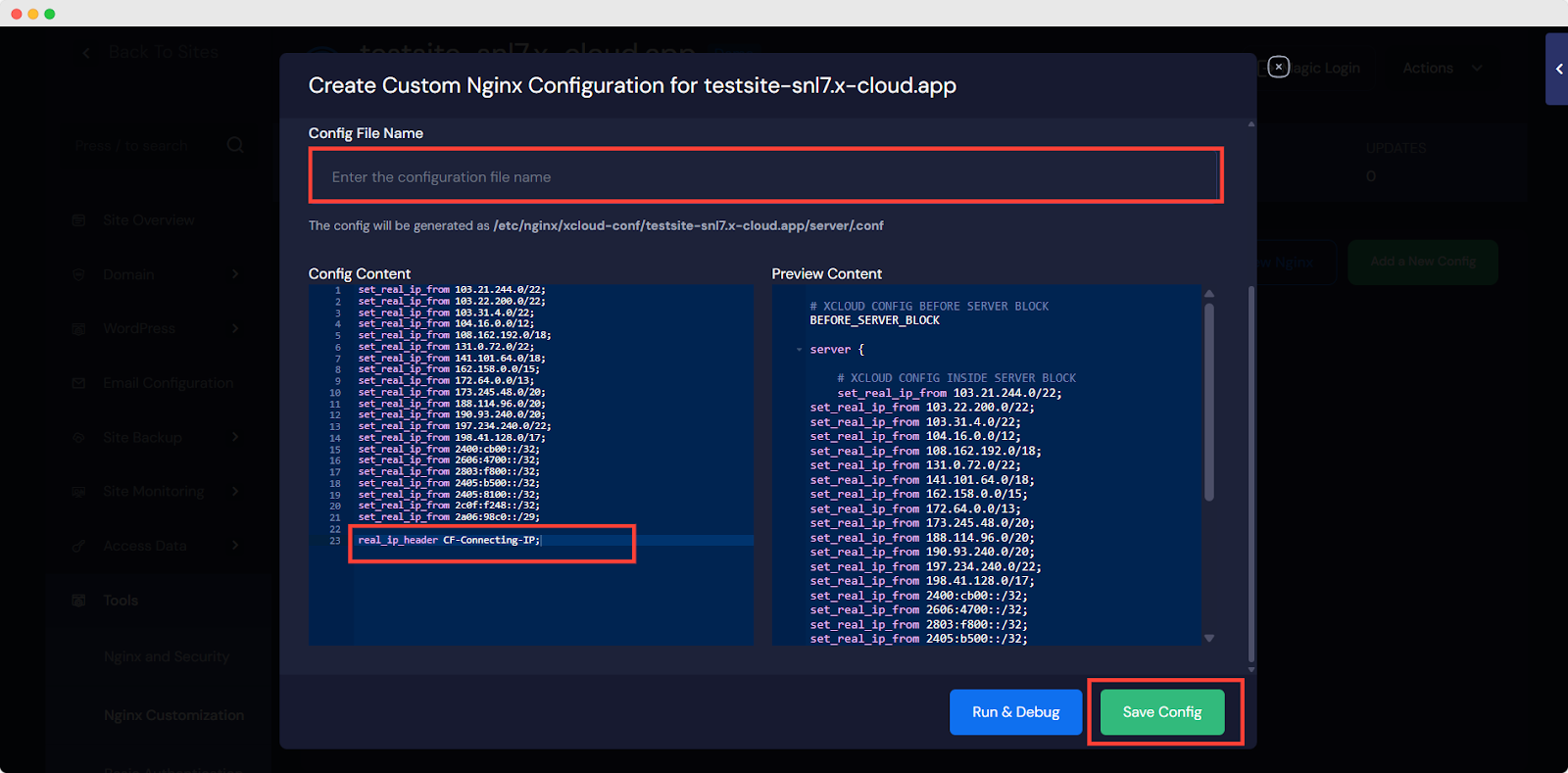
Click on the Add New NGINX button to open a configuration popup. In the popup, look for the Select Template dropdown and choose the option ‘Show Real IP – Cloudflare proxied’. Next, move to the ‘Config File Name’ field and enter a filename of your choice.
Then, in the ‘Config File Name’ field, input the necessary configuration rules (you can use the ones provided in the default template or add your own). After filling in the required fields, click the ‘Save Config’ button to apply the changes. This method only affects the selected website.
Note: We gave the necessary config, in the Config Content field, You can adjust it if needed.
Method 2: Configure Real IP for All Websites
If you prefer to apply real IP configuration globally for all websites hosted on your server, xCloud makes that possible using custom server commands. To get started, go to your ‘Server’ → ‘Management’ section from the navigation bar. Then click on the ‘Commands’ option from the menu.
Inside the Commands page, select the ‘Run Custom Command’ option. A popup window will appear. In the popup, locate the ‘Command’ field and enter the following bash script. This script creates a configuration file at /etc/nginx/conf.d/show-real-ips-cf-proxied.conf, adds Cloudflare’s IP ranges, sets the correct real IP header, and reloads the NGINX server.
#!/bin/bash

# Define the config file path
CONFIG_FILE="/etc/nginx/conf.d/show-real-ips-cf-proxied.conf"

# Create and write to the config file
cat <<EOF | sudo tee $CONFIG_FILE > /dev/null
set_real_ip_from 103.21.244.0/22;
set_real_ip_from 103.22.200.0/22;
set_real_ip_from 103.31.4.0/22;
set_real_ip_from 104.16.0.0/12;
set_real_ip_from 108.162.192.0/18;
set_real_ip_from 131.0.72.0/22;
set_real_ip_from 141.101.64.0/18;
set_real_ip_from 162.158.0.0/15;
set_real_ip_from 172.64.0.0/13;
set_real_ip_from 173.245.48.0/20;
set_real_ip_from 188.114.96.0/20;
set_real_ip_from 190.93.240.0/20;
set_real_ip_from 197.234.240.0/22;
set_real_ip_from 198.41.128.0/17;

set_real_ip_from 2400:cb00::/32;
set_real_ip_from 2606:4700::/32;
set_real_ip_from 2803:f800::/32;
set_real_ip_from 2405:b500::/32;
set_real_ip_from 2405:8100::/32;
set_real_ip_from 2c0f:f248::/32;
set_real_ip_from 2a06:98c0::/29;

real_ip_header CF-Connecting-IP;
EOF

# Test Nginx configuration
sudo nginx -t

# Check if the test was successful
if [ $? -eq 0 ]; then
    # Reload Nginx
    sudo systemctl reload nginx
    echo "✅ Nginx reloaded successfully."
else
    echo "❌ Nginx configuration test failed. Fix the errors before reloading!"
    exit 1
fi
After pasting the script, click on the ‘Run Command’ button. This will apply the Real IP configuration globally to all your hosted websites, ensuring accurate IP logging across your entire NGINX environment.
For OpenLiteSpeed Servers
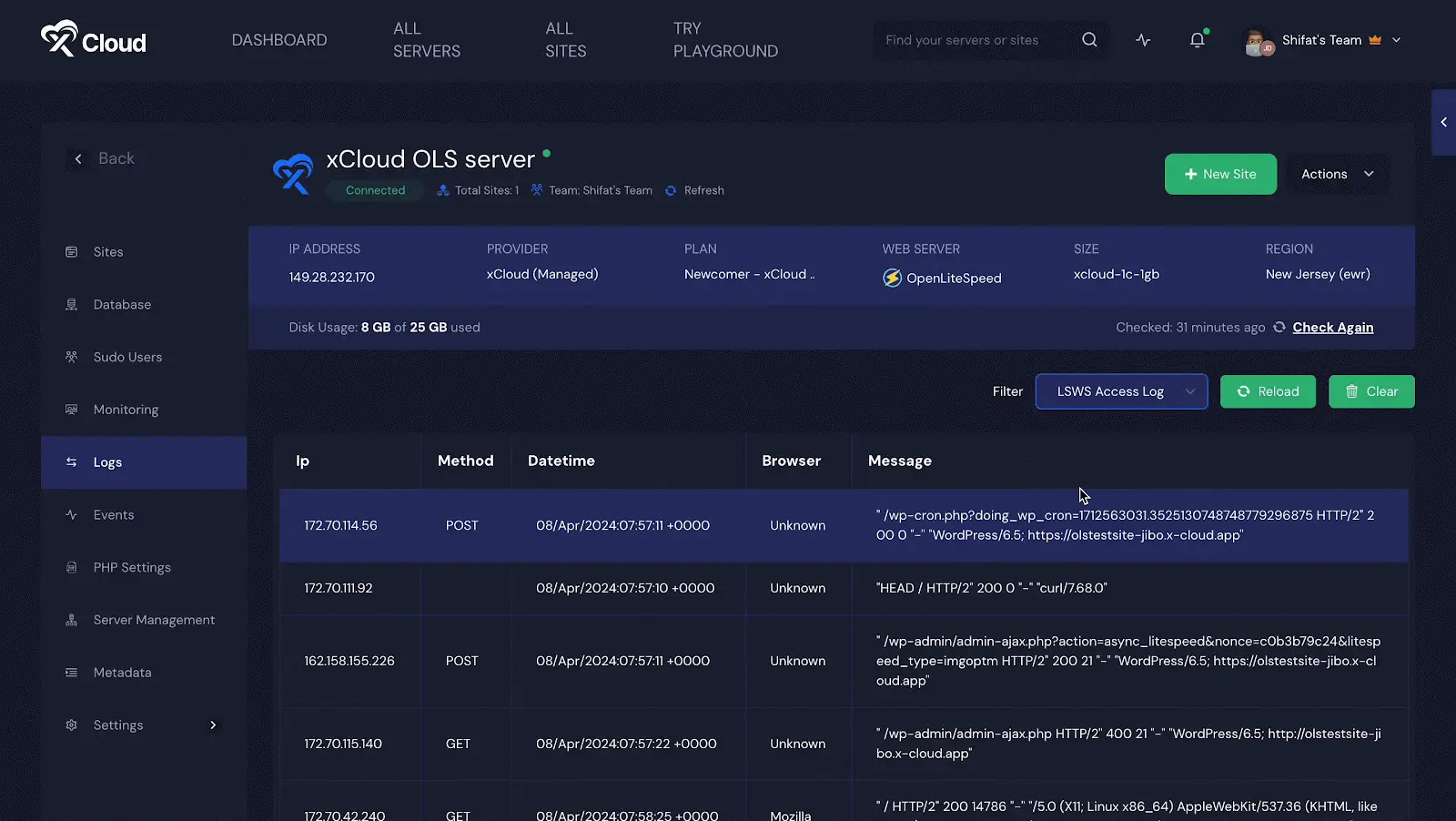
If your website is hosted on an OpenLiteSpeed (OLS) server, there’s no additional configuration needed. xCloud handles real IP restoration by default on OLS, so you don’t have to take any action. The real visitor IPs will automatically appear in your logs and analytics.
⭐If you are using Cloudflare, xCloud plans to automate this setup in the future. Once that update is released, you won’t need to configure this manually when Cloudflare is detected.
It is important to show visitor real IP addresses for accurate logging, analytics, and implementing security measures like rate limiting or geo-blocking. Once configured properly, your server will start capturing and logging the actual IPs of your visitors, ensuring full visibility and control over your traffic.
Still stuck? Contact our support team for any of your queries.