

How to Check Cron Job List of All Sites in Your Server?
Updated February 10, 2025 · 2 min read
xCloud now lets you check cron job list of all sites in your server. With this functionality, you can easily find all the system cron jobs of your server organized in one place. Also, you will be able to monitor the cron job list to ensure server security. In this step-by-step documentation, we will show you how it works.
How to Check Cron Job List of Your Server’s Sites in xCloud?
We will now show you the steps that you need to follow to check cron job list of your servers list in xCloud. Let’s get started.
Step 1: Sign Up or Login with xCloud
First, login with xCloud using your credentials. If you do not have an active account, create one by signing up.
Note: Read this documentation to learn how to set up your first server & site with xCloud.
Step 2: Navigate to Your Desired Server
From the dashboard, click on the ‘Server’ tab at the top. Then, hit your desired server in the list to select it.
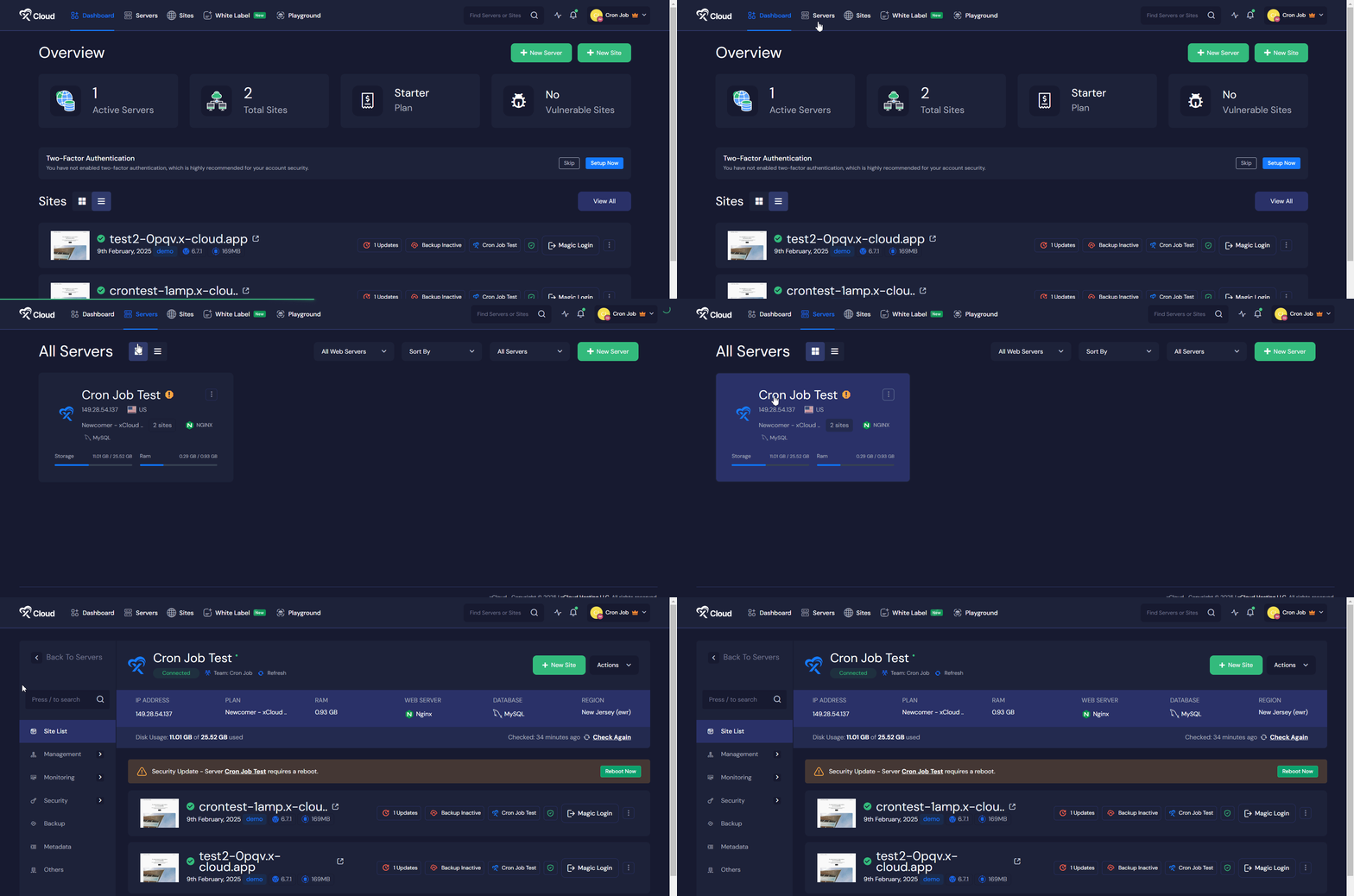
Step 3: Check Cron Job List of the Server
Now, go to the ‘Management’ tab in the left side panel. Under this tab, select the ‘Cron Jobs’ option.
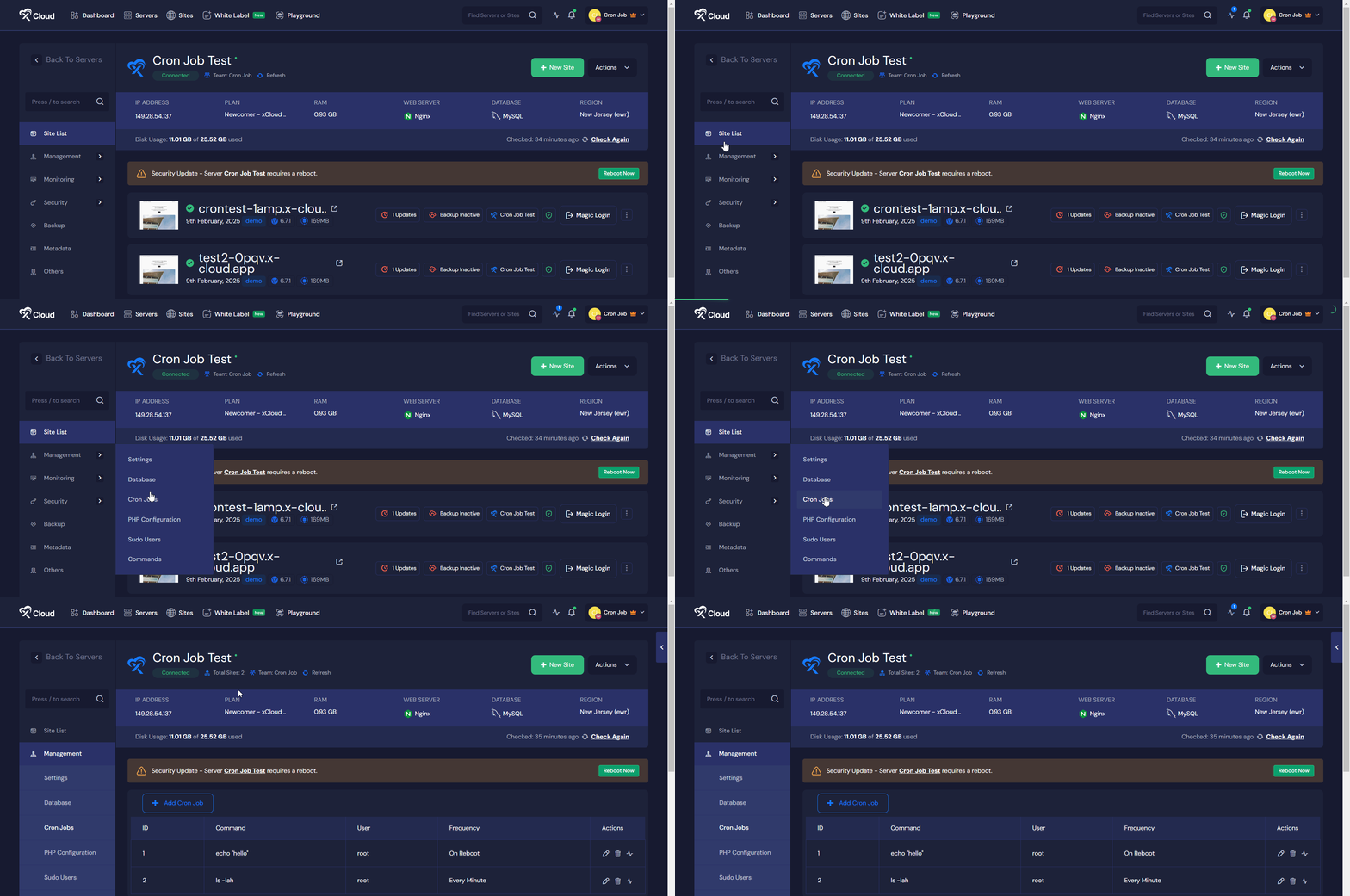
In the ‘Cron Jobs’ screen, you will find the list of your custom and system cron jobs. As shown in the image below, the custom cron jobs are listed in the upper section of the screen. These cron jobs are organized in columns for ‘ID’, ‘Command’, ‘User’, ‘Frequency’ and ‘Actions’.
Under the ‘Server Cron Jobs’ section, you will get the system cron job list of all the sites on your server. These cron jobs will be organized according to columns for ‘ID’, ‘User’, ‘Frequency’ and ‘Command’. Also, you can click on any command to copy it instantly.
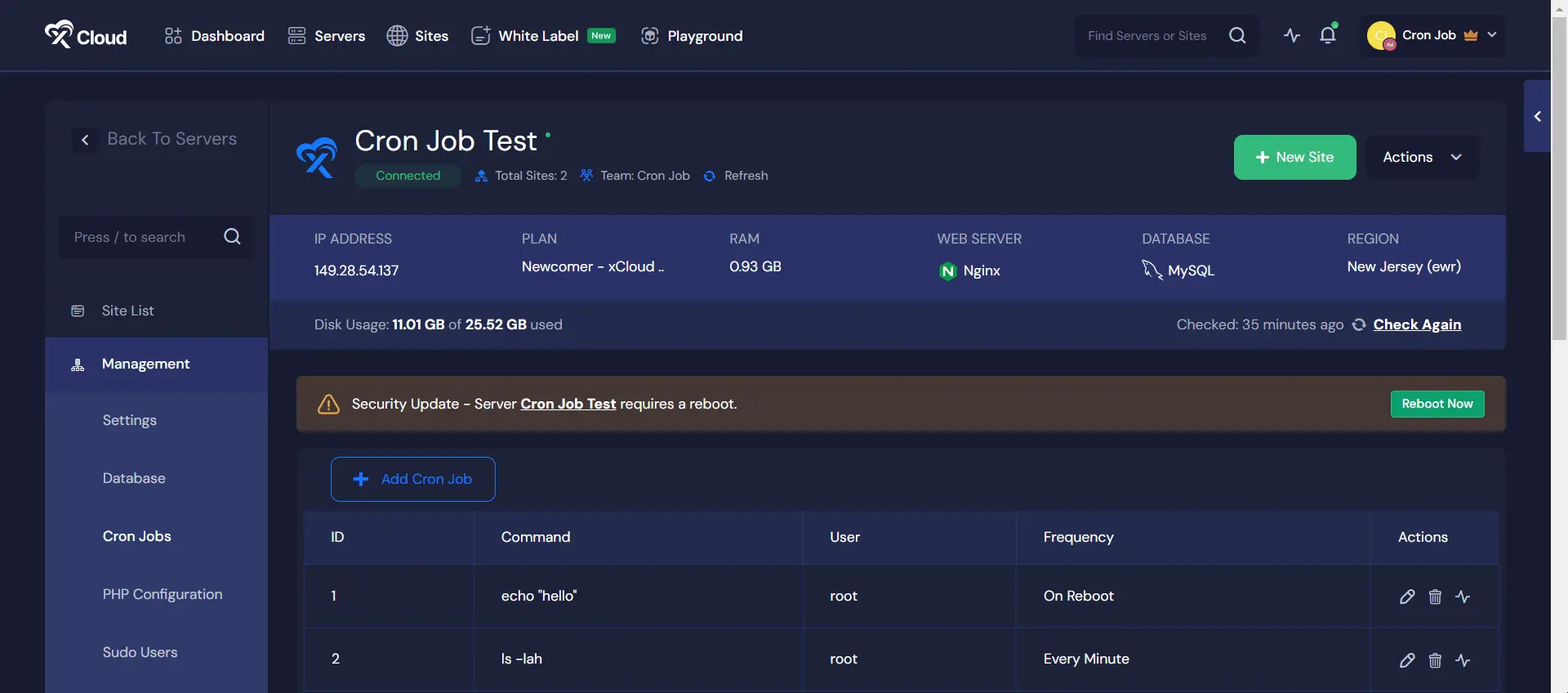
This is how easily you can check cron job list of all sites in our server using xCloud.
Still have questions? Contact our support team for quick assistance.