
















OpenClaw issues often appear after heavy testing, broken configurations, or failed integrations. Old data, stuck cron jobs, or misconfigured channels can prevent agents from working correctly. A clean reset removes these blockers and restores a stable environment.
A reset can help when troubleshooting no longer helps, or when you want to rebuild OpenClaw from scratch with a fresh setup. xCloud simplifies this process by offering a safe reset directly from the dashboard.
Follow the steps below to reset OpenClaw with xCloud.
Step 1: Open the OpenClaw Dashboard in xCloud #
Log in to your xCloud account and open your OpenClaw instance dashboard.
From the left sidebar, navigate to OpenClaw → Reset. Here you will get details about the reset process.
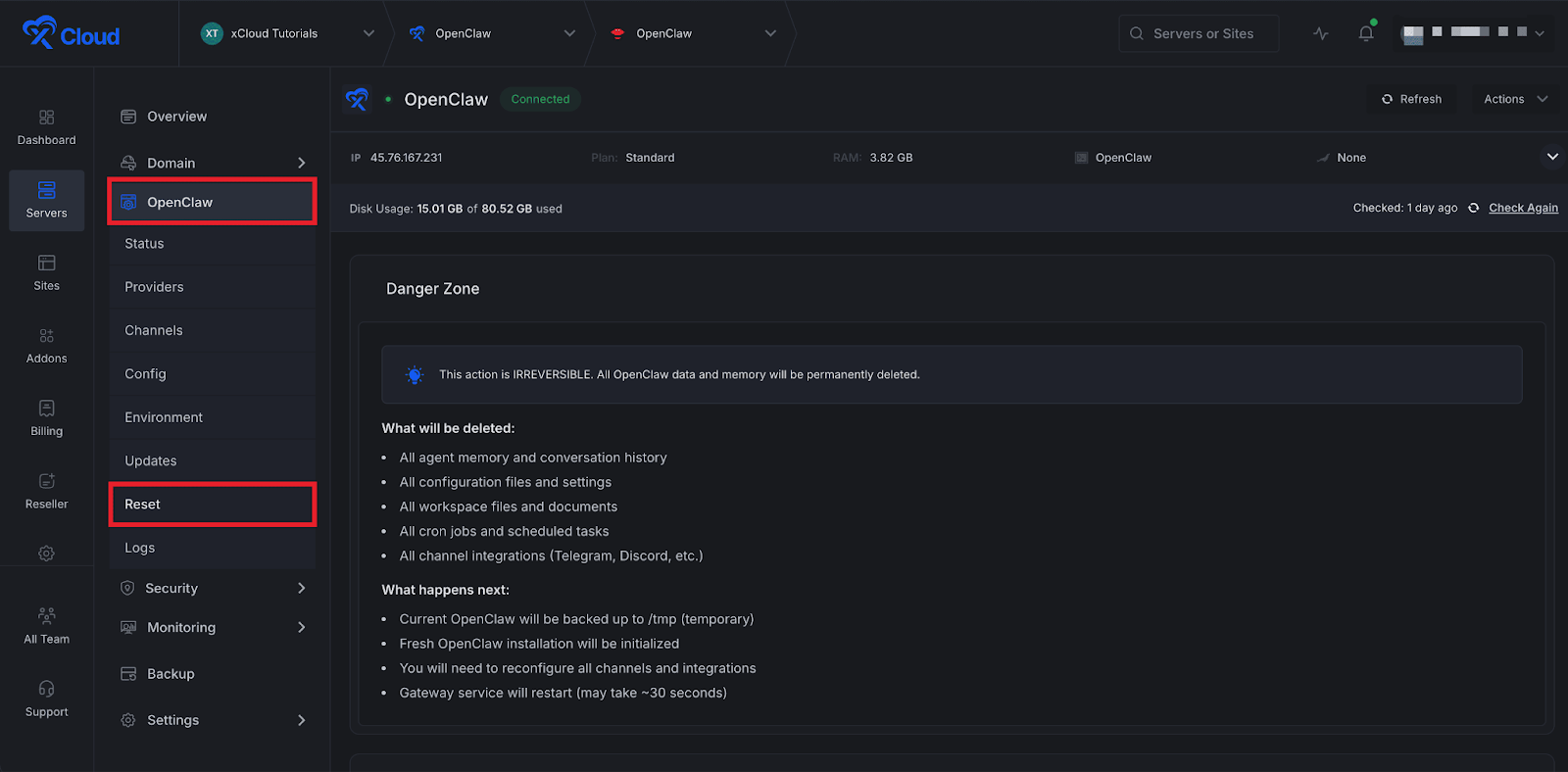
Step 2: Review Reset Details Carefully #
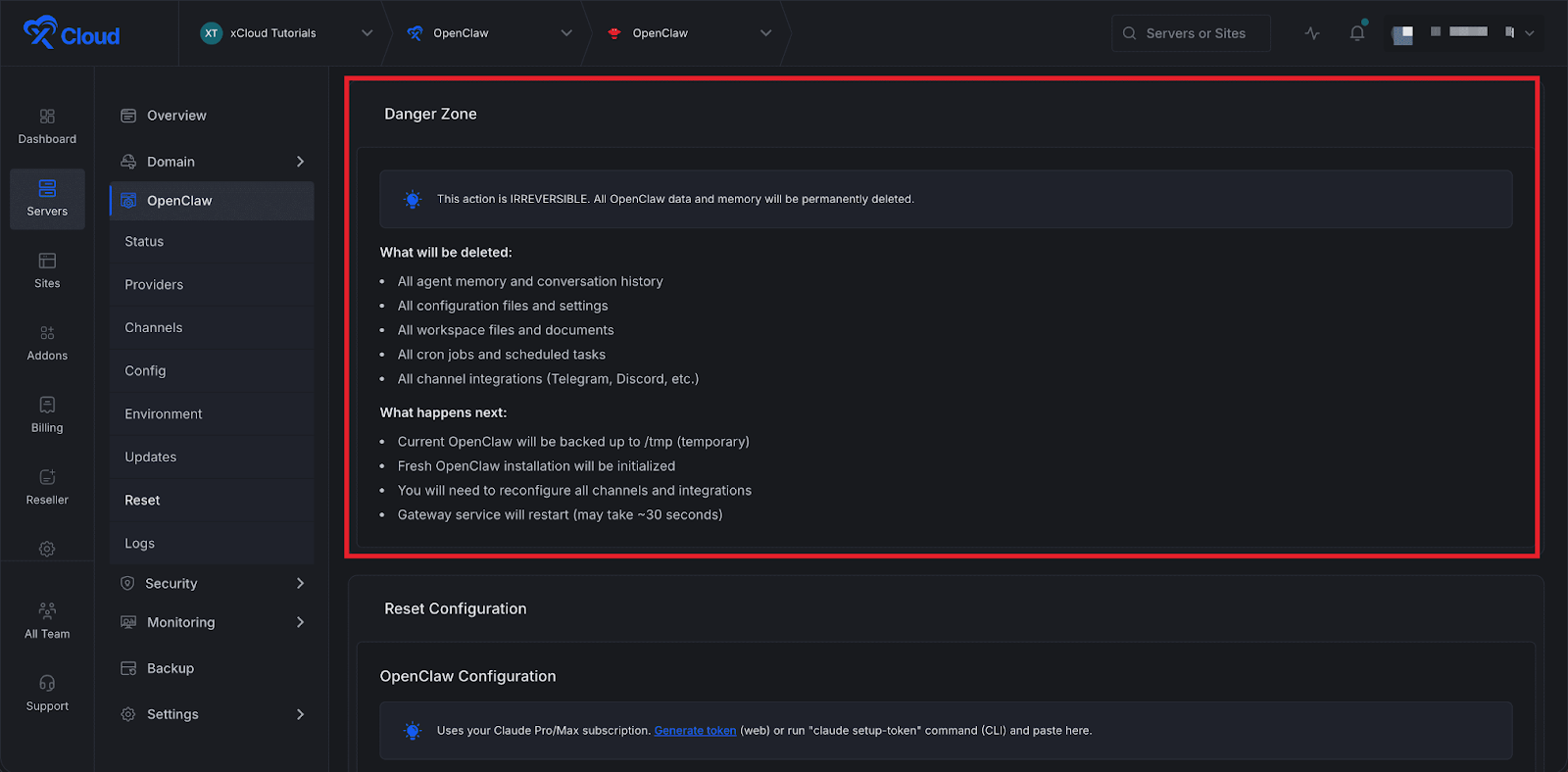
Read all the information shown on the reset screen before taking action. This reset action is irreversible and permanently deletes all OpenClaw data and memory.
Data that will be deleted #
- All agent memory and conversation history
- All configuration files and custom settings
- All workspace files and documents
- All cron jobs and scheduled tasks
- All connected channels and integrations, such as Telegram.
What happens during the reset #
- The current OpenClaw setup is backed up temporarily in /tmp
- A fresh OpenClaw installation starts automatically
- All channels and integrations require reconfiguration
- The gateway service restarts and may take around 30 seconds
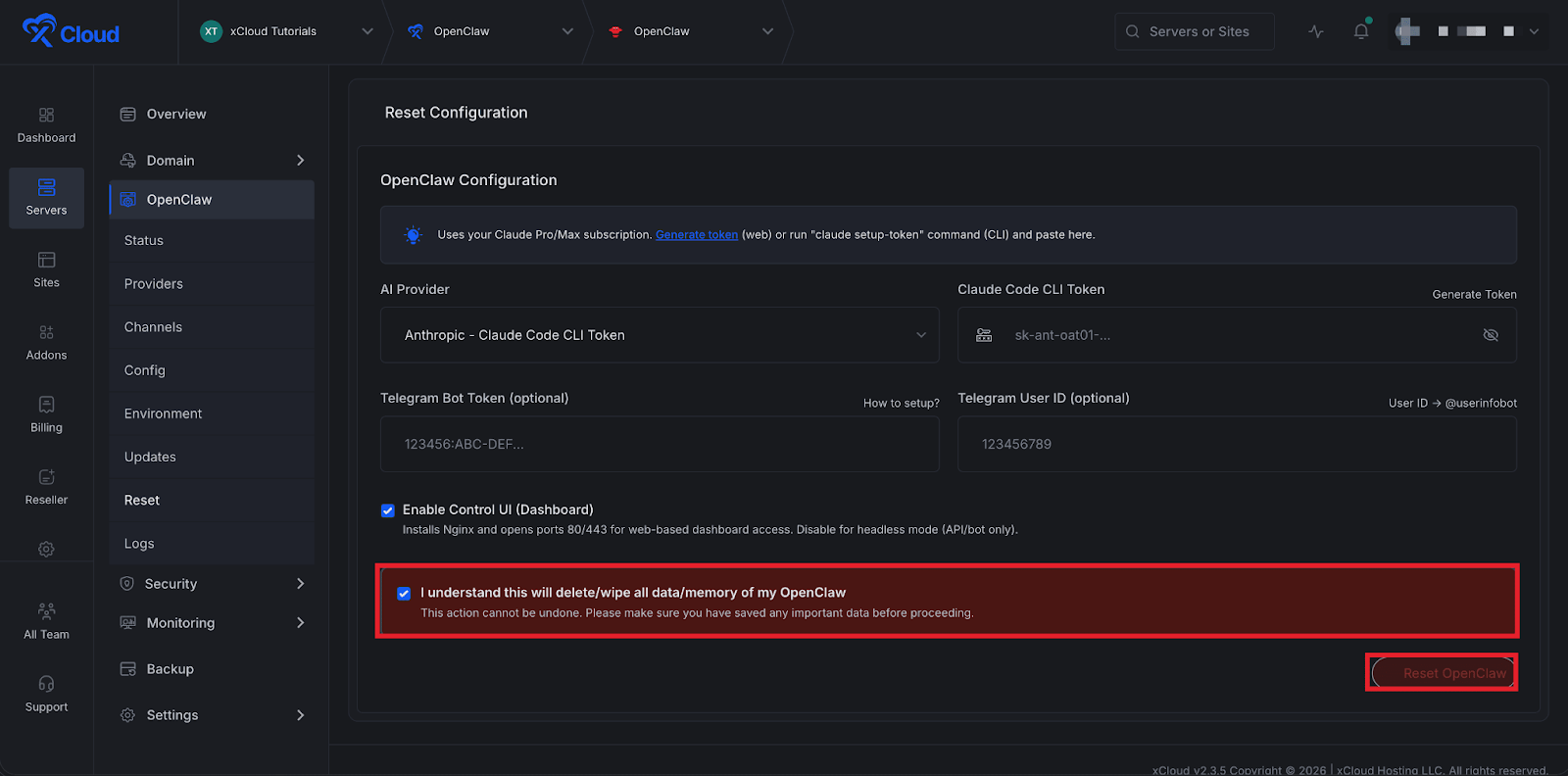
Step 3: Confirm and Reset OpenClaw #
Check the confirmation box that states you understand this action will completely wipe all OpenClaw data and memory. After confirming, click Reset OpenClaw to begin the process.
The OpenClaw reset feature in xCloud provides a reliable way to return to a clean state when needed. Use this option only when you are certain you no longer need the existing data or configurations. After the reset completes, set up your integrations, channels, and workflows again to continue using OpenClaw smoothly.


