

How to Connect OpenAI Codex to OpenClaw with xCloud
Updated September 25, 2026 · 7 min read
Connect an OpenAI Codex account to an xCloud OpenClaw server with the built-in ChatGPT device-code flow. This guide is for xCloud users who can manage an OpenClaw server and want to authorize Codex without manually copying a callback URL or pasting an OAuth bundle. xCloud displays a short-lived code, opens OpenAI for approval, detects the authorization, and saves the provider automatically.
Prerequisites
- An xCloud account with permission to manage the target OpenClaw server.
- A provisioned OpenClaw server with a Connected status.
- Access to the OpenAI account you want OpenClaw to use.
- A browser that allows the OpenAI authorization page to open in a new tab.
Step 1: Open the OpenClaw provider settings
From the xCloud dashboard, go to Servers → your OpenClaw server → OpenClaw → Providers.
Expected result: The page shows the Current Provider card and the Change Provider section.
Step 2: Select OpenAI Codex
In Change Provider, set AI Provider to OpenAI Codex - ChatGPT OAuth. The credential row changes to ChatGPT OAuth Bundle and displays Connect ChatGPT.
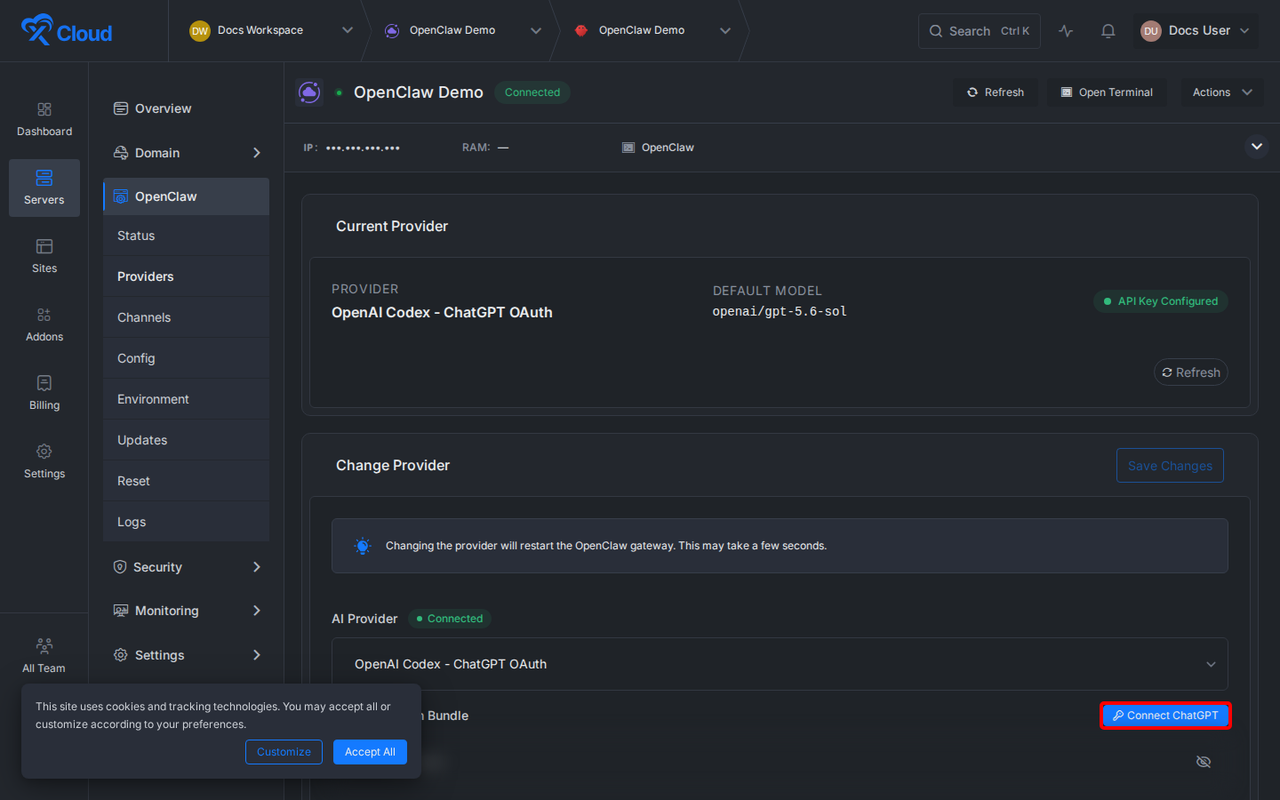
Expected result: The Connect ChatGPT button is visible. If this provider is already configured, the Current Provider card can also show API Key Configured.
Step 3: Start the device-code flow
Click Connect ChatGPT. xCloud requests a short-lived OpenAI device code and opens the Connect your ChatGPT account modal.
Expected result: The modal shows an OpenAI code, a countdown,Copy, and Open OpenAI and approve.
Step 4: Copy the OpenAI code
Click Copy beside the displayed code. A check mark confirms that the code was copied. The code in the screenshot below is a nonfunctional example; use the code shown in your own xCloud session.
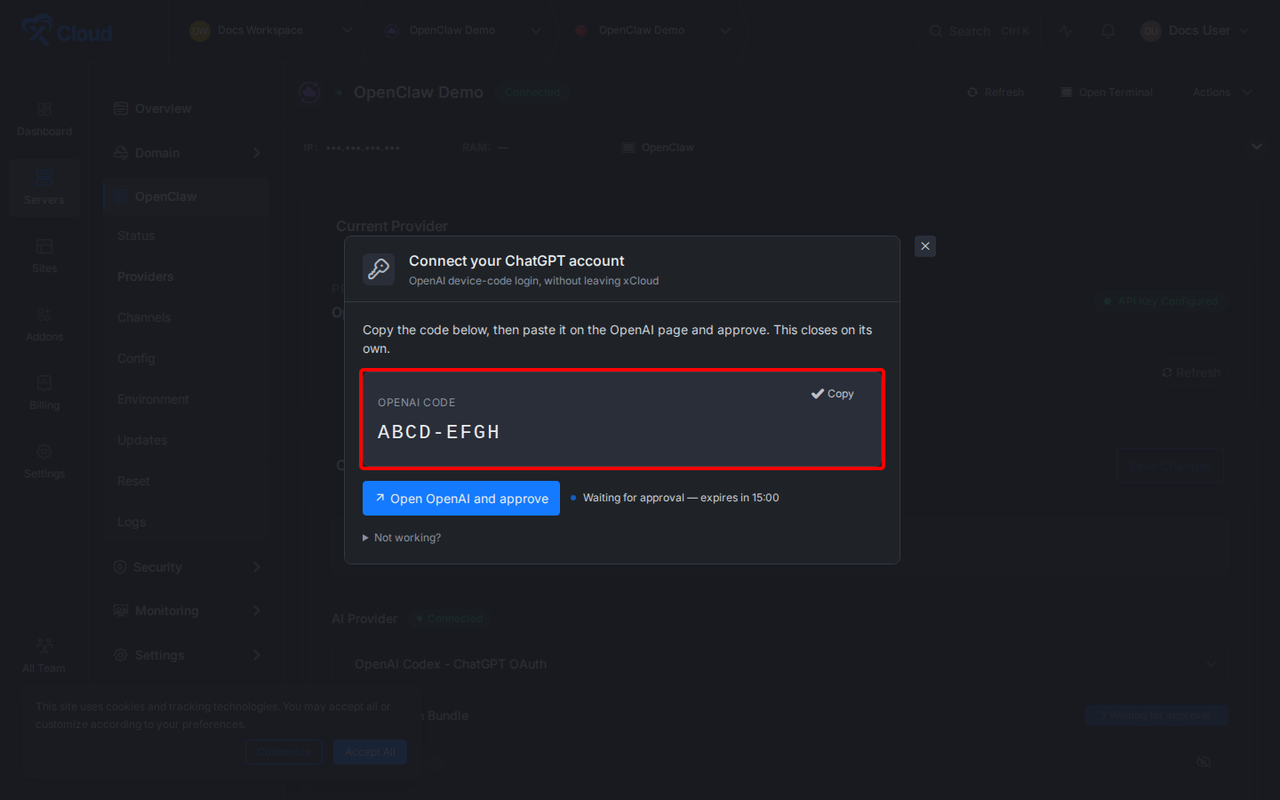
Expected result: The Copy icon changes to a check mark. If you try to continue before copying, xCloud keeps the modal open and asks you to copy the code first.
Step 5: Approve the connection in OpenAI
Click Open OpenAI and approve. On the OpenAI device authorization page, paste the copied code, sign in to the OpenAI account you want to connect, and approve the request.
Expected result: OpenAI confirms the authorization. Keep the xCloud tab open while completing this step.
Step 6: Return to xCloud
Return to the xCloud tab after approval. xCloud checks the authorization when the tab becomes active, fills the OAuth bundle, and saves the OpenAI Codex provider automatically.
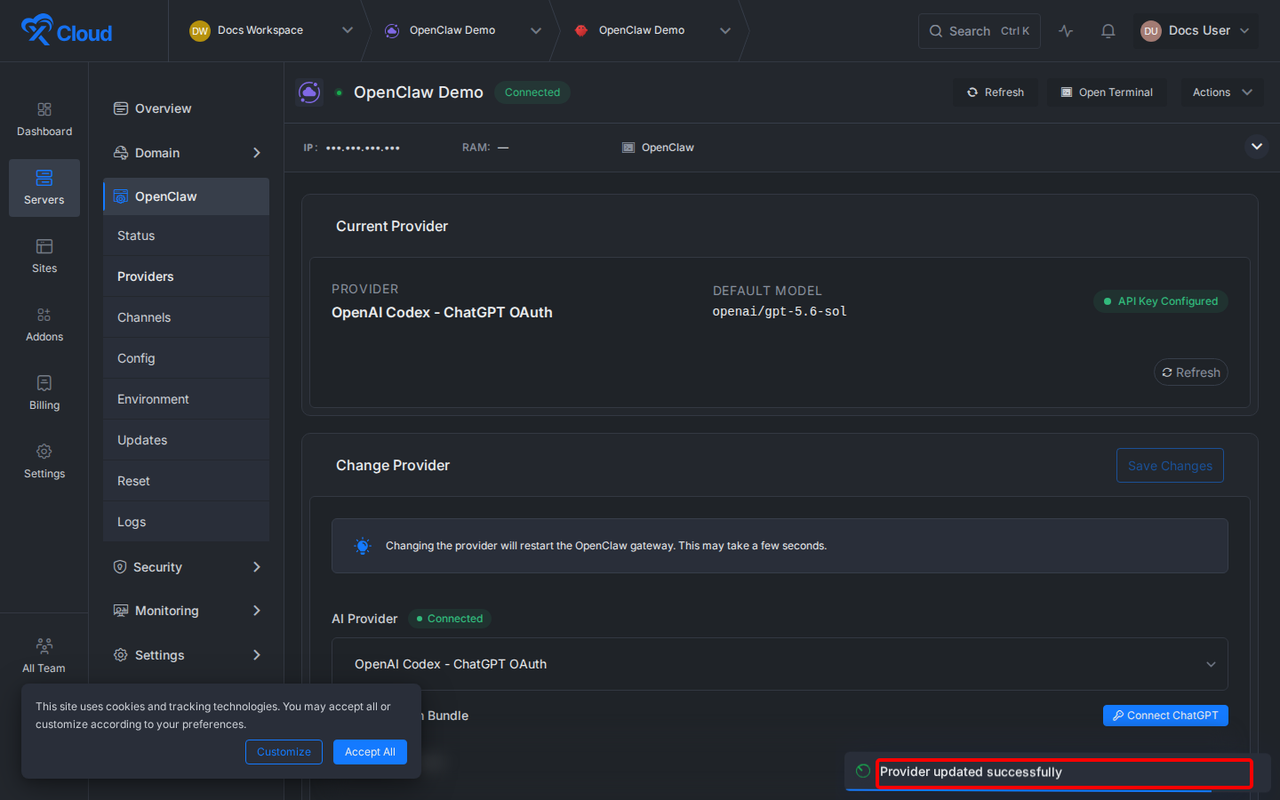
Expected result: The modal closes and xCloud shows Provider updated successfully. You do not need to click Save Changes after a successful device-code connection.
Check or change the connection
The Current Provider card shows the active provider and its configured status. When OpenAI Codex is connected, it lists OpenAI Codex - ChatGPT OAuth and shows that a credential is configured.
To reconnect the same account or change accounts, click Connect ChatGPT again and complete the device-code flow with the OpenAI account you want to use. A successful approval replaces the saved Codex connection and automatically applies it.
Options and settings
| Setting or control | What it does | Notes |
|---|---|---|
| AI Provider | Chooses the provider used by OpenClaw. | Select OpenAI Codex - ChatGPT OAuth for this flow. |
| Connect ChatGPT | Starts the OpenAI device-code authorization. | It can be used again to reconnect or change accounts. |
| OpenAI code | Temporarily identifies this authorization request. | Copy the current code; it expires when the countdown ends. |
| Default Model | Sets an optional default model for OpenClaw. | Use a model identifier accepted by the selected provider. |
| Save Changes | Applies ordinary provider or model edits. | A successful ChatGPT device-code connection saves automatically. |
| Not working? | Reveals the callback-helper fallback. | Use it only when device-code login is unavailable or disabled for the OpenAI account. |
Verify the connection
Confirm all of the following:
- The success message says Provider updated successfully.
- The Current Provider card lists OpenAI Codex - ChatGPT OAuth.
- The provider card shows that a credential is configured.
- The OpenClaw server returns to Connected after any brief provider restart.
Limits and edge cases
- Device codes are short-lived and work only for the authorization request that created them.
- Closing the connection modal cancels the active attempt. Start again to receive a new code.
- Changing the provider can restart the OpenClaw gateway for a few seconds.
- The callback helper remains available under Not working? for OpenAI accounts where device-code login is unavailable. The one-click device-code flow should be the first choice.
- If the provider selection changes before authorization completes, xCloud discards the returned ChatGPT credential instead of applying it to the wrong provider.
Troubleshooting
| Symptom | Likely cause | Fix |
|---|---|---|
| Open OpenAI and approve does not open the authorization page | The code was not copied, or the browser blocked the new tab. | Click Copy first. Then click Open OpenAI and approve again and allow the new tab if prompted. |
| The modal says the device code expired | The countdown ended before OpenAI approval completed. | Close the message, click Connect ChatGPT, and use the new code. |
| The modal was closed before approval | Closing the modal cancels that attempt. | Click Connect ChatGPT and restart the flow with the newly displayed code. |
| Authorization completed with the wrong account | A different OpenAI session was active in the authorization tab. | Start the flow again and sign in to the intended OpenAI account before approving. |
| The modal reappears after returning from OpenAI | OpenAI has not confirmed the request yet. | Finish the approval in the OpenAI tab, then return to xCloud. If the code expires, start again. |
| Device-code login is unavailable | The OpenAI account does not allow this authorization method, or the device service could not start. | Expand Not working? and click Open the callback helper, then follow the helper window. |
| The provider does not remain connected | The authorization failed, the server lost connectivity, or the provider could not be saved. | Confirm the server is Connected, restart the flow, and wait for Provider updated successfully. |
Common mistakes
- Using an old code: always paste the code from the currently open modal.
- Closing xCloud during authorization: keep the xCloud tab open so it can detect approval and auto-save the provider.
- Clicking Save Changes after a successful device flow: the device-code connection already saves automatically; use Save Changes only for separate provider or model edits.
- Approving the wrong OpenAI account: check the signed-in account on the OpenAI page before approving.
- Starting with the callback helper: use the built-in device-code flow first; the helper is a fallback for accounts where device login does not work.
Frequently asked questions
Do I need to paste a callback URL into xCloud?
No. The current device-code flow only asks you to copy the short code from xCloud and approve it on the OpenAI page. xCloud detects the completed authorization and saves the provider.
Does xCloud save the provider automatically?
Yes. After OpenAI approves the device code, xCloud fills the OAuth bundle and runs the provider save action. Wait for Provider updated successfully before leaving the page.
How do I connect a different OpenAI account?
Click Connect ChatGPT again. On the OpenAI authorization page, sign in to the account you want OpenClaw to use and approve the new request.
What should I do if device-code login is not supported for my account?
Expand Not working? in the connection modal and open the callback helper. Use that route only as a fallback.
Next steps
After the connection succeeds, choose a default model if you need one and confirm that your OpenClaw agent responds as expected. The device-code flow shipped in xCloud v2.8.4.
- Deploy OpenClaw with xCloud if you have not set up the server yet
- Create a Telegram bot and connect it to OpenClaw
- Repair OpenClaw or reset OpenClaw if the gateway does not come back after a provider change
If you run into any issues connecting Codex, feel free to reach out to our support team.