
















Keeping your WordPress site secure takes more than just strong passwords and regular updates. Many common attacks target areas like XML-RPC, sensitive files, wp-config.php, and author enumeration. If these are left unprotected, your site can become more vulnerable to unauthorized access, spam, and other security threats.
xCloud’s Cloudflare WAF integration lets you activate Web Application Firewall rules directly from your site’s security dashboard — no Cloudflare dashboard required. When you toggle a security option in xCloud, the corresponding WAF rule is automatically created, updated, or deleted in your Cloudflare zone. Rules are stored per-site, so each site on your server can have its own security configuration.
What Is Cloudflare WAF? #
Cloudflare’s Web Application Firewall (WAF) filters malicious HTTP traffic before it reaches your server. Custom rules let you block specific attack vectors – such as requests targeting sensitive config files, XML-RPC abuse, or author enumeration scans – at the CDN edge, before the request ever hits your origin. xCloud integrates with Cloudflare WAF via API, so you can manage these rules without leaving the xCloud dashboard.
Prerequisites #
- An active xCloud site on a production server
- Cloudflare DNS integration enabled and active for the site (the security card will not appear for sites without active Cloudflare DNS records)
- A valid Cloudflare API token configured in xCloud with WAF rule read/write permissions
- For WordPress-specific options: the site must be running WordPress (these options are hidden for Laravel, custom PHP, and other app types)
That is why Cloudflare Security Settings in xCloud are so important. Instead of manually creating and managing Cloudflare rules, you can quickly enable essential protections directly from your xCloud dashboard. This makes it easier to strengthen your site’s security without going through a complicated setup process.
Step 1: Go to Your Site #
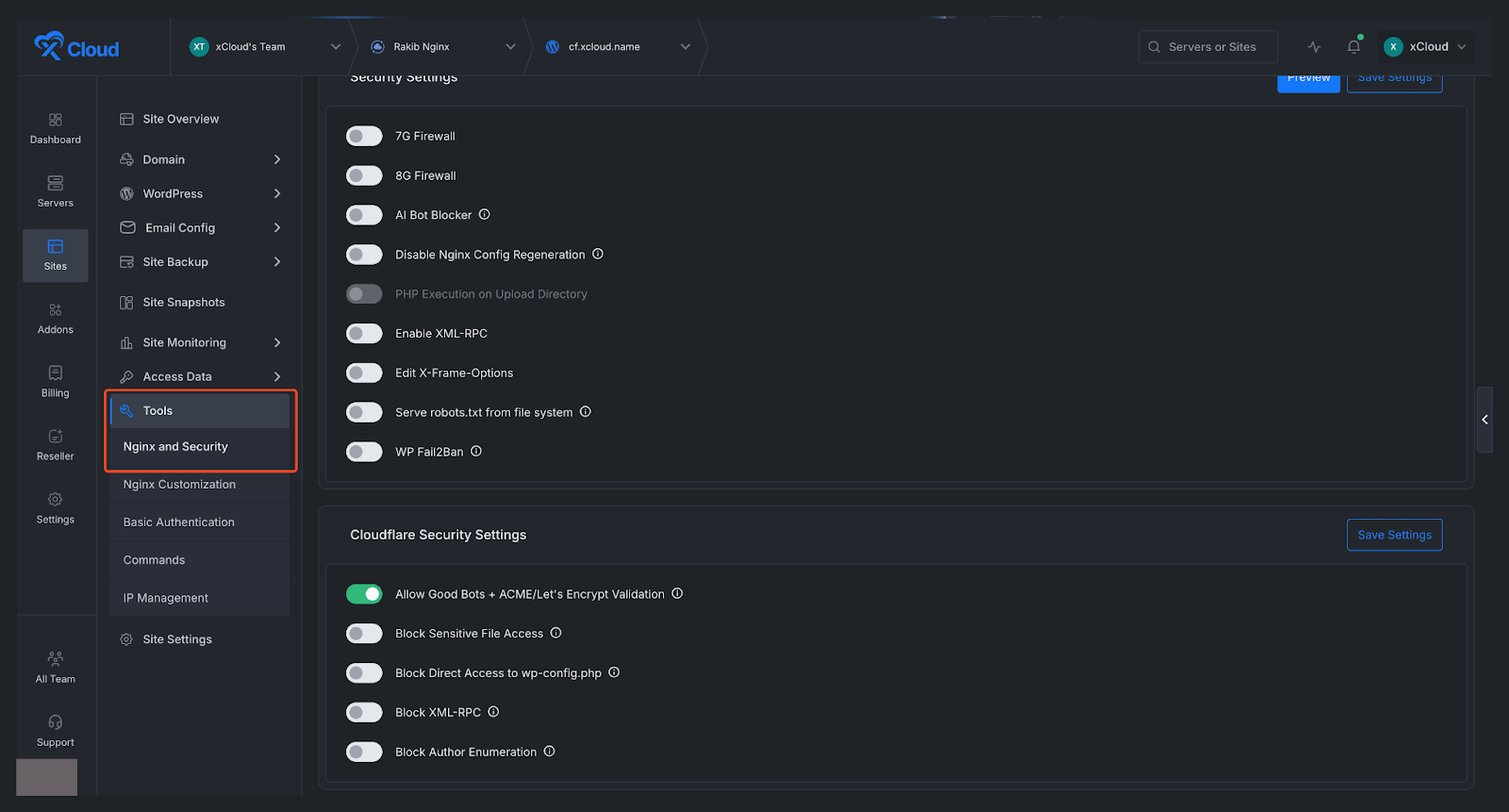
First, open the site you want to configure. From your site dashboard, look at the left sidebar menu and navigate to ‘Tools, then open NGINX and Security. This section contains the settings related to performance and security, including the Cloudflare protections available for your site.
Note: This feature is available only for NGINX servers.
Step 2: Open Cloudflare Security Settings #
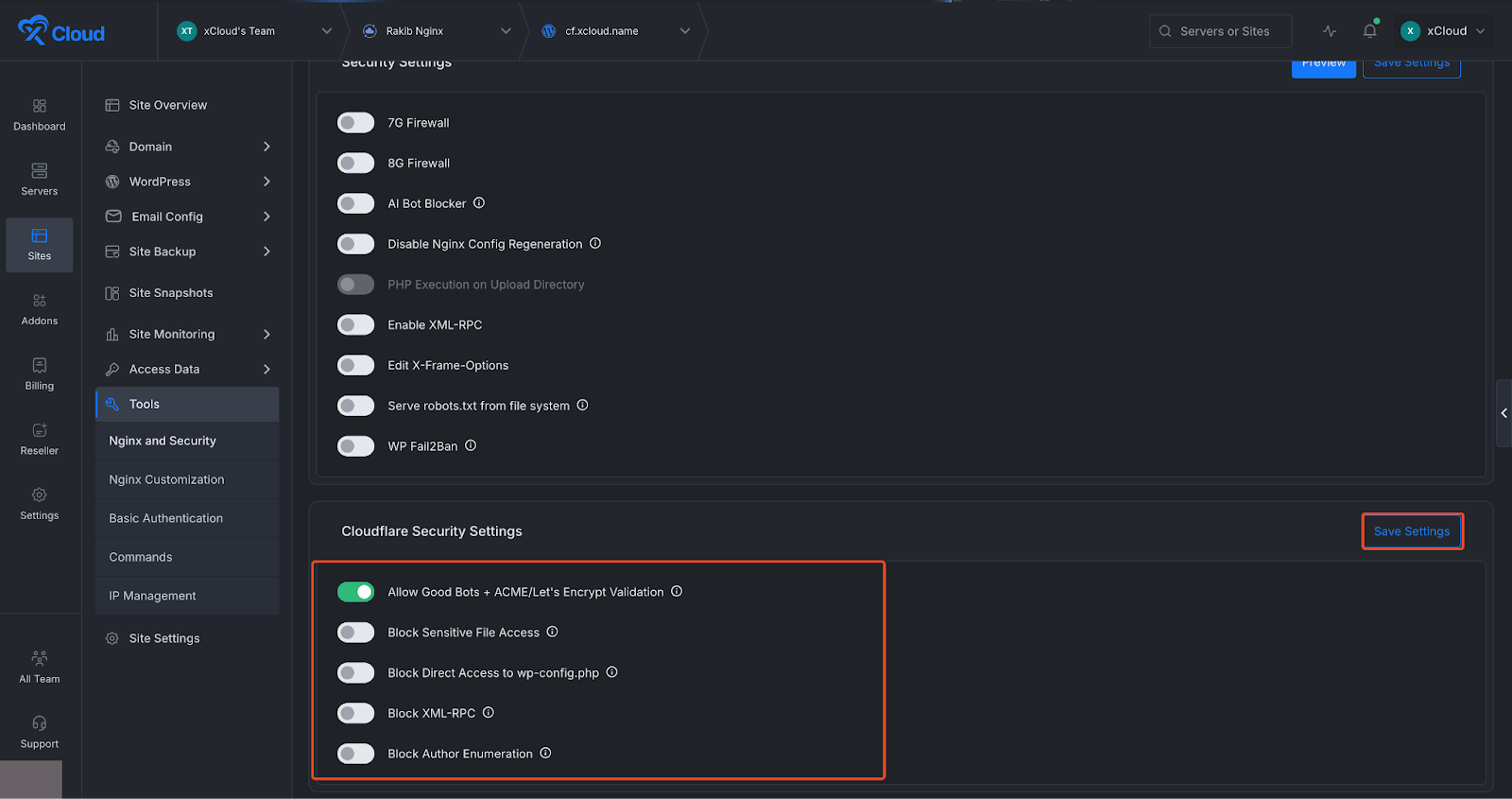
Once you are inside the NGINX and Security section, locate the Cloudflare Security Settings area on the dashboard. In this section, you will find several security options that help protect your WordPress site from common vulnerabilities and unwanted access attempts. These options includes:
- Allow Good Bots + ACME/Let’s Encrypt Validation: Allows trusted bots and SSL validation requests.
- Block Sensitive File Access: Blocks access to private or sensitive files.
- Block Direct Access to wp-config.php: Protects the main WordPress config file from direct access.
- Block XML-RPC: Disables XML-RPC to reduce abuse and attacks.
- Block Author Enumeration: Prevents attackers from discovering WordPress usernames.
You can simply use the toggle buttons to enable or disable each setting based on your needs and preferences. After that, click on the ‘Save Settings’ button.
Troubleshooting #
- The Cloudflare Security Settings card is not showing on the NGINX Security page. → The card only appears for production sites with an active Cloudflare DNS integration. Verify that Cloudflare DNS is enabled for this site under Site → DNS → Cloudflare. Staging sites do not display this card.
- WordPress-specific options (wp-config.php, XML-RPC, Author Enumeration) are not visible. → These options only appear for WordPress sites. If your site runs Laravel, custom PHP, or another stack, these options will not be shown.
- Saving settings returns an error. → Check that your Cloudflare API token has WAF custom rules read and write permissions. Tokens with zone-level read-only access will fail. You may also be hitting Cloudflare’s API rate limits — wait a moment and try again.
- A rule was enabled but does not appear in the Cloudflare WAF dashboard. → xCloud applies changes only to settings that differ from the current state. If a rule already exists in Cloudflare from a previous session, it may not be recreated. Check Cloudflare’s WAF Custom Rules list directly. If the rule is missing, toggle the option off, save, then toggle it on again and save.
- I disabled a rule but it still appears in Cloudflare. → Cloudflare may take a few seconds to propagate rule deletions. Refresh the Cloudflare WAF page after ~30 seconds. If the rule persists, check xCloud logs for API errors related to the delete operation.
And that’s it this is how easily you can configure Cloudflare security settings in xCloud. Cloudflare Security Settings in xCloud give you a simple way to add important protection to your WordPress site without manually configuring security rules in Cloudflare. With just a few clicks, you can block common attack vectors, protect sensitive files, and improve your site’s overall security posture.


