















xCloud allows you to easily manage and update WordPress core, themes, and plugins directly from the xCloud dashboard, which requires only a few steps.
Steps To Manage And Update WordPress Core, Themes, and Plugins In xCloud #
Follow the quick step-by-step guide below to learn how you can manage and update WordPress core, themes, and plugins in xCloud.
Step 1: Navigate to the Your Site #
First, log in to your xCloud dashboard. On the top right menu, navigate to your site from the dashboard. Then find the ‘WordPress’ → ‘Updates’ option from the sidebar.
Step 2: Update Plugin, Themes, and Core Files #
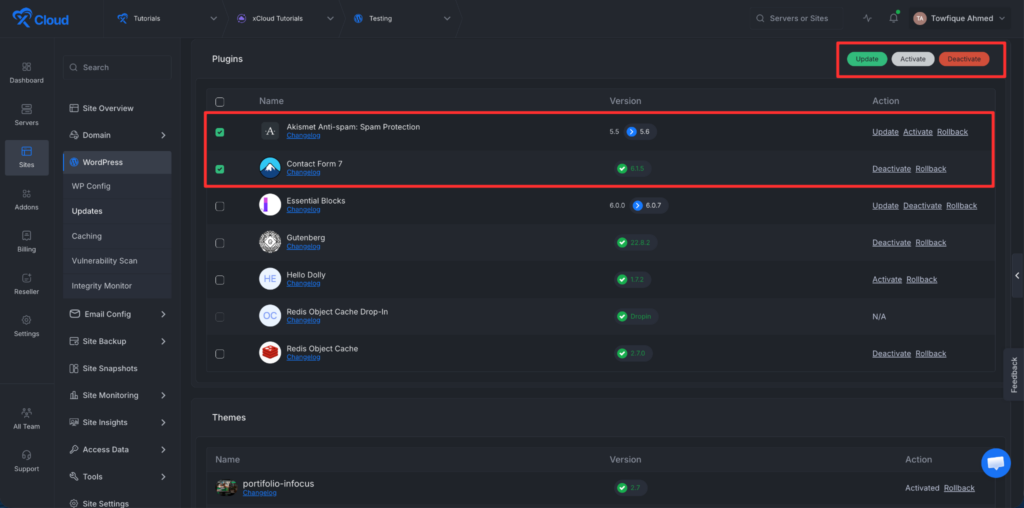
Access the updates dashboard, where you can find and update all your plugins, themes, and core files easily.
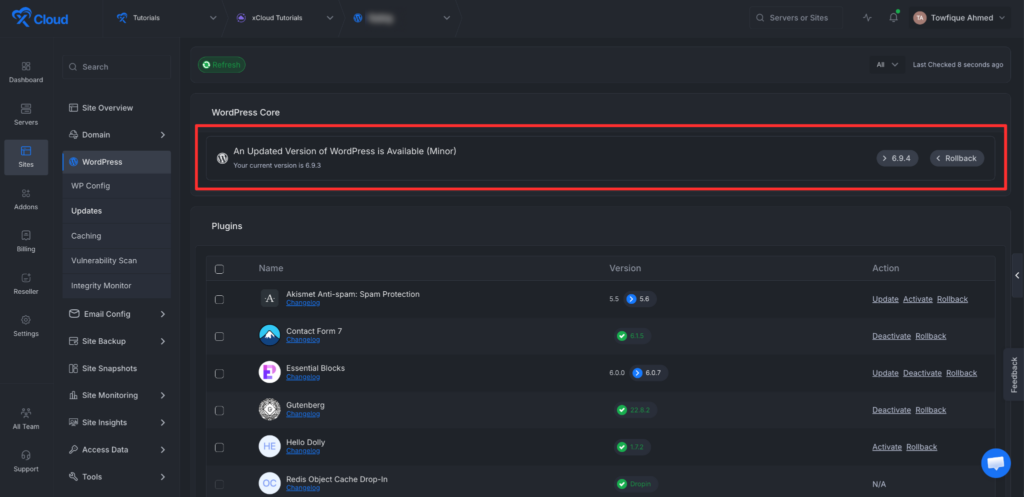
Next, go to the ‘WordPress Core’ section. Click on the version you want to update from the dropdown easily, and update in just a few clicks.
Step 3: Rollback Plugin, Themes And Core Files #
You can also roll back to your preferred version. Click on the rollback option, choose your desired version, enable the backup option, and then click “Rollback.”
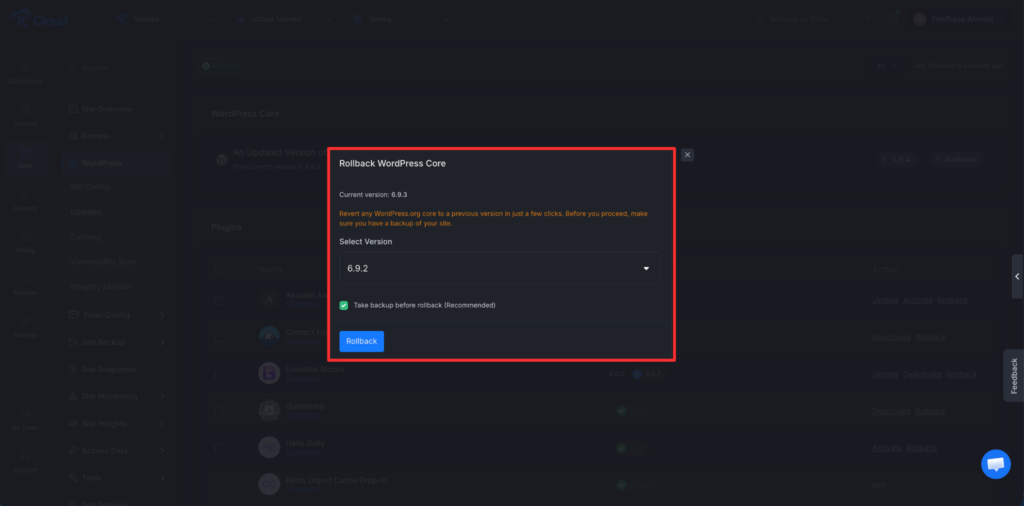
Once you click, it will instantly roll back to the previous WordPress core version within a few minutes.
Step 4: Activate & Deactivate Plugin, Themes, and Core Files #
Now, select the plugin you want to ‘Activate’, ‘Deactivate’, or ‘Update’. Just click on ‘Activate,’ and the plugin will be activated on your website. Similarly, you can deactivate or update any plugin or theme as needed. These options can be performed separately for each of the plugin or theme or you can check multiple plugins or themes to do these actions all at once.
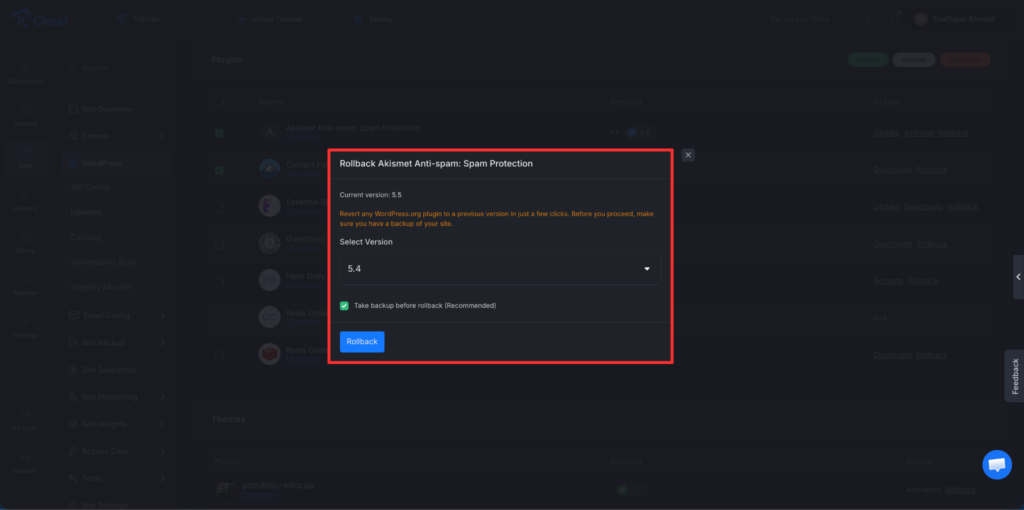
You can also roll back to your preferred version as well. Click on the rollback option, choose your desired version, enable the backup option, and then click “Rollback.” It will instantly work on rollback
Thus, you can manage and update WordPress core, themes, and plugins easily in xCloud.
To make updates easier, you can manage all your WordPress core, plugin, and theme updates from one place using the Updates Manager. Read the documentation to learn more.
Getting stuck? Feel free to contact our support team for further assistance.


