
















WireGuard is a modern and lightweight VPN solution that helps keep your internet traffic private and secure. It’s known for being fast, easy to use, and much simpler than traditional VPN tools.
With xCloud’s One Click Apps, setting up WireGuard doesn’t require any complicated server work or technical expertise. Follow the guide to easily install WireGuard with xCloud, which involves just a few steps.
Note: WireGuard requires the WireGuard UDP port (default: 51820) to be open on your server firewall. If a firewall is enabled, make sure this port is allowed.
Step 1: Create a Docker+ NGINX Server #
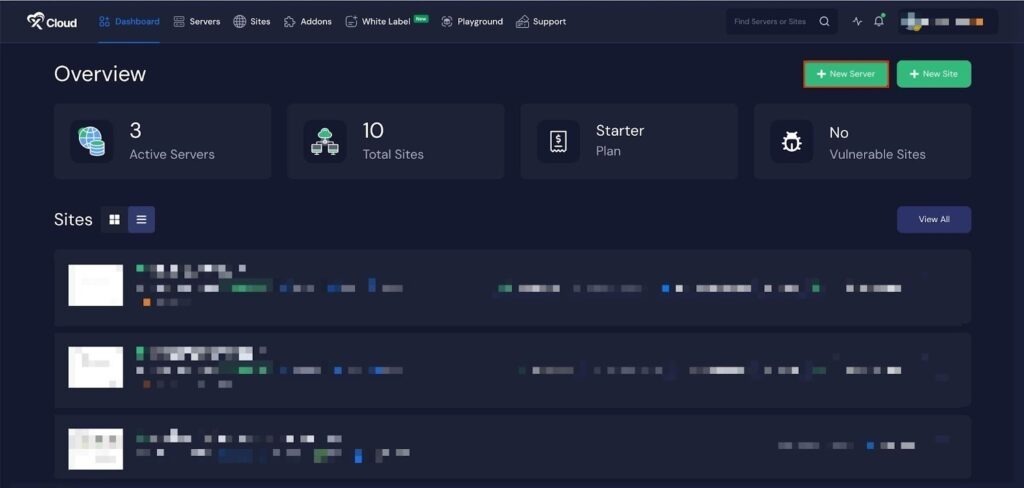
First, you need to create a Docker server to deploy WireGuard. Click the ‘Add New Server’ button on the dashboard and enter all the necessary credentials to connect your server. You can deploy WireGuard either on your own server or on an xCloud server.
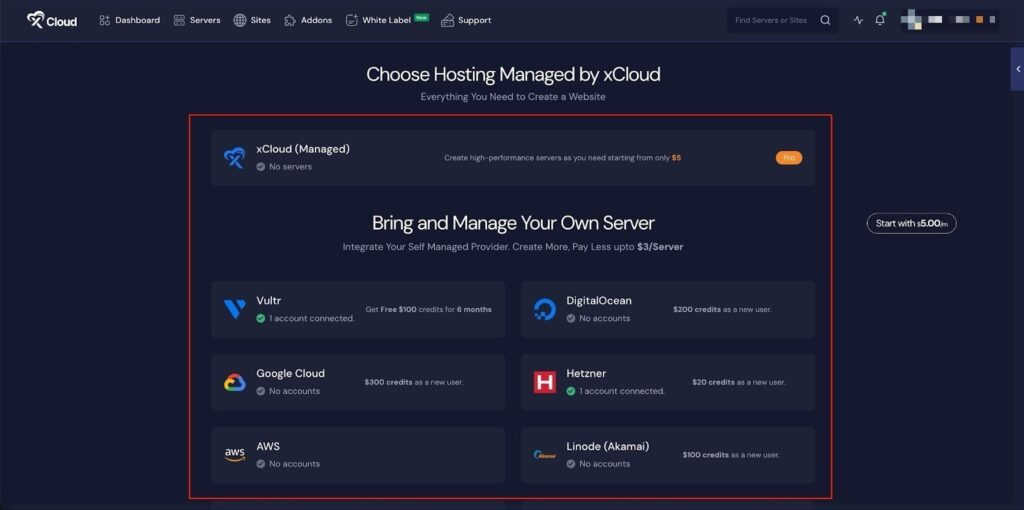
Next, choose your server provider to deploy WireGuard with xCloud. You can either use an xCloud Managed Server or select your preferred provider. In this guide, we’ll use the xCloud Managed Server.
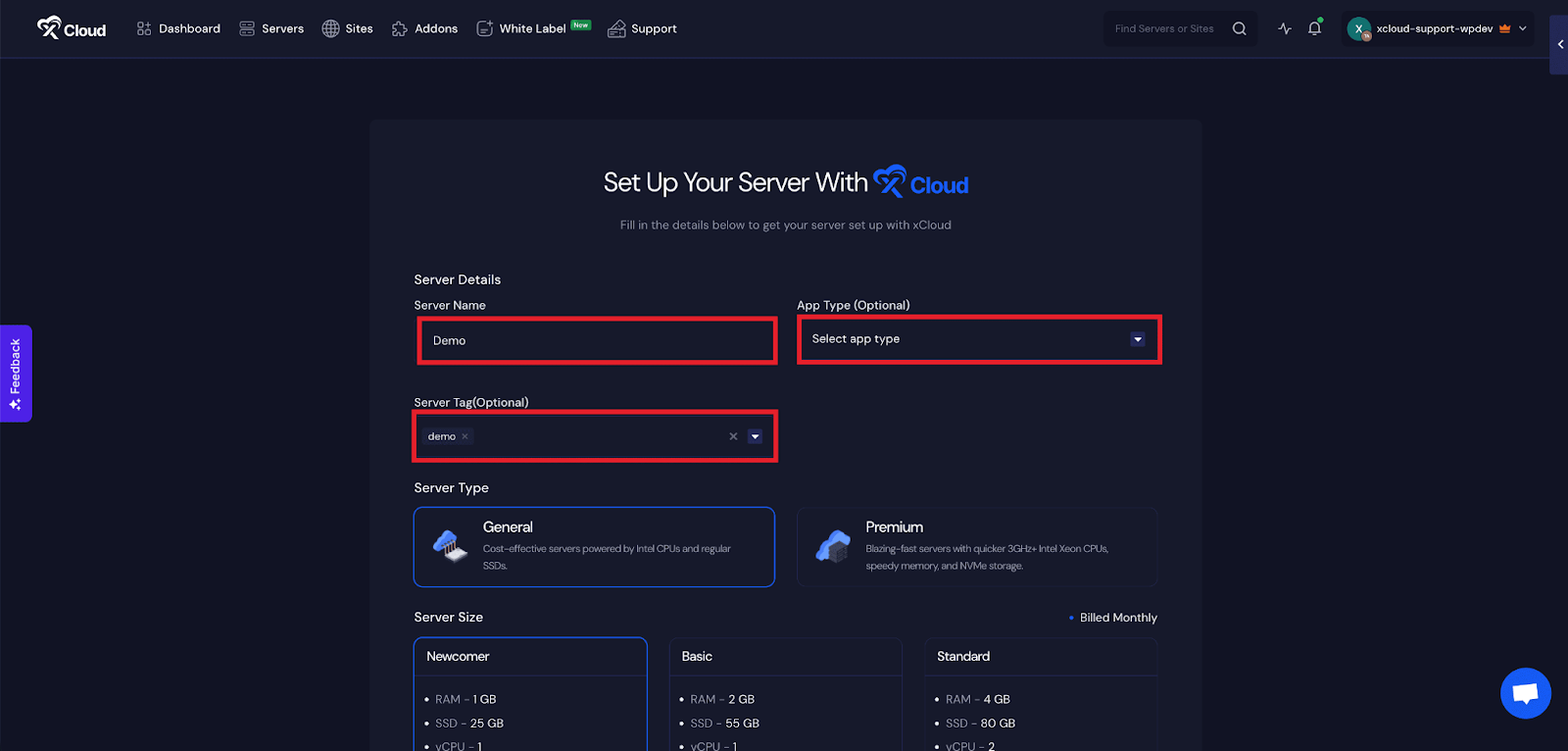
Afterward, enter the ‘Server Name’, set the ‘App Type’ to WireGuard(it is optional to select), and add any relevant ‘Tags’ to help identify your server later.
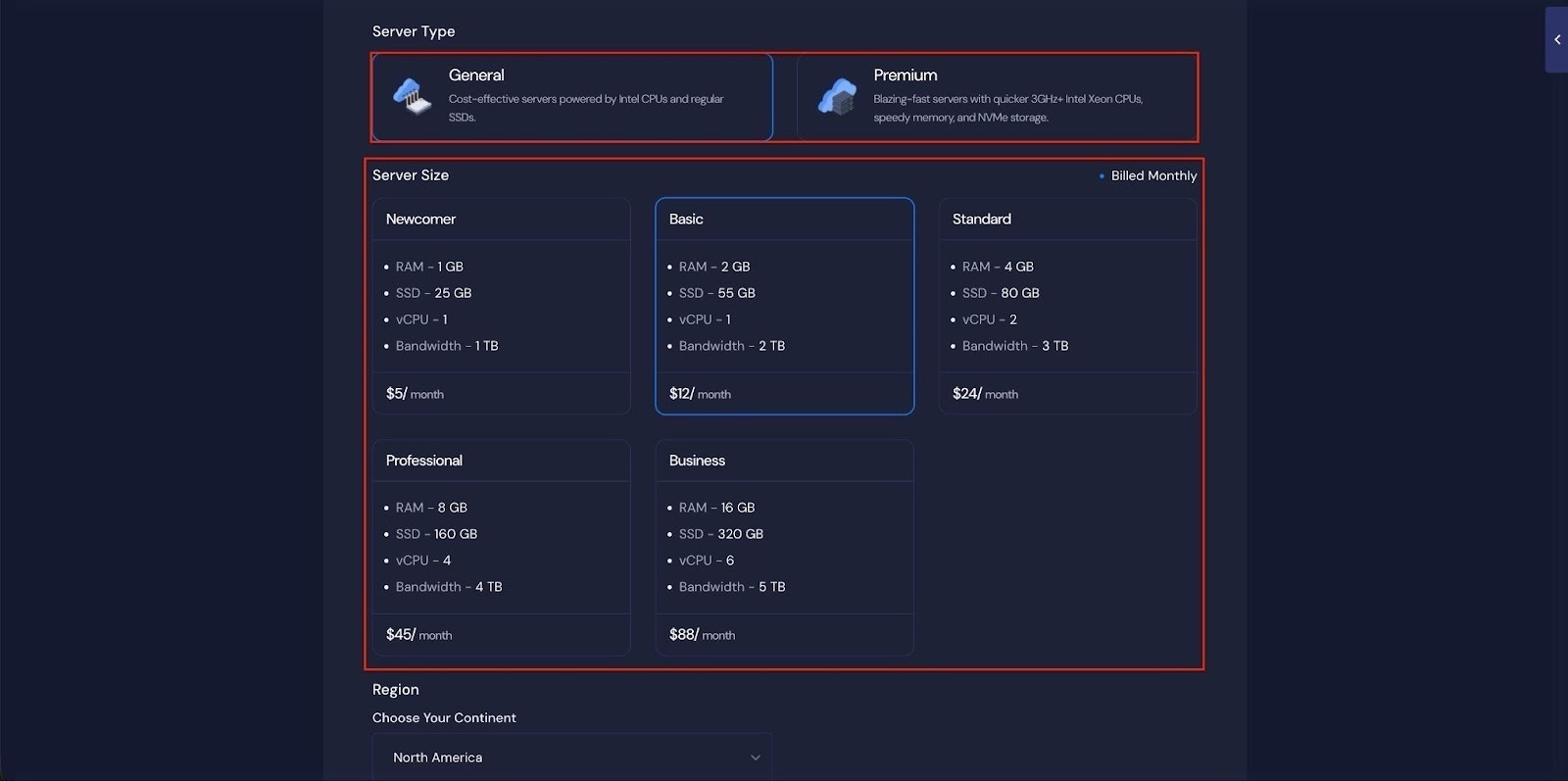
Next, choose between the ‘General’ and ‘Premium’ options based on your requirements. Then, select a plan that best fits your needs.
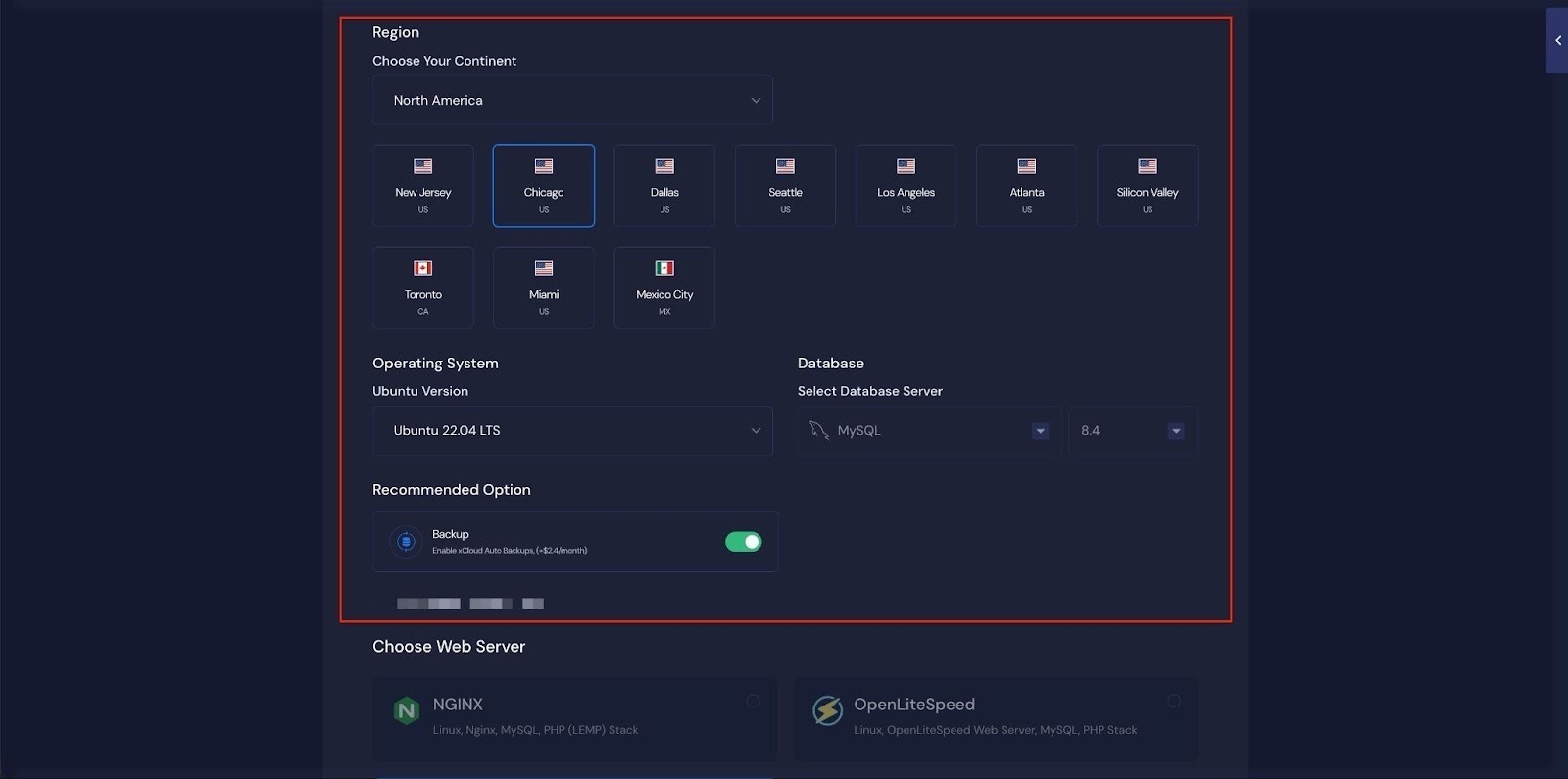
Next, choose the ‘Region’ and ‘Ubuntu Version’ for your server. You can also enable or disable the Backup option as needed.
Note: The server location you have set will be used as the VPN location.
Next, you can see the ‘Docker + NGINX’ stack is already selected, which is mandatory for deploying the WireGuard application. Then click on the ‘Create’ button to proceed.
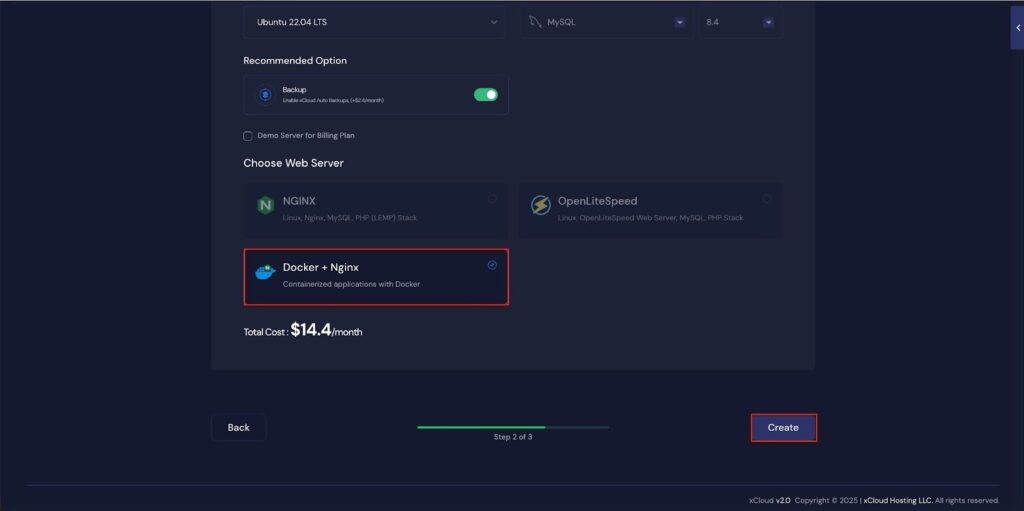
Once the server is created, you will be able to deploy your WireGuard Application on this server.
After creating a server, it may take a while to become fully operational. Wait a few minutes before deploying your applications to ensure everything starts correctly.
How to Install WireGuard with xCloud On A Cloud Server #
Learn how to install WireGuard on a cloud server. It walks you through creating a server, configuring the environment, and launching your WireGuard application easily.
Step 2: Access the One Click Apps Dashboard #
Begin by logging into your xCloud account. Once logged in, navigate to your dashboard and click on the ‘New Site’ button.

Then choose your server from the dropdown menu. Next, click on the ‘Next’ button to proceed.
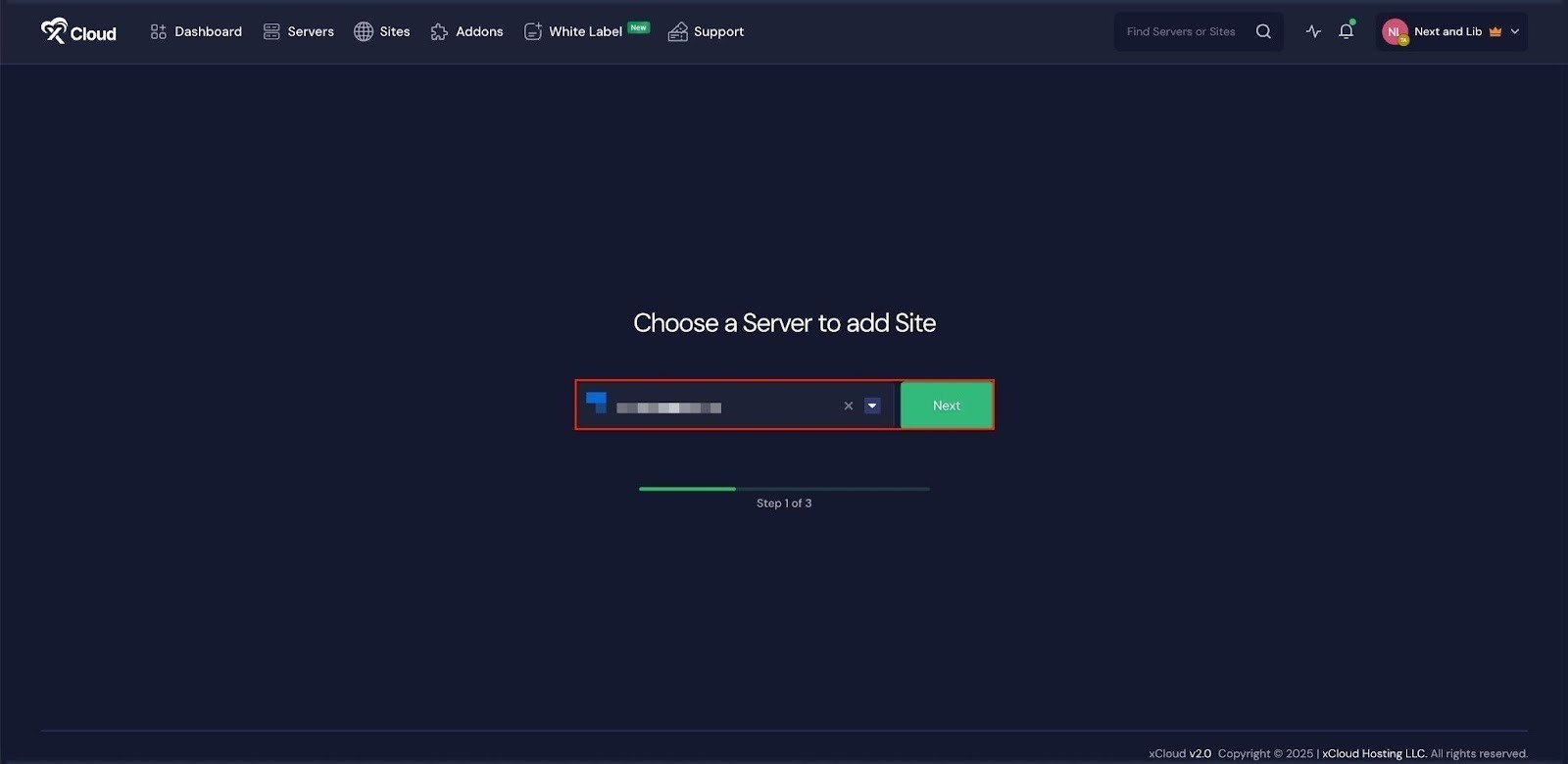
This will take you to the site creation interface. From here, select your Server, then navigate to the One Click Apps section. You will see ‘WireGuard’, click on it to proceed with the deployment of this application.
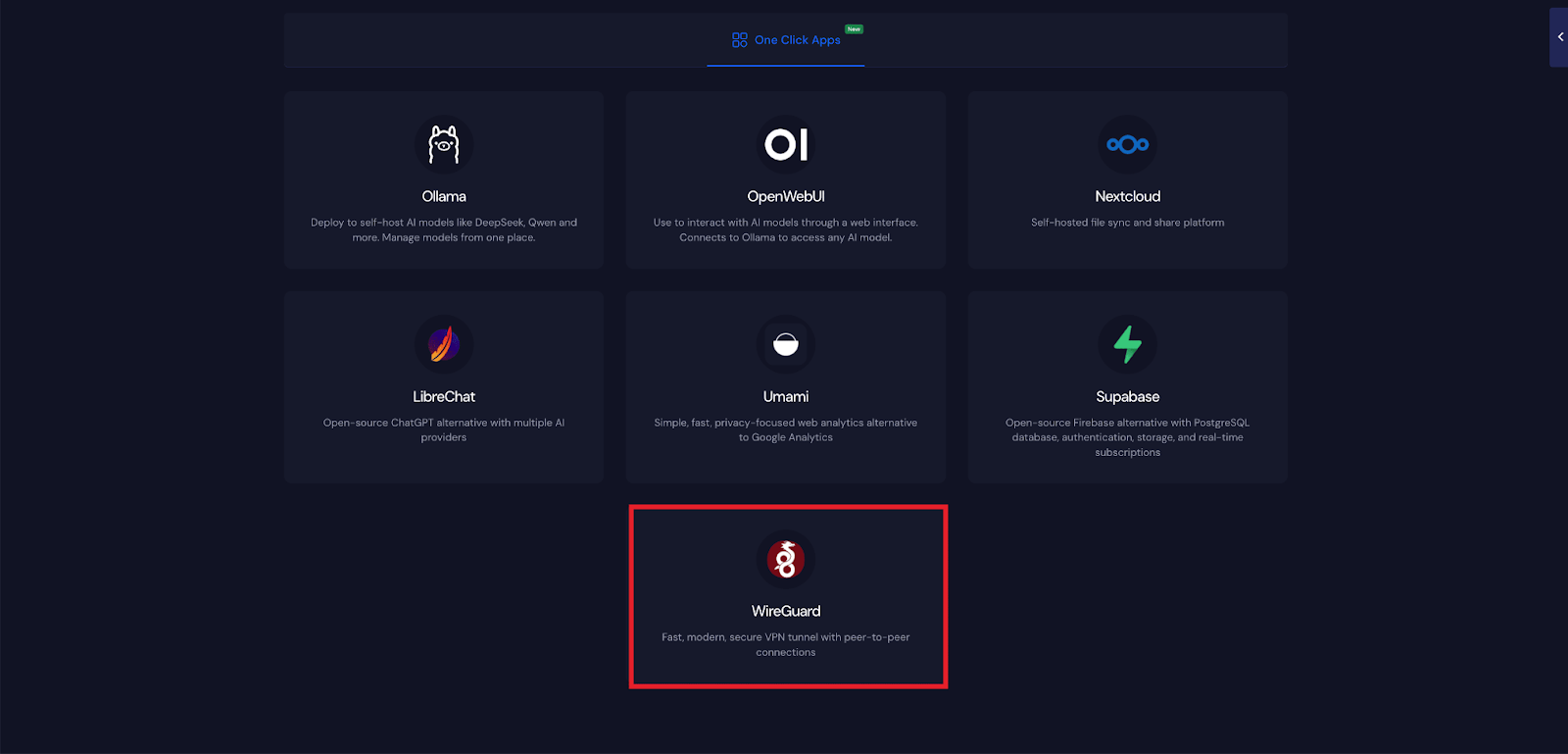
Step 3: Set Up the WireGuard Application #
In the site setup screen, you will be prompted to enter basic site information. Provide a ‘Site Title’ and add relevant ‘Tags’ to help organize your deployment.
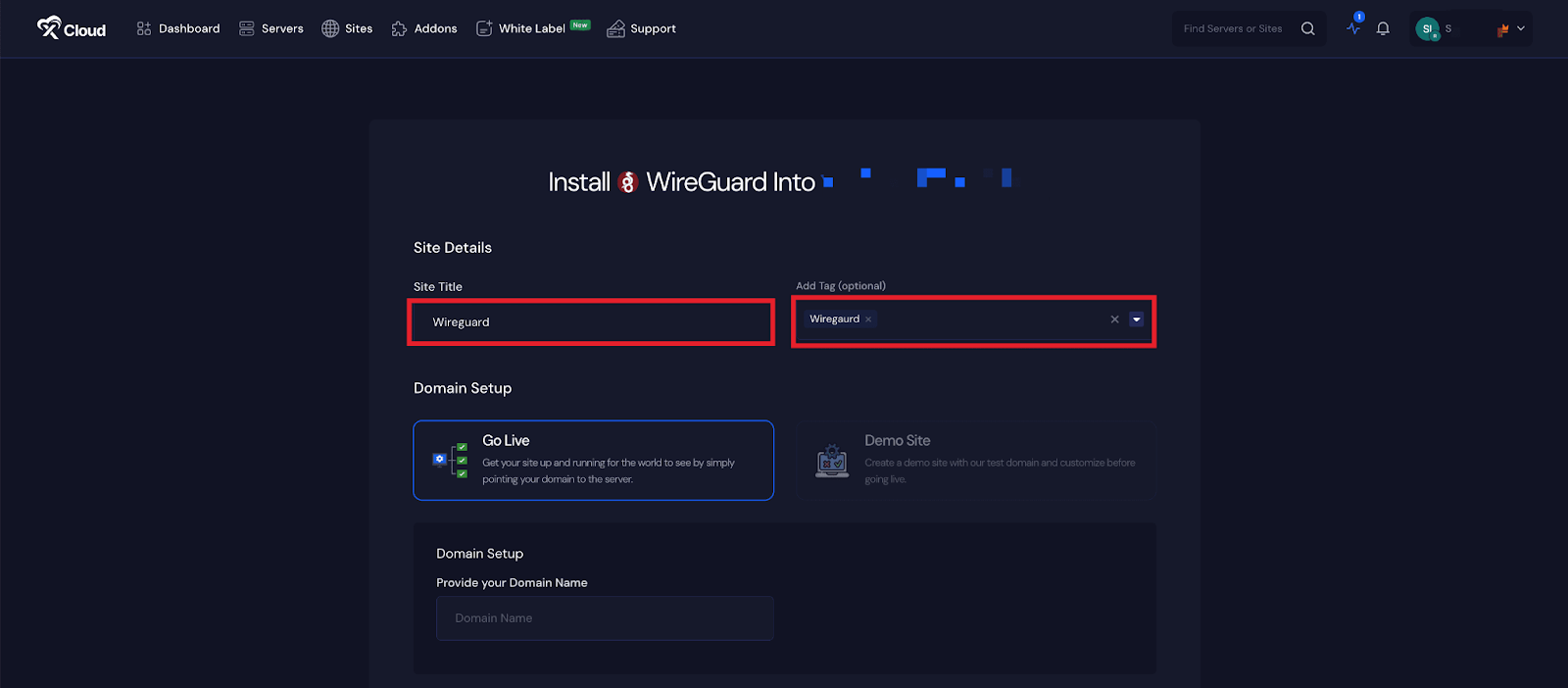
Here, you will get a site deployment option. From here, proceed with the ‘Go Live’ option to install WireGuard. This will immediately create a live environment to publish your WireGuard application instantly.
Note: You will not be able to create a Demo site for WireGuard. Additionally, domains that are proxied through Cloudflare will not work with the WireGuard application. Please ensure the domain is not proxied in Cloudflare.
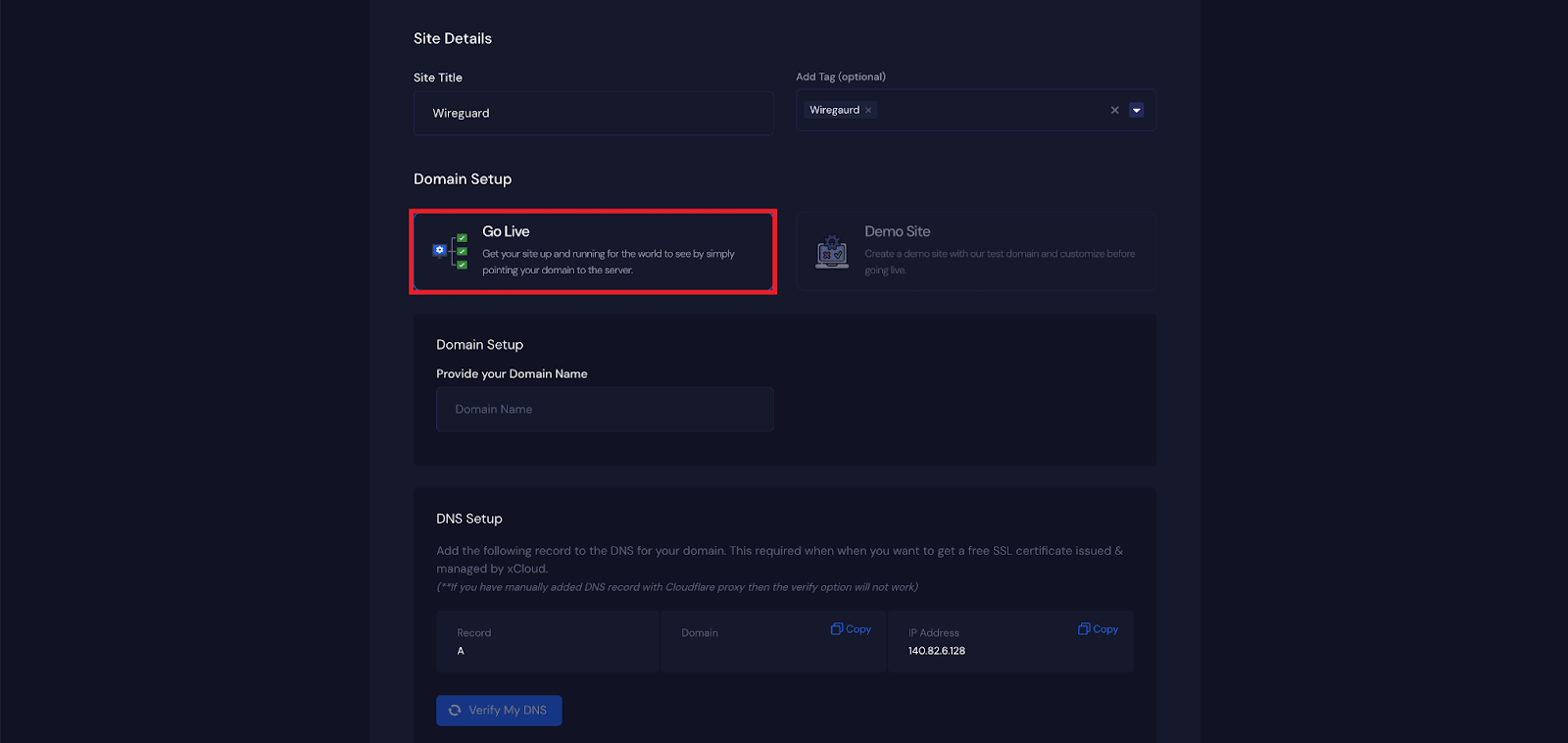
Step 4: Configure Domain Settings #
Then, enter a domain for your WireGuard application in the blank field under the ‘Domain Setup’ option.
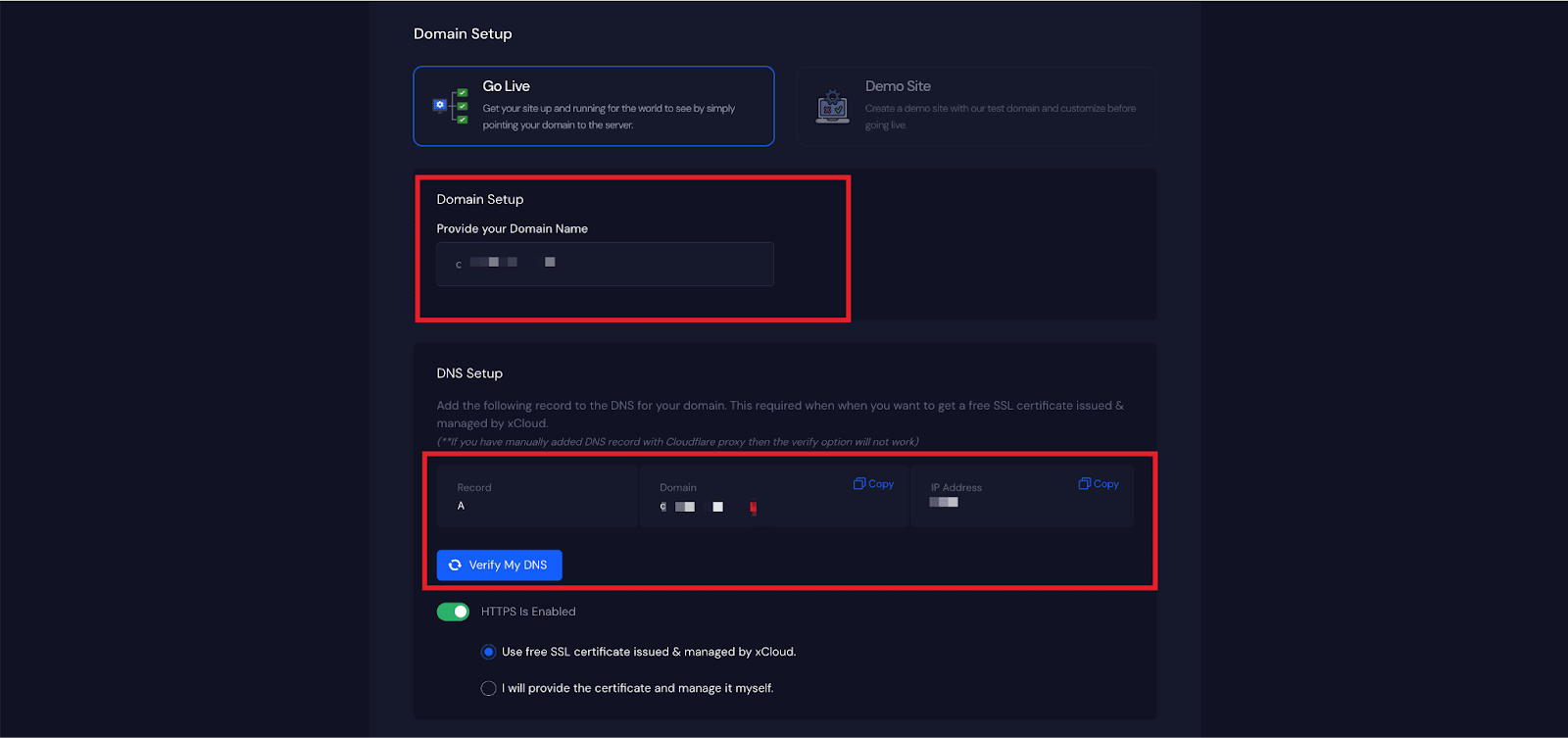
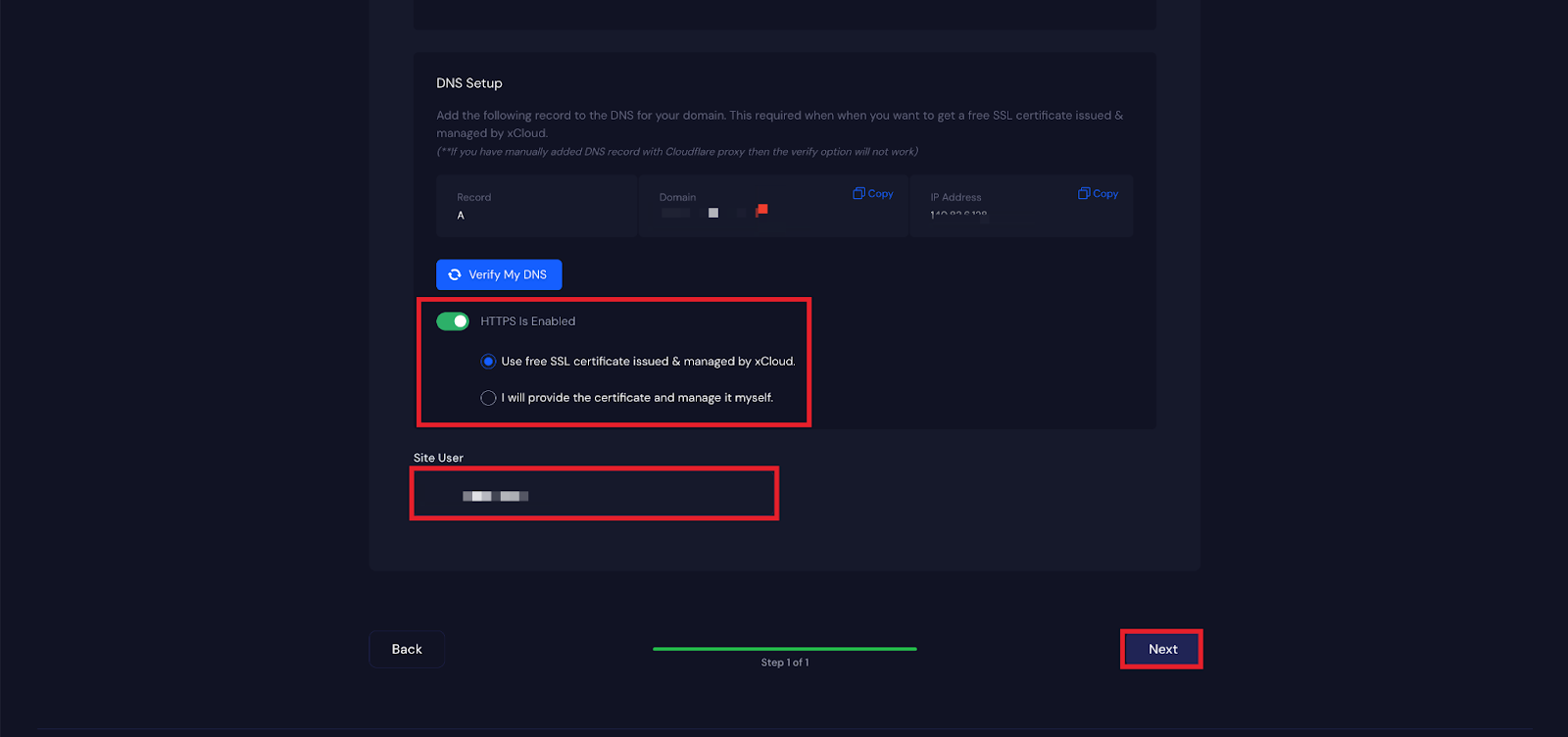
After that, go to the ‘DNS Setup’ section and enable the ‘SSL’ option. xCloud provides a free SSL certificate for this application. You can also use your own custom SSL certificate. Here you will get a ‘Site User’ of xCloud and click on the ‘Next’ Button to continue.
Step 4: Visit the Application #
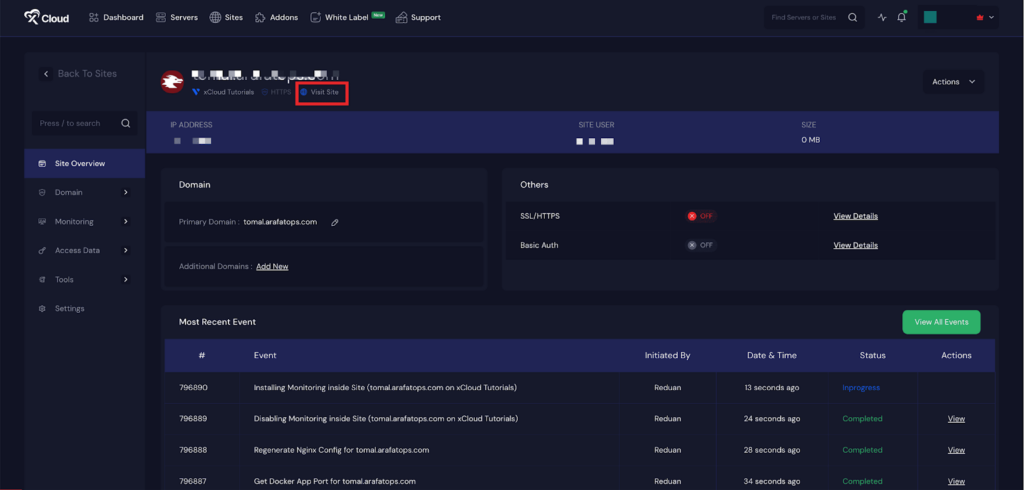
After completing the setup, you will be able to visit your WireGuard site. From the dashboard, click on the ‘Visit Site’ app.
Step 5: Set Up WireGuard VPN #
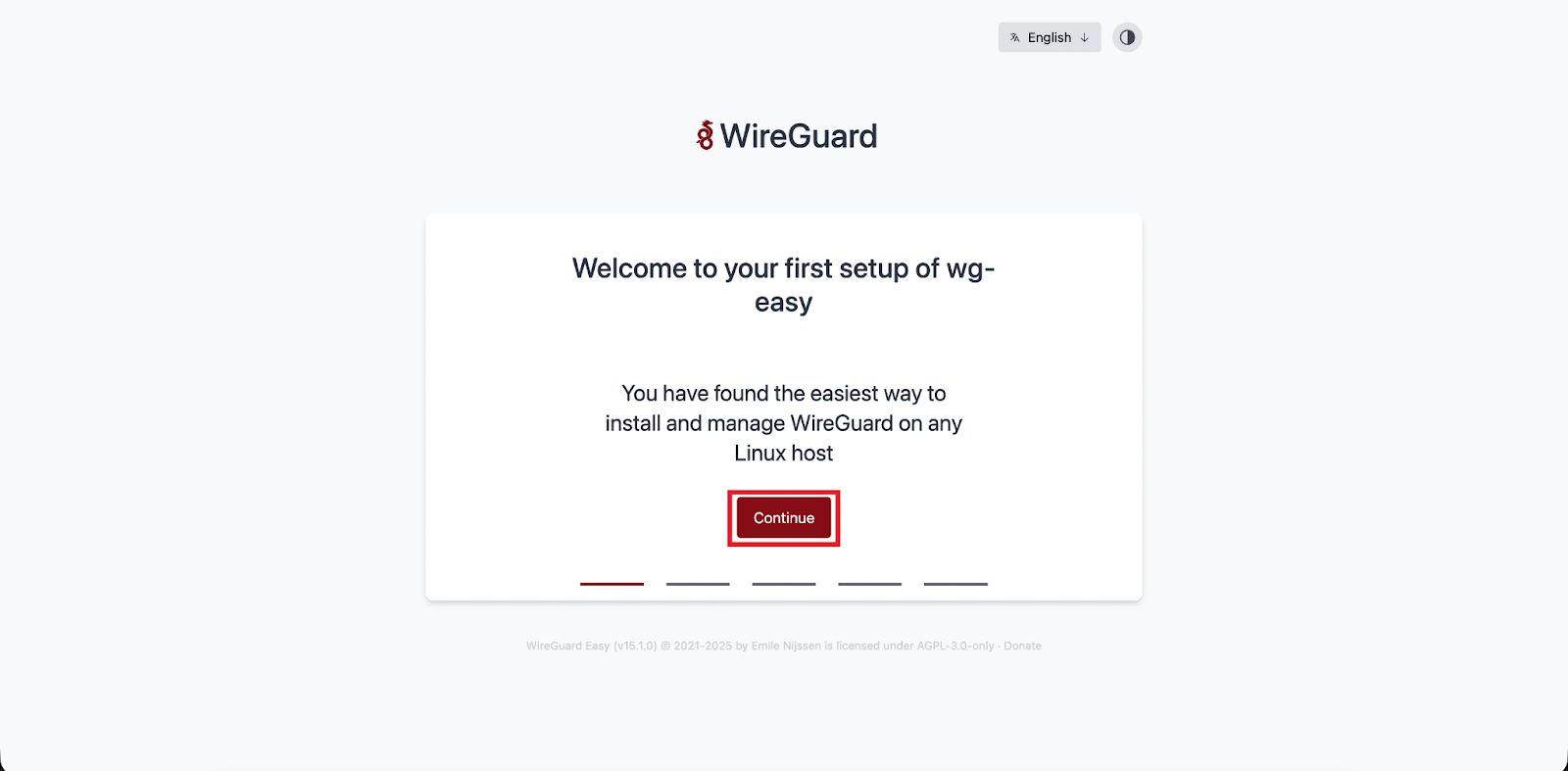
Once you are on the WireGuard VPN page, click on the ‘Continue’ button to proceed.
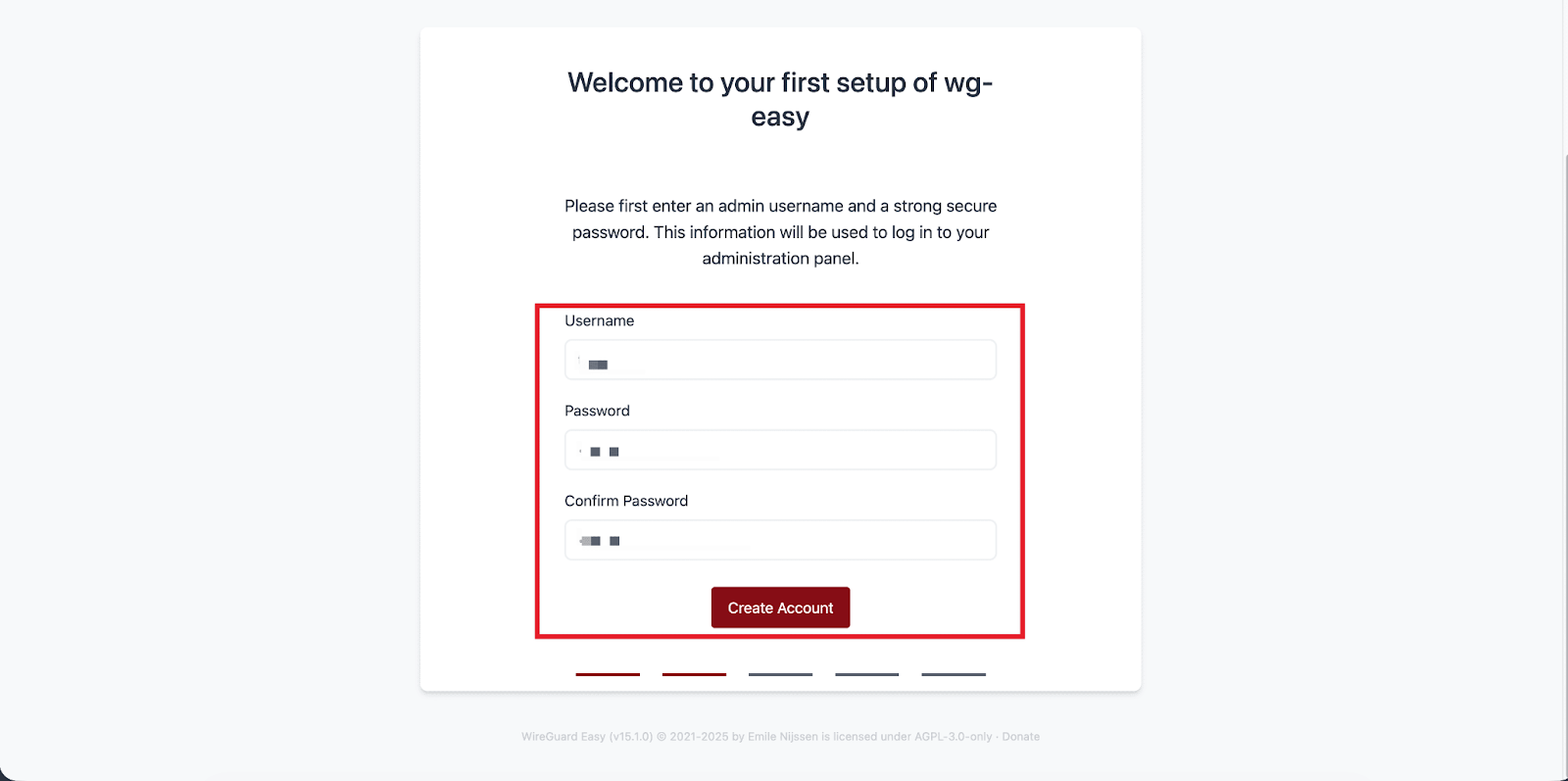
Next, enter a ‘Username’, ‘Password’, and click on the ‘Create Account’ button to proceed.
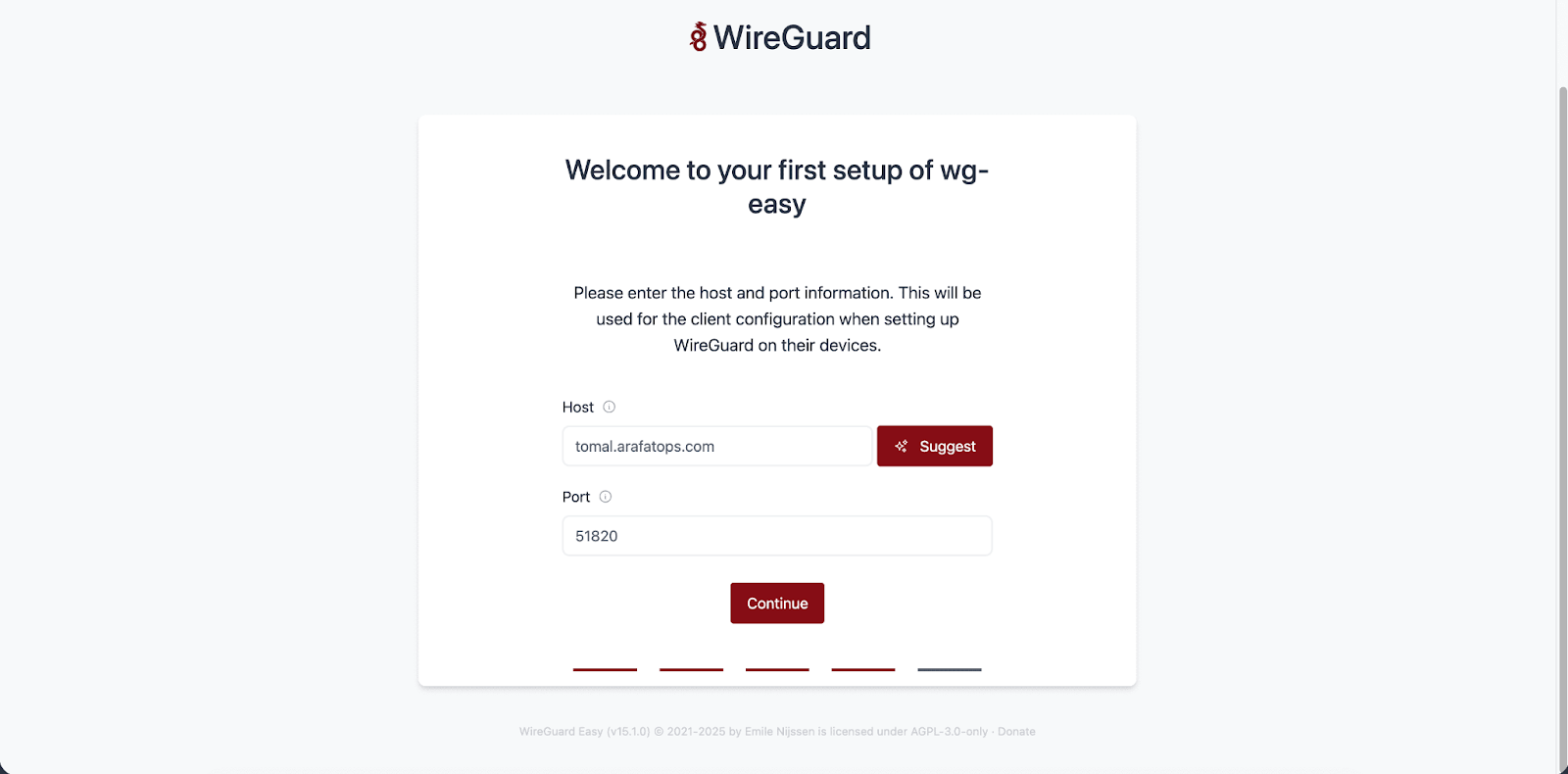
Next, enter your domain in the ‘Host’ field. You will get a default ‘Port’ and click on the ‘Continue button to proceed.
Step 6: Create a Client #
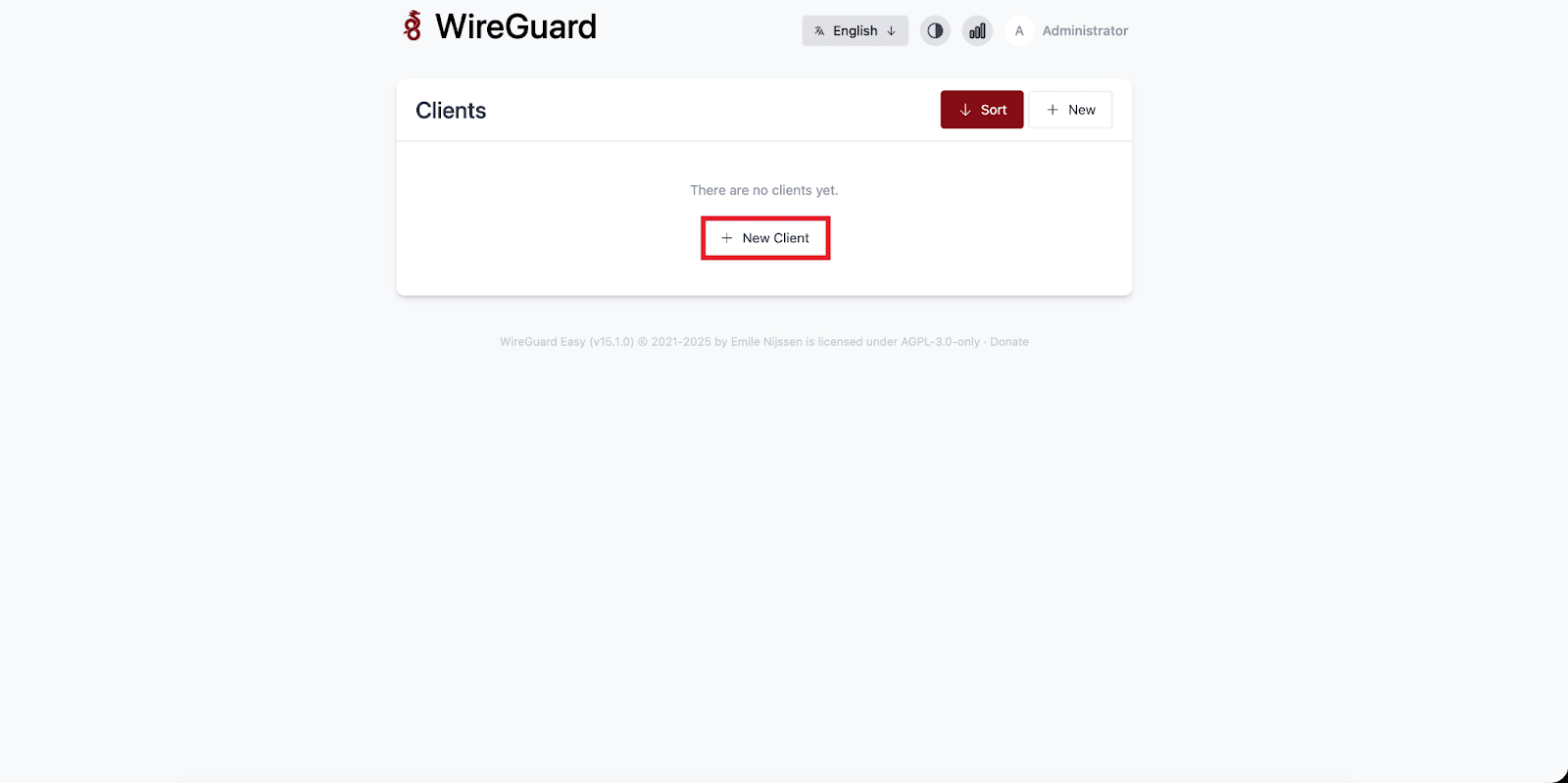
Next, click on the ‘New Client’ button to create a new client for WireGuard VPN.
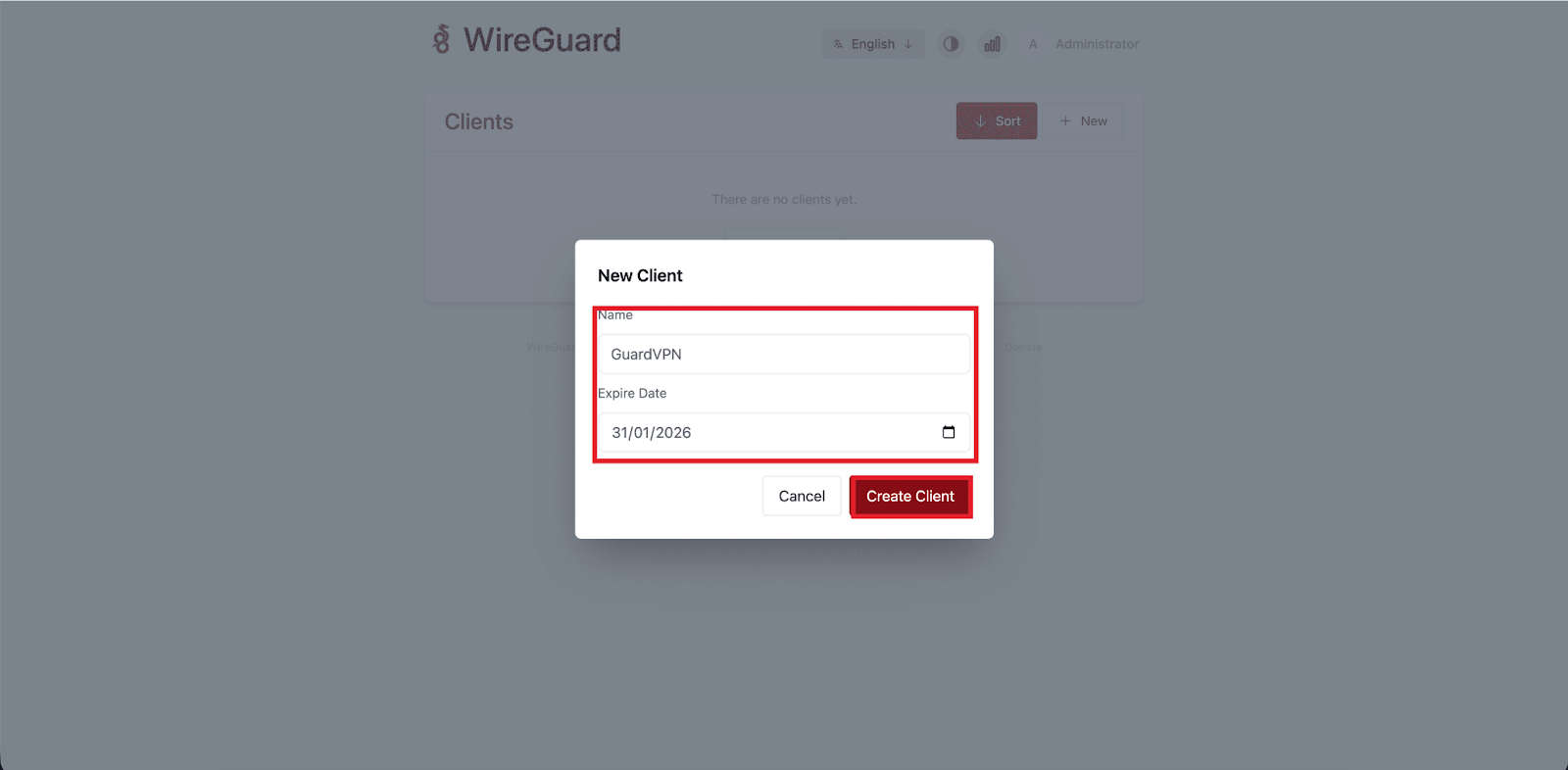
Then enter the ‘Name’ and ‘Expiry Date’ and click on the ‘Create Client’ button to proceed.
Next to the client, you will see a way to enable or disable the client, add the client via QR code, or download the configuration file. Finally, you can even delete the client if you wish.
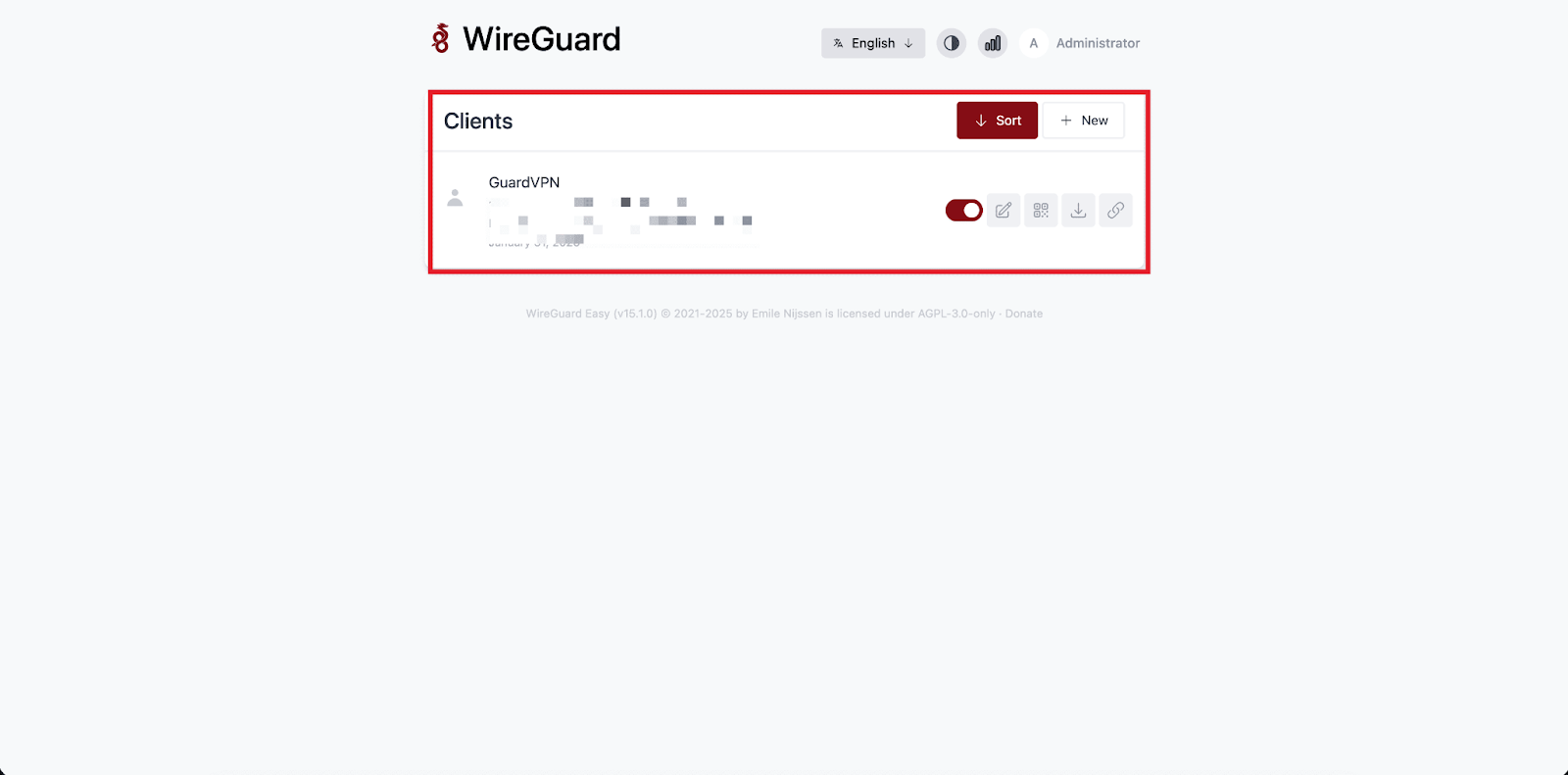
And that’s it. This is how easily you can install and launch WireGuard using xCloud. With just a few guided steps, your VPN server is ready to use, fully configured, and secured with SSL. xCloud takes care of the heavy lifting, so you can focus on using WireGuard without worrying about complex setup or maintenance.
Still stuck? Contact our support team for any of your queries.


