

How to Disable WordPress Update Email Notifications With xCloud
Updated May 6, 2026 · 6 min read
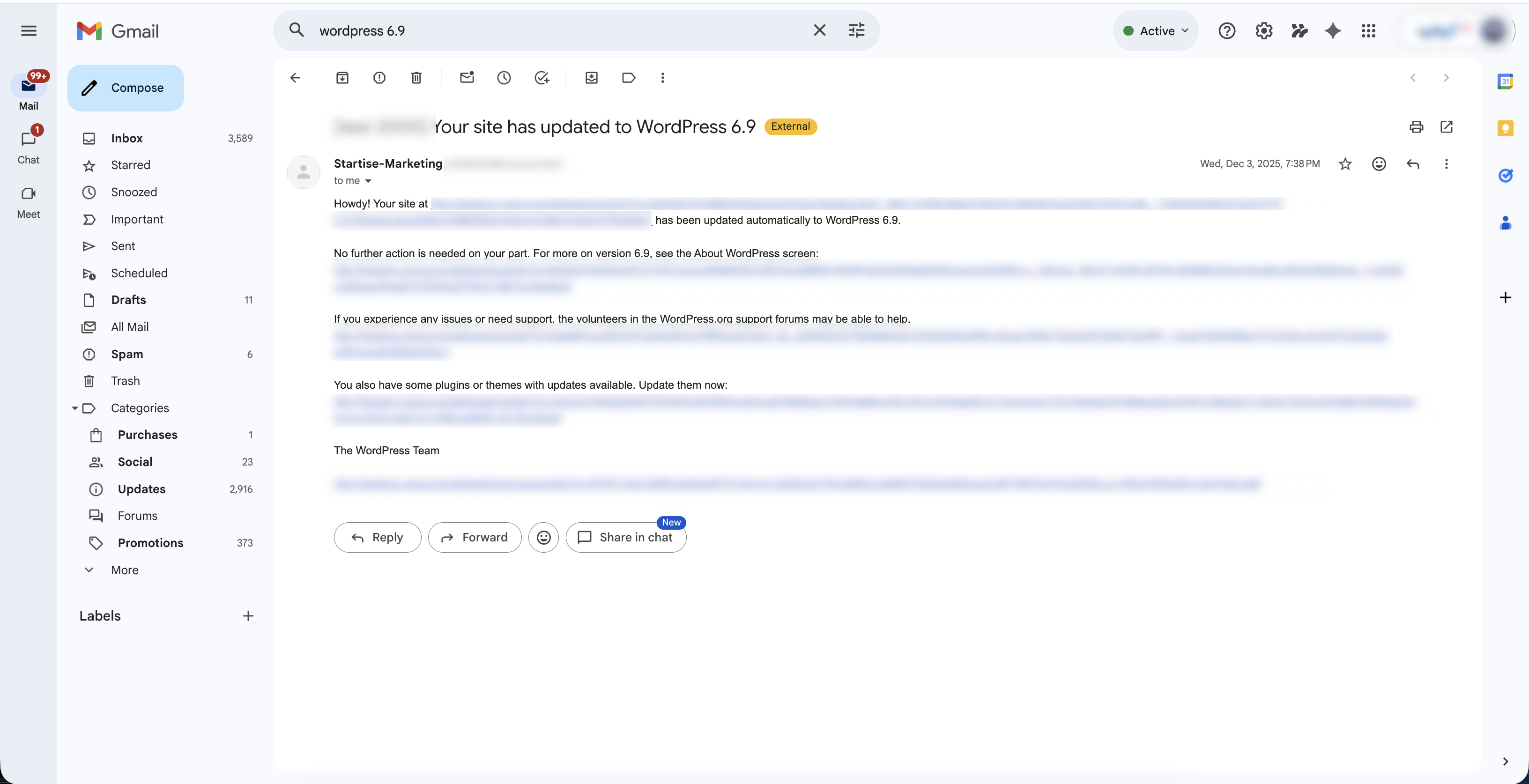
WordPress can send email notifications after automatic core, plugin, or theme updates. If you manage many WordPress sites, these emails can fill your inbox even when the updates completed successfully.
Use this guide to disable WordPress update email notifications while keeping automatic updates enabled.
Prerequisites
- Access to your xCloud account
- WordPress administrator access for the site
- Permission to add a code snippet or edit site files
- A recent backup before changing site code
Before you start
WordPress update emails are different from xCloud notifications.
- xCloud notifications are controlled from
https://app.xcloud.host/user/notifications. - WordPress update emails are generated by WordPress inside each site.
If you want to stop xCloud notification emails, use the xCloud notification settings page. If you want to stop emails such as “Some plugins were automatically updated” or WordPress core update emails, use the steps below.
Recommended method
Use a code snippet manager or a small custom plugin when possible. This keeps the code separate from your active theme.
Avoid editing the active theme’s functions.php file unless you are comfortable with PHP. A syntax error in functions.php can break the WordPress dashboard, and theme updates can overwrite custom changes.
Step-by-step Guide To Disable WordPress Update Email Notifications
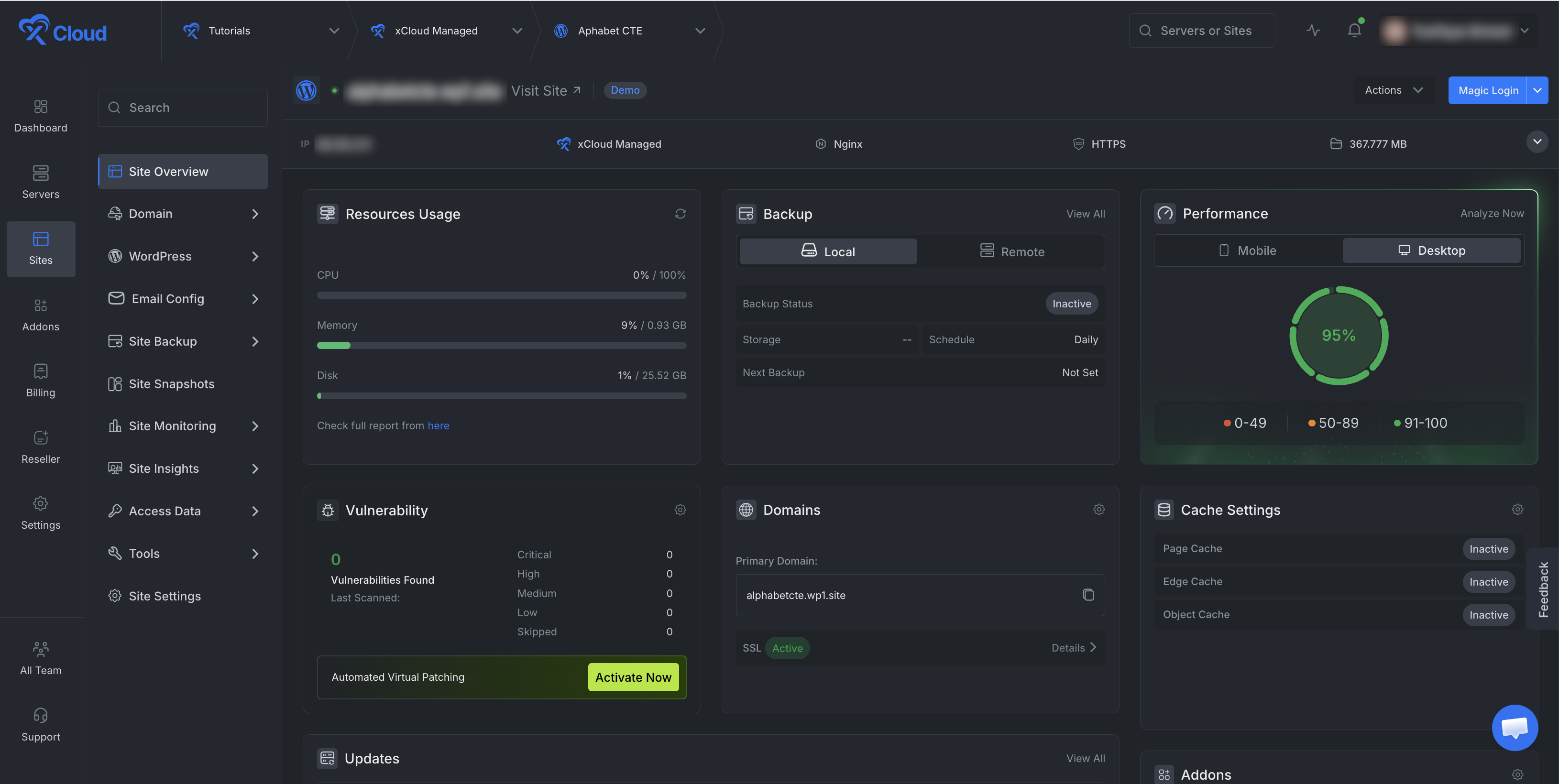
1. Open the WordPress site in xCloud
Log in to xCloud, open Sites, and select the WordPress site where you want to disable update emails.
2. Create a backup
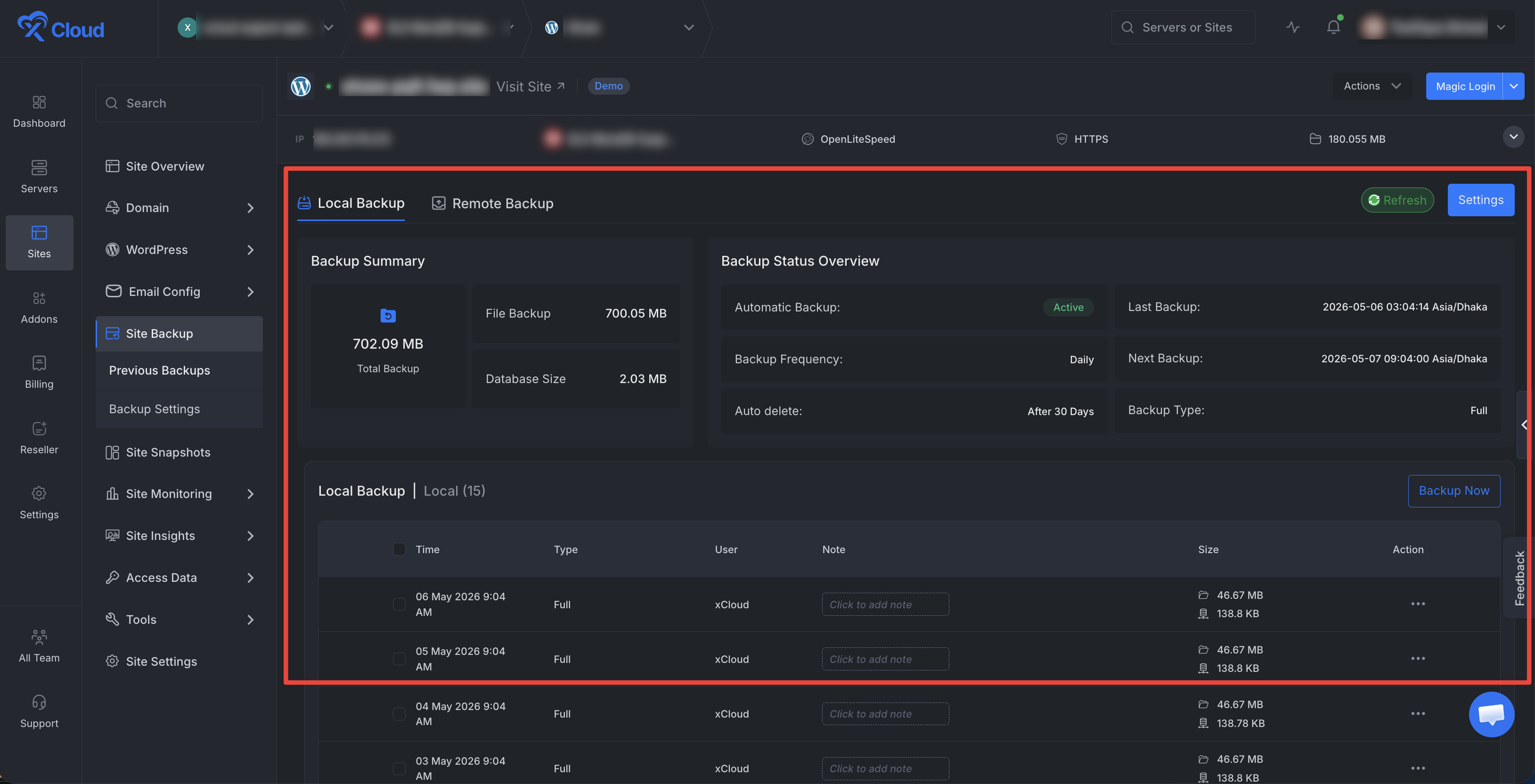
Before adding custom PHP code, create a current backup of the site or confirm that a recent backup is available.
3. Choose where to add the snippet
Choose one safe place for the code:
- A code snippet plugin inside WordPress
- A small custom plugin
- A child theme’s
functions.phpfile
For most users, a code snippet plugin is the safest option because it reduces the risk of losing the code during a theme update.
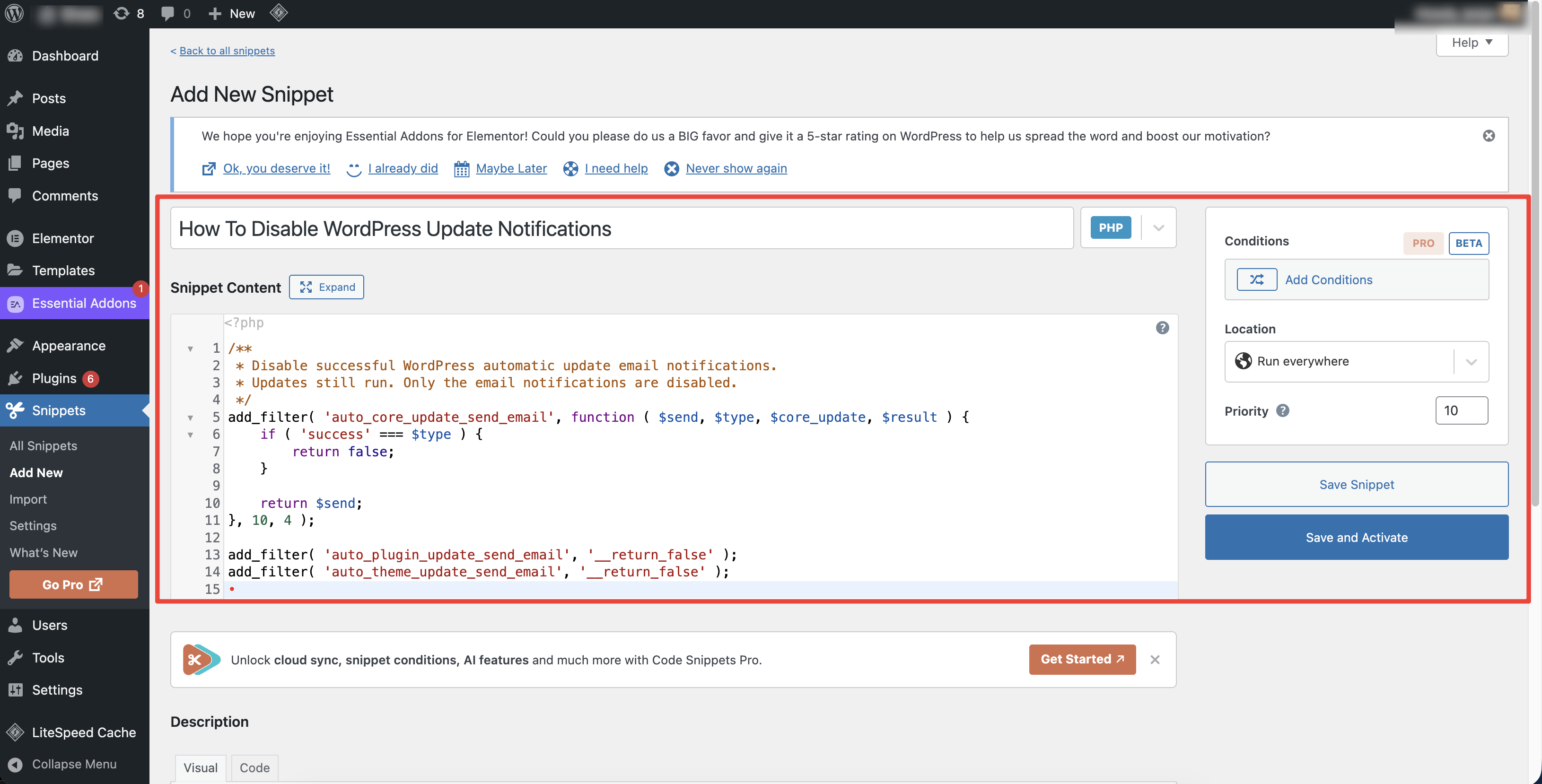
4. Add the snippet to disable successful update emails
Add this snippet if you want to stop successful automatic update emails for WordPress core, plugins, and themes.
Copy
/**
 * Disable successful WordPress automatic update email notifications.
 * Updates still run. Only the email notifications are disabled.
 */
add_filter( 'auto_core_update_send_email', function ( $send, $type, $core_update, $result ) {
    if ( 'success' === $type ) {
        return false;
    }

    return $send;
}, 10, 4 );

add_filter( 'auto_plugin_update_send_email', '__return_false' );
add_filter( 'auto_theme_update_send_email', '__return_false' );
This keeps WordPress updates active. It only stops the automatic update notification emails.
5. Save and activate the snippet
Save the snippet and activate it. If your snippet plugin supports execution location, run the snippet on the site frontend and admin area, or use the default site-wide option.
6. Confirm updates are still enabled
Open Dashboard → Updates in WordPress and confirm your core, plugin, and theme update settings still match your preferred workflow.
(Screenshot: WordPress Dashboard Updates page)
7. Monitor the next automatic update
After the next automatic update runs, confirm that the site updates normally and that WordPress no longer sends the update notification email you disabled.
(Screenshot: WordPress plugins page showing updated plugin version)
Disable only one type of WordPress update email
If you do not want to disable all WordPress update emails, use one of these smaller snippets instead.
Disable only WordPress core update emails
Copy
add_filter( 'auto_core_update_send_email', '__return_false' );Disable only plugin update emails
Copy
add_filter( 'auto_plugin_update_send_email', '__return_false' );Disable only theme update emails
📄
filename.js
Copy
add_filter( 'auto_theme_update_send_email', '__return_false' );You can combine these snippets based on the emails you want to stop.
Safer option: keep failure emails for WordPress core
If you want to stop successful core update emails but keep failure emails, use this version for core updates:
Copy
add_filter( 'auto_core_update_send_email', function ( $send, $type, $core_update, $result ) {
    if ( 'success' === $type ) {
        return false;
    }

    return $send;
}, 10, 4 );
This can be useful when you want fewer routine emails but still want to know if a WordPress core update fails.
Expected result
After the snippet is active:
- WordPress can continue installing automatic updates.
- Successful update notification emails are no longer sent for the selected update types.
- xCloud notifications are unchanged unless you also update your xCloud notification settings.
- You can still check update history and plugin versions inside WordPress or xCloud.
Troubleshooting
I still receive xCloud notification emails
WordPress snippets only control emails generated by WordPress. To disable xCloud notifications, visit this page
Then turn off Email in the notification sections you do not want.
I still receive WordPress update emails
Confirm the snippet is active on the correct WordPress site. If you manage multiple websites, add the snippet to each site where you want WordPress update emails disabled.
My site shows an error after adding the snippet
Disable the snippet from your code snippet plugin if possible. If you edited a file directly, restore the file from backup or remove the snippet through File Manager or SSH.
I use a child theme
You can add the snippet to the child theme’s functions.php file, but a code snippet plugin or small custom plugin is safer for most users.
FAQ
Does this disable WordPress updates?
No. The snippets only disable update notification emails. They do not disable the update process.
Can I apply this to all websites from one xCloud setting?
No. These emails are generated inside WordPress, so the snippet must be added to each WordPress site where you want to disable the emails.
Can xCloud disable these WordPress emails for me automatically?
xCloud notification settings control xCloud notifications. WordPress update emails are controlled inside each WordPress site. You can use the snippet in this guide to control them per site.
Should I disable all update emails?
If you manage many sites and monitor updates from a dashboard or maintenance workflow, disabling routine success emails can reduce noise. Keep failure or security alerts enabled if your team depends on email for issue detection.