

How to Manage Services on Your Server
Updated May 18, 2026 · 2 min read
A server is only as useful as the services running on it. To get the most out of your server, you need to install the right tools for your project. For example, PHP is needed to run websites built with platforms like WordPress or Laravel. Node.js is used for modern web apps and JavaScript-based projects. Redis helps speed up your applications by storing data in memory for quick access.
The good news is that you do not need to be a server expert to install these services with xCloud. Your dashboard comes with a simple installer that lets you add any of these tools with just a few clicks.
Follow this guide to walk you through the process of installing a service on your server on xCloud.
Step 1: Access Server Management Option
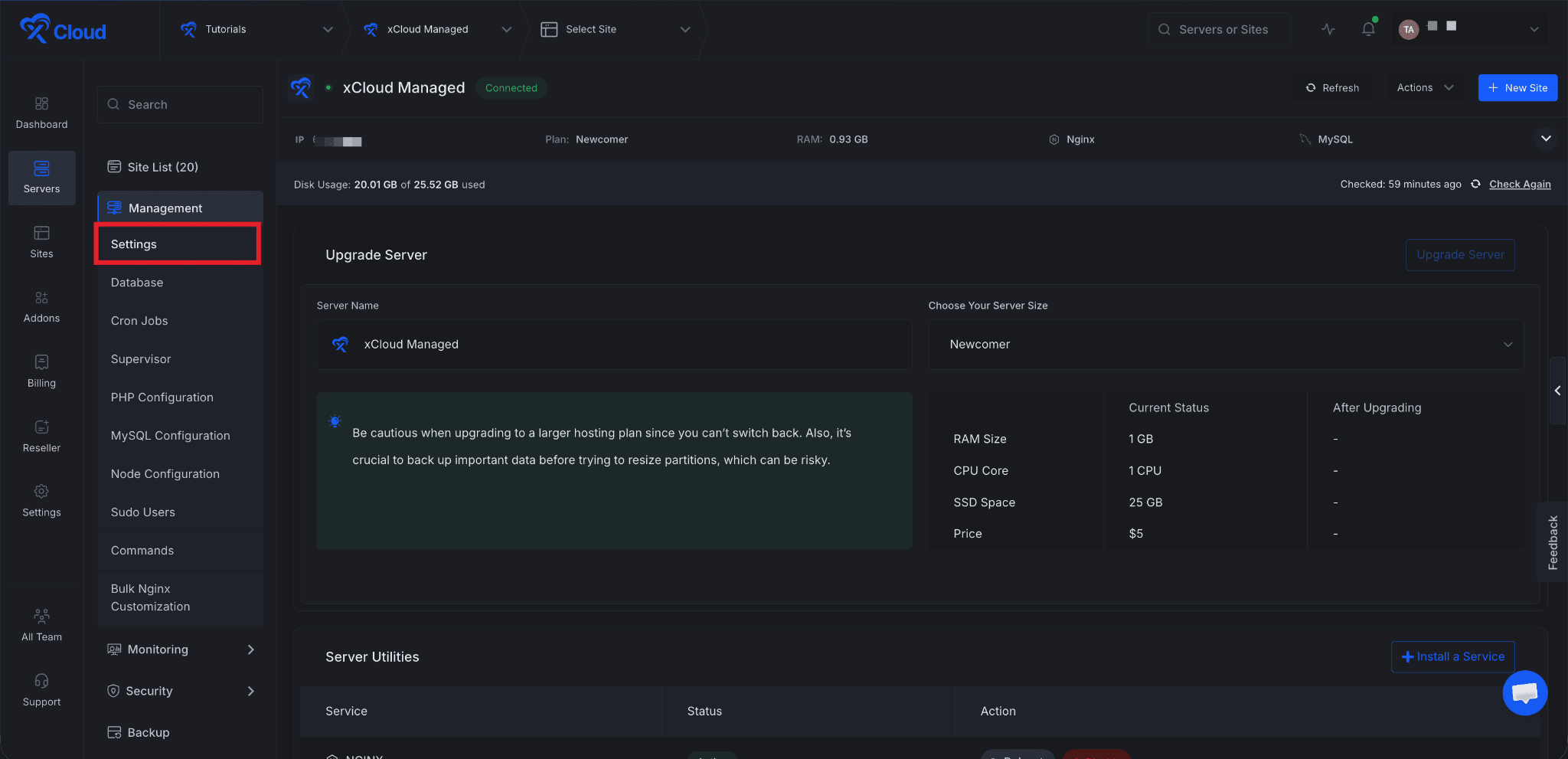
First, navigate to your server, then go to Management → Settings from the dashboard.
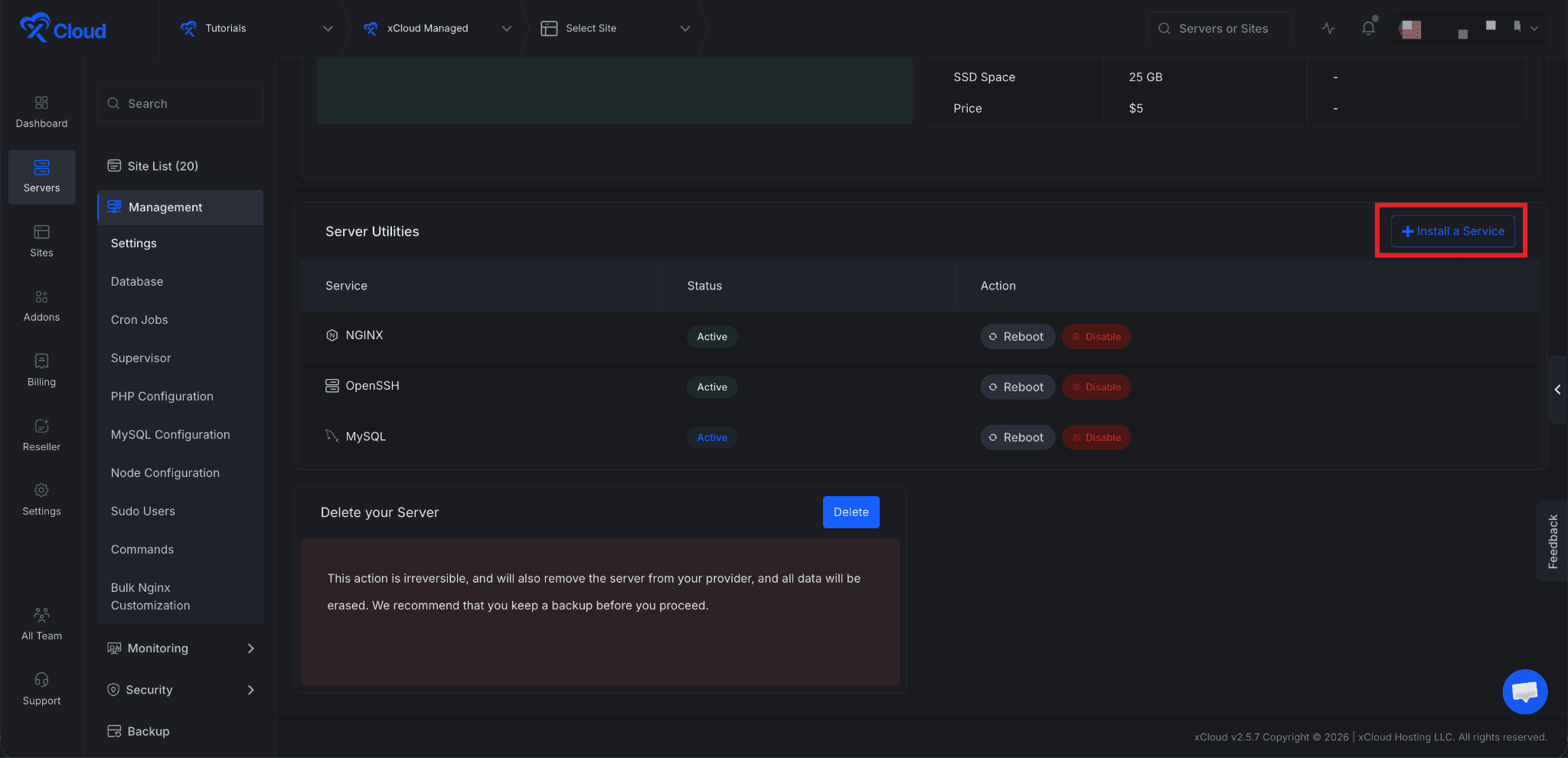
Next, locate the Install a Service button on the dashboard and click it to proceed.
Step 2: Install a Service
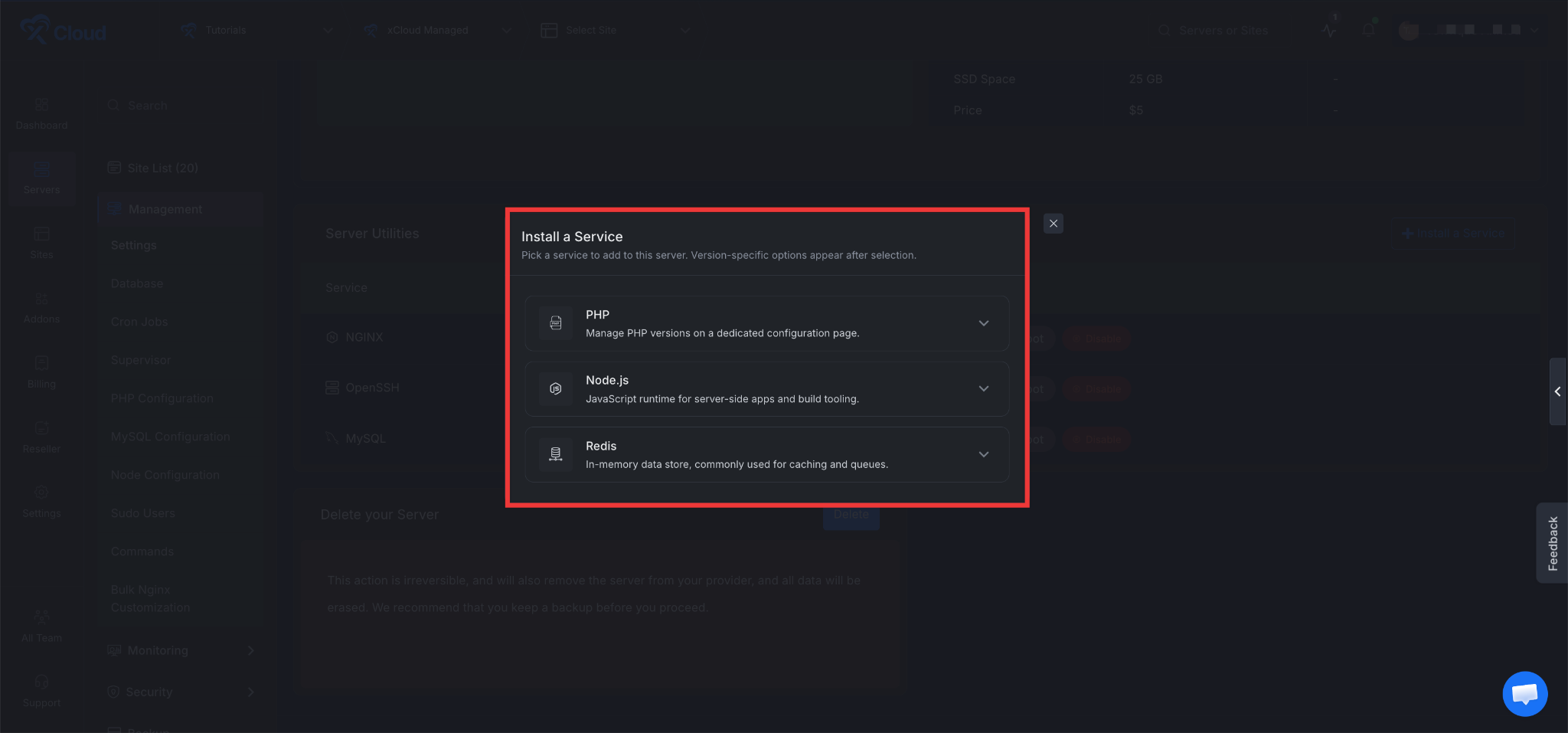
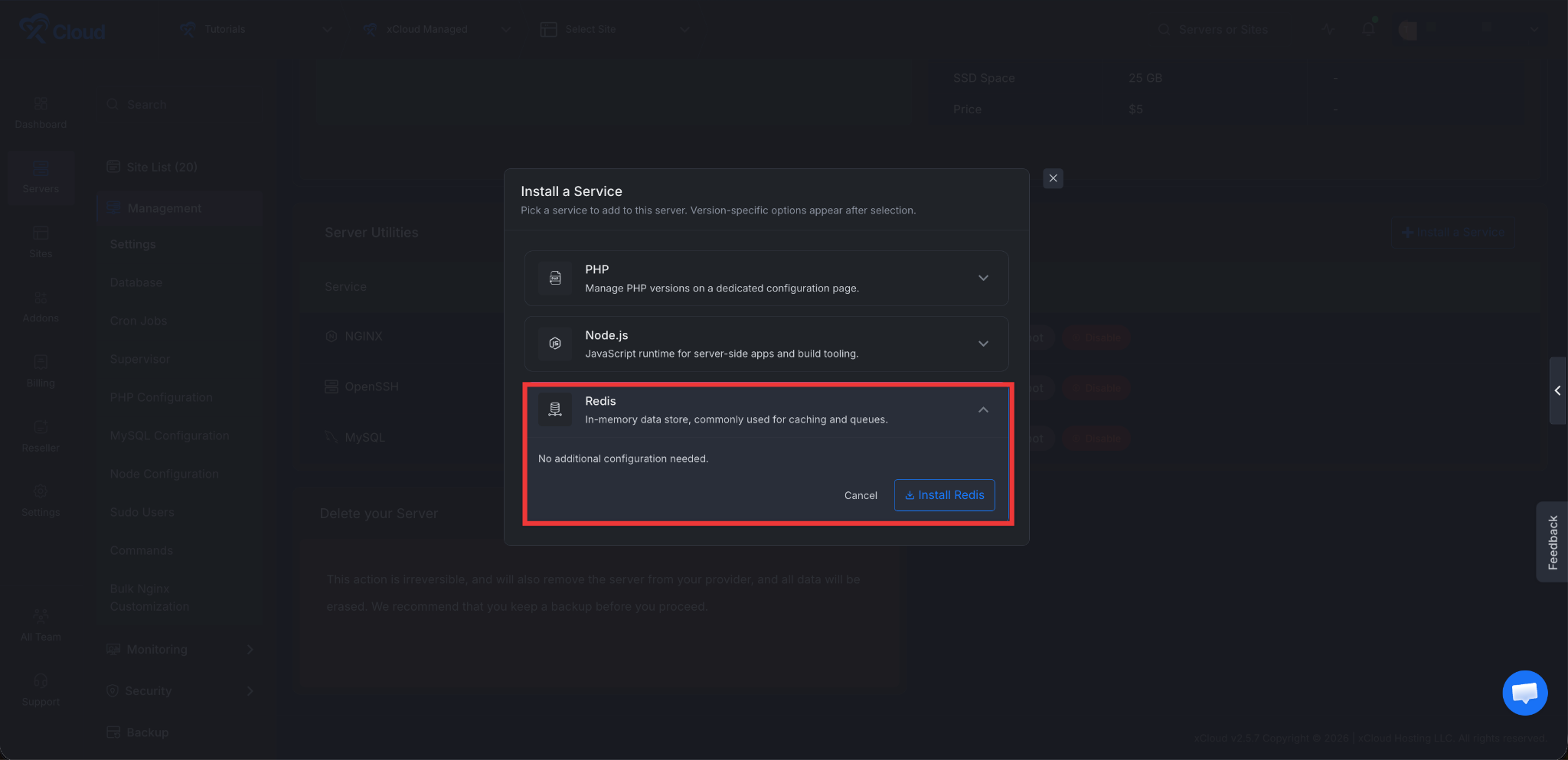
A pop-up window will appear with three available options: PHP, Node.js, and Redis. From here, you can choose which service to add to your server. Version-specific options will appear once you make your selection.
- Installing PHP: If you select PHP, you will be redirected to the PHP management page of the server, where you can configure your PHP settings.
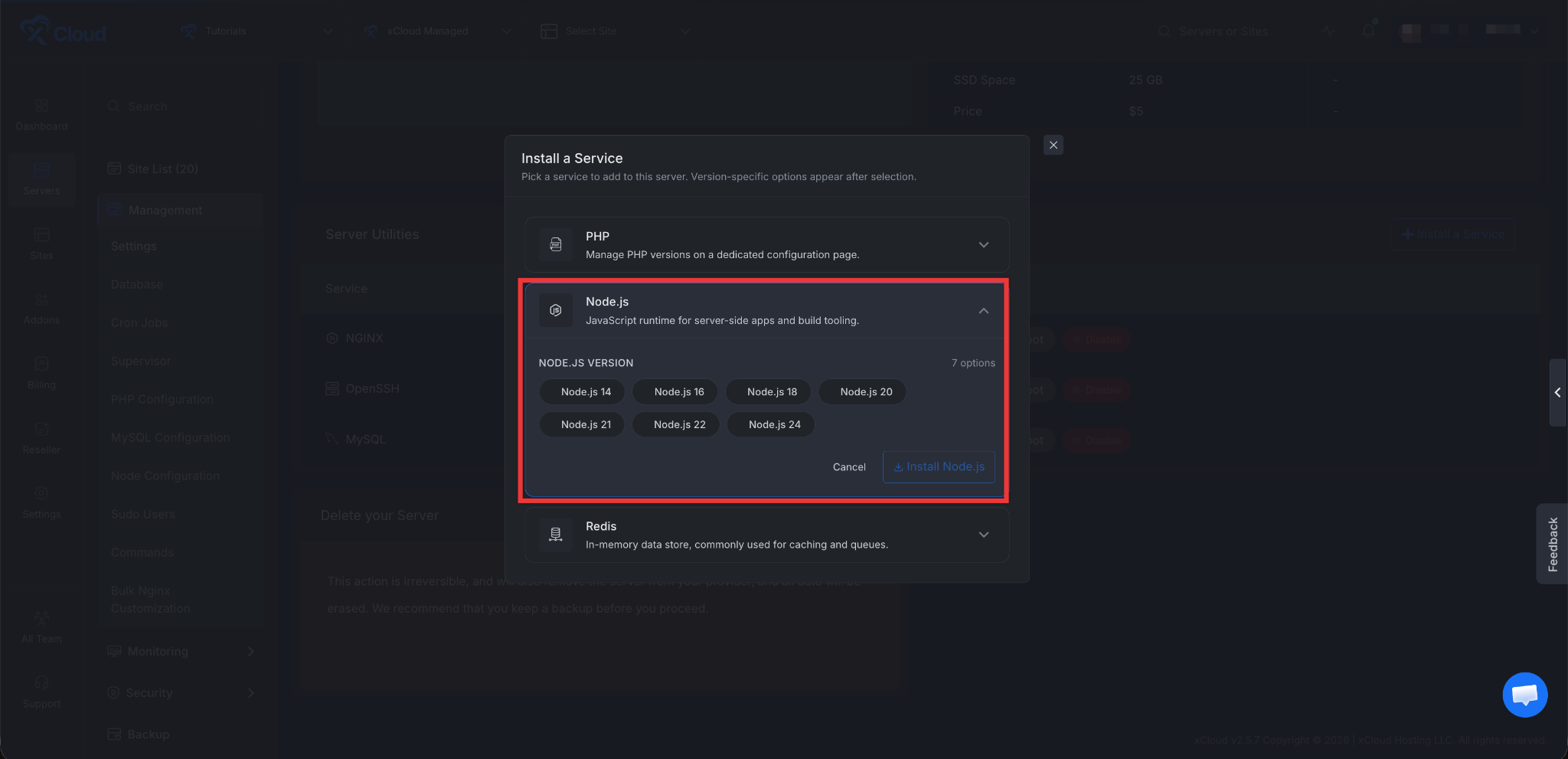
- Installing Node.js: If you expand the Node.js option, you can choose your preferred Node.js version, then click the Install Node.js button to begin the installation.
Installing Redis: If you select Redis, simply click the Install Redis button to install the service on your server.
Installing services on your server is easier than most people think. With the dashboard installer, you can add PHP, Node.js, or Redis in just a few clicks, without dealing with technical setup or command-line tools. This makes it a great option for both beginners and experienced users.
After your services are installed, your server will be ready to run websites, web apps, and other projects without any extra setup. If your needs change later, you can always return to the same dashboard to add more services, update versions, or adjust your settings. With everything ready, you can now focus on building and growing your project.