

How To Deploy Github Project From A Specific Branch
Updated September 27, 2026 · 2 min read
A deployment issue occurs when a webhook triggers a redeploy even if changes are pushed to a branch other than the selected production branch (e.g., main). This behavior causes unintended redeployments and may overwrite production with outdated or unrelated code.
To avoid this, you can control deployments directly from GitHub Actions by restricting execution to specific branches.
Step 1: Open Your GitHub Repository
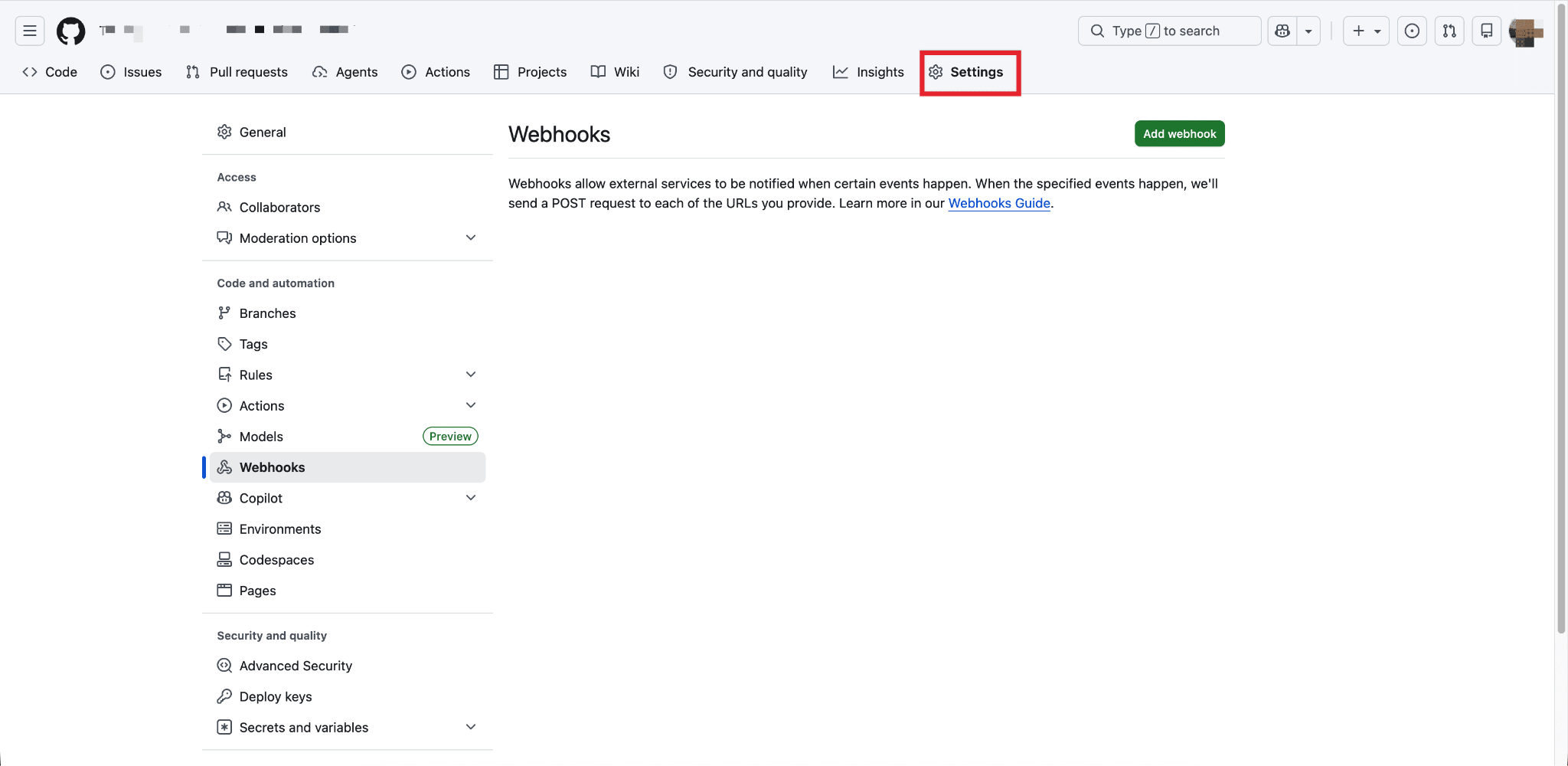
First, go to your GitHub repository. If you have already set the webhook, you need to remove the Webhooks from the dashboard. To remove, go to the ‘Settings’ from the menu. Then click on the ‘Delete’ webhooks that you have set for this repository with xCloud.
Step 1: Go To The Actions Menu
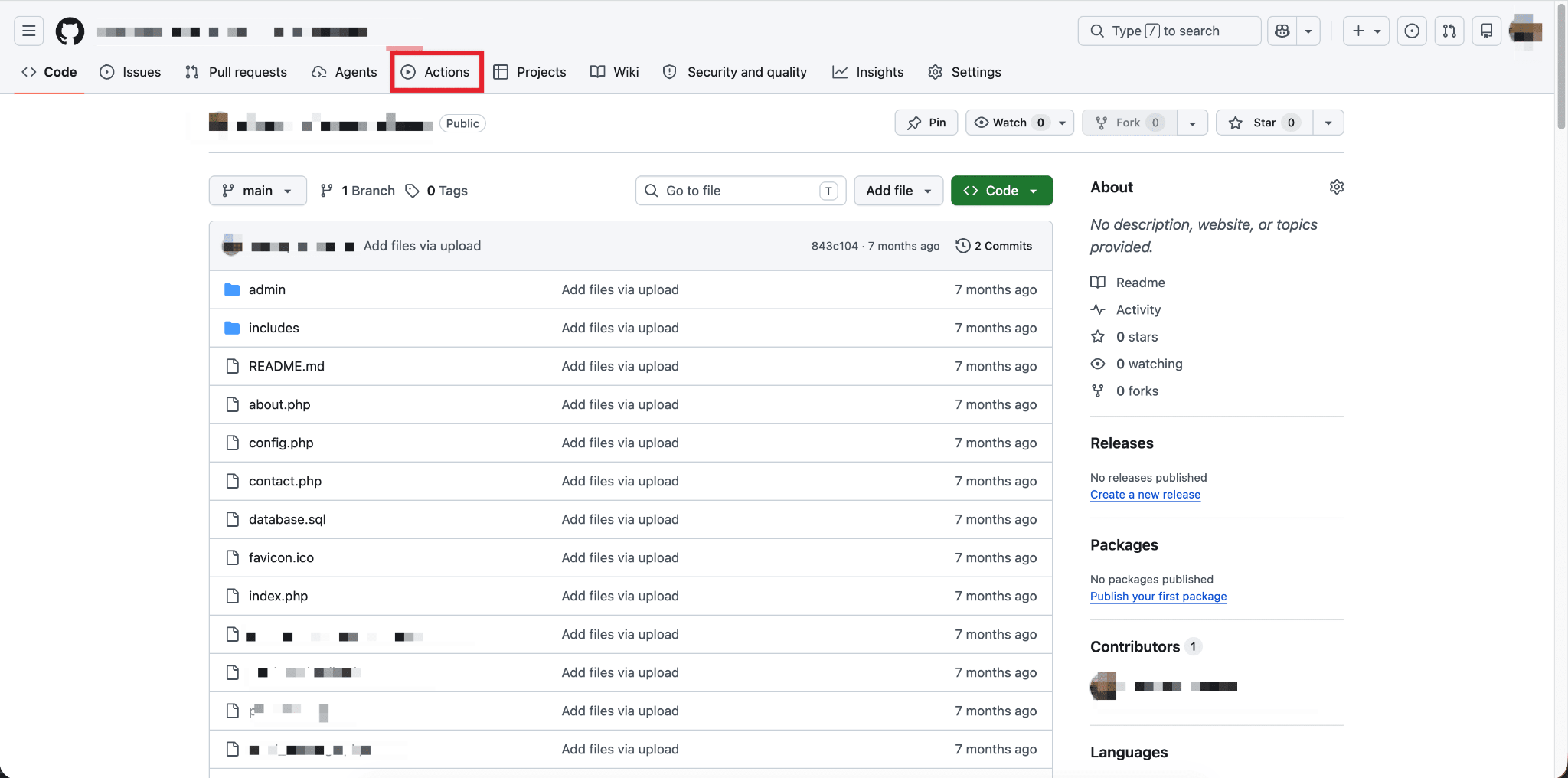
Then go to the Actions tab in the top navigation bar. This section contains all automation workflows related to your project.
Step 3. Create a New Workflow
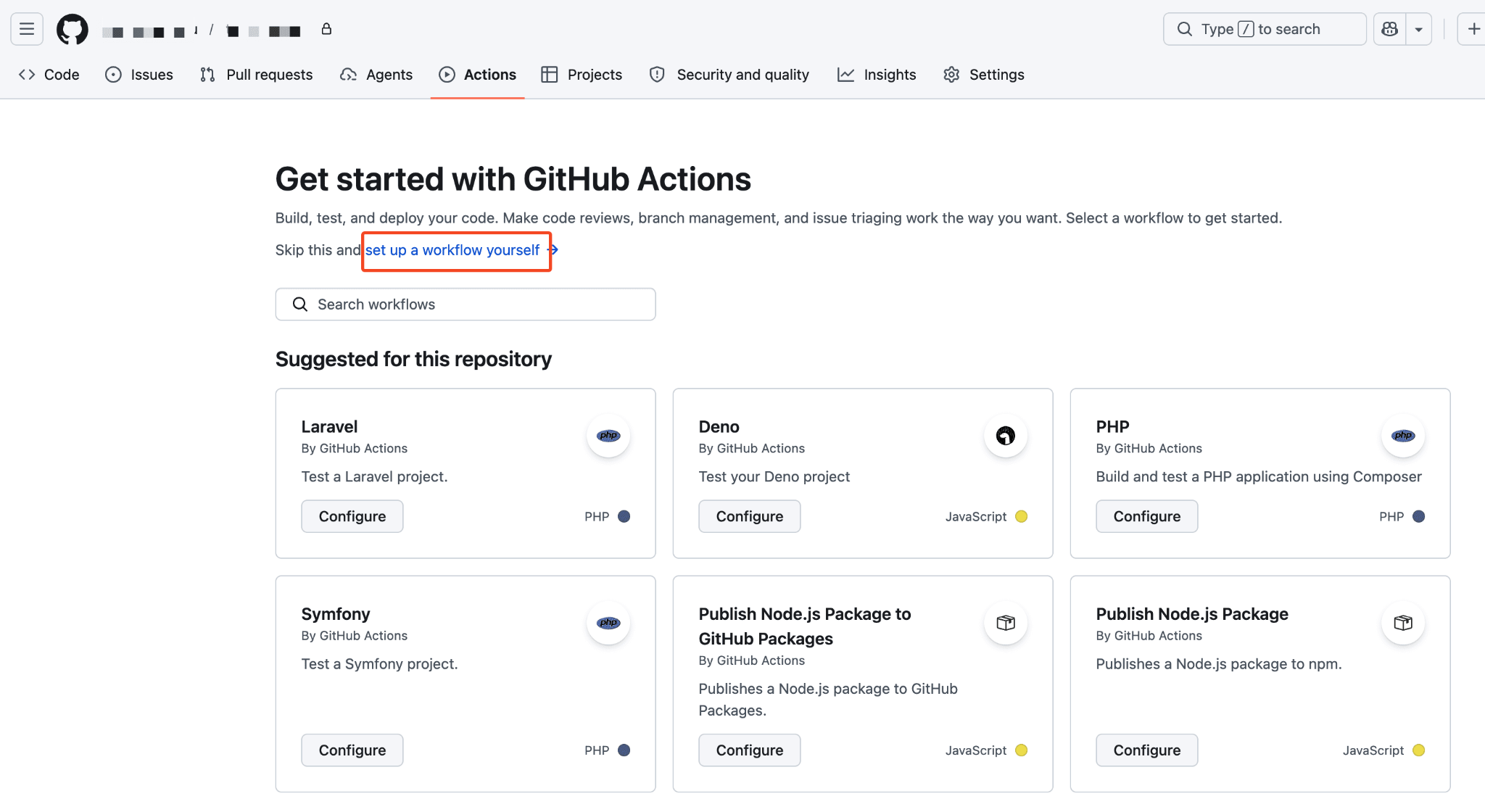
Inside the Actions tab, look for an option labeled Set up a workflow yourself. Click on it to create a custom workflow from scratch. GitHub will open an editor where you can define your deployment logic using a YAML configuration file.
Step 4: Paste the Workflow Code
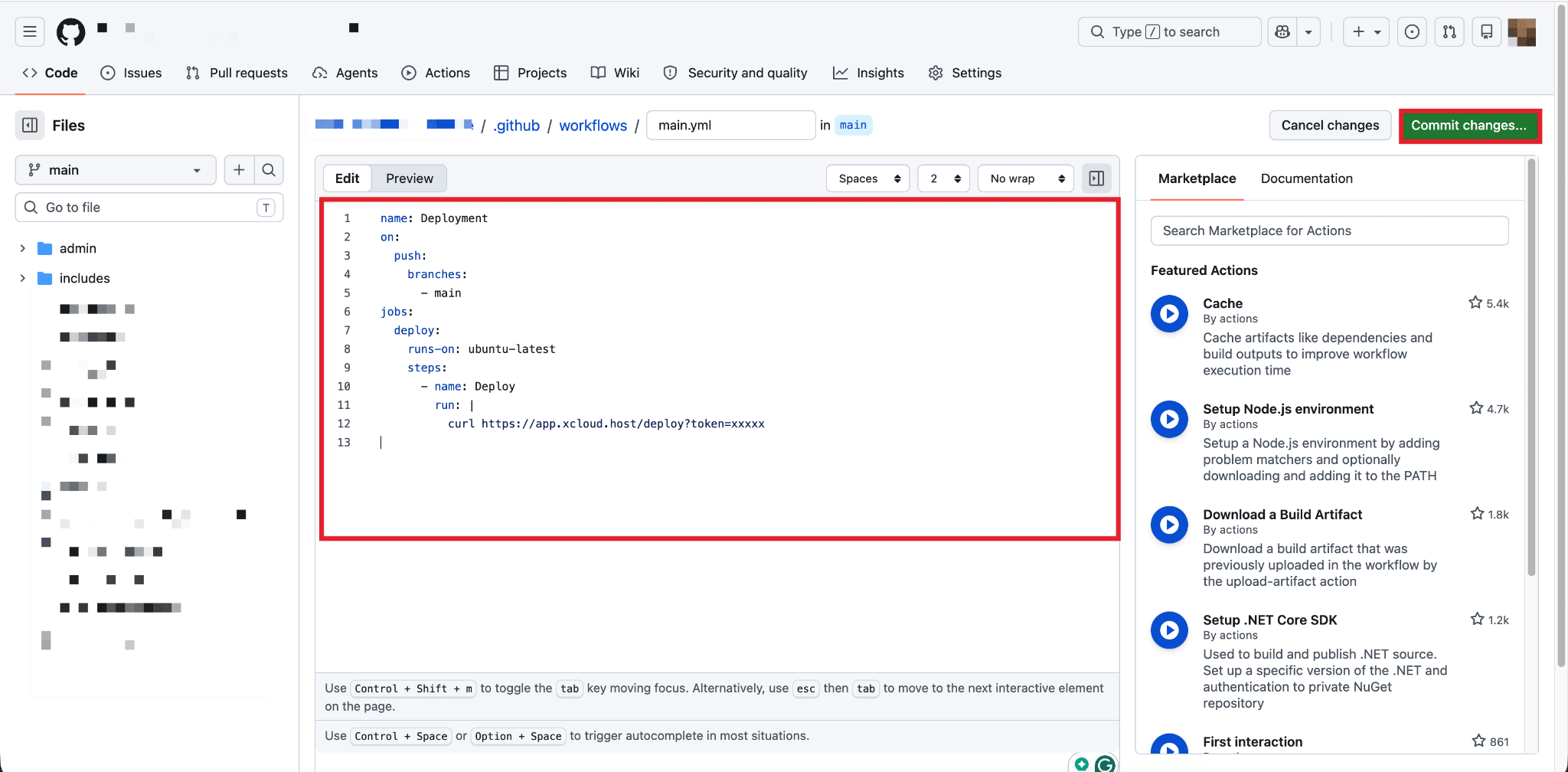
In the editor, replace any default content with the following code:
Copy
name: Deployment

on:

  push:

    branches:

      - main

jobs:

  deploy:

    runs-on: ubuntu-latest

    steps:

      - name: Deploy

        run: |

          curl https://app.xcloud.host/deploy?token=xxxxx
Update the branch name under “branches:” to match the branch you want to trigger deployments from. For example:
| Branch | YAML Value |
| main | – main |
| dev | – dev |
Replace the placeholder URL in the curl command with your actual xCloud deployment webhook URL:
Copy
curl https://app.xcloud.host/deploy?token=YOUR_ACTUAL_TOKENClick the green “Commit changes” button to save the workflow file to your repository.
And that’s it, this is how you can activate the workflow immediately. From this point forward, any push to the specified branch will automatically trigger the deployment process. This ensures that only intentional pushes to your production branch will trigger a deployment, preventing the accidental redeployments caused by the previous webhook setup.
If auto-deploy stops triggering, or a deployment gets stuck or fails, see Troubleshooting Git Deployments.
Still stuck? Feel free to reach out to our support team.