

How to Update Uptime Kuma Using xCloud Command Runner
Updated April 29, 2026 · 2 min read
Uptime Kuma is a self-hosted monitoring tool that lets you track the uptime of your websites and services. If you have deployed Uptime Kuma on xCloud, you can easily update it to the latest version using the built-in Command Runner. Follow the steps below to update your Uptime Kuma instance.
Step 1: Find Your PM2 Process Name
Go to your Uptime Kuma site in xCloud. Click the Commands tab. Click Run Custom Command. Run this command:
Copy
pm2 listLook at the name column in the output. It will look something like:
uptime-kuma-demodomain.com
Copy that name, you’ll need it in Step 2.
Step 2: Run the Update
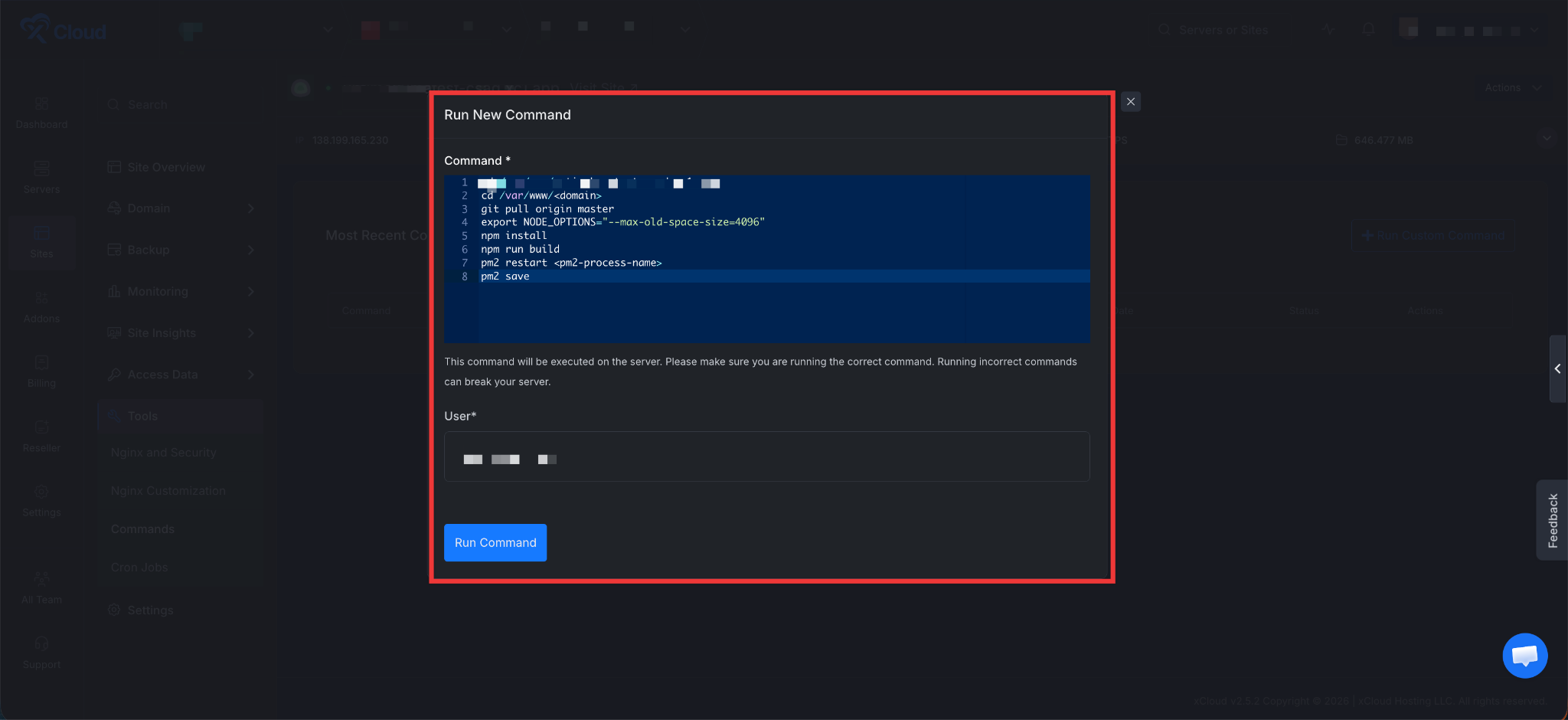
In the same Command Runner, paste the following — replacing
Copy
cd /var/www/<domain>

git pull origin master

export NODE_OPTIONS="--max-old-space-size=4096"

npm install

npm run build

pm2 restart <pm2-process-name>

pm2 save
Example
If your domain folder is uptimekuma-demodomain.com and your PM2 process name is uptime-kuma-demodomain.com:
cd /var/www/demodomain.com
git pull origin master
export NODE_OPTIONS=”–max-old-space-size=4096″
npm install
npm run build
pm2 restart uptime-kuma-demodomain.com
pm2 save
Notes
- Run the command as the site user (the Command Runner defaults to this).
- npm run build may take a few minutes – this is normal.
- After pm2 restart, your Uptime Kuma will be back online with the latest version.
And that’s it, this is how easily you can update your Uptime Kuma instance to the latest version using the xCloud Command Runner. Whether you are applying a minor patch or upgrading to a major release, the process remains the same straightforward set of commands.