

How to Rebuild a Server Safely with xCloud
Updated September 27, 2026 · 7 min read
Rebuilding returns an eligible xCloud server to a freshly provisioned state while retaining its public IP address and billing relationship. Use this guide if you need to replace the server’s software stack or recover a managed server by reinstalling it. A rebuild is destructive and cannot be undone: it removes every site and workload from the server.
Warning: Rebuilding wipes the server disk. xCloud removes sites, databases, SSL certificates, deployments, cron jobs, supervisor processes, monitoring data, sudo users, SSH-key associations, installed PHP and Node.js versions, and stack-specific services. Keep recoverable backups outside the server before you continue.
Prerequisites
- You can manage the server and have permission to delete or rebuild servers for its team.
- The server is fully provisioned and is not being created, migrated, deleted, suspended, or modified.
- The server belongs to a currently supported rebuild provider: an applicable Vultr-family server, including xCloud-managed and White Label Vultr servers, or an xCloud Leaseweb server.
- Your xCloud plan allows the stack you want to install.
- The server has enough memory for the chosen stack. Agentic stacks require at least 4 GB RAM.
- You have a current, restorable backup stored outside the server.
- You recorded the current public IP address, DNS records, application environment values, deployment settings, and credentials you will need after the rebuild.
- You planned a maintenance window; the server and all hosted services will be unavailable while xCloud reinstalls and provisions it.
Check rebuild eligibility
A server must pass every applicable check before xCloud shows or accepts the rebuild action.
| Check | Eligible when | If the check fails |
|---|---|---|
| Provider | The server is in the supported Vultr or xCloud Leaseweb families | Rebuild is not offered for unsupported providers. Contact xCloud Support before making infrastructure changes. |
| Server state | Provisioning is complete and no conflicting operation is in progress | Wait for the current operation to finish, refresh the server, and check again. |
| Team permission | Your role can manage destructive server actions | Ask a team owner or administrator to perform the rebuild or update your permissions. |
| Plan entitlement | Your current plan permits the selected stack | A disallowed stack does not appear. Check your plan or choose an available stack. |
| Memory | The server meets the selected stack’s RAM requirement | Agentic options are unavailable below 4 GB RAM. Resize or choose another eligible stack. |
Step 1: Verify your backup, DNS, and recovery information
Restore a recent backup to a separate test location if possible. Confirm that it contains every site and database you expect. Record the server’s public IP, DNS records, application configuration, SSH access requirements, and deployment secrets in a secure location outside the server.
Expected result: You have an independent recovery copy and enough information to restore service if the rebuild or application restore fails.
Step 2: Open the Rebuild Server page
In xCloud, open Servers, select the server, and go to Management → Rebuild Server. (For AI agent servers such as OpenClaw, Paperclip, Hermes or DeepSeek Harness, it is under Settings → Rebuild Server.) Read the warning before choosing any options.
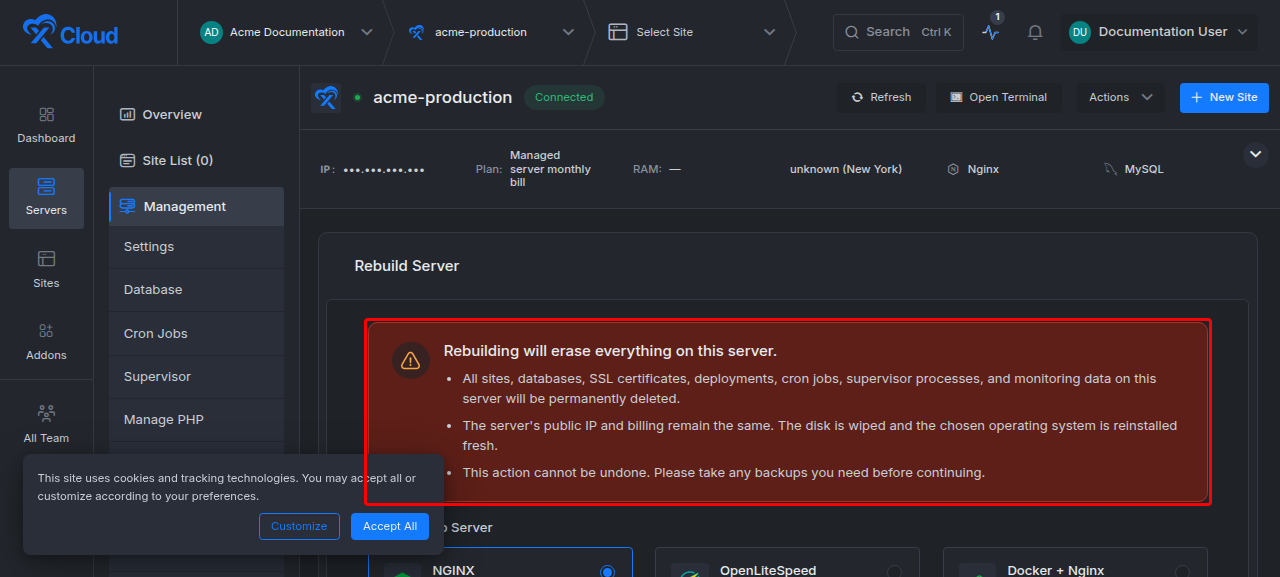
Expected result: The page shows the destructive-impact warning and only the web server stacks available for the server, plan, and account.
Step 3: Choose the new stack and database
Under Choose Web Server, select an available stack. The current interface can offer NGINX, OpenLiteSpeed, Docker with NGINX, and eligible agentic stacks. The exact list depends on your plan and server resources.
For NGINX or OpenLiteSpeed, choose the database engine and version to install. Database selection is not shown for Docker or agentic stacks because xCloud does not install a host-level database for those stacks.
Expected result: Your selected stack is highlighted, and a compatible database selection appears only when the stack installs a database.
Why is a stack missing? xCloud filters rebuild choices using your plan’s permitted stacks. Agentic stacks are also hidden when the server has less than 4 GB RAM. If the option should be available for your subscription and server size, refresh the page and contact xCloud Support with the server name, provider, plan, and desired stack.
Step 4: Review the final confirmation
Select Rebuild Server. Review the preflight summary, including the database and web server choices. Type the server name exactly as shown to enable the final Rebuild button.
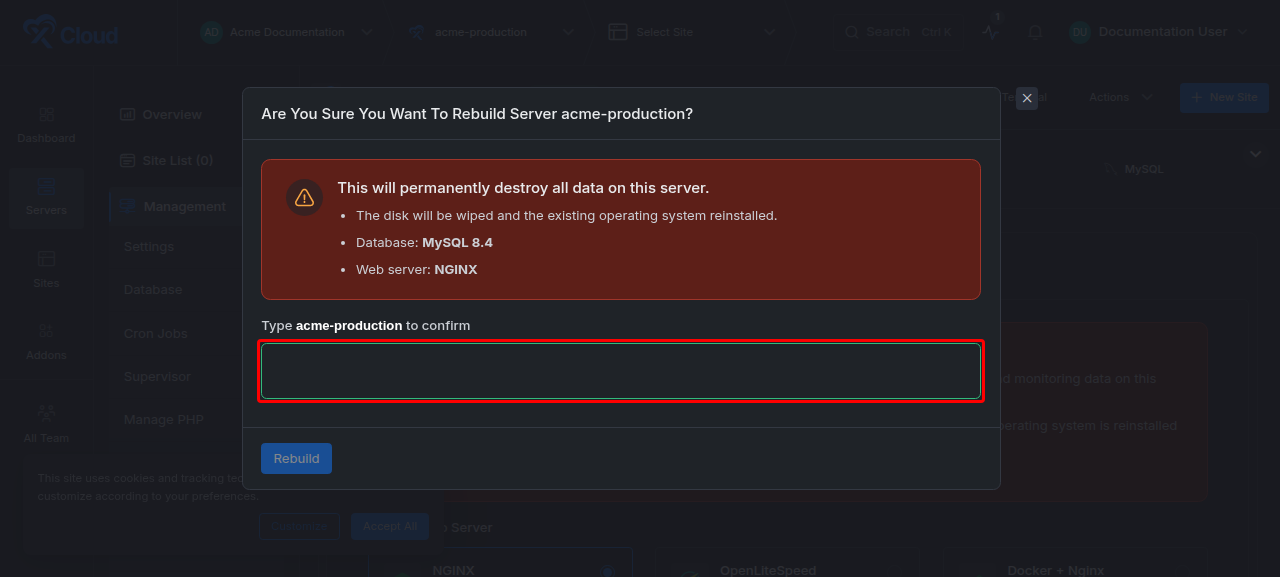
Expected result: The Rebuild button remains disabled until the confirmation value exactly matches the server name.
Step 5: Start the rebuild
Select Rebuild once you are certain the backup and recovery details are complete. Do not close the process by deleting the server, and do not start another server operation while the rebuild is underway.
Expected result: xCloud marks the server as rebuilding, reinstalls the operating system, and provisions the selected stack. The server’s public IP and billing relationship remain attached to the server, but its previous disk contents do not survive.
Verify the rebuilt server
After xCloud reports that provisioning is complete:
- Confirm that the server status is connected and provisioned.
- Compare the public IP with the value recorded before the rebuild.
- Confirm that the selected web server and database stack are installed.
- Retrieve the newly generated server and database credentials from xCloud where applicable. Previous server-side credentials should not be assumed to remain valid.
- Reapply required SSH keys, sudo users, PHP or Node.js versions, cron jobs, supervisor processes, monitoring, and stack-specific settings.
- Restore sites and databases from the external backup.
- Reissue or configure SSL certificates for every restored site.
- Verify DNS still resolves to the retained public IP, then test each site over HTTPS.
- Check application logs, background jobs, scheduled tasks, and external integrations before ending the maintenance window.
You know the rebuild succeeded when xCloud shows the server as connected and provisioned, the selected stack is active, the public IP matches the pre-rebuild value, and restored sites pass functional and HTTPS checks.
What is retained and what is removed
| Retained | Removed or replaced |
|---|---|
| Public IP address | All sites and site files |
| Server record and billing relationship | Databases and database contents |
| Team association | SSL certificates |
| Billing records, invoices, and server notes | Deployments, cron jobs, supervisor processes, and monitoring data |
| Existing operating-system family in the normal reinstall path; xCloud may move a deprecated image to a supported Ubuntu release | Sudo users, attached SSH keys, installed PHP and Node.js versions, old stack services, and server-side credentials |
Retaining the public IP and billing relationship does not preserve workload data, SSL certificates, access configuration, or credentials.
Troubleshooting
| Symptom | Likely cause | Fix |
|---|---|---|
| Rebuild Server is missing | The provider is unsupported, the server is not fully provisioned, another operation is active, or your role lacks permission | Confirm the provider and server state, wait for active operations, then ask a team owner or xCloud Support to verify eligibility. |
| An expected stack is missing | The current plan does not permit it, or an agentic stack does not meet the 4 GB RAM minimum | Review plan entitlements and server memory. Upgrade, resize, or select another available stack. |
| The final Rebuild button is disabled | The typed confirmation does not exactly match the server name | Copy the displayed server name exactly, including capitalization and punctuation. |
| Rebuild remains in progress or reports an error | The provider reinstall or xCloud provisioning step did not complete | Do not retry destructive actions repeatedly. Capture the visible status and error, then contact xCloud Support with the server name and approximate start time. Never include passwords or API keys. |
| Server returns, but sites are unavailable | Workloads are not retained by a rebuild | Restore sites and databases, recreate access and services, reissue SSL, and verify DNS and application configuration. |
| DNS resolves but HTTPS fails | SSL certificates were removed with the old workloads | Recreate the site in xCloud and issue a new certificate after DNS points to the retained IP. |
Common mistakes
- Treating rebuild as a restart. A restart preserves disk contents; a rebuild erases them.
- Keeping the only backup on the server. The rebuild wipes local data, including backup files stored on that disk.
- Assuming the retained IP preserves SSL or credentials. It preserves network identity, not server contents or access material.
- Skipping a restore test. A backup that has not been restored is not yet a proven recovery path.
- Expecting every plan to show every stack. Rebuild options are filtered by plan permissions and server resources.
Frequently asked questions
Will I lose my data during a server rebuild?
Yes. A rebuild wipes the disk: sites, databases, SSL certificates, deployments, cron jobs, sudo users, SSH-key associations and installed runtimes are all removed. Keep a restorable backup outside the server before you start.
Will my server’s IP address change after a rebuild?
No. The public IP address, the server record and its billing relationship stay attached to the server. Everything on the disk does not.
Can I change the web server or database during the rebuild?
Yes. Choose any stack xCloud offers for the server, such as NGINX, OpenLiteSpeed, Docker with NGINX, Plain or an eligible agentic stack, and for NGINX or OpenLiteSpeed pick the database engine and version. The list is filtered by your plan and the server’s RAM.
Which servers support Rebuild Server?
Servers in the supported Vultr family, including xCloud-managed and White Label Vultr servers, and xCloud Leaseweb servers, once they are fully provisioned and no other operation is running. The action is not shown for other providers.
Next steps
- Site backups in xCloud and server backup management before you rebuild
- Restore a backup to another site after the rebuild
- Enable HTTPS and configure SSL certificates for every restored site
- The v2.6.1 server rebuild and v2.8.4 plan and stack eligibility release notes
If rebuild eligibility or provisioning does not match this guide, reach out to our support team before retrying.