

Vaultwarden Docker Hosting: Deploy & Host Vaultwarden in One Click
Updated August 31, 2026 · 6 min read
Vaultwarden Docker hosting on xCloud lets you deploy the open-source Bitwarden-compatible password manager from the xCloud app-create flow: Sites → New Site → One Click Apps → Vaultwarden → Docker + NGINX server → Demo Site or Go Live → Create. You do not need to write a custom docker-compose.yml for this xCloud flow; xCloud creates the app as a managed Docker site and keeps domain, SSL, logs, backups, and updates in the site dashboard.
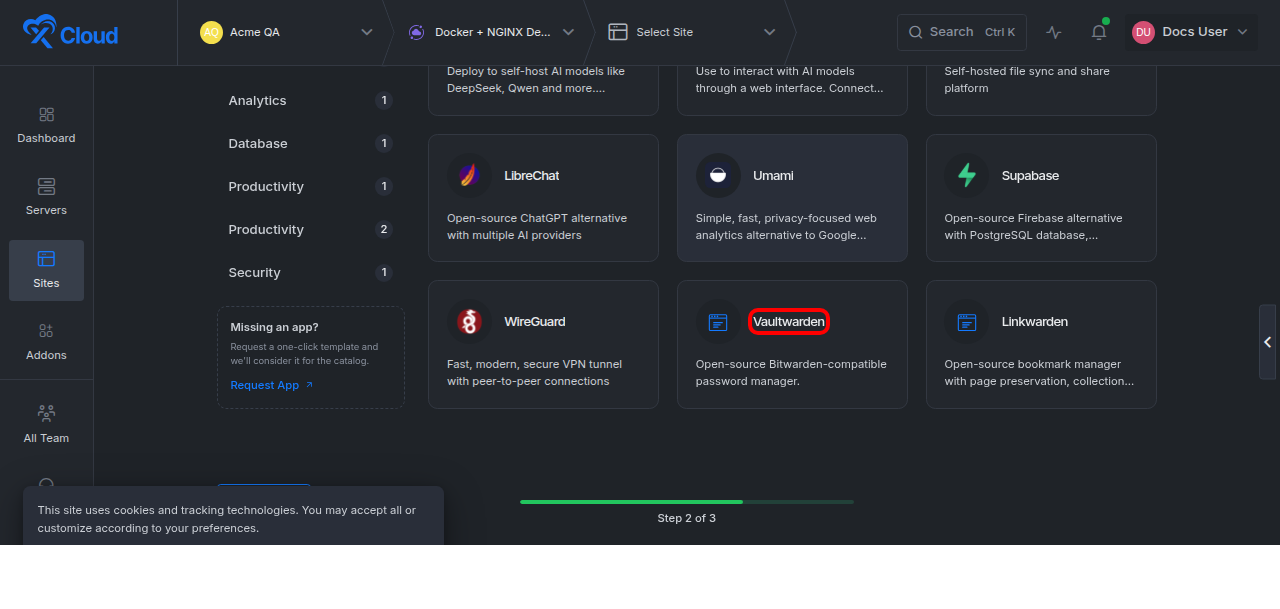
Vaultwarden Docker hosting one-click app selected in the xCloud One Click Apps catalog
Table of contents
- Why use xCloud for Vaultwarden hosting?
- Requirements
- One-click deployment steps
- Post-deployment setup
- xCloud vs Railway vs Coolify
- Troubleshooting
Why use xCloud for Vaultwarden hosting?
Vaultwarden stores sensitive password data, so the deployment needs more than a quick container start. The running site also needs HTTPS, persistent storage, backups, SMTP for invites and password reset, and a safe update path. xCloud keeps the deployment simple while still giving your team the operational controls of an xCloud site.
| Need | How xCloud handles it |
|---|---|
| Fast app start | Choose Vaultwarden in One Click Apps and create the site from the dashboard. |
| Server choice | Deploy to an existing or xCloud-managed Docker + NGINX server. |
| No custom Compose authoring | The template drives the Docker setup, so the reader stays in the xCloud create-site flow. |
| Safe production URL | Use Demo Site for testing or Go Live for a real domain with HTTPS. |
| Ongoing operations | Manage domain, SSL, logs, backups, credentials, and updates from the xCloud site dashboard. |
Vaultwarden hosting requirements
| Requirement | Recommendation | Why it matters |
|---|---|---|
| Server stack | Docker + NGINX | Vaultwarden is deployed as a Docker-based app in this xCloud flow. |
| Storage | Persistent disk with backups | Vault data, attachments, and generated app files must survive restarts and updates. |
| Domain and SSL | Use Go Live for production | Bitwarden-compatible clients and browser extensions should connect over HTTPS. |
| Email/SMTP | Configure for production teams | Invites, password reset, and account notifications depend on working email. |
| Registration policy | Disable open registration unless intentional | Private vaults should not allow public account creation. |
| Admin token | Generate, store, and rotate securely | The admin interface can control sensitive Vaultwarden settings. |
Vaultwarden template components
The xCloud template creates a managed Docker site for Vaultwarden. Readers should understand the components because they affect backup, restore, and security decisions after deployment.
| Component | Purpose | Operational note |
|---|---|---|
| Vaultwarden application container | Runs the web vault and Bitwarden-compatible API. | Check the site dashboard after updates and confirm client sync works. |
| Persistent application data | Stores vault records, attachments, and generated files. | Include this storage in backups before inviting users. |
| NGINX routing | Routes the Demo Site or custom domain to the app. | Use Go Live for a stable production password vault URL. |
| SSL certificate | Secures browser and client traffic. | Do not store real vault data until HTTPS is active. |
| SMTP settings | Sends invites, password resets, and notifications. | Verify SMTP before onboarding a team. |
Deploy Vaultwarden in one click on xCloud
1. Open New Site
In xCloud, go to Sites and click New Site. Select the Docker + NGINX server that should host Vaultwarden.
Expected result: xCloud opens the create-site screen for the selected server.
2. Choose One Click Apps
Select One Click Apps to open the application catalog instead of a Git deployment or manual upload flow.
Expected result: The app catalog appears with searchable one-click app cards.
3. Select Vaultwarden
Search for Vaultwarden or browse the relevant category, then select the Vaultwarden app card.
Expected result: xCloud opens the Vaultwarden app-create screen for the selected Docker + NGINX server.
4. Add site details
Enter a clear Site Title, such as Vaultwarden or Company Password Vault. Add tags if your team uses them for filtering.
Expected result: xCloud prepares the site identity and applies the Vaultwarden template.
5. Choose Demo Site or Go Live
Choose Demo Site for a quick review deployment, or choose Go Live when your production domain is ready.
Expected result: xCloud knows whether to create a temporary demo URL or attach your own domain.
6. Review generated settings and click Create
Review generated credentials, admin settings, ports, storage values, and environment values shown by the template. Store any generated password or admin token in a secure password manager, then click Create.
Expected result: xCloud creates the Docker-based Vaultwarden site and opens deployment progress or the site overview when installation is ready.
Post-deployment Vaultwarden setup
| Setup area | What to do | Success check |
|---|---|---|
| Domain and SSL | Open the Vaultwarden URL and confirm HTTPS. | The web vault loads without certificate warnings. |
| Admin access | Store the admin token securely and restrict who can access it. | Admin settings are reachable only by trusted operators. |
| Registration | Disable public sign-ups unless the vault is intentionally open. | New users cannot self-register unless allowed. |
| SMTP | Add and verify SMTP for invites and password reset. | A test invite or reset email is delivered. |
| Bitwarden clients | Point browser/mobile clients to the Vaultwarden URL. | A test item syncs between web vault and client. |
| Backups | Back up persistent Vaultwarden data before real use. | A recent backup exists and restore steps are known. |
Security checklist for Vaultwarden hosting
- Use HTTPS before storing real credentials.
- Disable open registration for private teams.
- Keep the admin token out of tickets, docs, and chat.
- Back up persistent data before updates.
- Test restore steps before relying on the vault for critical credentials.
- Limit xCloud dashboard access to trusted team members.
xCloud vs Railway vs Coolify for Vaultwarden
| Platform | Best for | Deployment model | Operational tradeoff |
|---|---|---|---|
| xCloud | Teams that want one-click app creation plus server/site operations in one dashboard. | New Site → One Click Apps → Vaultwarden → Docker + NGINX server → Demo Site/Go Live → Create. | You manage the app as an xCloud site with domain, SSL, logs, backups, and updates. |
| Railway | Users already deploying services on Railway and comfortable with Railway projects. | Template-style deployment on Railway infrastructure. | Review platform storage/runtime settings for a password vault. |
| Coolify | Users who want to run their own self-hosted PaaS layer. | Service/app deployment inside a Coolify instance. | You also maintain the Coolify host and its backups. |
Troubleshooting
| Symptom | Likely cause | Fix |
|---|---|---|
| Vaultwarden page does not load | Deployment unfinished, container stopped, or domain not routed. | Check deployment progress, container health, and domain routing in xCloud. |
| Browser extension cannot sync | Client URL is wrong or HTTPS is not active. | Configure the client with the exact Vaultwarden URL and confirm SSL. |
| Invite or reset email fails | SMTP is missing or rejected by the mail provider. | Verify SMTP host, sender authentication, and test delivery. |
| Anyone can register | Open registration is still enabled. | Disable public registration for private deployments. |
| Data disappears after restart | Persistent storage was not backed up or attached correctly. | Confirm the Vaultwarden data location is persistent and included in backups. |
FAQ
Can I deploy Vaultwarden without writing Docker Compose?
Yes. In xCloud, choose Vaultwarden from One Click Apps and create the site on a Docker + NGINX server.
Should I use Demo Site or Go Live?
Use Demo Site for internal validation. Use Go Live for production because a password manager should run on a trusted domain with HTTPS.
What should I back up?
Back up Vaultwarden persistent application data, generated configuration required for restore, and any operational notes needed to recover the site.