

How to Claim Account Credit for an Unused Server Purchase in xCloud
Updated November 27, 2026 · 8 min read
If you bought an xCloud server product but never completed server setup, you can request the unused purchase value as Account Credit from the paid invoice. This guide is for team owners and members who manage billing. It shows how to submit the request, follow its review status, verify approved credit, and understand how xCloud applies that credit to future invoices.
The request does not create an immediate cash refund. xCloud reviews it first. Approval removes the unused server product from your team and adds the eligible value to Account Credit.
If you created a server but its first setup failed, you don’t need to file a claim. Delete the failed server from its progress page and xCloud adds what you paid for it to your Account Credit automatically. See Delete a server that failed to set up.
Eligibility at a glance
| Requirement | What it means |
|---|---|
| Unused server product | You bought the server product but have not used it to create a server. |
| Eligible service type | The purchase is for an eligible server-hosting product. Add-ons are not eligible through this flow. |
| Funding invoice | The product is linked to an invoice that collected value. |
| Value still available | The invoice value has not already been refunded or returned through another credit claim. |
| Account Credit available | Your team has access to xCloud’s Account Credit feature. |
| No completed claim | The same unused product has not already been approved for credit. |
Prerequisites
Before you start, confirm that:
- You are signed in to the xCloud team that made the purchase.
- You can view the team’s billing information.
- The server product remains unused. You have not completed server creation with it.
- The associated invoice appears as Paid under Billing → Payment history.
- You understand that approval removes the unused product from the team.
Before you submit the request
The claim amount is based on the value collected for the unused unit on its funding invoice. It is not based on the product’s current catalog price. Discounts, multiple units on one invoice, previous refunds, and value already returned against the same invoice can affect the eligible amount.
xCloud also preserves the funding type:
- Refundable credit represents value traced to a card payment or refundable-origin credit. It may be eligible for a separately reviewed payout to the original payment method.
- Non-refundable credit represents promotional, goodwill, or otherwise non-cashable value. You can spend it on eligible invoices, but you cannot withdraw it.
Request credit for the unused purchase
1. Open the paid invoice
Click Settings in the left menu. Under Plans & billing, click Billing → Payment history. In the invoice table, find the paid invoice used to buy the server product.
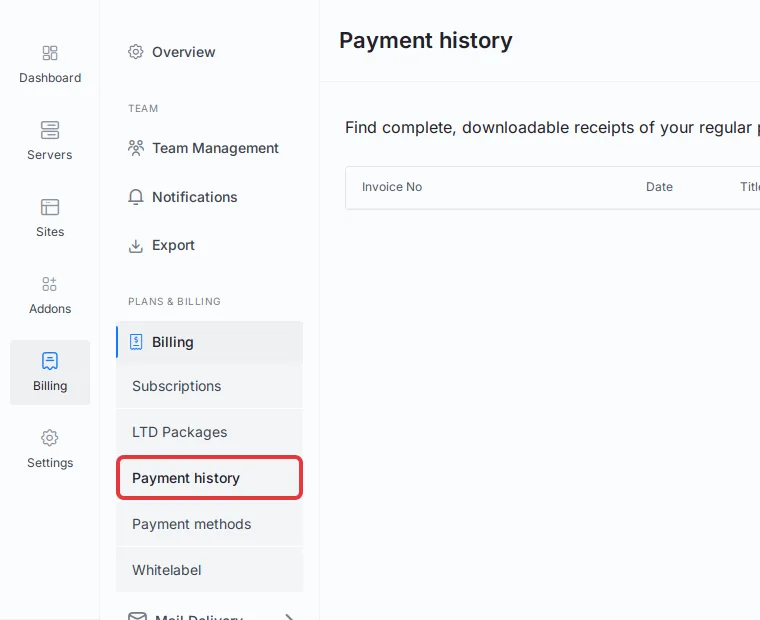
Expected result: The invoice row shows Paid and includes an actions menu.
2. Choose Claim Refund Credit
Open the invoice’s actions menu, then select Claim Refund Credit.
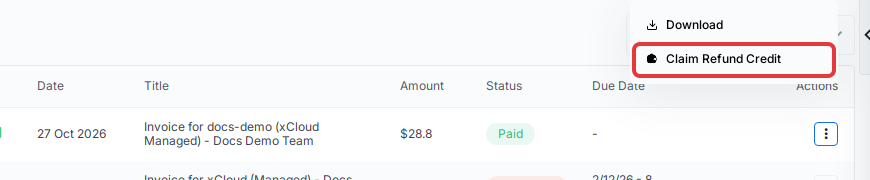
Expected result: xCloud opens a confirmation dialog for the unused purchase.
3. Review the confirmation
Read the confirmation before continuing. For an unused server purchase, xCloud explains that the full eligible amount paid for the unused unit returns as Account Credit after approval. It also explains that the product will be removed from the team.
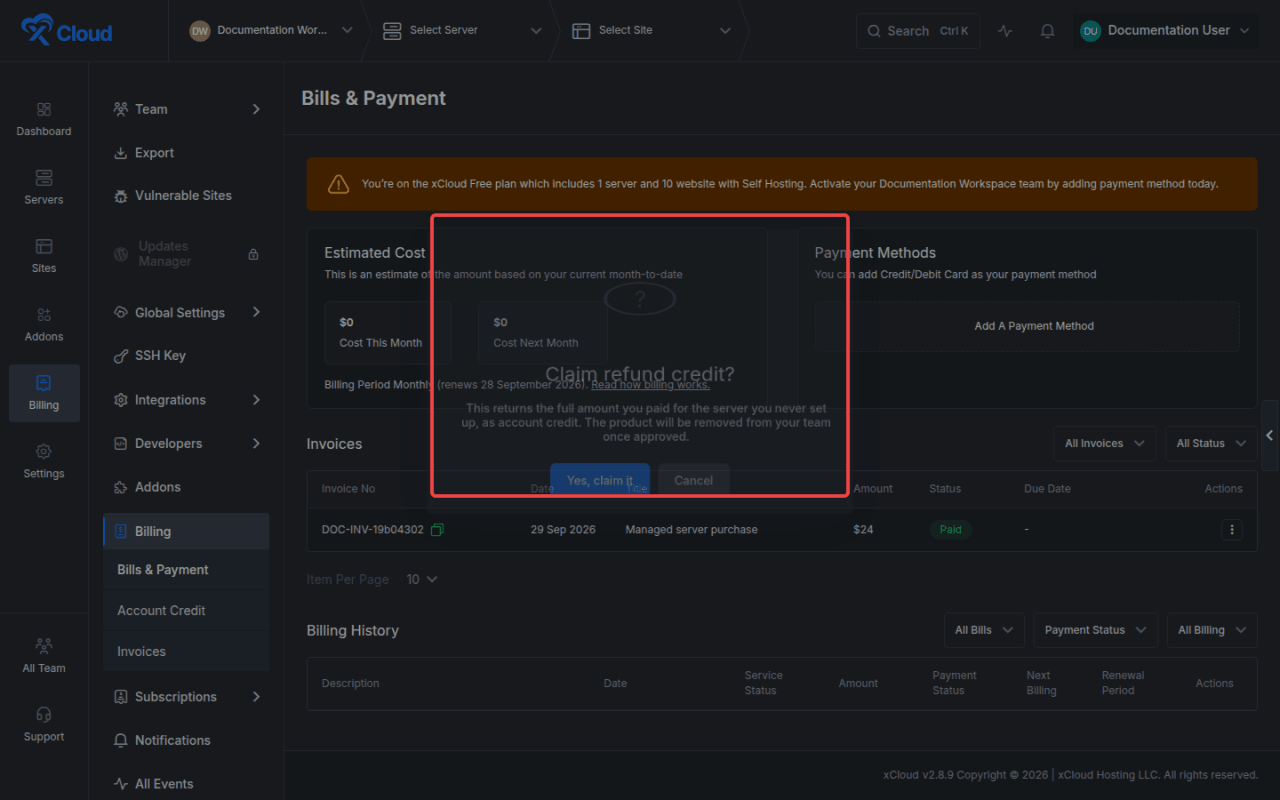
Expected result: The dialog offers Yes, claim it and Cancel.
4. Submit the request
Select Yes, claim it.
Expected result: xCloud records one review request for the unused product. Repeated submissions do not create duplicate claims.
5. Confirm the request is awaiting review
Open the invoice’s actions menu again. The claim action changes to Refund Credit Requested Already while the request is pending.
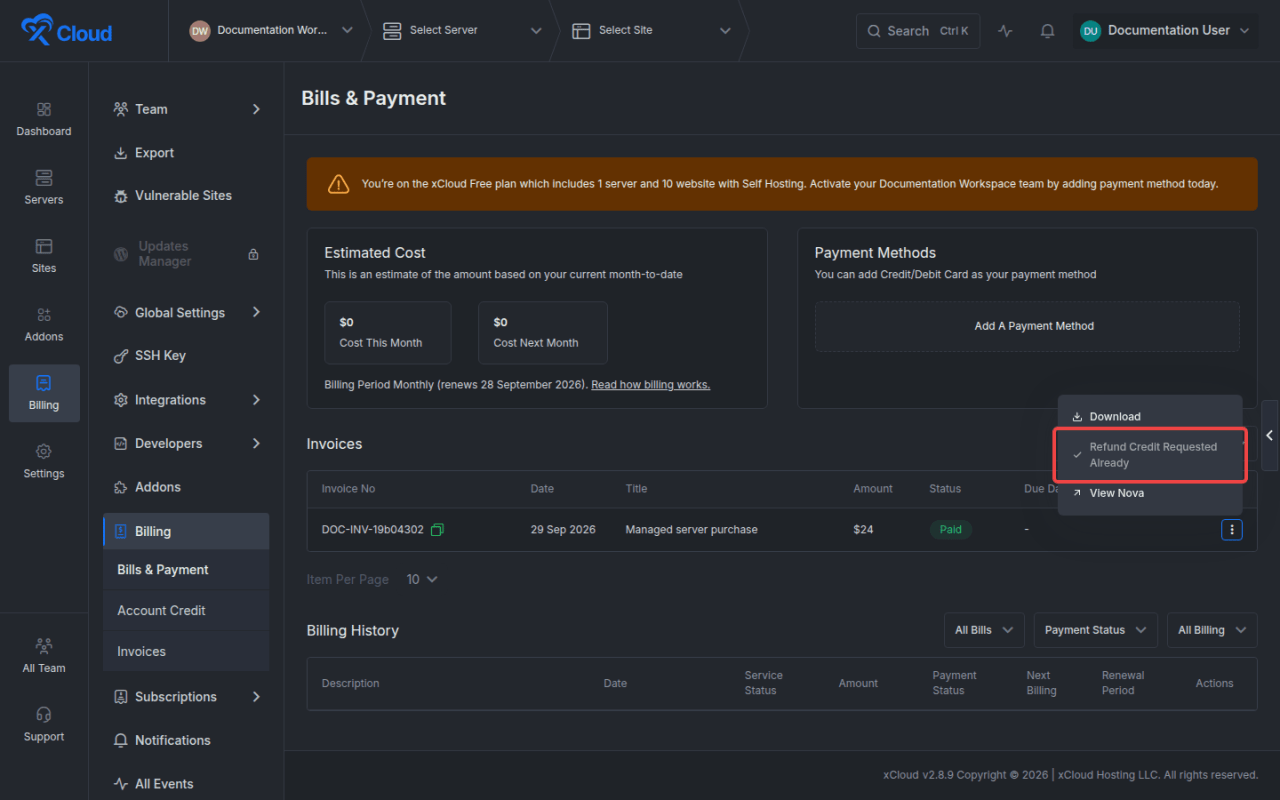
Expected result: You cannot submit the same claim again while it is awaiting review.
6. Wait for the review result
Keep the product unused while the request is pending. Approval is not guaranteed, and this workflow does not promise a fixed review time.
If the product is used to create a server before approval, xCloud refuses the credit because the purchase is no longer unused.
Expected result: The request is either approved or rejected after review. A rejected request does not add Account Credit.
Verify approved Account Credit
7. Check the invoice action status
After approval, return to Billing → Payment history and open the invoice’s actions menu. The status changes to Account Credit Granted.
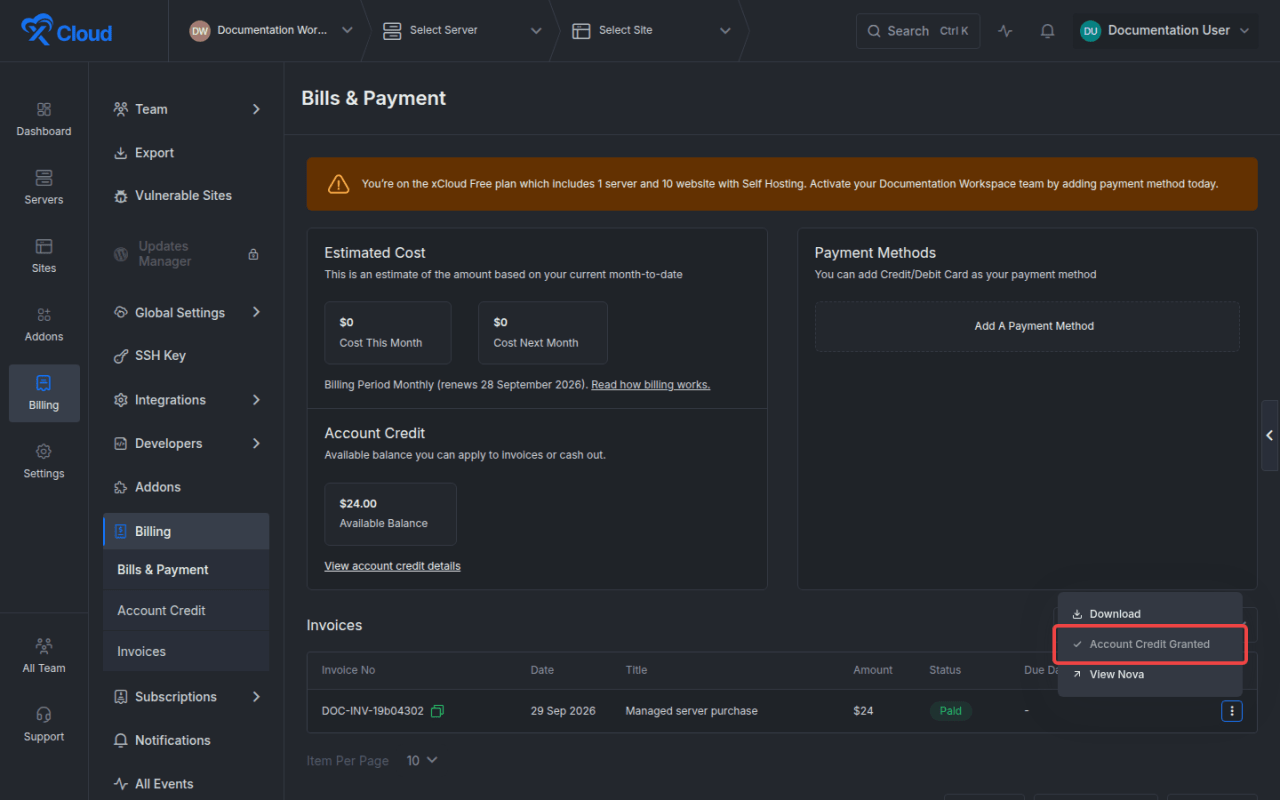
Expected result: The unused server product is removed from the team, and xCloud prevents another claim for the same purchase.
8. Check the available balance
Go to Billing → Payment methods. In the Account credit box, click View credit details. The Available Credit card shows the total spendable balance and its refundable and non-refundable portions.

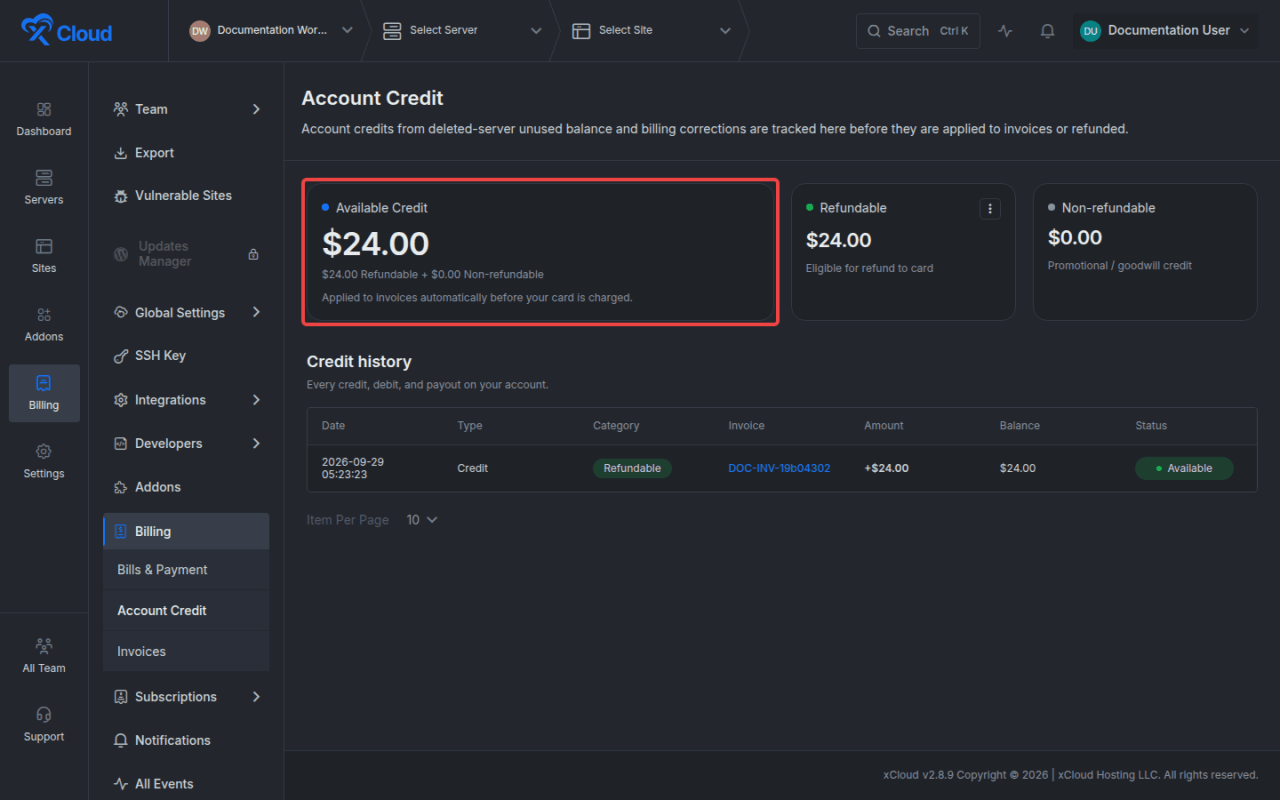
Expected result: The approved amount appears in the available balance. The example amount in the screenshot is synthetic and is not a universal credit amount.
9. Confirm the ledger entry
Review Credit history on the same page. The approved claim appears as a Credit transaction with its category, invoice, amount, resulting balance, and Available status.
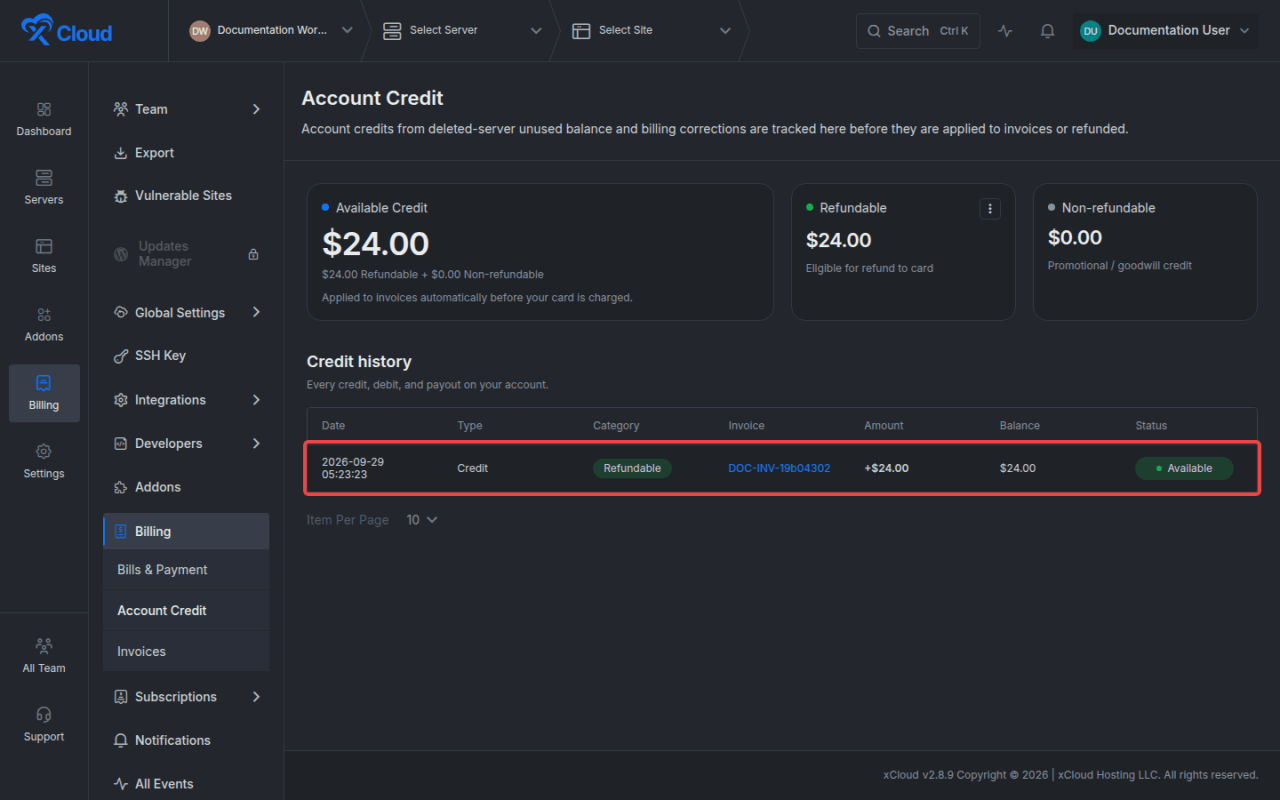
Expected result: The ledger entry links the granted value to its funding invoice and shows whether the credit is refundable or non-refundable.
Delete a server that failed to set up
If a server failed before its first setup finished, you can delete it yourself. Once the server is deleted, the hosting and backup charges for that server go back to your Account Credit once that invoice is paid. The part you paid by card can be cashed out later. The part you paid with promotional credit comes back as credit you can spend but not cash out. Lifetime-deal and add-on charges are not included. You don’t need to submit a claim.
When the Delete button shows
The failed server’s progress page shows Delete next to Retry in these cases:
| Server type | Delete shows when |
|---|---|
| Self-Managed server (your own VPS connected through Any Provider) | The first setup failed. |
| Server at a cloud provider connected with your own account | The first setup failed. |
| xCloud Managed server | The first setup failed and no public IP address was assigned yet. |
Servers created before 19 May 2026 may not show Delete. Contact support to remove them.
If an xCloud Managed server already has a public IP address, it can usually be repaired. Use Retry instead. When your retries run out, the page shows Contact Support and our team continues from there.
Step 1: Open the failed server’s progress page
Open the server from Servers. A server whose first setup failed opens on its progress page, which shows Server Creation Failed and the error message.
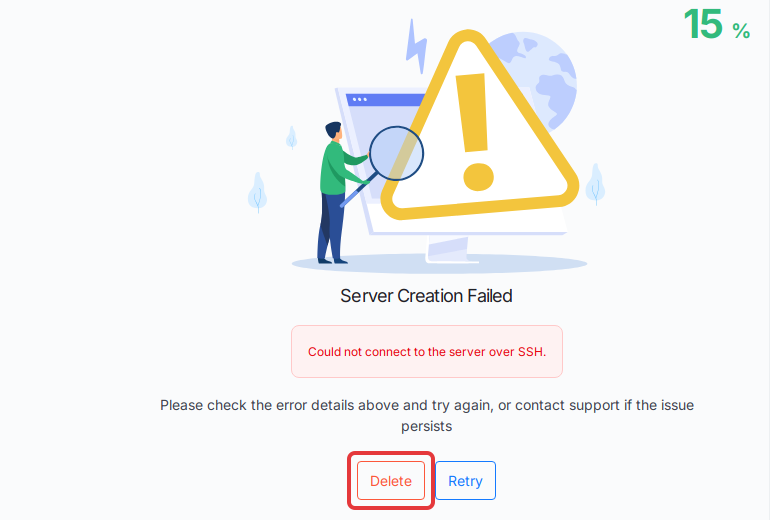
Expected result: You see Delete and Retry below the error.
Step 2: Select Delete and check the credit notice
Select Delete. The dialog Are You Sure You Want To Delete Server opens. Below the warning it says: Any amount you paid for this server will be added to your Account Credit.
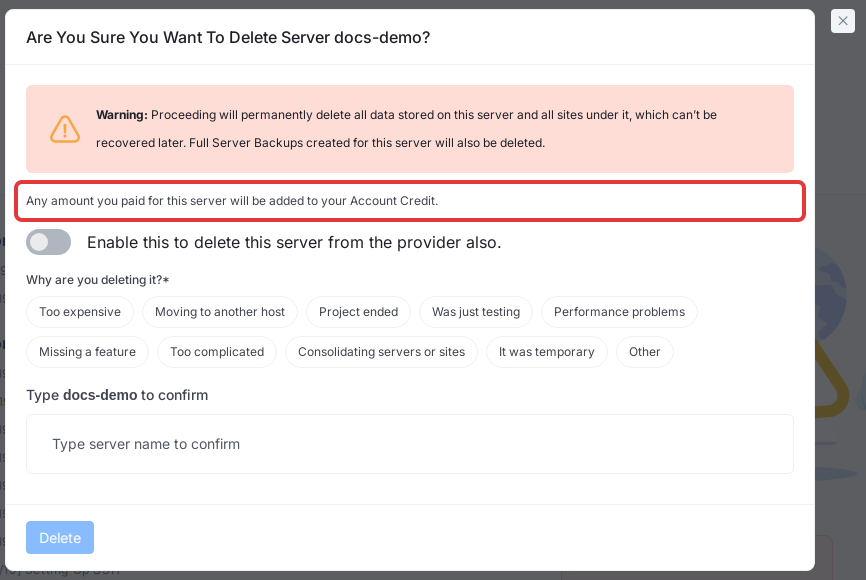
Expected result: The Account Credit notice is visible. If it is missing, this deletion does not add Account Credit. Close the dialog and use Retry, or contact support.
Step 3: Confirm the deletion
For a server at your own provider, turn on Enable this to delete this server from the provider also. if you want it removed there too. Pick a reason under Why are you deleting it?, type the server name to confirm, then select Delete.
Expected result: The server is removed from your team.
Step 4: Check your Account Credit
Go to Billing → Payment methods → View credit details. Its hosting and backup charges appear in Available Credit, with a matching entry in Credit history.
Expected result: The credit shows in Available Credit. If it doesn’t show after a few minutes, our team reviews it. Contact support if you need it sooner.
What else happens when you delete a failed server
- Unpaid charges are cancelled. Unpaid charges for this server that are not yet on an invoice are cancelled, and so is an unpaid invoice that covers only this server.
- The server is not renewed while it is failed. A server that never finished its first setup is not billed again for a new period.
- No processing fee on this credit. If you later ask for a payout of this credit, no processing fee is taken from it.
- White-label teams don’t use Account Credit, so the notice does not show for them.
How xCloud applies the credit
You do not need to manually attach Account Credit to an invoice. xCloud applies the available balance automatically before charging your card.
| Situation | What happens |
|---|---|
| Credit covers the full eligible invoice | xCloud uses Account Credit for the invoice, subject to the invoice’s billing rules. |
| Credit covers part of the invoice | xCloud uses the available credit first and charges the remaining amount through the normal payment flow. |
| Balance contains refundable and non-refundable credit | Both categories remain visible in Account Credit. Their cash-out eligibility stays separate. |
| Approved credit is later spent | Credit history records the debit or application, and the available balance decreases. |
Limits and edge cases
- Approval is required. Submitting the request reserves the claim for review but does not grant credit immediately.
- The purchase must remain unused. Creating a server with the product before approval makes the request ineligible.
- Approval removes the product. You cannot keep the unused server entitlement and also receive its value as Account Credit.
- Add-ons are excluded. The unused-purchase flow applies to eligible server-hosting products, not final-sale add-ons. To use an add-on you bought but never set up, see continue setup for purchased add-ons and servers.
- The funding invoice limits the claim. xCloud will not return more value than the invoice still holds after refunds and other credits.
- The refundable share depends on funding. Promotional or non-refundable value returns as non-refundable Account Credit.
- Cash payout is separate. Refundable Account Credit may support a reviewed payout to the original payment method. Non-refundable credit cannot be withdrawn.
- Changing a saved card does not redirect a refund. Any approved payout follows the original funding transaction where supported.
Verification checklist
The workflow is complete when all of the following are true:
- The invoice menu shows Account Credit Granted.
- The unused server product is no longer available for server setup.
- Billing → Payment methods → View credit details shows the approved value in Available Credit.
- Credit history contains the matching credit transaction.
- The transaction category correctly shows Refundable or Non-refundable.
Troubleshooting
| Symptom | Likely cause | Fix |
|---|---|---|
| Claim Refund Credit does not appear | The product was used, the purchase is not an eligible server-hosting product, the invoice has no returnable value, or Account Credit is unavailable for the team. | Confirm you selected the correct team and paid invoice. If the product is still unused and the option remains missing, contact xCloud Support with the invoice number. |
| The menu says Refund Credit Requested Already | The claim is already awaiting review. | Do not submit another request. Wait for the existing request’s result. |
| The request is rejected | The product became used, the invoice was already refunded, or its value was returned through another path. | Review the invoice and current product state. Contact xCloud Support if the visible state does not explain the rejection. |
| The menu says Account Credit Granted, but the balance looks unchanged | You may be viewing another team, or the page needs refreshed data. | Select the purchasing team, reload Billing → Payment methods → View credit details, then check Credit history. |
| Only part of the balance is refundable | Part of the purchase was funded with promotional or non-refundable credit. | Use the full Available Credit on eligible invoices. Only the refundable portion can enter the separate payout review flow. |
| A future invoice still charges the card | The Account Credit balance did not cover the full invoice. | Check Credit history and the invoice breakdown. xCloud uses available credit first, then charges the remaining amount through the normal payment flow. |
Common mistakes
- Treating the request as an immediate refund. It is a request for Account Credit and requires review.
- Creating the server while the claim is pending. That consumes the product and removes the basis for unused-purchase credit.
- Assuming all Account Credit is cashable. Non-refundable credit is spendable but cannot be paid out.
- Using the current catalog price as the expected claim. The eligible value comes from the original funding invoice and its remaining returnable amount.
- Looking in the wrong team. Billing data and Account Credit belong to the team that made the purchase.
FAQ
Can I keep the unused server product after the credit is approved?
No. Approval removes the unused product from your team because its value has been returned as Account Credit.
Is unused server purchase credit the same as a card refund?
No. Approval first creates Account Credit. Only the refundable portion may later qualify for a separate reviewed payout to the original payment method.
How does xCloud use the approved credit?
xCloud applies Available Credit automatically before charging your card for eligible invoices. If the balance is smaller than the invoice total, the remaining amount follows the normal payment flow.
Why can the credited amount differ from the current server price?
The claim uses the value collected for that unit on the original invoice. Discounts, multiple items, previous refunds, and value already returned against the invoice can change the amount.
Can I submit the same request twice?
No. While review is pending, the invoice menu shows Refund Credit Requested Already. After approval, it shows Account Credit Granted.
What happens to my payment if my server fails during its first setup?
Open the failed server’s progress page and select Delete. If the delete dialog says Any amount you paid for this server will be added to your Account Credit, the hosting and backup charges for that server go back to your Account Credit once that invoice is paid and the server is deleted. The part you paid by card can be cashed out later. The part you paid with promotional credit comes back as credit you can spend but not cash out. Lifetime-deal and add-on charges are not included. You do not need to submit a claim.
Related
- xCloud refund policy and Account Credit
- What happens to billing when you delete a server: claim the unused balance of a server you already created and deleted.
- Server stuck provisioning or installation failed: what to check and how Retry works before you delete a failed server.
Next steps
- Keep the purchasing team selected when reviewing its balance and ledger.
- Check Billing → Payment methods → View credit details before a future purchase to see the amount xCloud can apply automatically.
- Contact xCloud Support if an unused eligible purchase has no claim option or if a review result conflicts with the visible invoice state.
If you run into any issues with Account Credit or a failed server, feel free to reach out to our support team.