

How xCloud Managed Server Resize Charges Work With xCloud
Updated October 30, 2026 · 6 min read
When you resize an xCloud Managed server, you pay one month of the new plan, minus a credit for the time you didn’t use on your current plan. The ‘Resize server’ screen shows this before you confirm: a ‘Now’ and ‘After resize’ comparison, then a ‘You pay now’ total with each line and an explanation of your credit. This guide walks through the screen and explains the resize rows on your invoice.
Who can resize a server
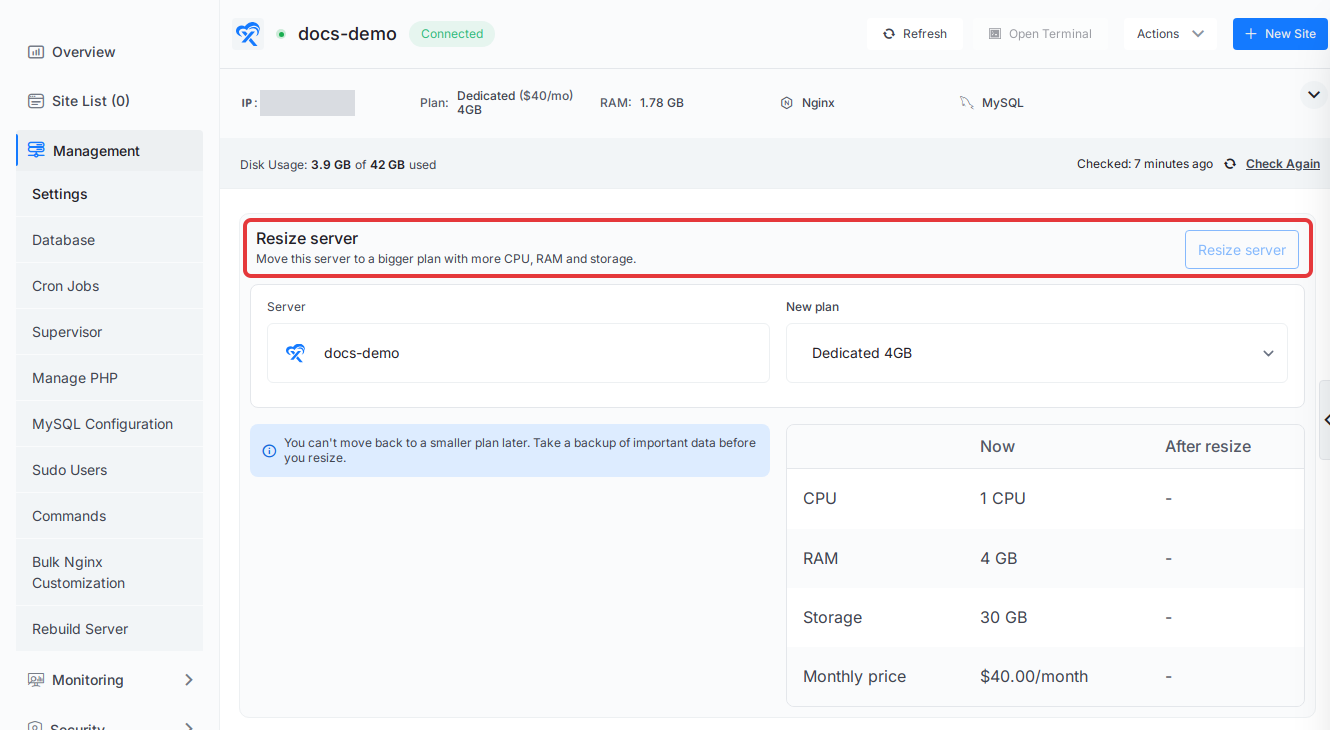
The ‘Resize server’ card appears in ‘Server’ → ‘Management’ → ‘Settings’ for servers that xCloud bills you for: xCloud Managed and xCloud Provider servers. Before you start, check that:
- the server shows ‘Connected’. A disconnected server shows ‘Can not perform server resize action on disconnected server.’ and can’t be resized,
- you want a bigger plan. The ‘New plan’ list only offers plans with more CPU, RAM or storage, and you can’t move back to a smaller plan later,
- you have a recent backup of important data. See server backups.
Some servers show ‘Server upgrade is not available’ instead of the card. These servers can’t be resized in place; contact Support if you need a bigger server.
Step 1: Open the server’s Settings
Go to ‘Servers’, open the server, then click ‘Management’ → ‘Settings’. The ‘Resize server’ card is at the top of the page. Its ‘Resize server’ button stays disabled until you choose a new plan.
Step 2: Choose the new plan
Click the ‘New plan’ list and pick the plan you want. Plans are grouped by type, and only plans bigger than your current one are listed.
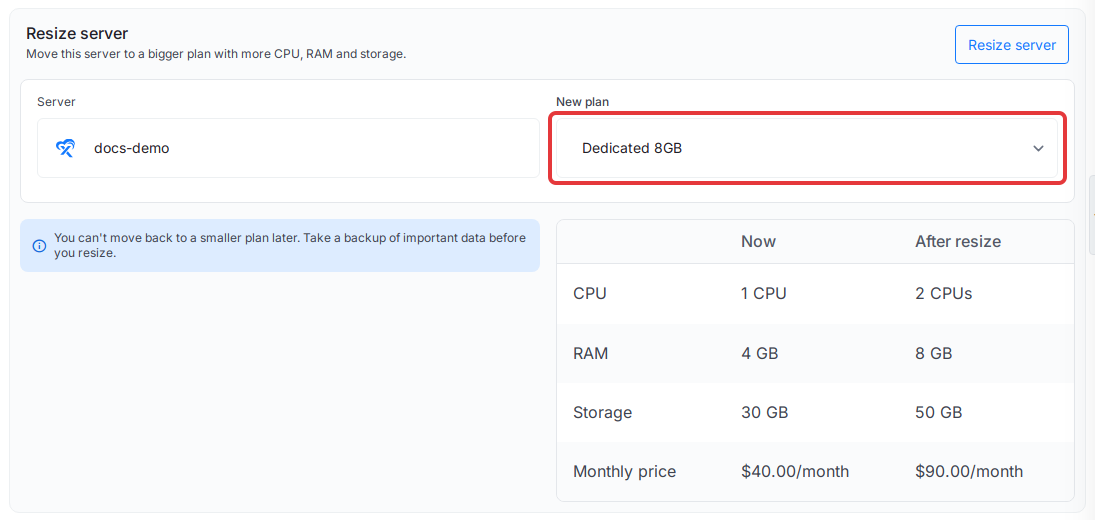
If the list shows ‘No upgrade options are available for this server right now. Please contact support if you think this server should be upgradeable.’, there is no bigger plan for this server. If it shows ‘Could not load upgrade options for this server. Please try again later or contact support.’, reload the page and try again, or contact Support.
Step 3: Compare Now and After resize
The table below the plan list shows CPU, RAM, Storage and Monthly price in two columns: ‘Now’ (your current plan) and ‘After resize’ (the plan you picked). If the server has backups turned on, the monthly price includes backups, and the card says ‘Monthly prices include backups.’
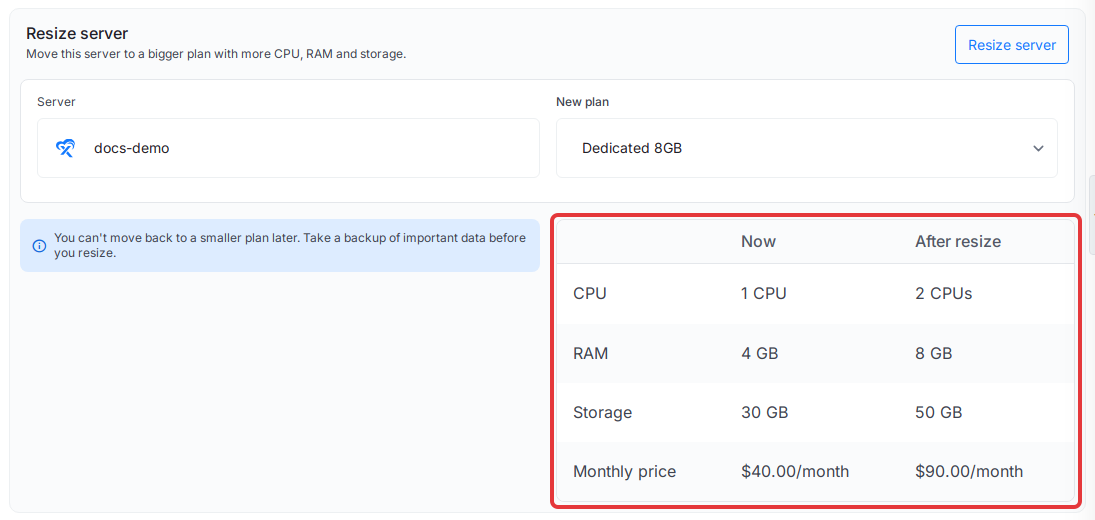
The amounts in these screenshots come from a test account. Your plan names and prices may differ.
Step 4: Read the You pay now breakdown
Click ‘Resize server’ at the top of the card. A window titled ‘Resize’ followed by your server name opens. Its top box shows the change, for example Dedicated 4GB → Dedicated 8GB, with the CPU, RAM, storage and monthly price before and after.
The ‘You pay now’ box shows the total you pay today and the lines it is made of:
| Line | What it means |
|---|---|
| ‘<new plan> plan, one month’ | One month of the plan you are moving to. |
| ‘Backups for <new plan>, one month’ | One month of backups at the new plan’s backup price. Shown only when the server has backups. |
| ‘Credit for time you didn’t use on <current plan>’ | The part of this month you already paid for and haven’t used yet. It is taken off the total. |
Click ‘How we worked out your credit’ to open the explanation. It states the current plan’s monthly price, how many hours (and about how many days) of this month you have used, what that used time costs, and the credit that comes back to you.
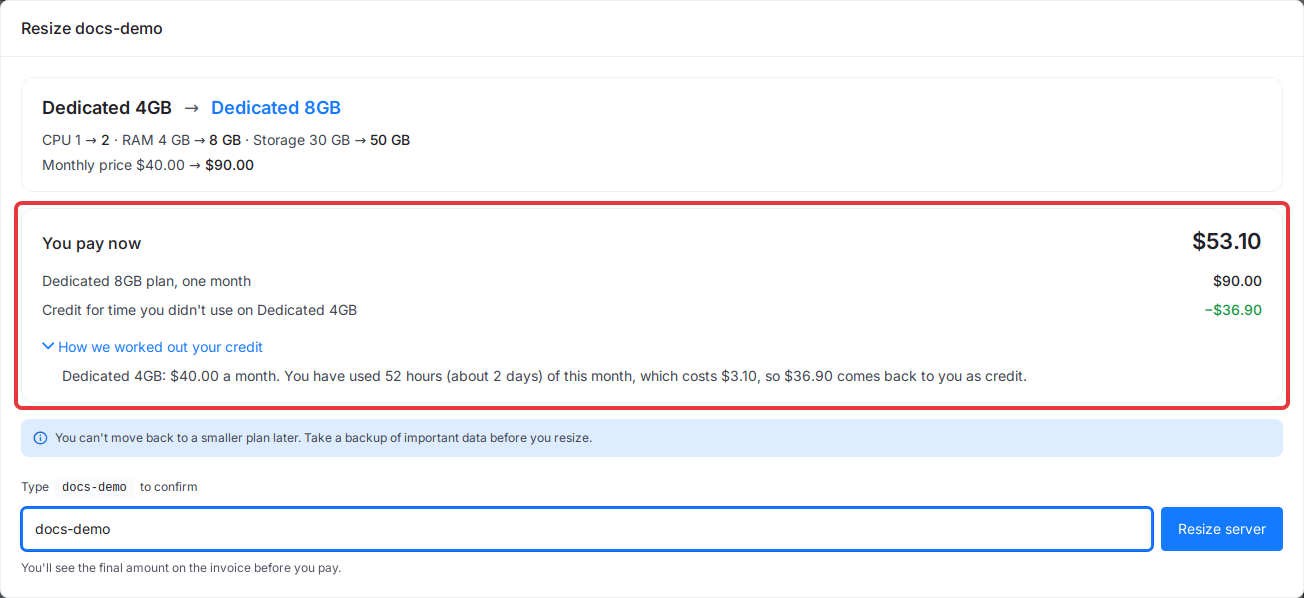
The credit is worked out from the plan’s monthly price, not from what you paid, so a coupon or offer on your current plan can make your credit differ from the amount you paid. If this month’s server bill isn’t paid yet, no credit is shown, and ‘You pay now’ is the full price of one month of the new plan, plus one month of backups if the server has backups.
Step 5: Confirm the resize
Type the server name in the box under ‘Type <server name> to confirm’, then click ‘Resize server’. The button stays disabled until the name matches.
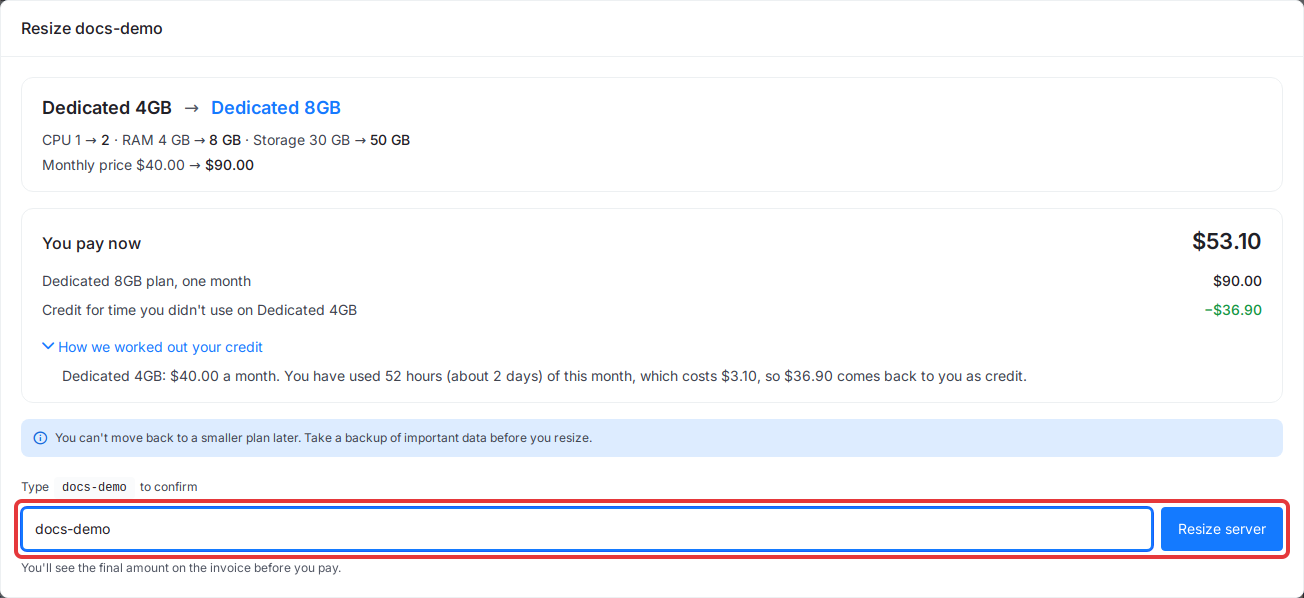
xCloud then creates an invoice titled ‘Invoice for server resize’ and takes you to its payment page. The resize starts after the invoice is paid. You see the final amount on the invoice before you pay. If the amount due is under $0.50, xCloud doesn’t create an invoice and the resize starts right away.
If you don’t finish the payment
If you leave the payment page without paying, or the card payment needs extra action, the ‘Resize server’ card shows ‘Pending resize invoice’ with the invoice number, the new plan and the amount. The resize doesn’t start, and you can’t start another resize, until you choose one of these:
- ‘Pay Invoice’: pay it, and the resize starts. If your card asks for 3D Secure, see pay your invoice manually.
- ‘Cancel Resize’: cancel the invoice and keep the server on its current size.
Example calculation
Example only, with round numbers:
Current plan: $30 a month
Time used this month: costs $10
Credit for unused time: $30 - $10 = $20

New plan: $60 a month
You pay now: $60 - $20 = $40
The $40 covers one month of the new plan. You aren’t charged twice for the days already paid on the old plan: the unused part comes back as the credit.
How resize rows look on your invoice
The resize invoice can have more than one row for the same server, because each billed service gets its own bill:
- one row for the server on the new plan,
- one row for backups on the new plan, when backups are turned on.
Each row carries its own bill ID. The new plan’s bills replace the old plan’s bills for this server. See how to read your xCloud invoice for the general layout.
How to review a resize invoice
- Open the invoice from ‘Billing’ and check all rows.
- Find the rows for the resized server. The server row starts with ‘Server resized to’ and the new plan name. The backup row starts with ‘Server resized to’ or, if this month’s bill wasn’t paid yet, ‘Backup enabled for’ and the server name.
- Note the bill ID of each resize row. Support needs these exact IDs to check or correct a charge.
- Note when the resize happened. The credit depends on how much of the month was used at that moment.
What to send xCloud Support
If a resize charge looks wrong, or you resized by mistake, send:
- the invoice number,
- the bill IDs of the resize rows,
- the server name,
- the old plan and the new plan,
- the date and time of the resize,
- whether the server was later deleted,
- a screenshot of the invoice, if you can.
Support can check the old and new plan, whether the credit was applied, and which rows belong to the resize. A refund or correction covers only the rows connected to the resize; rows for other servers or add-ons on the same invoice stay as they are.
Related guides
- How to upgrade your server in xCloud
- Can I upgrade or downgrade my hosting plan?
- How billing works in xCloud
- How deleted server billing works
Frequently asked questions
Do I pay the full price of the new plan when I resize?
You pay one month of the new plan, minus a credit for the time you didn’t use on your current plan this month. The ‘You pay now’ box shows each line and the total before you confirm.
Why don’t I see a credit line in ‘You pay now’?
The credit comes from this month’s paid server bill. If that bill isn’t paid yet, or the month’s share is already used, there’s nothing to credit, so the line and the ‘How we worked out your credit’ explanation don’t appear. Without a paid bill for this month, ‘You pay now’ is the full price of one month of the new plan, plus one month of backups if the server has backups.
Can I move back to a smaller plan after a resize?
No. ‘Resize server’ only offers bigger plans, and you can’t move back to a smaller plan later. To run on a smaller plan, create a new server and clone or migrate your sites to it.
I resized by mistake. Can I get a refund?
Contact Support with the invoice number and the bill IDs of the resize rows. The billing team reviews only the rows that belong to that resize.
If you run into any issues, feel free to reach out to our support team.