

Deploy a Rust Application with Docker Compose on xCloud
Updated September 27, 2026 · 8 min read
What this guide covers
This guide shows you how to deploy a containerized Rust application from Git on xCloud. You will select a Docker + Nginx server, connect a public or private repository, choose Docker Compose or Dockerfile deployment, map the application’s listening port, add environment variables, and launch the site on a staging or custom domain.
The same workflow applies to Rust web applications and APIs built with frameworks such as Axum, Actix Web, or Rocket, provided that the application runs as a long-lived container process and listens on the configured container port.
Prerequisites
Before you begin, prepare the following:
- An xCloud account with permission to add a site.
- An existing xCloud server that uses the Docker + Nginx stack, or permission to create one.
- A Git repository containing the Rust application.
- Either a
docker-compose.ymlfile or aDockerfilein the repository. - The internal port on which the Rust application listens.
- Any runtime environment variables required by the application.
- A custom domain, if you do not want to use an xCloud staging domain.
For a private repository, connect a Git provider or be ready to add an xCloud-generated SSH deploy key to the repository.
Security: Do not commit production credentials, API keys, database passwords, or private keys to the repository. Add sensitive values through the environment configuration in xCloud.
Prepare the Rust application
The Rust web process must listen on all container interfaces, not only on localhost. Configure the application to bind to 0.0.0.0:<port> and make that port consistent with the Docker and xCloud settings.
For example, an application that reads HOST and PORT at runtime might use:
HOST=0.0.0.0
PORT=3000
Example Dockerfile
The following multi-stage pattern compiles the application in a Rust builder image and copies only the release binary into a smaller runtime image:
FROM rust:1.85-bookworm AS build
WORKDIR /app
COPY Cargo.toml Cargo.lock ./
COPY src ./src
RUN cargo build --release

FROM debian:bookworm-slim
RUN apt-get update \
    && apt-get install -y --no-install-recommends ca-certificates \
    && rm -rf /var/lib/apt/lists/*
COPY --from=build /app/target/release/my-app /usr/local/bin/my-app
EXPOSE 3000
ENV HOST=0.0.0.0
ENV PORT=3000
CMD ["/usr/local/bin/my-app"]
Replace my-app, the Rust version, operating-system packages, and port with values appropriate for the project. Applications that use OpenSSL, database client libraries, or other native dependencies may require additional build and runtime packages.
Example Docker Compose file
services:
  app:
    build:
      context: .
      dockerfile: Dockerfile
    restart: unless-stopped
    environment:
      HOST: "0.0.0.0"
      PORT: "3000"
    ports:
      - "3000:3000"
The container port must match the port configured in xCloud. If the Compose file contains multiple services or exposed ports, select the HTTP service port that should receive public traffic.
Step 1: Start a Git deployment
From the xCloud dashboard, select New Site. Choose Deploy via Git as the deployment method.
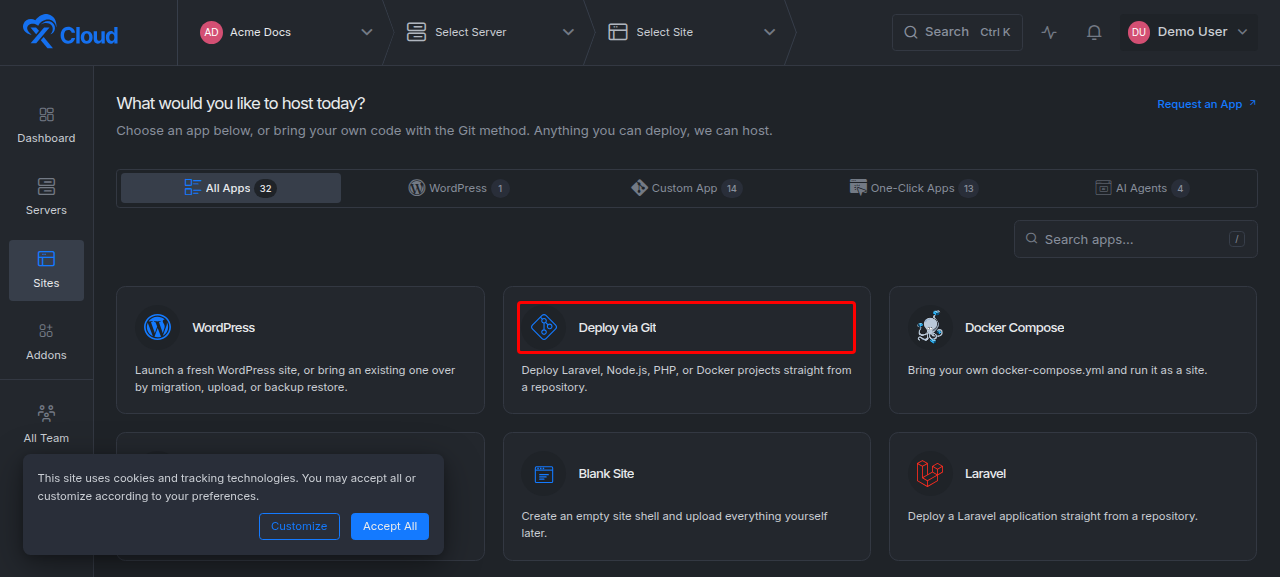
Expected result: xCloud opens the server-selection step for the new Git deployment.
Step 2: Select a Docker + Nginx server
Choose an existing server that uses the Docker + Nginx stack, then select Continue.
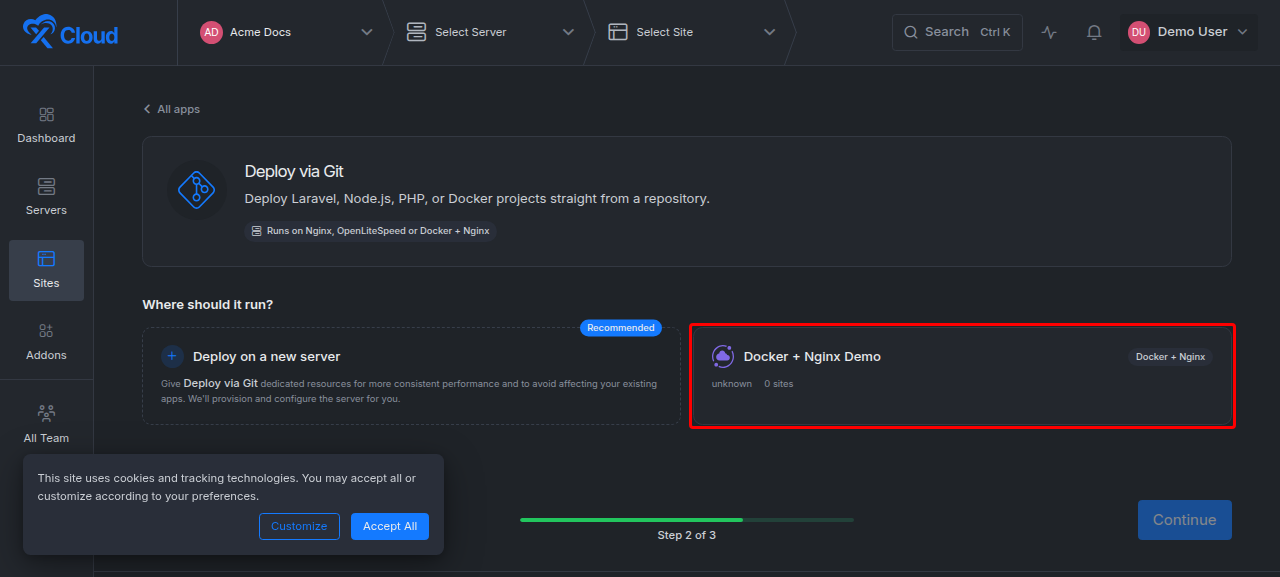
If no compatible server is available, create one before continuing — see how to deploy a custom Docker application from a Git repository for the server creation steps.
Expected result: xCloud opens the Deploy Any App From Git configuration screen.
Step 3: Select the repository and branch
Choose one of the supported repository-access methods:
| Repository type | How to connect it |
|---|---|
| Public repository | Search for the repository or paste its HTTPS URL. |
| Connected GitHub repository | Select the connected account, repository, and branch. |
| Private SSH repository | Use the SSH option, add the generated deploy key to the repository, then verify access. |
Confirm the branch xCloud will deploy. xCloud can prefill the repository’s default branch, but you should review it before continuing.
Expected result: xCloud analyzes the repository and displays the container deployment settings.
Step 4: Choose Docker Compose or Dockerfile mode
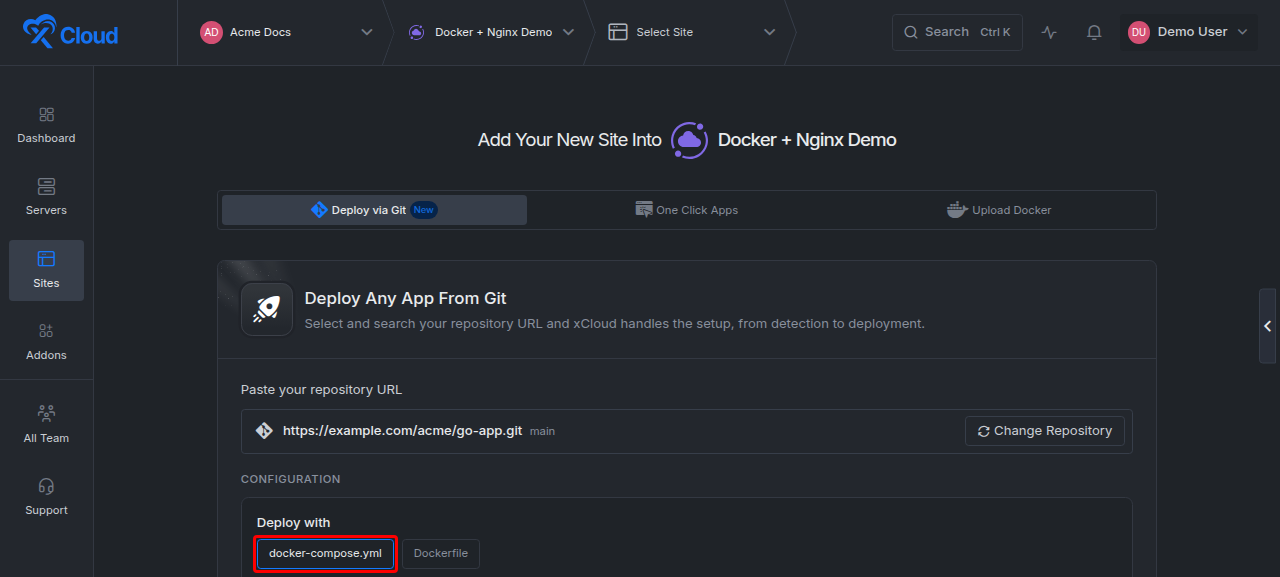
Select docker-compose.yml when the repository defines the application with Docker Compose. Enter the repository-relative path to the Compose file, such as docker-compose.yml or deploy/docker-compose.yml, then select Re-Scan.
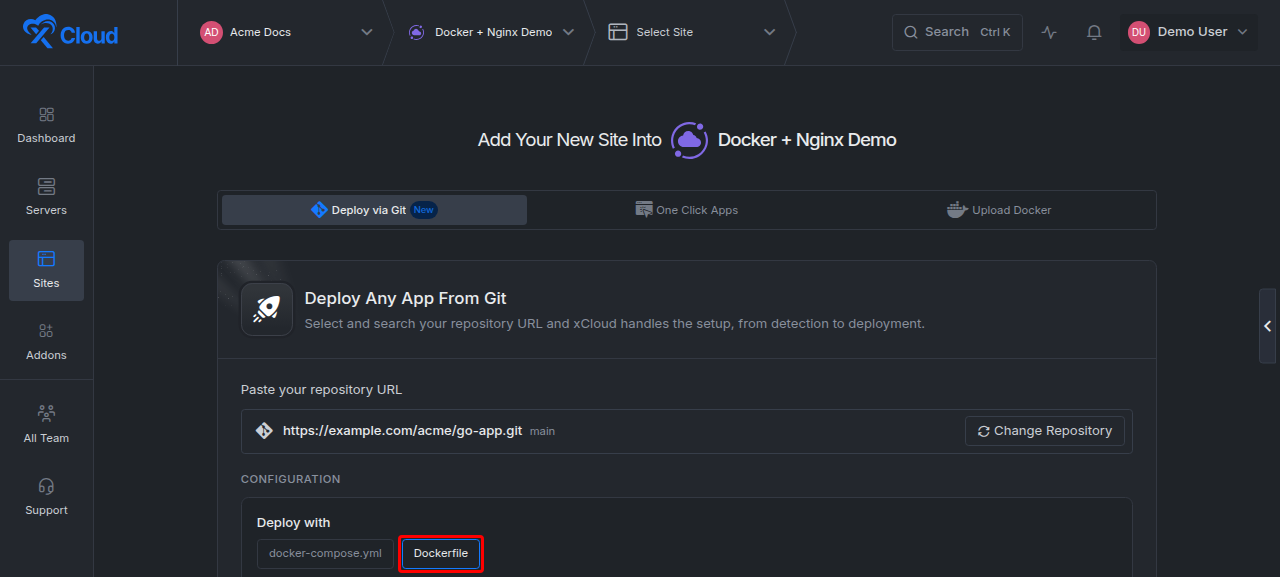
Select Dockerfile when xCloud should build one application image directly from a Dockerfile. Enter its repository-relative path, such as Dockerfile or docker/Dockerfile.
| Option | Use it when | Required setting |
|---|---|---|
docker-compose.yml |
The application uses one or more Compose services. | Compose-file path and the primary service port. |
Dockerfile |
The repository builds a single app container. | Dockerfile path and container port. |
Expected result: xCloud scans the selected file and enables the relevant port and deployment fields.
Step 5: Configure the public application port
Enter or select the port on which the Rust application listens inside the container. In the examples above, this is 3000.
The values must agree across the application, container configuration, and xCloud:
- The Rust web server binds to
0.0.0.0:3000. - The Dockerfile exposes
3000. - Docker Compose maps
3000:3000. - xCloud uses
3000as the primary or container port.
If the Compose file exposes several ports, choose the HTTP service port. Do not choose a database, cache, metrics, or internal worker port as the public application port unless it is intentionally meant for web traffic.
Expected result: xCloud knows which container port to route through Nginx.
Step 6: Choose a staging or custom domain
Use the generated xCloud staging domain when you want to validate the deployment before changing DNS. Select Use a live domain instead when you are ready to connect a custom domain.
For a custom domain, enter the hostname and complete the DNS verification shown by xCloud. SSL configuration follows the domain setup in the deployment flow.
Expected result: The deployment has a public hostname that xCloud can route to the Rust container.
Step 7: Add environment variables and review the deploy script
Expand Environment & deploy script.
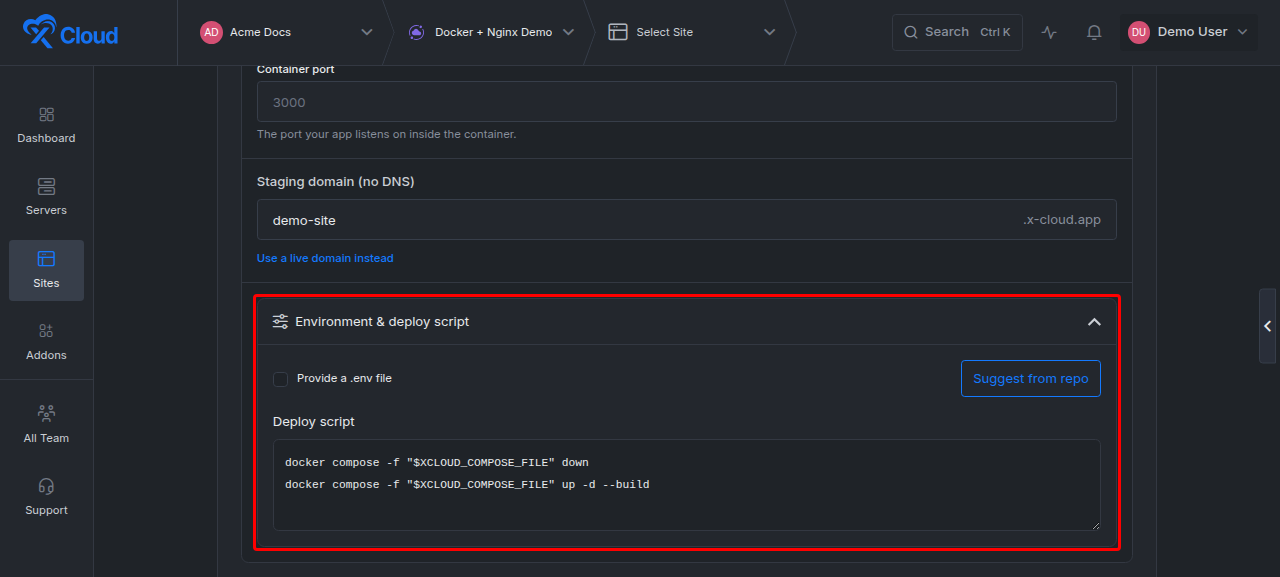
Enable Provide a .env file when the application requires runtime settings. A minimal example is:
HOST=0.0.0.0
PORT=3000
RUST_LOG=info
Add framework-specific values such as database URLs, allowed origins, or secret keys only when the application requires them. Keep all production secrets out of the repository.
Review the deployment script before launching the site. For Compose deployments, xCloud provides a Compose-based script that stops the current stack and starts a rebuilt stack using the selected Compose file. Modify it only when the repository requires additional verified commands.
Expected result: The deployment has the required runtime configuration and an appropriate container start procedure.
Step 8: Deploy and verify the Rust application
Review the repository, branch, file path, port, domain, environment, and deploy script. Select Deploy.
After deployment completes:
- Open the site’s public URL.
- Confirm the expected page or API response loads.
- Open the site logs in xCloud and verify that the Rust binary started without panicking.
- Confirm the application bound to
0.0.0.0on the configured internal port. - Exercise a lightweight health endpoint, such as
/health, if the application provides one.
Expected result: The Rust service is reachable through the xCloud domain and its container remains running.
Update or redeploy the application
Push application changes to the deployed branch, then redeploy the site from the xCloud dashboard. Connected-provider repositories can use auto-deploy on push when webhook deployment is enabled and the connected account has the required repository permission.
Rust release builds can take longer than incremental local builds, especially when the Docker cache is cold. Keep the dependency layers stable by copying Cargo.toml and Cargo.lock before the source code when your Docker build strategy supports it.
Before redeploying a production service, review schema migrations and other stateful operations. Keep destructive commands out of the default deploy script unless they are intentional and recoverable.
Options and settings
| Setting | Purpose | Rust guidance |
|---|---|---|
| Branch | Selects the Git revision to deploy. | Confirm the branch contains Cargo.toml, the container definition, and source code. |
| Compose/Dockerfile path | Identifies the container definition. | Use a repository-relative path. |
| Container or primary port | Tells Nginx where to send HTTP traffic. | Match the Rust bind address and container configuration. |
| Staging domain | Provides a temporary public URL. | Use it for initial verification. |
| Custom domain | Connects the production hostname. | Complete DNS verification before go-live. |
| Environment file | Supplies runtime configuration. | Set HOST,PORT,RUST_LOG, database URLs, and other required values without committing secrets. |
| Deploy script | Controls how containers are rebuilt and started. | Keep it deterministic and non-interactive. |
| Auto-deploy webhook | Deploys new commits automatically. | Available for connected providers when permission allows webhook creation. |
Limits and edge cases
- The target server must use the Docker + Nginx stack.
- A Rust server bound only to
127.0.0.1inside the container will not accept proxied traffic. Bind it to0.0.0.0. - A mismatch between the Rust bind port, Docker port, Compose mapping, and xCloud port causes gateway or connection errors.
- Dockerfile and Compose paths are relative to the repository root and are case-sensitive on Linux.
- Private repositories require a connected provider or a verified SSH deploy key.
- Compose deployments with no running containers, no detectable ports, or a failed image build will not produce a reachable site.
- Native Rust dependencies may require Linux packages in both the builder and runtime images. The exact packages depend on the application’s crates and linking strategy.
- A dynamically linked release binary requires compatible runtime libraries. For a smaller static image, evaluate a musl build only if the application’s dependency stack supports it.
- Additional Compose services such as PostgreSQL or Redis need persistent volumes and environment variables appropriate to the application. Do not expose their internal ports publicly unless required.
- Persistent application data should live in a named volume or external managed service, not only in the container filesystem. See how to back up and restore Docker apps.
Troubleshooting
| Symptom | Likely cause | What to check |
|---|---|---|
Build fails during cargo build --release |
Rust version mismatch, missing system headers, inaccessible private dependency, or an incorrect target. | Review the compiler error, lockfile, base image, and required build packages. |
| Runtime container reports a missing shared library | The release binary depends on a library absent from the final image. | Install the matching runtime package or use a compatible static-build strategy. |
| Deployment succeeds but the site returns a gateway error | The process is not listening, is bound to localhost, or uses the wrong port. | Check container logs and make the Rust bind port, Docker, Compose, and xCloud ports identical. |
| Container exits immediately | The binary path or CMD is incorrect, or a required environment variable is missing. |
Review the image entrypoint, runtime logs, and environment settings. |
| Rebuild is unexpectedly slow | Cargo dependencies are rebuilt because Docker layers changed. | Structure the Dockerfile to cache dependency compilation when practical. |
| Database data disappears after recreation | The data was stored only in the container layer. | Use a named volume or external database and verify the Compose volume mapping. |
Frequently asked questions
Does xCloud need Rust installed directly on the server?
No. In this workflow, the Rust toolchain and runtime dependencies are defined by the Docker image. The Docker + Nginx server builds or runs the container and routes web traffic to it.
Can I deploy an Axum, Actix Web, or Rocket application?
Yes, when the application can run in a container, binds to 0.0.0.0, and listens on the port configured in xCloud. Framework-specific runtime and environment requirements still apply.
Should I choose Docker Compose or Dockerfile?
Use Dockerfile mode for a single container with straightforward runtime requirements. Use Docker Compose when the repository already defines multiple services, volumes, networks, or service-specific environment settings.
Why does the application work locally but fail behind xCloud?
A common cause is binding the Rust server to 127.0.0.1. Inside a container, bind to 0.0.0.0 and make the application, Docker, Compose, and xCloud ports match.
Can I deploy from a private repository?
Yes. Use a connected GitHub account or the SSH flow with the generated deploy key, then verify repository access before deployment.
Next steps
After the initial deployment, connect the production domain, enable auto-deploy if it fits your release process, and add application-level health checks and structured tracing. For a multi-service Rust application, review volume persistence and keep database or cache ports internal to the Compose network.
If the deployment from Git gets stuck, fails to clone, or won’t trigger, see Troubleshooting Git Deployments.
If you run into any issues deploying your Rust application, feel free to reach out to our support team for help.