

How to Deploy OpenPanel with xCloud
Updated October 27, 2026 · 6 min read
OpenPanel is a self-hosted, privacy-friendly analytics platform with a dashboard and tracking API for capturing product and event data. You can deploy it from xCloud’s One-Click Apps catalog without assembling its Docker services by hand. This guide walks through selecting OpenPanel, choosing a compatible NGINX server, configuring a Demo Site or live domain, and provisioning the stack.
Prerequisites
Before you start, make sure you have:
- An active xCloud account with permission to create sites.
- Either a compatible NGINX server or permission to provision a new one. Docker apps run on an NGINX server. xCloud installs Docker automatically the first time you deploy a container app, or you can install it ahead of time from Server → Settings → Server Settings → Install a Service → Docker. OpenLiteSpeed servers cannot run Docker.
- For an existing server, at least 4 GB RAM, 2 vCPU, and 20 GB disk — the current OpenPanel wizard’s recommended minimum. Production analytics workloads may need more capacity as event volume and retention grow.
- A domain with DNS access if you plan to choose Go Live.
Step 1: Select OpenPanel from One-Click Apps
From the xCloud dashboard, click New Site. Open One-Click Apps, find OpenPanel, and select it.
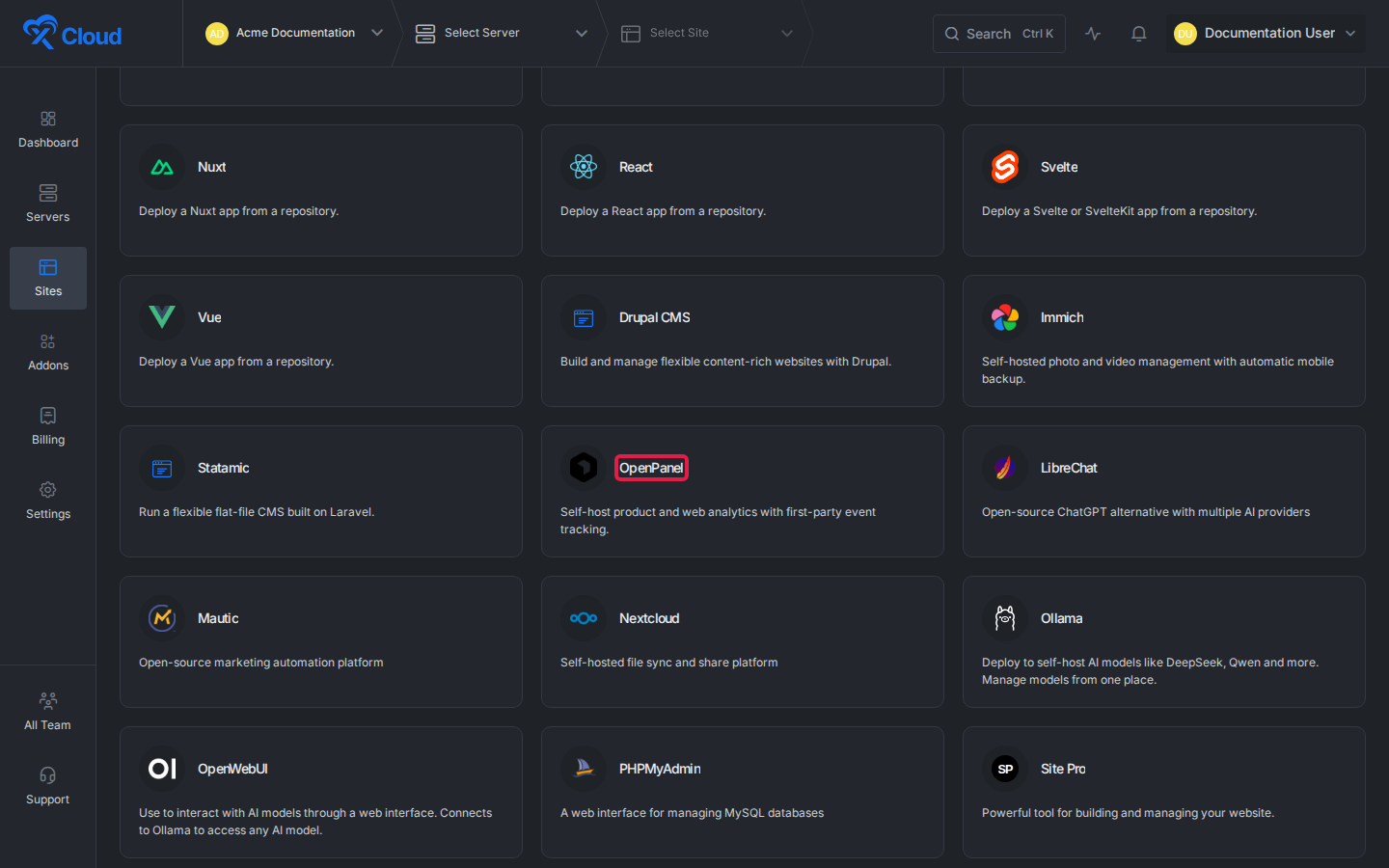
xCloud opens the OpenPanel server-selection screen and shows its required stack and recommended resources.
Step 2: Choose where OpenPanel will run
Choose one of the available deployment paths:
- Deploy on a new server — use dedicated resources provisioned and configured by xCloud.
- Select an existing server — choose an eligible server that uses NGINX and has enough available capacity.
Select the server card, then click Continue.
xCloud opens the OpenPanel installation form for the server you selected.
Step 3: Enter the site details and choose a domain mode
Enter a descriptive Site Title. Add optional tags if you want to group the analytics service with related sites or environments.
Then choose a domain mode:
| Domain mode | Use it when | What you provide |
|---|---|---|
| Demo Site | You want to verify the dashboard before connecting a public analytics domain. | A temporary subdomain under x-cloud.app. |
| Go Live | Your production analytics domain is ready and you can update its DNS. | Your public domain and the DNS configuration xCloud requests. |
Select Demo Site for an initial deployment — it lets you register the owner account and inspect OpenPanel before changing public DNS.
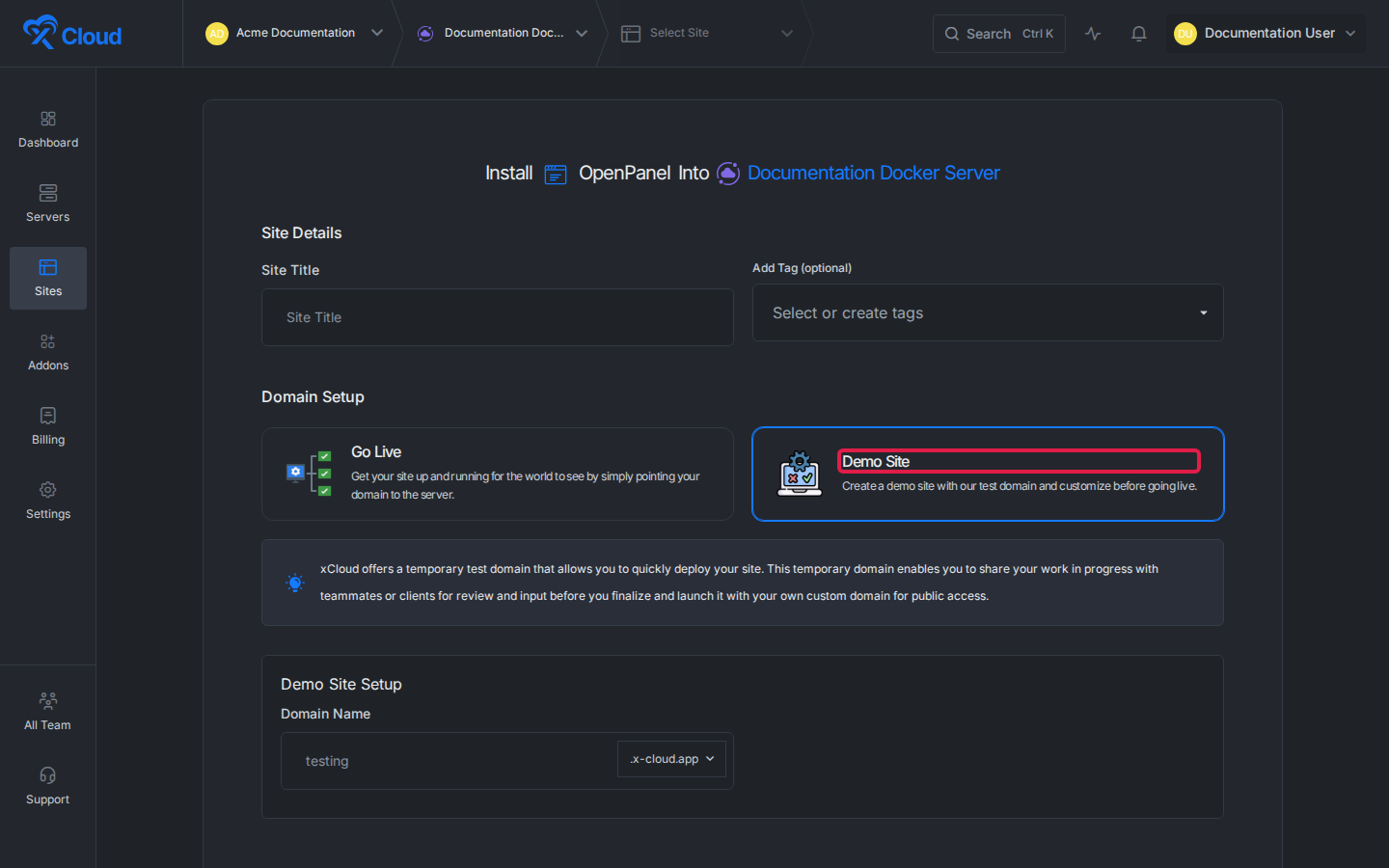
The form displays the domain field for the mode you selected.
Step 4: Review the OpenPanel site and start provisioning
For a Demo Site, enter a unique subdomain. Review the site title, selected server, and domain mode, then click Next.
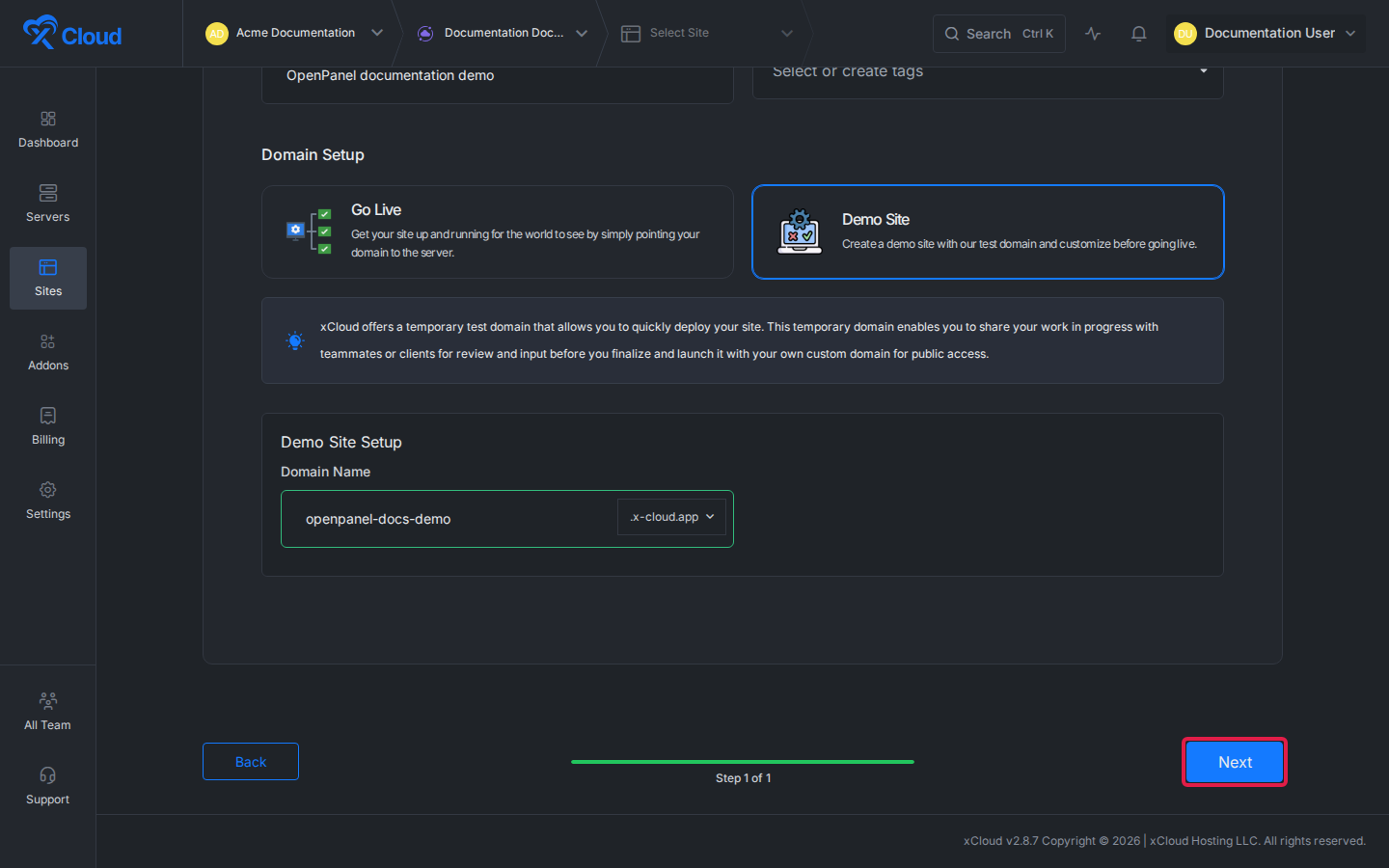
xCloud creates the site and starts provisioning the OpenPanel application, tracking API, private data services, persistent volumes, generated credentials, and HTTPS route.
Step 5: Wait for OpenPanel to become available
Open the new site from Sites and monitor its status. The stack includes multiple services, so initial startup can take several minutes.
Do not change the domain or delete the site while provisioning is running. Once the site is ready, open the Demo Site or live domain over HTTPS — the OpenPanel owner-registration or sign-in screen should load.
Step 6: Register the first owner account
On a new OpenPanel installation, complete the first-owner registration flow. Use a strong, unique password and store it in a password manager.
After signing in:
- Create or open a project.
- Copy the project-specific client ID from OpenPanel.
- Add the OpenPanel tracking script or SDK to a non-production application first.
- Send a test event.
- Confirm the event appears in the realtime view before rolling the integration out more broadly.
Note: Never place server-side secrets in browser code. Use only the browser-safe identifier and installation method shown for your OpenPanel project.
Verify the deployment
Confirm all of the following:
- The xCloud site status no longer shows provisioning or failed.
- The selected Demo Site or live domain opens over HTTPS.
- You can register and sign in as the first owner.
- A project can be created successfully.
- A test event appears in OpenPanel’s realtime view.
- Events are sent to the intended OpenPanel domain.
Frequently asked questions
What does xCloud provision when I deploy OpenPanel?
The OpenPanel dashboard and tracking API, along with private PostgreSQL, ClickHouse, and Redis services, persistent volumes, generated secrets, and HTTPS routing — all without assembling the Docker services manually.
What are the minimum server requirements for OpenPanel?
The current OpenPanel wizard recommends at least 4 GB RAM, 2 vCPU, and 20 GB disk on an existing NGINX server. Production analytics workloads may need more capacity as event volume and retention grow.
Should I start with a Demo Site or go live right away?
Start with a Demo Site if you want to register the owner account and inspect OpenPanel before pointing a public analytics domain at it. Choose Go Live only once your production domain’s DNS is ready to update.
If you run into any issues deploying OpenPanel, feel free to reach out to our support team.