

How to Change or Reset an xCloud Mailbox Password
Updated September 26, 2026 · 6 min read
An xCloud Mailbox user can change their own password from OX webmail. The mailbox owner, team owner, or team admin can also set a new password from the xCloud panel. Use the panel reset when you no longer know the current password or when xCloud Mail Forwarding reports that the password was changed in webmail. On a successful panel reset, xCloud changes the provider password first and then updates its encrypted local credential.
Prerequisites
- An active xCloud Mailbox account
- For a webmail change: access to the mailbox and its current password
- For a panel reset: access as the mailbox owner, team owner, or team admin
- A new password containing 8–255 characters and at least one number
- Access to every mail client or device that uses the mailbox
Step 1: Change your password in webmail
-
Sign in to your xCloud Mailbox webmail account. Open webmail with the mailbox address and current password. The exact settings layout can vary with the OX webmail interface version.
Expected result: Your inbox opens.
-
In OX webmail, open the account settings and choose the password option. Enter the current password, then enter and confirm the new password. Save the change.
Expected result: Webmail accepts the new password. Future webmail sessions use it.
Important: A password changed in webmail becomes the mailbox provider’s current password, but it is not reflected in xCloud’s stored credential. Mail Forwarding can report:“Password was changed from webmail. Reset the password from xCloud panel to re-enable this feature.” If you manage forwarding from xCloud, reset the password from the panel instead of changing it only in webmail.
Step 2: Reset the password from the xCloud panel
- In xCloud, go to Settings → Addons → Mailboxes. Find the mailbox, open the actions menu, and select Reset Password.
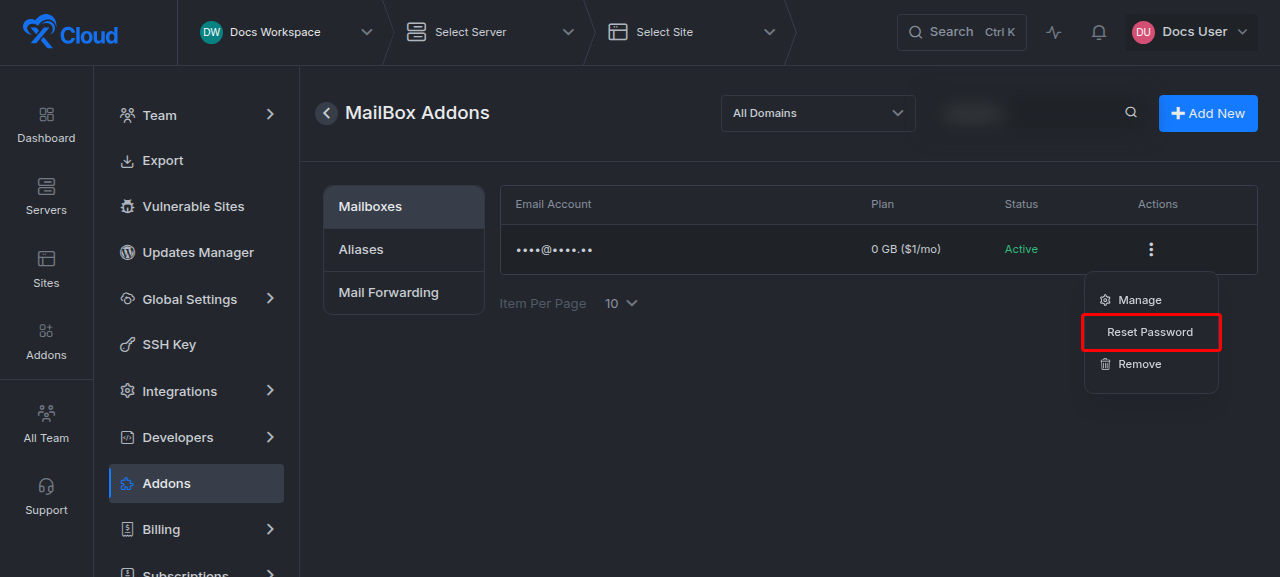
Expected result: xCloud opens the mailbox’s Reset Password screen. 2. Enter a new mailbox password. Enter a password with 8–255 characters and at least one number. You can also select Generate random password, then use Copy to store it in your password manager.
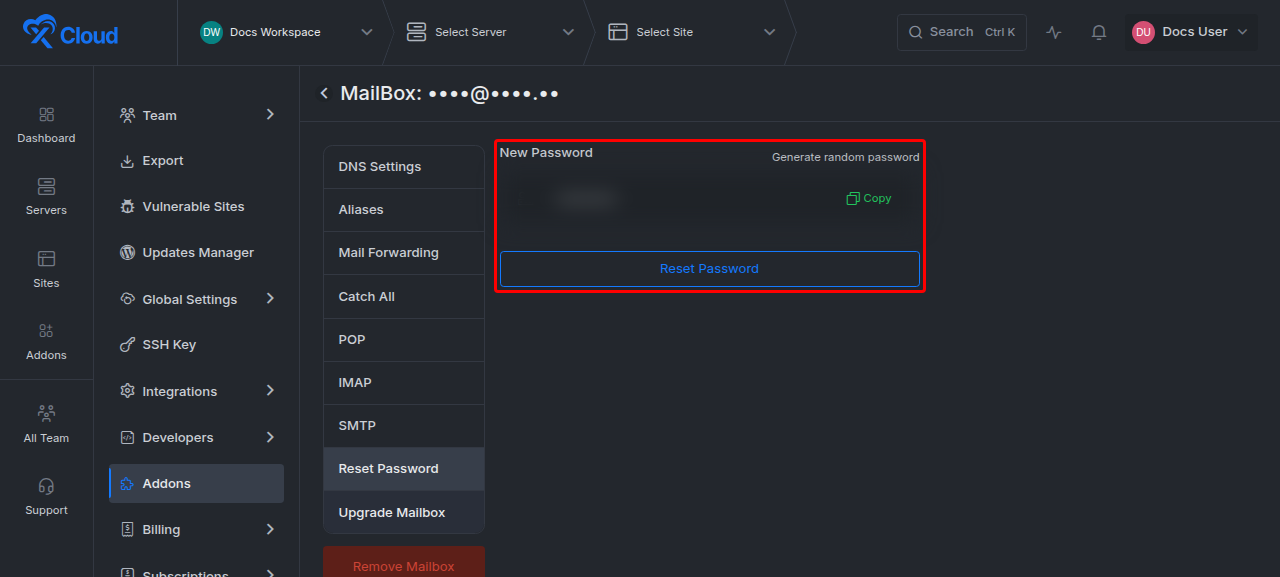
Expected result: The form contains only the new password you want to set. xCloud does not reveal the mailbox’s existing password. 3. Select Reset Password. Wait for xCloud to finish the provider update.
Expected result: xCloud shows Password reset successfully and returns you to the mailbox list. The provider password and xCloud’s stored credential now match. If a team owner or team admin resets a mailbox for another owner, xCloud notifies the mailbox owner. 4. Update every connected mail client and device. Replace the old password in desktop mail apps, mobile mail apps, and any other client that sends or receives mail through this mailbox.
Expected result: Each client authenticates with the new password.
Password-management options
| Option | Who can use it | When to use it | What to expect |
|---|---|---|---|
| Change in webmail | The mailbox user | The current password is known and the user wants to manage their own credential | Webmail starts using the new password. The xCloud panel does not automatically learn it. |
| Reset in xCloud | Mailbox owner, team owner, or team admin | The password is forgotten, a panel-managed mailbox feature reports password drift, or an administrator must recover access | xCloud sets a new provider password and synchronizes the panel’s stored credential. |
| Generate random password | Anyone allowed to reset from xCloud | A strong password is needed without creating one manually | xCloud fills the reset form with a generated value that you should save before submitting. |
Verify the password change
Confirm all of the following:
- Sign out of webmail, then sign in with the new password.
- Send a message to an address you can check.
- Reply to that message and confirm the reply reaches the mailbox.
- If you use xCloud Mail Forwarding, save the forwarding settings and confirm that the password-change warning no longer appears.
- Confirm each connected mail client can send and receive mail.
Troubleshooting
| Symptom | Likely cause | Fix |
|---|---|---|
| xCloud says the password was changed from webmail | The provider password changed, but the panel still has the previous credential | Reset the mailbox password from Settings → Addons → Mailboxes, then retry Mail Forwarding. |
| The reset form rejects the password | The password is shorter than 8 characters, longer than 255 characters, or contains no number | Use 8–255 characters and include at least one number. |
| Webmail accepts the new password, but a mail client stops connecting | The client still has the previous password | Update the password in the client’s incoming and outgoing server settings. |
| Reset Password is missing or access is denied | The signed-in user does not own the mailbox and is not a team owner or team admin | Ask the mailbox owner or a team administrator to reset it. |
| xCloud reports that the reset failed | The mailbox provider could not complete the change | Keep the current session open, retry once, and contact xCloud Support if the error continues. Do not assume the new password is active until xCloud confirms success. |
Common mistakes
- Changing the webmail password but not updating mail clients. Every client keeps trying the old credential until you replace it.
- Expecting xCloud to display the current mailbox password. xCloud supports setting a new password; it does not reveal the existing one.
- Copying a generated password after submitting the reset. Save it in a password manager before you select Reset Password.
- Treating a panel password warning as a mailbox outage. The mailbox may still work in webmail; the warning means the panel’s stored credential must be synchronized through a reset.
Frequently asked questions
Does changing the password in webmail update xCloud automatically?
No. A password changed in OX webmail is not reflected in xCloud’s stored credential. If Mail Forwarding reports a password-change warning, reset the password from the xCloud panel to synchronize both sides.
Can a team admin reset another user’s mailbox password?
Yes. A team owner or team admin can reset a mailbox in the active team. When the mailbox has an assigned owner and someone else performs the reset, xCloud notifies that owner.
Do I need to change the password in both places?
No. A reset from the xCloud panel updates the provider and xCloud together. A change made only in webmail can require a later panel reset if you use a feature that depends on the panel’s stored credential.
Can I recover the old password from xCloud?
No. Set a new password from the Reset Password screen instead.
Next steps
- Set up email forwarding with the xCloud MailBox Addon, the feature that reports a webmail password change
- Configure an email client with the xCloud MailBox Addon to update the password in your apps
- Set up the xCloud MailBox Addon
If the reset keeps failing, feel free to reach out to our support team.