

How to deploy OpenSEO with xCloud
Updated October 27, 2026 · 2 min read
OpenSEO can be deployed on xCloud as a one-click Docker application. In this walkthrough, you’ll select OpenSEO from the app catalog, choose an NGINX server, configure the site title and domain, and confirm that the new OpenSEO site has been successfully deployed on xCloud.
xCloud requires a Docker server to deploy OpenSEO. You can use your own connected server or create an xCloud Managed server. Follow this documentation to create a server and get started.
If you already have a Docker server on xCloud, follow the steps below to host OpenSEO:
1. Open the app catalog and search for OpenSEO
From the xCloud dashboard, go to Sites and select New Site. In the app catalog, search for OpenSEO, then choose the OpenSEO app card.
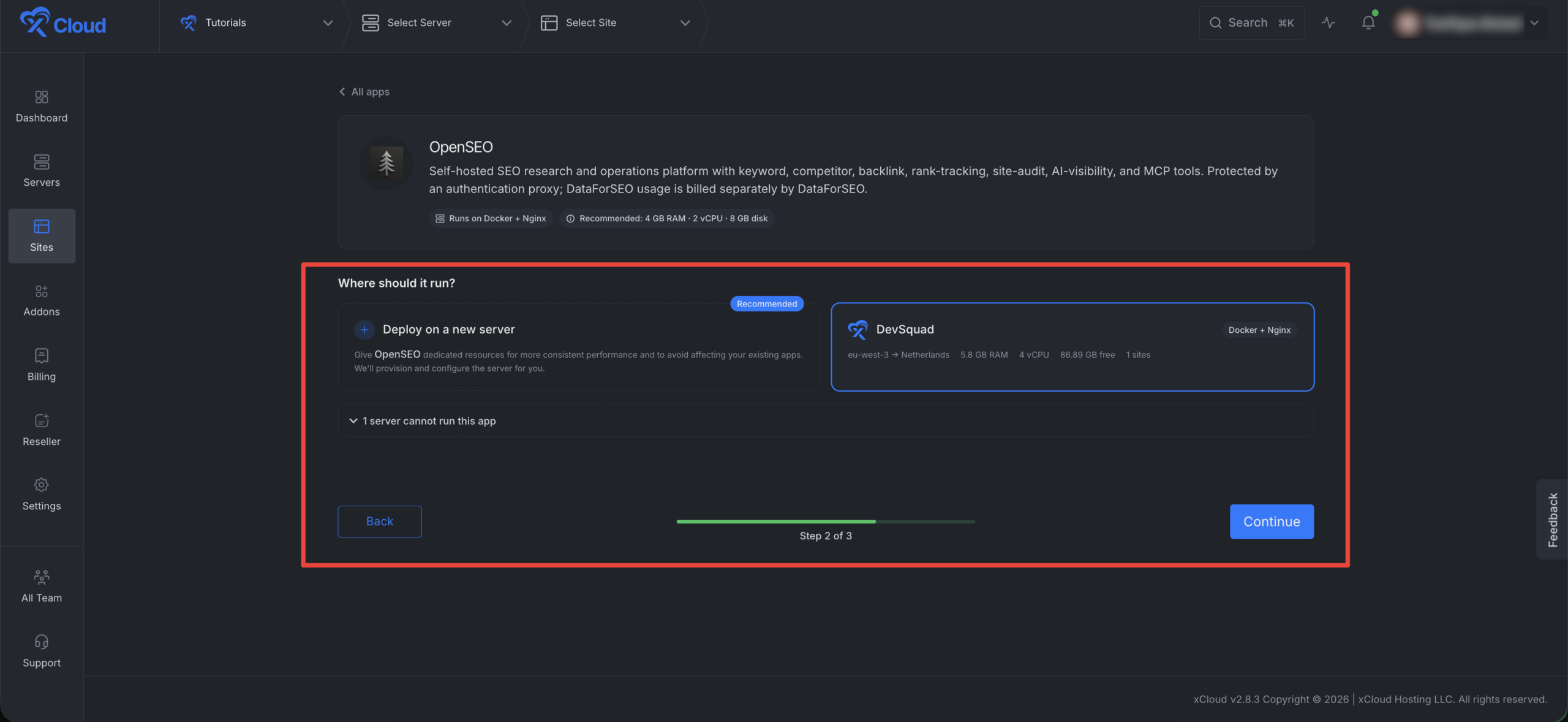
2. Choose where OpenSEO should run
OpenSEO runs in Docker on the NGINX stack. Docker apps run on an NGINX server. xCloud installs Docker automatically the first time you deploy a container app, or you can install it ahead of time from Server → Settings → Server Settings → Install a Service → Docker. OpenLiteSpeed servers cannot run Docker. Choose one of these options:
| Option | Use it when |
|---|---|
| Deploy on a new server | You want dedicated resources for OpenSEO or do not already have a compatible NGINX server. |
| Existing NGINX server | You already have a connected server that can run containerized one-click apps. |
Select the server, then click Continue.
3. Configure the OpenSEO site details
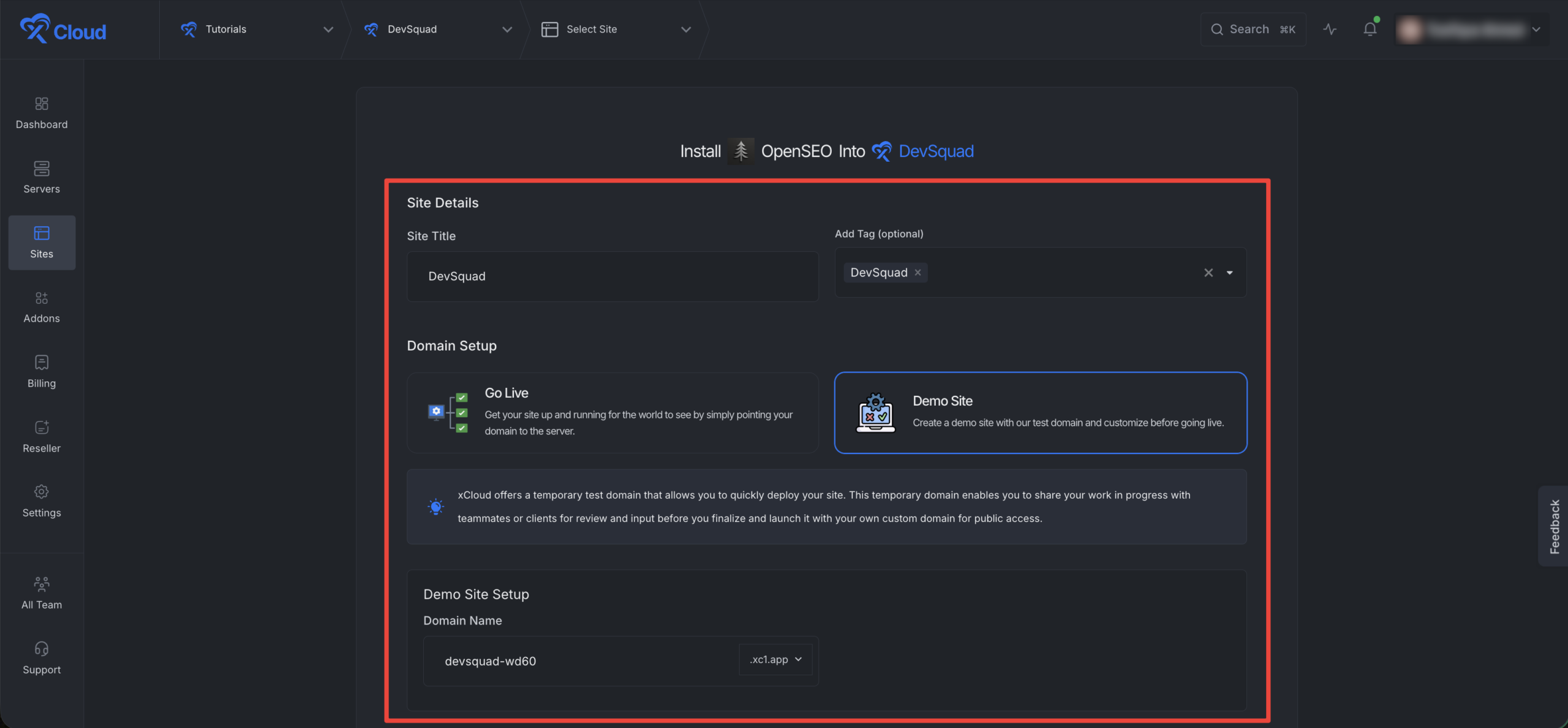
Enter a clear Site Title so you can recognize the site later. Then choose how the domain should be set up:
| Domain option | What it does |
|---|---|
| Go Live | Deploys OpenSEO for a domain you point to the server. Use this when the domain is ready for production. |
| Demo Site | Creates a temporary xCloud test domain. Use this to review OpenSEO before connecting the final domain. |
For a demo deployment, enter the demo subdomain you want to use, then review the form and continue.
4. Open the installed OpenSEO site in xCloud
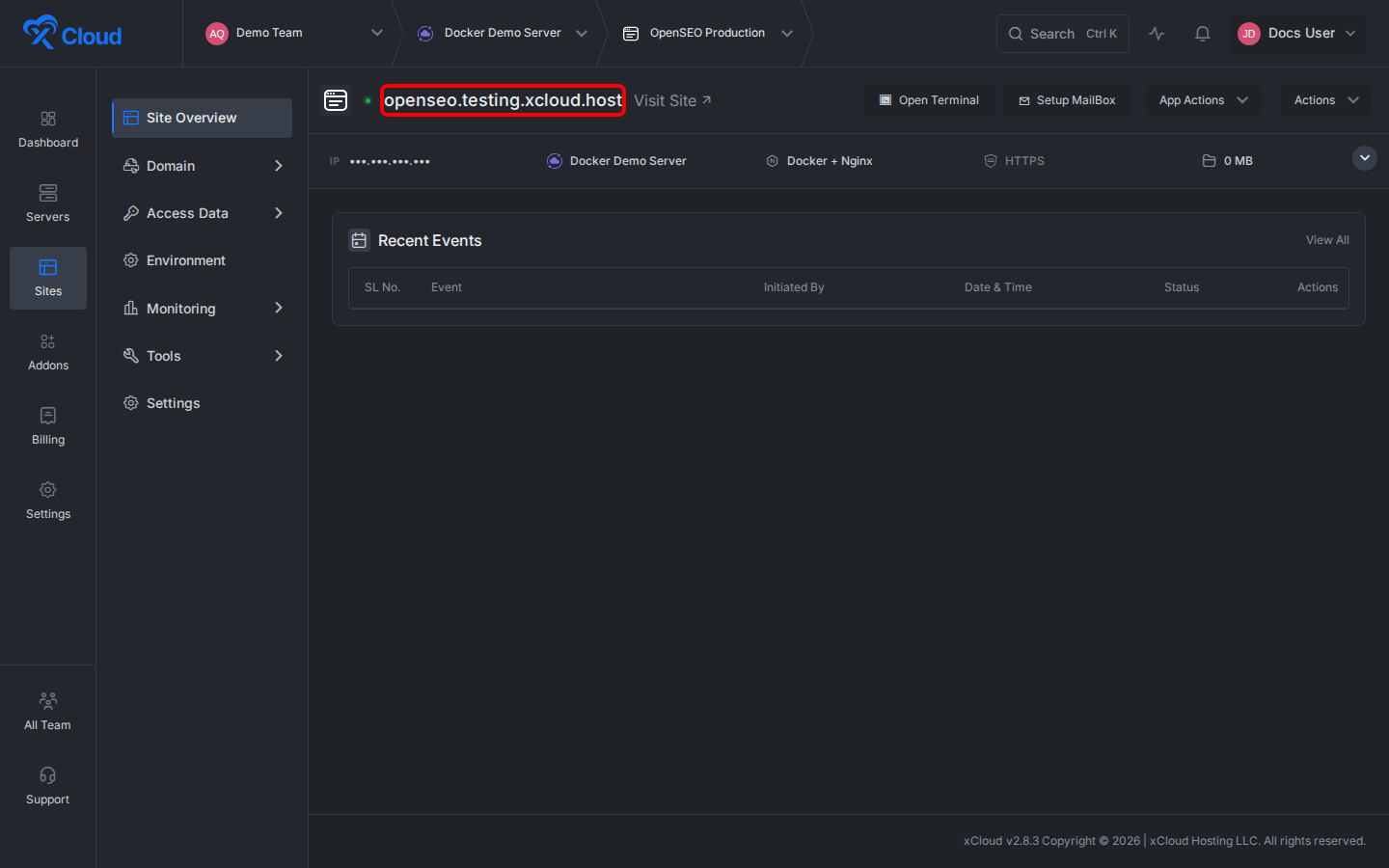
After the deployment finishes, open the site from the xCloud site list or from the selected server’s site list. The site overview page shows the OpenSEO site name, server, stack, HTTPS status, and site actions.
What to do next
- Click Visit Site to open the OpenSEO installation in a browser.
- Use Domain to connect or update the production domain when you are ready to go live.
- Use App Actions for available OpenSEO lifecycle actions, such as restarting or redeploying the app.
- Use Environment if the OpenSEO template exposes environment variables that need to be updated after deployment.