

Why a Site or Server Deletion Hangs, and How to Finish It Safely
Updated September 29, 2026 · 8 min read
This guide is for xCloud users who need to delete a site or server, interpret an active deletion, or recover from a failed deletion in xCloud v2.8.9. It explains what each confirmation option removes, when it is safe to retry, and when to contact support. Deletion is destructive. Confirm that you have a usable backup and that you selected the correct resource before you continue.
Prerequisites
Before you start, confirm that:
- You can manage or delete the target site or server in the current xCloud team.
- You have confirmed the exact site domain or server name.
- You have a current, independently verified backup of any data you may need later.
- No clone or migration is running for the site or server.
- You understand that dashboard deletion does not provide an undo action.
- For a server deletion, you have checked whether the cloud instance must also be removed from its provider.
Before you delete
A site deletion and a server deletion have different scopes. A site deletion targets one site and its selected resources. A server deletion removes the server, every site on it, and the server’s full backups.
| Operation | Permanent scope | Important boundary |
|---|---|---|
| Delete a site | The site, its files and configuration, and any additional options selected in the confirmation dialog | Deleting a production site also deletes its related staging environments. Deleting a staging environment does not delete its production site or sibling staging environments. |
| Delete a server | The server, all sites on it, all stored data, and full server backups | For supported bring-your-own-provider connections, removal from the provider is controlled separately. xCloud-managed and supported white-label or Leaseweb teardown paths do not show that manual provider switch. |
Do not use deletion as a substitute for troubleshooting a temporary site problem. If you only need to stop traffic, preserve evidence, or investigate an incident, resolve that need before deleting the resource.
Delete a site safely
1. Open the site deletion dialog
Open the site, go to Settings, find Delete Site, and select Delete Site.
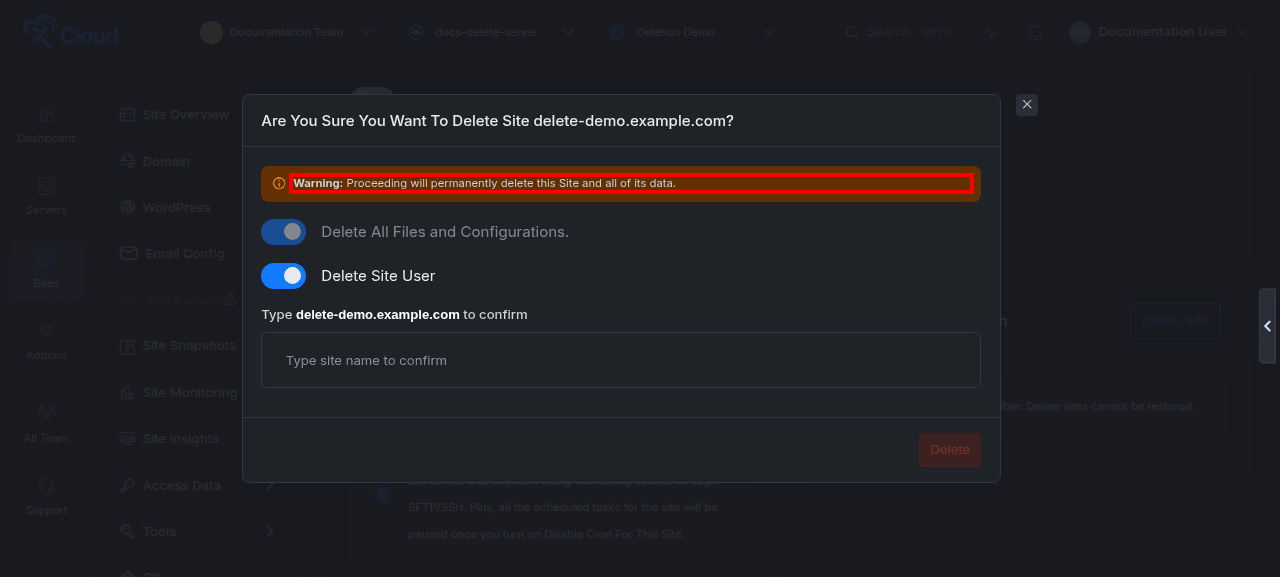
Expected result: xCloud opens a confirmation dialog that names the site and warns that the site and its data will be permanently deleted.
2. Review the affected environments
Read the warning before changing any options. When the target is a production site with staging environments, the dialog lists the staging environments that will also be deleted. When the target is a staging environment, related staging environments are shown for context but are not affected.
Expected result: You can identify every environment that the deletion will remove before submitting it.
3. Review the site deletion options
The options shown depend on the site’s resources and integrations.
| Option | Current behavior in v2.8.9 |
|---|---|
| Delete All Files and Configurations | Enabled and locked for a normal provisioned site. Site files and xCloud-managed configuration are part of the deletion. |
| Database deletion | Shown when the site has a database. xCloud can lock this option when the database is shared or otherwise unsafe to remove. Read the message shown in the dialog rather than forcing deletion outside xCloud. |
| Delete Site User | Removes the site’s system or database user when selected. Review this carefully if credentials or ownership are shared outside the expected site setup. |
| Delete Local Backups | Shown when local backups exist. In the current v2.8.9 dialog, this option starts enabled when it is shown. Turn it off only if you intentionally want the local backup folder to remain on the server. |
| Delete Cloudflare DNS record | Shown only when the team has the Cloudflare integration and the site’s SSL provider uses the applicable Cloudflare path. Select it only when xCloud should remove the site’s DNS record from that connected Cloudflare account. |
| Site.pro cancellation confirmation | Shown for Site.pro sites. Cancel the Site.pro subscription separately, then acknowledge the confirmation in xCloud. |
Expected result: Every visible option matches your intended deletion scope.
4. Confirm the exact site name
Type the site name exactly as shown in the dialog. The Delete button remains disabled until the value matches.
Expected result: The Delete button becomes available only after an exact match.
5. Start deletion once
Select Delete once. Do not submit repeated deletion requests while xCloud is already processing the first request.
Expected result: xCloud opens or links to a progress state for the site. A successful deletion eventually removes the site from the server’s site list.
Interpret an active site deletion
The progress page is the source of truth for an active deletion. A percentage that has not changed for a short period does not, by itself, prove that deletion failed.
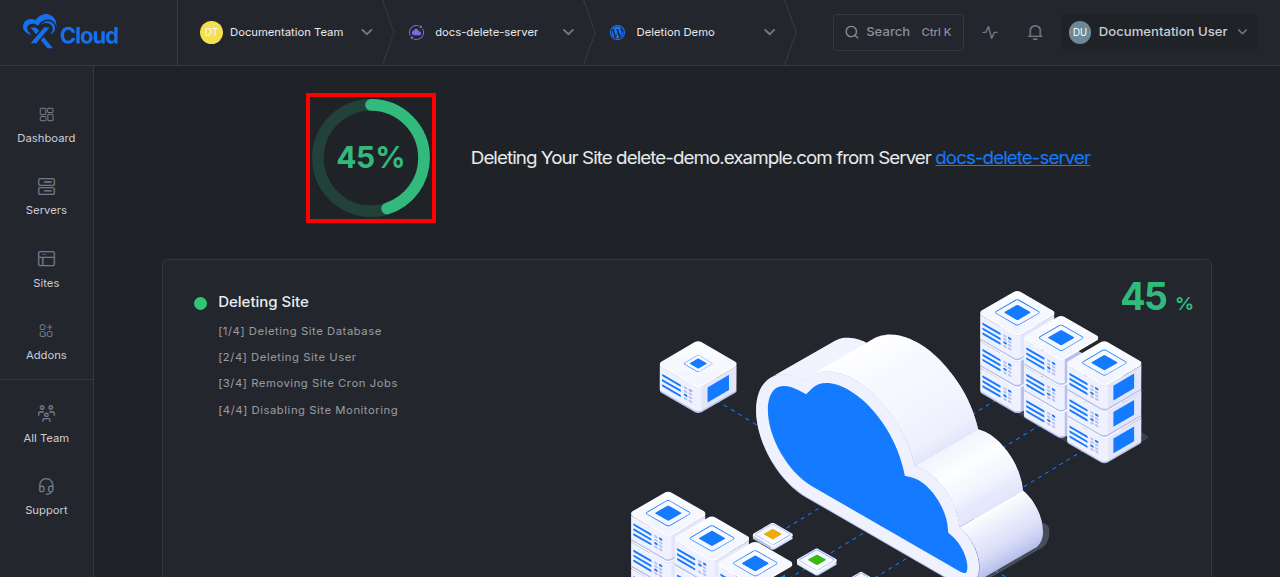
The page can show stages such as deleting the database, deleting the site user, removing cron jobs, and disabling monitoring. The exact stages depend on the site’s configuration and the options selected.
While the page still reports an active deletion:
- Keep the progress page available and allow the current task to finish.
- Do not start another delete request.
- Do not start a clone, migration, restore, backup, or deployment against the same site.
- Refresh only when needed to confirm the current server-side state.
- Treat the deletion as failed only when xCloud explicitly displays Site Deletion Failed.
Recover from Site Deletion Failed
1. Read the error shown on the progress page
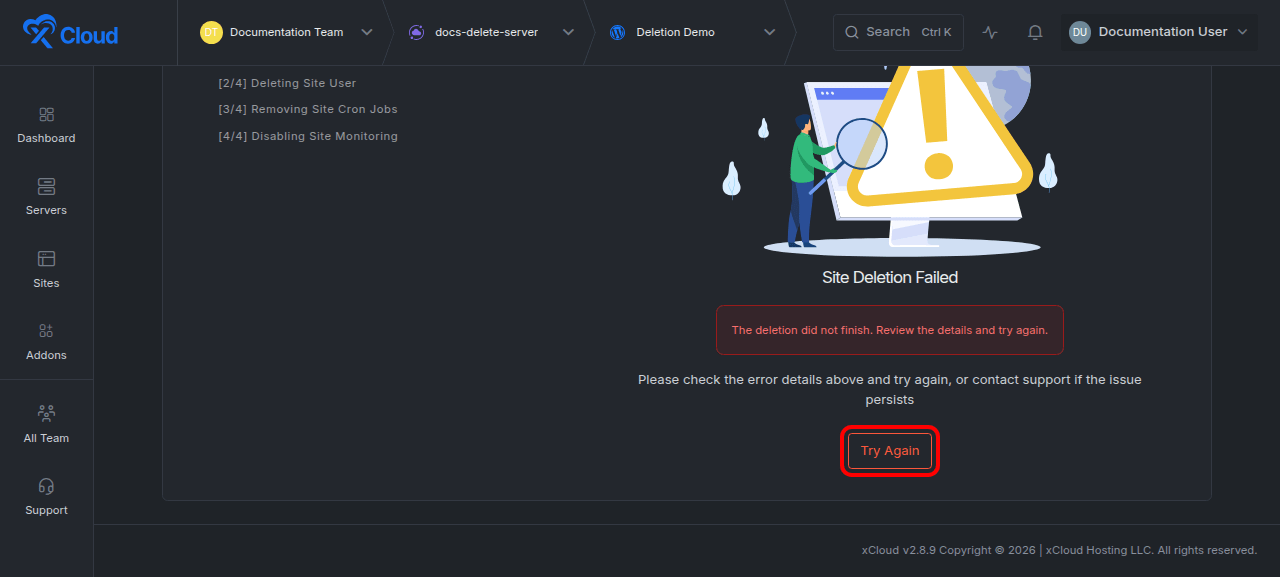
When xCloud cannot finish the workflow, the page changes from an active progress state to Site Deletion Failed and displays the available recovery action.
Expected result: You see a failure state rather than an active deletion percentage alone.
2. Remove known blockers
Check these conditions before retrying:
- A clone or migration is still active. xCloud rejects site deletion while one of these operations is in progress.
- The database is shared or its removal is locked. Follow the database message in the deletion dialog.
- The site is an agentic site tied to its server lifecycle. Agentic sites cannot be deleted independently; delete the server only if the whole environment should be removed.
- A Site.pro subscription has not been cancelled when that confirmation is required.
- The server is unavailable, disconnected, or unable to complete one of the deletion stages.
Expected result: The blocking operation is complete or the underlying connection problem is resolved.
3. Select Try Again only after failure is explicit
Select Try Again on the Site Deletion Failed page. Review the confirmation options again, including Delete Local Backups when it appears, type the exact site name, and submit one new attempt.
Expected result: xCloud returns you to the site deletion progress page so you can follow the new attempt.
4. Verify the site result
After the retry completes, open the server’s site list and confirm that the site is no longer present. If local backups were intentionally retained, verify their handling separately before reclaiming disk space.
Expected result: The deleted site is absent from xCloud. If the site remains in a failed state, stop retrying and gather the support details listed below.
Delete a server safely
1. Open the server deletion dialog
Open the server and select Actions → Delete Server. The same control is available in the server’s management area under Delete your Server.
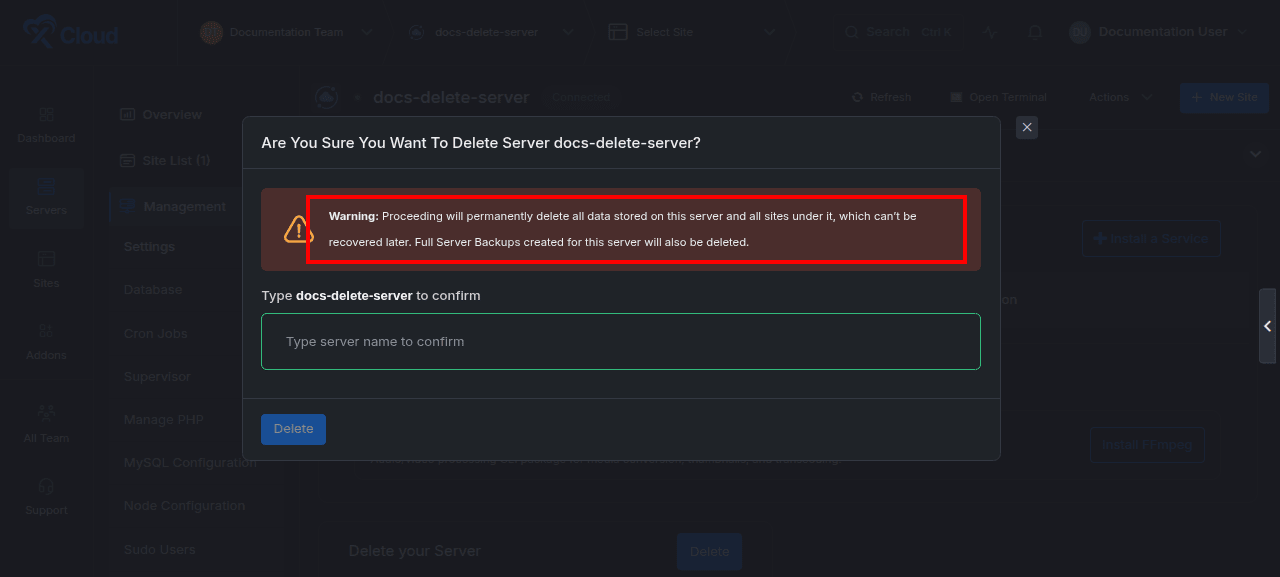
Expected result: xCloud opens a dialog naming the server and warning that the server, all sites, all stored data, and full server backups will be permanently deleted.
2. Decide how provider removal should work
For xCloud-managed, supported white-label, and xCloud-owned Leaseweb server paths, provider teardown is automatic and the manual provider switch is hidden. For supported bring-your-own-provider connections, the dialog can show a separate option to remove the instance from the provider.
If a previous provider deletion failed, the dialog warns that the instance may still be running. Enable provider removal to try the provider operation again. Leave it disabled only when you have independently confirmed that the provider instance is already gone or you intentionally want to remove only the xCloud record.
If the team has the applicable Cloudflare integration, the dialog can also offer to delete DNS records for sites on the server. Review that option independently from provider removal.
Expected result: The selected provider and DNS actions match the real infrastructure state.
3. Confirm the exact server name
Type the server name exactly as shown and select Delete once.
Expected result: xCloud either starts provider teardown and shows progress, or removes the xCloud record immediately when no provider deletion is requested or required.
Recover from Server Deletion Failed
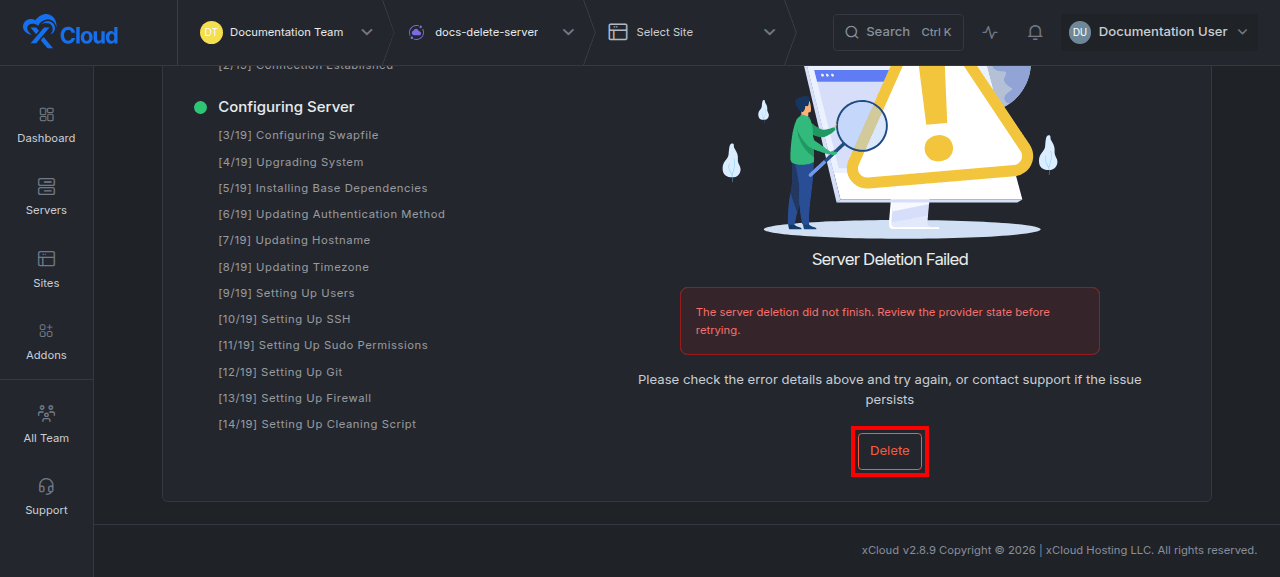
A failed provider teardown can leave two systems out of sync: xCloud may still have a server record while the provider instance is either running or already gone. Check the provider dashboard before submitting another destructive request.
- Confirm whether the instance still exists in the provider dashboard.
- Return to the Server Deletion Failed page and select Delete to reopen the confirmation dialog.
- If the instance still exists and the provider-removal option is available, enable it for the retry.
- If the instance is already gone, leave provider removal disabled and remove the remaining xCloud record.
- Type the exact server name and submit one deletion attempt.
Expected result: The server disappears from xCloud and, when selected or automatic, the instance is absent from the provider. If the state remains uncertain, contact support before retrying again.
Verification
Confirm the final state in every system affected by your selections:
- The site or server no longer appears in the relevant xCloud list.
- A server deleted from a connected provider no longer appears in that provider’s dashboard.
- Cloudflare DNS records were removed only when that option was selected and applicable.
- Any local backups intentionally retained are handled before you consider disk space reclaimed.
- No related production or staging environment was removed unintentionally.
Troubleshooting
| Symptom | Likely cause | Safe response |
|---|---|---|
| Delete is disabled | The confirmation value does not exactly match the site or server name, or xCloud is still checking database usage | Copy the displayed name exactly and wait for the database check to finish. |
| xCloud says deletion is blocked by cloning | A clone or migration is active | Let the operation finish, then reopen the deletion dialog. Do not force removal on the server. |
| The site remains on a percentage | The deletion task is still active or a stage has not completed | Wait for an explicit success or Site Deletion Failed state. Do not submit repeated requests. |
| Site Deletion Failed appears | A deletion stage returned an error | Resolve the displayed cause, then use Try Again once. |
| Server Deletion Failed appears | Provider teardown or server cleanup did not finish | Check the provider first, then reopen deletion with Delete and choose provider removal based on the real instance state. |
| The provider instance is gone but the server remains in xCloud | The provider and xCloud states did not reconcile | Retry without provider removal when the failed-deletion dialog allows it, or contact support if the record remains. |
| A database option is locked | The database is shared or otherwise unsafe to delete automatically | Keep the database, review the lock message, and separate shared resources before attempting destructive cleanup. |
| An agentic site cannot be deleted | Its lifecycle is tied to the server | Delete the server only when you intend to remove the entire agent environment. |
Common mistakes
- Assuming a slow percentage means failure. Retry only after xCloud displays an explicit failure state.
- Using an old assumption about local backups. In v2.8.9, Delete Local Backups starts enabled when the option is shown.
- Deleting a production site without reviewing staging. Production deletion also removes its related staging environments.
- Deleting only the xCloud record while a provider instance still runs. Check the provider and select provider removal when appropriate.
- Assuming server deletion preserves full server backups. The current server warning states that full server backups are deleted with the server.
- Submitting the destructive action repeatedly. Repeated requests do not make an active task finish faster and can obscure the state you need to diagnose.
When to contact xCloud Support
Contact xCloud Support when a retry returns to the same failure, the provider and xCloud disagree after you verify both systems, or you cannot determine whether a destructive operation is still active.
Include:
- The site domain or server name.
- The exact failure heading and error message.
- The last visible percentage and stage.
- Whether a clone or migration was active.
- The deletion options selected, especially local backup, DNS, and provider removal choices.
- Whether the instance still exists in the provider dashboard.
- The approximate time of the attempt and a screenshot with secrets removed.
Do not send passwords, API keys, SSH keys, or provider credentials.
Frequently asked questions
Can I undo a completed site or server deletion?
No dashboard undo is available. Treat the confirmation as permanent and verify a usable backup before deletion. Recovery is possible only from backups or copies that still exist independently of the deleted resource.
When should I use Try Again for a site?
Use Try Again only when the progress page explicitly shows Site Deletion Failed and you have resolved or ruled out the displayed blocker.
Why does a failed server deletion show Delete instead of Try Again?
The server failure page uses Delete to reopen the confirmation dialog. This lets you re-evaluate provider removal before submitting another attempt.
Does deleting a production site delete staging sites?
Yes. The current dialog identifies related staging environments that will also be deleted. Deleting a staging environment does not delete production or sibling staging environments.
Are local backups kept automatically?
Not when the Delete Local Backups option is shown and left in its current default enabled state. Turn it off only when you intentionally want the local backup folder retained.
What happens if a cloud provider deletion failed?
The instance may still exist at the provider. Check the provider dashboard first. On a supported bring-your-own-provider connection, the retry dialog lets you choose whether to attempt provider removal again or remove only the xCloud record.
Next steps
- Learn how to clone a site in xCloud before scheduling maintenance that could overlap deletion.
- Use the built-in xCloud Support portal when the provider and xCloud states cannot be reconciled safely.