

How to Connect Hermes Desktop to a Remote xCloud Hermes Agent via SSH
Updated August 24, 2026 · 9 min read
You can connect Hermes Desktop to a remote Hermes Agent hosted on xCloud without copying a Session Key from config.yaml.
Use the SSH connection type instead. Hermes Desktop connects with your SSH key, creates a private tunnel, and obtains the required dashboard token automatically.
This guide shows the complete process for an existing xCloud installation. If you have not deployed Hermes yet, start with managed Hermes Agent hosting on xCloud.
Quick answer
To connect Hermes Desktop to your xCloud Hermes server:
- Add your SSH public key for the
rootuser from the xCloud Sudo Users screen. - Make sure that
ssh root@SERVER_IPworks from your local computer. - Open Settings → Gateways → Add connection → SSH in Hermes Desktop.
- Enter
root@SERVER_IP:22and save the connection. - Click Test and wait for Reachable.
No Session Key is required. You also do not need to expose the Hermes dashboard port publicly.
What this connection gives you
Hermes Desktop is a native interface for the Hermes Agent installed on your xCloud server. After connection, you can access the same:
- Hermes profiles and sessions
- Skills, tools, and persistent memory
- Remote files and projects
- Scheduled jobs
- Messaging integrations
The agent continues to run on your xCloud server. Hermes Desktop provides the interface on your local computer.
This makes the desktop app a useful companion to xCloud Hermes Agent hosting, where the remote agent stays online between local desktop sessions.
SSH connection versus Remote gateway
Hermes Desktop supports more than one remote connection method. Choose the correct one for your xCloud installation.
| Connection type | Authentication | Best use |
|---|---|---|
| SSH | Your SSH key | Recommended for an xCloud Hermes installation without a Session Key |
| Remote gateway | Session token or OAuth | A separately configured HTTP or HTTPS hermes serve backend |
If Hermes Desktop asks you to paste a Session Key, you selected Remote gateway. Return to the Gateways screen and select SSH.
What you need
Before you start, make sure that you have:
- A running Hermes Agent installation on xCloud
- The latest version of Hermes Desktop
- Your xCloud server IP address
- An SSH key pair on your local computer
If you still need a remote installation, xCloud can deploy and host Hermes Agent before you continue with this desktop connection guide.
Step 1: Install Hermes Desktop
Download and install Hermes Desktop on your macOS or Windows computer:
Download Hermes Desktop from Nous Research
If Hermes is already installed on your local computer, start the desktop application with:
hermes desktopRun this command on your local computer. Do not run hermes desktop on the xCloud server.
Step 2: Create an SSH key
If you already have an SSH key that you want to use, continue to Step 3.
Open a terminal on your local computer and run:
ssh-keygen -t ed25519 -C "xcloud-hermes-desktop"Press Enter to use the default file location. Add a passphrase when prompted for better protection.
The command creates two files:
- Private key:
~/.ssh/id_ed25519 - Public key:
~/.ssh/id_ed25519.pub
Display the public key:
cat ~/.ssh/id_ed25519.pubCopy the complete output. It starts with ssh-ed25519.
> Important: Add only the public key to xCloud. Never upload or share the private key.
Step 3: Add the SSH key from the xCloud Sudo Users screen
- Sign in to the xCloud dashboard.
- Open your Hermes server.
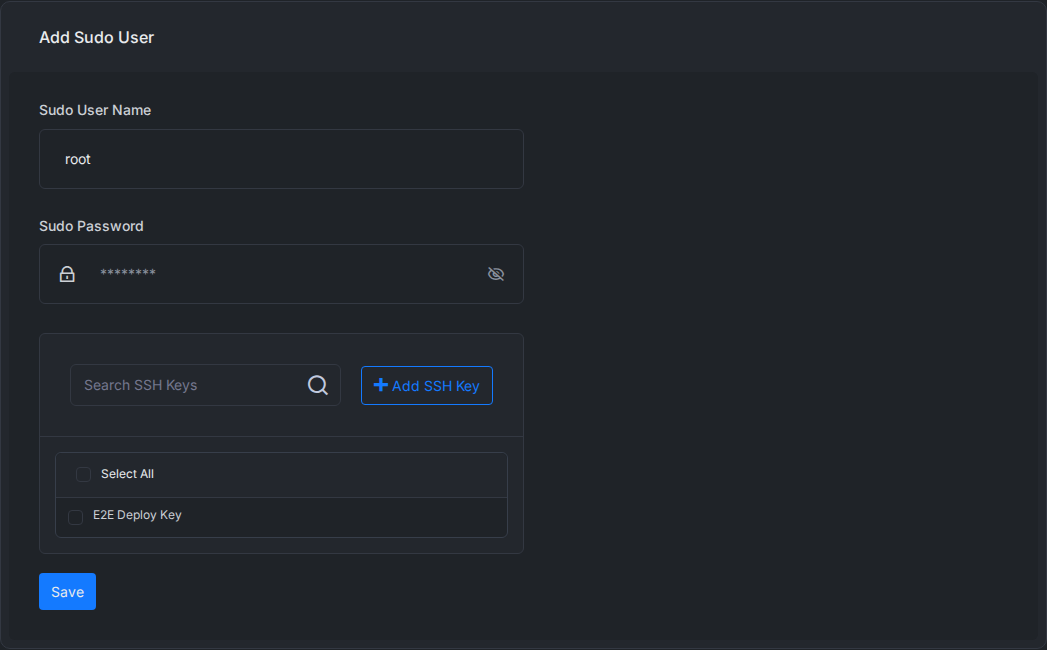
- Open the Sudo Users screen.
- Click Add Sudo User.
- Enter
rootas the username. - Select or add the SSH public key from Step 2.
- Save the user.
xCloud adds the public key for the root user. You can then connect with the matching private key on your local computer.
Step 4: Test SSH access to the Hermes server
Get the server IP address from the xCloud server dashboard.
Open a terminal on your local computer and run:
ssh root@SERVER_IPFor a custom SSH port, run:
ssh -p SSH_PORT root@SERVER_IPIf you used a private key outside the default location, specify it:
ssh -i ~/.ssh/YOUR_PRIVATE_KEY root@SERVER_IPContinue only after this SSH connection works. Hermes Desktop depends on the same SSH access.
Step 5: Open the Gateways settings in Hermes Desktop
Open Hermes Desktop and complete these steps:
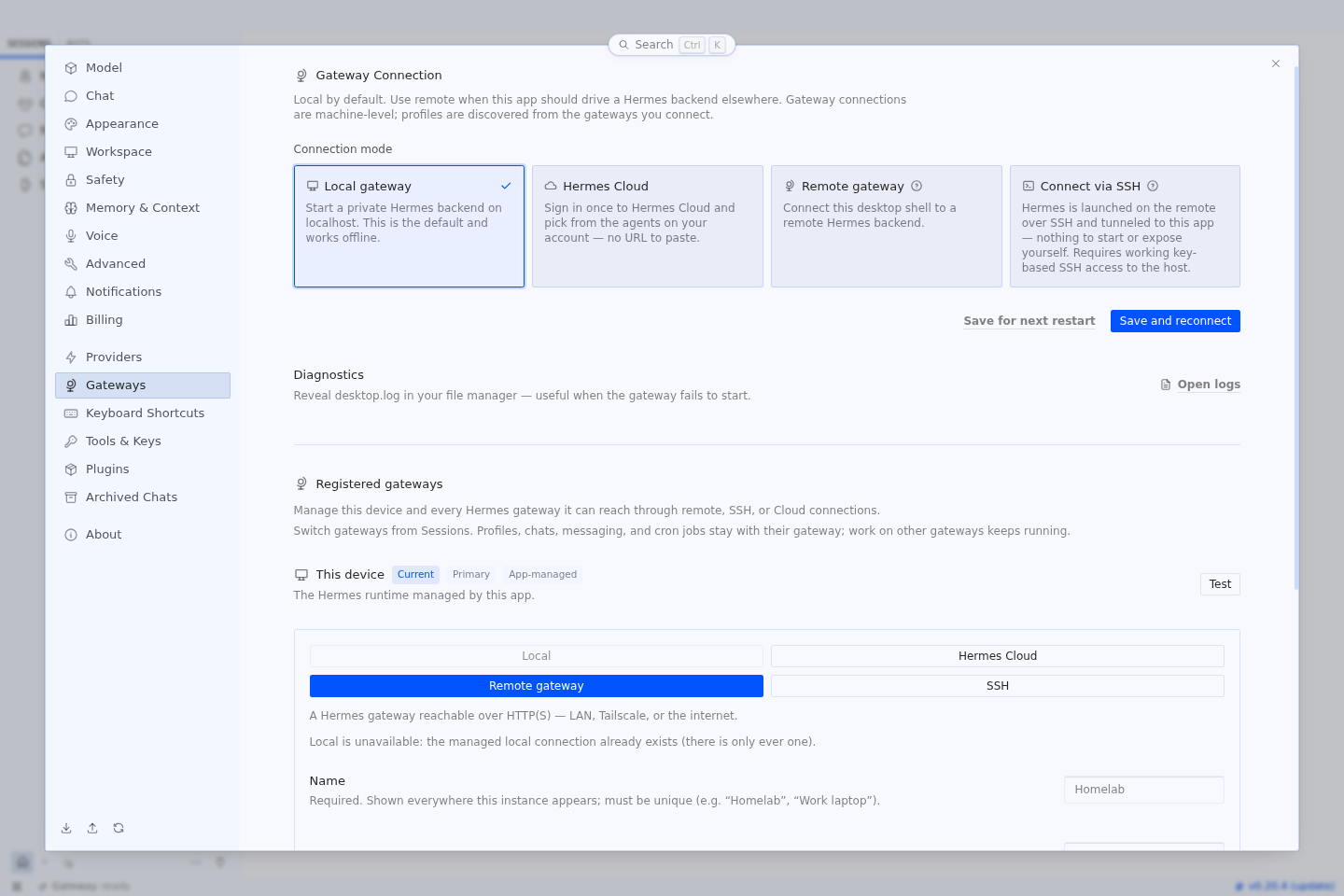
- Open Settings.
- Select Gateways.
- Find Registered gateways.
- Click Add connection.
- Select SSH.
You can also use the connection button beside the profile selector to open the Gateways screen.
Step 6: Add the remote xCloud Hermes server
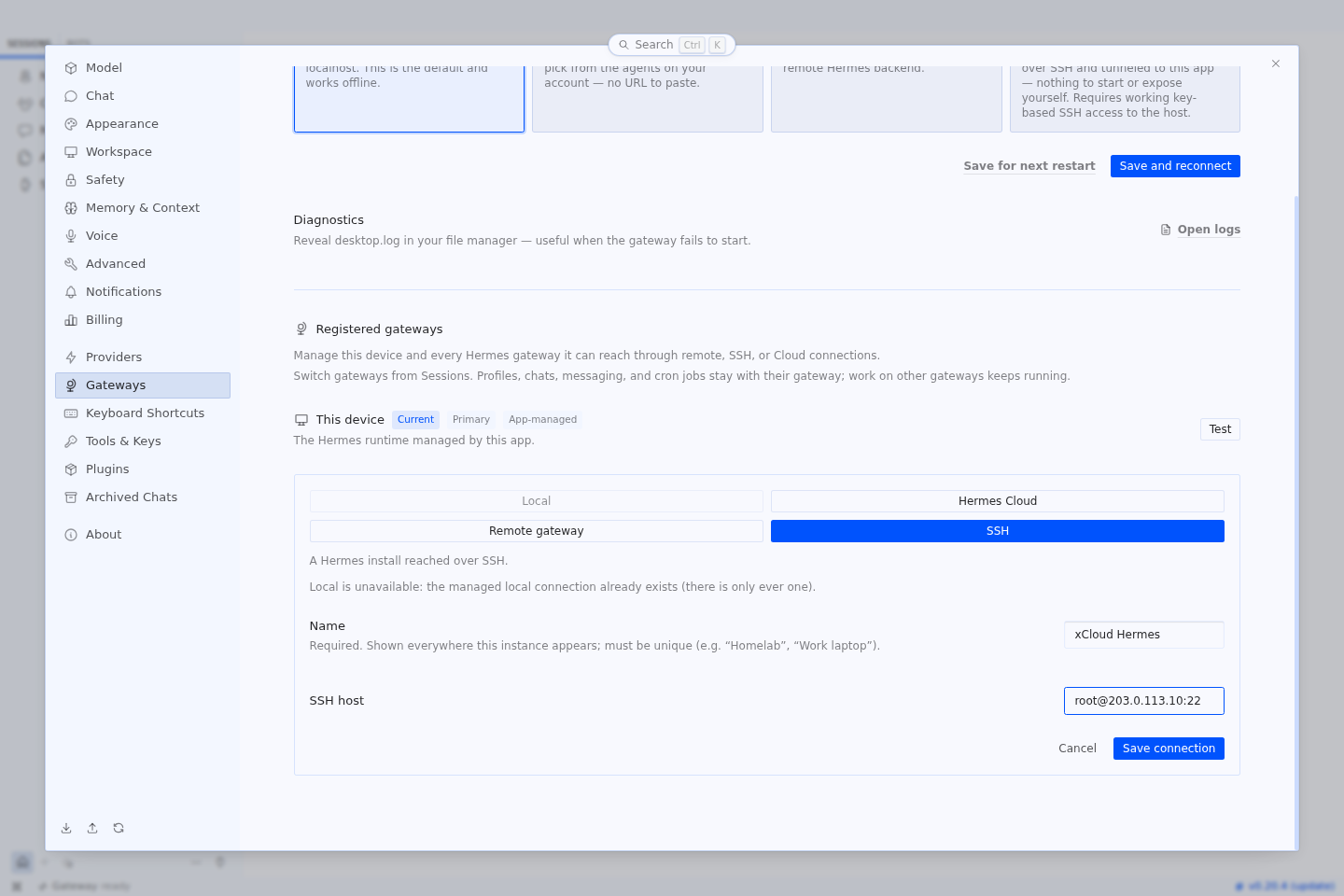
Enter the connection information:
- Name: Enter a recognizable name, such as
xCloud Hermes. - SSH host: Enter the address in
root@host:portformat.
Example:
root@203.0.113.10:22Click on the ‘Save connection’ button. Hermes Desktop uses your local SSH key. You do not need to paste a Session Key.
Step 7: Test the Hermes Desktop SSH connection
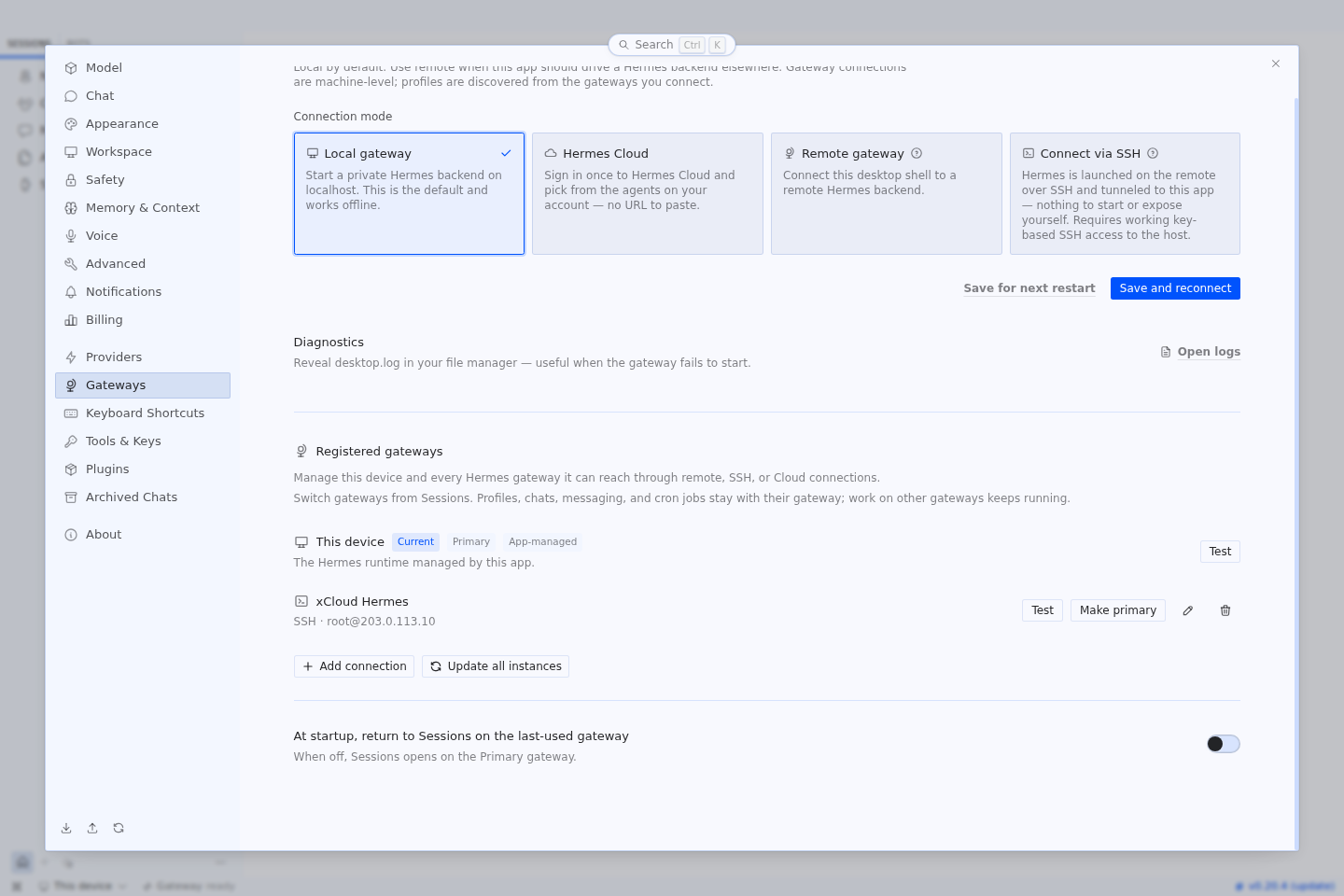
Find the new server under Registered gateways and click Test. Then wait for Hermes Desktop to show:
Reachable
Hermes Desktop now performs the remote connection steps automatically:
- It connects to the xCloud server with your SSH key.
- It opens a private SSH tunnel.
- It starts the required remote Hermes backend on demand.
- It obtains a dashboard token through the tunnel.
- It connects the desktop app to the remote Hermes profiles.
You do not need to start the Hermes dashboard manually. You also do not need to expose port 9119 publicly.
Step 8: Open your remote Hermes Agent
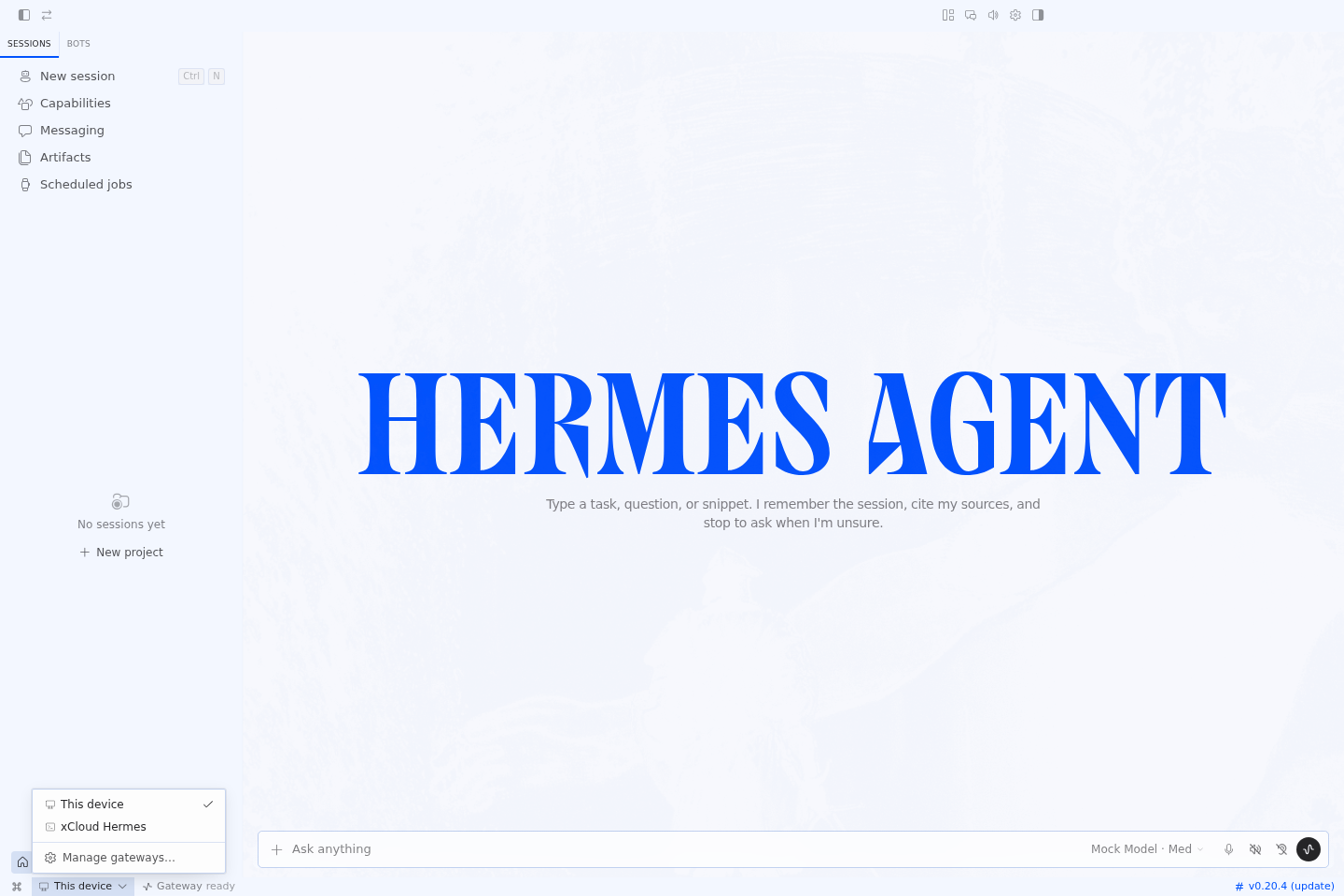
Return to Sessions in Hermes Desktop. Then select the xCloud Hermes gateway from the gateway selector. Hermes Desktop will display the profiles and sessions stored on that server.
You can now:
- Start and resume remote conversations
- Use the server’s skills and tools
- Access remote session history
- Manage Hermes profiles
- Work with files on the server
- Manage scheduled jobs and messaging integrations
All agent operations run on the remote xCloud server. Closing Hermes Desktop does not move the agent or its stored data to your computer.
Why an xCloud Hermes installation has no Session Key
A Session Key is used by the Remote gateway method when Hermes Desktop connects directly to an HTTP or HTTPS backend.
The SSH method works differently. It uses your SSH identity, creates a private tunnel, and obtains the required dashboard token automatically.
A missing Session Key in config.yaml does not mean that your Hermes Agent installation is incomplete.
For an xCloud installation, use:
Settings → Gateways → Add connection → SSHDo not select Remote gateway unless you separately configured a reachable Hermes backend with token or OAuth authentication.
Troubleshooting Hermes Desktop remote connections
Hermes Desktop asks for a Session Key
You selected Remote gateway instead of SSH.
Return to:
Settings → Gateways → Add connection → SSHIf the SSH option is missing, update Hermes Desktop.
SSH reports Permission denied (publickey)
Make sure that:
- You added the complete public key from the xCloud Sudo Users screen.
- You entered
rootas the username. - Your local computer has the matching private key.
- You are connecting to the correct server IP and SSH port.
Test the connection again:
ssh root@SERVER_IPHermes Desktop cannot find the correct SSH key
Create an entry in ~/.ssh/config on your local computer:
Host xcloud-hermes
    HostName 203.0.113.10
    User root
    Port 22
    IdentityFile ~/.ssh/id_ed25519
Test the entry:
ssh xcloud-hermesIf your Hermes Desktop version accepts SSH configuration aliases, enter:
xcloud-hermesOtherwise, use the complete address:
root@203.0.113.10:22SSH reports that the host key changed
First, make sure that the server was reinstalled or that its SSH host key changed intentionally.
Then remove the old entry:
ssh-keygen -R SERVER_IPReconnect from the terminal and accept the verified host key. Then test the connection in Hermes Desktop again.
The connection times out
Make sure that:
- The xCloud server is online.
- You are using the correct server IP.
- SSH is available on the configured port.
- The server firewall permits the connection.
- Your local network permits outbound SSH connections.
Frequently asked questions
How do I connect Hermes Desktop to a remote server?
Add the remote server under Settings → Gateways → Add connection → SSH. Enter the server as root@SERVER_IP:22.
Do I need a Session Key for an xCloud Hermes server?
No. The SSH connection obtains the required dashboard token automatically.
Which SSH username must I use?
Use root. Add your public SSH key for the root user from the xCloud Sudo Users screen.
Do I need to run hermes desktop on the server?
No. Run Hermes Desktop on your local computer. The application manages the remote connection over SSH.
Do I need to expose port 9119?
No. The SSH connection uses a private tunnel. Keep the Hermes dashboard port closed to the public internet.
Does Hermes Desktop create a separate Hermes installation?
No. It connects to the Hermes Agent on your xCloud server. Your profiles, sessions, skills, and memory remain on that server.
Can I connect more than one remote Hermes server?
Yes. Add each server as a separate SSH gateway and give each connection a unique name.
Where can I deploy a remote Hermes Agent?
You can use xCloud’s managed Hermes Agent hosting to deploy a persistent remote agent before connecting it to Hermes Desktop.
Connect Hermes Desktop to an always-on xCloud agent
Hermes Desktop gives you a native local interface while your Hermes Agent, memory, skills, files, and scheduled work remain on the remote server.
If you need a new deployment or want to review server plans, features, backups, and supported workflows, visit the main Hermes Agent hosting page.
For an existing xCloud server, the connection path remains:
Add root SSH key → Test SSH → Add SSH gateway → Test → Open Sessions