

How to Deploy Hermes Agent with xCloud (Self-Managed Server)
Updated October 15, 2026 · 7 min read
This guide shows you how to install Hermes Agent on your own VPS with xCloud. You keep your server at your cloud provider, and xCloud does the Hermes Agent install, the dashboard, the SSL certificate and the updates. To install Hermes Agent, you connect a server, choose the Hermes Agent stack, add your LLM key and click Create. A Hermes Agent VPS needs a dedicated server with at least 4 GB RAM.
If you want xCloud to supply the server too, use How to Deploy Hermes Agent with xCloud (Fully Managed Hosting). To run OpenClaw on your own server instead, see How to Deploy OpenClaw with xCloud (Self-Managed Server).
Hermes Agent install on your own server
You can install Hermes Agent on two kinds of self-managed server:
- A connected cloud account. xCloud creates a new instance for you in your AWS (EC2 or Lightsail), Google Cloud, DigitalOcean, Vultr, Hetzner, Linode (Akamai) or Hostinger account. xCloud reads the regions and plans from your account and shows only plans with at least 4 GB RAM.
- A VPS from any provider. You create a fresh Ubuntu server at your provider, then connect it to xCloud over SSH.
No Docker setup is necessary. If you looked for a Hermes Agent Docker guide, you can skip it: xCloud installs Hermes Agent directly on Ubuntu and runs it as system services, so you do not write Docker or compose files.
Hermes Agent VPS requirements
Before you start, make sure that you have:
- A dedicated server. Hermes Agent uses the whole server. Do not use a server that already hosts sites.
- At least 4 GB RAM. xCloud refuses a smaller server before it installs anything.
- A server running Ubuntu. New cloud instances use Ubuntu 24.04. For a VPS from any provider, use a fresh Ubuntu 24.04 LTS x64 server. The connection check also accepts Ubuntu 22.04. It refuses Ubuntu 26.04 for AI agent servers.
- Root SSH access to a VPS from any provider, and ports 22, 80 and 443 open.
- An LLM provider key. For example, an OpenAI, Anthropic, Google Gemini, Z.AI or OpenRouter API key, or an OpenAI Codex (ChatGPT OAuth) token.
- A Telegram bot token (optional). You can also add it later.
Step 1: Choose where to install Hermes Agent
Open Hermes Agent on your own server in xCloud. The Bring and Manage Your Own Server page lists the providers you can use: Vultr, DigitalOcean, Google Cloud, Hetzner, AWS, Linode (Akamai), Hostinger and Any.
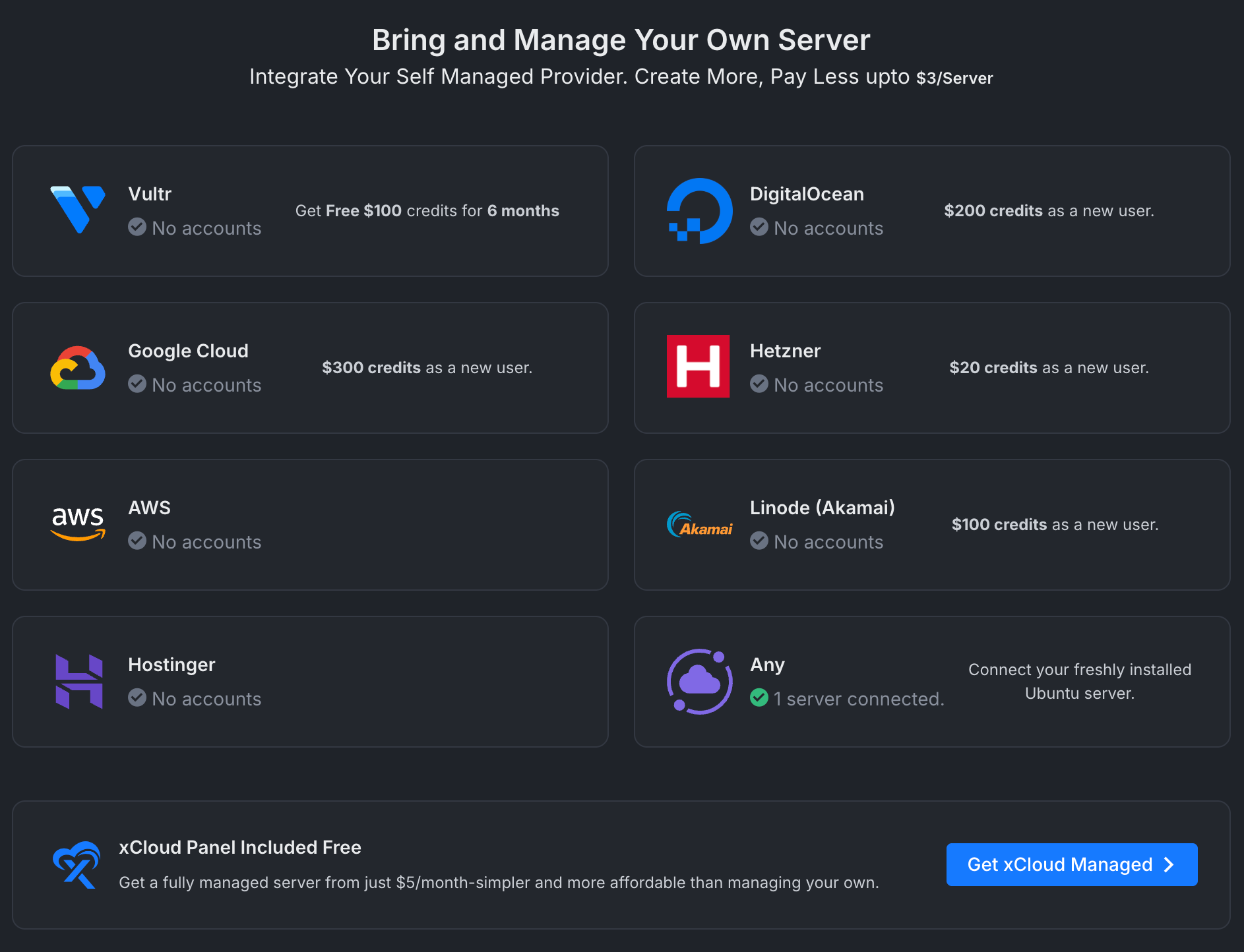
- To create a new instance in a cloud account, click your provider. If you did not connect the account yet, connect it first. For example, see the guides for DigitalOcean, Hetzner, AWS, Google Cloud, Linode and Hostinger.
- To use a VPS that you already created, click Any. The rest of this guide shows this path. For the general steps, see How to connect a fresh Ubuntu server from any provider.
Expected result: The server form opens with Agentic and Hermes Agent already selected.
Step 2: Enter the server details
On the Connect Your Existing Server form:
- Enter a Server Name.
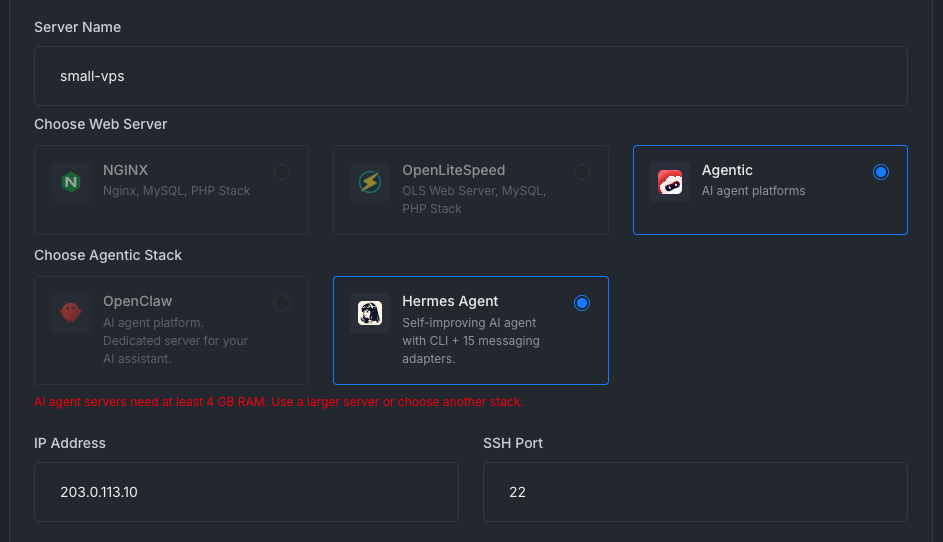
- Make sure that Agentic is selected under Choose Web Server and Hermes Agent under Choose Agentic Stack.
- Enter the server’s public IP Address and the SSH Port (default
22). The SSH Username isroot. - Optional: add tags.
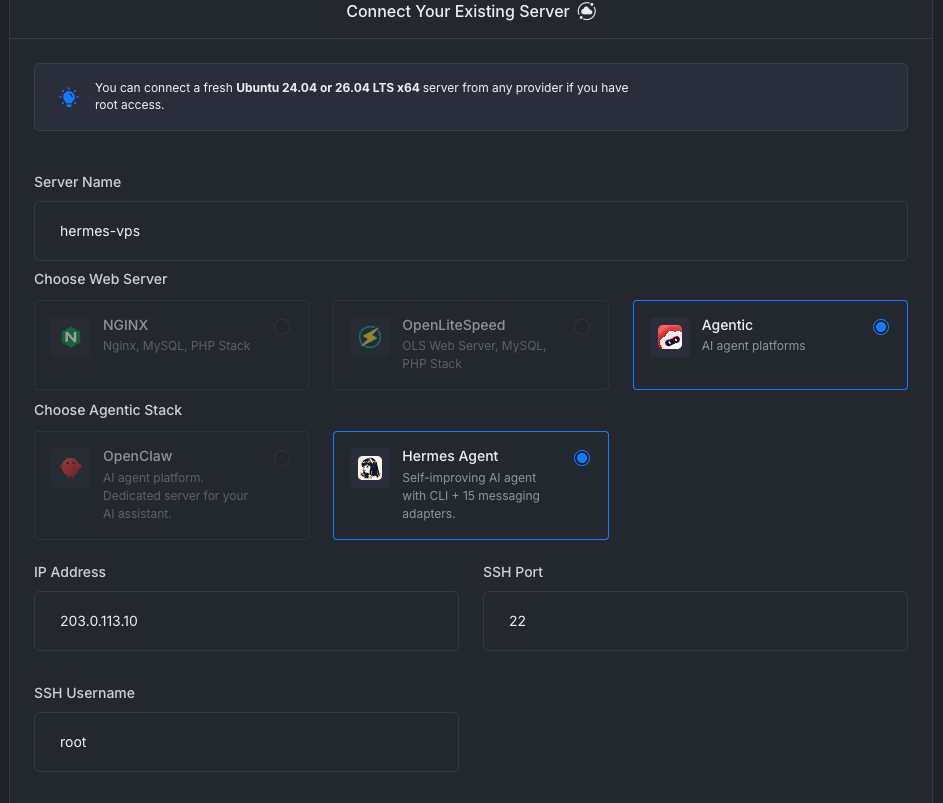
If you create the instance in a connected cloud account, select the account, region and a plan with at least 4 GB RAM instead of the IP address. xCloud uses Ubuntu 24.04 for the new instance.
Expected result: The form shows the Hermes Agent security warning and configuration below the server fields.
Step 3: Set up the Hermes Agent configuration
- Read the Security Warning. Keep the box I understand Hermes Agent is powerful and inherently risky selected.
- Under Hermes Configuration, select your LLM Provider.
- Paste your API key or token into the key field. The field name changes with the provider, for example OpenRouter API Key.
- Select the Default Model. xCloud marks the recommended model.
- Optional: enter a Telegram Bot Token and your Telegram User ID. To create the bot, see Create a Telegram bot and connect it with Hermes.
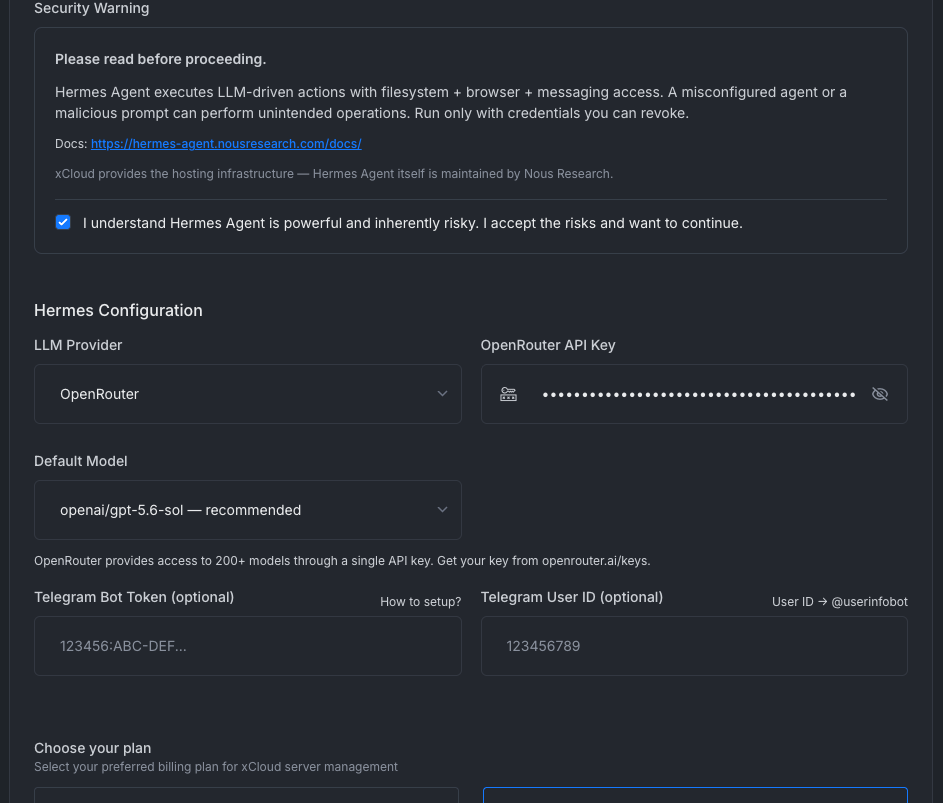
Expected result: The key field shows dots, and a default model is selected.
Step 4: Choose the plan and add the xCloud SSH key
- Under Choose your plan, select the xCloud plan for this server. The first self-managed server can use the Free plan.
- Under SSH Authentication, select Public Key. Copy the command and run it on your server as root. The command adds the xCloud public key to
/root/.ssh/authorized_keys. If you prefer, select Password and enter the root password. - Select I have created a new server on my provider.
- Click Create.
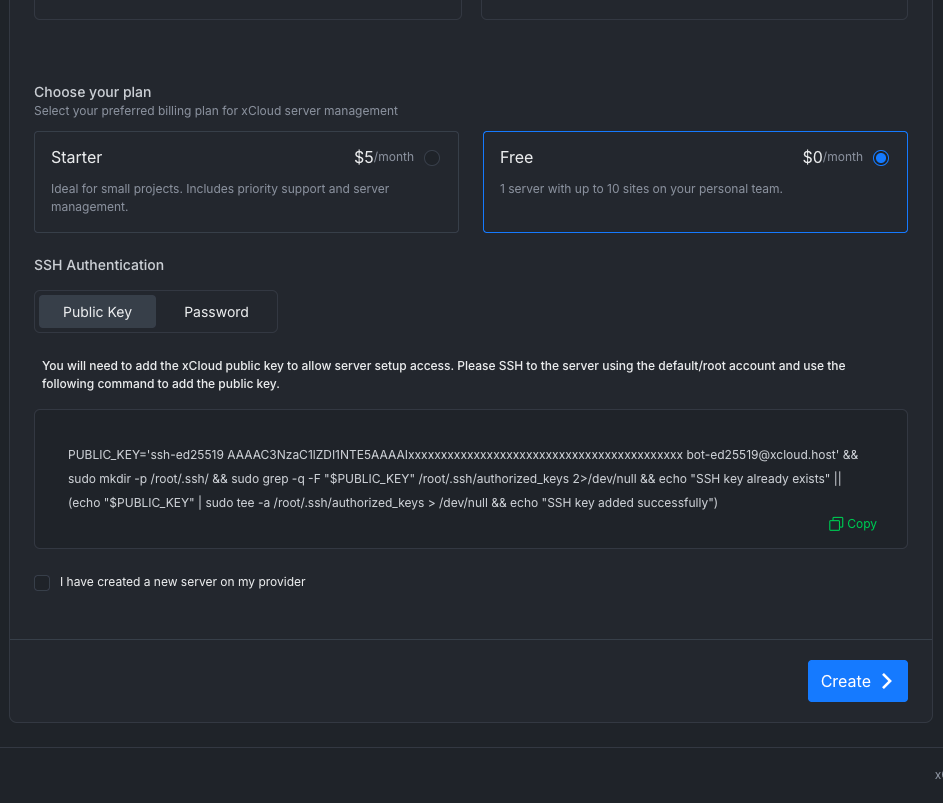
Before xCloud saves the server, it connects over SSH and checks the Ubuntu version and the RAM. If a check fails, the form shows the reason and nothing is created. See Troubleshooting.
Expected result: xCloud opens the Setting Up Your Server page. The Hermes Agent installation runs through the steps on that page, for example Installing Hermes Stack. In our test on a 4 GB VPS in October 2026, it finished in about 7 minutes. You can leave the page while it runs.
Step 5: Open the Hermes Agent dashboard
When the setup finishes, open the server in xCloud. The Hermes menu has Status, Providers, Channels, Workspace, Environment, Updates, Reset and Logs.
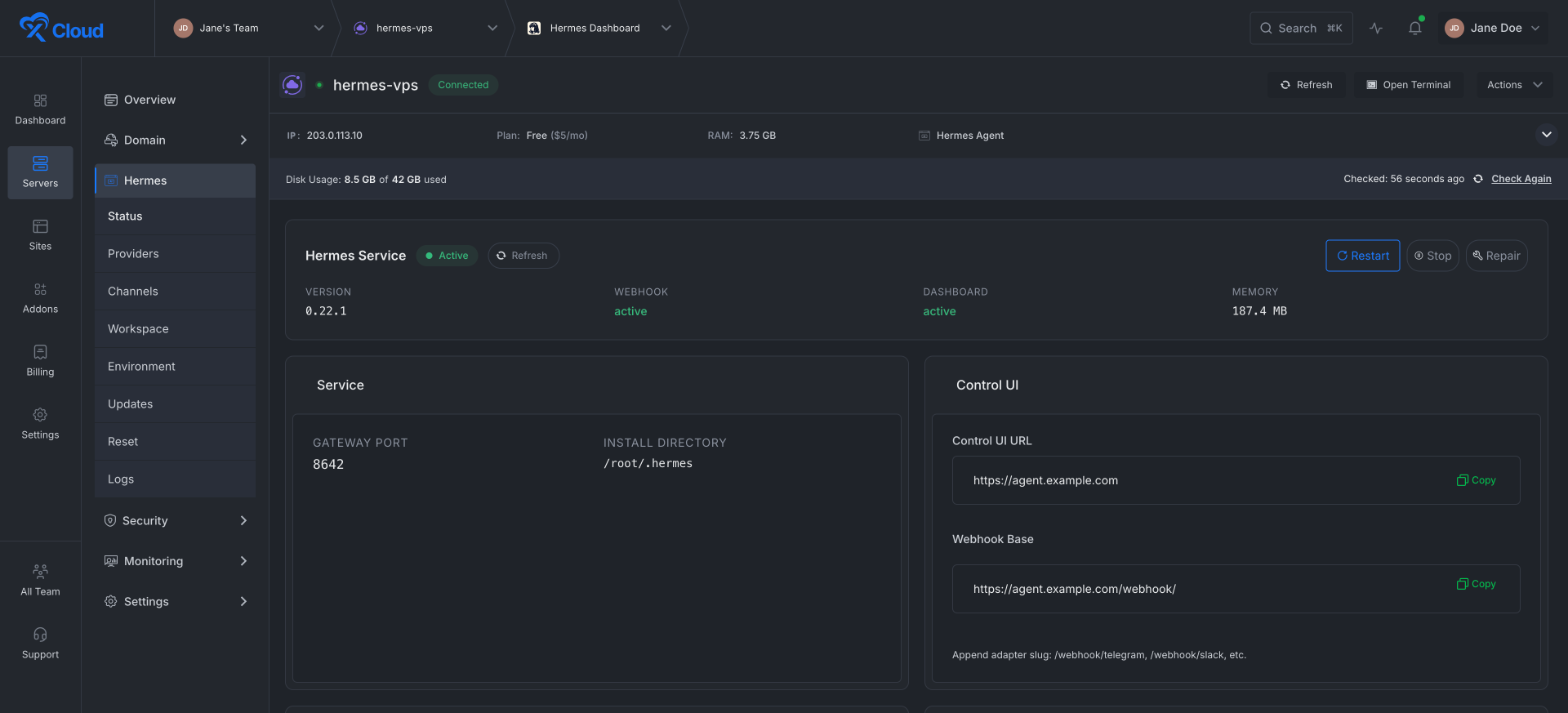
Go to Hermes > Status. This page shows the Hermes service state, the version, and the Control UI URL of your Hermes Agent dashboard.
Open the Hermes Agent web UI
- On Hermes > Status, copy the Control UI URL.
- Copy the Basic Auth User and Basic Auth Password from Basic Auth Credentials.
- Open the URL in your browser and sign in with these credentials.
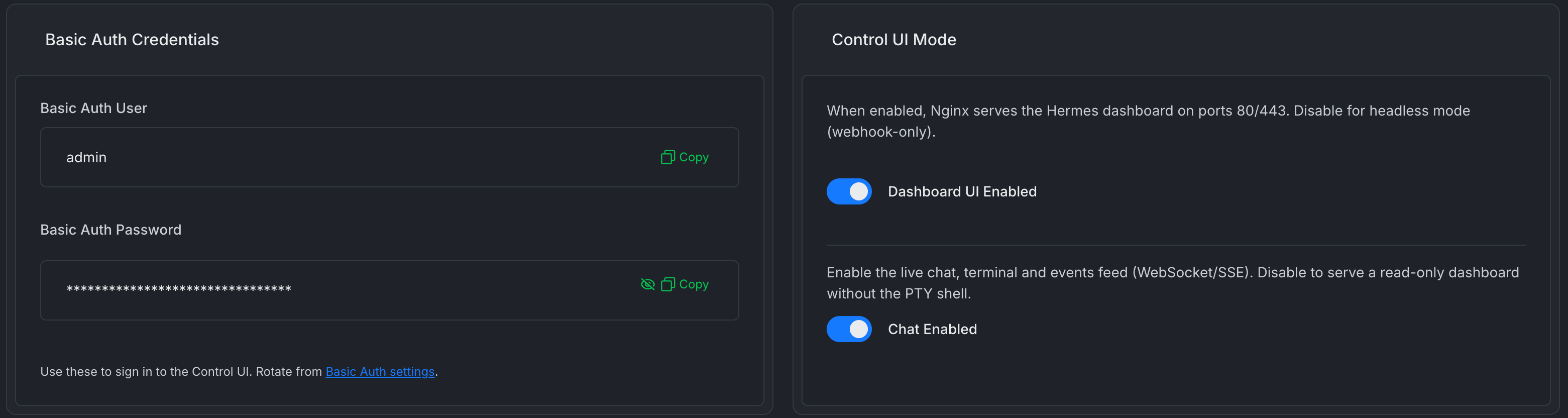
You can turn the web UI off with Dashboard UI Enabled under Control UI Mode if you only use messaging channels. To use the agent from Hermes Desktop, see Connect Hermes Desktop to a remote xCloud Hermes Agent via SSH.
Hermes Agent update
- Open the server and go to Hermes > Updates.
- Click Check for Updates.
- If a newer release is available, click Update Now.
To install a specific release, select it under Pin or Rollback Version and click Install Selected. The page tells you that the upstream installer still pulls the newest agent code, so this cannot roll the agent back yet.
Billing for a self-managed Hermes Agent server
xCloud starts the self-managed billing for a new Hermes Agent server only after the agent and its dashboard respond. If the installation fails, you are not charged for the plan while you retry it. The free first server and Lifetime Deal rules do not change. For plan details, see Upgrade from free to paid self-managed hosting.
If xCloud cannot charge your saved payment method, the setup page shows Complete payment to start managing your server with a Pay Now button.
Retry and rebuild
Retry a failed installation
If the setup stops, the Setting Up Your Server page shows the error and a Retry button with the number of retries left. Fix the cause, for example start the stopped service or free memory, then click Retry. If the server itself is ready but the Hermes Agent dashboard did not respond, Retry runs only the dashboard setup again. After three retries, contact support.
Rebuild the server
Rebuild reinstalls the operating system and Hermes Agent. It erases everything on the disk. It is available for Hermes Agent servers that xCloud created in a connected DigitalOcean, Hetzner, Linode, Hostinger, Vultr, AWS or Google Cloud account. It is not available for a VPS that you connected with Any, because xCloud cannot reinstall that server through a provider API.
- On DigitalOcean, Hetzner, Linode, Hostinger and Vultr, xCloud reinstalls the same instance. The public IP and billing stay the same.
- On AWS and Google Cloud, xCloud creates a replacement instance. The public IP can change. You must select I accept that the replacement can change the public IP and cause temporary provider charges for two instances. xCloud keeps the original instance until the replacement is ready.
For the full procedure, see How to Rebuild a Server Safely with xCloud.
Troubleshooting
“AI agent servers need at least 4 GB RAM”
xCloud checks the server memory before it creates anything. If the server has less than 4 GB RAM, the form shows AI agent servers need at least 4 GB RAM. Use a larger server or choose another stack. Resize the server at your provider, or use a plan with at least 4 GB RAM, and submit the form again.
“Not yet available on Ubuntu 26.04”
If the VPS runs Ubuntu 26.04, xCloud shows an Authentication Failed message that says AI agent servers (OpenClaw, Paperclip, Hermes, DeepSeek Harness) are not yet available on Ubuntu 26.04. Please use Ubuntu 24.04. Reinstall the VPS with Ubuntu 24.04 at your provider and try again.
The agent or its dashboard is not ready
If the Hermes service or the dashboard does not respond at the end of the installation, the setup fails with The agent or its dashboard is not ready. Retry provisioning after the service starts. Open Hermes > Logs or Hermes > Status to see the service state, then click Retry on the setup page.
For other connection errors, see How to troubleshoot “Server Installation Failed” on a self-managed server.
Use the xCloud API
You can also do these steps with the xCloud Public API and the xCloud MCP server: list your cloud accounts, regions and plans, connect a server, and start or retry a rebuild. See xCloud API.
Frequently asked questions
Can I install Hermes Agent on my own server?
Yes. xCloud installs Hermes Agent on a self-managed server: a new instance in a connected AWS, Google Cloud, DigitalOcean, Vultr, Hetzner, Linode or Hostinger account, or a fresh Ubuntu VPS from any provider that you connect over SSH. The server must be dedicated to Hermes Agent and have at least 4 GB RAM.
What are the Hermes Agent VPS requirements?
A dedicated server with at least 4 GB RAM and root SSH access. New cloud instances use Ubuntu 24.04. For a VPS from any provider, use a fresh Ubuntu 24.04 LTS x64 server. The connection check also accepts Ubuntu 22.04 and refuses Ubuntu 26.04 for AI agent servers. You also need an API key or token from your LLM provider.
How do I open the Hermes Agent web UI after installing it?
Open the server in xCloud and go to Hermes > Status. Copy the Control UI URL and open it in your browser. Sign in with the Basic Auth User and Basic Auth Password from the same page.
How do I update Hermes Agent on a self-managed server?
Open the server and go to Hermes > Updates. Click Check for Updates. If a newer release is available, click Update Now. You can also select a release under Pin or Rollback Version and click Install Selected.
Which AI providers can I connect to Hermes Agent?
The xCloud form lists OpenAI Codex (ChatGPT OAuth), OpenAI API key, Anthropic, Google Gemini, Z.AI (GLM) and OpenRouter. You can change the provider and the default model later from Hermes > Providers.
Related guides
- How to Deploy Hermes Agent with xCloud (Fully Managed Hosting)
- How to Deploy OpenClaw with xCloud (Self-Managed Server)
- How to connect a fresh Ubuntu server from any provider
- Create a Telegram bot and connect it with Hermes
- How to Rebuild a Server Safely with xCloud
If you run into any issues, feel free to reach out to our support team.