

How to Migrate from WP Fail2Ban to BetterShield in xCloud
Updated October 26, 2026 · 6 min read
WP Fail2Ban is retired in xCloud. xCloud now protects WordPress logins with BetterShield, a free plugin by WPDeveloper that covers every WP Fail2Ban option and adds two-factor sign-in, passkeys and Cloudflare-aware firewall bans. If a site still runs WP Fail2Ban, you can switch it to BetterShield in one click: xCloud removes WP Fail2Ban, then installs BetterShield. It runs in the background and usually takes a minute or two.
This guide covers the switch. For everything BetterShield does after it is on, see How to Set Up BetterShield Login Protection in xCloud.
Why switch
- It is free. There is nothing to buy or add to your plan.
- Every protection starts on. BetterShield starts with strict protection, so you have nothing to set up.
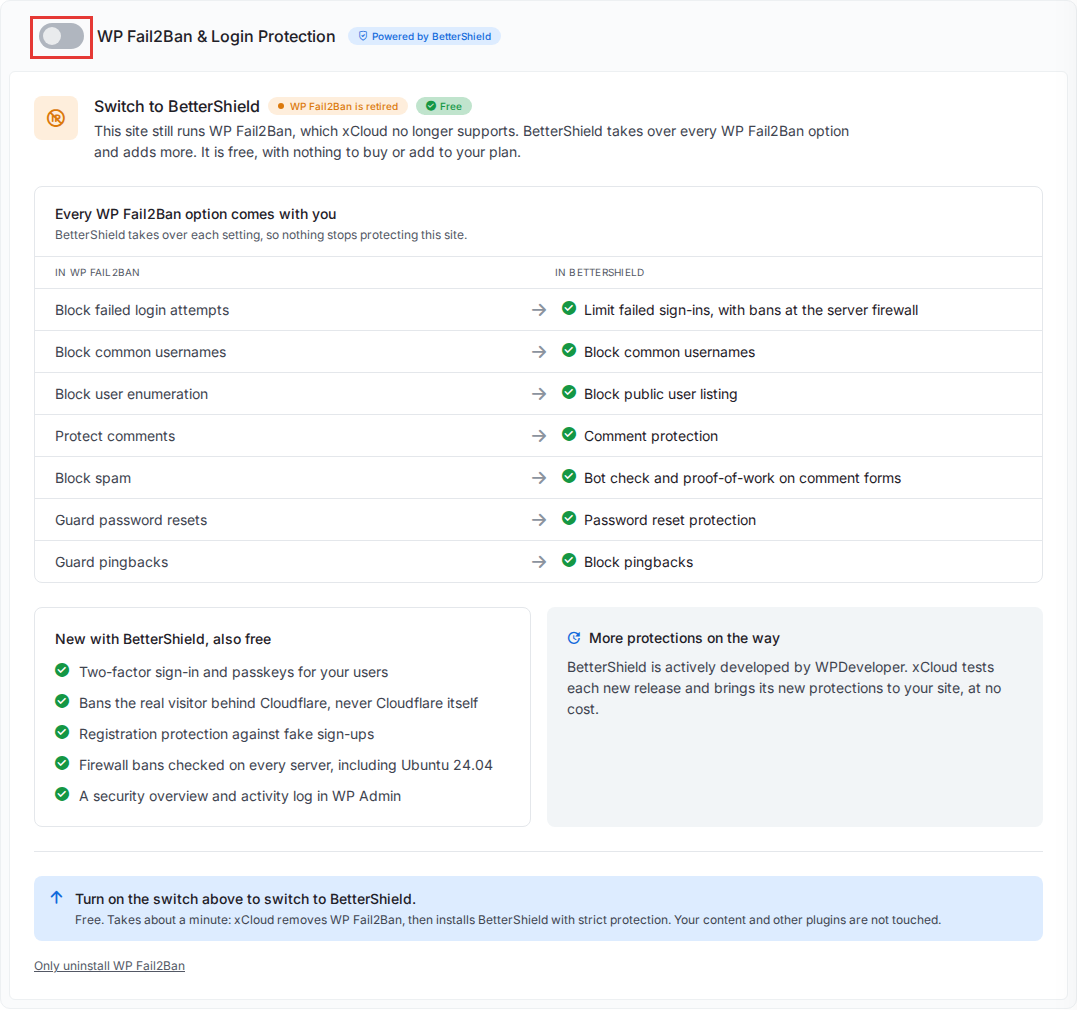
- Every WP Fail2Ban option comes with you, as the table below shows.
- You get more: two-factor sign-in and passkeys for your users, registration protection against fake sign-ups, lockouts of the real visitor instead of Cloudflare’s address on sites with Cloudflare SSL or Cloudflare Enterprise, firewall bans checked on every server including Ubuntu 24.04, and a security overview and activity log in WP Admin.
- More protections are on the way. BetterShield is actively developed by WPDeveloper, and xCloud tests each new release and brings its new protections to your site at no cost.
| In WP Fail2Ban | In BetterShield |
|---|---|
| Block failed login attempts | Limit failed sign-ins, with bans at the server firewall |
| Block common usernames | Block common usernames |
| Block user enumeration | Block public user listing |
| Protect comments | Comment protection (Comments) |
| Block spam | Bot check and Proof-of-work check on comment forms |
| Guard password resets | Password reset protection (Password resets) |
| Guard pingbacks | Block pingbacks |
Before you start
The switch is available when the site can run BetterShield:
| Requirement | Detail |
|---|---|
| Site type | WordPress. |
| WordPress | 6.7 or newer. |
| PHP | 8.0 or newer for the site. |
| Server | Connected to xCloud. |
| Your role | Team Admin, Server Admin or Site Admin, with the site settings permission. Without it, the card is not shown. |
Check that the site’s WordPress admin address under Settings → General is one you can read. When BetterShield activates, it emails that address a single-use recovery link you can use if you are ever locked out.
If the site does not meet a requirement, see If the site cannot run BetterShield yet.
Step 1: Open the switch
There are two ways to reach it.
From the banner. A site that still runs WP Fail2Ban shows a blue banner, Switch from WP Fail2Ban to BetterShield., on its pages. Click Switch Now. It opens the site’s Security → Overview & Firewall page and scrolls to the WP Fail2Ban & Login Protection card.

From the Security menu. Open the site, click Security in the site menu, then Overview & Firewall. The Login protection tile at the top reads WP Fail2Ban, retired, and the WP Fail2Ban & Login Protection card is below Security Settings.
The card shows Switch to BetterShield with the WP Fail2Ban is retired and Free badges, the table Every WP Fail2Ban option comes with you, and what is New with BetterShield, also free.
Step 2: Turn on the switch
Turn on the switch in the card header, to the left of WP Fail2Ban & Login Protection. A confirmation appears: xCloud removes WP Fail2Ban, then installs BetterShield with strict protection, and your content and other plugins are not touched. Click Switch.
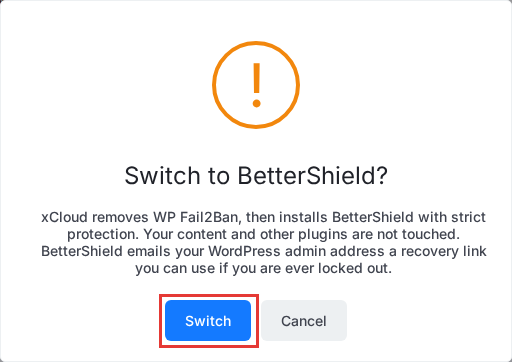
There is nothing else to choose. BetterShield starts with strict protection: every protection is on, including the proof-of-work check and the three hardening options. You can turn any of them off afterwards.
Step 3: Wait for the switch to finish
The card shows Switching to BetterShield with three steps:
- Remove WP Fail2Ban. xCloud deactivates and deletes the plugin, removes its include line from
wp-config.phpand deleteswp-content/wp-fail2ban-config.php. - Install BetterShield. xCloud installs the latest version from WordPress.org and activates it.
- Apply strict protection and connect the firewall. xCloud turns on every protection and connects BetterShield to the server firewall.
The card stays on step 1 until WP Fail2Ban is removed. It then changes to Turning on BetterShield for steps 2 and 3.
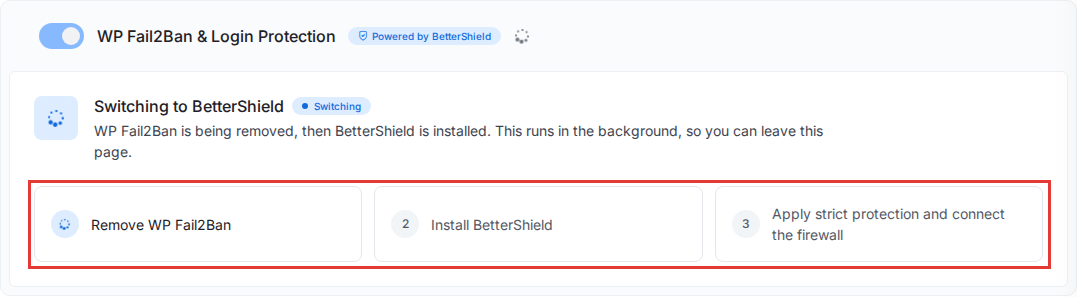
The switch usually takes a minute or two and runs in the background, so you can leave the page. It shows as two entries in Recent Events, the activity icon at the top right of xCloud: one for removing WP Fail2Ban and one for installing BetterShield. The blue banner disappears once WP Fail2Ban is gone.
Between the two entries, WP Fail2Ban is gone and BetterShield is not on yet, so failed logins are not blocked for that minute or two.
What else the switch changes
While installing, xCloud also fixes a few issues that BetterShield’s security audit would report. Your posts, pages, theme and other plugins are not touched.
- The dashboard file editor is turned off. The Theme File Editor and Plugin File Editor disappear from WP Admin.
- Security headers are added to the site’s responses.
- The WordPress version is hidden from your pages.
- The uploads folders stop listing their files. BetterShield adds an empty index file to each uploads folder that has none.
wp-config.phpgets tighter permissions (640), so other accounts on the server cannot change or read it. This happens only when the site’s own user owns the file and other accounts could change or read it.- The WordPress Address and Site Address change from http to https when the site has a working SSL certificate in xCloud and an address is exactly
http://plus your domain. If the login page then does not load over https, orwp-config.phpsets the address itself, xCloud puts it back.
You can undo the first four in BetterShield in WP Admin. To undo the others, change the addresses under Settings → General and the file permissions over SFTP or SSH. Turning BetterShield off does not undo them.
xCloud also starts BetterShield’s first file check. If it takes longer than two minutes, BetterShield finishes it on its own within the hour.
Step 4: Check the result
When the switch finishes, the card shows Your logins are protected with an Active badge and the Server firewall connected chip, and the Login protection tile reads BetterShield on.

Look over Protection settings on the card. Every setting is on. Turn off what does not suit the site, for example Block public user listing if your theme shows author profiles, then click Save Settings. Each setting is explained in Adjust protection settings.
Then check the inbox of the WordPress admin address for BetterShield’s recovery link email, and keep it.
If the card says Server firewall not connected, BetterShield still protects the login inside WordPress, but paused connections are not banned at the server. See What the card shows for the causes and fixes.
If the switch stops
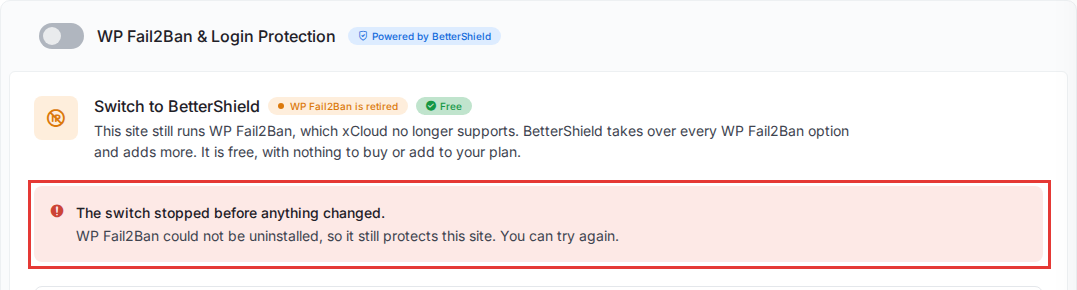
WP Fail2Ban could not be uninstalled. The card says The switch stopped before anything changed. BetterShield was not installed, and WP Fail2Ban usually still protects the site. Fix the cause if you know it, for example a database that cannot be reached, then turn on the switch again to try again. If WP Fail2Ban shows as inactive under Plugins in WP Admin, the site is not protected until the switch finishes.
BetterShield could not be installed. WP Fail2Ban is already gone, and the card shows BetterShield is not on with the reason. Fix the cause, then click Try Again. Until BetterShield is on, failed logins on the site are not blocked.
If xCloud does not know the site’s WordPress version. xCloud checks the version it has on record before it offers the switch. Without one, it still offers the switch and removes WP Fail2Ban, but the install can then stop with BetterShield needs WordPress 6.7 or newer. Update WordPress, then try again. Update WordPress, then click Try Again. If you are not sure the site runs WordPress 6.7 or newer, check Dashboard → Updates in WP Admin before you switch.
If the site cannot run BetterShield yet
When the site runs WP Fail2Ban but does not meet a BetterShield requirement, such as WordPress older than 6.7 or PHP older than 8.0, the card shows Login protection needs an update with the reason, and offers only Uninstall WP Fail2Ban.
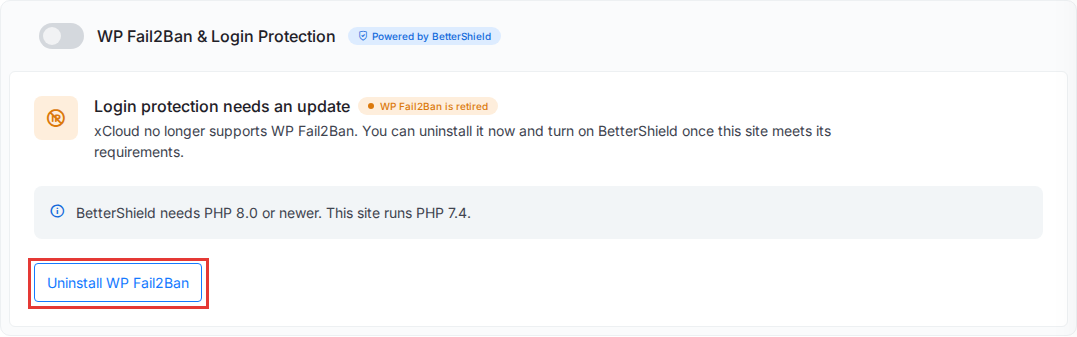
Update WordPress or change the site’s PHP version first, then come back: the card then offers the switch. You can also uninstall WP Fail2Ban now and turn on BetterShield later, but the site has no login protection in between.
Only uninstall WP Fail2Ban
On a site that can switch, the card also has a small Only uninstall WP Fail2Ban link below the note. It removes WP Fail2Ban without installing BetterShield. Confirm with Uninstall WP Fail2Ban.
Until BetterShield is on, failed logins on the site are no longer blocked. Use this only when you want to protect the site another way, and turn on the card’s switch later to add BetterShield.
Switch with the xCloud API
To switch many sites, or from a script, use the xCloud Public API with a token that has the read:sites and write:sites abilities. The GET request needs read:sites, and the POST needs write:sites. See How to Access the xCloud API to create one.
- Find the sites that can switch:
GET /sites/{uuid}/bettershieldreturnsupgrade_eligible: truefor a site that runs WP Fail2Ban and can run BetterShield. - Start the switch:
POST /sites/{uuid}/bettershield/upgrade. It takes no request body and answers202 Acceptedwithupgrading: true. - Poll
GET /sites/{uuid}/bettershielduntilstatusisactiveorfailed. Also stop whenupgradingisfalsewhilelegacy_wp_fail2banis stilltrue: WP Fail2Ban could not be uninstalled.statusstaysnull, andlast_errorreads WP Fail2Ban could not be uninstalled, so BetterShield was not installed. WP Fail2Ban still protects the site; you can start the switch again. Send thePOSTagain to retry.
curl -X POST https://app.xcloud.host/api/v1/sites/SITE_UUID/bettershield/upgrade \
  -H "Authorization: Bearer YOUR_API_TOKEN" \
  -H "Accept: application/json"
The request answers 409 while WP Fail2Ban is already being uninstalled or another BetterShield change runs, and 422 when WP Fail2Ban is not installed or the site cannot run BetterShield, with the reason in message. For a token that can reach more than one team, add the X-Team-Id header. To only uninstall WP Fail2Ban without installing BetterShield, send DELETE /sites/{uuid}/wp-fail2ban. The full list of BetterShield endpoints is in Manage BetterShield with the xCloud API.
Frequently asked questions
Does switching to BetterShield cost anything?
No. BetterShield is a free plugin by WPDeveloper, and xCloud installs and manages it at no cost. There is nothing to buy or add to your plan.
Do I lose any WP Fail2Ban protection when I switch?
No option is lost: BetterShield turns on a setting for every WP Fail2Ban option. There is a short gap, though. xCloud first removes WP Fail2Ban, then installs BetterShield as a second step, so failed logins are not blocked for the minute or two in between, or until BetterShield is on if its install fails.
Do I have to switch?
xCloud no longer supports WP Fail2Ban. A site that still runs it keeps working, but you cannot turn it on or change its options from the dashboard, and BetterShield is the only login protection you can turn on. Switch to keep login protection managed and up to date.
Will my content, theme or other plugins change?
Your posts, pages, theme and other plugins are not touched. The switch removes WP Fail2Ban, installs BetterShield and applies a few security fixes: it turns off the dashboard file editor, adds security headers, hides the WordPress version, stops the uploads folders listing their files, tightens the permissions of wp-config.php where needed and, when the site has a working SSL certificate in xCloud, changes the WordPress Address and Site Address from http to https. You can undo the first four in BetterShield in WP Admin. See What else the switch changes.
What if the switch fails?
If WP Fail2Ban cannot be uninstalled, the switch stops and BetterShield is not installed. WP Fail2Ban usually keeps protecting the site; if it shows as inactive under Plugins in WP Admin, try the switch again soon. Turn on the switch again to try again. If BetterShield fails to install, the card shows the reason with a Try Again button.
Can I switch many sites at once?
Use the xCloud Public API: POST /sites/{uuid}/bettershield/upgrade for each site, then poll GET /sites/{uuid}/bettershield until status is active or failed, or until upgrading is false while legacy_wp_fail2ban is still true (the uninstall failed; last_error then says why). See Switch with the xCloud API.
Still stuck? Contact our support team for any of your queries.