

How to Deploy an Astro Site from Git on xCloud (Static or SSR)
Updated October 31, 2026 · 7 min read
You can deploy an Astro site on xCloud straight from its Git repository. xCloud reads your package.json, recognizes Astro and fills in the build settings for you: a static build served from dist/ by default, or SSR (Node process) when your project uses the @astrojs/node adapter. After the first deploy, every push to your branch can publish a new version.
This guide covers both modes, what happens to Vercel, Netlify and Cloudflare adapters, and how to add environment variables and your own domain. xcloud.host itself is built with Astro.
How xCloud sets up an Astro site
xCloud picks the mode from the dependencies in your package.json:
| Your project has | Serving mode xCloud picks | What runs on the server |
|---|---|---|
| No adapter | Static build | npm run build, then your site is served from dist/ |
@astrojs/node |
SSR (Node process) | npm run build, then node ./dist/server/entry.mjs |
@astrojs/vercel, @astrojs/netlify or @astrojs/cloudflare |
Static build | The adapter is removed on the server, then the site builds to dist/ |
If your package.json has no build script, xCloud shows a warning on the review screen. Add a build script (for example "build": "astro build") or set the build command yourself before you deploy.
Before you begin
- An xCloud server with the Nginx or OpenLiteSpeed stack. You can also create one during these steps.
- Your Astro project in a Git repository. Public repositories work without any setup. For a private repository, connect your Git provider first.
- A
buildscript inpackage.json. New Astro projects have one by default.
Step 1: Choose Astro in the app list
Open Sites and click Add New Site. On What would you like to host today?, click the Astro card (“Deploy an Astro site from a repository”).
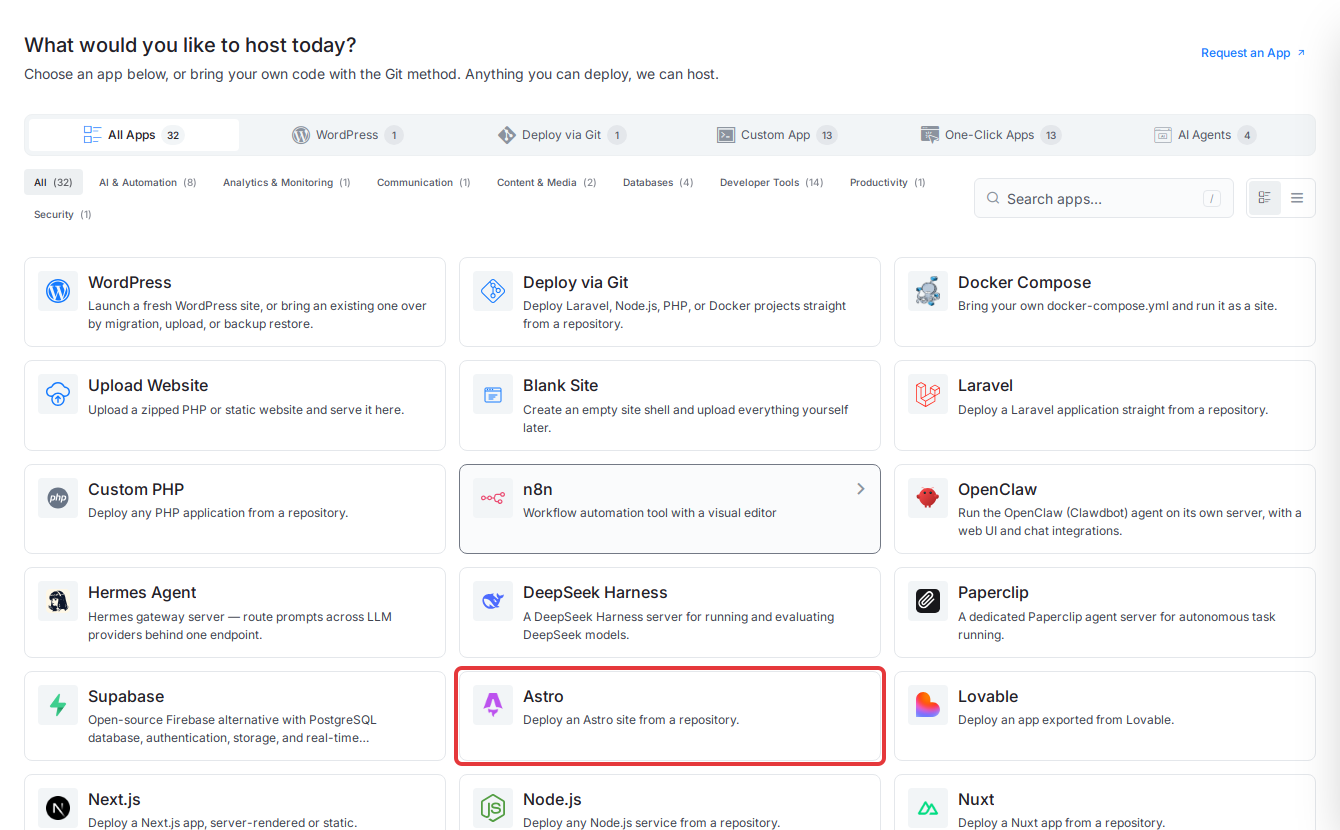
You can also pick a server first and open the Deploy via Git tab. Both paths lead to the same setup screen.
Step 2: Pick the server
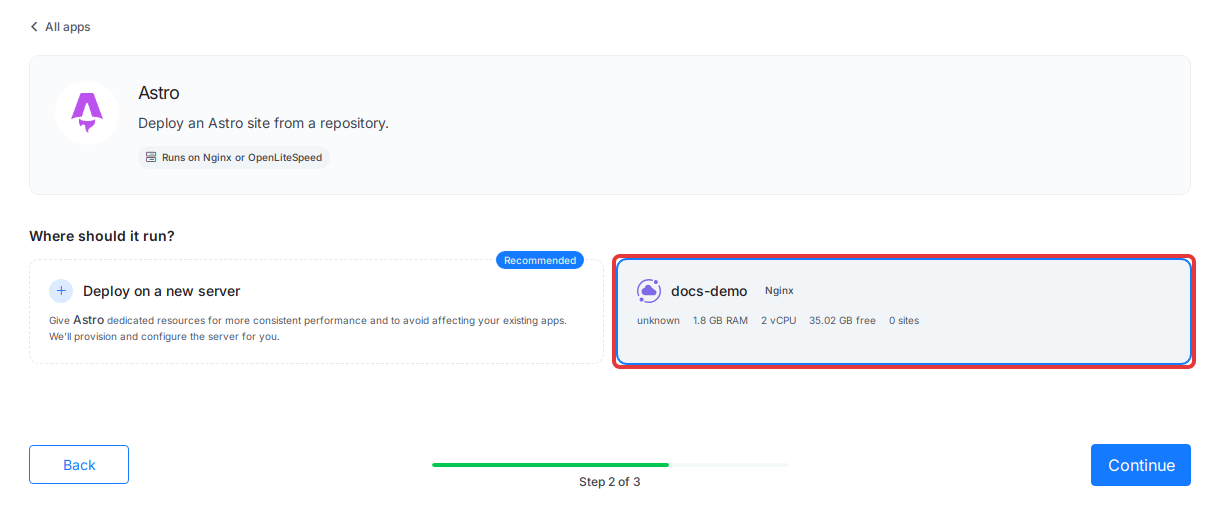
Under Where should it run?, select the server for your site and click Continue. If you have no Nginx or OpenLiteSpeed server yet, choose Deploy on a new server and xCloud brings you back here once the server is ready.
Step 3: Add your repository
In Deploy Any App From Git, paste your repository URL or search for it, then press Enter. For a private repository, switch to Private Repository and pick it from your connected account.
xCloud reads the repository and shows Native app with an Astro label. App Type is set to Node.js, because Astro builds with Node.js even when the final site is static.
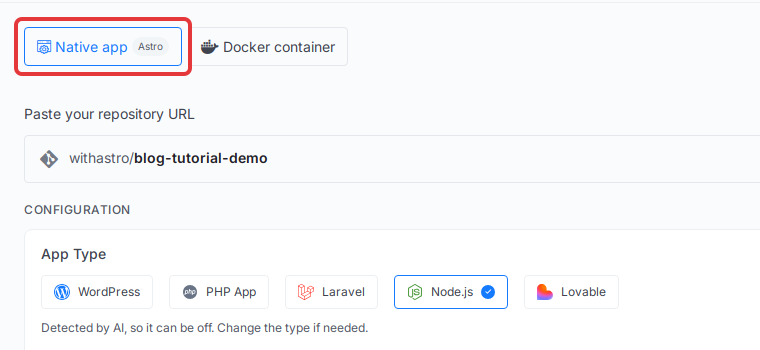
Detection is a suggestion. If it picked the wrong type, click the right one before you continue.
Step 4: Check domain and branch
Keep the free Staging domain (no DNS) to test first, or click Use a live domain instead to use your own domain. Check that Branch is the branch you want to publish. xCloud fills in the repository’s default branch.
Step 5: Check the build settings
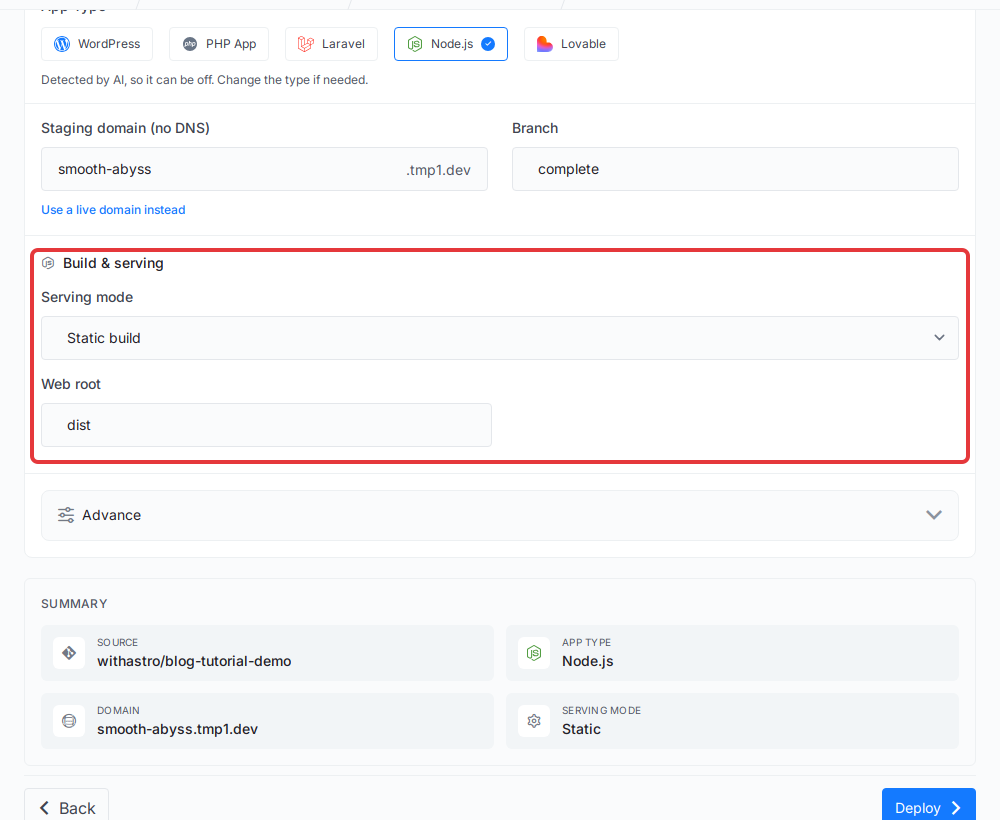
Scroll to Build & serving. What you see depends on your project.
Static Astro site (no adapter)
Serving mode is Static build and Web root is dist. This is where astro build writes your site, so leave it as it is unless you changed outDir in astro.config.
Astro SSR site (@astrojs/node)
Serving mode is SSR (Node process), Start command is node ./dist/server/entry.mjs and Port is 3000. xCloud passes the port to your site when it starts it, so you don’t need to set it in your code.
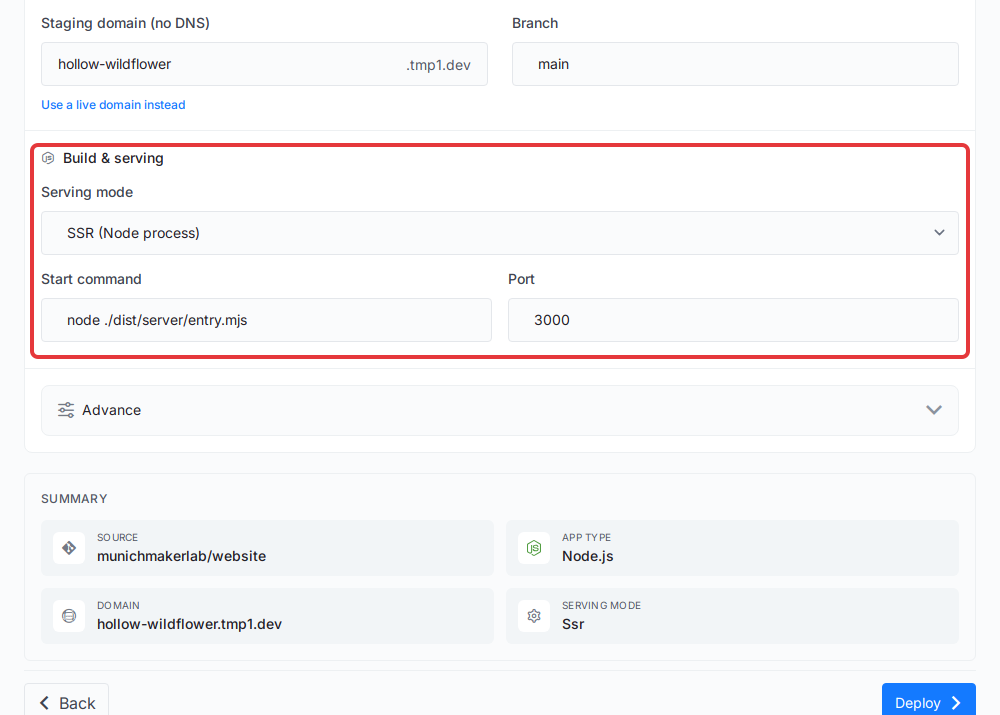
The start command needs the Node adapter in standalone mode. If your project doesn’t use the adapter yet, add it with npx astro add node, then check that your astro.config.mjs looks like this:
import { defineConfig } from 'astro/config';
import node from '@astrojs/node';

export default defineConfig({
  output: 'server',
  adapter: node({ mode: 'standalone' }),
});
Commit and push the change, then add the repository again so xCloud picks up the new mode.
Step 6: Add environment variables (optional)
Open Advance and find Environment file (.env). xCloud fills it from a sample file in your repository when one exists. Add the values your site needs there, not in your repository.
For a static site, Astro reads these values while it builds. After you change one, deploy again so the site picks it up.
Step 7: Deploy
Check the Summary and click Deploy. xCloud pulls your code, installs dependencies, runs the build and publishes the site. When it is done, open Deployments on the site. The latest deployment shows Deployed and LIVE.
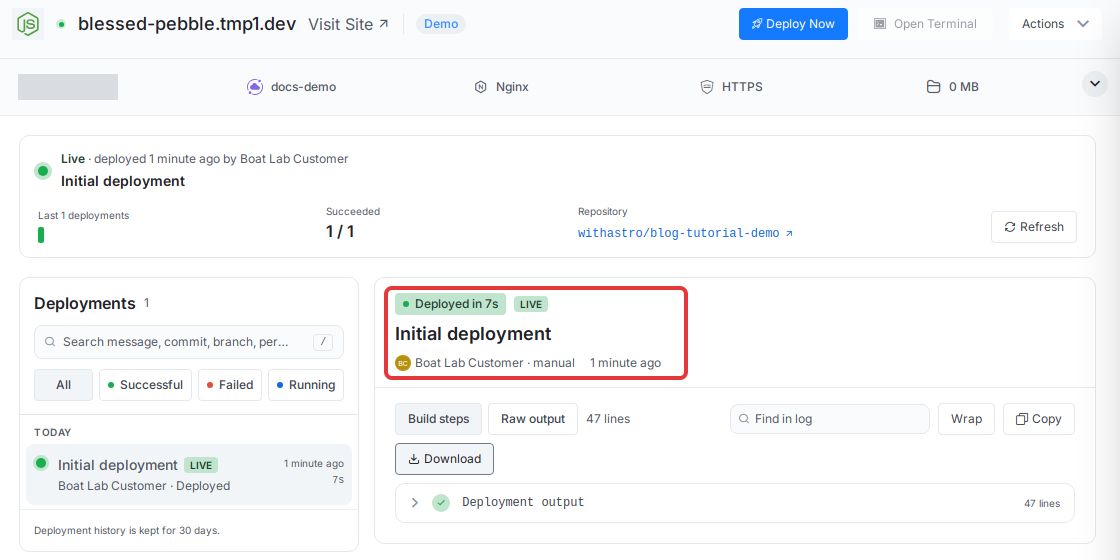
If a deployment fails, open it on the same page and read Build steps to see which step stopped. For a static site, the most common cause is a build that wrote no index.html to the web root. Check the Web root field and your outDir, then click Deploy Now. See How to View Git Deployments for Your Site in xCloud for more on this page.
Coming from Vercel, Netlify or Cloudflare?
You don’t need to change your project to try it on xCloud. When your package.json has @astrojs/vercel, @astrojs/netlify or @astrojs/cloudflare (and not @astrojs/node), xCloud shows this warning on the setup screen:
This Astro app targets a serverless platform; its adapter is removed at deploy so it builds as a static site.
On each deploy, xCloud removes that adapter from astro.config on the server and builds the site as static. Your repository stays as it is, so it still deploys to your old platform.
This works well for content sites that only added the adapter for hosting. If your site needs server rendering (pages rendered on request, or API endpoints), replace the serverless adapter with @astrojs/node as shown in Step 5. xCloud then runs it as an SSR site.
Update your site with a Git push
After the first deploy, publishing a change is a push:
- Turn on Auto-deploy on push (webhook) for repositories from a connected Git provider. xCloud can add the webhook for you when your account has admin access to the repository.
- Push to the branch you deployed. xCloud pulls the new code, rebuilds the site and, for SSR sites, restarts the Node process.
- To deploy without a push, click Deploy Now at the top of the site.
Add your own domain and SSL
If you started on a staging domain, add your own domain from the site’s Domain menu, point its DNS to your server, and xCloud sets up a free SSL certificate. How to Deploy Git Projects in One Click with xCloud shows the DNS options, including one-click verification for domains on Cloudflare.
To change the Node.js version your site builds with, see How to Change Node Version with xCloud. If a deployment is stuck or doesn’t start on push, see Troubleshooting Git Deployments.
Frequently asked questions
Does xCloud support Astro server-side rendering (SSR)?
Yes. Add the @astrojs/node adapter in standalone mode. xCloud detects it, sets the serving mode to SSR (Node process) and starts your site with node ./dist/server/entry.mjs.
My Astro site uses the Vercel, Netlify or Cloudflare adapter. Can I still deploy it?
Yes. xCloud removes that adapter on the server during each deploy and builds your site as a static site. Your repository is not changed. To keep server rendering, switch to the @astrojs/node adapter.
Which folder does xCloud serve for a static Astro site?
The dist folder, which is where astro build writes your site. You can change it in the Web root field before you deploy.
How do I update my Astro site after it is live?
Push to the branch you deployed. With Auto-deploy on push turned on, xCloud builds and publishes the new version. You can also click Deploy Now on the site.
That’s it! Your Astro site is live on xCloud and updates whenever you push. For more on hosting Astro with xCloud, see Astro hosting.
Still stuck? Contact our dedicated support team for any of your queries.