

How to Manage Email Preferences and Unsubscribe in xCloud
Updated October 19, 2026 · 5 min read
Email Preferences let you choose which optional xCloud emails reach your inbox. Settings apply to your account only, so your teammates keep their own choices. Use this guide to turn off optional emails, pick email types per category, mute a single site or server, and use the unsubscribe links in each email.
Email Preferences only control email for you. To choose team-wide notification channels such as Slack, Telegram, or WhatsApp, use the cards at the top of the same page, described in How to disable notifications in xCloud.
Open Email Preferences
Select Settings in the left bar, then Notifications under Team. Scroll to Email Preferences at the bottom of the page.
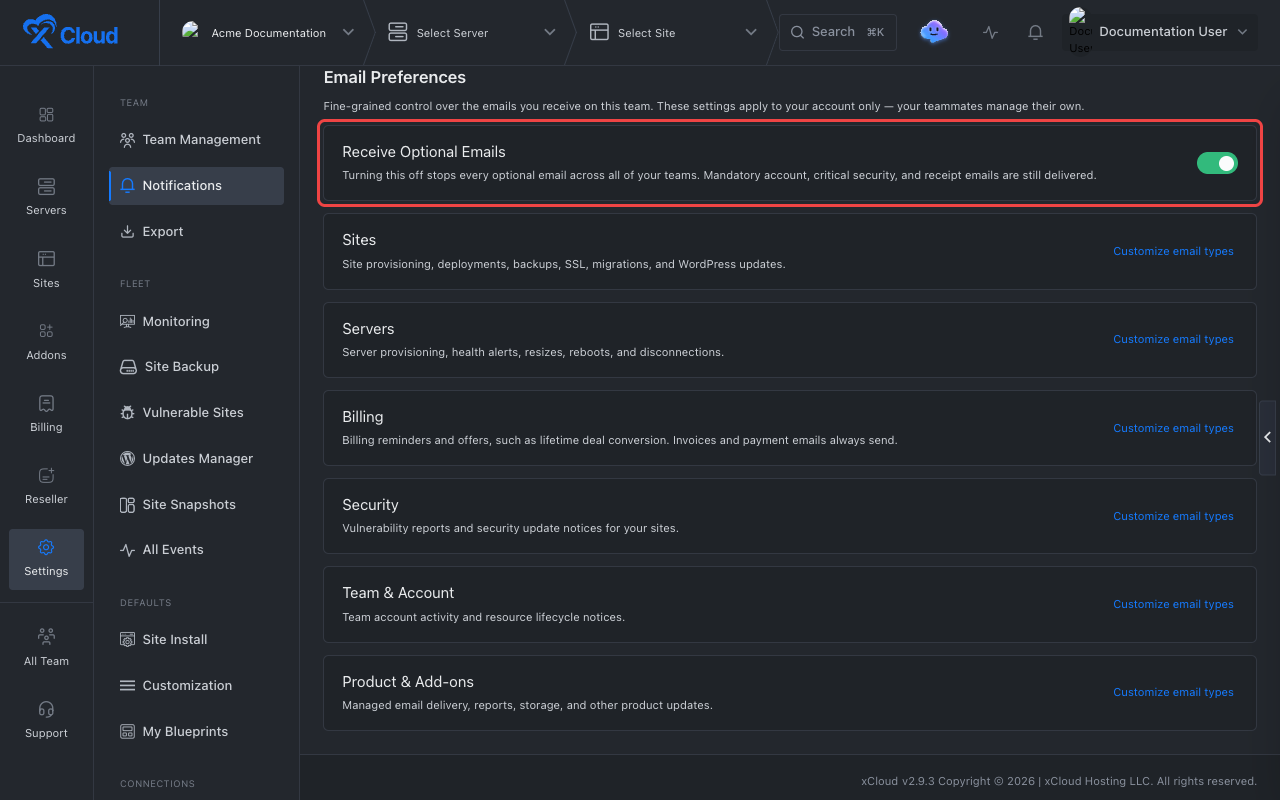
Every team member can use this section, even without permission to manage the team’s notification channels.
Turn off all optional emails
Turn off Receive Optional Emails to stop every optional email across all of your teams. Mandatory account, critical security, and receipt emails are still delivered.
While it is off, the category cards are dimmed. Turn it back on to restore your per-category choices.
Choose email types by category
Each card groups related emails:
| Category | Covers |
|---|---|
| Sites | Site provisioning, deployments, backups, SSL, migrations, and WordPress updates |
| Servers | Server provisioning, health alerts, resizes, reboots, and disconnections |
| Billing | Billing reminders and offers. Invoices and payment emails always send. |
| Security | Vulnerability reports and security update notices |
| Team & Account | Team account activity and resource lifecycle notices |
| Product & Add-ons | Managed email delivery, reports, storage, and other product updates |
Select Customize email types on a card to list its email types, then turn off the ones you do not want, such as Backup Completed or Site Created. Select Hide email types to collapse the list.
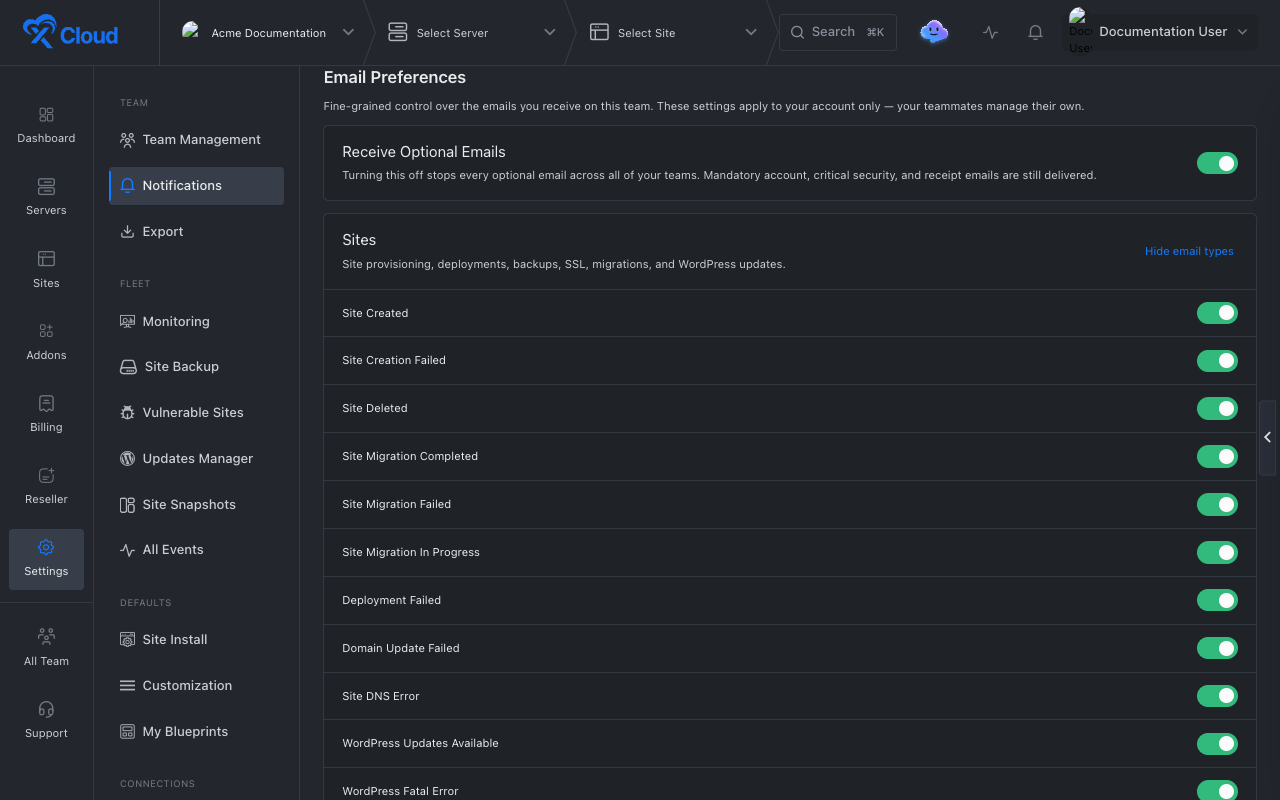
These per-type choices apply to the current team. Switch teams to set different choices for another team.
Emails you cannot turn off
Some emails are always delivered and never show an unsubscribe link:
- Account emails, such as welcome, email verification, and password reset.
- Invoices, payment confirmations and failures, and refunds.
- Exports you requested.
- Cloudflare Enterprise bandwidth notices.
- Critical security and support notices.
Unsubscribe from an email
Optional emails include links in their footer:
- Unsubscribe from a named email type stops that type only.
- Mute for a named site or server stops that email type for that one resource, when the email is about a site or server.
- Update notification preferences opens Email Preferences after you log in.
The unsubscribe and mute links open a page that asks you to confirm. You do not need to log in.
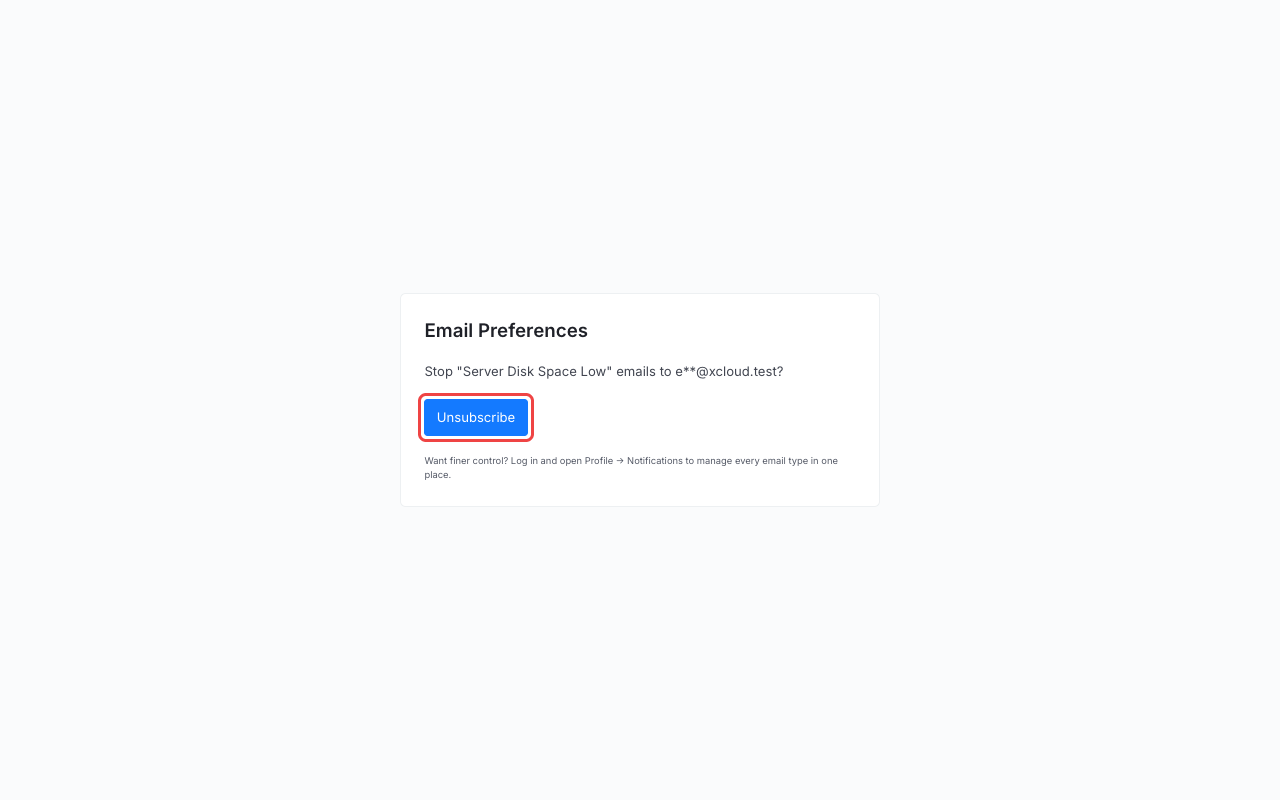
Select Unsubscribe.
Expected result: The page confirms “You have been unsubscribed.” and shows a Subscribe again button in case you change your mind.
Most mail apps also show their own Unsubscribe option for xCloud’s optional emails. It stops the same email type.
The links in an email stay valid for 60 days. After that, use Update notification preferences or open Email Preferences directly.
Unmute a site or server
When you mute an email type for a single site or server, a Muted Sites & Servers card appears in Email Preferences. Select Unmute next to an entry to receive those emails again.
FAQ
Do my email preferences affect my teammates?
No. Email Preferences apply to your account only. Each teammate manages their own.
Which emails can I not turn off?
Mandatory emails, such as account and password emails, invoices and payment emails, and critical security notices, are always delivered.
Do I need to log in to unsubscribe from an email?
No. The unsubscribe link in an email opens a page where you confirm with one click, without logging in.
How do I undo an unsubscribe?
Select Subscribe again on the unsubscribe page, or turn the email type back on under Settings → Notifications → Email Preferences.