

Supported Server Providers in xCloud and How to Connect Them
Updated October 28, 2026 · 6 min read
xCloud can run your sites on a server it manages for you, or on a server you bring from your own cloud account. You can connect seven providers by API (Vultr, DigitalOcean, Google Cloud, Hetzner, AWS, Linode (Akamai) and Hostinger), and any other provider by connecting a fresh Ubuntu server over SSH. This page lists every option and shows how to add, edit and remove a provider credential in ‘Settings’ → ‘Integrations’ → ‘Server Provider’.
Ways to get a server in xCloud
There are four ways to get a server. Pick the one that matches who should own the cloud account and the bill.
| Option | Who owns the cloud account | How you connect it | Guide |
|---|---|---|---|
| xCloud (Managed) | xCloud | Nothing to connect. Choose a size and region and xCloud creates the server. | Set up your first server with xCloud Managed |
| xCloud (Provider) | xCloud | Nothing to connect. Shown as “Only Available for LTD Users”. | xCloud Provider for LTD users |
| Your own provider account | You | Save an API key, token or service account once, then create servers from xCloud. | Per-provider guides below |
| Any (custom server) | You, with any provider | Enter the server’s IP address and give xCloud root SSH access to a freshly installed Ubuntu server. | Connect a fresh Ubuntu server from any provider |
With your own provider account or a custom server, the provider bills you for the server itself, and xCloud charges for the panel according to your plan.
Supported provider integrations
These are the providers you can save in ‘Server Provider’. Each one uses its own kind of credential.
| Provider | Credential xCloud asks for | Setup guide |
|---|---|---|
| Vultr | Label and Vultr API key | Set up a Vultr server |
| DigitalOcean | Authorize your DigitalOcean account (you sign in on DigitalOcean) | Set up a DigitalOcean server |
| Google Cloud | Upload the service account JSON file | Set up a Google Cloud server |
| Hetzner | Label and Hetzner API key | Set up a Hetzner server |
| AWS | Label, AWS access key and AWS secret key, plus the AWS services to use | Set up an AWS server |
| Linode (Akamai) | Authorize your Linode account (you sign in on Linode) | Set up a Linode server |
| Hostinger | Label and Hostinger API key | Set up a Hostinger server |
Any other provider (for example Contabo, OVHcloud, netcup or RackNerd) uses the Any option instead of a saved credential. Provider-specific walkthroughs: Contabo, OVHcloud, netcup and RackNerd.
Before you start
- A paid xCloud plan. The ‘Server Provider’ menu item is locked on the free plan.
- A team role with the permission to manage integrations and the permission to add, edit or delete server providers (Team Admin or Server Admin with those permissions). Without the integrations permission, the whole ‘Integrations’ group is hidden.
- An API key, token or service account from your provider, created in the provider’s own dashboard. The per-provider guides above show where to find it.
Step 1: Open Server Provider
Go to ‘Settings’ → ‘Integrations’ → ‘Server Provider’. The page lists every provider credential saved for your team, with its name, provider and the number of servers that use it. Click ‘Add New Provider’.
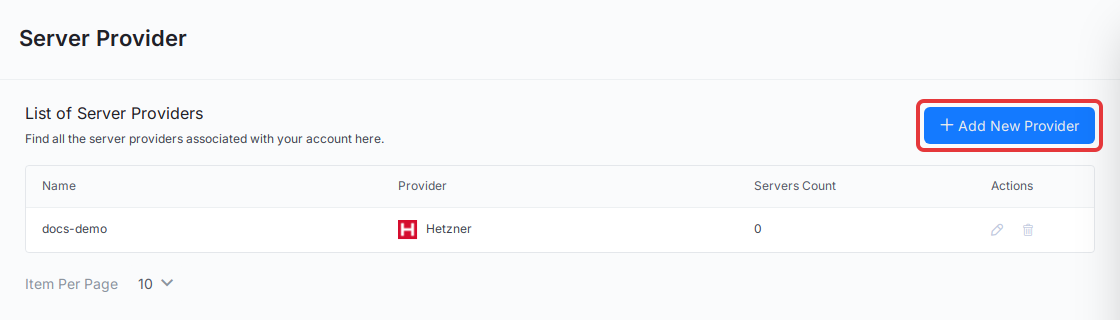
Step 2: Choose the provider and enter its credential
In the ‘Add Server Provider’ window, select your provider. The form below the cards changes to match it:
- Vultr, Hetzner, Hostinger: enter a label you will recognise and the provider’s API key.
- Google Cloud: click ‘Upload JSON’ and select your service account key file. xCloud fills the label with the project ID from the file.
- AWS: select the AWS services, then enter a label, the AWS access key and the AWS secret key.
- DigitalOcean, Linode (Akamai): xCloud sends you to the provider to sign in and approve access.
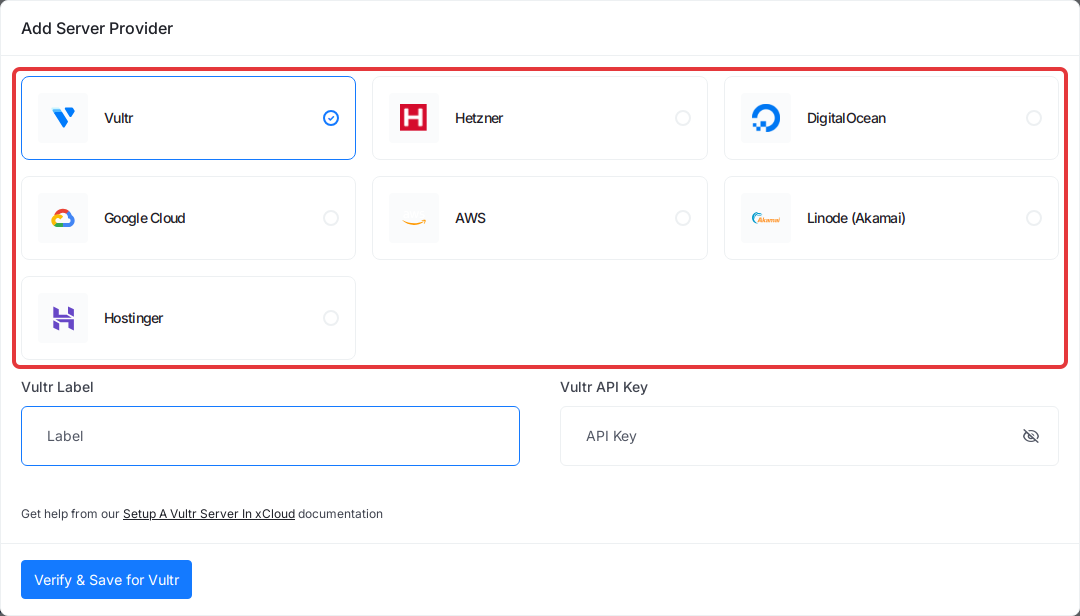
Click ‘Verify & Save for
If the check fails, xCloud shows an error and does not save the credential. Confirm that you copied the whole key, that it has not expired, and that it has read and write access in the provider’s dashboard, then try again.
Step 3: Create a server with the connected provider
Open the ‘Bring and Manage Your Own Server’ page (press Ctrl K and search for ‘Create Server (Own Provider)’). The card of each connected provider now shows how many accounts are connected. Click the card and follow the provider’s setup guide from the table above to choose a size, region and stack.
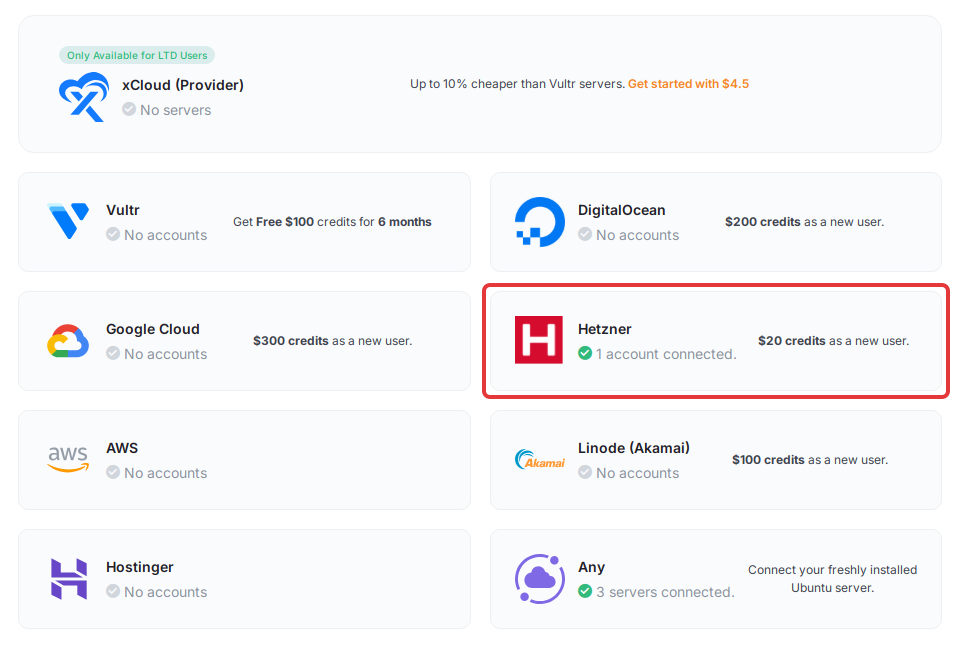
To connect a server from a provider that is not listed, click ‘Any’ and follow Connect a fresh Ubuntu server from any provider.
Edit or remove a provider credential
Use the icons in the ‘Actions’ column of ‘Server Provider’:
- Edit (pencil): change the label; for Vultr, Hetzner and Hostinger you can also paste a new API key (leave it empty to keep the current key). For other providers, remove the credential and add it again to change it.
- Remove (bin): deletes the saved credential. Check ‘Servers Count’ first, then confirm with ‘Yes, Remove!’. This cannot be undone.
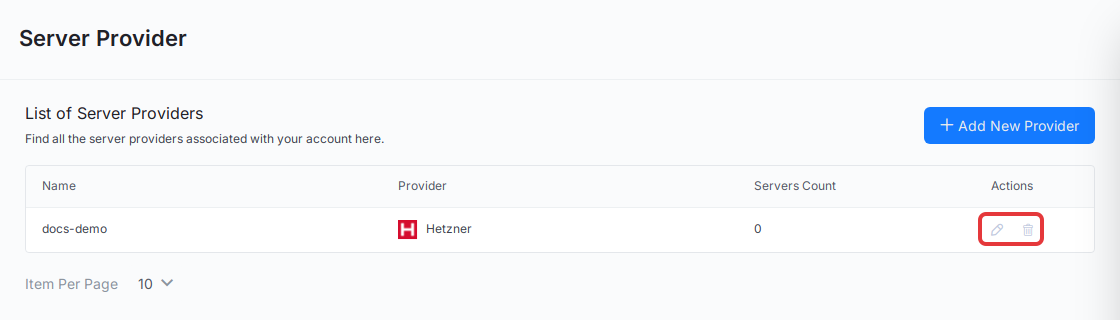
Rotate a key at the provider first, then update it here (paste the new key for Vultr, Hetzner and Hostinger; remove and re-add the credential for other providers), so xCloud never holds a key that no longer works.
Frequently asked questions
Can I use a provider that is not on the list, such as Contabo or OVHcloud?
Yes. Choose Any on the Bring and Manage Your Own Server page and connect a freshly installed Ubuntu server over SSH. There is no provider allowlist for this path; xCloud only needs root SSH access to a fresh Ubuntu server.
Do I need to add a provider in Server Provider before I can connect a custom server?
No. Server Provider only stores API credentials for the seven integrated providers. A custom server from any other provider is connected with its IP address and SSH access, without a saved credential.
Can I undo removing a provider credential?
No. Removing a credential deletes the saved API key or token from xCloud. Check the Servers Count column first: it shows how many servers use that credential. To use the provider account again, add the credential again.
Why is Server Provider locked in my Settings menu?
The Server Provider menu item is locked on the free plan. To see it at all, a team member needs both the permission to manage integrations and a permission to add, edit or delete providers. It is also hidden inside a white-label reseller dashboard. Upgrade the plan or ask a Team Admin to give you both permissions.
If you run into any issues connecting a server provider, feel free to reach out to our support team.