

Cache Cloudflare Enterprise Pages per Device in xCloud
Updated October 31, 2026 · 4 min read
Cache by Device Type tells Cloudflare Enterprise to keep a separate cached copy of each page for mobile, tablet and desktop visitors. Turn it on when your site sends phones a different page than desktop visitors, so each device gets the page built for it. It is off by default and you turn it on per site or per external domain.
When to use it
Edge Page Caching stores one copy of each page at the Cloudflare edge. If your site builds a different page for phones, for example with a mobile theme or a mobile page cache, a single copy means a phone can receive the desktop page, or a desktop visitor the mobile one.
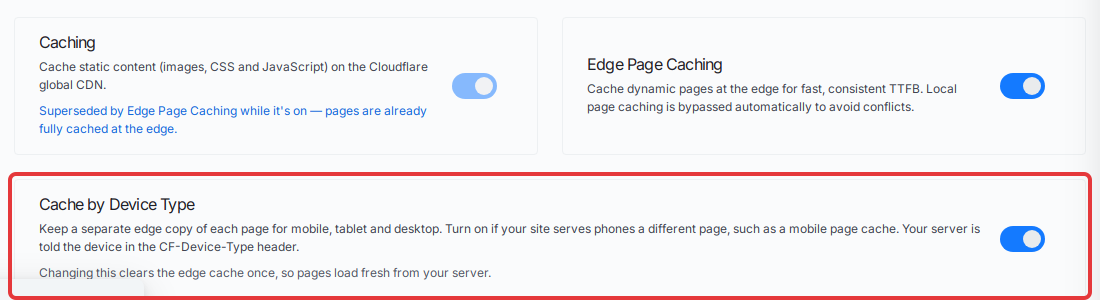
With Cache by Device Type on, the edge keeps up to three copies of each page: one for mobile, one for tablet and one for desktop. Cloudflare also tells your site which kind of device asked for the page, so a mobile theme or cache plugin can choose the right version.
This setting only keeps the copies apart. Your theme or mobile cache plugin must still send phones the mobile page. If your server’s own page cache keeps one copy for every device, phones still get the desktop page. xCloud’s standard server page cache keeps one copy for all devices.
If your site is responsive and sends every device the same page, leave this setting off. Extra copies only mean more first visits that load from your server.
Before you start
- The Cloudflare Enterprise add-on is active on the site or the external domain.
- Edge Page Caching is on, or you are ready to turn it on. Cache by Device Type works only together with it.
Step 1: Open the Settings tab
Open the site in xCloud and select Cloudflare Enterprise in the site menu. For an external domain, go to Addons → Cloudflare Enterprise Addons, open the domain’s actions menu, and select Manage.
Open the Settings tab. On a site, these settings apply to every domain of the site that is connected to Cloudflare Enterprise. On an external domain, they apply to that domain and its www form.
Step 2: Turn on Edge Page Caching
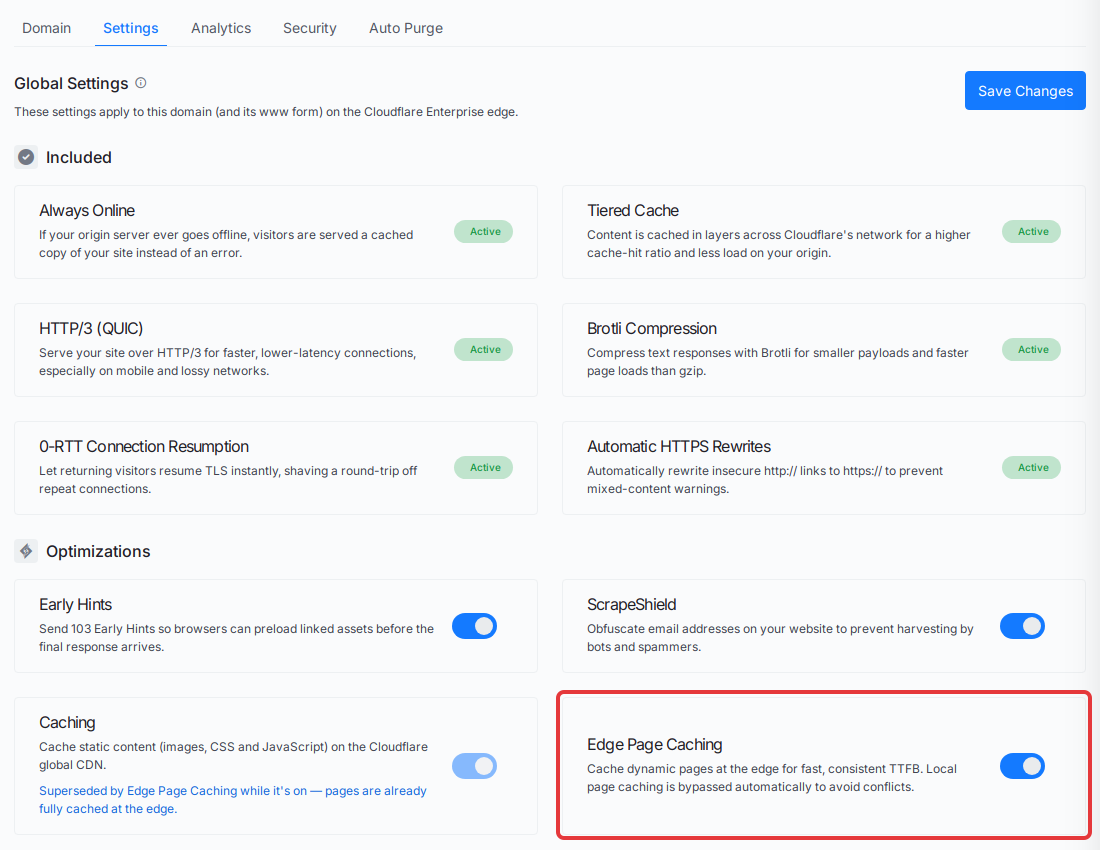
Under Optimizations, make sure the Edge Page Caching switch is on. If it is off, turn it on. The Cache by Device Type card appears below it.
Step 3: Turn on Cache by Device Type
Turn on the Cache by Device Type switch.
Step 4: Save your changes
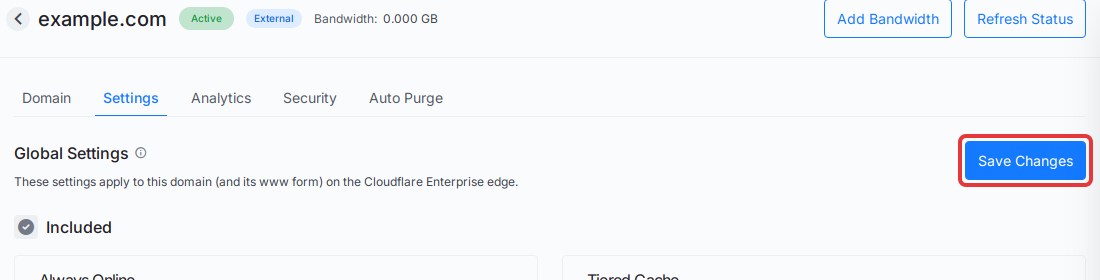
Scroll to the top of the tab and select Save Changes. xCloud applies the setting to the Cloudflare edge. Changes can take up to a minute to reach Cloudflare’s whole network.
Saving a change to this setting clears the domain’s edge cache once, so pages load fresh from your server and are cached again per device. Expect a short rise in requests to your server while the cache fills.
Check that it works
Wait about a minute after you save. Then open a page of your site on a phone and on a desktop browser, in a private window or with a new query added to the address, such as ?test=1, so you don’t get a copy cached earlier. The phone shows your mobile layout and the desktop browser shows the desktop layout.
If phones still get the desktop page, first check that your site sends phones a different page. This setting only keeps the copies apart. Your theme or mobile cache plugin must still send phones the mobile page. If your server’s own page cache keeps one copy for every device, phones still get the desktop page. xCloud’s standard server page cache keeps one copy for all devices.
If your site does send phones the mobile page, check that Edge Page Caching and Cache by Device Type are both on and saved. Then purge the URL and load the page again.
Turn it off
Turn off the Cache by Device Type switch and select Save Changes. xCloud clears the edge cache once more, and the edge goes back to one copy of each page for all devices. Turning off Edge Page Caching also stops device-type caching, because the setting only works with it.
Purging a site cached by device type
You don’t need to do anything extra. When you purge specific URLs, from the dashboard, the xCloud Cloudflare Enterprise Auto Cache Purge plugin or an Auto Purge webhook, xCloud clears the mobile, tablet and desktop copy of each URL.
Purge everything and purge by Cache-Tag already clear every device copy, so they work the same as before.
Frequently asked questions
Do I need Cache by Device Type?
Only if your site sends phones or tablets a different page than desktop visitors, for example through a mobile theme or a mobile page cache. A responsive site that sends every device the same page does not need it.
Why can’t I see the Cache by Device Type setting?
The setting only appears while Edge Page Caching is on. Turn on Edge Page Caching in the Settings tab and the Cache by Device Type card shows up below it.
What happens to my cache when I change this setting?
xCloud clears the domain’s edge cache once after you save. Pages then load fresh from your server and are cached again, one copy per device type while the setting is on.
Do I need to purge each device type separately?
No. When you purge specific URLs, xCloud clears the mobile, tablet and desktop copy of each URL for you.
If you run into any issues while setting this up, feel free to reach out to our support team.
For developers
Cloudflare sends the device type to your server in the CF-Device-Type request header, with the value mobile, tablet or desktop. The header is only sent while Cache by Device Type is on. If your server has its own page cache, include this header in its cache key.