

See your lifetime plans, servers and add-ons in My Purchases
Updated October 30, 2026 · 4 min read
My Purchases shows everything your team has bought from xCloud in one place: your xCloud Control Panel plans (including lifetime deals), with how many server slots are free, and the servers and add-ons you are using or still need to set up. You find it under Settings → My Purchases.
It has two pages:
| Page | What it shows | Used to be |
|---|---|---|
| xCloud Control Panel | One card per Control Panel plan: servers included, how many are used and free, and the servers using it | Team Packages |
| Servers & Add-ons | Servers and Add-ons tabs, each with purchases waiting for setup and what is In use | Team Products |
Site Security Pro now lives in the Add-ons tab of Servers & Add-ons. Old bookmarks to the Site Security Pro subscriptions page open that tab.
Step 1: Open My Purchases
Click Settings in the left menu. In the settings menu, scroll to Plans & billing and click My Purchases → xCloud Control Panel.
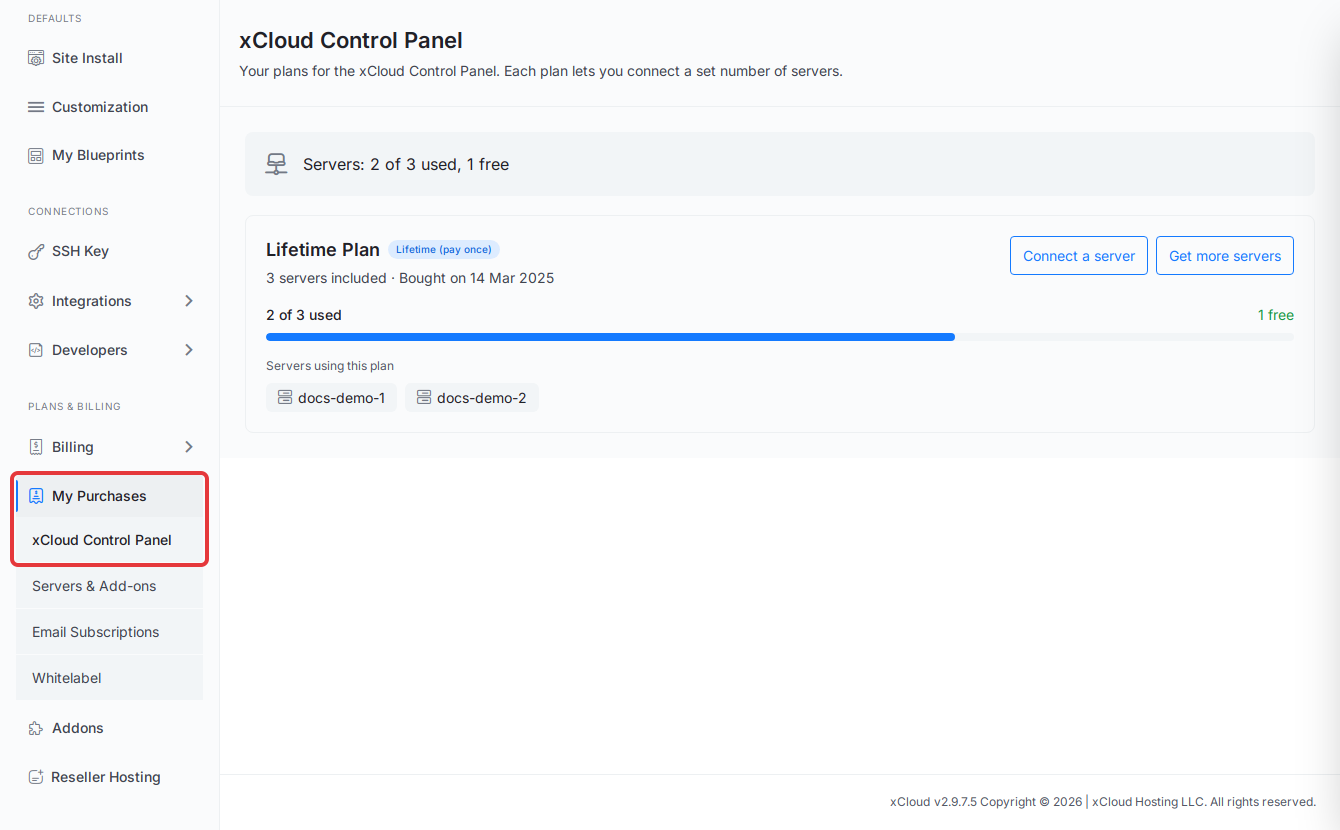
Expected result: The xCloud Control Panel page opens. The line at the top adds up every plan, for example Servers: 2 of 3 used, 1 free.
xCloud Control Panel needs billing access to your team. It does not appear on a white label (reseller) dashboard. If you have no plan yet, the page says You don’t have a Control Panel plan yet.
Step 2: Check the free server slots on your plan
Each plan has its own card. Read it from top to bottom:
- The plan name and how it renews. A lifetime deal shows Lifetime (pay once) and the date you bought it (Bought on). A plan that renews shows Current period since instead.
- How many servers are included.
- The usage bar, for example 2 of 3 used, with how many are free. When the plan is full, it shows All servers in use.
- Servers using this plan: click a server name to open that server.
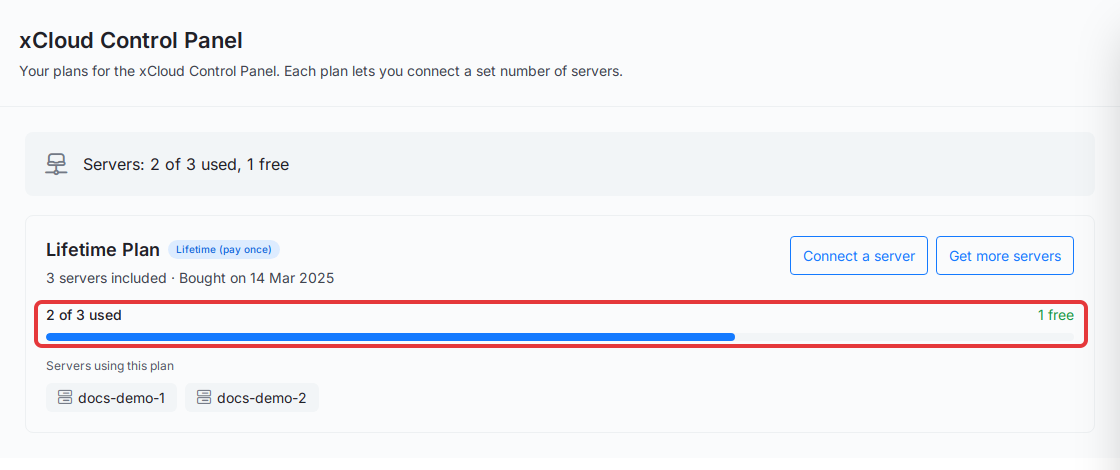
Expected result: You know how many more servers your plan can take before you connect one.
If the used number is higher than the servers listed, the card explains why: Includes 1 slot from an earlier renewal or a removed server. Those slots still count as used.
Step 3: Connect a server or get more servers
Use the buttons on the right of the plan card:
- Connect a server opens the page where you add a server to xCloud. It appears only when the plan has a free slot and you can add servers to the team.
- Get more servers opens Upgrade Your Package, where you can move the plan to a bigger package. Pick a package under Choose Your New Package, check the total, and click Upgrade Now & Pay Only. See Upgrade your xCloud lifetime deal package.
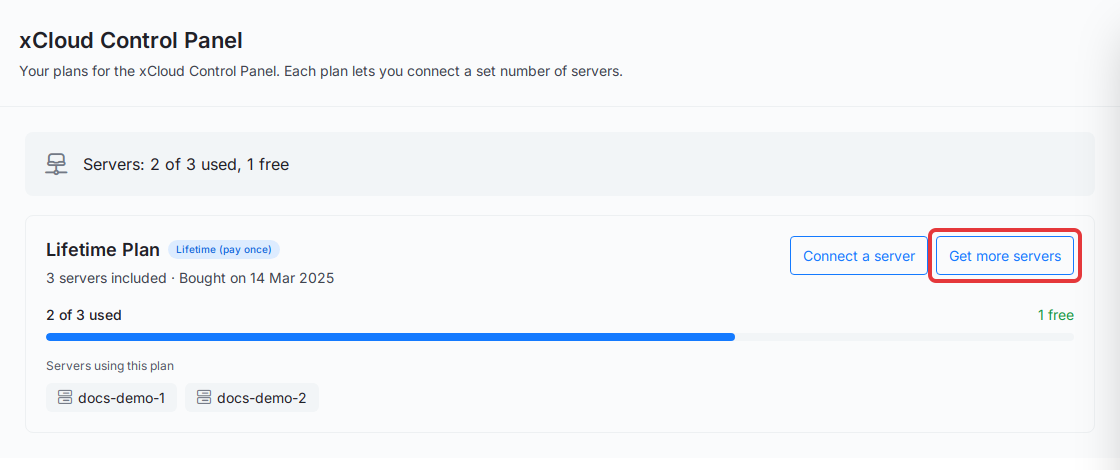
Expected result: Connect a server starts adding a server under this plan. Get more servers shows your current package, its usage, and the packages you can upgrade to. If no bigger package exists for your plan, the page says No upgrade packages available for it.
Step 4: See which servers are in use
Click My Purchases → Servers & Add-ons. The Servers tab opens first.
- Continue Server Setup lists server plans you paid for but haven’t used to create a server yet. Click Setup to finish one. See Continue setup of add-ons and servers you already paid for.
- In use lists the servers on a purchased plan, with four columns: Plan, Used by (the server, click it to open it), Billing (Monthly, Yearly, Every 2 years or Lifetime (pay once)) and In use since.
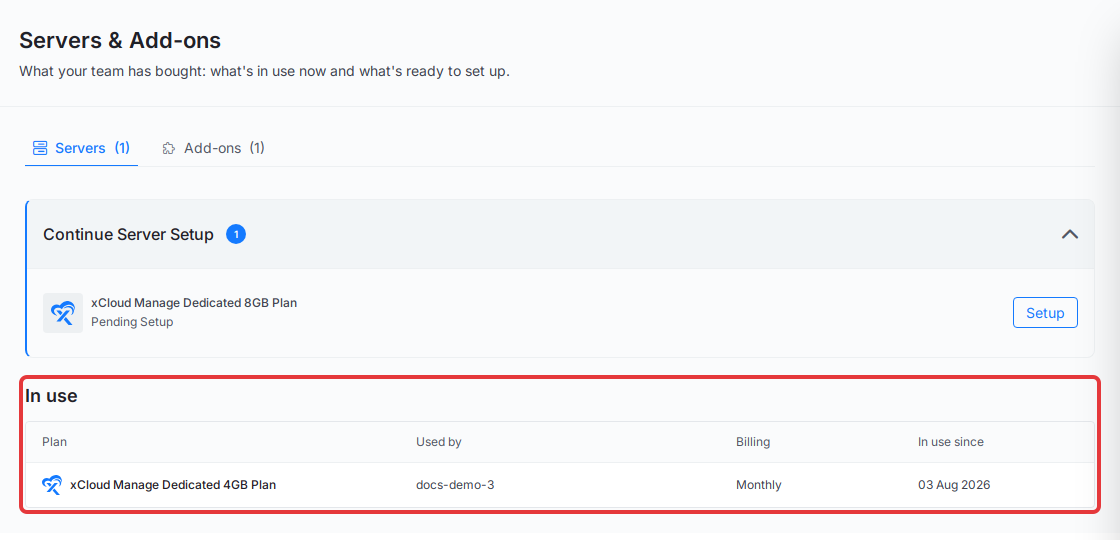
Expected result: You see each purchased server, what it runs on, how it is billed and since when.
In use since is the first time that server was billed, not the latest renewal.
Step 5: See which add-ons are in use
Click the Add-ons tab.
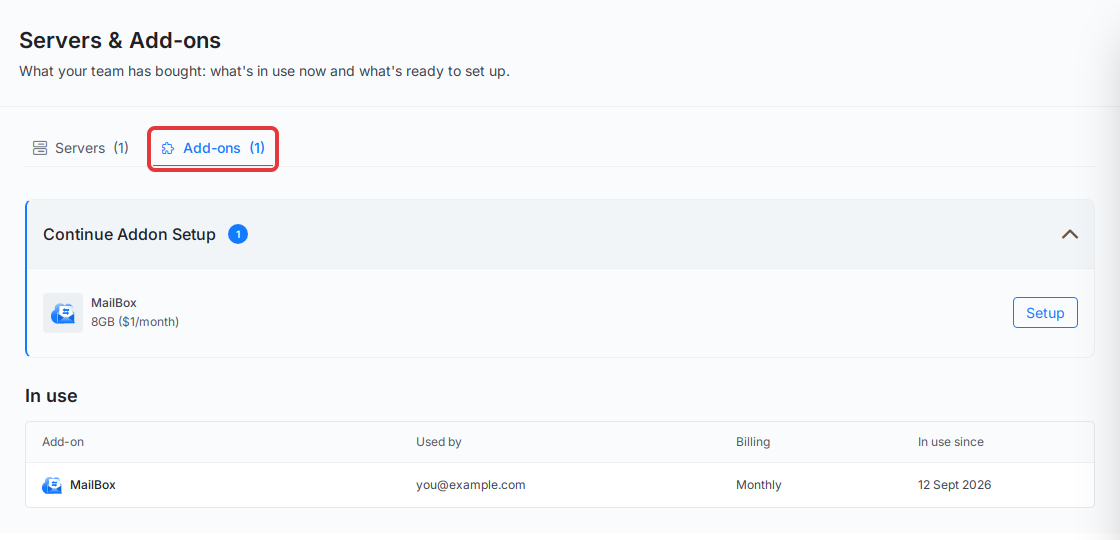
Expected result: The tab shows:
- Continue Addon Setup: add-ons you paid for but haven’t set up, such as MailBox or Mail Delivery, each with a Setup button.
- In use: the add-ons you use now, with Add-on, Used by (for example the mailbox address), Billing and In use since.
- Site Security Pro: if your team has it, a separate list of the sites it protects from known plugin and theme vulnerabilities, where you can also remove it from a site. See Set up Site Security PRO.
The number next to each tab counts what is in use.
If something is missing
| What you see | Why | What to do |
|---|---|---|
| Ask someone with billing access to see what’s in use. | Only members with billing access see the In use lists, because they name every server, site and mailbox the team pays for. | Ask your team owner or a member with billing access. |
| My Purchases or xCloud Control Panel is not in the settings menu | Your team role doesn’t give access to it, or you are on a white label dashboard. | Ask the team owner for access, or check with your hosting provider. |
| A purchase is not listed | You are looking at a different team. | Switch to the team that made the purchase in the team menu at the top. |
| No servers on a purchased plan yet. | You have no server on a plan bought in the cart. Servers on a Control Panel plan are listed on xCloud Control Panel. | Open xCloud Control Panel, or click Setup in Continue Server Setup. |
For unused server purchases you no longer need, see Claim Account Credit for an unused server purchase. For the full refund rules, read the xCloud refund policy.
Frequently asked questions
Where did Team Packages and Team Products go?
They are now under Settings → My Purchases. Team Packages is called xCloud Control Panel, and Team Products is called Servers & Add-ons. Site Security Pro moved into the Add-ons tab of Servers & Add-ons, and its old page opens that tab for you.
Why does my plan count more used servers than it lists?
A renewal can leave the earlier bill active, and a removed server can still hold its slot for a while. Both count as used. The card says so under the usage bar, for example Includes 1 slot from an earlier renewal or a removed server.
Why can’t I see the In use list?
The In use list names every server, site and mailbox your team pays for, so only team members with billing access can see it. Everyone else sees the Continue Setup list and a note to ask someone with billing access.
Why is the Connect a server button missing?
It appears only when the plan still has a free server slot and you are allowed to add servers to the team. If every slot is in use, use Get more servers instead.
If you run into any issues, feel free to reach out to our support team.