

How to Import Email From Gmail, cPanel or Another Provider Into an xCloud Mailbox
Updated October 28, 2026 · 7 min read
You can bring existing email from Gmail, cPanel or another provider into an xCloud mailbox by copying it over IMAP: connect to the old account and the new xCloud mailbox at the same time, then copy the folders across. xCloud’s Migrate Mailbox tool does not do this. It only moves mailboxes from the legacy xCloud mailbox provider (see migrate from the legacy mailbox).
The import needs a paid xCloud mailbox. The free 100 MB plan is webmail only, so no email client or migration tool can log in to it over IMAP.
Before you start
- A paid xCloud mailbox for each address you’re moving, with enough storage for the mail you’re bringing over. Create it with the MailBox Addon setup guide.
- The mailbox’s DNS records added and verified. A new mailbox rejects IMAP logins until DNS is verified (see mailbox login fails).
- The old account still active, with IMAP access turned on. You need its IMAP server name, username and password. In Gmail, IMAP access and app passwords are explained in Google’s help on using Gmail in other email clients. In cPanel, the settings are under Email Accounts → Connect Devices.
- Either a desktop email client (Thunderbird, Apple Mail or Outlook) or the
imapsynccommand-line tool.
Do not cancel the old account until the copy is finished and checked. After your MX records point to xCloud, new mail goes to the xCloud mailbox; the old account still holds everything received before.
Step 1: Create and verify the paid xCloud mailbox
Create the mailbox on a paid plan and add the DNS records shown in its DNS Settings tab, then verify them. The setup guide covers both steps.
Result: the mailbox shows Active in the mailbox list.
Step 2: Open the mailbox in xCloud
Go to Addons → MailBox. Under Mailboxes, click the address you’re importing into.
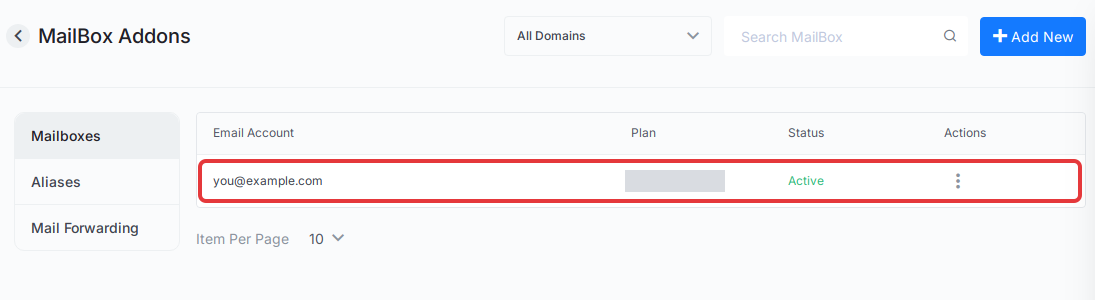
Result: the mailbox page opens with its settings menu on the left.
Step 3: Copy the IMAP settings
Click IMAP in the mailbox menu.
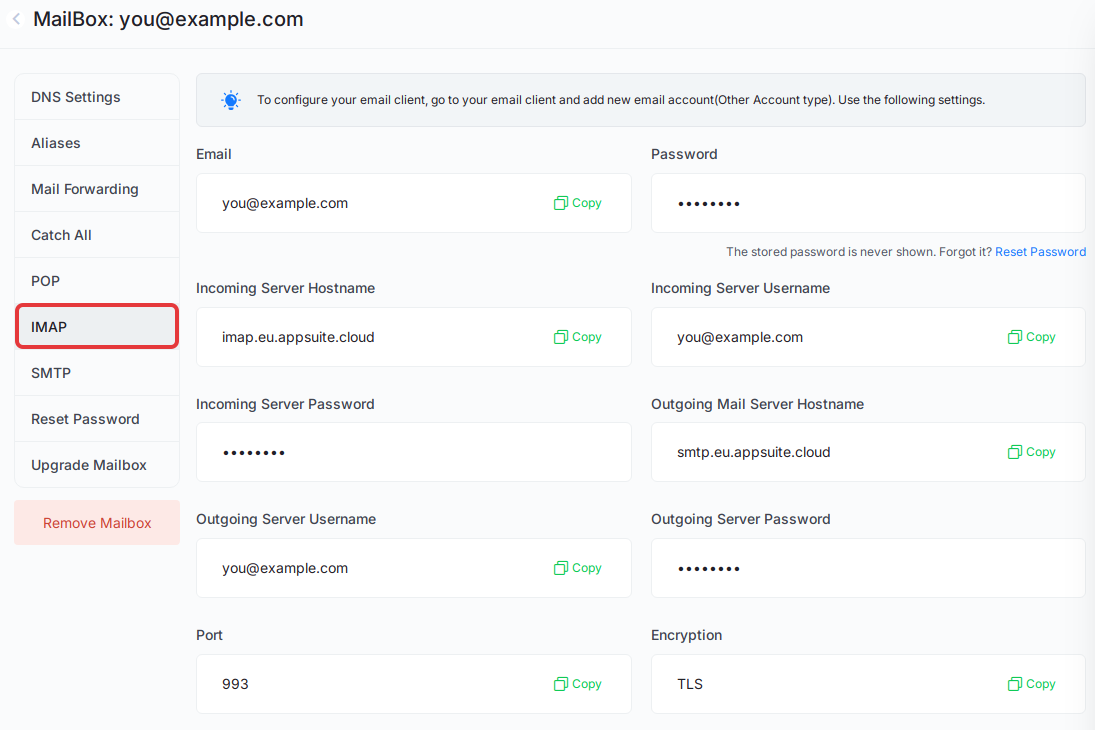
Copy the Incoming Server Hostname and Incoming Server Username (your full email address). The Port is 993 and the Encryption is TLS. Always copy the hostname from your own dashboard rather than from a screenshot.
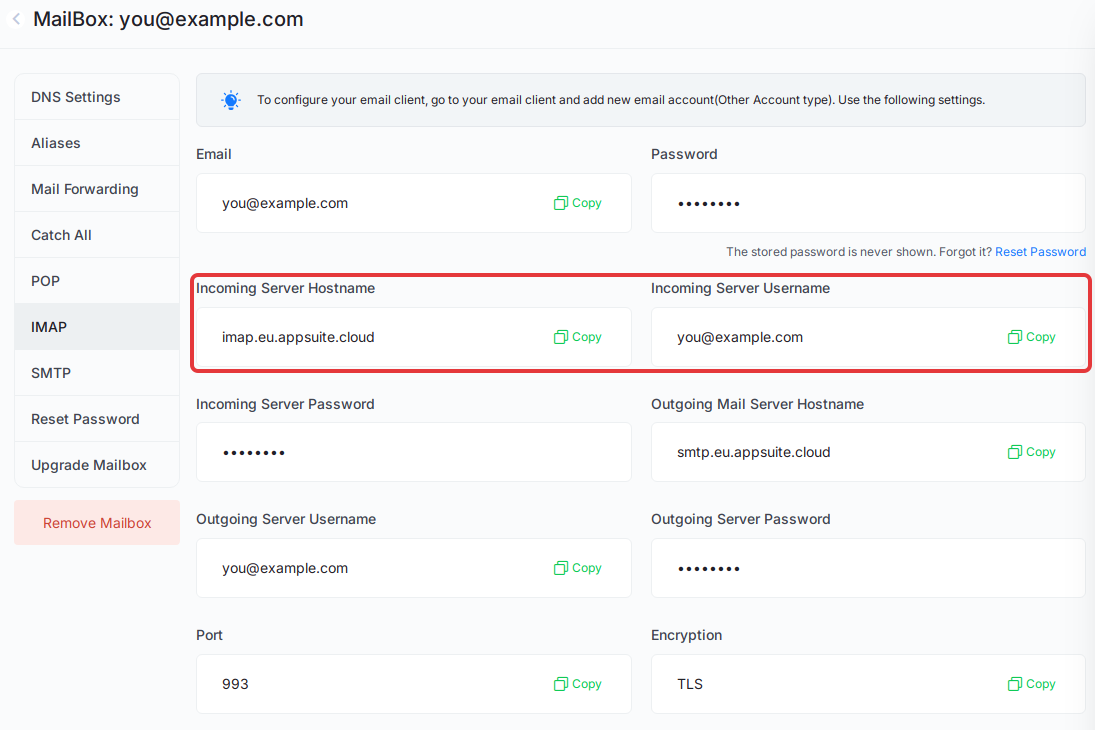
The password is never shown. If you don’t have it, click the Reset Password link under the masked password to set a new one (see change or reset the mailbox password). The link appears only if you’re allowed to reset the password; otherwise the field says “Contact your team admin to reset it.”
Step 4: Copy the email over IMAP
Use one of the two methods below. An email client suits a few mailboxes with a modest amount of mail; imapsync suits large mailboxes or many accounts, and can be run again to pick up what it missed.
Option A: With an email client
- Add the old account to the client with its IMAP settings.
- Add the xCloud mailbox as a second IMAP account, using the settings from Step 3 (see configure an email client).
- Wait until the client has downloaded the old account’s folders.
- Select the messages in each folder of the old account and copy them to the matching folder of the xCloud mailbox (in Thunderbird: right-click → Copy To).
Result: the copied messages appear in the xCloud mailbox folders, and in webmail after the client finishes uploading.
Option B: With imapsync
Run imapsync from any computer that can reach both servers. Replace the placeholders with your values; the passwords are read from files so they don’t end up in your shell history.
imapsync \
  --host1 OLD_IMAP_HOST --user1 you@example.com --passfile1 ./old-password.txt --ssl1 \
  --host2 XCLOUD_INCOMING_SERVER_HOSTNAME --user2 you@example.com --passfile2 ./new-password.txt --ssl2 \
  --dry
--dry shows what would be copied without copying anything. Remove it to run the real copy. When the source is Gmail, add --gmail1 so Gmail’s labels are mapped to folders without copying the same message twice. Delete the two password files when you’re done.
Result: imapsync ends with a summary of the messages transferred and any errors. Run the same command again to copy anything that failed; messages already copied are skipped.
Step 5: Check the result
On the mailbox page, click Access Webmail. The button appears once the mailbox is active.
Result: webmail opens in a new tab. Sign in with the mailbox password.
Compare the folder message counts with the old account. Send a test message to the address to confirm new mail lands in xCloud.
Keep the old account until you’re sure nothing is missing, then cancel it.
If the import fails
| Symptom | Likely cause | What to do |
|---|---|---|
| Login to the xCloud mailbox is rejected | The mailbox is on the free plan, or its DNS records aren’t verified yet | Upgrade to a paid plan, or finish DNS verification, then try again. |
| Login to the old account is rejected | IMAP is turned off there, or it needs an app password | Turn on IMAP access at the old provider and use the password it requires for other email clients. |
| The copy stops partway | The xCloud mailbox is full, or the connection dropped | Move to a larger plan with Upgrade Mailbox if the mailbox is full, then run the copy again. |
Paid and free mailboxes when your website changes
- Paid mailbox: a separate subscription linked to your team and domain, not to a site. Moving the website to another server, or deleting it, does not affect the mailbox.
- Free mailbox: depends on an active site for that domain on an xCloud-managed server (see claim your free mailbox). Upgrade it to a paid plan before you move or delete that site.
Frequently asked questions
Can the Migrate Mailbox tool import email from Gmail or cPanel?
No. Migrate Mailbox only moves mailboxes that are on the legacy xCloud mailbox provider to the current one. Email from Gmail, cPanel or any other host is copied over IMAP with the xCloud mailbox’s IMAP settings.
Can I import email into a free xCloud mailbox?
No. The free 100 MB mailbox is webmail only, so email clients and tools such as imapsync cannot log in to it over IMAP. Use a paid mailbox plan, or upgrade the free mailbox before you import.
What happens to my mailbox if I move or delete my website?
A paid mailbox is its own subscription, linked to your team and domain rather than to a site, so moving or deleting the website does not affect it. A free mailbox depends on an active site for that domain on an xCloud-managed server, so upgrade it to a paid plan before you move or delete that site.
Will I lose email that arrives while I import?
No, if you keep the old account active until the copy finishes. Once your MX records point to xCloud, new email arrives in the xCloud mailbox, and the copy brings over everything that was already stored in the old account.
If you run into any issues while importing your email, feel free to reach out to our support team.