

xCloud Support Center
Updated October 31, 2026 · 9 min read
The xCloud Support Center is where you get help with your servers, sites and account, 24/7. Open a ticket from your xCloud dashboard, chat with our team, book a call or ask the community. Every channel is open to every xCloud customer. This guide explains which channel to use, how to open and manage a ticket, and what to include so our team can help on the first reply.
Looking for the quick version? Start at xCloud Support.
Ways to get help
| Channel | Best for | Where |
|---|---|---|
| Support ticket | Technical problems, billing and refunds, free migration, bug reports, feature requests and suggestions | xCloud → Support → Create Ticket |
| Live chat | Quick questions, pre-sale questions, urgent help | The chat button on xcloud.host, or Support → Live Chat in xCloud |
| Book a Meeting | Planning a move or a larger setup (30-minute call) | xCloud → Support → Book a Meeting |
| xCloud Community | How-to questions, ideas, feature requests | Facebook group |
| When you cannot sign in to xCloud | support@xcloud.host |
Before you reach out, search the docs. Most common problems have a step-by-step guide. When you type a ticket subject, xCloud also suggests an answer and related docs.
Live chat
- Select the chat button at the bottom right of any xcloud.host page, or Start a chat on xCloud Support. Inside xCloud, open Support and select Live Chat in the sidebar.
- The chat window opens with a welcome message. Type your question in Compose your message… and send it.
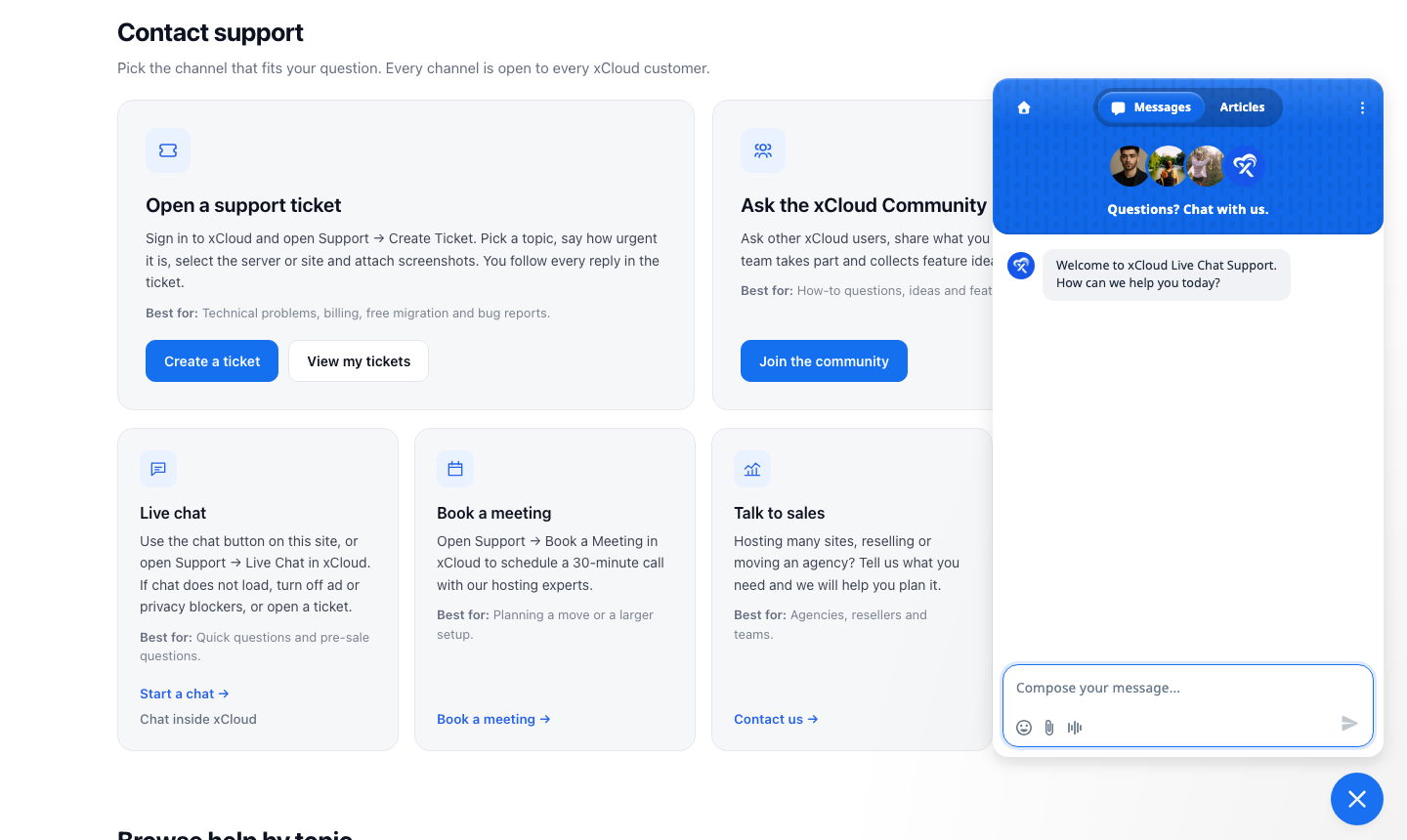
Live Chat appears in the xCloud sidebar once the chat has loaded. If it does not load, turn off ad or privacy blockers and try again, or open a ticket instead.
Book a Meeting
- In xCloud, open Support and select Book a Meeting.
- Pick a day in the calendar, then a free time slot. Check the Timezone first, so the time shows in your own time.
- Follow the steps to confirm the booking. The call is 30 minutes on Google Meet with our hosting experts.
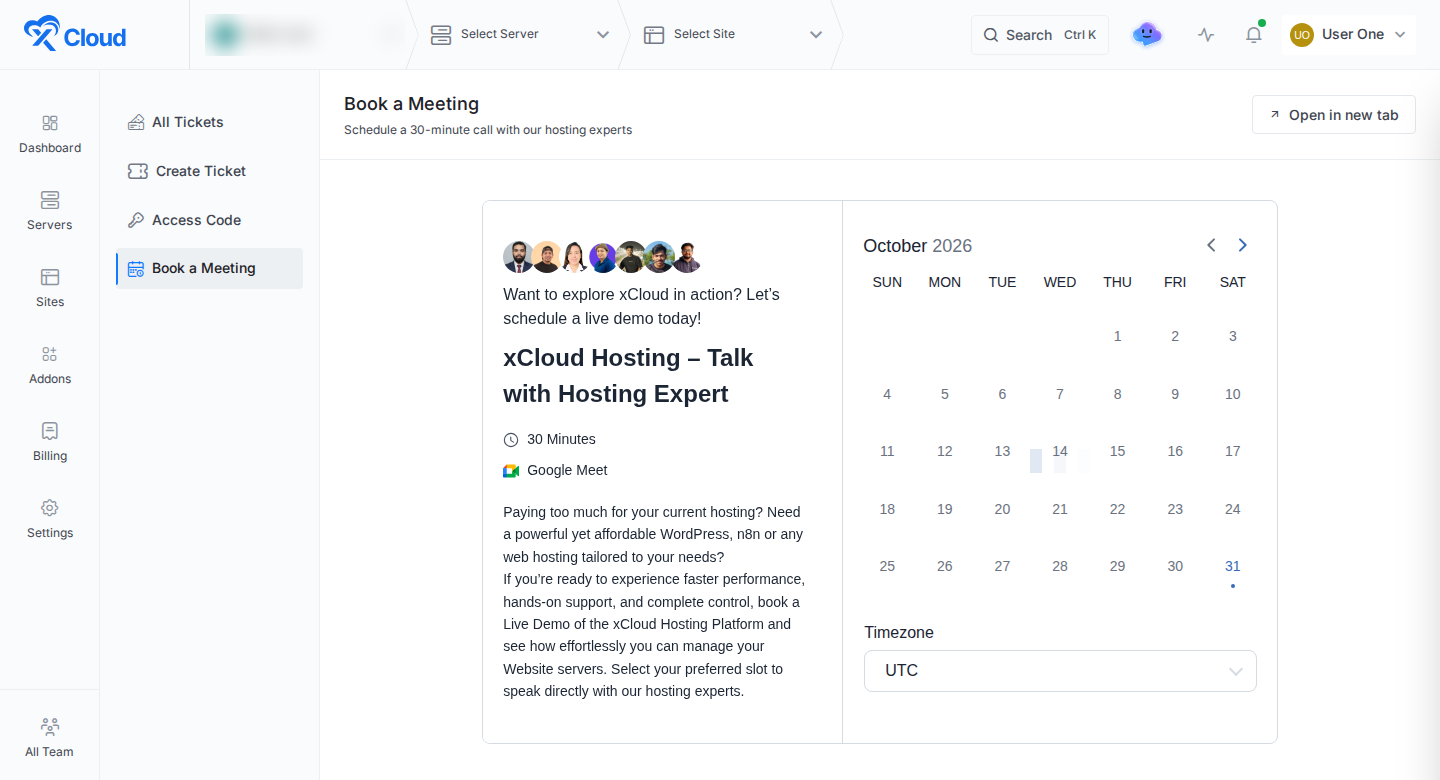
Prefer a bigger window? Select Open in new tab. A meeting is a good fit when you plan a migration, an agency setup or a new server layout.
xCloud Community
The xCloud Community on Facebook is where users help each other, share tutorials and suggest features. The xCloud team takes part and posts product news there. Use a ticket for anything about your own account, and never post passwords or keys in the group.
Open a support ticket
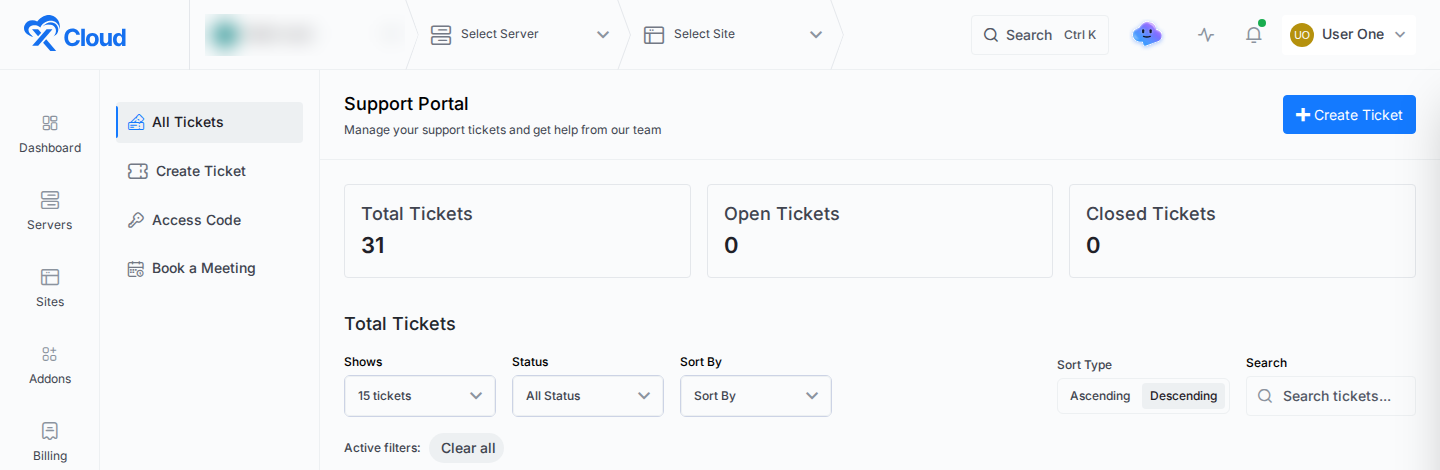
- Sign in to xCloud and select Support in the left menu. The Support Portal opens on All Tickets, with your total, open and closed tickets.
- Select Create Ticket, at the top right or in the Support sidebar.
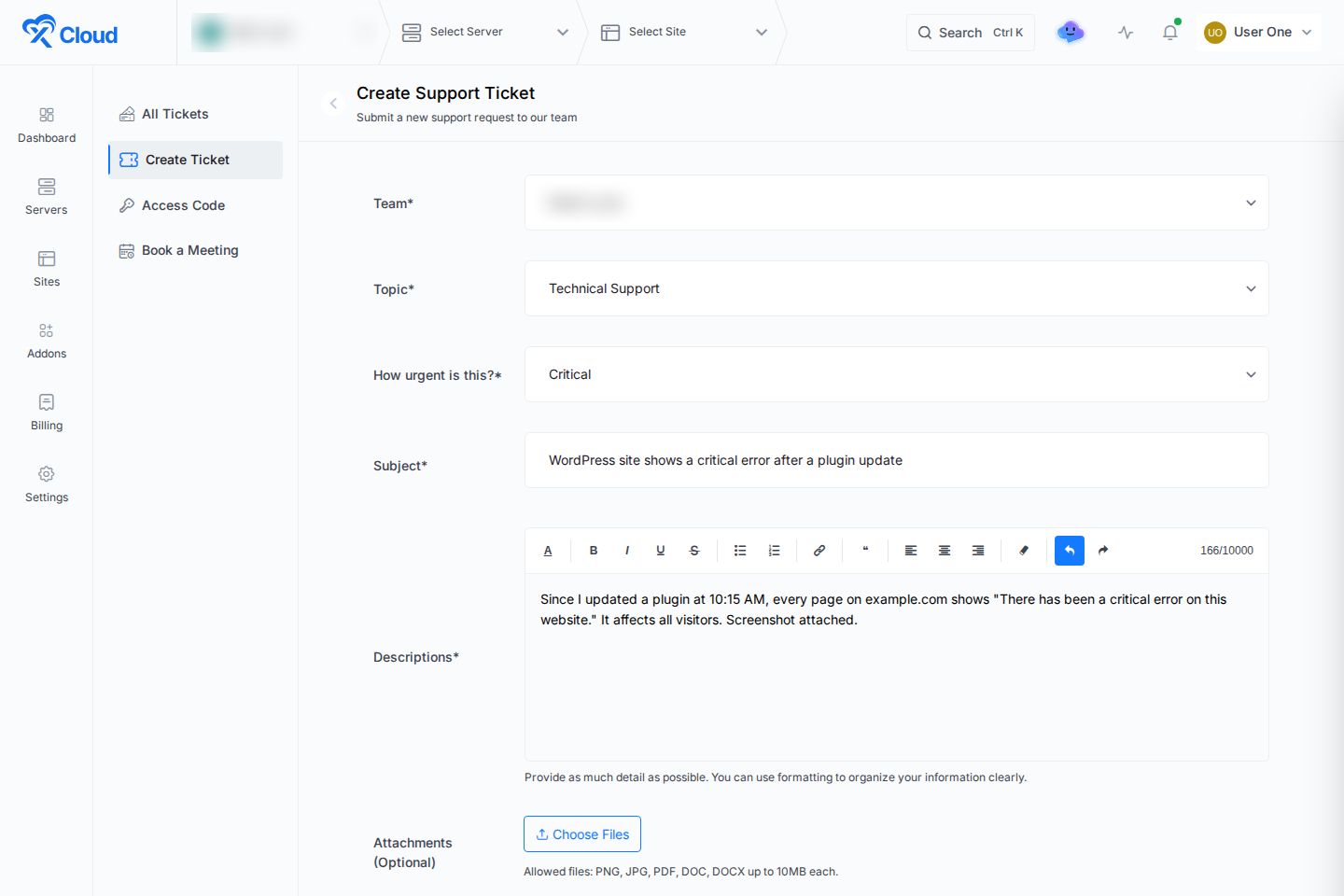
- Choose the Team the problem belongs to.
- Choose a Topic: General Help, Technical Support, Billing, Free Migration or Sales/Others.
- Answer How urgent is this? with Normal, Medium or Critical. See Choose how urgent it is.
- Write a short Subject. As you type, xCloud shows an AI Suggestion and Suggested Articles that may solve the problem right away.
- Explain the problem in Descriptions (up to 10,000 characters). See What to include.
- Under Attachments (Optional), select Choose Files to add up to 10 files: PNG, JPG, PDF, DOC or DOCX, up to 10 MB each.
- Under Additional Information (Optional), search for and select the Sites or Servers the problem is on.
- Decide whether our team may reach them. Once you select a site or server, Allow Magic Login for Support and Allow SSH Access for Support appear, both off. Turn one on only if needed, and set Support access validity in days (0 to 30). See Let support reach your servers.
- Select Create Ticket.
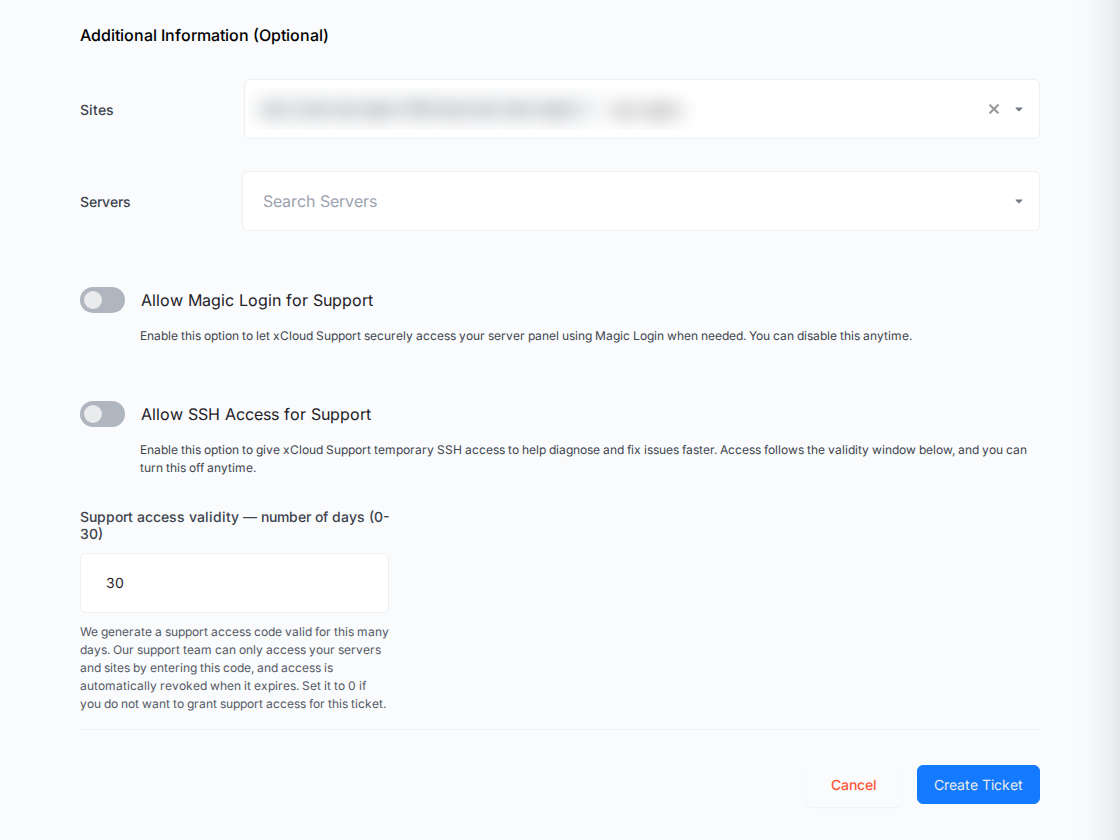
Expected result: The ticket appears in All Tickets. You follow every reply from our team on the ticket page.
If you choose Free Migration, the form also asks for the number of sites, your hosting type, whether you want to migrate more, and your xCloud server IP. See Request site migration support.
If the Support Portal shows a maintenance notice, creating tickets and sending replies is paused for a short time. Your existing tickets stay visible. Use live chat if it cannot wait.
What to include in your ticket
A complete first message saves a round of questions. Include:
- The server, site or app the problem is on (select it under Additional Information)
- The public URL or domain
- The exact error message, with a screenshot or screen recording
- What you expected to happen, and what happened instead
- When it started, and what changed just before: a plugin update, a DNS change, a restore, a deploy or a server change
- Whether it affects every visitor or only some
- For billing questions, the invoice number
Do not paste passwords, private keys, API keys or access tokens into a ticket, a chat or the community. When our team needs to get in, grant support access on the ticket instead.
If you use an AI assistant to write your ticket, read the draft before you send it. Remove any secrets or personal details it copied in.
Choose how urgent it is
The How urgent is this? answer tells our team how much the problem affects you. Pick the one that matches the impact:
| Choice | When to use it |
|---|---|
| Critical | A live site or server is down, or your customers cannot buy or sign in. |
| Medium | Something is broken or slow, but your sites still work. |
| Normal | A question, a how-to, billing, or a request that can wait. |
Our team sees your choice on every ticket. On its own it does not move a ticket ahead of others, so put the impact in the subject as well, for example “Store checkout down on example.com”. If a live site is down, also start a live chat and mention your ticket.
Manage your tickets
- Find a ticket: Support → All Tickets shows your total, open and closed tickets. Filter by status, sort, or search.
- Reply: Open a ticket with View and reply on the ticket page. Add screenshots or logs there when our team asks for them.
- Close or reopen: Use Close Ticket when the problem is solved, and Reopen Ticket if it comes back.
- Tickets our team opened: these show an Opened by Support label.
- Old tickets: Tickets from the old portal at support.xcloud.host are being moved into All Tickets, and old ticket links open the same ticket in xCloud.
See How to access the built-in Support Portal for screenshots of each step.
Let support reach your servers
Our team can only reach your servers and sites with your team’s Support Access Code, and only while it is valid.
- You set how many days access lasts, from 0 to 30, when you create a ticket. Enter 0 to grant no access.
- Allow Magic Login for Support and Allow SSH Access for Support are separate switches. Both are off by default.
- To change access later, select Edit on the ticket. To give more time, use Extend Access.
- To end access at once, open Support → Access Code and select Regenerate. The old code stops working right away.
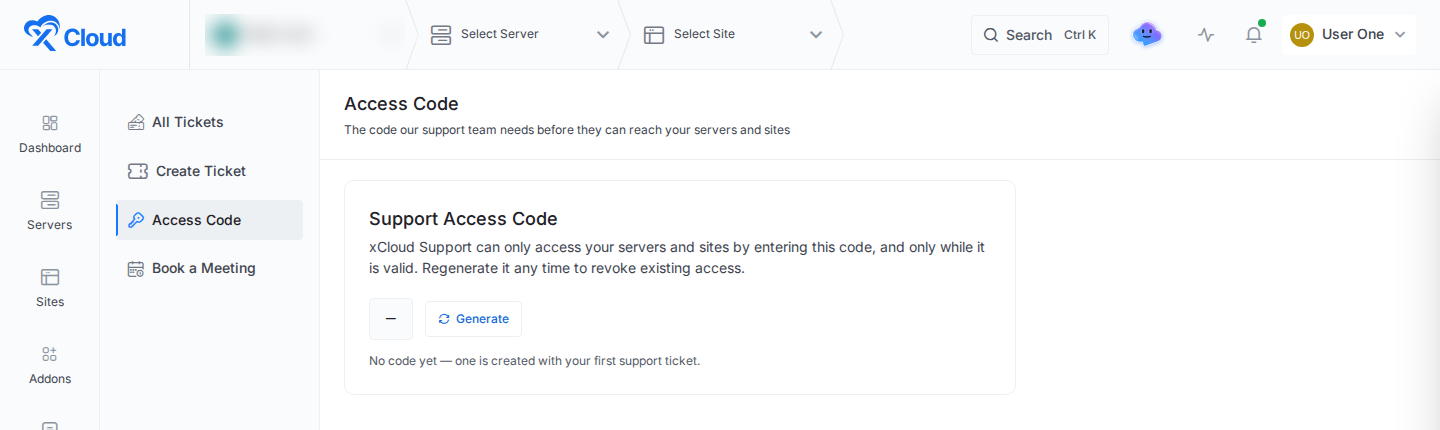
If you have never opened a ticket, the page says No code yet. xCloud creates the code with your first ticket, or when you select Generate.
Only a team admin can edit access or regenerate the code. Our support staff cannot grant access to themselves. See How to grant and revoke xCloud Support access.
Let your team manage tickets
Team members can work on tickets if their role allows it. In your team settings, edit the role and set the Support permissions: view, create, reply, close, reopen and manage. Only a team admin with the manage permission can edit or extend support access on a ticket. See Team roles and permissions.
Support hours
Our support team is available 24/7, every day of the week, weekends included. Chat with us or open a ticket at any time, day or night.
What support covers
Our team helps with everything xCloud runs and manages:
- The xCloud dashboard, servers, sites and one-click apps
- Server setup, SSL, domains, backups and restores made in xCloud
- Logs, events and errors you see in xCloud
- Free standard WordPress migration for eligible sites
- Billing, invoices and refunds
Some work needs your developer or another provider:
- Bugs in your own code, plugins or themes
- Custom server changes made outside xCloud
- Your DNS provider, registrar or cloud provider account
- Website redesigns, SEO work and malware forensics
Even then, our team can often point you to the cause and the right next step. The full breakdown, by service, is in How xCloud support scope works.
Billing, security and reseller customers
- Billing and refunds: open a ticket with the Billing topic and include your invoice number. See the refund policy.
- Security reports: to report a vulnerability in xCloud, follow the security and vulnerability disclosure program.
- Agency or reseller customers: if you use xCloud through a provider’s own branded dashboard, contact that provider first. They manage your account and support.
Frequently asked questions
Is support included in every xCloud plan?
Yes. Tickets, live chat, meetings and the community are open to every xCloud customer. If you use xCloud through an agency or reseller’s own branded dashboard, contact that provider first.
Does choosing Critical get my ticket answered faster?
Your choice tells our team how much the problem affects you, and they see it on every ticket. It does not move a ticket ahead of others on its own, so describe the impact in the subject too. If a live site is down, also use live chat.
Can I open a ticket without signing in?
No. Tickets live inside your xCloud account, so our team can see the servers and sites they are about. If you cannot sign in, email support@xcloud.host.
Where are my tickets from the old support portal?
Tickets from support.xcloud.host are being moved into All Tickets in xCloud, and old ticket links open the same ticket there. If you cannot find one, open a new ticket and mention the old one.