

How to Purge Cloudflare Enterprise Cache by URL or Cache-Tag
Updated October 19, 2026 · 5 min read
Use this guide to clear cached content from the Cloudflare Enterprise edge for a site or an external domain in xCloud. You can purge everything, purge specific URLs, or purge by Cache-Tag. A targeted purge clears only what changed, so the rest of the cache stays warm and the site stays fast.
If your WordPress site has the automatic cache purge plugin installed, xCloud already clears the cache when you edit content. Use a manual purge for changes the plugin does not see, such as theme files, CSS, or images replaced on the server. To trigger purges from your own deploy pipeline, see How to Configure Cloudflare Enterprise Auto Purge Webhooks.
Prerequisites
- Cloudflare Enterprise is active for the domain. See How to Activate the Cloudflare Enterprise Addon.
- At least one domain on the page shows Active. The Purge button stays disabled until then.
- You can manage the site, or the add-on for an external domain.
Choose a purge type
| Purge type | What it clears | Use it when |
|---|---|---|
| Purge everything | Every cached object for this subscription | A site-wide change, such as a new theme or a changed header and footer |
| Purge specific URLs | Only the listed pages and files | A few pages or assets changed |
| Purge by Cache-Tag | Everything your origin tagged with the listed Cache-Tag values |
Your application sends Cache-Tag response headers, for example per product |
After Purge everything, the site can be slower for a short time while Cloudflare rebuilds the cache.
Purge the cache
1. Open the Caching settings
Open the site in xCloud and select Cloudflare Enterprise in the site menu. For an external domain, go to Addons → Cloudflare Enterprise Addons, open the domain’s actions menu, and select Manage.
Open the Settings tab and scroll to Caching. Select Purge on the Purge Cache card.
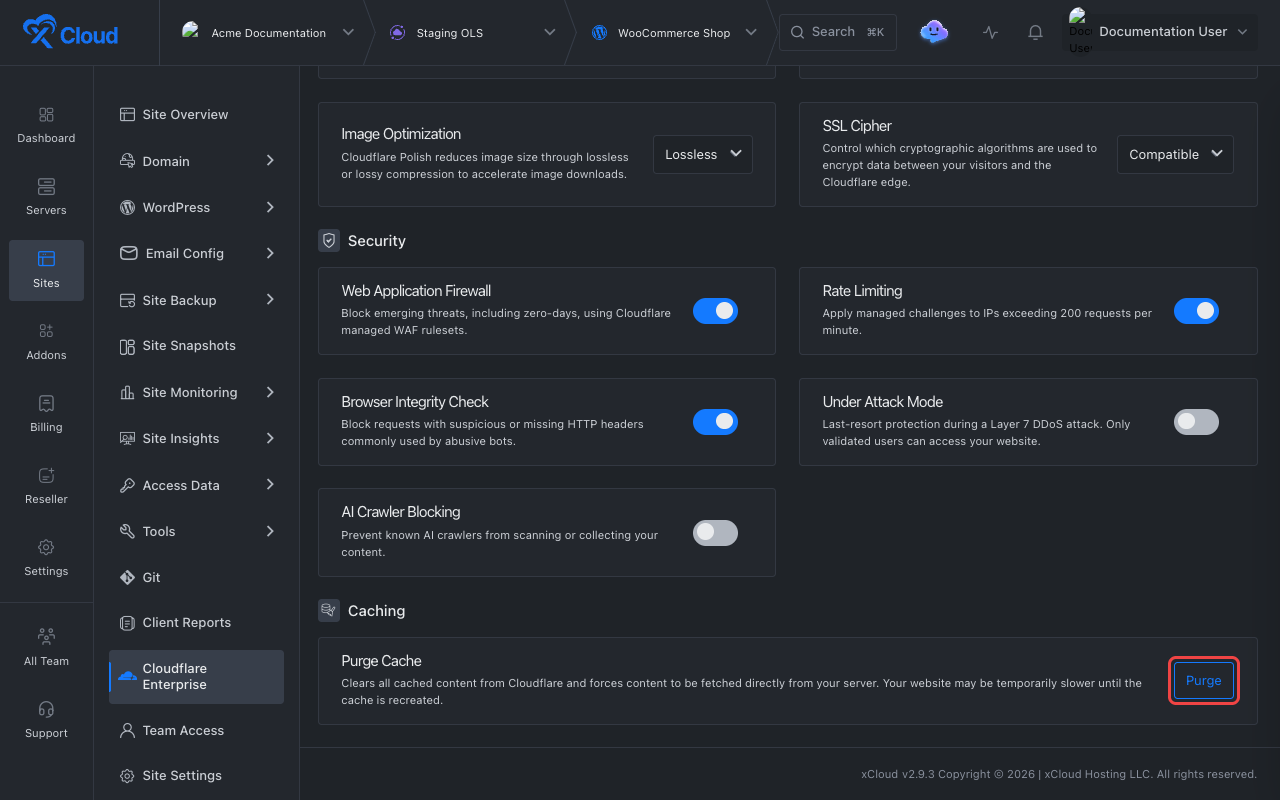
Expected result: The Purge Cloudflare Cache dialog opens with Purge everything selected.
2. Select the purge type
Choose Purge everything, Purge specific URLs, or Purge by Cache-Tag.
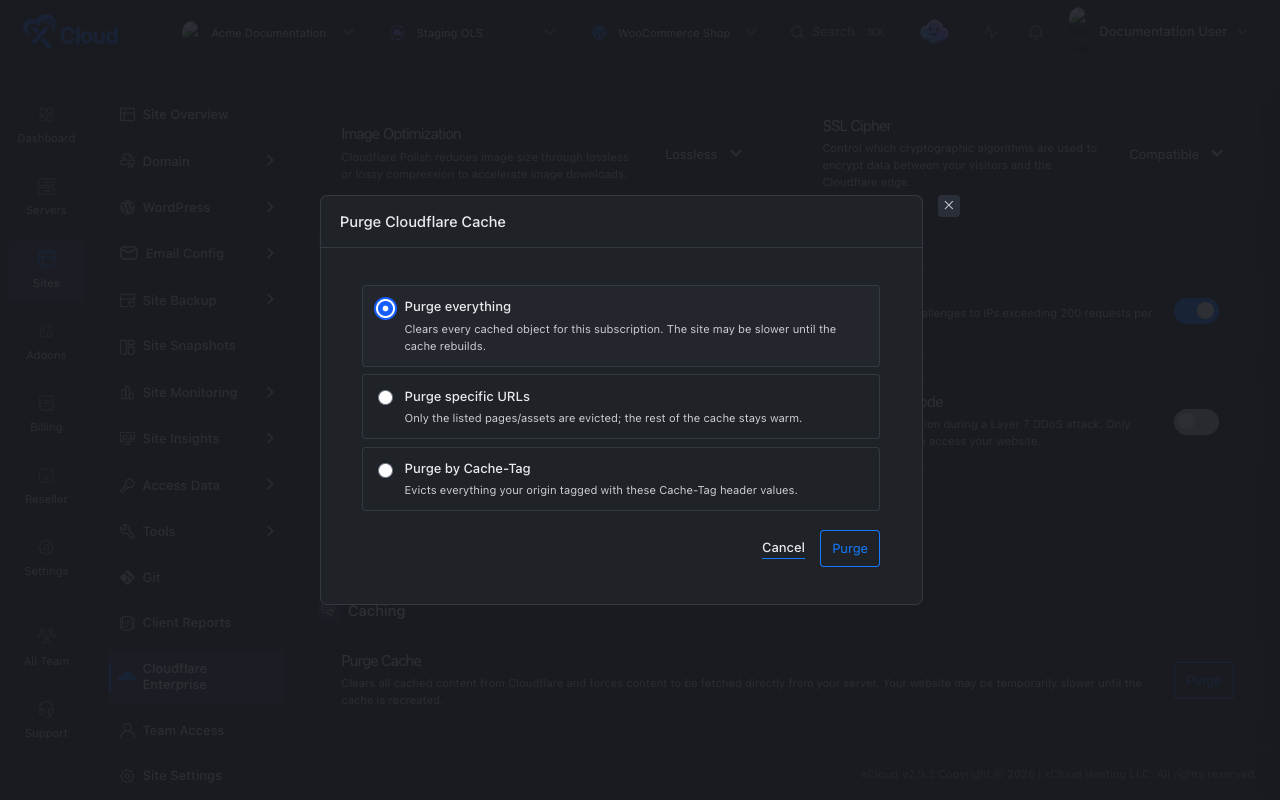
To purge everything, select Purge now. For a targeted purge, continue with step 3.
3. Enter the URLs or tags
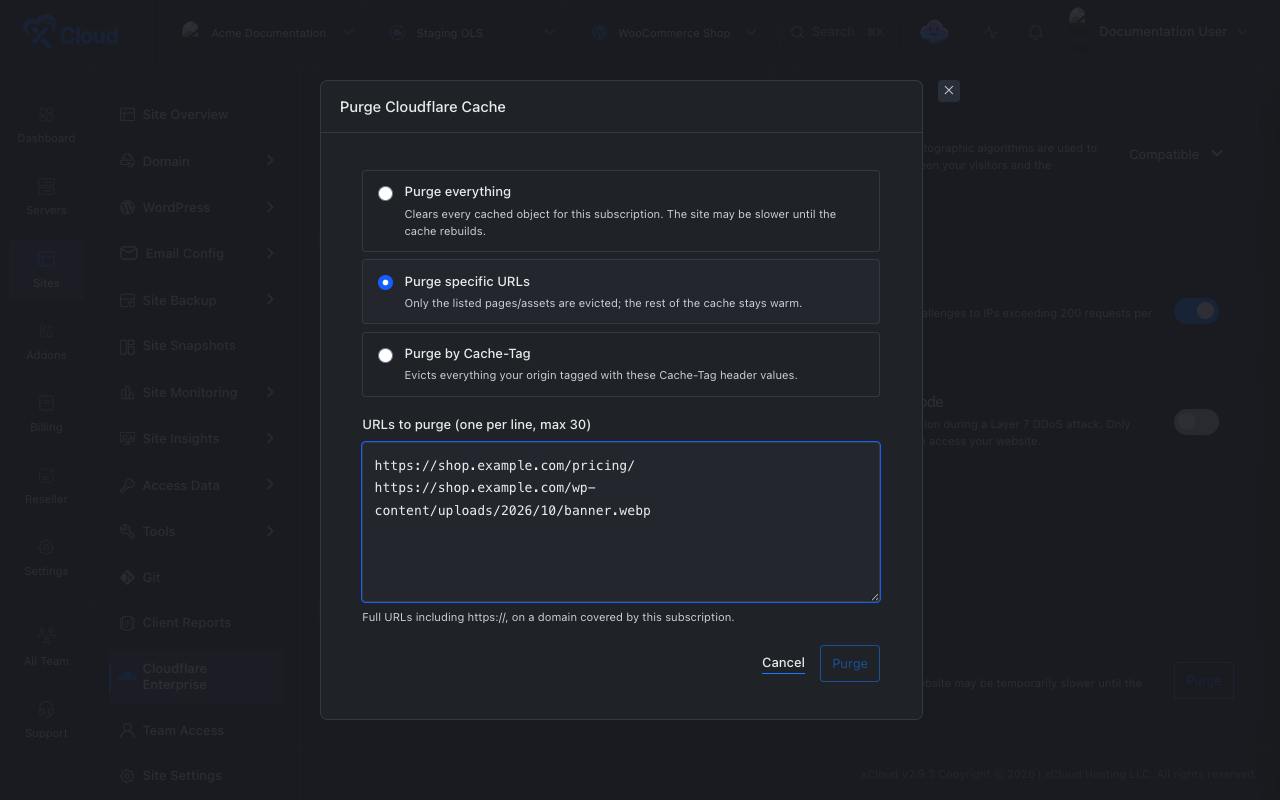
For specific URLs, enter one full URL per line in URLs to purge (one per line, max 30). Each URL must start with https:// or http:// and belong to a domain covered by this subscription, including www and subdomains of the apex.
For Cache-Tags, enter one tag per line in Cache-Tags to purge (one per line, max 30). Tags cannot contain spaces or commas.
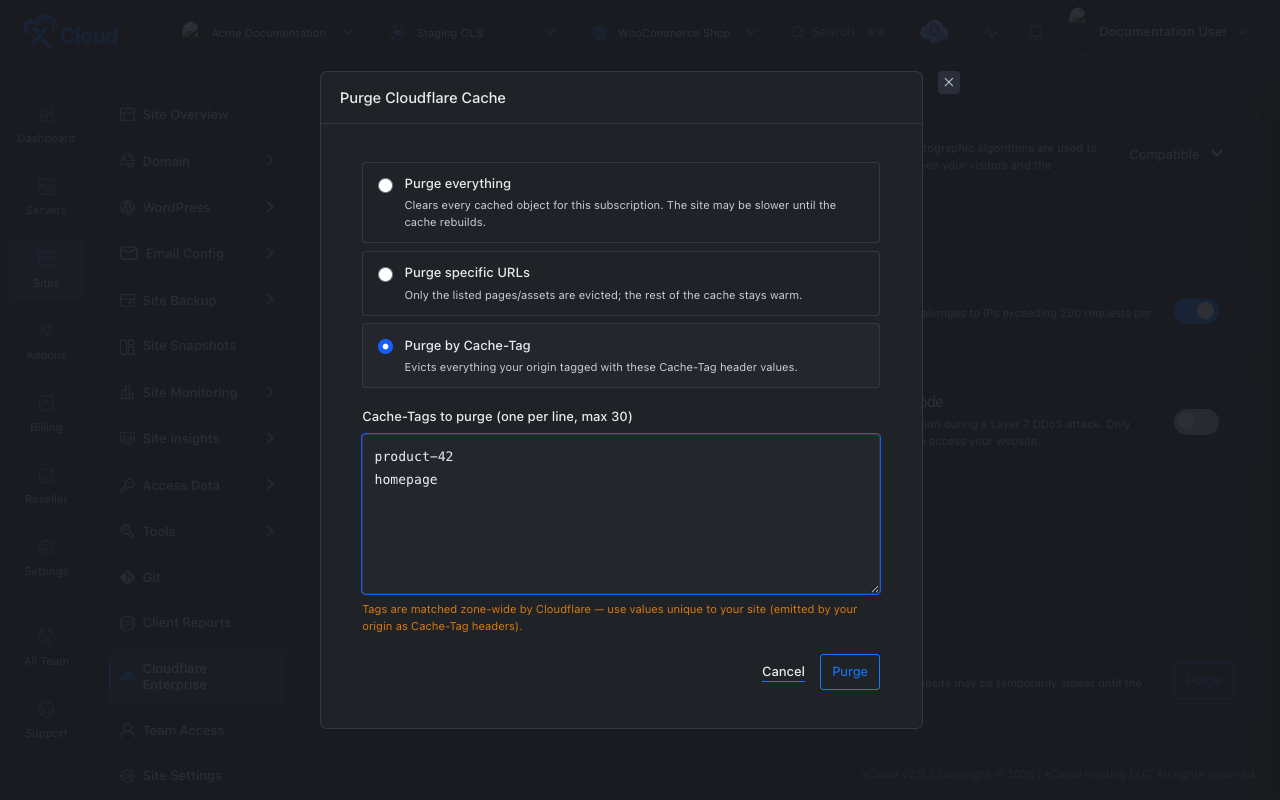
Cloudflare matches tags across the whole zone. Use tag values that are unique to your site, so a purge does not clear another site’s content.
4. Purge and confirm
Select Purge.
Expected result: xCloud confirms the purge. On a site page, the message reads “Cloudflare cache purge started. It may take a moment to propagate.” On an external domain page, it reads “Cache purged for” followed by the domain.
Verify the purge
Request a purged URL twice and check the cf-cache-status header:
curl -sI https://example.com/pricing/ | grep -i cf-cache-statusThe first request after a purge returns MISS or EXPIRED, because Cloudflare fetches the page from your server again. The next request returns HIT when the page is cacheable.
Limits
- Up to 30 URLs or 30 tags per purge request.
- A URL can be up to 2,048 characters and a tag up to 200 characters.
- The manual purge does not offer prefix purges. The auto purge webhook supports them.
- A Cache-Tag purge only works for responses your origin sent with a matching
Cache-Tagheader.
Troubleshooting
| Symptom | Likely cause | Fix |
|---|---|---|
| The Purge button is disabled | No domain on the page is Active yet. | Finish DNS verification, then try again. |
| “At most 30 entries per purge request.” | More than 30 lines were entered. | Split the list across several purges. |
| “Every URL must start with http:// or https://.” | A line is a path or a bare hostname. | Enter full URLs, such as https://example.com/pricing/. |
| “URL is not served by this Cloudflare Enterprise subscription” | The URL’s host is not covered by this domain. | Purge it from the subscription that covers that host. |
| “Tags cannot contain spaces or commas.” | A tag line holds several values. | Put each tag on its own line. |
| A page is still stale after purging | The page is cached in the browser, or a different URL variant is cached. | Test with curl, and purge each variant, such as with and without a trailing slash. |
FAQ
When should I purge specific URLs instead of everything?
Purge specific URLs when only a few pages or files changed. The rest of the cache stays warm, so the site stays fast while the changed URLs refresh.
How many URLs or tags can I purge at once?
Up to 30 entries per purge request. Split a longer list into several purges.
Why is the Purge button disabled?
Purging becomes available once at least one Cloudflare Enterprise domain on the page is Active.
Do Cache-Tags only affect my site?
Cloudflare matches tags across the whole zone, so use tag values that are unique to your site.