

How to Back Up and Restore a PostgreSQL Database in xCloud
Updated October 30, 2026 · 6 min read
xCloud site backups do not include PostgreSQL databases yet, so you need to export them yourself. This guide shows two ways to back up and restore a managed PostgreSQL database in xCloud: with pgAdmin in your browser, or with pg_dump over SSH. Both produce a dump file you can keep off the server and restore later.
The site’s Backups page reminds you of this: “This site’s PostgreSQL database isn’t included in xCloud backups yet. Export it from pgAdmin before you rely on a backup.”
Before you start
- Managed PostgreSQL is Ready on the server. See How to Install Managed PostgreSQL and pgAdmin in xCloud.
- For the pgAdmin method: pgAdmin is enabled on the server (Step 3 of that guide).
- For the SSH method: a sudo user with SSH access to the server. See Sudo Users and Site Users in xCloud and How to Generate and Add SSH Keys in xCloud.
- The database name. Open your site and go to Environment (under Laravel or Node.js in the site menu). The database name is the value of
DB_DATABASE(the database user isDB_USERNAME). A PHP App site has no Environment page; open its.envfile in File Manager instead.
Back up with pgAdmin
Step 1: Open pgAdmin
Open your server and go to ‘Management’ → ‘Database’. On the pgAdmin card, click Open pgAdmin. pgAdmin opens over HTTPS in a new tab.
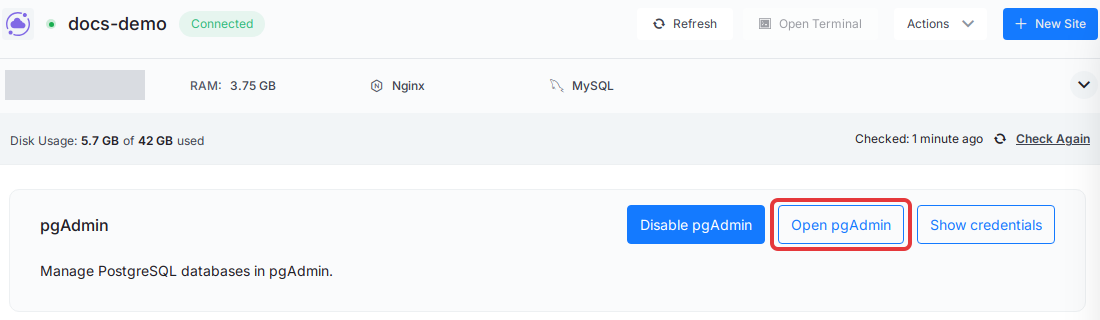
Sign in with the pgAdmin Email and Password. Click Show credentials on the same card to see them.
Step 2: Find your database
In pgAdmin’s Object Explorer, expand Servers → PostgreSQL → Databases. xCloud adds the PostgreSQL server to pgAdmin for you, so you don’t need to register it. Your site databases are listed under Databases.
Step 3: Start the backup
Right-click the database and choose Backup…. In the dialog, enter a Filename (for example mysite.dump), keep Format set to Custom, and click Backup. pgAdmin shows a notice when the backup finishes.
Step 4: Download the dump file
pgAdmin saves the file in its own storage on the server. To copy it to your computer, open Tools → Storage Manager, select the file and download it. Keep a copy off the server: if the server is lost, a dump stored only on it is lost too.
Restore with pgAdmin
- In Tools → Storage Manager, upload the dump file if it isn’t there yet.
- In Object Explorer, right-click the database you want to restore into and choose Restore….
- Keep Format as Custom or tar, pick the file in Filename, and click Restore.
To restore into an empty database, create it first in pgAdmin (right-click Databases → Create → Database…). Restoring into a database that already has tables can fail on objects that already exist. In that case, on the Query Options tab of the Restore dialog, turn on Clean before restore, which drops each object before it is restored, or use the SSH method below.
Back up with pg_dump over SSH
PostgreSQL runs in a Docker container on your server, so you run pg_dump inside that container. PostgreSQL can only be reached from the server itself, not from the internet.
Step 1: Find the PostgreSQL container
SSH into the server as your sudo user, then run:
sudo docker ps --filter name=postgresql- --format '{{.Names}}'Expected result: one name that starts with postgresql-. The rest of the name differs on every server, so copy yours. The commands below store it in a variable:
PG_CONTAINER=$(sudo docker ps --filter name=postgresql- --format '{{.Names}}')Step 2: Dump the database
Replace YOUR_DATABASE with the database name and run:
sudo docker exec "$PG_CONTAINER" pg_dump -U postgres -Fc YOUR_DATABASE > YOUR_DATABASE.dump
ls -lh YOUR_DATABASE.dump
Expected result: a .dump file in your current folder. -Fc writes PostgreSQL’s custom format, which pg_restore and pgAdmin’s Restore… both read. For a plain SQL file you can read, leave out -Fc and name the file .sql.
Step 3: Copy the file off the server
From your own computer, download the file, for example with scp:
scp YOUR_SUDO_USER@SERVER_IP:YOUR_DATABASE.dump .Restore with pg_restore over SSH
From your own computer, upload the dump file to the server:
scp YOUR_DATABASE.dump YOUR_SUDO_USER@SERVER_IP:Then SSH into the server, set PG_CONTAINER as in Step 1, and run:
sudo docker exec -i "$PG_CONTAINER" pg_restore -U postgres -d YOUR_DATABASE --clean --if-exists < YOUR_DATABASE.dumpExpected result: the command finishes without errors and your tables hold the data from the dump. --clean --if-exists drops each object in the dump before it creates it again, so the data in those tables now is replaced. The tables keep their original owner, so the site’s role can still use them.
For a plain .sql dump, use psql instead:
sudo docker exec -i "$PG_CONTAINER" psql -U postgres -d YOUR_DATABASE < YOUR_DATABASE.sqlExpected result: psql prints a line for each statement it runs (such as CREATE TABLE and COPY) with no ERROR lines, and your tables hold the data from the dump.
A plain dump made without --clean fails on tables that already exist. Restore it into an empty database, or make the dump with pg_dump --clean --if-exists so it drops each object before it creates it again.
Limits to know
| Area | What happens |
|---|---|
| xCloud site backups | PostgreSQL databases are not included yet |
| Scheduled PostgreSQL backups | Not built in. Repeat the steps above on your own schedule |
| Clone, migrate, staging, snapshots | Not supported for PostgreSQL sites yet, so a dump is how you move the data |
| Deleting a site | The site’s database and role are kept. Take a dump before you remove them in pgAdmin |
For your files and MySQL databases, keep using xCloud site backups.
Frequently asked questions
Do xCloud site backups include my PostgreSQL database?
Not yet. xCloud site backups do not include PostgreSQL databases. Export the database yourself with pgAdmin or pg_dump and keep the file somewhere other than the server.
Can I back up PostgreSQL without enabling pgAdmin?
Yes. Connect to the server over SSH and run pg_dump inside the PostgreSQL container, as shown in this guide. You need a sudo user, because the command uses Docker.
Does restoring a dump overwrite the data that is there now?
Yes. With its clean option, pg_restore drops each object in the dump and creates it again from the file. Take a fresh dump first if you might need the current data.
If you run into any issues backing up or restoring PostgreSQL, feel free to reach out to our support team.