

How to Install Multi-Domain One Click Apps in xCloud
Updated October 27, 2026 · 5 min read
Some apps are more than one website. An identity server has a sign-in service for your users and a separate console for your team. A store has an API and an admin dashboard. xCloud One Click Apps support these multi-domain apps: each web interface gets its own domain, and xCloud installs and manages them together as one site.
For how One Click Apps work in general, see how to use One Click App templates in xCloud.
Multi-domain apps in the One Click Apps catalog include Logto, Saleor, FeatBit and Tuwunel + Element, among others. This guide uses Logto as the example. The steps are the same for every multi-domain app; only the list of interfaces changes.
Before you start
- An xCloud server that runs Docker sites, with enough RAM, CPU and disk for the app you pick. Each app’s page lists its minimum RAM, CPU and disk.
- Access to your DNS provider, and one domain or subdomain for each web interface of the app. Logto has two: a sign-in service and an Admin Console.
No domains yet? Start with a Demo Site and move to your own domains later. See how to create a demo site and how to go live from a demo site.
How to install a multi-domain app
Step 1: Start a new site
Open Servers, open the menu for the server you want to install on and click Add New Site. The Add Your New Site Into page opens for that server.
Step 2: Choose the app
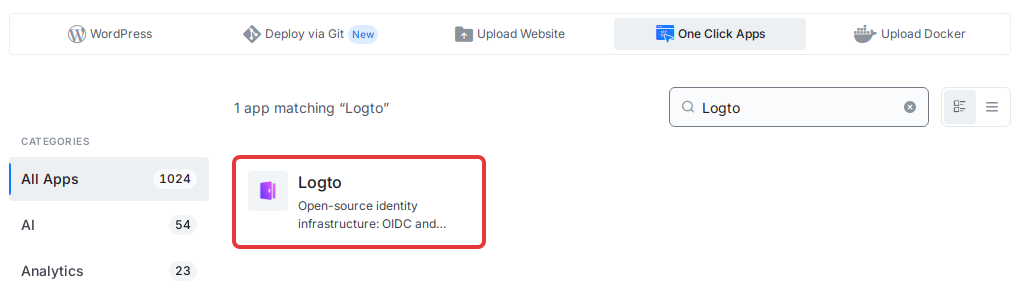
Click the One Click Apps tab, type the app’s name (for example, Logto) in the search box and click its card. The install page for that app opens.
Step 3: Name the site and try demo URLs
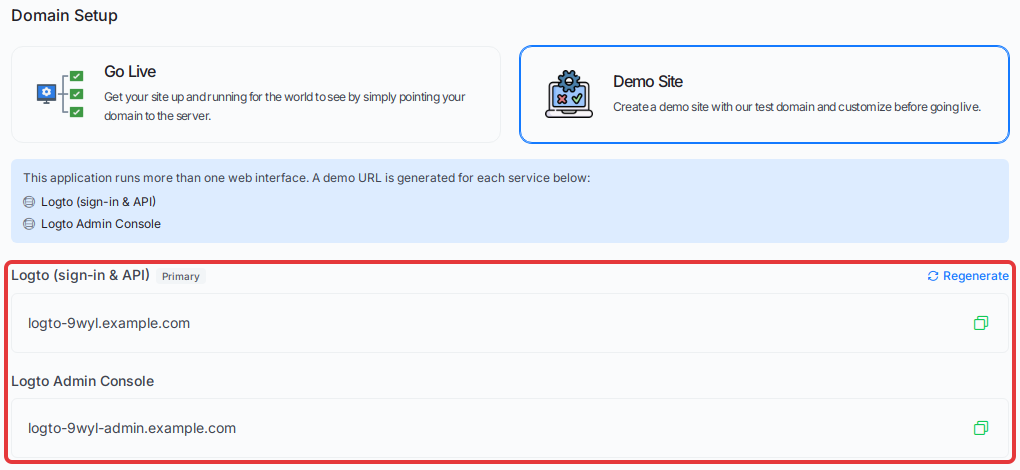
Enter a Site Title. Under Domain Setup, click Demo Site to install before you connect your own domains. xCloud explains that the app runs more than one web interface and gives each one its own demo URL. The interface marked Primary is the app’s main one. Click Regenerate for a different set of demo URLs.
Step 4: Enter one domain for each interface
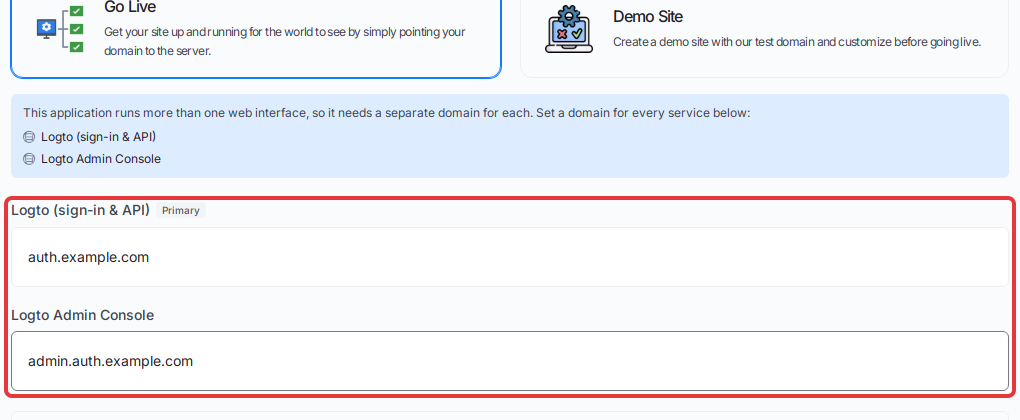
To use your own domains, click Go Live and enter a domain for every interface listed. For Logto:
| Interface | Example domain |
|---|---|
| Logto (sign-in & API), Primary | auth.example.com |
| Logto Admin Console | admin.auth.example.com |
Each interface needs its own hostname; the same hostname can’t be used twice.
Step 5: Point each domain at your server
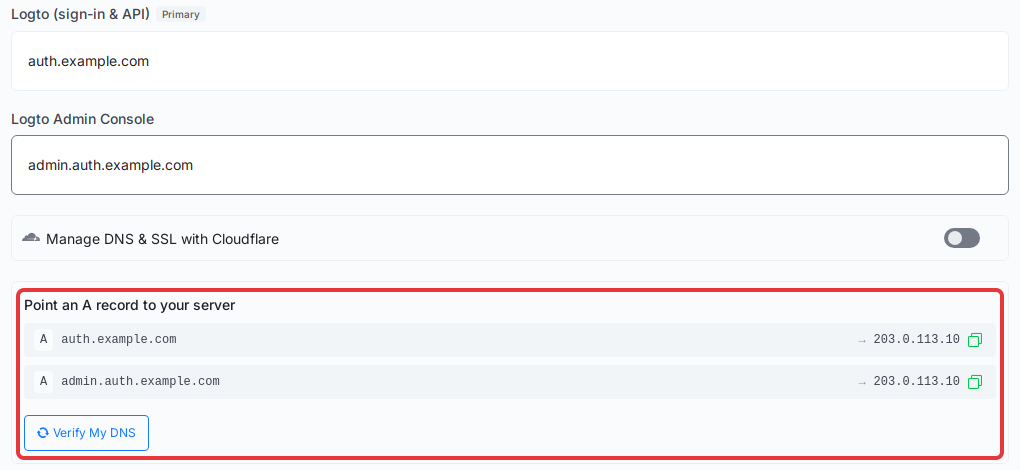
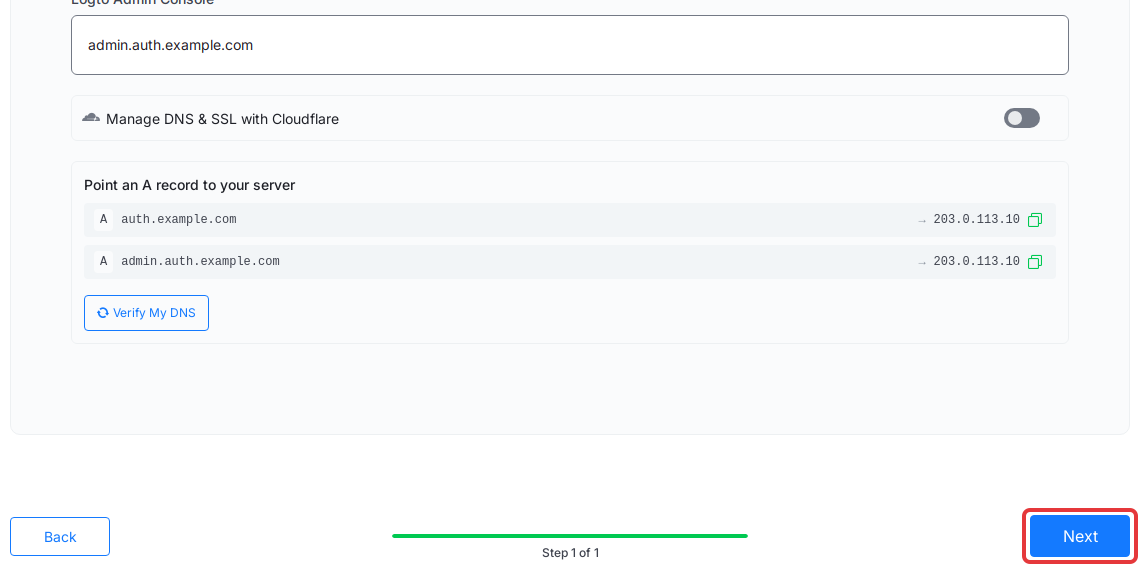
The Point an A record to your server panel lists one A record for every domain you entered, with your server’s IP address. Create each record at your DNS provider, then click Verify My DNS. If verification fails right after you save the records, wait a few minutes for DNS to propagate and try again. If you have connected Cloudflare under Settings → Integrations → Cloudflare, a Manage DNS & SSL with Cloudflare switch also appears here, and you can turn it on instead. To connect it, see using xCloud with Cloudflare for DNS management. For help with records, see how to set up a DNS record for an xCloud server.
Step 6: Install
Review the site title and every domain, then click Next. xCloud installs the app, sets up each interface on its own domain, and gives every part of the app the addresses of the others. You can follow the progress from the site’s dashboard.
After the install
Open the site’s Credentials card. It shows the entries the app’s template defines, followed by the app’s install notes.
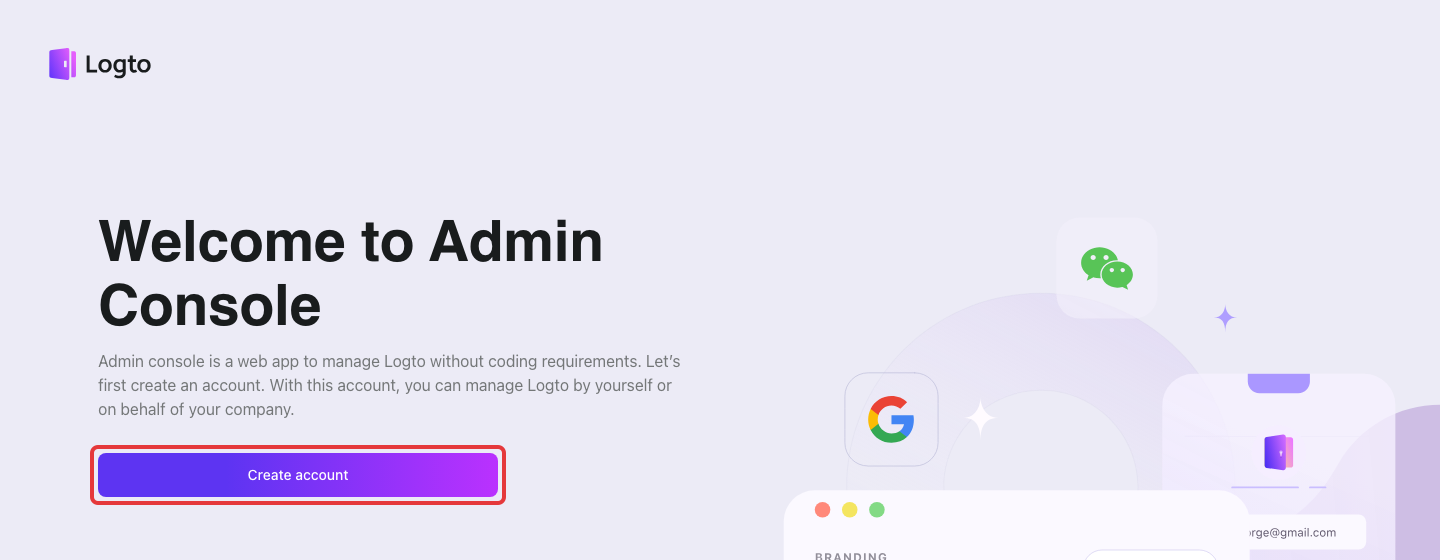
For Logto, open the Logto Admin Console domain and click Create account. The first account registered there becomes the administrator, and registration closes after it, so do this right away. If the page doesn’t load yet, wait for the first boot to finish and try again.
Once you’re signed in, add applications, sign-in methods and connectors from the Admin Console. Your own apps sign in through the main domain, auth.example.com.
Changing a domain later
Change any interface’s domain on the site’s Domain page. xCloud rewrites the domain settings in the app’s environment file and reloads the app for you.
Some apps tie their main domain to things outside xCloud. Logto’s sign-in domain, for example, is part of the login setup your connected apps use. Changing it means updating those apps too, so pick your main domain before you connect anything to it.
Frequently asked questions
Verify My DNS fails for one domain. What should I check?
Every domain needs its own A record. Check the hostname exactly as you typed it in xCloud, then wait for DNS to propagate and click Verify My DNS again.
Can two interfaces share one domain?
No. Each interface needs its own domain or subdomain.
Which URL is which?
Each domain belongs to the interface you entered it for during Go Live. The site’s Domain page shows each interface’s domain.
That’s how you install a multi-domain One Click App in xCloud. If you run into any issues, feel free to reach out to our support team.